Summary :
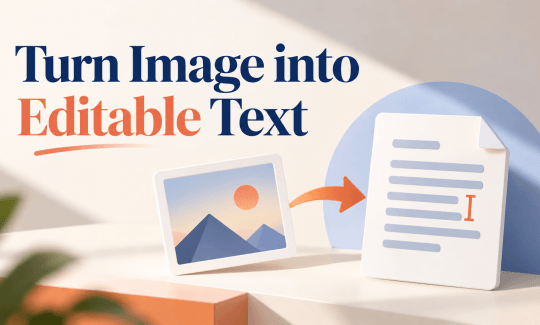
Images, like screenshots, scanned documents, or an image with important notes, often contain valuable information that you may want to edit, copy, search, or reuse. In this way, you’ll need professional OCR software to help you turn an image into editable text in just a few steps. In this guide on JOPDF, you’ll learn about several image-to-text software options and how to convert image-based PDFs online and offline.
Can You Turn an Image into Editable Text?
YES. You can convert an image into editable and searchable text with OCR technology.
Turning an image into editable text means extracting the written content from an image and converting it into machine-readable text. This process is commonly known as Optical Character Recognition (OCR).
After the image-to-text conversion with OCR, you can usually:
- Copy and paste the extracted text into other applications.
- Edit words, sentences, and paragraphs.
- Search for specific information.
- Save the content as a TXT, Word, or other editable file.
- Reuse the extracted text in reports, presentations, emails, and other documents.
In the next part, we’ll provide three useful methods to turn an image into editable text, including online and offline photo-to-text conversion.
How to Turn an Image into Editable Text?
There are several ways to extract text from an image. If you prioritize privacy protection, choose an offline image-to-text converter; if you just want a one-time conversion, an online tool is quicker and more convenient.
Method 1: Use an Image-to-PDF Converter Offline
If you are looking for a 100% free PDF editor with advanced OCR, try JOPDF first, because We’ve tried this tool for its OCR function, and it turns out it truly doesn’t need any hidden fees or registration. The whole process is easy to go through, even for a beginner.
We tested the JOPDF OCR results using an easy image and an image with complex formats. We entered the interface and saw several PDF-related functions listed concisely. The OCR option is just right here. We just followed the instructions to choose the image file and set some OCR processing options. Then, in a few seconds, you can find and check the editable text file in the designated location.
Here are the OCR results: The first image is high resolution and has less complexity. The text file converted from the image looks great – no errors or missing content. The second image has complex content, so we found the OCR results contain two mistakes, but it’s acceptable because even we can’t read the original image clearly.
How to turn an image into editable text with an offline converter?
Step 1: Download and install JOPDF and launch it.
Download Free OCR Software – JOPDF
Step 2: Click the OCR PDF option and choose the image file that needs to be processed by OCR.
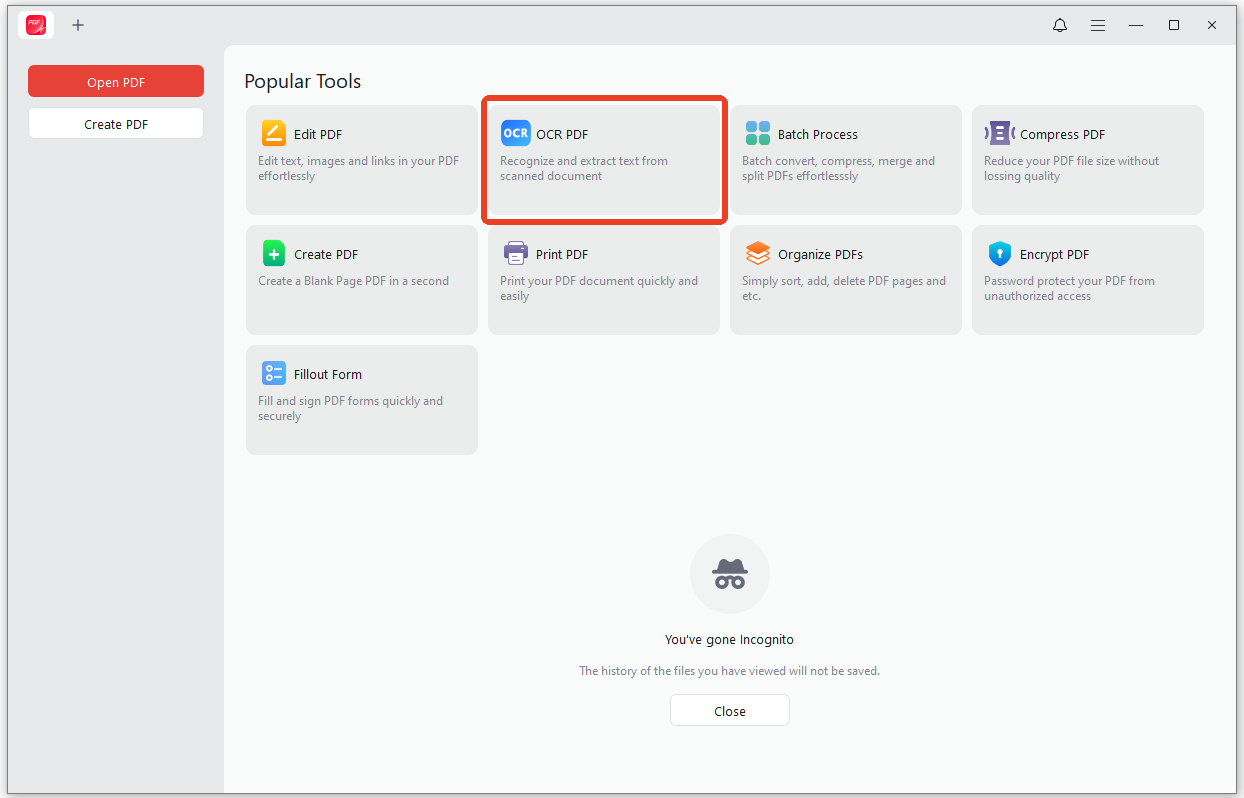
Step 3: Choose the options in the OCR PDF window, including its OCR mode, processing method, document language, and page range.
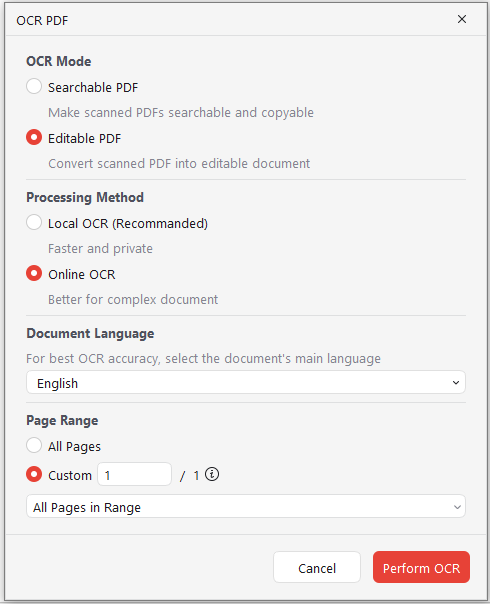
- Searchable PDF: The page still looks like a scan, but the text can be searched, selected, and copied, ideal for archiving or submitting documents that must retain their original look.
- Editable PDF: Rebuilds the scanned content into actual editable text, allowing users to modify wording, update dates, or extract content for reuse.
- Local OCR: This mode runs entirely on the user’s machine. This makes it suitable for contracts, bank statements, medical records, and other sensitive materials. It supports 29 languages and handles routine single-language documents quickly and privately.
- Online OCR: This mode uses a cloud engine for more complex scenarios, supporting 26 languages with the ability to select multiple languages simultaneously.
Step 4: When you have configured the OCR settings, click Perform OCR.
Tips from JOPDF OCR:
- After processing, users can continue editing or converting formats in the same workspace.
- Recognition accuracy depends heavily on input quality, and JOPDF recommends scans of at least 300 DPI, with pages properly oriented and the correct language selected.
- Choosing the wrong language is one of the most common causes of garbled results.
- After processing, users can verify the text layer by pressing Ctrl+F and searching for a word visible on the page.
- For users handling multiple scanned documents, JOPDF also supports batch OCR, allowing multiple files to be imported at once with unified language and mode settings applied.
Method 2: Use Google Drive and Google Docs OCR
If it’s just a one-time job for you, using Google Drive OCR is the best for you. Google Drive provides a convenient OCR feature through Google Docs. You can upload an image or a PDF and open it with Google Docs to extract its text.
This method is useful for screenshots, scanned pages, and documents that contain primarily printed text.
Step 1: Open Google Drive and sign in to your Google account.
Step 2: Choose New > File upload and upload the image or PDF file you want to convert.
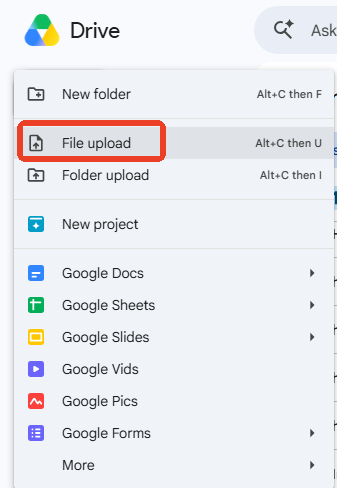
Step 3: After the upload finishes, locate the file in Google Drive.
Step 4: Right-click the file and select Open with > Google Docs.
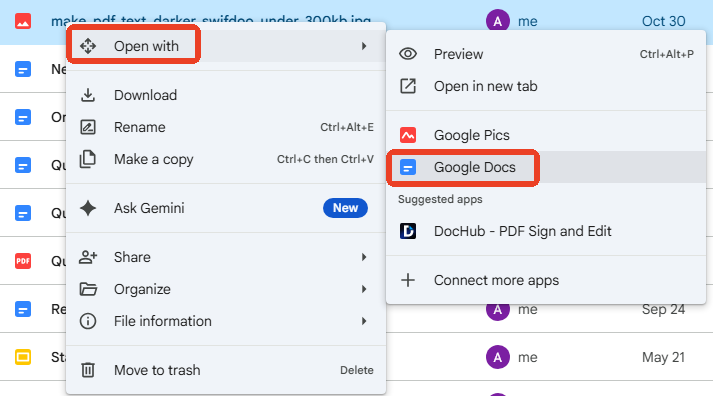
Wait for Google Docs to process the file and review the extracted text in the new Google Docs document. For example, you’ll get an editable text document with the original image attached, like the below:
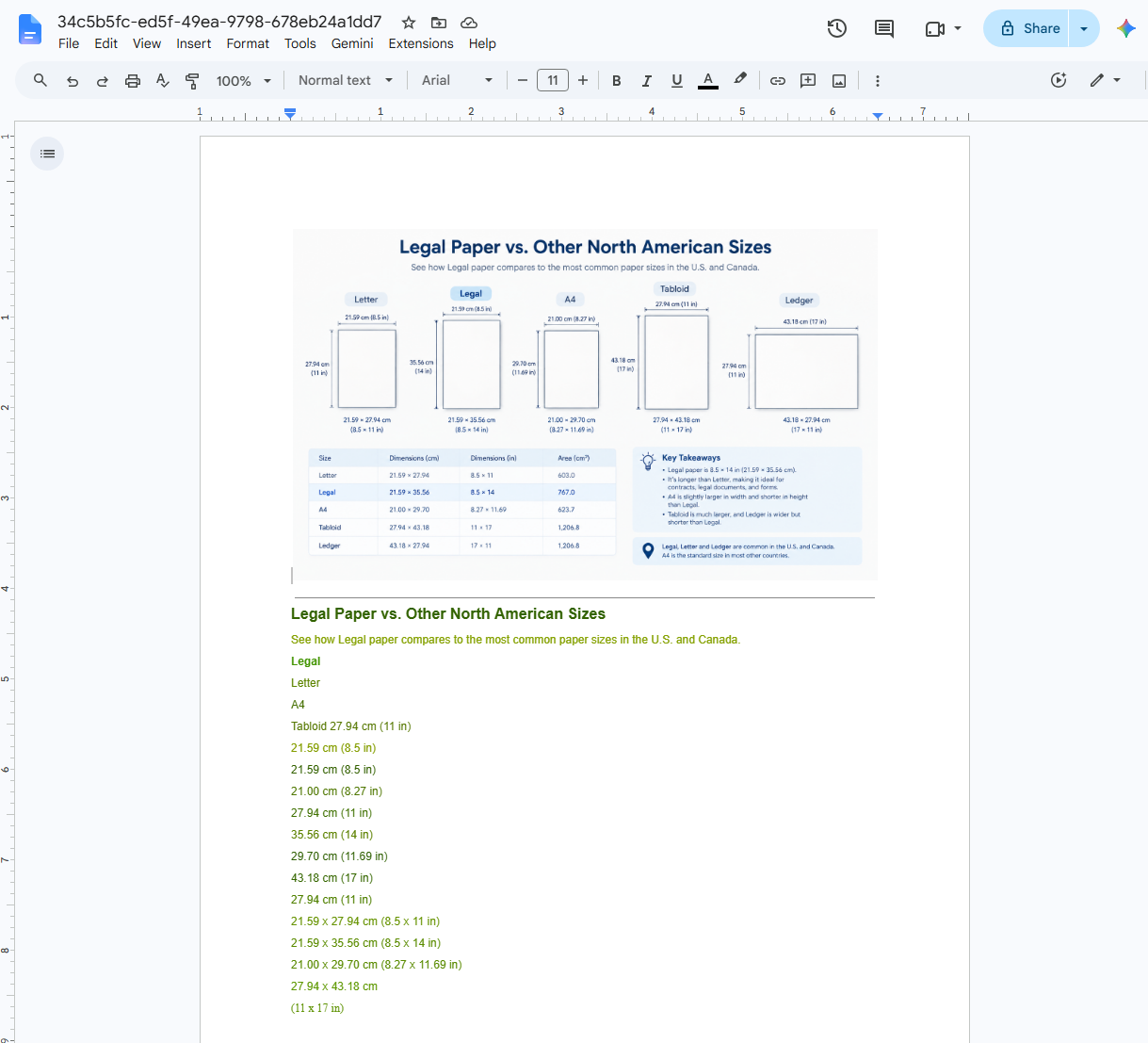
After that, you can edit the content as needed or download it in an editable format.
Method 3: Use Microsoft OneNote OCR Converter Online
Microsoft OneNote includes a useful text-recognition feature that can extract text from inserted pictures. It is a practical option for users who already use OneNote to organize notes, screenshots, and reference materials.
How to extract text from an image using OneNote:
Step 1: Open Microsoft OneNote and create a new page.
Step 2: Choose Insert > Pictures to add the image you want to turn into editable text.
Step 3: Right-click the inserted picture and choose Copy Text from Picture if the option is available.
Step 4: Paste the recognized text into a OneNote page, Word document, or another text editor.
How to Improve Image-to-Text Accuracy
OCR tools can recognize many types of printed text, but the quality of the original image has a significant impact on the results. If the extracted text result contains missing characters, incorrect words, or unusual spacing, try the following improvements.
#1. Use a clear, high-resolution image.
Blurry or pixelated images make it difficult for OCR software to distinguish similar characters. Whenever possible, use the original image rather than a compressed screenshot or a low-resolution copy.
#2. Keep the text properly aligned
If a document was photographed at an angle, its lines may appear distorted. Crop and straighten the image before processing it.
#3. Improve lighting and contrast
Dark shadows, reflections, and uneven lighting can interfere with text recognition. Make sure the text is clearly distinguishable from the background.
#4. Choose the correct recognition language
OCR engines use language-specific patterns to identify characters and words. Selecting the correct language can improve text recognition, especially for multilingual documents.
#5. Avoid unnecessary background elements
Decorative graphics, patterned backgrounds, watermarks, and overlapping objects can make text detection more difficult. Crop the image to focus on the relevant content when possible.
#6. Check the extracted text manually
Even advanced OCR tools can confuse characters such as O and 0, I and l, or S and 5. Always review important information, including names, dates, figures, addresses, and technical terms.
Why We Recommend JOPDF as Your Image-to-Text Converter
The greatest feature of JOPDF is that it provides both online and offline OCR processing.
So, when should you use an image-to-PDF converter offline?
- If you have a bunch of images, which may take some time to upload if you choose an online OCR, switch to a desktop image-to-text converter that supports batch OCR. The online upload relies on a good Internet connection. It’s easy to get cut off when there’s a large amount.
- If you need regular OCR processing and don’t want to share files with a third-party server, a desktop PDF editor with OCR is safer and more stable.
- If the image files come with complicated formats and languages, an offline image-to-formatted-text converter is more possible to do this job well.
Many OCR software programs are developed to extract text from a scanned PDF, but few of them can really deliver good OCR results. Some of them may show their reputation but refuse users with high fees or registration.
Here, JOPDF comes with its advanced OCR. This all-in-one PDF converter can recognize text across PDF pages and make scanned documents searchable. Depending on the available editing features, you may also be able to edit the recognized text.
What a dedicated PDF editor with OCR can do for you:
- Extract text from a screenshot – quick and convenient.
- Convert an image into editable content – Text extraction with high accuracy.
- Copy text from an image while taking notes – Convenient for note-taking workflow.
- Process a scanned PDF – Provides PDF OCR and editing tools.
- Convert scanned PDFs for further editing – Combines OCR with PDF-related workflows.
- Extract text from multiple images – Saves time when processing many files.
Conclusion
How to turn an image into editable text? It’s much easier if you have a PDF editor with OCR. If you prioritize data privacy, an offline image-to-text converter – JOPDF – is the best choice. Better than most online image-to-text converters, it’s totally free and offers two OCR modes to handle any needs.
FAQs
Table of Contents
Your Best Free PDF Expert in PDF editing, compressing, converting, annotating, protect, organizing, and more.
Free DownloadWindows · macOS · Linux

Anna
Editor
“Anna, Editor-in-Chief and PDF expert, delivers deep insights into PDF document technology trends. She is dedicated to helping readers optimize their digital lives. When not writing, Anna loves exploring local cafes and reading, blending her technical expertise with a love for storytelling.”