Summary :
Google Drive OCR is worth trying when you need to make your PDFs searchable and editable. It’s free and works without installing anything. However, it’s not as perfect as imagined. Some users encountered unexpected OCR issues or hit the upload limits. This guide on JOPDF covers a full OCR review, including its pros and cons, a real OCR test result, and introduces a 100% free OCR option with no registration required.
What Is Google Drive OCR?
Google Drive OCR (Optical Character Recognition) is a built-in text recognition capability that allows users to extract text from images and scanned PDF files. Instead of treating a scanned document as a flat image, Google Drive can recognize the text within it and convert it into editable, searchable digital content.
For example, if you upload a scanned PDF containing several pages of printed text, Google Drive can use OCR to recognize the text and open the extracted content in Google Docs. This makes it easier to copy, edit, search, and reuse information without manually typing everything.
So, how does Google Drive OCR work? Google Drive uses OCR technology to analyze uploaded images and PDF files, identify recognizable characters, and convert them into digital text. The original uploaded file remains in Google Drive, while the OCR results are created as a separate Google Docs document.
From this process, you can see that the most important part is the automatic text recognition. If the recognition is wrong, multi-page documents get truncated, and tables and columns turn into a mess.
Google Drive OCR Reviews: Pros & Cons
We have compiled a series of common questions that users may care about.
Is Google Drive OCR Open Source?
No. Google Drive OCR runs on Google’s proprietary servers, and the recognition engine is not publicly available for inspection or modification. There are community projects that wrap the Google Drive API to perform OCR, but those are clients calling a closed service, not an open-source OCR engine.
Can Google Drive OCR Handle Handwriting?
This is where Google Drive OCR is weakest. It is optimized for printed text. Handwritten content, especially cursive, produces unreliable results. Industry testing places Google’s built-in OCR word accuracy on everyday handwriting at roughly 40% to 60%, and lower still on faded or historical manuscripts, sometimes below 30%.
It may recognize isolated handwritten words, but it often misplaces them and loses formatting entirely. If you need dependable handwriting transcription, a dedicated handwriting OCR tool is required; Drive’s built-in OCR is not built for that job.
Advantages of Google Drive OCR
Google Drive OCR offers several practical benefits, particularly for users who need a simple way to extract text from scanned documents.
- Free and Convenient: Google Drive’s built-in OCR is available without installing dedicated OCR software. Users can upload files and extract text directly through their Google accounts.
- Easy to Use: The process requires only a few steps. You don’t need technical knowledge or experience with OCR tools to get started.
- Editable Text Output: Unlike a standard scanned PDF, which usually contains images rather than selectable text, the OCR results can be opened and edited in Google Docs.
- Integration with Google Workspace: Because the extracted content is available in Google Docs, users can easily continue editing, sharing, and collaborating on their documents within the Google Workspace environment.
- Multiple Language Recognition: Google Drive can recognize text in various languages, making it useful for users working with multilingual documents.
Limitations of Google Drive OCR
Although Google Drive OCR is convenient for basic text extraction, it has several limitations that users should consider.
- File size restrictions: The 2 MB limit can be inconvenient when processing large, scanned PDFs or high-resolution images.
- Formatting inconsistencies: Complex layouts, tables, columns, headers, and footers may not be accurately preserved during text extraction.
- Recognition errors: Blurry images, low-resolution scans, unusual fonts, and handwritten text can reduce OCR accuracy.
- Limited PDF editing capabilities: Google Drive extracts text into Google Docs rather than directly editing the original PDF. Users may need additional software to modify the original document.
- Manual review required: OCR results are not always perfect, so users should proofread the extracted text before using it in important documents.
Tips: When JOPDF solves the problems Google Drive OCR creates
If you’ve hit Google Drive’s 2MB limit, you don’t need to split the file and reassemble it manually. JOPDF is a free desktop PDF tool that includes OCR, and it handles the cases Google Drive can’t.
Its Local OCR mode processes files on your machine, with no upload and no 2MB ceiling. It supports batch OCR processing, so a folder of scans can be processed in one run. The output can be a Searchable PDF that keeps the original scan’s appearance, or an Editable PDF if you need to modify the text. For documents that are too large, too sensitive, or too numerous for Google’s free tool, JOPDF is the practical alternative.
What to Prepare Before Google Drive OCR?
Google’s own guidance specifies the conditions that produce usable results. Ignoring them is the most common reason OCR fails.
Google Drive OCR: Supported File Types and Requirements
| Requirement | Details |
| Supported image formats | JPEG, PNG, or GIF |
| Supported document format | |
| Maximum file size | 2 MB for images and PDF files |
| Recommended image resolution | At least 10 pixels high per character |
| Recommended orientation | Documents should be correctly oriented |
| Language support | Multiple languages are supported |
| Output format | Google Docs document |
Google recommends that images and PDF files be clear, properly oriented, and contain readable text. Better source quality generally produces more accurate OCR results.
Important: Google Drive’s built-in OCR has a 2 MB file-size limit for the source image or PDF. This makes it less suitable for processing large, scanned documents or lengthy PDF files in one operation. Luckily, JOPDF OCR can fill this gap.
How to Use OCR in Google Drive and Google Docs?
Google Drive provides a relatively simple way to extract text from supported files.
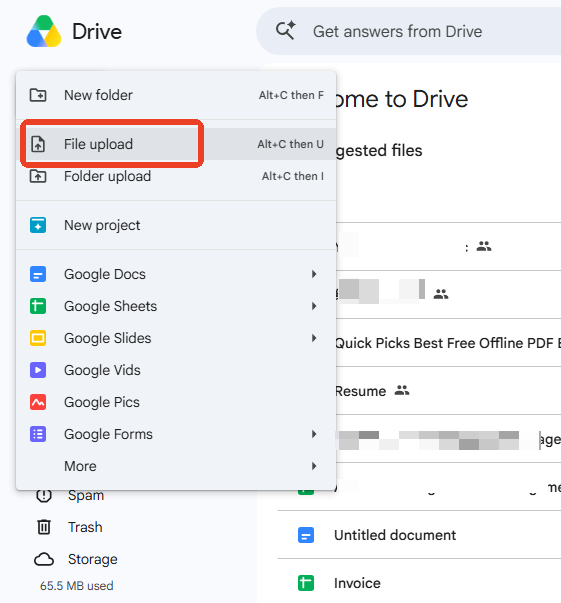
Step 1: Upload Your Image or Scanned PDF
Open Google Drive and sign in to your Google account. Click New > File upload and select the image or scanned PDF you want to process.
Step 2. Open the File with Google Docs
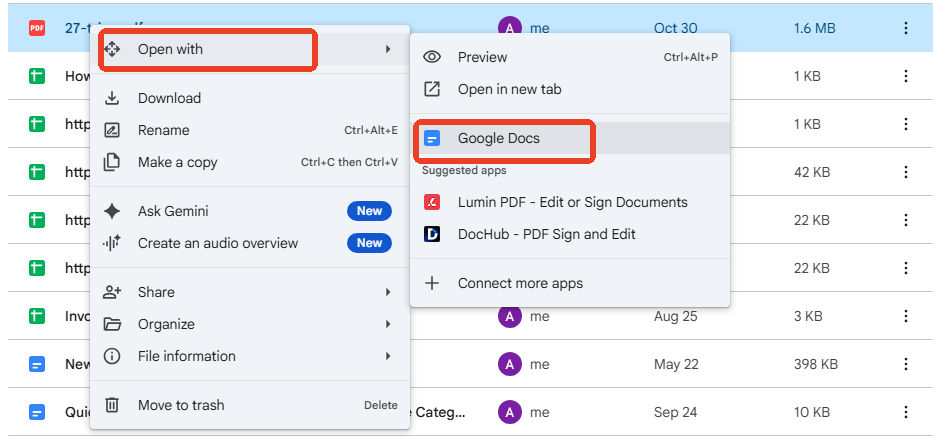
After uploading, locate the file in Google Drive. Right-click it and select Open with > Google Docs. Google Drive will automatically attempt to recognize the text in the uploaded file.
Step 3: Review the OCR Results
Once Google Docs OCR processing is complete, Google Docs opens a new document. The original image or PDF content generally appears at the top, followed by the extracted text.
Review the results carefully, especially if the source document contains small fonts, complex layouts, tables, or handwritten content.
Here, I just tested a simple image to check if the OCR works. The Google OCR test result is as follows:
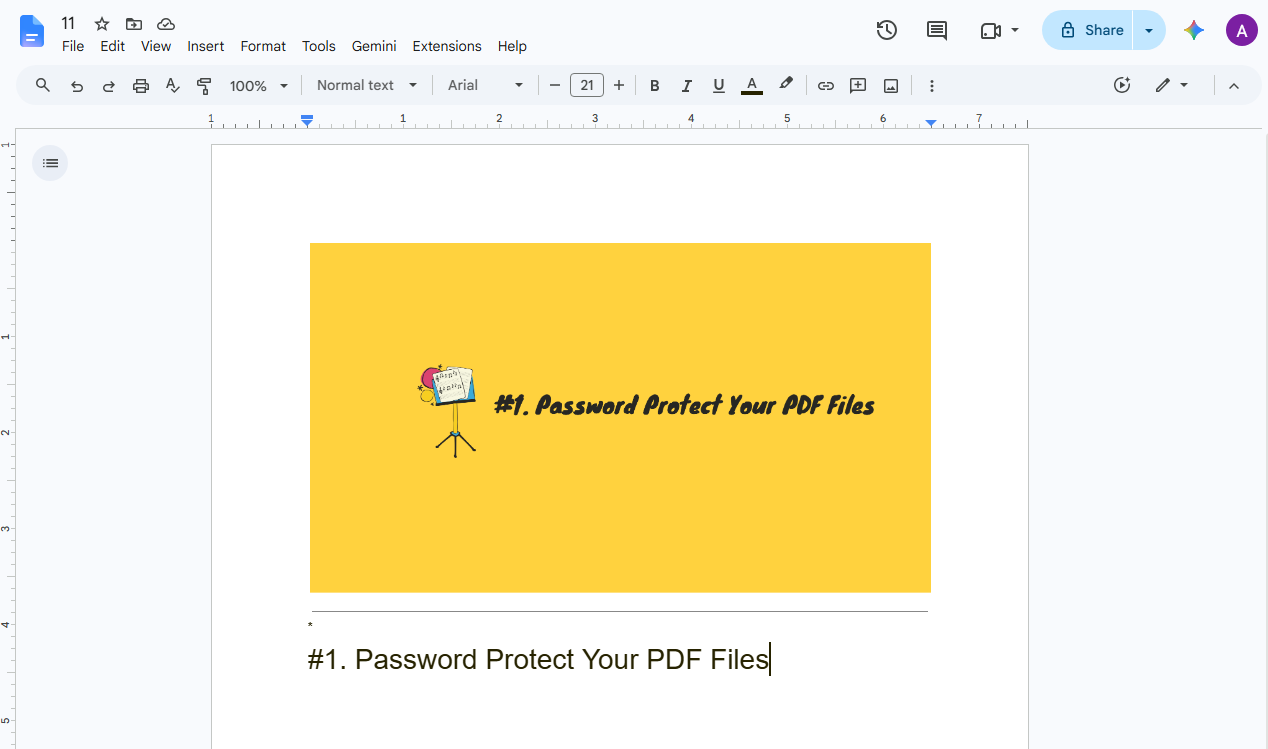
The top is the original image, and the text on the image has been extracted and presented below the image.
Step 4: Edit or Download the Extracted Text
You can now edit the recognized text directly in Google Docs, copy specific sections, or download the document in another format.
For example, select File > Download to export the extracted content as a Microsoft Word document (.docx), PDF, or another supported format.
Google Drive OCR vs. JOPDF
| Dimension | Google Drive OCR | JOPDF OCR |
| Cost | Free with Google account | Free, no registration |
| File size limit | 2MB hard limit | No limit (Local OCR) |
| Batch processing | No | Yes |
| Processing location | Google servers | Local (Local OCR) or cloud (Online OCR) |
| Output format | Google Docs (exportable) | Searchable PDF or Editable PDF |
| Layout preservation | Poor—tables and columns break | Searchable PDF preserves original appearance |
| Handwriting | Weak | Not a strength, but better on clean scans |
| Privacy | Files uploaded to Google | Files stay on your device (Local OCR) |
| Best for | Single, small, non-sensitive documents | Large files, batches, sensitive documents, layout-sensitive scans |
If you only need to extract a few paragraphs from an image or scanned document, Google Drive OCR is usually sufficient. However, if you need to process multiple PDFs, preserve document formatting, or make changes directly to scanned PDF files, a dedicated PDF OCR tool may provide a more complete solution.
How to Extract Text from Scanned PDFs with JOPDF?
From the above comparison, we can see that JOPDF can handle OCR better than Google Drive can. If you have hit the Google Docs OCR limits or found out that Google OCR is not as good as expected, switch to JOPDF. It’s worth trying, and most importantly, it’s totally free, without registration, as promised.
How to use OCR with JOPDF? Follow these steps:
Step 1: Launch JOPDF after installation and choose OCR PDF from the main page.
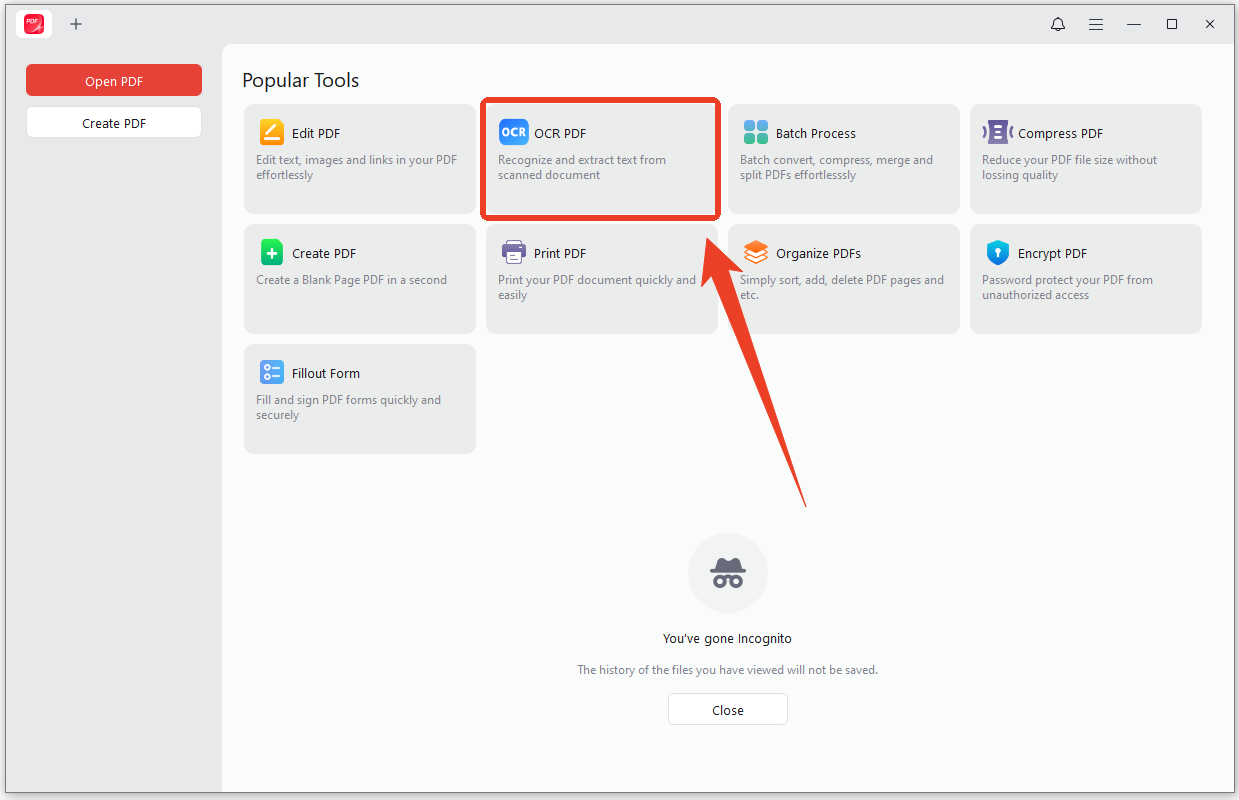
Step 2: Select the file or image you want to perform OCR on, and a new window appears to set OCR configurations.
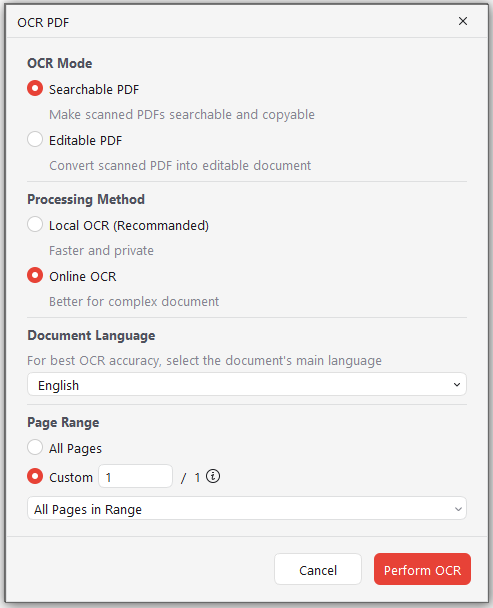
Here is some explanation for the OCR mode and processing method:
#1. OCR Mode:
- Searchable PDF keeps the original scan’s appearance and adds an invisible text layer underneath.
- Editable PDF converts the scan into text you can modify.
#2. Processing Method:
- Local OCR processes on your machine, with no upload and no file size limit. It supports 29 languages.
- Online OCR handles multilingual documents with 26 languages and simultaneous language selection.
#3. Document Language: It’s important to set the right language settings, which can affect the OCR output results. The number of supported languages is determined by the processing method.
Step 3: Set the page range and click Perform OCR. The output is saved to your chosen folder, with the original file untouched.
How to Batch OCR PDFs with JOPDF
JOPDF also supports processing multiple files with OCR at once. Follow this guide to perform a batch OCR.
Step 1: Open JOPDF and choose Batch Process.
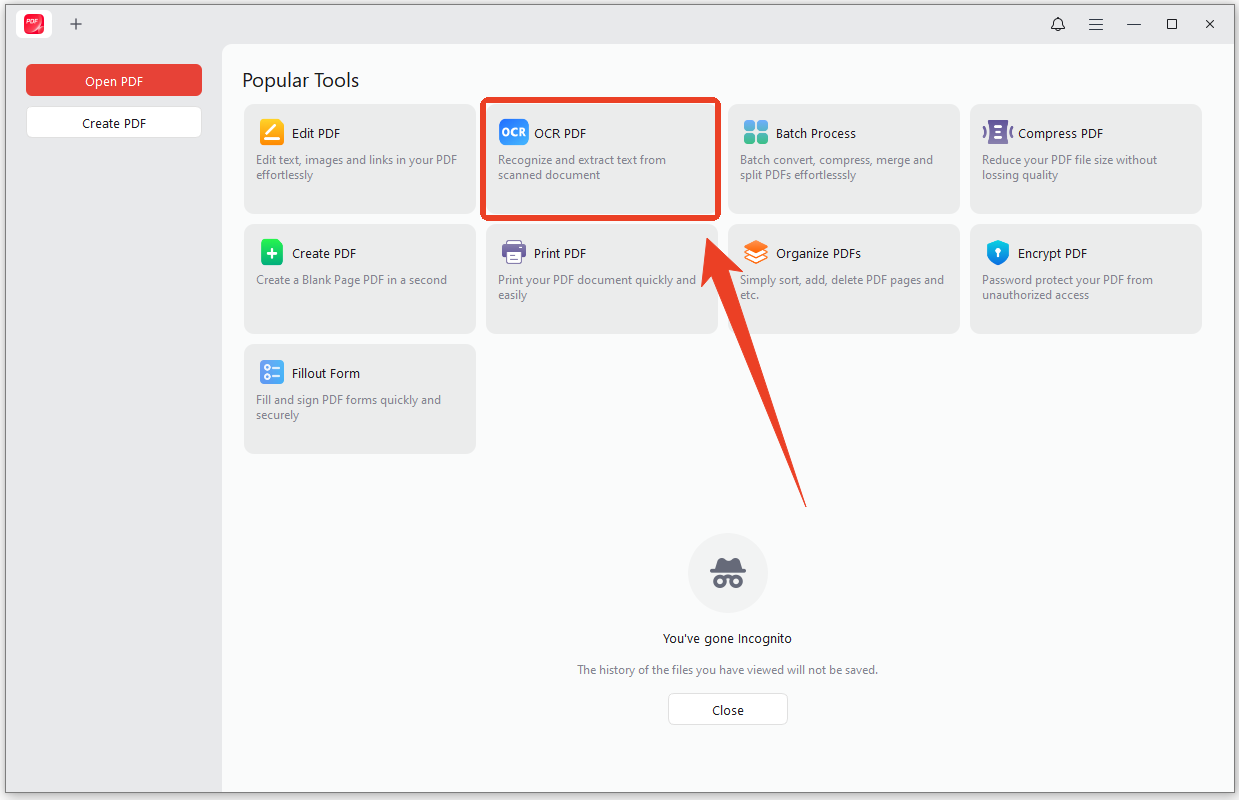
Step 2: Go to the OCR PDF tab and upload your files.
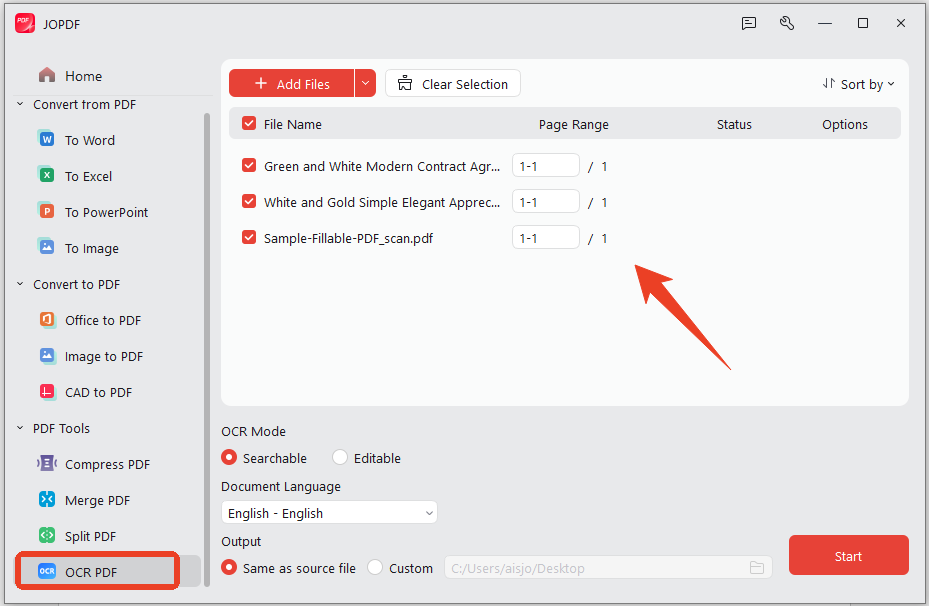
Step 3: Then choose your OCR mode and document language. Click Start to perform batch OCR.
Final Words
Google Drive OCR provides a simple and accessible way to extract text from images and scanned PDFs without installing additional software. Its integration with Google Docs makes recognized text easy to edit, copy, and share.
However, its file-size restrictions and limited formatting preservation may not meet the needs of users working with large or complex PDF documents. For more advanced document processing and direct PDF editing, dedicated OCR-enabled PDF software – JOPDF – may be a better option.
FAQs
Table of Contents

Your Best Free PDF Expert in PDF editing, compressing, converting, annotating, protect, organizing, and more.
Free DownloadWindows · macOS · Linux

Anna
Editor
“Anna, Editor-in-Chief and PDF expert, delivers deep insights into PDF document technology trends. She is dedicated to helping readers optimize their digital lives. When not writing, Anna loves exploring local cafes and reading, blending her technical expertise with a love for storytelling.”