![5 Proven Methods to Recognize Text in PDF [Step-by-Step Guide]](https://b.jopdf.com/wp-content/uploads/2026/09/recognize-text-in-pdf.png)
Introduction :
Have you ever opened a scanned PDF and found that you cannot copy or search its text? That’s because the document contains page images rather than actual text. To work with the content, you need to recognize the text in the PDF with OCR. In this comprehensive article from JOPDF, I will walk you through 5 proven methods to recognize text in a PDF. Now, let’s get started!
When a paper document is scanned, each page may be saved as an image inside the PDF. Though you can see the words, your PDF reader may not recognize them as text. In that case, you can’t select, copy, search, or even edit the document. To make your PDF reader recognize text in a scanned PDF, you need to use OCR to analyze characters in scanned pages and convert them into machine-readable text. In the following content, let’s explore 5 effective methods for recognizing text in a PDF and making a scanned PDF searchable.
Method 1. Recognize Text in a PDF for Free with JOPDF
✨Best For: Users who want a free desktop PDF solution with OCR
JOPDF is a free PDF OCR application that enables you to recognize text in PDFs on Windows. It offers Local OCR and Online OCR for scanned or image-based PDFs. Meanwhile, it supports more than 20 languages. You can use it to make scanned PDFs searchable or editable.
What’s more, as one of the best free PDF editors, JOPDF enables you to refine PDFs after OCR. For instance, it supports filling out and signing PDF forms, adding watermarks to PDFs, and adding annotations. Moreover, you can use it to password-protect PDFs.
How to recognize text in a PDF on Windows for free? JOPDF is a good choice. Below are the exact steps for your reference:
Step 1. Click the button below to download and install JOPDF on your Windows PC.
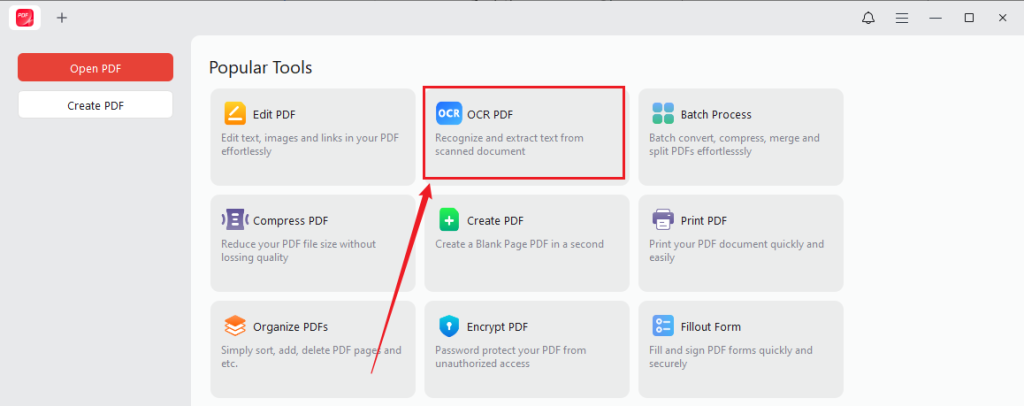
Step 2. Launch this free PDF OCR software, click the OCR PDF option, and import the target PDF file.
Step 3. Once the PDF file is uploaded, the OCR PDF dialog will pop up. Then, select Searchable PDF or Editable PDF. Choose the processing method, Local OCR or Online OCR. To ensure OCR accuracy, select the main language of the document. Next, select the pages you want to recognize.
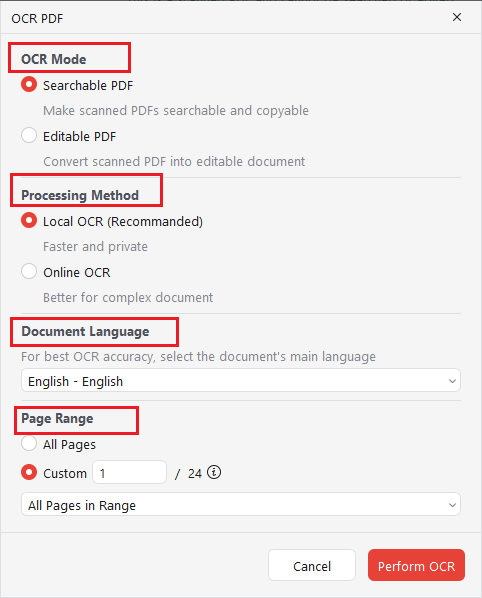
Step 4. Finally, click the Perform OCR button. Once the recognition process is over, the OCR-processed PDF will open in JOPDF. Here, you can view, edit, annotate, organize, protect, and convert the PDF file.
Method 2. Recognize Text in a PDF with Adobe Acrobat
✨Best For: Adobe users who want OCR alongside other PDF editing features
Adobe Acrobat is an industry-leading PDF editor available on Windows and Mac. Its built-in Scan &OCR tool enables you to recognize text in a scanned or image-based PDF. It converts image text into selectable, searchable, and editable text. Additionally, Adobe Acrobat lets you batch OCR PDFs. Here, let’s learn how to recognize text in Adobe Acrobat.
Note
The Scan & OCR tool is only available in Adobe Acrobat Pro, but not available in the free Acrobat Reader.
Step 1. Launch Adobe Acrobat Pro and open your scanned PDF.
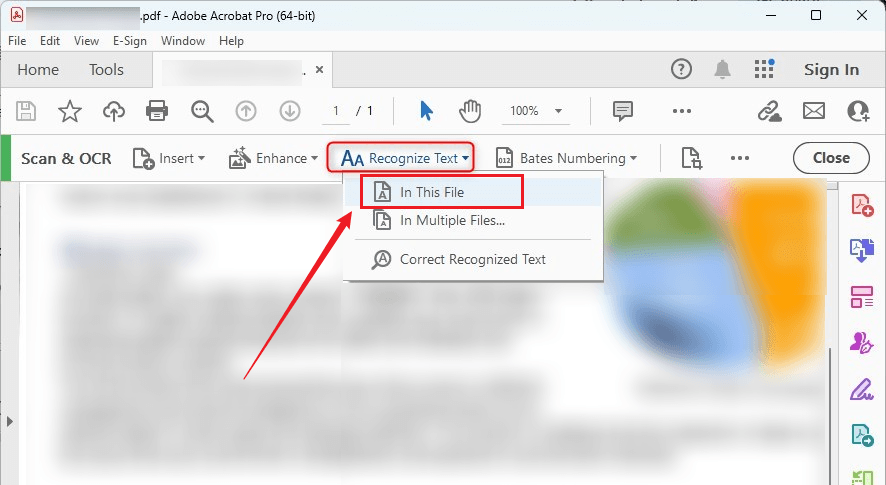
Step 2. Go to All tools and select Scan & OCR. Under Recognize Text, select “In This File”.
Tips
If you need to recognize text in multiple PDFs, under Recognize Text, select “In Multiple Files”
Step 3. Then, choose the scanned pages you want to recognize, select the primary language of the document, and click Settings for more OCR settings as needed.
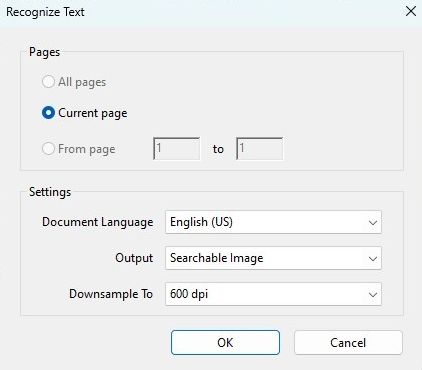
Step 4. Next, click Recognize Text, and Acrobat will process the pages and add a searchable text layer. Finally, go to File and click Save or Save As to save the PDF file.
All in all, Adobe Acrobat Pro is a good PDF OCR tool for recognizing text in scanned PDFs. If you need a free way to OCR PDFs, consider JOPDF, an excellent alternative to Adobe Acrobat.
Method 3. Recognize Text in a Scanned PDF Online with PDF24 Tools
✨Best For: Quick PDF OCR when you do not want to install software.
If you only need to recognize text from a PDF occasionally, an online OCR tool can be more convenient because it does not require you to install desktop software. PDF24 Tools provides an online OCR workflow for processing PDFs. In addition to recognizing PDF text, it offers features for merging and splitting PDFs, reducing PDF file size, extracting PDF images, numbering PDF pages, and making other edits. How to recognize text in a PDF online with PDF24 Tools? Below is the step-by-step guide for your reference.
Step 1. Visit the PDF24 Tools OCR website in your browser.
Step 2. Click “Choose files” to upload your target PDF document. Or, directly drag and drop the target file into the upload area of PDF24 Tools.
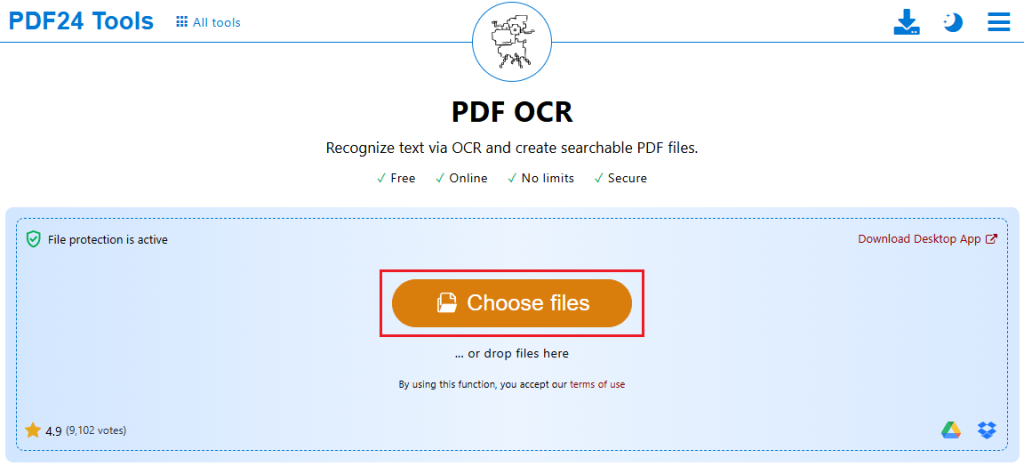
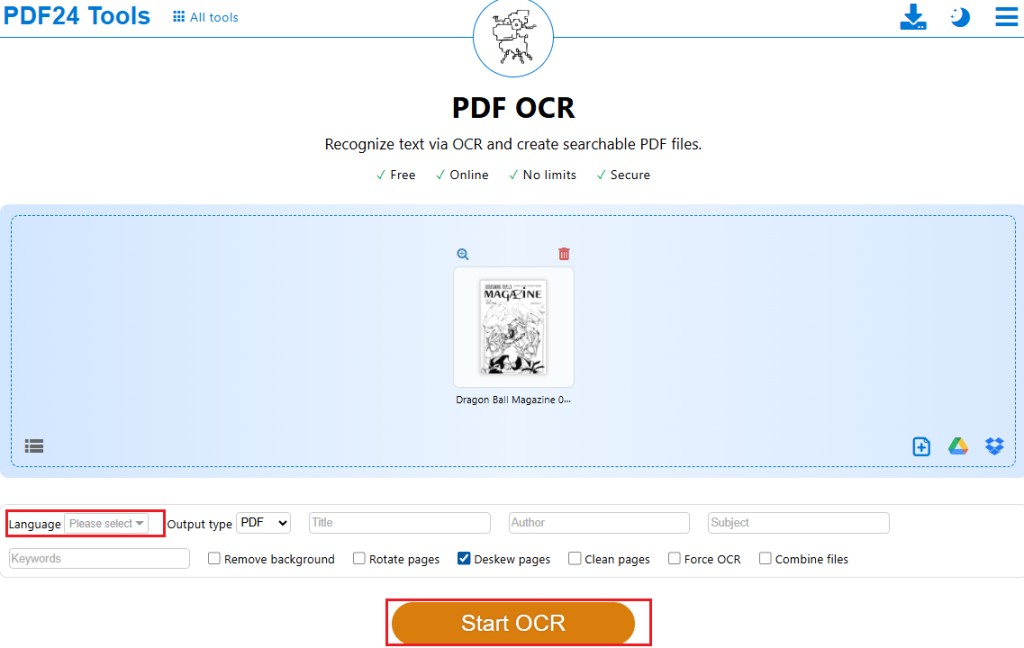
Step 3. Then, select the PDF’s primary language and customize other settings, such as removing background or rotating pages. Next, click Start OCR to begin to recognize text in the PDF. When the process is finished, download the PDF file.
Online OCR can be useful for a quick task. However, when you need to handle confidential contracts, financial information, or other sensitive information, an offline tool should be your first choice. To recognize PDF text offline for free, use JOPDF! You can also use it to OCR bank statements.
Method 4. Recognize Text in a PDF with SwifDoo PDF
✨Best For: Users who regularly work with PDFs and need other features after text recognition
SwifDoo PDF is a desktop PDF application that provides OCR for recognizing text in scanned or image-based PDFs. It is a practical option if you regularly work with PDFs and want to process documents on your computer. Like JOPDF, you can also continue editing and managing PDFs after OCR. Here’s how to recognize PDF text using SwifDoo PDF.
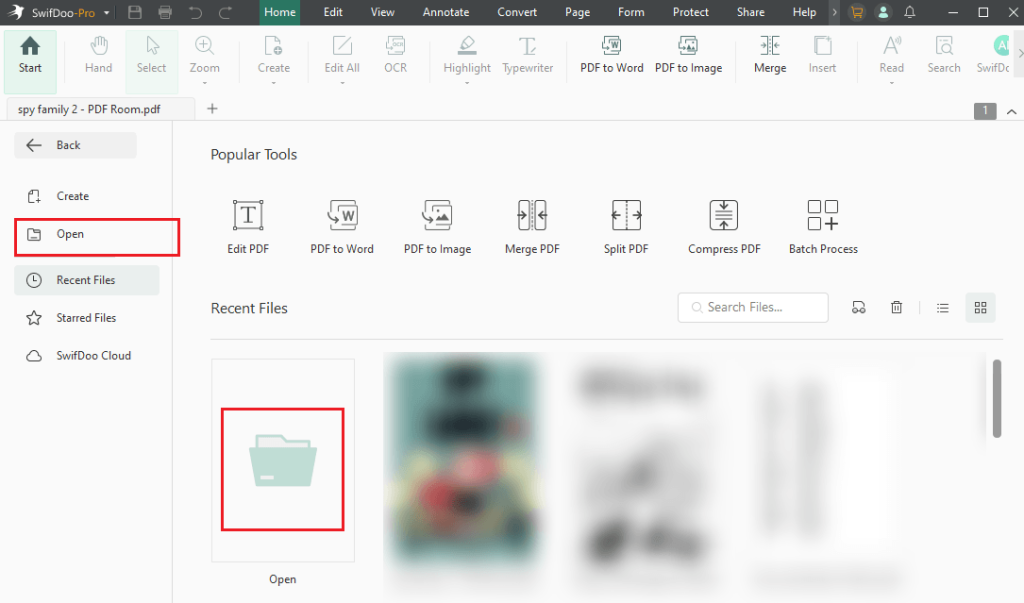
Step 1. Run SwifDoo PDF on your PC and click Open to import the scanned PDF you want to recognize.
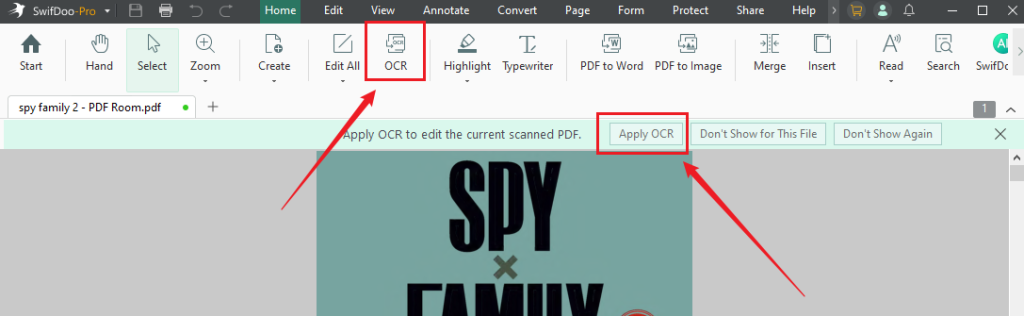
Step 2. SwifDoo PDF can recognize that this PDF is scanned. You can click the Apply OCR button in the top banner or select the OCR option in the top toolbar.
Step 3. Select the PDF’s primary language and specify other OCR settings. Then click Apply to recognize text in the PDF file. When the process is complete, a new text-based PDF will open in SwifDoo PDF. Now, you can edit the PDF as needed.
Method 5. Recognize Text in a PDF with Google Docs
✨Best For: Extracting text from scanned PDFs when you want to edit the recognized content in a PDF
Google Docs provides another way to extract text from a scanned PDF. This way is particularly useful if you mainly need the recognized content in an editable document rather than a searchable PDF that preserves the original layout. How to recognize text in a scanned PDF using Google Docs? Below are the exact steps.
Step 1. Open your Google Drive, click New, and select File upload to upload your scanned PDF.
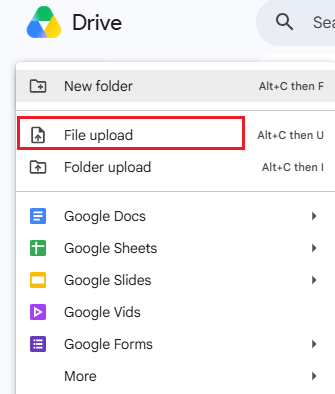
Step 2. Right-click the uploaded PDF and choose Open with > Google Docs. Then Google Docs will attempt to recognize the text in the PDF.
Step 3. The editable PDF will open in Google Docs. You can review the extracted text and correct any OCR errors. Finally, go to File > Download and select the needed output format.
Which Method is Best for Recognizing Text in a PDF
In the content above, I show you 5 effective methods to recognize text in scanned PDFs. Which method is the best one? The best choice depends on what you want to do with the recognized text.
| Tool | Platform | Best For | Typical Output |
| JOPDF | Desktop | Free PDF OCR and editing | Searchable PDF/text |
| Adobe Acrobat | Desktop/Web | Advanced PDF workflows | Searchable PDF |
| PDF24 Tools | Online | Quick OCR without installation | OCR-processed PDF |
| SwifDoo PDF | Desktop | Regular PDF OCR and editing | Searchable PDF/text |
| Google Docs | Online | Extracting text | Editable document |
How Accurate Is PDF Text Recognition
OCR accuracy varies from document to document. A clean, high-resolution scan with clear printed characters can produce much better results than a blurry image. Additionally, many factors can affect the accuracy of PDF text recognition. Here, let’s check them one by one.
- Image resolution: Higher-quality scans generally provide more information for OCR.
- Language: Selecting the correct recognition language can improve results.
- Background noise: Stains, shadows, and marks can interfere with character recognition.
- Handwriting: Handwritten content is generally more challenging than clearly printed text.
- Document layout: Tables, columns, and unusual formatting can be more difficult to process.
Conclusion
If you cannot select or search the words in a PDF, the document may contain scanned images. In that case, OCR is the key to recognizing the text and making the document searchable. How to recognize text in a PDF? In this article, I offer 5 effective methods. Among them, JOPDF is my first choice. It enables you to recognize text in scanned PDFs for free and offers various tools for post-OCR processing. Alternatively, you can try the other 4 methods mentioned in this article.
FAQs
Table of Contents

Your Best Free PDF Expert in PDF editing, compressing, converting, annotating, protect, organizing, and more.
Free DownloadWindows · macOS · Linux

Olivia
“Olivia is an editor at JOPDF, where she writes practical guides and insightful articles on managing PDFs—covering topics like editing, annotating, converting, and organizing files efficiently. Passionate about clear communication and digital productivity, Olivia enjoys spending her free time cooking, watching movies, and hiking to unwind and find inspiration for her writing.”