Introduction :
Whether you are working with business reports, invoices, or research papers, adding page numbers can help readers find specific information or reference pages quickly. How to add page numbers to PDF files efficiently? It is essential to use the right tool, such as a desktop PDF editor, an online PDF page numbering tool, or Adobe Acrobat Pro. In this JOPDF article, I’ll show you the step-by-step guidance to insert page numbers in 3 proven ways.
Add Page Numbers to PDF for Free Using JOPDF
It is one of the easiest ways to insert page numbers into PDF files using a desktop PDF editor. A desktop PDF editor is quite suitable for you if you need to process confidential files, add page numbers to business documents, or work with large PDF files. In the market, the most popular offline PDF editors include JOPDF, Adobe Acrobat, SwifDoo PDF, and others.
Among them, JOPDF is a good choice, which is a 100% FREE PDF editor available on Windows, Mac, and Linux. With its simple interface, you can learn how to add page numbers to a PDF even if it is your first time using it. Additionally, it enables you to customize page numbers and even delete page numbers.
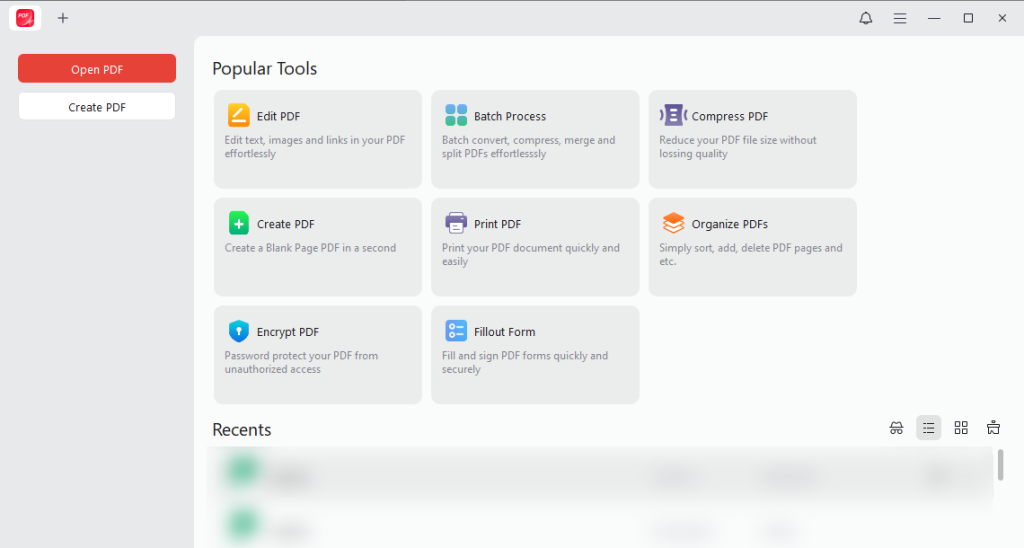
What’s more, JOPDF offers a wide range of capabilities to handle PDFs. For example, you can use it to add headers and footers, rearrange PDF pages, extract PDF pages, edit PDFs, and more. All in all, JOPDF is worth trying! With JOPDF, you can add page numbers to PDF without Adobe Acrobat.
Here, let’s learn how to add page numbers to a PDF for free with JOPDF.
Step 1. Click the button below to download and install this free PDF editor on your Windows or Mac PC. Then, launch it and click Open PDF to import the target PDF file.
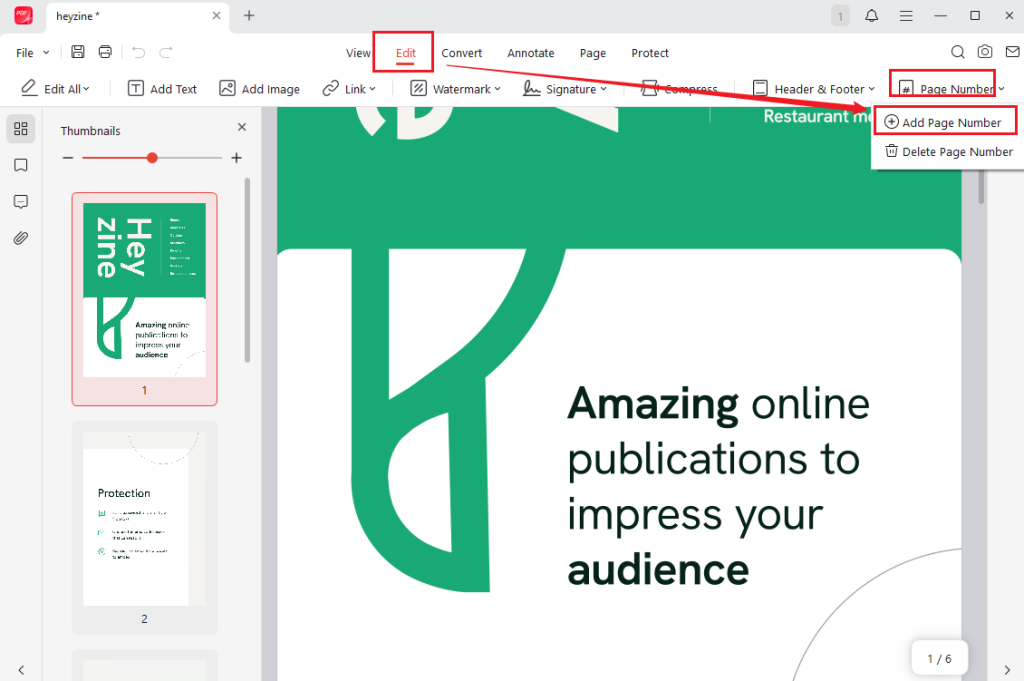
Step 2. Switch to the Edit tab, click Page Number, and select the Add Page Number option.
Step 3. On the Page Number dialog, select the preferred page number format first and then select the number start at 1 or others. Meanwhile, you can customize the appearance of the page number, like the font, size, and color. Then, select the position where you want to place the page number. Moreover, you can customize the margins and page ranges as needed.
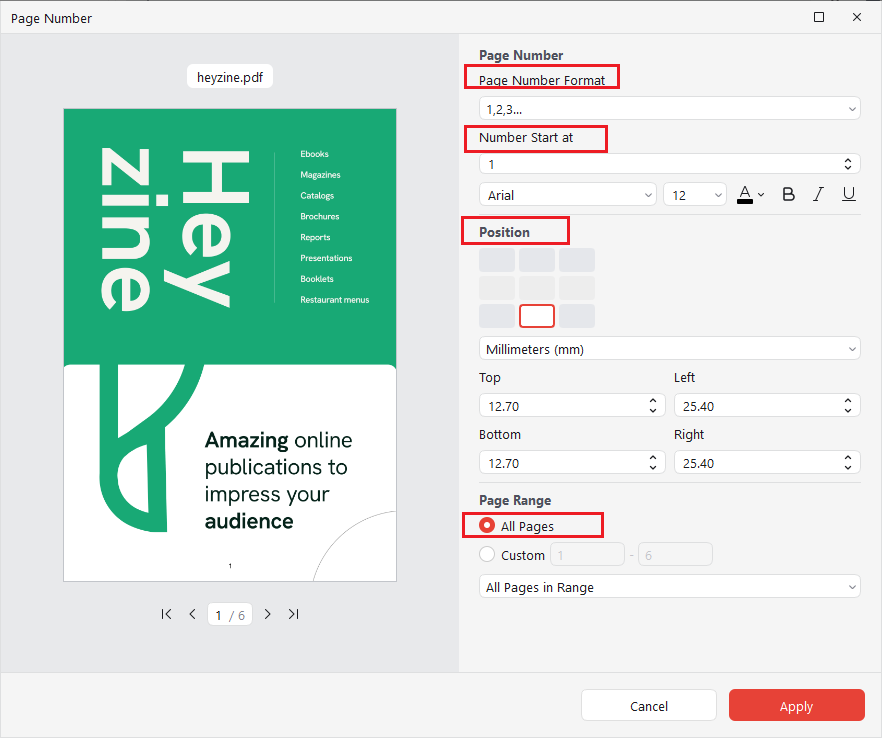
Then, you can preview the PDF with page numbers in the left preview window. Once you are satisfied, click Apply to save the changes.
Step 4. Finally, click the Save icon to save the PDF file with page numbers.
Add Page Numbers to PDF Online with Smallpdf
If you only need to add page numbers to a PDF occasionally, an online PDF page numbering tool can be a good choice. Additionally, it doesn’t require installation and can be accessed from almost any device with a browser. Here, I have rounded up several reliable online PDF tools for adding page numbers to PDF files. They are:
- Smallpdf
- iLovePDF
- PDF24 Tools
- Sejda PDF Editor
- Soda PDF Online
In addition, those online tools allow you to customize page number style as needed. In this article, I’d like to take Smallpdf as an example to show you how to insert page numbers into a PDF online.
Step 1. Open your device browser, visit Smallpdf, and select Number Pages from the Tools list.
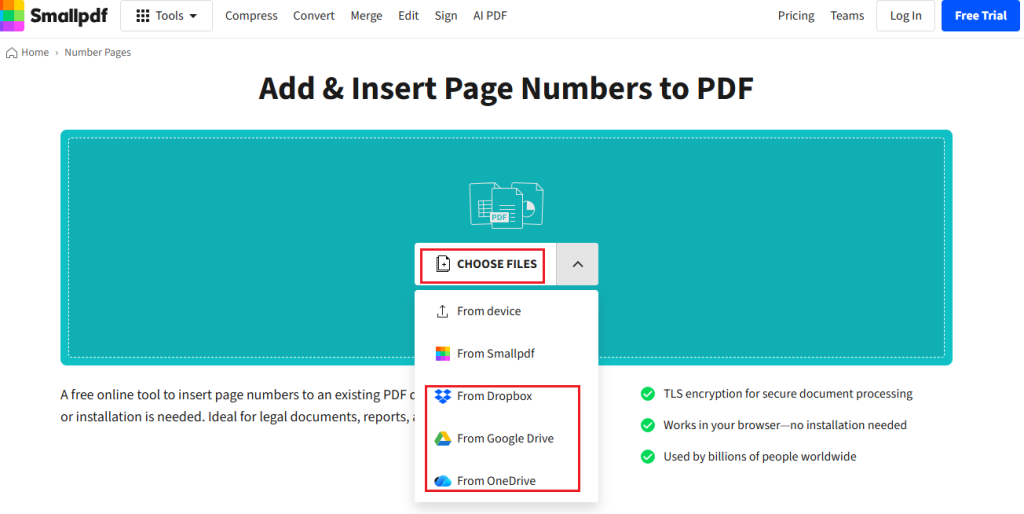
Step 2. Click CHOOSE FILES to upload the target PDF file from your local device. Alternatively, you can upload the PDF from Dropbox, Google Drive, or OneDrive.
Step 3. Once the PDF file is uploaded, select the start page number, set the margins, and select the desired position for the page number.
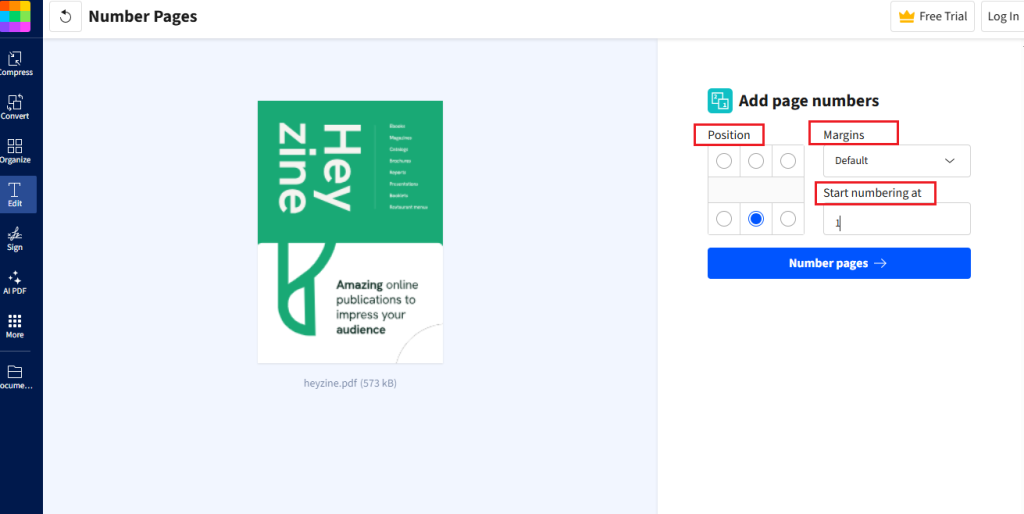
Step 4. Next, click the Number pages button. When the process is completed, click the Download button to save the PDF file.
Add Page Numbers Using Adobe Acrobat Pro
Adobe Acrobat is one of the most widely used professional PDF editors. Its Header & Footer feature allows you to add page numbers, customize their appearance, and apply numbering to selected pages. As a powerful PDF editor, Adobe Acrobat Pro allows you to edit text and images in a PDF as if it were a Word file. Moreover, it lets you fill out and sign PDFs. All in all, it is a professional PDF editor worth trying.
Step 1. Launch Adobe Acrobat Pro and import your PDF file.
Step 2. Click the Edit tab from the top bar. In the left pane, click Header and footer and select the Add option.
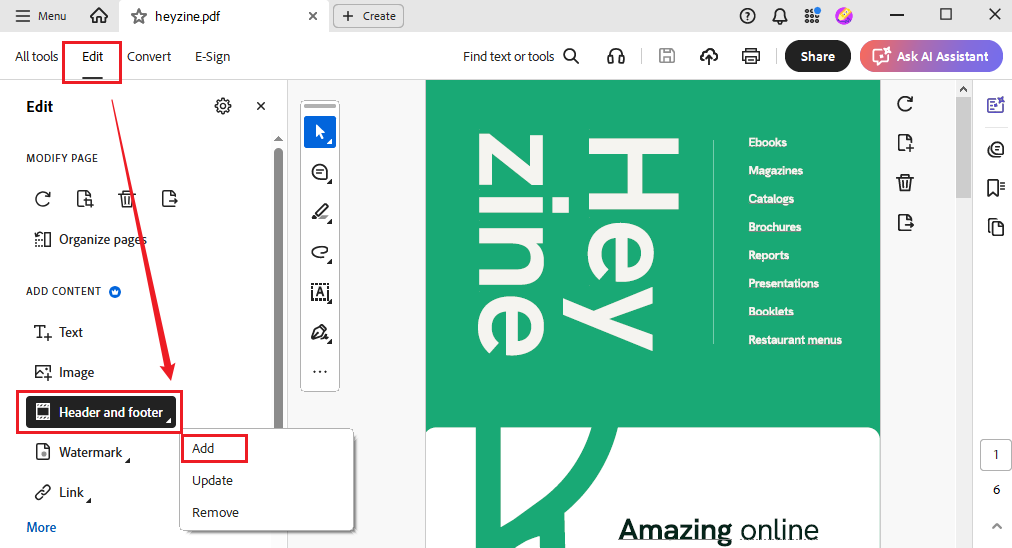
Step 3. In the Add Header & Footer window, select where to place the page number and click Insert Page Number. Then, adjust the page number style and its appearance. Next, select pages to number. You can select All pages or Selected pages only. Then, click OK to apply the changes.
Step 4. Finally, click File > Save to preserve the numbered version.
Tips
To add page numbers to multiple PDFs in Adobe Acrobat Pro, go to All tools > Action Wizard to create a new action. Then add the Header & Footer command and configure your page number settings. Next, add multiple PDF files and run the action to insert page numbers into multiple PDFs.
Only Adobe Acrobat Pro allows you to number PDF pages. Adobe Acrobat Reader (the free version) doesn’t have this feature. If you need a free way to insert page numbers, JOPDF is one of the best choices. It is a good alternative to Adobe Acrobat.
Best Tools to Add Page Numbers to PDF
It is essential to insert page numbers to PDF files faster and easier with the right tool. In the content above, I show you 3 different ways to number PDF pages. Which one is the best way? The best way should depend on your workflow and needs. Here, I prepare a table for your reference:
| Tool | Platform | Key Features | Best For |
| JOPDF | Windows, Mac, Linux | Offline PDF editing, conversion, page management | Users who prefer free local PDF tools |
| Smallpdf | Web | Online PDF editing and page numbering | Quick PDF edits |
| Adobe Acrobat Pro | Windows, Mac, Web | Header & Footer, page numbering, automation, advanced PDF editing | Professional users and businesses |
| SwifDoo PDF | Windows, Mac | PDF editing, conversion, annotation, page numbering | Everyday PDF tasks |
| iLovePDF | Web | Basic PDF tools and online page numbering | Occasional users |
Bottom Line
In daily work and study life, adding page numbers to PDF files is a simple way to improve document organization and navigation. How to add page numbers to PDF files? If you need a free tool, JOPDF is the best tool that can help you add and customize PDF page numbers. Moreover, it is quite suitable for handling confidential files since it is an offline tool. Also, you can use an online tool if you just for occasional use. Once you have professional needs, use Adobe Acrobat Pro. Now, it’s your time to have a try!
FAQs
Table of Contents

Your Best Free PDF Expert in PDF editing, compressing, converting, annotating, protect, organizing, and more.
Free DownloadWindows · macOS · Linux

Olivia
“Olivia is an editor at JOPDF, where she writes practical guides and insightful articles on managing PDFs—covering topics like editing, annotating, converting, and organizing files efficiently. Passionate about clear communication and digital productivity, Olivia enjoys spending her free time cooking, watching movies, and hiking to unwind and find inspiration for her writing.”