![Ultimate Guide on How to OCR a Bank Statement [Proven Methods]](https://b.jopdf.com/wp-content/uploads/2026/09/ocr-bank-statement.png)
Introduction :
Sometimes, you need to convert text from scanned or image-based bank statements into machine-readable text. In that case, you need reliable bank statement OCR software. In this comprehensive guide from JOPDF, you’ll learn how to OCR a bank statement and extract transaction data. Now, let’s dive in.
What Can You Extract from a Bank Statement with OCR
A bank statement can contain dozens or hundreds of transactions. If you have a scanned or image-based statement, manually entering all of this information can be time-consuming. To complete the task efficiently, OCR is necessary to recognize the text and make it searchable and copyable. Depending on the source document and OCR tool, you may be able to recognize:
- Transaction dates
- Transaction descriptions
- Deposits and withdrawals
- Debit and credit amounts
- Running balances
- Account holder information
- Statement dates
- Bank names and addresses
- Account numbers and other identifying information
After OCR, the text can be searched and copied rather than remaining locked within an image. So, when you can’t copy from a PDF, try to OCR it first.
How to OCR a Bank Statement
How to make a scanned bank statement searchable and editable? Use an OCR tool. In this section, I will introduce you to 3 reliable OCR tools and show you how to OCR a bank statement step by step. Here, let’s have a look.
Method 1: OCR Bank Statements for Free with JOPDF
JOPDF is a free PDF editor with built-in OCR that can recognize text in scanned documents and images, turning them into searchable, editable PDFs. In addition, it enables you to batch OCR PDFs effectively. Surprisingly, JOPDF provides both local and online OCR options for scanned documents. If you need to handle sensitive documents such as bank statements, use its Local OCR.
In addition, JOPDF enables you to extract financial data by converting the file into Excel or CSV format. If you need, you can also use its various editing tools to edit, annotate, organize, and protect PDFs. In short, JOPDF is worth trying. Here, let’s learn how to OCR a bank statement for free using JOPDF.
Step 1. Click the button below to download and install JOPDF on your Windows PC, and then launch this free bank statement OCR software.
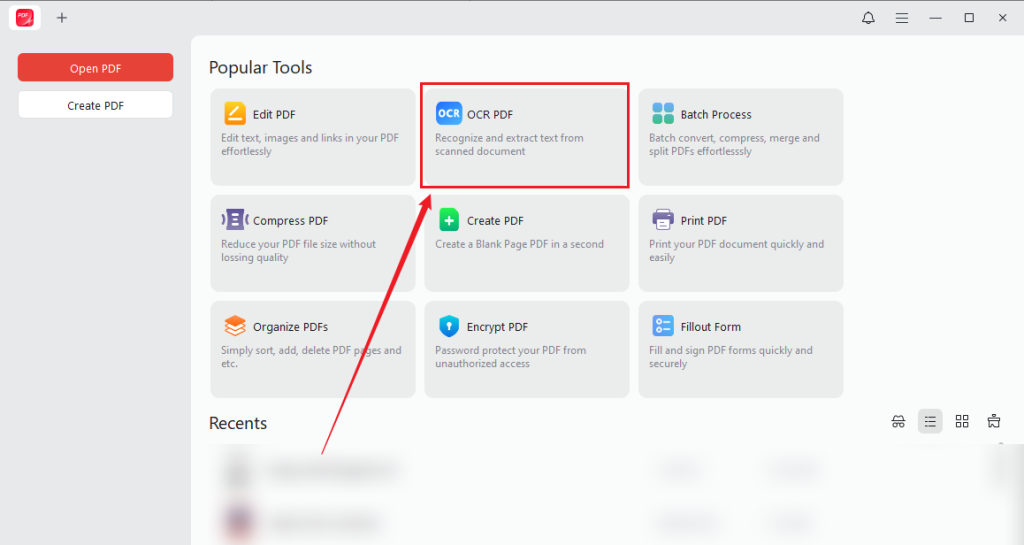
Step 2. On the main UI, select OCR PDF from Popular Tools. Then, locate and select the target PDF bank statement and click Open to import it.
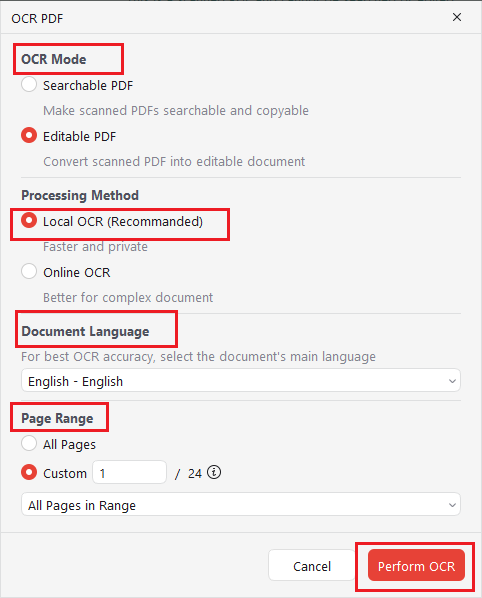
Step 3. Once the bank statement is imported, the OCR PDF dialog will pop up. On this dialog, select Searchable PDF or Editable PDF as the OCR Mode. Meanwhile, tick Local OCR for processing your bank statement. Then select the document’s main language for better OCR accuracy. Next, specify the page range and click Perform OCR.
Step 4. Once the process is finished, the OCR-processed PDF will open in JOPDF. You can refine it as needed. Finally, click the Save icon.
Tips
JOPDF also allows you to edit and OCR bank statement images. You need to convert images into PDFs first before using OCR or editing features. With OCR, you can edit scanned PDFs for free in JOPDF.
Method 2: OCR a Bank Statement Online with PDF24 Tools
If you want a simple browser-based OCR solution, PDF24 Tools provides a free online PDF OCR tool. It can recognize text in scanned PDFs and create searchable PDF files. As an online tool, PDF24 Tools requires no installation or registration. Below is how to OCR a bank statement online using PDF24 Tools.
Step 1. Open your browser and visit the PDF24 PDF OCR website.
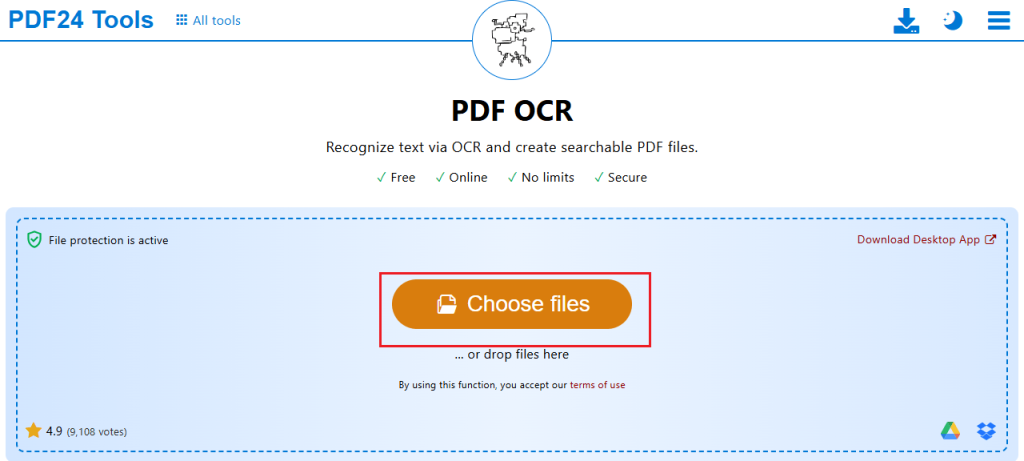
Step 2. Directly drag and drop the target PDF bank statement into the upload area of PDF24. Alternatively, click “Choose files” to select and upload your target bank statement file.
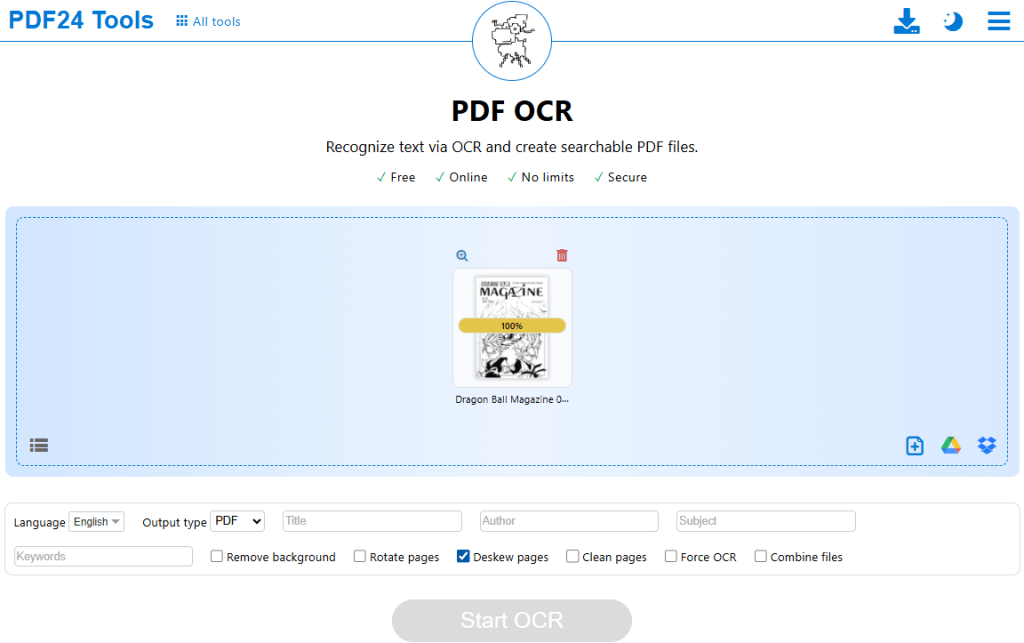
Step 3. Choose the target language for the file and adjust other OCR settings as needed. Optionally, use features such as deskewing, page cleaning, or background artifact removal. Then, click Start OCR.
Step 4. When the process is over, download the resulting searchable PDF.
For confidential documents, an offline option should be your first choice. In other words, JOPDF could be the better choice. In addition to offering PDF24 Tools, PDF24 also offers PDF24 Creator, a Windows desktop application with an offline OCR feature. It can recognize text in PDF and image files.
Method 3: OCR a Bank Statement Image with DocuClipper
If your bank statement is saved as an image, such as JPG, PNG, or TIFF, DocuClipper can process image-based financial documents and extract structured information. Additionally, it supports scanned PDFs and images and is designed specifically for financial document extraction rather than generic OCR alone.
What’s more, DocuClipper can export the extracted data to formats such as Excel and CSV, as well as accounting-oriented formats including QBO and QIF. Here, you can refer to the steps below to OCR and process a bank statement image with DocuClipper.
Step 1. Launch DocuClipper and start a bank-statement extraction workflow. Then, click Add Bank Statements to upload your bank statement image.
Step 2. Next, click Convert and wait for the automatic OCR and extraction to complete. DocuClipper’s AI OCR will detect tables, extract every transaction row, account info, and other content.
Step 3. Review the extracted transactions, verify the reconciliation information, and correct any errors as needed.
Step 4. Then, click Download data and select an output format such as Excel or CSV.
How to Extract Bank Statement Data After OCR
If you are processing bank statements for accounting, expense tracking, reconciliation, or financial analysis, OCR is only the first step. Then, you may need to turn recognized text into structured data. Moreover, most of you search for bank statement OCR since you ultimately want to convert a bank statement to Excel. In that case, JOPDF and DocuClipper can be your choice.
If you need a free bank statement converter, select JOPDF. It enables you to convert PDF to XLSX, CSV, XLSM, XML, and ODS. Below are the simple introductions for your reference.
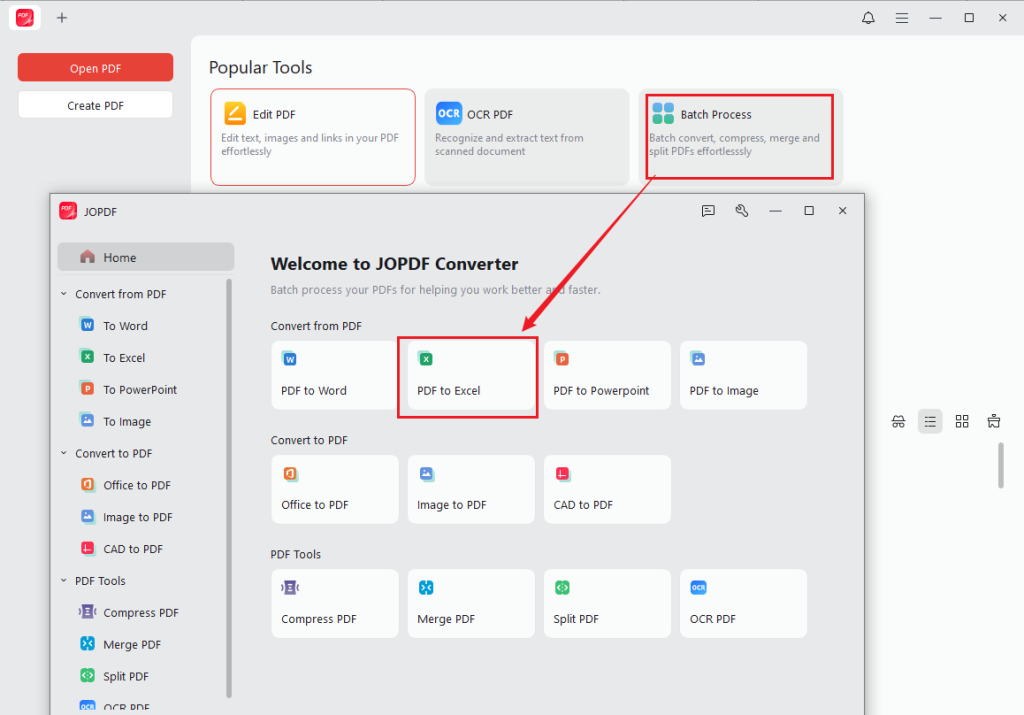
Step 1. Launch JOPDF on your PC, click Batch Process, and select PDF to Excel.
Step 2. Click Add Files to upload your OCR-processed bank statement file.
Step 3. Select the needed output format, such as CSV or XLSM.
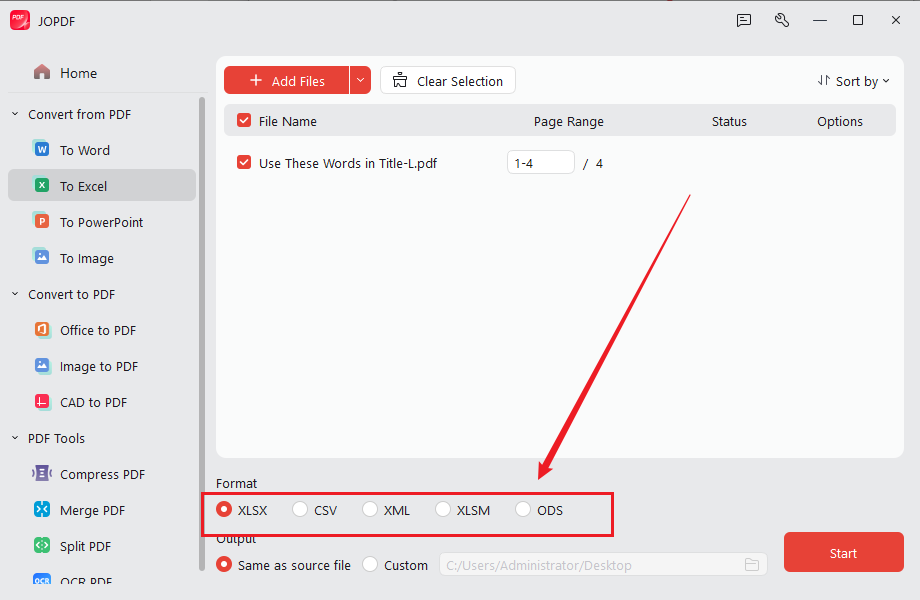
Step 4. Finally, specify the saving path and click Start.
Best OCR Tools for Bank Statements
Should you choose JOPDF, PDF24 Tools, or DocuClipper? The right choice depends on whether you need desktop OCR, online searchable PDFs, or structured financial data extraction. Here, I prepared a comparison table for your reference.
| Tools | Best For | OCR Type | Image Input | Structured Data | |
| JOPDF | Free desktop OCR and PDF management | Local + Online OCR | Yes | Yes | Limited |
| PDF24 Tools | Free online searchable PDF OCR | Online OCR | Yes | Via PDF/image workflow | No |
| DocuClipper | Bank statement data extraction | OCR + data extraction | Yes | Yes | Yes |
Conclusion
OCR can make scanned bank statements much easier to search, edit, copy, and process. It is particularly useful when you need to turn image-based statements into machine-readable text without manually entering every transaction. How to OCR a bank statement? You can use JOPDF to make scanned bank statements into searchable or editable PDFs with its Local OCR and Online OCR. If your goal goes beyond OCR and you need transaction information organized into Excel or CSV, DocuClipper is the more specialized option. If you need a convenient online option, consider PDF24 Tools. Now, it’s your time to have a try.
FAQs
Table of Contents

Your Best Free PDF Expert in PDF editing, compressing, converting, annotating, protect, organizing, and more.
Free DownloadWindows · macOS · Linux

Olivia
“Olivia is an editor at JOPDF, where she writes practical guides and insightful articles on managing PDFs—covering topics like editing, annotating, converting, and organizing files efficiently. Passionate about clear communication and digital productivity, Olivia enjoys spending her free time cooking, watching movies, and hiking to unwind and find inspiration for her writing.”