Introduction :
Financial information is often stored in PDFs, bank statements, invoices, receipts, and other documents. Sometimes, you need to analyze or transfer financial information into another system. Manually copying every transaction, amount, and account details is time-consuming. In that case, a reliable financial data extraction tool is essential. In this JOPDF guide, you’ll learn how financial data extraction works and the most common methods and tools.
What Is Financial Data Extraction
Financial data extraction is the process of identifying and collecting financial information from documents, databases, and other digital sources and converting it into a structured format.
For instance, you may receive hundreds of PDF invoices. Instead of manually entering each invoice number, vendor, date, tax amount, and total into a spreadsheet, a financial data extraction tool can identify these fields and organize them into structured records. You can choose to export the extracted information to Excel or CSV, or transfer it to accounting, ERP, or financial analysis software.
How Does Financial Data Extraction Work
Before getting into the detailed methods for extracting financial data, it is helpful to understand how the process works. Here, I will show you the general process.
- Collect financial documents: Collect the documents containing the information you need.
- Identify and extract relevant information: The extraction system will identify the information that matters. For a scanned bank statement, OCR is required to recognize characters from the document image.
- Convert data into a structured format: After the information is identified, it can be organized into structured fields and records. Then, they can be saved as Excel, CSV, JSON, or another format supported by the workflow.
- Validate and clean the extracted data: You should check the extracted financial data before it is used for accounting or analysis.
- Export or integrate the data: Finally, the structured data can be exported or transferred to another application or format.
Financial Data Extraction Methods
Generally, there is no single method that works best for every single financial document. In this section, I will introduce you to 5 ways to extract financial data. You can choose the right approach depending on the document format, complexity, and required output.
Manual Financial Data Extraction
If you only have a few simple documents to process, manual extraction is a good choice. You can simply open a document and copy relevant information into a spreadsheet or another system.
Best For:
- Small document volumes
- Occasional extraction
- Simple financial documents
However, when you need to process hundreds or thousands of financial documents, manual data entry is inefficient. It can also introduce transcription errors and inconsistencies.
PDF and Spreadsheet-Based Extraction
In addition, digital financial documents can often be processed with PDF software or spreadsheet applications. For instance, you can use JOPDF, a free PDF converter, to extract tables from a financial PDF and convert them into an Excel spreadsheet for further analysis. This approach is quite useful for:
- Financial reports
- Bank statements
- Invoices
- Tables containing financial figures
Additionally, PDF software can help you select, copy, organize, or convert information without having to manually retype every value.
OCR-Based Financial Data Extraction
OCR is an advanced technology that can convert text contained in images into machine-readable characters. It is quite useful when financial information exists in:
- Scanned bank statements
- Scanned invoices
- Photographed receipts
- Image-based PDFs
JOPDF is a reliable, free PDF editor that enables you to OCR PDFs for free. You can download and install it on your PC to handle PDFs and financial documents.
Automated Financial Data Extraction
This method can identify and collect information with minimal manual intervention. Instead of manually processing each document, an automated workflow can identify the document type, locate relevant fields, extract the information, convert it into structured data, validate potential errors, and export the results.
AI-Powered Financial Data Extraction
AI-powered extraction uses machine learning, natural language processing, computer vision, or other AI techniques to identify information from financial documents.
Best Financial Data Extraction Tools
Here, let’s learn the best tools to extract financial data. You can choose the right one based on your practical needs.
JOPDF
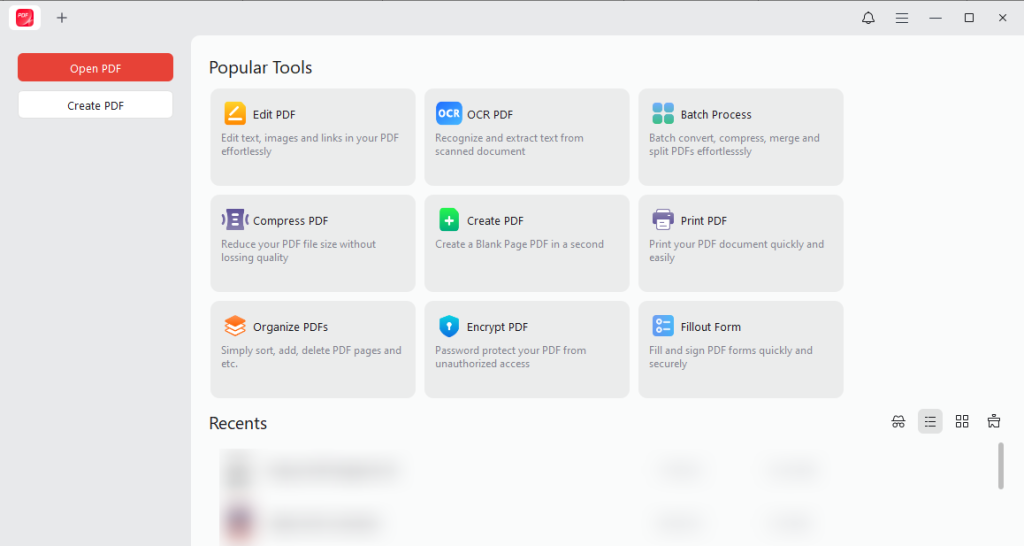
JOPDF is a practical option if you need to inspect, edit, organize, or process PDF financial documents locally. You can use it to review PDF statements, prepare files for extraction, and work with sensitive documents offline. Moreover, JOPDF supports OCR, making it suitable for converting scanned or image-based PDFs into searchable, selectable text before further extraction.
Beyond a PDF editor, JOPDF is one of the best free PDF converters, enabling you to convert PDFs to Excel or CSV. Hence, you can use JOPDF to extract data from a PDF financial file and export it as an Excel file for analysis. However, you should know that structured field extraction requires spreadsheet tools or dedicated document-processing systems.
JOPDF is most suitable for:
- Reviewing financial PDFs
- Organizing and editing PDFs
- Applying OCR to scanned financial documents
- Preparing documents before table extraction
- Handling occasional PDF-based financial workflows
Adobe Acrobat Pro
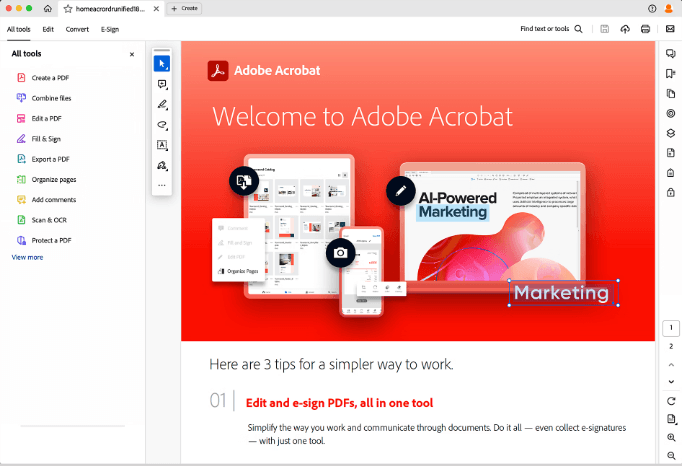
Adobe Acrobat Pro is a professional PDF tool commonly used to inspect PDFs, recognize scanned text with OCR, copy table data, and export PDFs to Excel or other formats. You can use it to handle and extract data from financial PDF files. Adobe Acrobat Pro is quite useful for:
- Text-based financial PDFs
- Scanned statements that require OCR
- PDF-to-Excel conversion
- Reviewing extracted content
ABBYY FineReader
ABBYY FineReader is designed for OCR and document conversion. Its high-accuracy OCR and table recognition can turn structured financial tables into usable Excel spreadsheets or CSV files. What’s more, its ADRT and related technologies can analyze the whole document and preserve structure and cell relationships. All in all, ABBYY FineReader is suitable for:
- Scanned bank statements
- Image-based invoices
- OCR-based text extraction
Rossum
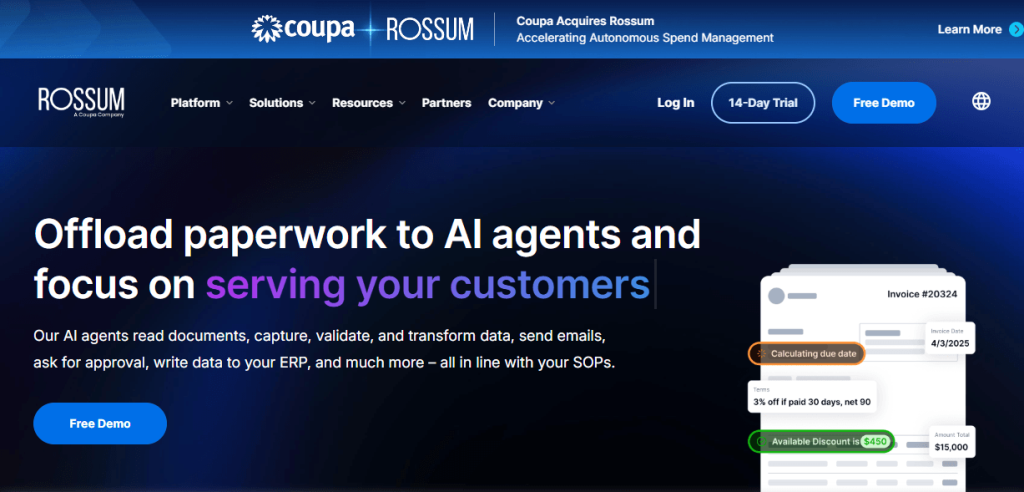
Rossum is an intelligent document-processing platform designed for extracting structured information from invoices and other business documents. It is useful for:
- Invoice data extraction
- Accounts payable automation
- Vendor document processing
- Extracting fields such as invoice numbers, dates, and totals
Nanonets
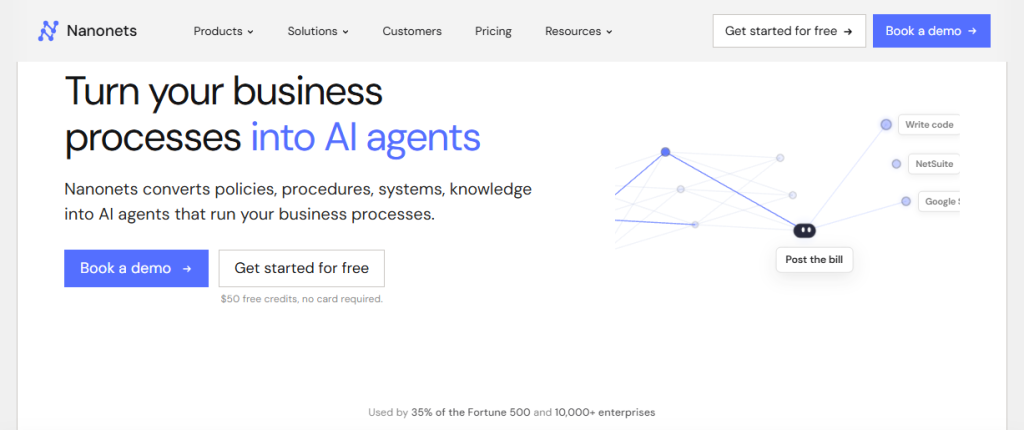
Nanonets offers OCR and AI-powered document-processing workflows for invoices, receipts, bank statements, and other financial documents. Especially, it is useful for:
- Extracting structured fields from varied layouts
- Automating repetitive document workflows
- Connecting extracted data to business systems
- Processing invoices and receipts
DocuClipper
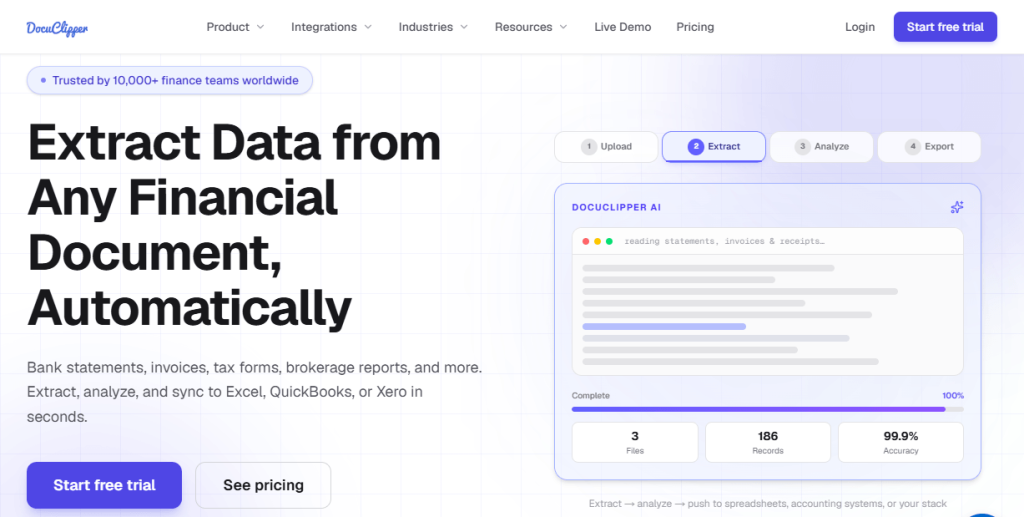
DocuClipper is designed to extract financial data from documents such as bank statements, credit card statements, invoices, and receipts. Additionally, it can convert document information into structured formats for accounting and bookkeeping workflows. In short, DocuClipper is useful for:
- Bank statement extraction
- Credit card statement processing
- Receipt and invoice data extraction
- Converting financial documents into spreadsheet-ready data
Docsumo
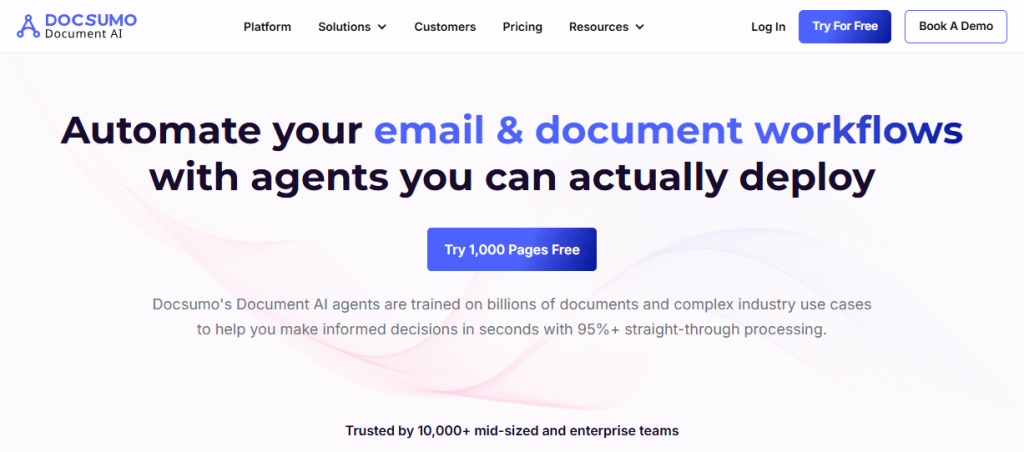
Docsumo is an intelligent document-processing platform that can extract structured data from financial documents and other business records. Meanwhile, it can help organizations process documents with varying layouts. In total, Docsumo is suitable for:
- Invoice and receipt extraction
- Bank statement processing
- Financial document automation
- Custom data fields and validation rules
- Integrations with business systems
Amazon Textract
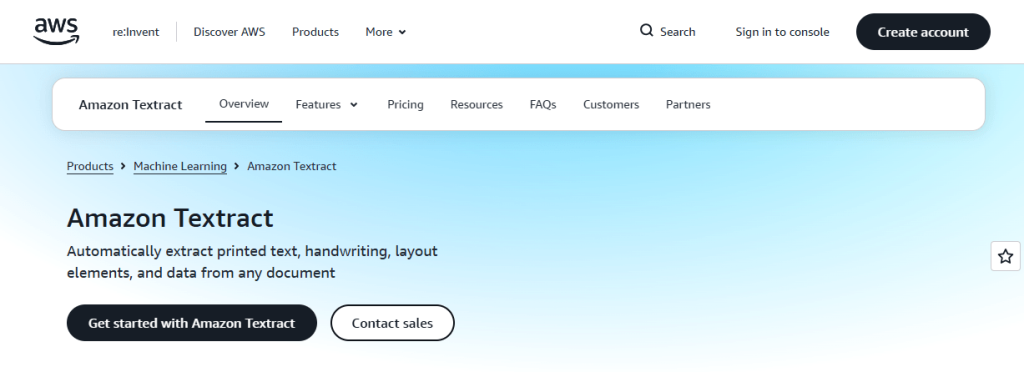
With Amazon Textract, you can extract printed text, forms, and tables from documents. In addition, it can be integrated into custom financial data-processing systems. Rather than a complete end-user accounting application, Amazon Textract is typically used as a developer-oriented service. You can combine its OCR and table-recognition capabilities with validation logic, databases, and other AWS services.
In short, Amazon Textract is useful for organizations that need:
- Cloud-based OCR
- Table extraction
- API access
- Integration with AWS services
At the end of the section, I prepared a comparison table for your reference:
| Tool | Best For | OCR | Table Extraction | Structured Field Extraction | Offline Option |
| JOPDF | PDF review, OCR, and local PDF workflows | Yes | Depends on supported features | Limited | Yes |
| Adobe Acrobat Pro | PDF editing, OCR, and conversion | Yes | Yes | Limited | Desktop use |
| ABBYY FineReader | OCR and document conversion | Yes | Yes | Limited to moderate | Desktop use |
| Rossum | Invoice automation | Yes | Yes | Yes | Usually cloud-based |
| Nanonets | AI document extraction | Yes | Yes | Yes | Usually cloud-based |
| DocuClipper | Bank statements and bookkeeping documents | Yes | Yes | Yes | Usually cloud-based |
| Docsumo | Financial document automation | Yes | Yes | Yes | Usually cloud-based |
| Amazon Textract | Developer-built extraction systems | Yes | Yes | Custom integration | Cloud-based |
How to Extract Financial Data from a PDF
If you are using JOPDF to extract financial data from a PDF, just refer to the steps below:
Step 1. After installing JOPDF on your Windows, Mac, or Linux PC, launch it to get to its main interface.
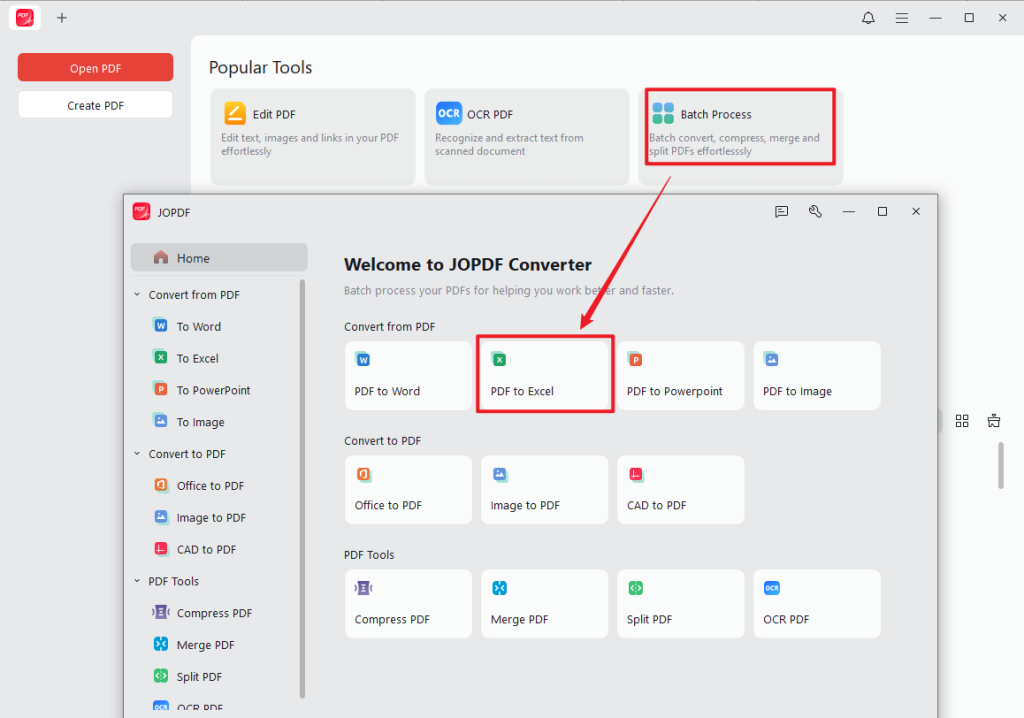
Step 2. Click Batch Process, select PDF to Excel, and click Add Files to import your PDF financial files.
Tips
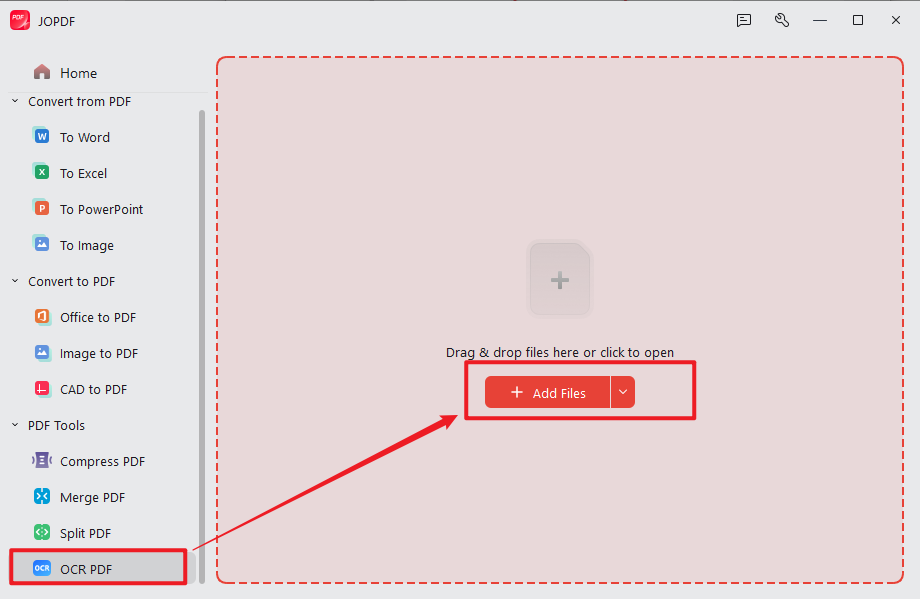
If your financial files are scanned or image-based, OCR them before extracting and converting them. Select OCR PDF and click Add Files to import them. Then, customize the OCR settings and click Perform OCR.
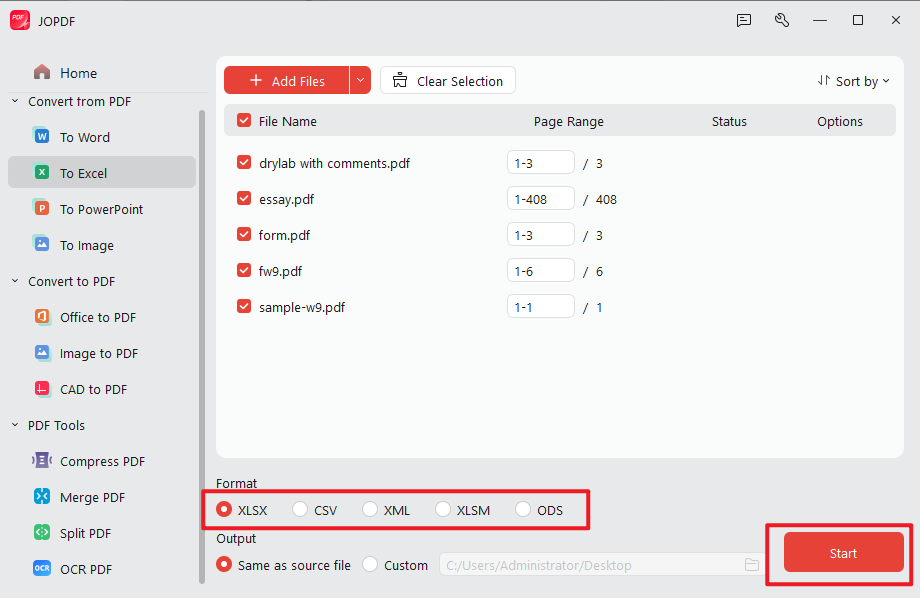
Step 3. Now, select the required output format, such as CSV or XLSX. Meanwhile, specify the saving path. Finally, click Start.
How to Choose the Right Financial Data Extraction Software
Which financial data extraction tool should be your choice? You can consider the following factors before selecting a tool:
| Factor | What to Consider |
| Accuracy | How reliably does it recognize financial information? |
| OCR | Can it process scanned documents? |
| Table recognition | Can it preserve financial tables? |
| Field extraction | Can it identify invoices, transactions, taxes, and totals? |
| Batch processing | Can multiple documents be processed at once? |
| File formats | Does it support your source and output formats? |
| Automation | Can repetitive workflows be automated? |
| Security | How are financial documents stored and processed? |
| Offline processing | Can sensitive files be processed locally? |
| Integration | Can the extracted data connect to other systems? |
| Review tools | Can users verify low-confidence results? |
| Cost | Does the pricing fit your document volume? |
So, which data extraction tool should you choose? Here, I prepare a reference table for you:
| Requirement | Recommended Tools |
| Review, organize, or OCR PDFs locally | JOPDF |
| Extract text from digital PDFs | JOPDF, Adobe Acrobat Pro, other PDF tools |
| Convert PDF tables to Excel | Adobe Acrobat Pro, ABBYY FineReader |
| Extract text from scanned documents | JOPDF, ABBYY FineReader, Adobe Acrobat Pro |
| Clean and analyze extracted data | Microsoft Excel |
| Extract bank statements and bookkeeping documents | DocuClipper, Docsumo |
| Automate invoice extraction | Rossum, Nanonets, Docsumo |
| Build an API-based workflow | Azure AI Document Intelligence, Amazon Textract, Google Document AI |
| Process sensitive files locally | JOPDF and other desktop PDF/OCR software, subject to organizational requirements |
| Process thousands of varied documents | Rossum, Nanonets, Docsumo, and other AI document-processing platforms |
Wrapping Up
Financial data extraction is the process of converting information from bank statements, invoices, PDFs, and other sources into structured data that can be processed and analyzed. How to extract financial data? In this article, I introduce several data extraction software options for you to choose from, and I use JOPDF as an example to show the steps for extracting financial data from a PDF. At last, I hope this guidance can be helpful to you.
FAQs
Table of Contents

Your Best Free PDF Expert in PDF editing, compressing, converting, annotating, protect, organizing, and more.
Free DownloadWindows · macOS · Linux

Olivia
“Olivia is an editor at JOPDF, where she writes practical guides and insightful articles on managing PDFs—covering topics like editing, annotating, converting, and organizing files efficiently. Passionate about clear communication and digital productivity, Olivia enjoys spending her free time cooking, watching movies, and hiking to unwind and find inspiration for her writing.”