Summary :
Scanned PDFs can’t be searched, selected, or edited. That’s because the file is an image, not a text document. To fix it, you need OCR. This guide on JOPDF explains how to OCR PDFs across different devices, including online and offline OCR PDF free tools. Just follow this step-by-step guide, and you’ll know how to OCR scanned PDF files and turn them into searchable, editable documents.
Key Takeaways
- OCR turns image-based PDFs into searchable, editable documents
- JOPDF runs OCR PDF free offline, with no sign-up and no uploads
- Optical character recognition accuracy depends on scan quality and language settings
Part 1: What Is OCR and When Do You Need It?
Optical character recognition (OCR) is the process of converting images of text into machine-readable text. When you run OCR on a scanned PDF, the software analyzes each page, recognizes the shapes of letters and words, and adds a hidden text layer on top of the image.
That text layer is what makes a searchable PDF. Once it’s there, you can select, copy, search, and edit the content just like any digital document.
Part 2: How to OCR a PDF Offline with JOPDF?
Now that you know when OCR is needed, here’s how to run it. JOPDF is a strong option for this because it handles OCR offline, without uploads or subscriptions.
JOPDF is an all-in-one PDF editor available for Windows, Mac, Linux, iOS, and Android. It’s 100% free, requires no sign-up, and processes everything offline. Its OCR engine is a plug-in: no separate purchase, no accounts, no cloud upload.
What separates JOPDF from most tools is how it handles OCR alongside everything else. JOPDF opens the scanned PDF, runs OCR, and gives you an editable file in the same workspace.
Key OCR-related features:
- Built-in OCR for scanned and image-based PDFs
- Language selection for accurate recognition
- Page range support for partial OCR
- Editable text layer added automatically
- Full PDF editor for post-OCR changes
- Conversion to Word, Excel, and other formats
- Batch processing for multiple files
Step-by-Step Guide to Run OCR with JOPDF:

JOPDF – The Best Free PDF Editor
 User Rating: 4.8
JOPDF Is a 100% free POF editor for Windows, macOS, and Linux. Edit text, add images, annotate, sign, and more. No limits, no ads, no subscriptions, Fast, simple, and powerful, take full control of your PDFs in seconds!
Step 1: Download and install JOPDF on your device.
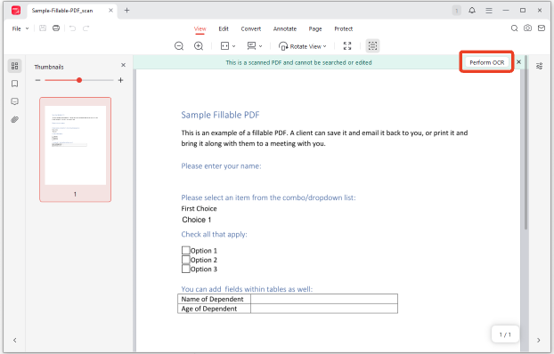
Step 2: Open the scanned PDF by clicking Open PDF. JOPDF will notify you with a banner at the top: This is a scanned PDF and cannot be searched or edited. Click Perform OCR.
Step 3: Choose the language of the document, OCR mode, processing method, and page range.
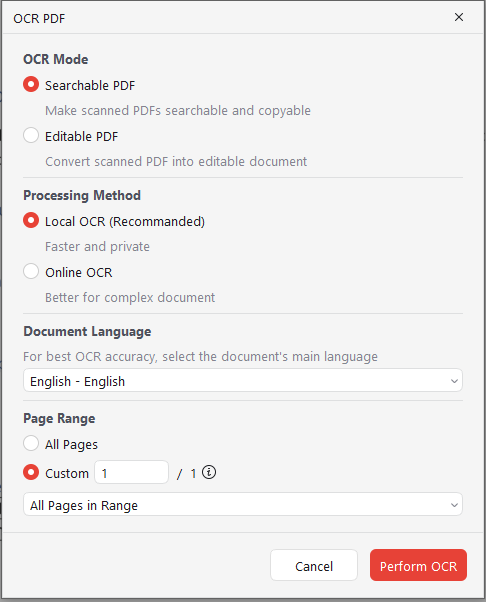
Step 4: Click Perform OCR and wait for processing.
Step 5: Save the searchable PDF with Ctrl+S or Cmd+S.
Step 6: Verify the text layer by searching for a word you can see on screen.
Part 3: How to OCR a PDF Online with Adobe Acrobat?
There is another option to OCR a PDF – an online tool. An online OCR service is quite a bit easier compared to offline OCR software. You don’t need to install any pack and spend time learning how to use the OCR. Just upload and click, and the online tool will deliver the result.
However, Online OCR requires an internet connection and means your document leaves your device. So, when should you use online OCR and when shouldn’t?
When Online OCR Makes Sense:
- One-off documents that aren’t sensitive
- Files you don’t mind uploading
- Situations where you can’t install software
When to Avoid Online OCR:
- Contracts, financial documents, or anything confidential
- Large batches of files
- Situations where you need consistent formatting
If you have a one-off PDF and are looking for a reliable online OCR service, we would like to introduce Adobe Acrobat Online OCR.
It uses Adobe’s own OCR engine to convert scanned documents and images into searchable, editable PDFs, and it works without installing desktop software. The core trade-off is convenience versus limits: you get a mature OCR engine from the company that created the PDF format, but free usage is heavily restricted.
Related Article: 7 Must-Know Adobe Acrobat Alternatives for PDF Editing in 2026
How to Use Adobe Acrobat Online OCR
Step 1: Go to the Adobe Acrobat home page and sign in (or use the free tier without logging in for a single task).
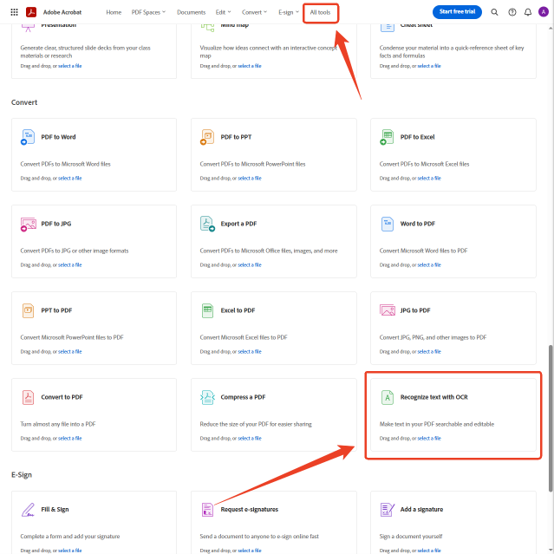
Step 2: Go to the All tools tab and scroll down to click Recognize text with OCR in the Convert section.
Step 3: Select your scanned PDF or image (JPG, PNG, BMP, GIF, TIFF are supported).
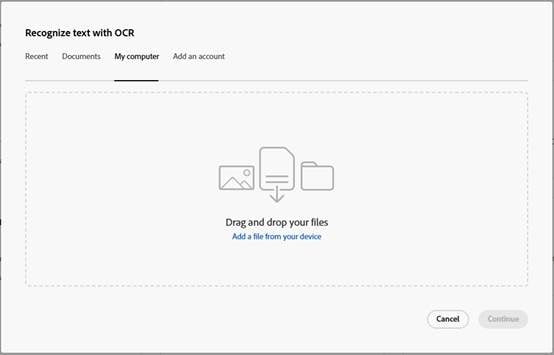
Step 4: Choose the document language and click Recognize text.
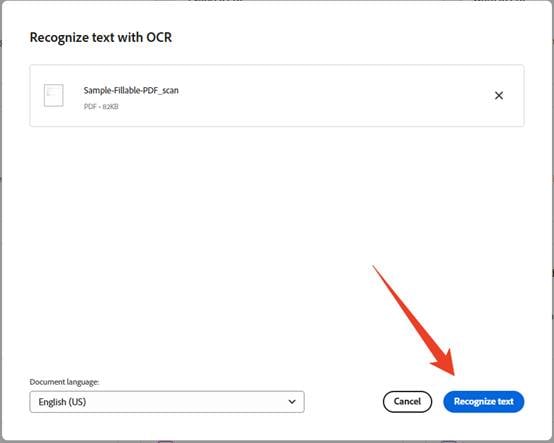
Step 5: Download the searchable PDF, or export it directly to Word (DOCX), PowerPoint, or Excel for further editing.
Key Limitations to Know Before You Upload
Adobe Acrobat provides a free trial version for new users, but you still need to know the key limitations of the Adobe Acrobat OCR online tool.
- The free tier is very restrictive. Without signing in, you get one free transaction per day (sometimes capped at 1MB per PDF). With a free Adobe ID, you get one free advanced tool use every 30 days, meaning if you use OCR once, you can’t use any other advanced tool for a month. OCR processing is capped at 100 pages max for the free tier.
- File and page caps apply across the board. Acrobat Online tools generally support PDFs up to 100MB, though PDF-to-Word and PDF-to-PPT allow up to 200MB. Page management tools cap at 1,500 pages.
- OCR quality is solid for print, weaker for edge cases. Adobe’s OCR handles standard business documents well—scanned contracts, vendor files, and printed forms come out searchable and reasonably formatted. However, reviews note that Arabic and Turkish OCR accuracy is disappointing compared to other languages, and low-resolution scans (below 200 DPI) produce degraded results. Handwriting recognition has improved with recent AI updates but is still not reliable for formal documents.
- Performance can lag on large files. Multiple user reviews mention that Adobe Acrobat gets sluggish with large multi-page scanned documents, sometimes disrupting workflow enough to cancel operations. This is less of an issue for short files but noticeable when processing 50+ page scans.
Also See: Adobe Not Recognizing Text? 7 Workable Fixes to Try in 2026
Part 4: How to Get Better OCR Results
The quality of OCR output depends heavily on the quality of the input. Here is how to OCR PDFs while keeping high-quality results.
- Scan at 300 DPI or higher: Low-resolution scans produce garbled text. 300 DPI is the standard for OCR. Anything below 200 DPI will likely cause errors.
- Keep pages straight: Skewed pages confuse OCR engines. Straighten pages before scanning or use JOPDF’s page tools to rotate them after.
- Use good lighting for photos: If you’re photographing a document rather than scanning it, avoid shadows, glare, and uneven lighting. Natural daylight works best.
- Choose the right language: OCR engines recognize characters based on language rules. If you’re processing a French document, select French. Selecting the wrong language is one of the most common causes of poor results.
- Check the text layer after OCR: Run a quick search for a word you can see on the page. If search finds it, the text layer is working. If not, something went wrong.
- Proofread before editing: OCR isn’t perfect. Review the output before you rely on it, especially for numbers, names, and technical terms.
Conclusion
How to OCR PDFs? This guide includes online and offline methods. You need to know when OCR is needed, choose the right tool, and get the input quality right. JOPDF handles the whole process for free, offline, with no sign-up. Its built-in OCR adds a text layer that turns any image-based PDF into a searchable PDF. From there, you can edit, convert, compress, and organize the file in the same workspace.
FAQs
Table of Contents

Your Best Free PDF Expert in PDF editing, compressing, converting, annotating, protect, organizing, and more.
Free DownloadWindows · macOS · Linux

Anna
Editor
“Anna, Editor-in-Chief and PDF expert, delivers deep insights into PDF document technology trends. She is dedicated to helping readers optimize their digital lives. When not writing, Anna loves exploring local cafes and reading, blending her technical expertise with a love for storytelling.”