Summary :
Need to convert a scanned PDF to a searchable PDF? To do that, you need PDF OCR software. After the conversion, you can select text, copy it, or find anything with Ctrl+F. So, how to make a PDF searchable? In this guide on JOPDF, you can try the best OCR tool to make a PDF searchable online and offline.
What Is PDF OCR?
OCR (Optical Character Recognition) analyzes the page image, identifies characters, and records where each one sits. The result is written into a text layer placed behind the original image, invisible on screen but fully searchable.
- When you convert PDF to searchable PDF, you get a file that looks identical to the scan but responds to search, copy, and screen readers.
- When you convert to searchable PDF in editable mode, the scan is rebuilt as actual text, useful if you need to modify content.
How to Make a PDF Searchable with JOPDF
JOPDF is a free desktop PDF editor for Windows, Mac, and Linux, with no registration required. Its PDF OCR feature offers two modes – local OCR and online OCR. Many users prioritize accuracy and layout in PDF OCR software, so we had an independent test of JOPDF’s OCR on two documents.
A test review shows:
We tested JOPDF’s OCR on one clean scan at standard resolution; the OCR produced the exact text as the original. The text layer was usable, and the content was readable without extensive correction. Then, we used a complex PDF with images and columns; the OCR results showed no errors. However, we found another independent review tested JOPDF’s OCR on a harder two-column page; the review’s overall assessment was that JOPDF’s OCR is useful but “can stumble on more complex documents”. We think the difference relies on the PDF we tested for OCR. JOPDF can totally do a great job when you use the right scan quality and language settings, as it recommends 300 DPI or higher.
Step 1: Open the OCR PDF Tool
Download and install JOPDF from the official website and launch JOPDF. Launch JOPDF and select OCR PDF from the main interface.
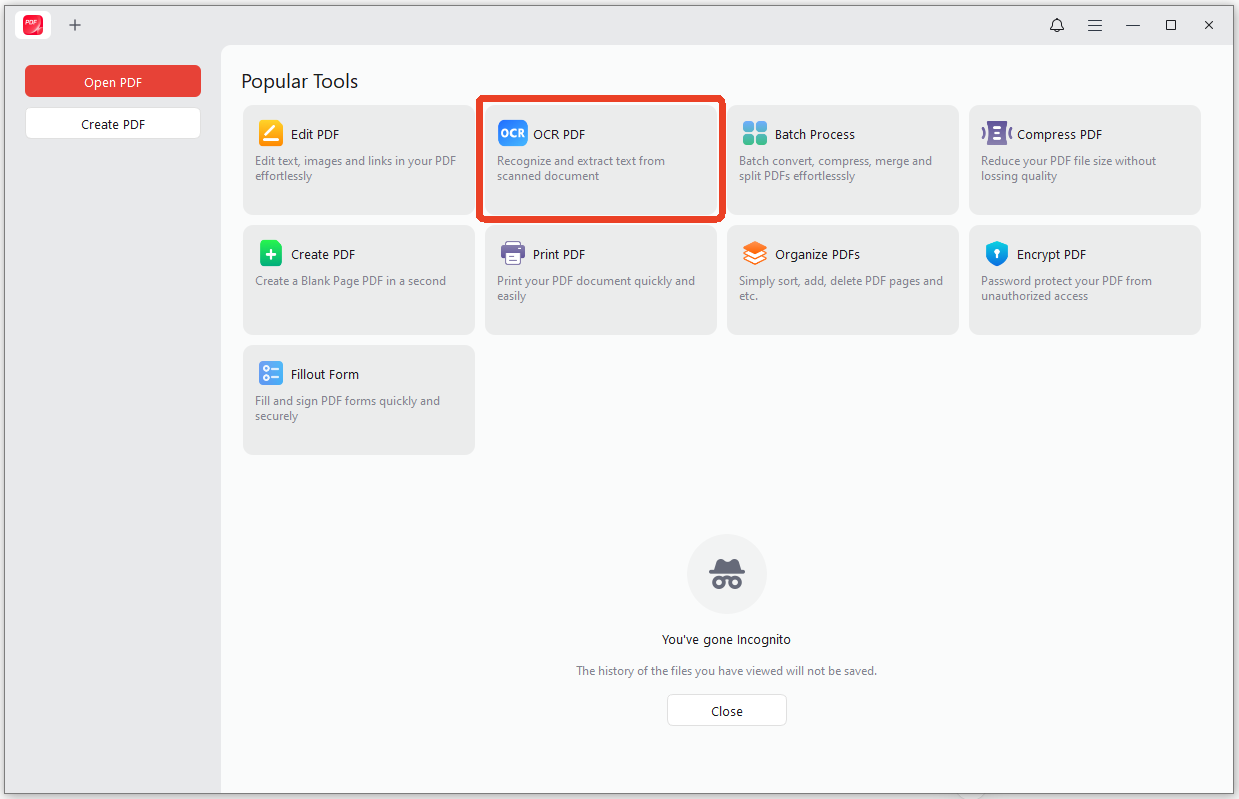
Then choose the PDF you want to convert to searchable. The tool will open a dedicated workspace for OCR, separate from the regular editing view. You don’t need to configure anything before starting – the OCR panel is where all the settings live.
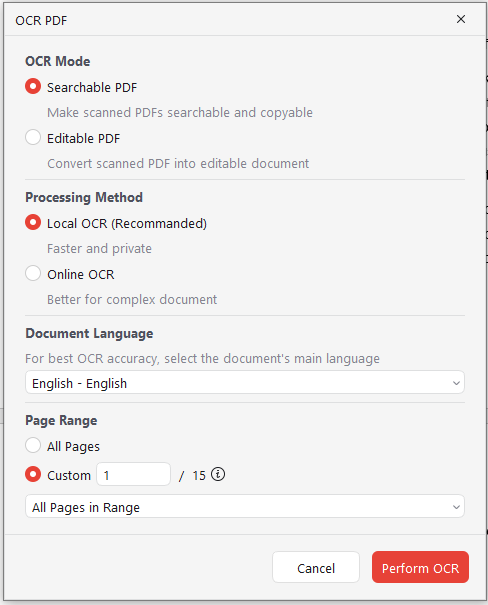
Step 2: Choose Your Output Format
JOPDF delivers OCR results in two formats, and they serve different workflows.
- Searchable PDF keeps the original scan exactly as it looks – same image, same layout, same visual appearance – and places an invisible text layer underneath. You can search, select, and copy the text, but the page still looks like the scan. This is the format for archiving, for submitting documents that must retain their original appearance, and for any situation where visual fidelity matters.
- Editable PDF goes further: it reconstructs the scan into actual editable content. The text becomes something you can click into and change, not just select. This is the format for correcting errors, updating dates, or extracting content for reuse.
All in all, if you’re archiving and need the scan to look unchanged, pick Searchable PDF. If you need to edit the text afterward, pick Editable PDF.
Step 3: Choose Your Processing Mode
This is the decision that determines where your file goes and what languages it can handle.
Two processing modes:
- Local OCR: This mode runs entirely on your machine to keep your privacy. This mode is totally suitable for sensitive PDFs, like contracts, medical records, or bank statements. The trade-off is language coverage: 29 languages are solid for major European and Asian scripts, but it’s not exhaustive.
- Online OCR: This mode uses a cloud engine with 26 languages, and the key difference is that it lets you select multiple languages simultaneously. If your document mixes Korean and English on the same page, or a contract has French clauses inside an English document, this mode is the best choice. JOPDF positions this mode for “complex, multi-layered documents that require advanced recognition capabilities”. The cost is obvious: the file is uploaded.
Step 4: Select the Document Language and Page Range
#1. Pick the language that matches the text in your PDF. This is the single biggest factor in accuracy. If you’re using Online OCR, you can select multiple languages at once. If you’re using Local OCR, you’re limited to one language per run.
#2. Set the page range. If your PDF has pages you don’t need to OCR, such as blank pages, cover sheets, or sections that are already searchable, set the page range to limit processing. This saves time on large documents and reduces the output file size.
Step 5: Run OCR
Click Perform OCR and wait for processing to be completed. Processing time depends on page count, scan quality, and whether you choose Local or Online mode. Local OCR is typically faster because there’s no upload step.
How to Test a Reliable OCR Tool to Make PDF Searchable
To make PDF text searchable, the first step is to choose reliable PDF OCR software. Here are some basic evaluation factors to help you compare OCR software:
How OCR tools are typically evaluated:
- Character Error Rate (CER): the percentage of characters that are wrong, missing, or inserted.
- Layout and structure retention: A tool can have low CER but still scramble the document’s logical flow.
- Language and script support: how many languages, and does accuracy hold for non-Latin scripts? Adobe’s OCR, for example, is weaker on Arabic and Turkish compared to other languages.
- Processing model: local vs. cloud. Local means privacy and no upload limits; cloud means potentially better accuracy on complex scans, but your document leaves your device.
- Batch and workflow integration: can it process multiple files, and does it live inside a tool where you can edit the result afterward?
How to Make a PDF Searchable Online for Free
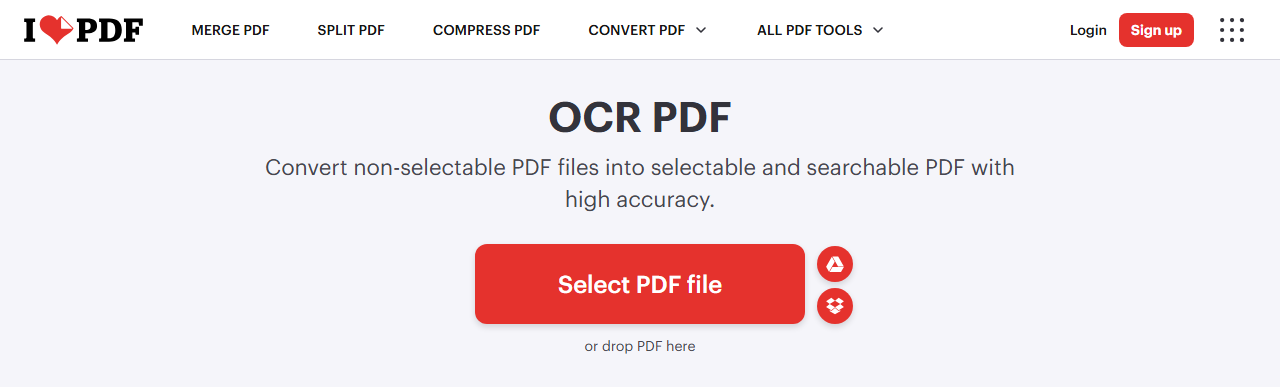
If you don’t want to install anything, browser-based tools can handle a single file. iLovePDF is a well-known searchable PDF converter option. It supports files up to 15 MB on the free tier, and files are deleted after two hours.
The process is straightforward, but the limitations are real. Free tiers cap file size and daily usage, often one file at a time. More importantly, you are required to upload your document to someone else’s server. If you accept that, follow the next steps to make a PDF searchable online for free.
Step 1: Go to iLovePDF’s online OCR tool and upload your PDF.
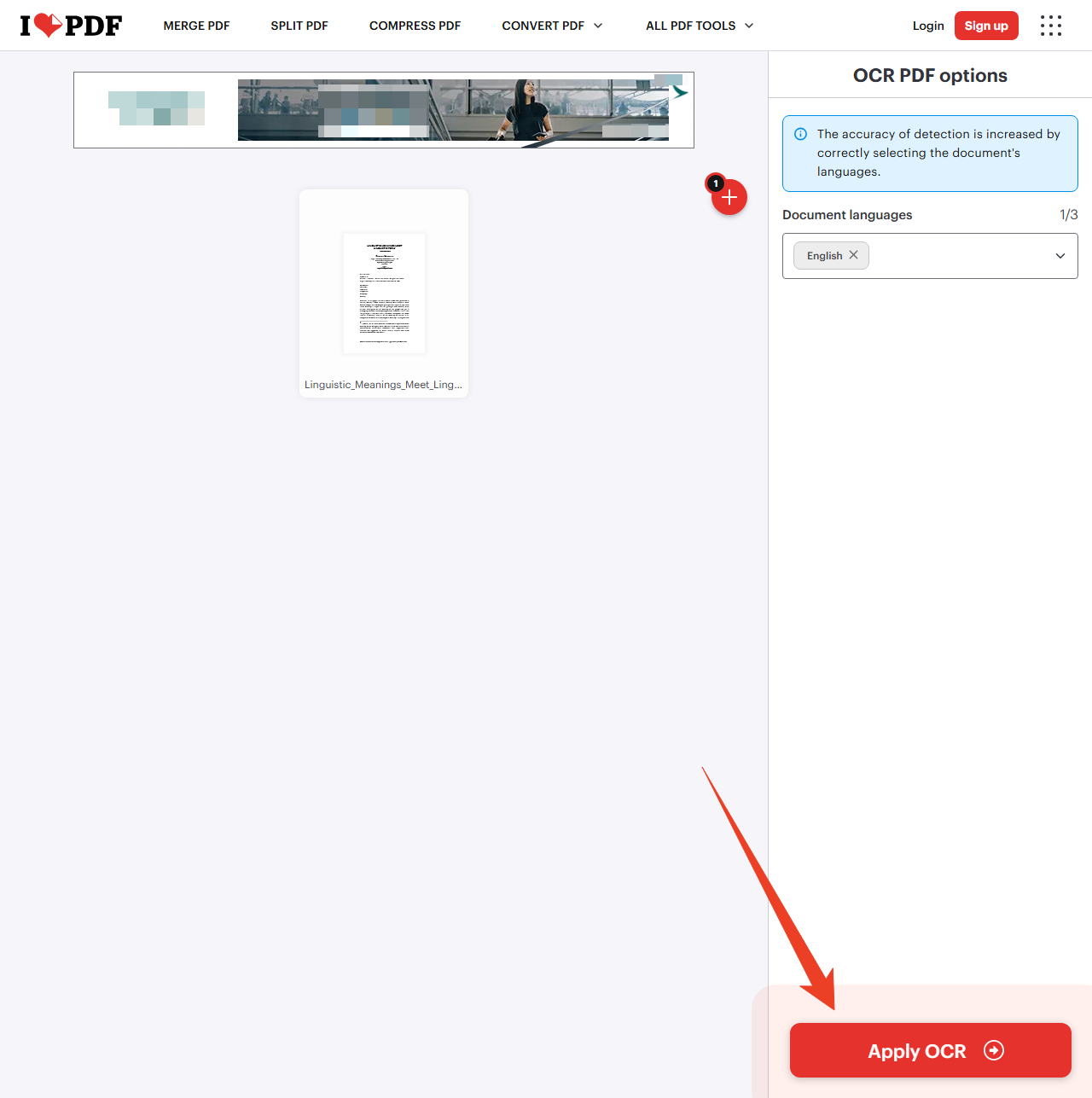
Step 2: Choose the document language and click Apply OCR.
Common Problems of PDF OCR and How to Fix Them
After you OCR a PDF, you may encounter some related problems. We’ll list them below.
- Garbage characters: The language setting was wrong. When you OCR a PDF, selecting the correct language is the single biggest accuracy factor. Re-run OCR with the right language. This is the most common cause of OCR PDF garbage characters.
- No text layer after OCR: You may have exported an image-only PDF instead of a Searchable PDF. Check the output settings and try again.
- Low accuracy on poor scans: OCR can’t fix bad input. Low-resolution, skewed, or noisy scans will produce errors. Rescanning at 300 DPI is the real fix.
- Multilingual documents fail: JOPDF’s Local OCR doesn’t support selecting multiple languages simultaneously. Use Online OCR for mixed-language pages.
Conclusion
How to make a PDF searchable? If you’re looking for reliable PDF OCR software, try JOPDF. Just follow the steps, and you can convert a PDF to a searchable PDF. If you prefer an online PDF OCR software, there are many known online tools, and you can choose one for a trial. Just note that don’t upload your private PDF to any online site. Hope this article has resolved your issue.
FAQs
Table of Contents

Your Best Free PDF Expert in PDF editing, compressing, converting, annotating, protect, organizing, and more.
Free DownloadWindows · macOS · Linux

Anna
Editor
“Anna, Editor-in-Chief and PDF expert, delivers deep insights into PDF document technology trends. She is dedicated to helping readers optimize their digital lives. When not writing, Anna loves exploring local cafes and reading, blending her technical expertise with a love for storytelling.”