Introduction :
Fail to select, search, or copy text from a PDF in Adobe Acrobat? In that case, Adobe may not recognize text. If Adobe is not recognizing text, the PDF may be scanned or image-based. Also, the problem can come from poor scan quality, incorrect OCR settings, PDF permissions, or a damaged text layer. How to resolve the “Adobe not recognizing text” issue? This JOPDF guide will walk you through 7 workable solutions.
Why Is Adobe Not Recognizing Text in a PDF
Before learning the solutions, it is necessary to understand why Adobe Acrobat fails to recognize text. The most common reason is that the PDF is actually an image rather than a text-based document. Also, I list other possible reasons below:
- The PDF is scanned or image-based: A scanned PDF is usually saved as page images. Although you can see text on the screen, that text is pixels rather than editable characters.
- The PDF has a missing or damaged text layer: If you convert or export a PDF incompletely, the PDF layer may be incomplete or corrupted.
- The scan quality is too poor: If the scan quality is too poor, Acrobat may fail to recognize text in the scanned document. Generally, blurry, low-resolution, skewed, faded, or noisy documents can cause recognition errors.
- The OCR language is incorrect: OCR engines use language-specific information to identify characters and words. If you run OCR using the wrong language, Acrobat may misinterpret letters, accents, or words.
- The PDF has security restrictions: Some PDFs restrict copying, editing, or other operations. Depending on the document’s security configuration and Acrobat workflow, these restrictions can affect what you can do with the file.
How to Tell If a PDF Contains Recognizable Text
Moreover, before troubleshooting Adobe OCR, determine whether your PDF actually contains a text layer. Here are quick tests you can try:
- Select a sentence. Click and drag your mouse cursor across a line of text.
- Copy and paste it. Paste the copied text into Notepad or another text editor.
- Search for a visible word. Press Ctrl + F and search for a word you can clearly see.
- Select individual characters. If the entire page behaves like one large image, it is probably image-based.
Next, use the results to identify the likely problem:
| What happens | Likely cause |
| Nothing on the page can be selected | Scanned or image-based PDF |
| Text can be selected but cannot be searched | Missing or damaged text layer |
| Text can be selected but copies incorrectly | Font or encoding problem |
| OCR detects text but produces many errors | Poor image quality or incorrect OCR language |
| Only some pages contain selectable text | Mixed text-and-image PDF |
| Acrobat cannot perform the operation | Possible permissions, file, or application issue |
How to Fix Adobe Not Recognizing Text
Now, let’s learn how to troubleshoot Adobe not recognizing text. Here, I prepare 7 workable fixes. Let’s check them one by one.
Fix 1. Run OCR in Adobe Acrobat
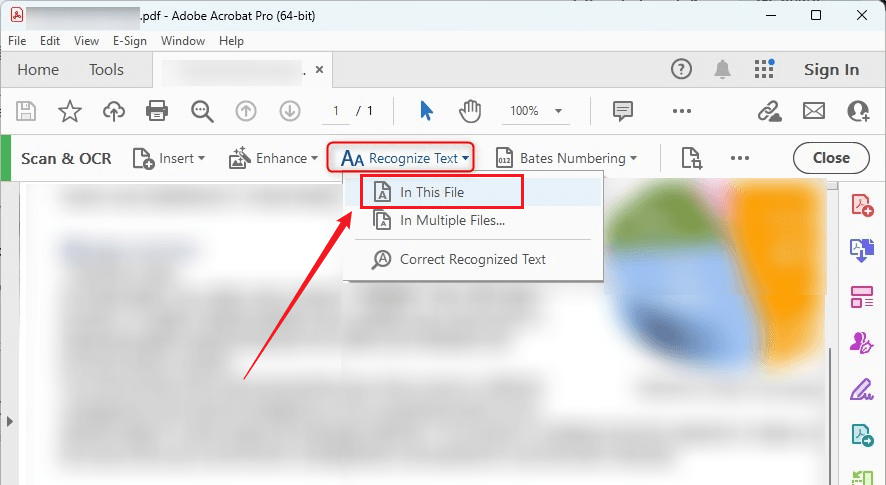
If your PDF is scanned or image-based, the first solution you can try is to use Adobe Acrobat’s OCR feature. It can analyze the characters on each page and create a searchable text layer. How to recognize text in Adobe Acrobat? Here are the steps for your reference:
- Launch Adobe Acrobat Pro and open your scanned PDF file.
- Go to All tools > Scan & OCR and select In This File under Recognize Text.
- Choose the primary language of the file and customize other OCR settings.
- Next, click Recognize Text to start the recognition process.
- Finally, save the PDF after OCR finishes and try selecting or searching for text again.
Fix 2. Check PDF Security and Permissions
If OCR or another operation is unavailable, check whether the PDF has security restrictions. Although a secured PDF doesn’t necessarily mean OCR is impossible, restrictions can affect available operations. How to check PDF security and permissions in Acrobat? Open the PDF’s security or properties information and review its permissions. Then look for restrictions related to copying content, editing, or accessibility.
Hence, if you own the PDF, use the original unprotected file whenever possible. If the PDF is provided by someone else, ask for an unrestricted copy. Or, you can use JOPDF to remove the password from the PDF.
Fix 3. Check the OCR Language in Acrobat
If Adobe Acrobat recognizes text but the results are inaccurate, verify the OCR language. For instance, suppose the PDF is written in French, but OCR is configured for English. Characters such as accented letters may be incorrectly interpreted, and the resulting searchable text may contain many errors. Hence, when you customize the OCR settings, select the language that matches the document.
Fix 4. Improve PDF Quality Before OCR
If Adobe Acrobat recognizes the text incorrectly, the problem may not be Acrobat itself. It may be due to the source image being too difficult for OCR to interpret. In that case, before running OCR again, improve the document. For instance, use a higher-quality scan to give OCR more character details to work with. For ordinary document scanning, around 300 DPI is a useful target. In addition, remove unnecessary noise, straighten crooked pages, and improve contrast.
Fix 5. Check Whether the Text Is Selectable
Sometimes, the problem is not actually OCR, but the PDF file itself. Though a PDF can have visible text that is selectable, it can still be difficult to edit. For example, a text-based PDF allows you to select and search for text but not edit it due to its document structure or permissions. Hence, before running OCR, test the text by yourself.
If you can select, copy, and search text in a PDF, then Adobe Acrobat is probably already recognizing the text. In this situation, look for an editing, permissions, font, or PDF-structure problem instead of treating it as an OCR problem.
Fix 6. Repair or Recreate the PDF
In addition, you can try to repair or recreate the PDF. If you have access to the original source document, recreating the PDF can be more effective than repeatedly troubleshooting the damaged file. If the original source is unavailable, you can create a new PDF from the existing pages and then run OCR on the new file.
Fix 7. Use Another PDF OCR Tool
If Acrobat still cannot recognize the text after you have checked the document quality, language, and permissions, another OCR-enabled PDF tool may be worth trying. Below are some available Adobe Acrobat alternatives for your choice:
- JOPDF
- SwifDoo PDF
- Foxit PDF Editor
- Wondershare PDFelement
- iLovePDF
- PDF24 Creator
JOPDF is a trustworthy option to consider when you want to recognize text in a PDF for free. It can process scanned PDFs using OCR, turning image-based document content into recognizable text. Additionally, JOPDF enables you to edit scanned PDFs with various features. For example, you can use it to fill out and sign a PDF, add annotations, watermark a PDF, add page numbers to a PDF, edit existing text, and more.
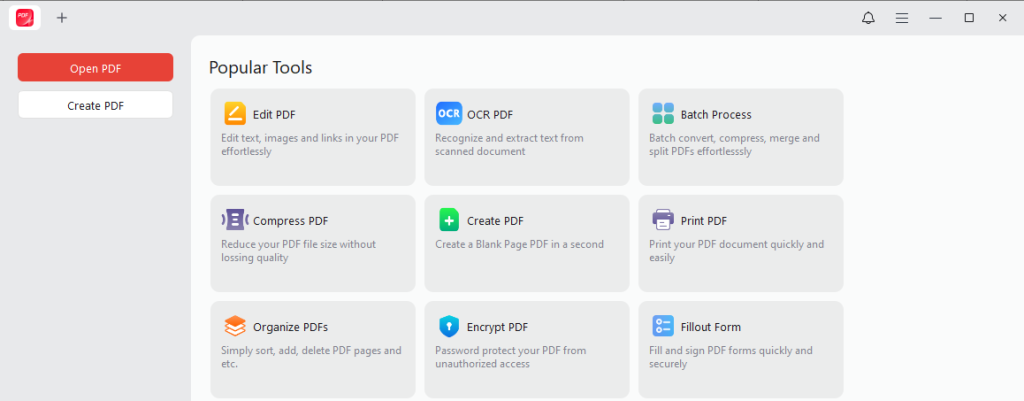
How to recognize text in a PDF for free with JOPDF? Here’s how:
- Run JOPDF and select OCR PDF from Popular Tools.
- Import the scanned PDF into this free PDF OCR software.
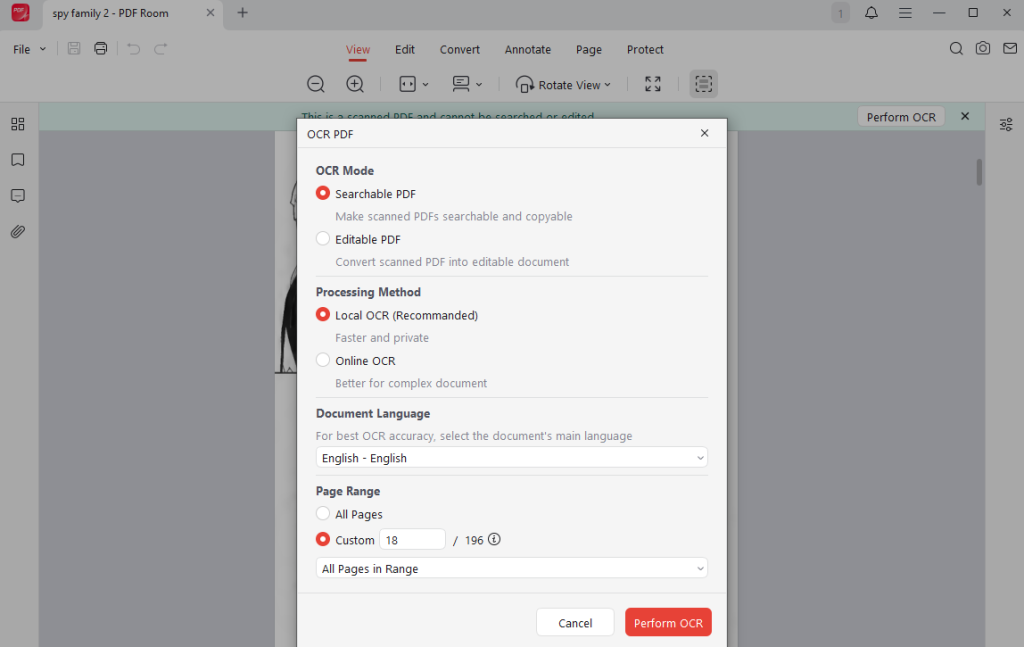
- Select Searchable PDF or Editable PDF, choose the PDF’s main language, and adjust other settings.
- Click Perform OCR to start OCR processing.
To Wrap Things Up
When Adobe is not recognizing text, the first thing to determine is whether the PDF actually contains a text layer. If the document is a scanned or image-based PDF, OCR is usually the appropriate solution. If the result is inaccurate or OCR fails, check the PDF’s quality, OCR language, permissions, and internal structure. Then you can also recreate the PDF or process it with another OCR-enabled PDF tool such as JOPDF. Hopefully, this guide is helpful to you.
FAQs
Table of Contents

Your Best Free PDF Expert in PDF editing, compressing, converting, annotating, protect, organizing, and more.
Free DownloadWindows · macOS · Linux

Olivia
“Olivia is an editor at JOPDF, where she writes practical guides and insightful articles on managing PDFs—covering topics like editing, annotating, converting, and organizing files efficiently. Passionate about clear communication and digital productivity, Olivia enjoys spending her free time cooking, watching movies, and hiking to unwind and find inspiration for her writing.”