If your PDF is missing text, it’s usually caused by font embedding issues, corrupted layers, or scanned images without OCR. This guide about PDF missing text on JOPDF will show you a step-by-step guide on how to fix missing text in PDF files on Windows, Mac, iPhone, Android, and online tools.
Summary :
How to Fix PDF Missing Text (Step-by-Step Solutions)
Each method below targets specific causes from the section above.
Method 1: Open in a Different PDF Viewer
If you’ve ever opened a PDF in Chrome or Edge only to find blank pages where text should be, you’re dealing with a browser rendering issue. The same file opened in a desktop reader often displays perfectly, because dedicated PDF software handles fonts and layers more accurately than lightweight browser viewers.
This is also the most reliable fix for Mac users who encounter mac preview PDF text missing.
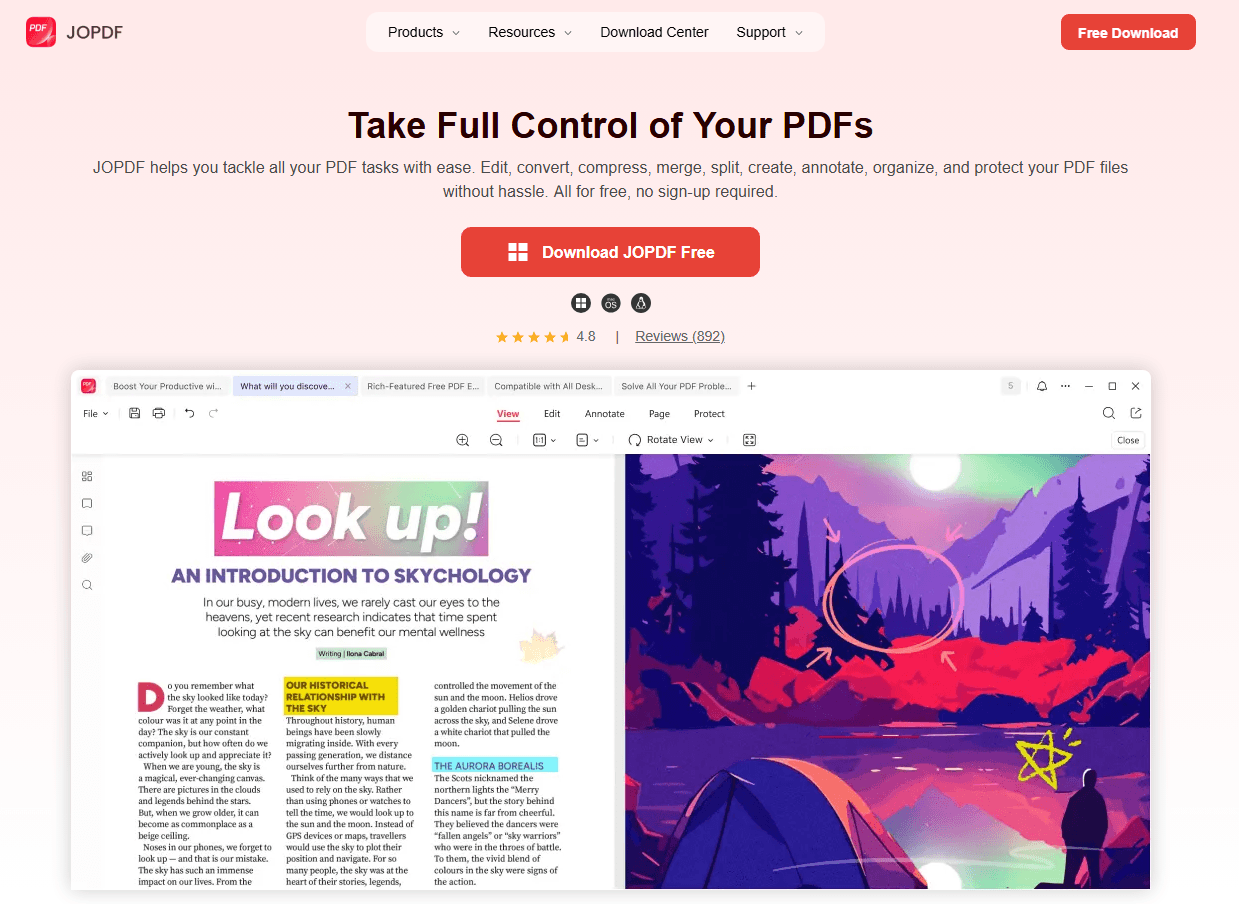
JOPDF is a free, cross-platform PDF editor that provides the tools needed to repair missing text issues without requiring sign-ups, subscriptions, or internet access. Because JOPDF processes files locally on your device, sensitive documents never leave your machine.
Key features for fixing missing text:
- Edit text directly: Select any text block and change font, size, or color, useful when text is present but invisible due to formatting that blends into the background.
- Resize text boxes and form fields: When a PDF text box not showing all text, drag the resize handles to expand the field and reveal hidden content.
- Save As to rebuild files: Creating a fresh PDF copy can rebuild the PDF’s internal structure, often resolving encoding glitches that cause PDF missing letters.
- Print to PDF for layer flattening: Use JOPDF’s print functionality to merge all layers into a single, consistently renderable output.
Step 1: Download the PDF to your computer rather than viewing it in a browser tab. Temporary browser previews don’t always load the full document.
Step 2: Right-click the file and select Open with > JOPDF. JOPDF is free, runs on Windows, Mac, and Linux, and handles font rendering more reliably than lightweight viewers.
Step 3: If text appears correctly in JOPDF, the original viewer was the problem. Continue using JOPDF for reliable viewing and basic editing.
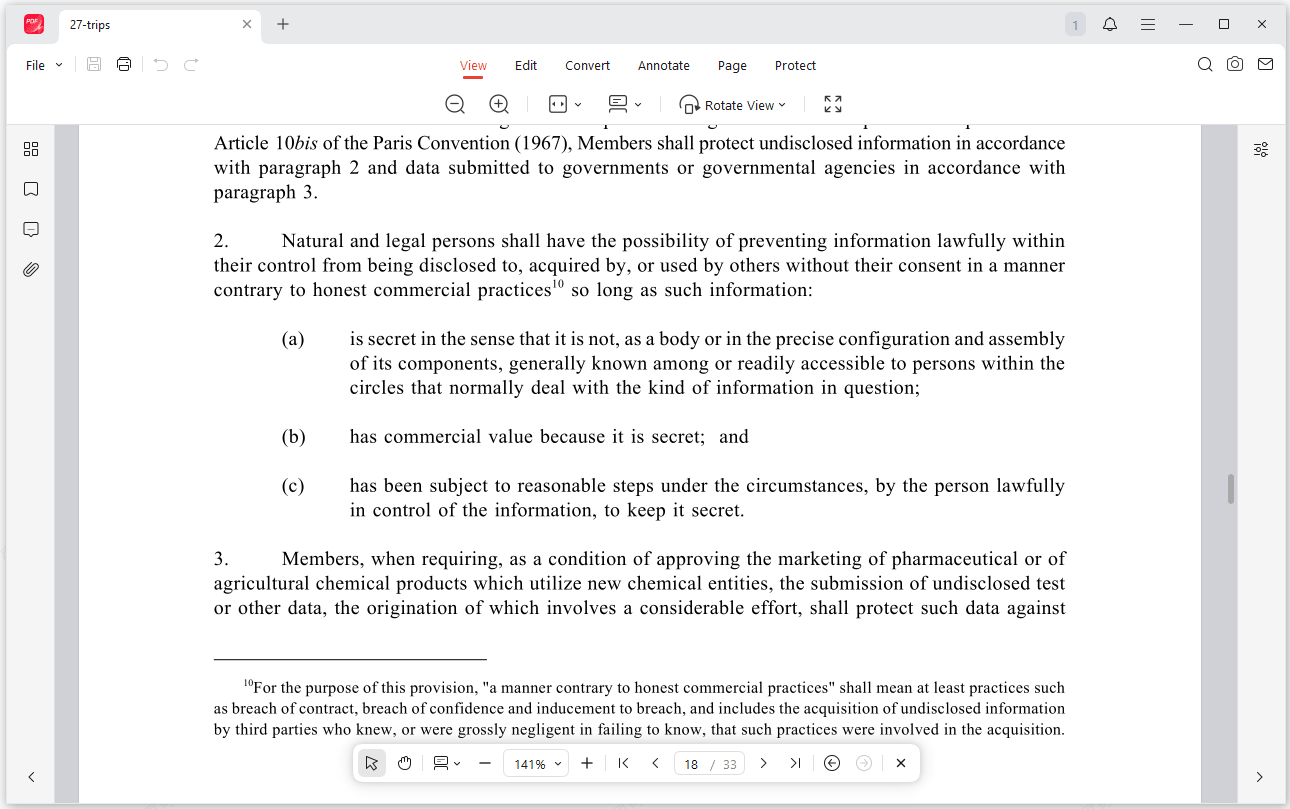
This simple switch resolves most PDF text not showing cases on both Windows and Mac. For Mac users specifically, Preview’s difficulty with layered PDFs and non-standard fonts makes “Mac preview PDF text missing” one of the most frequently reported issues.
Method 2: Print as Image
When a PDF looks perfect on screen but comes out of the printer with words missing, the print pipeline is failing to interpret the font instructions. In this way, you can try to print the PDF as an image.
Step 1: Open the PDF in your PDF editor and go to File > Print.
Step 2: In the print dialog, click Advanced or Print Settings, depending on your printer driver.
Step 3: Check the option labeled Print as Image.
Step 4: Select a resolution, 300 DPI for professional documents, 150 DPI for drafts or internal use.
Step 5: Click Print. The entire page renders as a single image, ensuring every visible element appears on paper.
Also See: Adobe Print to PDF Not Working [Reasons and Solutions]
Method 3: Embed Fonts and Re-Export from the Source
If you’ve converted a document from Word, Excel, or Photoshop, only to find that text has vanished in the output. This is the root cause behind most cases of Word to PDF missing text, where headings or paragraphs that looked fine in the original document disappear from the PDF.
Similarly, Excel to PDF missing text occurs when cell content gets cut off or excluded during export, and Photoshop PDF missing text happens when type layers aren’t properly embedded in the saved file. The steps to resolve the problem is quite same.
For Microsoft Word (Windows):
Step 1: Go to File > Options > Save.
Step 2: Under “Preserve fidelity when sharing this document,” check Embed fonts in the file.
Step 3: Also check Embed only the characters used in the document to keep file size manageable while ensuring all visible text is preserved.
Step 4: Re-save or re-export the document as PDF. This resolves the word-to-PDF missing text at the source.
For Microsoft Word (Mac):
Step 1: Go to Word > Preferences > Save.
Step 2: Check Embed fonts in the file.
Step 3: Re-export as PDF.
For Excel:
Step 1: Go to File > Save As > PDF.
Step 2: Click Options before saving. Ensure document properties and text are included in the export.
For Photoshop:
Step 1: When saving as PDF, choose High Quality Print or Press Quality preset rather than “Smallest File Size.”
Step 2: In the save dialog, ensure Embed fonts is selected.
If you can’t find the source file, follow the next steps:
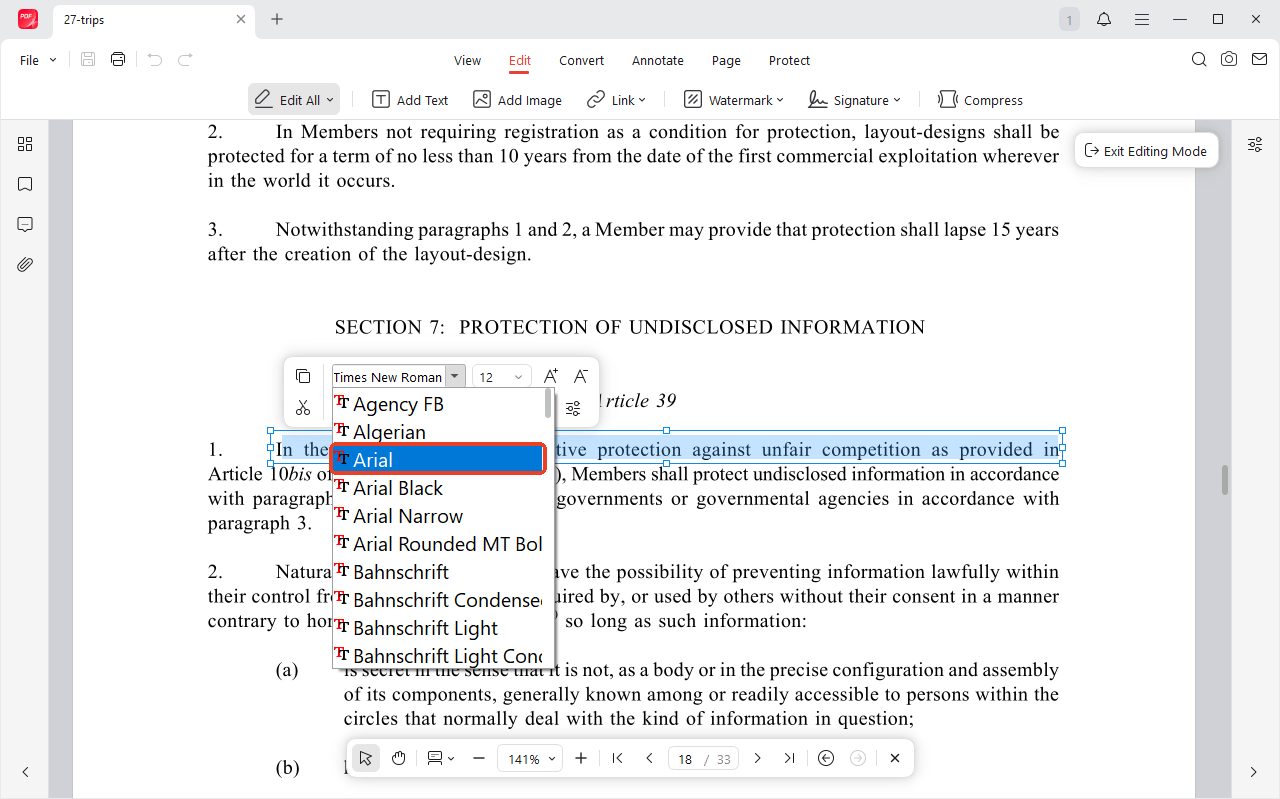
- Open the PDF in JOPDF and use the text editing tool to select affected text blocks.
- Apply a standard font such as Arial or Times New Roman, and save. This standardizes fonts without needing the original document, though it works best when only small sections are affected.
Tips
JOPDF is 100% free, with no feature paywalls, no account requirements, and no watermarks on saved files. Available for Windows, Mac, and Linux, it provides a consistent, offline PDF editing experience that helps you fix missing text without uploading documents to external servers.
Method 4: Flatten PDF Layers
When text disappears from only certain sections of your document while the rest displays perfectly, hidden or misconfigured layers are usually to blame. You might notice this PDF text not showing because PDFs can contain multiple stacked elements, all sitting on top of each other.
If your text layer gets pushed behind an image or someone accidentally turns it off, your content becomes invisible even though it’s still sitting right there in the file.
We’ve found that flattening your PDF merges everything into a single layer and solves this problem quickly.
Step 1: Open the PDF in JOPDF.
Step 2: Go to File > Print and select Microsoft Print to PDF as the destination.
Step 3: Ensure no “layers” or “separations” options are selected in the print settings.
Step 4: Click Print and save the new file. The output is a flattened PDF with all visible elements merged into a single layer.
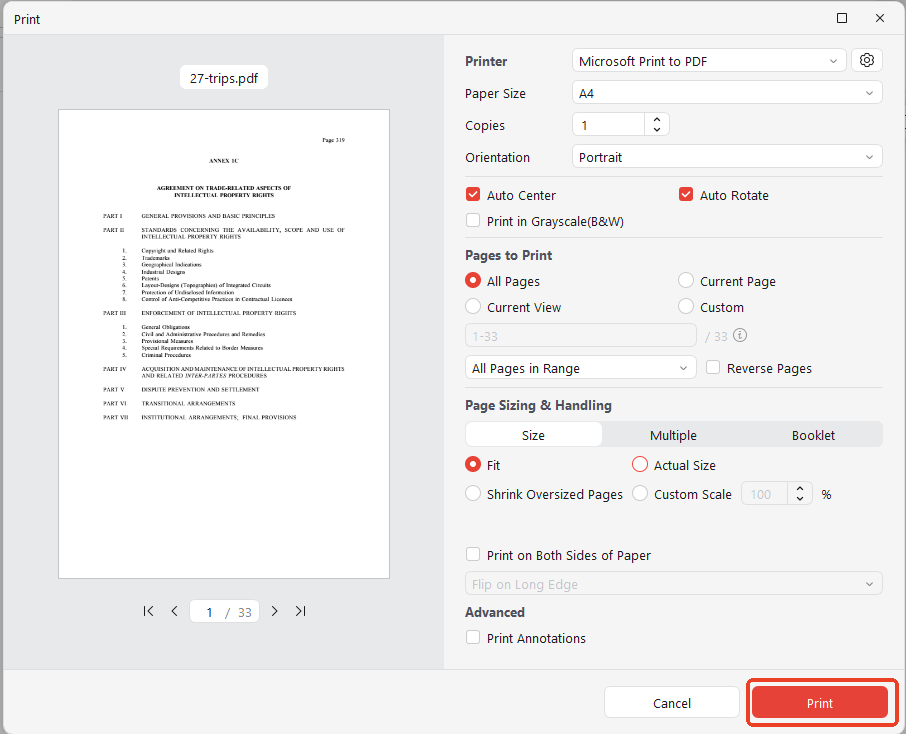
Step 5: Open the new PDF and check the previously missing text areas.
Method 5: Check Form Field and Text Box Boundaries
PDF text box is not showing all text if the font color of your annotation is similar to the background color, or if the text object is positioned behind other elements. Usually, simply changing the font color or moving the text to the front layer will resolve this problem.
Step 1: Open the PDF in JOPDF and click on the form field or text area where text appears to be missing.
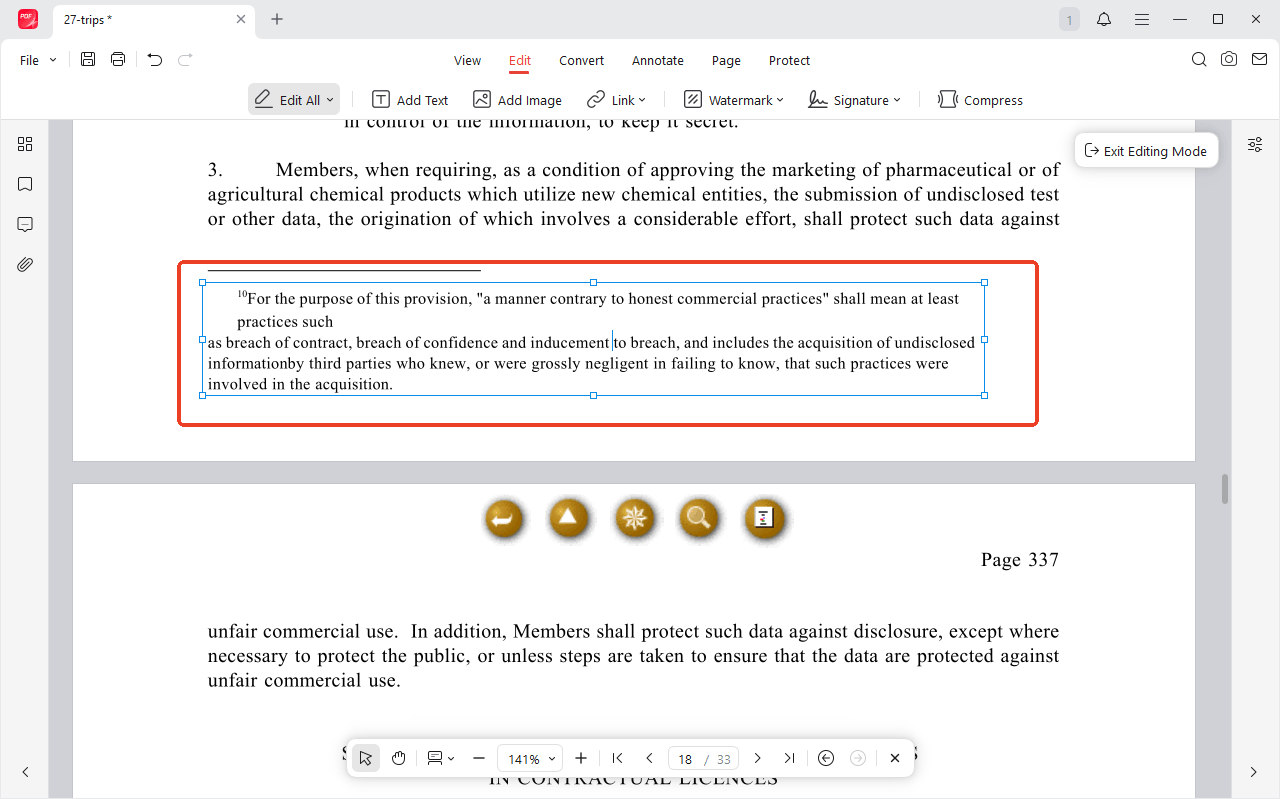
Step 2: If the field is a form text box, resize it by dragging the handles on its edges. Text that was cut off will become visible as the box expands.
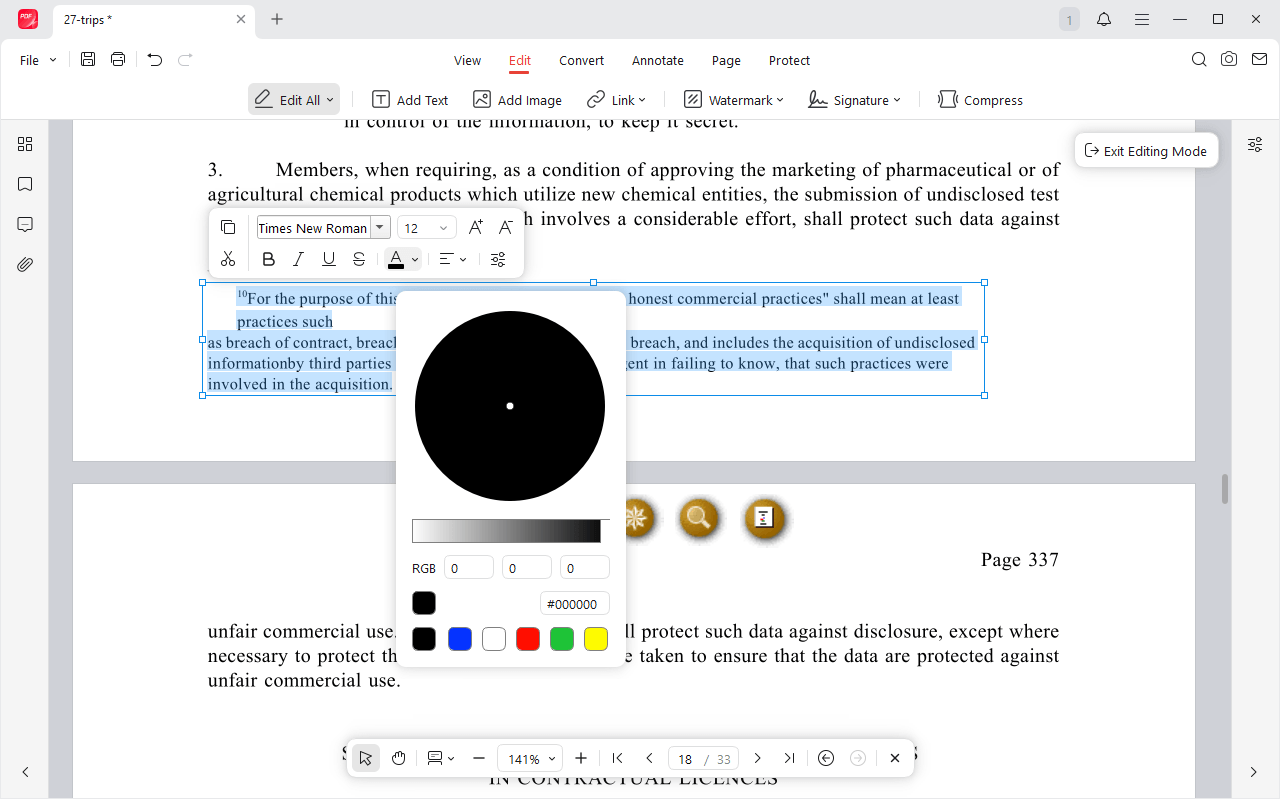
Step 3: If text was added but appears invisible, select the text area and check the font color in JOPDF’s formatting toolbar. Change it to black if it’s currently set to white or transparent.
Step 4: If the text object is behind an image or shape, use JOPDF’s right-click menu to bring it to the front layer.
Method 6: Convert to PDF/A Format
You’ll often see this with Adobe PDF missing text reports. If you need consistent results everywhere, we recommend converting your file to PDF/A format.
This archival standard locks in your fonts and removes the elements that cause cross-platform differences. So if you notice PDF missing letters that only affect certain characters or show up unpredictably depending on what device you’re using, PDF/A gives you a self-contained version that renders the same way no matter where you open it.
Step 1: In Adobe Acrobat Pro, go to Tools > PDF Standards > Save as PDF/A.
Step 2: Select PDF/A-2b for the broadest compatibility across modern PDF readers.
Step 3: Save the file and test it in at least two different viewers to confirm all text appears.
For users without Acrobat Pro, an alternative workflow is to open the PDF in JOPDF, use File > Save As to create a fresh copy, and test the output. While not a formal PDF/A conversion, rebuilding the file structure often resolves encoding inconsistencies that cause PDF missing letters.
Tips
PDF/A conversion strips interactive elements like form fields and multimedia. Use it for documents where consistent text display matters more than interactivity.
Method 7: Update Printer Drivers
An outdated printer driver can cause print PDF missing text issue. Try to update the driver and you may find it resolved.
Step 1: Open Device Manager, expand Print queues, right-click your printer, and select to update the driver.
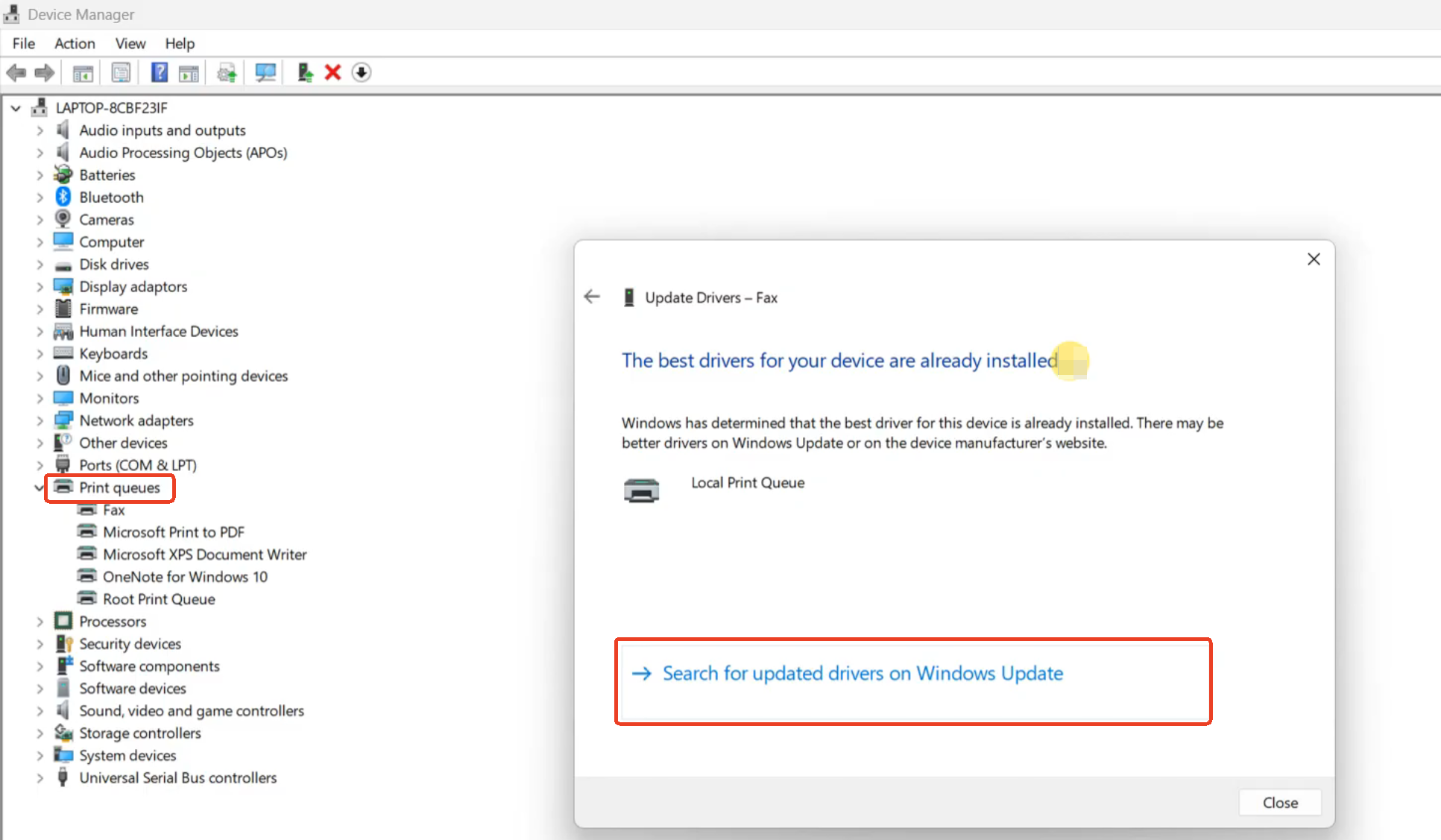
Step 2: After updating, re-print the PDF. If text is still missing, use the Print as Image method described in Method 2.
Method 8: Disable Browser Hardware Acceleration
Browser PDF viewers prioritize speed and can mis-render specific font types, character pairs, or transparency effects.
Step 1: In Chrome or Edge, go to Settings > System.
Step 2: Toggle off Use graphics acceleration when available.
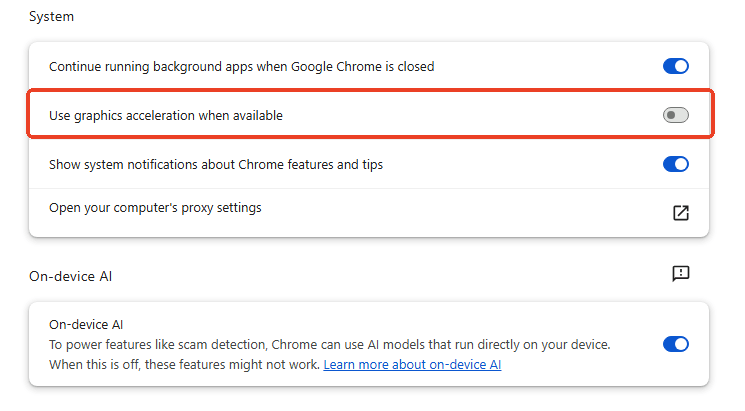
Step 3: Restart the browser and re-open the PDF.
How to Fix PDF Missing Text on Mac
Mac Preview PDF text missing is one of the most widely reported PDF issues on macOS. Preview handles layered PDFs and custom fonts poorly compared to dedicated readers.
Step 1: Right-click the PDF and select Open with > JOPDF. If text appears correctly, Preview was the limitation.
Step 2: Save the PDF from JOPDF using File > Save As to create a new copy with optimized cross-viewer compatibility.
Step 3: For a second test, open the PDF in Safari or Chrome. If text appears there but not in Preview, the file is fine. Simply make JOPDF your default PDF viewer.
If PDF missing letters persists across all Mac viewers, the fonts are likely not embedded. Follow Method 3 to embed fonts from the source application, or Method 4 to flatten the PDF.
Also See: How to Edit a PDF on Mac for Free | 3 Ways
How to Prevent Missing Text in Future PDFs
The most efficient fix is prevention. These habits eliminate the root causes before documents are shared.
- Embed fonts from the start. Before you export from Word, Excel, PowerPoint, or any design software, make sure font embedding is turned on.
- Use standard fonts for shared documents. Arial, Times New Roman, Calibri, and Helvetica are available on virtually every device. Using them eliminates font substitution risks entirely.
- Export to PDF/A for high-stakes documents. This archival format forces font embedding and strips out the elements that cause those frustrating cross-platform differences. We’d suggest saving it for your legal documents, compliance filings, and anything headed to a professional printer.
- Test in at least two viewers before sharing. Open the exported PDF in JOPDF and one browser viewer. If something looks off, you’ll catch it before your client, your professor, or your boss does.
- Avoid browser-based editing for important PDFs. Use a dedicated desktop editor like JOPDF to ensure text additions are properly embedded and saved within the file structure.
- Keep PDF viewers and printer drivers updated. Outdated software is a common source of rendering and printing problems. Regular updates prevent incompatibilities that cause text to disappear.
Conclusion
PDF missing text is frustrating but rarely permanent. In most cases, the content still exists in the file. It’s simply not being displayed, printed, or rendered correctly by the software handling it.
For persistent problems that span multiple devices, rebuilding the PDF from the original source file with proper font embedding is the most reliable long-term solution. And for everyday PDF work, JOPDF provides a free, offline, and consistent tool that avoids the rendering quirks of lightweight viewers while keeping documents securely on your local machine.
Download JOPDF, open your PDF, and see your content the way it was meant to be seen.
FAQs
Editing a PDF can introduce characters not included in the original embedded font subset. If those characters aren't in the subset, they won't display. Rebuild the PDF from the source with full font embedding, or use JOPDF to apply standard fonts to affected text before saving.
If you can highlight a blank area with your cursor, the text is present but invisible. You can try to change the font color or bring the text layer to the front. If nothing is selectable, the content may be part of a scanned image and requires external OCR software to extract.
Enable font embedding before exporting. In Word, go to File > Options > Save > Embed fonts in the file. This ensures all text characters travel with the PDF to any device.
macOS Preview struggles with layered PDFs and non-standard fonts. Open the PDF in JOPDF instead. To make the file universally readable, flatten layers by printing to a new PDF through JOPDF's print function.
Table of Contents

Your Best Free PDF Expert in PDF editing, compressing, converting, annotating, protect, organizing, and more.
Free DownloadWindows · macOS · Linux

Anna
Editor
“Anna, Editor-in-Chief and PDF expert, delivers deep insights into PDF document technology trends. She is dedicated to helping readers optimize their digital lives. When not writing, Anna loves exploring local cafes and reading, blending her technical expertise with a love for storytelling.”

![8 Best Manga Reading Sites to Read Manga Online [Full Review]](https://b.jopdf.com/wp-content/uploads/2026/09/best-manga-reading-sites.png)