While Windows 10 and 11 include a built-in “Print to PDF” feature, it doesn’t fully support editing, converting, or managing documents in a flexible way. That’s why many users start searching for a free PDF creator for Windows 10/11 that can handle real workflows. In this guide on JOPDF, we tested several tools to find the best PDF creator for Windows, focusing on usability, output quality, and real-world performance. Whether you need a PDF creator free download or a tool with editing capabilities, this article will help you make the right choice.
Summary :
Why You Need a Free PDF Creator for Windows 10/11
In practice, creating a PDF is rarely a one-step task. You may need to convert a Word file, combine images, compress the output, or make edits afterward. This is where a PDF creator software free tool becomes essential. Without a proper tool, you may run into issues like:
- Limited functionality when using built-in Windows tools
- Poor formatting when converting files
- Lack of editing options after creating a PDF
- Inability to handle images or batch files
By using the right PDF maker, you can create PDF files on Windows 10/11 from multiple sources, such as Word, Excel, images, or even scanned documents, while keeping formatting intact. However, here’s a thing you should notice, some tools often produce large file sizes or lose clarity when you create PDFs from image-heavy files. That’s why we recommend you use a dedicated PDF maker for compression and formatting.
How to Choose the Best PDF Creator for Windows 10/11?
What makes the best free PDF creator? Learning this question could help you make a better decision. First of all, not all tools labeled as “free” deliver the same experience. Based on testing, the best free PDF creator for Windows 10/11 should meet a few key criteria.
- It should offer true free functionality. Many tools advertise themselves as free but add watermarks or restrict exports. A reliable free PDF creator for Windows no watermark is essential for professional use.
- Another important factor is versatility. Users rarely just “create” PDFs; they also need to edit, convert, or organize them. That’s why the best PDF creator software for Windows 10/11 free download version often includes multiple features in one platform.
- Performance also matters. A good tool should be lightweight and fast, especially when working with large files. No one wants to wait just to create PDF from Word Windows or images.
- Finally, ease of use plays a big role. The interface should be intuitive enough for beginners while still offering advanced options for experienced users.
All in all, the best tools should combine PDF generator Windows 10/11 functionality with editing, conversion, and workflow efficiency.
Free PDF Creator for Windows 10/11
Comparison Table for Free PDF Creators
| Tool | Platform | Editing Features | Ease of Use | Best For |
| JOPDF | Desktop | High | Easy | Full workflow |
| PDF24 Creator | Desktop | Medium | Easy | Basic creation |
| Smallpdf | Online | Medium | Very Easy | Quick tasks |
| Canva | Online | Low (design-focused) | Very Easy | Creative PDFs |
| Adobe Acrobat | Both | High | Moderate | Professional use |
| CutePDF | Desktop | Low | Easy | Simple creation |
JOPDF
If your goal is not just to create PDFs but to manage them efficiently, JOPDF offers a more complete experience compared to many basic tools. JOPDF is a versatile PDF maker available on Windows, Mac and Linux, providing a full document workflow solution.
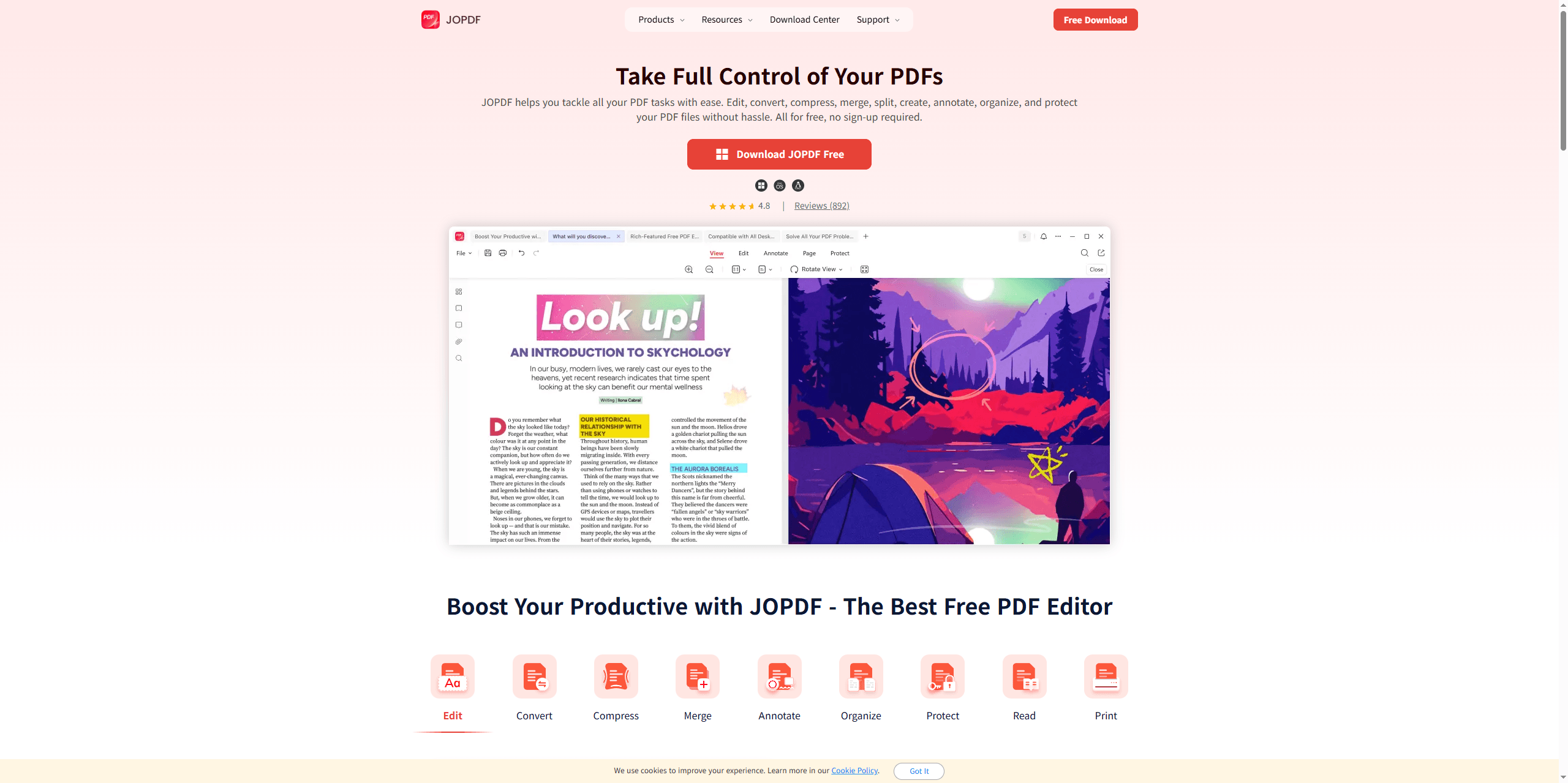
When using JOPDF, the process of creating PDFs is straightforward. You can convert files from Word, images, or other formats into PDFs without formatting issues. With the toolkit, you can immediately edit, merge, compress, or reorganize your files within the same interface, more than just creating PDF files on Windows 10/11.
What’s worth to mention is that this one-stop PDF editing tool is 100% free and no rehistration required.
JOPDF’s Key Features:
-
Create PDFs from Word, images, and other formats
-
Built-in editing tools for text and layout adjustments
-
Merge, split, and compress PDF files
-
Lightweight performance with fast processing
-
No watermark in free version
Pros
-
All-in-one PDF creator software free solution
-
Smooth workflow without switching tools
-
High output quality with minimal formatting issues
-
Works well as a lightweight PDF creator Windows option
Cons
-
Fewer advanced design features compared to creative tools
-
Brand awareness still growing
PDF24 Creator
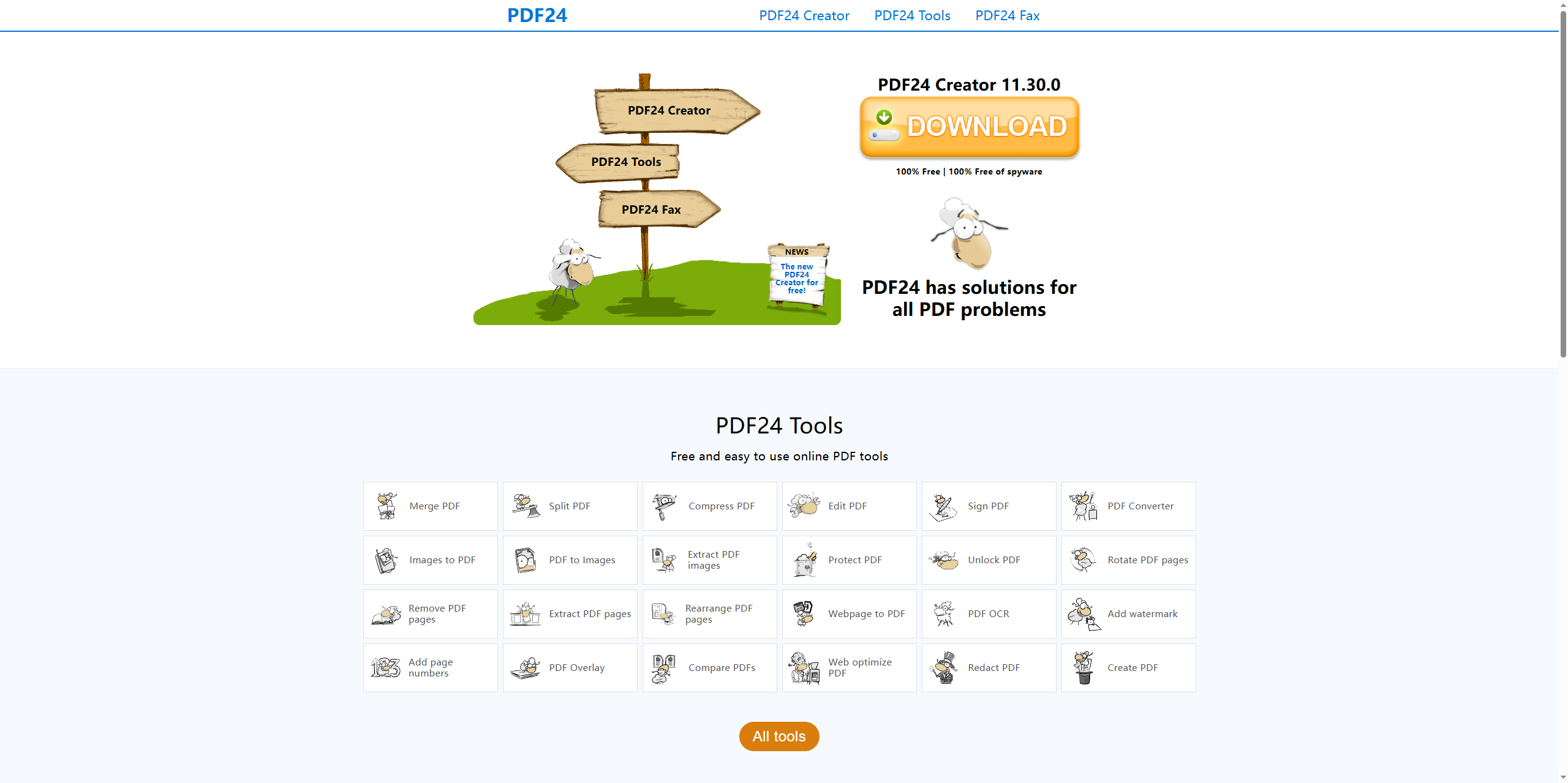
PDF24 Creator is a desktop-based tool that focuses on simplicity and accessibility. It works as a virtual printer, allowing users to create PDFs from almost any printable file. When we tested it, the process felt familiar. You just need to open a file, choose “Print,” and select PDF24 as the printer. This makes it easy for users who just want a basic PDF generator Windows 10 solution.
Features
- Virtual PDF printer
- Basic editing and merging tools
- Offline usage
- File compression
Pros
-
Completely free with no watermark
-
Simple and reliable
-
Works offline
Cons
-
Interface feels outdated
-
Limited advanced editing features
Smallpdf
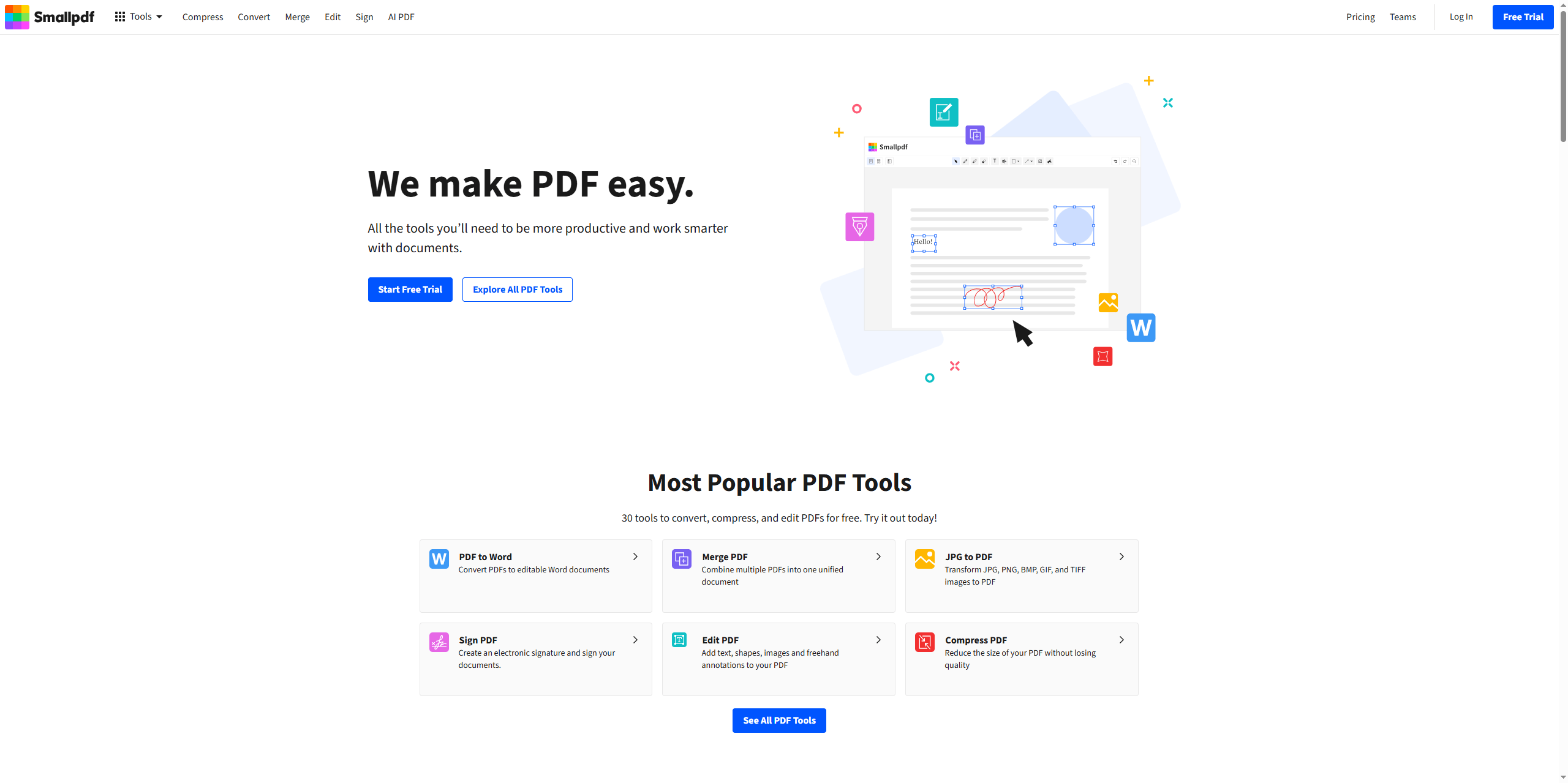
Smallpdf is more of an online platform, but it also offers desktop access. It’s a good choice especially for users who prefer browser-based tools. When creating PDFs, the process is smooth – just upload your file and convert it. However, because it relies on cloud processing, speed depends on your internet connection.
Features
- Online PDF creation and conversion
- Cloud integration
- Compression and editing tools
Pros
-
Easy to use
-
Clean interface
-
Good for quick tasks
Cons
-
Requires internet connection
-
Limited free usage
-
Not ideal for large files
Canva
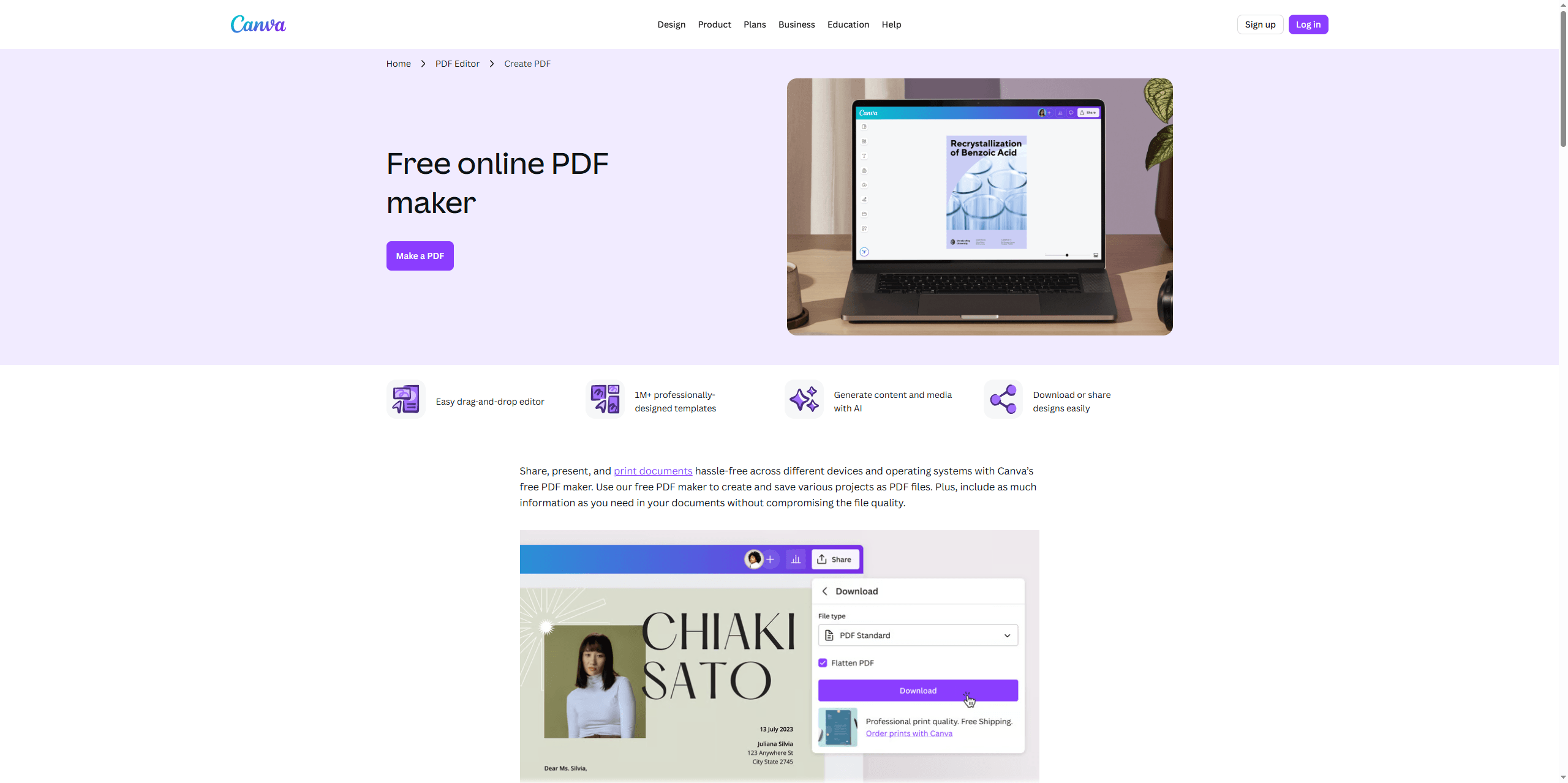
If your focus is on design rather than simple document creation, Canva offers a very different experience. It works more like a creative platform than a traditional PDF creator free Windows tool. When you create a PDF in Canva, you’re essentially designing it from scratch using templates. This works well if you want to create PDF files on Windows 10/11 that look polished and modern.
However, when importing existing files, the experience can be inconsistent. During testing, simpler documents converted reasonably well, but more structured layouts sometimes required manual adjustments. This is why Canva works best as a redesign tool rather than a precise PDF converter.
Features
- Drag-and-drop design interface
- Thousands of templates for resumes, reports, and presentations
- Ability to add images, icons, charts, and branding elements
- Export files as high-quality PDFs
- Cloud-based platform with collaboration features
Pros
- Excellent for visually appealing PDFs
-
Beginner-friendly
- Wide template selection
-
Ideal for creative roles and branding-focused documents
-
Works well as a PDF maker free Windows alternative for design
Cons
-
Not ideal for precise document conversion
- Formatting may shift when importing files
-
Less efficient for users who want to quickly create PDF from Word on Windows
Canva is excellent when you want to redesign a document completely. If your goal is to make small edits or quickly generate PDFs, it can feel slower and less precise than a traditional PDF generator Windows 10 tool.
Also See: 6 CSV to PDF Converters in 2026 [Top Offline and Online Finds]
Adobe Acrobat
Adobe Acrobat approaches PDF creation from a professional and technical perspective. Instead of focusing on design like Canva, it aims to provide a complete document solution from creation to editing and sharing.
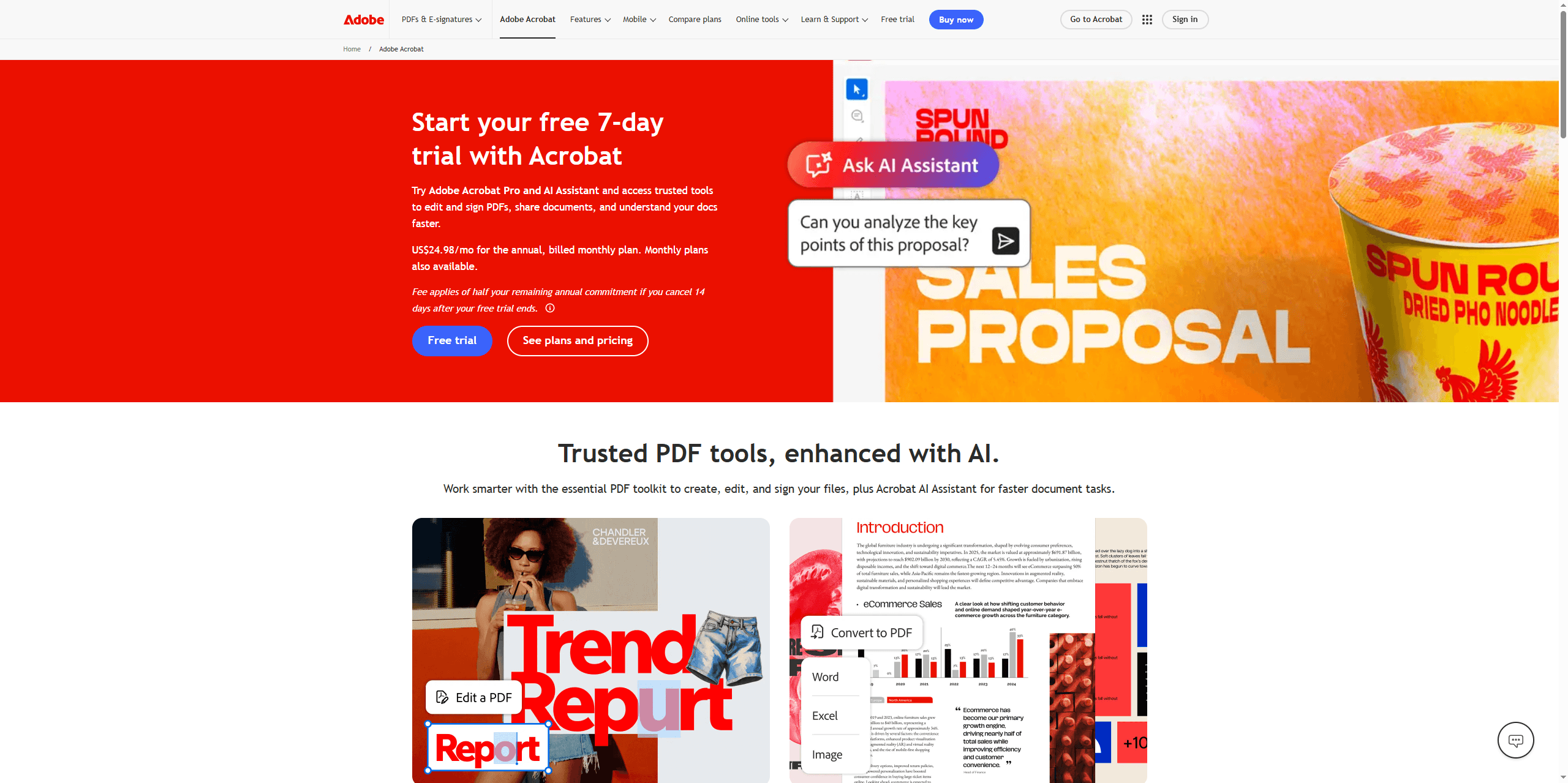
When using Acrobat as a free PDF creator for Windows 10/11, the experience feels polished and reliable. You can create PDFs from Word, Excel, images, and even scanned files, with strong formatting consistency. This makes it a dependable choice for users who need accuracy when they create PDF files on Windows 10/11.
However, the free version comes with limitations. While basic creation is available, many advanced features require a paid subscription, such as full editing, OCR, and batch processing.
Features
- Create PDFs from multiple file formats (Word, Excel, images)
- Advanced editing tools (text, layout, annotations)
- OCR for scanned documents
- Cloud storage and sharing integration
- High-quality file compression and optimization
Pros
- Industry-standard PDF creator software free (with paid upgrades)
- Excellent formatting accuracy
- Handles complex documents reliably
- Strong integration with other Adobe tools
Cons
- Limited features in the free version
- Subscription required for full functionality
- Heavier software compared to lightweight tools
- Can feel complex for beginners
Adobe Acrobat is ideal if you need precision and reliability. But for users looking for a lightweight PDF creator Windows or a fully free solution, it may feel restrictive unless you upgrade.
CutePDF
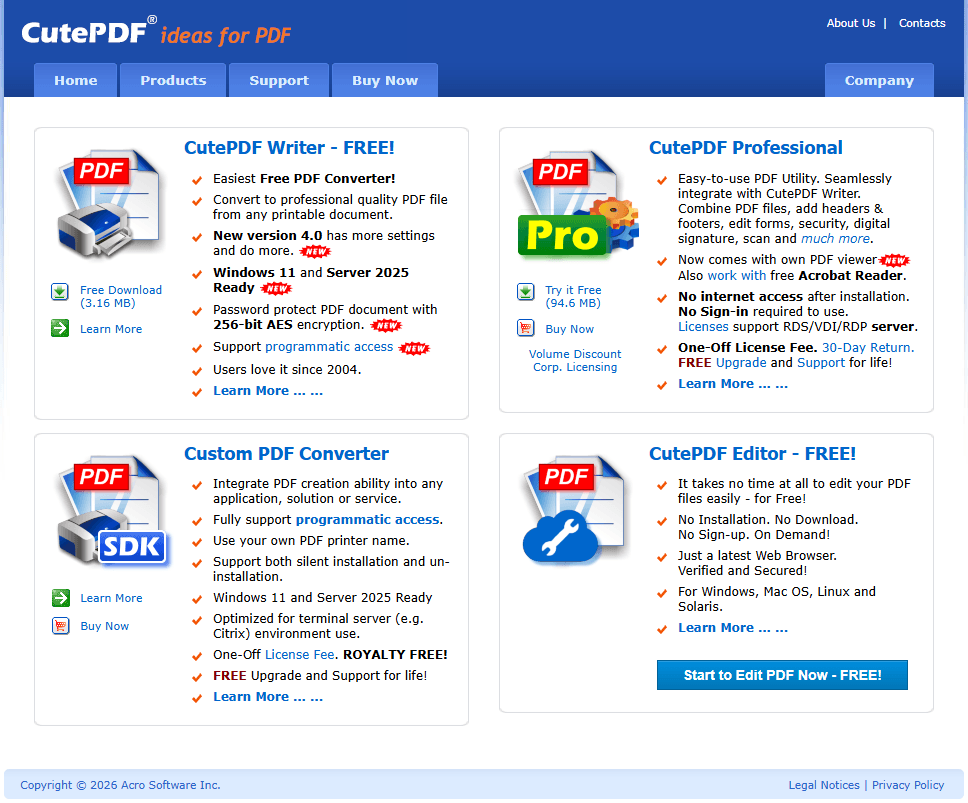
CutePDF is a lightweight and minimal PDF maker free Windows option. It functions mainly as a virtual printer. The setup is simple, and once installed, you can create PDFs from any printable document.
Features
- Virtual printer for PDF creation
- Basic conversion functionality
- Lightweight installation
Pros
- Very simple to use
- Fast performance
- Free download
Cons
- No editing features
- Limited functionality
Also See: Pro Guide on How to Print PDF Without Margins via 5 Best Ways
How We Tested These Free PDF Creators for Windows 10/11?
To make this guide genuinely useful, we tested each tool in real-world scenarios to see how well they actually perform as a free PDF creator for Windows 10/11.
We started by recreating common user workflows. This included converting Word documents, combining image files, and generating PDFs from multi-page scanned documents. The goal was to reflect how people actually create PDF files on Windows 10/11, rather than just testing ideal conditions.
We also paid close attention to output quality. Some tools can generate PDFs quickly, but lose formatting in the process. So we checked whether layouts, fonts, and images remained consistent after conversion, especially when using tools advertised as PDF creator free download options.
Performance was another key factor. We tested how each tool handled large files and repeated tasks. In practice, this is where differences became obvious. Lightweight desktop tools processed files almost instantly, while some online platforms slowed down due to upload limits or browser constraints.
Finally, we compared workflow efficiency. In real use, creating a PDF is rarely the only step; you may also need to edit, compress, or reorganize the file. Tools that combined these functions into one platform provided a much smoother experience than those requiring multiple steps.
Conclusion
Choosing the right free PDF creator for Windows 10/11 depends on your needs. If you only create PDFs occasionally, simple tools like CutePDF or Smallpdf may be enough.
However, if your workflow involves creating, editing, and managing documents regularly, a more complete solution like JOPDF provides better value. It combines multiple features into one platform, making it easier to handle PDFs efficiently.
In the end, the best tool is the one that fits your workflow but if you’re looking for a balance of performance, flexibility, and ease of use, JOPDF stands out as one of the most practical options available.
FAQs
A PDF printer installs as a virtual printer that converts any printable document to PDF format. A PDF editor lets you modify existing PDFs, add annotations, fill forms, or create blank PDFs from scratch.
Not necessarily. Tools like SwifDoo PDF and Windows' built-in Microsoft Print to PDF create clean PDFs without any watermarks. Some freemium tools may add watermarks to unlock premium features.
Table of Contents

Your Best Free PDF Expert in PDF editing, compressing, converting, annotating, protect, organizing, and more.
Free DownloadWindows · macOS · Linux

Anna
Editor
“Anna, Editor-in-Chief and PDF expert, delivers deep insights into PDF document technology trends. She is dedicated to helping readers optimize their digital lives. When not writing, Anna loves exploring local cafes and reading, blending her technical expertise with a love for storytelling.”
![4 Free and Proven Methods to Convert PDF to ODS [Detailed]](https://b.jopdf.com/wp-content/uploads/2026/10/convert-pdf-to-ods.png)