Introduction :
Instead of printing a PDF and completing it by hand, it is more convenient to create a fillable PDF so you can enter information directly. Adobe Acrobat is a professional PDF editor that enables you to create fillable PDFs. Additionally, it lets you turn an existing PDF, Word document, Excel file, or scanned form into an interactive PDF. How to create a fillable PDF in Adobe Acrobat? Let’s explore the detailed instructions in this JOPDF article.
How to Create a Fillable PDF in Adobe Acrobat
In addition to filling out PDF forms on Mac and Windows, Adobe Acrobat also allows you to create fillable PDFs. If you already have a document you want others to complete electronically, Adobe Acrobat’s Prepare a form tool is an excellent option. It enables you to analyze an existing document and automatically identify areas that appear to be form fields. How to make a fillable PDF in Adobe Acrobat? Below are the exact steps for your reference:
Step 1. Launch Adobe Acrobat on your PC, go to All tools, and select Prepare a form.
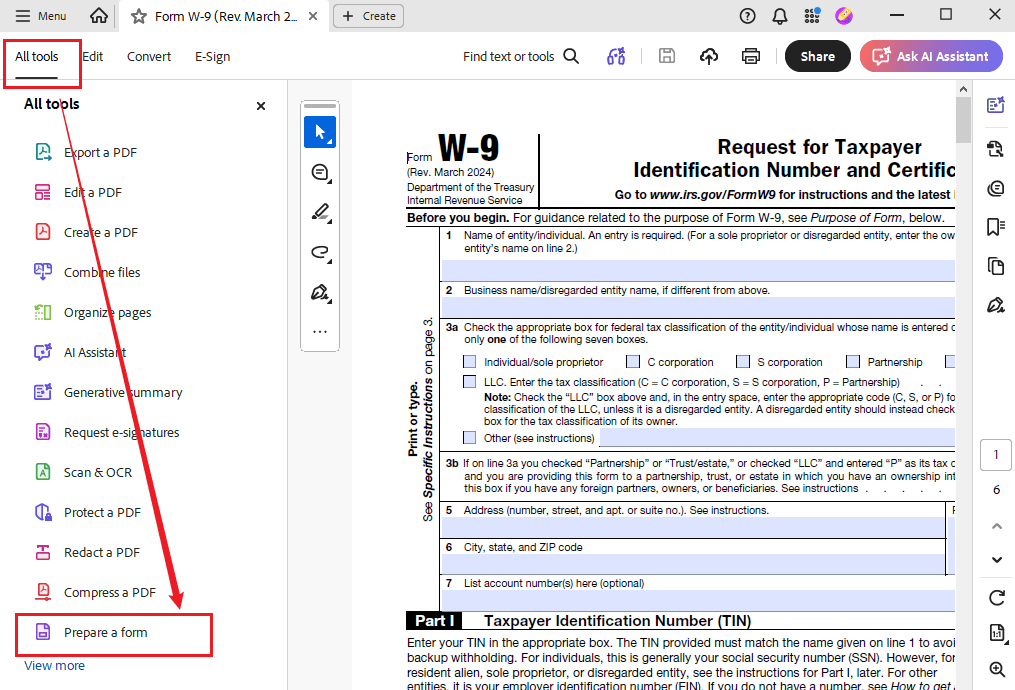
Step 2. Then, upload your document. You can click “Select a file”, “Scan a document”, or other options as available. If your PDF file already contains blank areas, labels, lines, or boxes, Adobe Acrobat can use those elements to identify potential form fields. Meanwhile, ensure Auto-detect form fields is enabled.
Step 3. Next, click Start or Create form, and then Acrobat will analyze the document and automatically add interactive fields, such as text boxes and checkboxes.
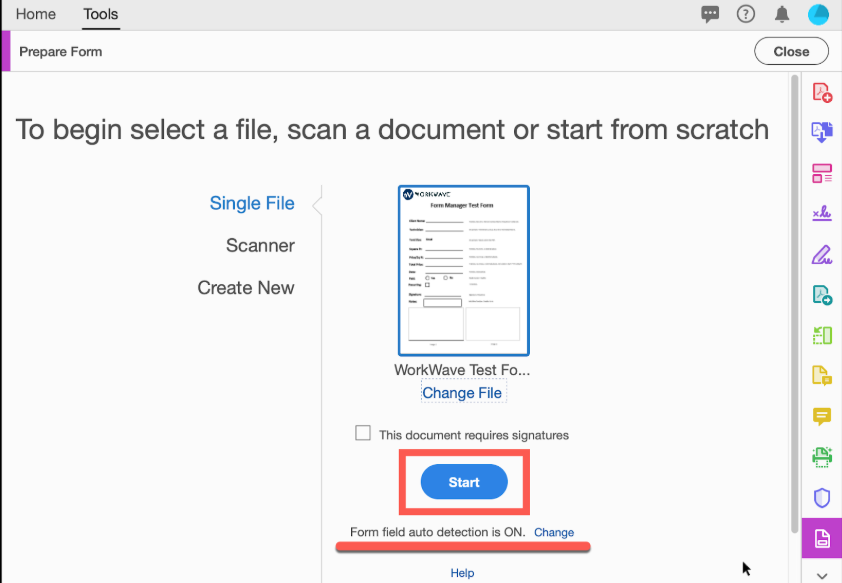
Step 4. Here, you can review and add other needed form fields. For instance, you can check whether all required fields were detected, whether unnecessary fields were created, or whether field dimensions are appropriate. Meanwhile, if Acrobat missed a field, use the form-field tools to add one (like a radio button, dropdown list, or checkbox) manually. Also, you can right-click a field and click Properties to adjust the format and appearance of the field.
Step 5. Switch to Preview to preview the fillable PDF. You can interact with the form as a recipient would. Once OK, click File and select Save to save the fillable PDF file.
In Adobe Acrobat, you can also fill out and sign PDFs effectively. If Adobe Fill and Sign not working, you can use a free Adobe Acrobat alternative to fill and sign a PDF.
Create a Fillable PDF in Adobe from Scratch
What’s more, Adobe Acrobat enables you to create a form from a blank page, which is quite useful when you’re designing a form from the beginning rather than converting an existing document. How to make a fillable PDF in Adobe Acrobat from scratch? Follow the instructions below:
Step 1. Launch Adobe Acrobat, go to All tools, and select Prepare a form.
Step 2. Then, select “Start from blank page” and click Create form. A blank PDF will open in form-editing mode.
Step 3. Now add text, labels, and other static content. In the left Prepare a form pane, select Text under ADD CONTENT, click on the page, and type labels, headings, instructions, and others.
Step 4. Next, add interactive form fields. Under ADD FORM COMPONENTS, select the field type. Below are some available field type options:
- Text field
- Checkbox
- Radio button
- Dropdown list
- Date field
- Signature field
- Button
How to add a fillable field to a PDF in Adobe? Select the desired one and click and drag it on the page to place it.
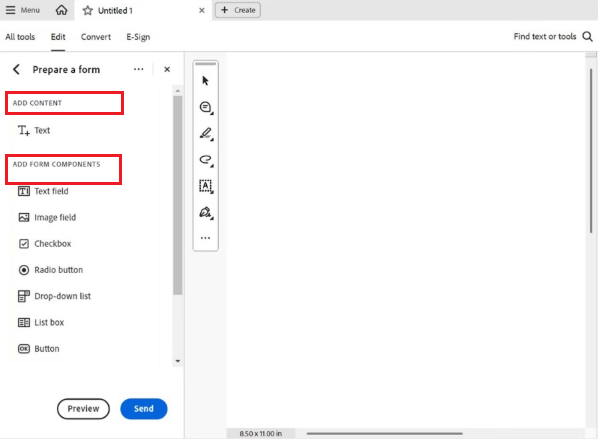
Step 5. Then go to Preview to test how the form looks and behaves. If you need to make some changes, click Edit preview. If you are satisfied, go to File > Save to save the fillable PDF file.
Now that I have mentioned Acrobat’s supported fillable form fields, let’s check the table below to have a better understanding of what fillable form fields you can add in Adobe Acrobat.
| Filed Type | Best Used For |
| Text field | Names, addresses, comments, descriptions |
| Checkbox | Multiple selections or yes/no choices |
| Radio button | Selecting one option from a group |
| Dropdown | Selecting one item from a list |
| List box | Selecting from a visible list |
| Date field | Dates |
| Signature field | Electronic signatures |
| Button | Submit, reset, or other actions |
| Image field | Adding an image where supported |
| Barcode | Encoding form information |
How to Make a PDF Fillable from Word in Adobe Acrobat
If you already have a Word document and want to convert it into a fillable PDF, you can also use Adobe Acrobat to complete the task. How to convert Word to a fillable PDF in Adobe Acrobat? You need to prepare the form layout in Word, convert it to PDF, then use Acrobat’s Prepare a form tool to automatically detect and create interactive fields. Here, I prepared the step-by-step guidance for you.
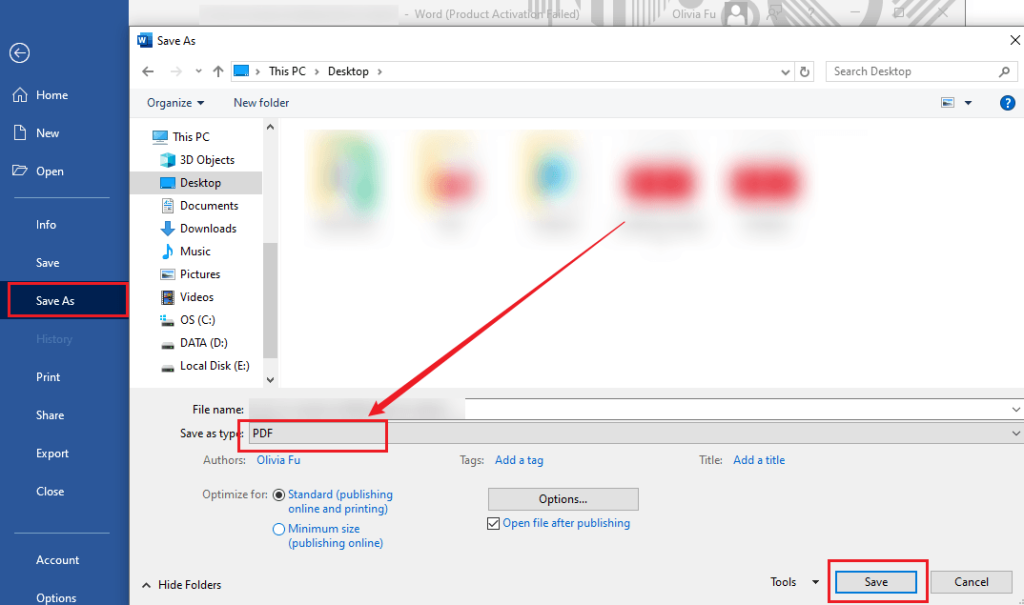
Step 1. Open Microsoft Word, create a new document, and type the form content, such as labels, questions, etc. Then, go to File > Save As, select the saving path, choose PDF as the file type, and click Save.
Step 2. Next, run Adobe Acrobat and open the saved PDF file in Adobe. Click All tools, select Prepare a form, select your file if prompted, and click Start or Create form. Then Adobe Acrobat will analyze the document and automatically add fillable form fields where it detects lines, blanks, or table cells.
Step 3. Then, review the fields. For example, rename fields for clarity, add new fields using the toolbar, or adjust properties of the fillable fields.
Step 4. Go to Preview to view the fillable PDF, then go to File > Save to keep it.
Adobe Acrobat vs. Adobe Acrobat Reader for Creating Fillable PDFs
One of the most prominent distinctions between Adobe Acrobat and Adobe Acrobat Reader is the ability to create fillable PDFs. Can you make a fillable PDF in Adobe Acrobat Reader? No, you can’t. Only Adobe Acrobat Pro offers the Prepare a form feature for creating fillable PDFs.
Although Acrobat Reader can’t make fillable PDFs, it enables you to open, view, fill out, and interact with PDF files and forms.
Best Free Way to Fill Out and Edit PDFs – JOPDF
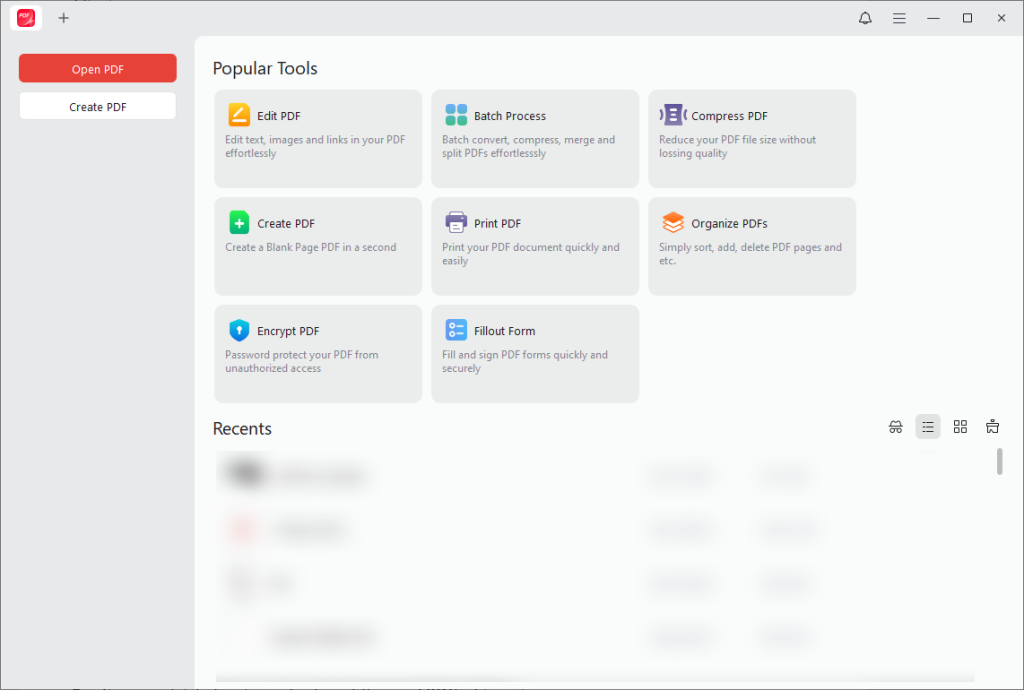
Though Adobe Acrobat is a powerful tool for creating fillable PDFs, it is not always the most accessible option if you only need to fill out or lightly edit PDF files for free. In that case, JOPDF is a great solution if you need a simple, fast, and cost-free alternative to Adobe Acrobat.
JOPDF is a completely free PDF tool that is designed to open, annotate, fill, and edit PDFs without complicated setup or expensive subscriptions. Additionally, it enables you to create and add electronic signatures to PDFs with ease. Hence, you can use it to fill out and sign a PDF in a single tool. What’s more, you can use JOPDF to convert PDFs to Word, JPG, XLSX, and other formats.
✨Key Features of JOPDF:
- It is completely free to use for form filling and PDF editing.
- It offers annotation tools for adding sticky notes, attachments to PDFs, and highlighting PDFs.
- It can add a watermark to a PDF for protection as well as remove watermarks.
- It can password-protect PDFs from editing, copying, and printing.
- It allows you to unlock a PDF even if you forget the passwords.
- It can reduce large file size without losing quality.
- …
✨Why Use JOPDF?
If your main goal is not to create complex interactive forms but simply to:
- Fill out PDF applications
- Edit existing PDF text
- Add comments or notes
- Sign documents digitally
Then JOPDF offers a much simpler and more convenient experience than professional tools like Adobe Acrobat. It is especially helpful if you need a free alternative to Acrobat Reader’s limited editing features, while still maintaining a smooth and reliable workflow.
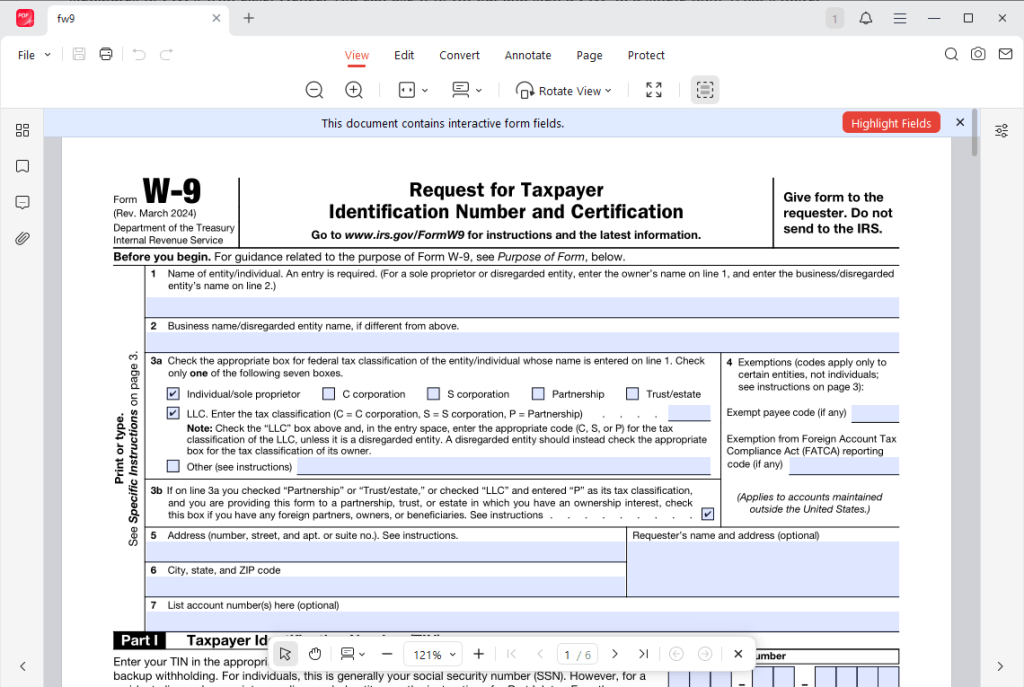
✨JOPDF vs Adobe Acrobat
| Feature | JOPDF | Adobe Acrobat |
| PDF form filling | ✅ Yes | ✅ Yes |
| PDF editing | ✅ Basic editing | ✅ Advanced editing |
| Form creation | ❌ Limited | ✅ Full form design tools |
| Cost | ✅ Free | ❌ Subscription required |
| Ease of use | ✅ Very simple | ⚠️ More advanced |
Final Words
It is easy to create a fillable PDF using the Prepare a form feature in Adobe Acrobat. Whether an existing PDF, Word document, Excel file, or scanned form, Adobe Acrobat can automatically analyze the document and create fillable fields. How to create a fillable PDF in Adobe Acrobat? In the content above, I provide step-by-step instructions. If you need to fill out and sign a PDF form for free, consider JOPDF. Hopefully, this article can be helpful to you.
FAQs
Table of Contents

Your Best Free PDF Expert in PDF editing, compressing, converting, annotating, protect, organizing, and more.
Free DownloadWindows · macOS · Linux

Olivia
“Olivia is an editor at JOPDF, where she writes practical guides and insightful articles on managing PDFs—covering topics like editing, annotating, converting, and organizing files efficiently. Passionate about clear communication and digital productivity, Olivia enjoys spending her free time cooking, watching movies, and hiking to unwind and find inspiration for her writing.”