Introduction :
Converting a bank statement to CSV can make transaction data easier to analyze, organize, and import into accounting or spreadsheet software. Whether your bank statements are PDFs or scanned documents, you can find practical methods here to convert them into CSV format. Meanwhile, I’ll walk you through step-by-step instructions to convert a bank statement file to CSV. Now, let’s get started!
4 Methods to Convert Bank Statement to CSV
In this section, I will introduce you to 4 effective methods to save a bank statement as a CSV file. You can select a method based on the format of your bank statement and where the transaction data comes from. Here, let’s check them one by one.
Method 1: Convert a Bank Statement to CSV for Free with JOPDF
JOPDF is a 100% FREE PDF converter and editor that works on Windows, macOS, and Linux. As a converter, JOPDF supports PDF-to-CSV conversion, making it useful when your bank statement is already available as a digital PDF. In addition, it enables you to convert images to PDF, including TIFF, PNG, and JPG. In that case, you can convert your bank statement to CSV even if it is saved as an image.
In addition, before converting your bank statement to a CSV file, you can edit the bank statement PDF in JOPDF. It offers a wide range of editing, annotating, organizing, and protection features. Furthermore, it lets you OCR bank statements, making the scanned document searchable or editable.
Below are the steps to convert a bank statement to CSV for free using JOPDF.
Step 1. Click the download button below to install JOPDF on your PC quickly. Once installed, launch this free bank statement to CSV converter.
Step 2. Go to Batch Process, select PDF to Excel, and click Add Files to import your PDF bank statement file.
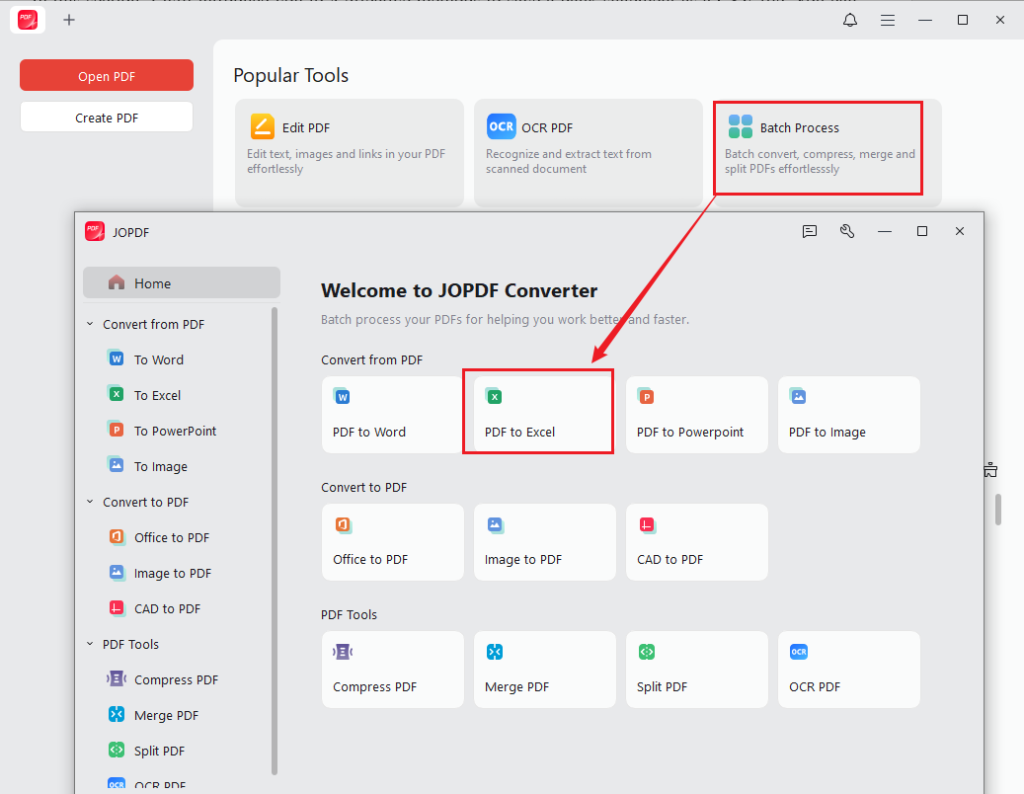
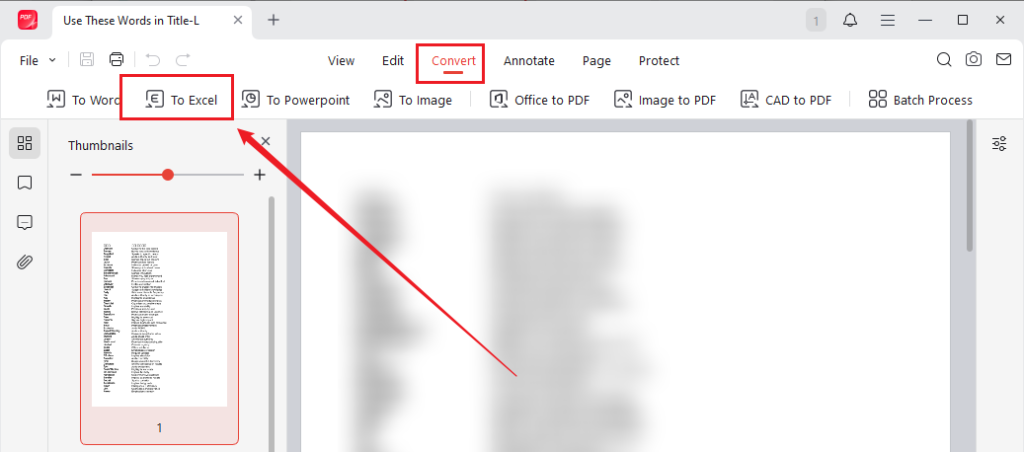
If you need to edit your bank statement, click Edit PDF to import the document and edit it. Then, switch to Convert and select To Excel.
Tips
If your bank statement is saved as an image, go to Batch Process > Image to PDF to convert it to PDF first. Then follow Step 2 to import into JOPDF’s PDF to Excel converter.
Step 3. Next, select CSV as the output format, specify the saving path, and click Start to begin the bank statement to CSV conversion.
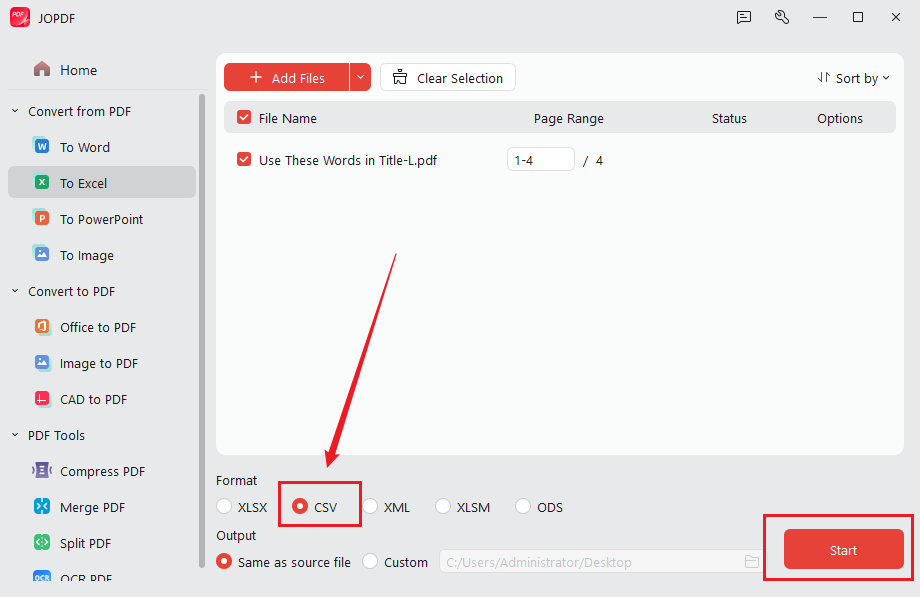
Additionally, JOPDF is a batch PDF converter, enabling you to convert multiple bank statements to CSV at once. After selecting PDF to Excel, click Add Files to import all your bank statement files. Set CSV as the output format and click Start to batch convert bank statements to CSV files for free in JOPDF.
Pros
- It offers direct PDF-to-CSV conversion.
- A completely free PDF converter with no cost and registration.
- It is available on Windows, macOS, and Linux.
- It supports batch conversion.
- It can handle scanned documents.
- It is suitable for handling confidential documents.
- It provides a set of editing features for PDFs.
Cons
-
The OCR PDF feature is only available on its Windows version.
Method 2: Convert a Bank Statement to CSV Online with Nanonets
If you prefer an online solution, Nanonets provides a dedicated bank statement conversion workflow, which enables you to extract financial data and save it to Excel or CSV. Meanwhile, it includes a direct option to download the extracted data as a CSV file. What’s more, Nanonets can recognize transaction tables in bank statements and convert the extracted information into structured data. Here’s how to convert a bank statement to CSV online using Nanonets.
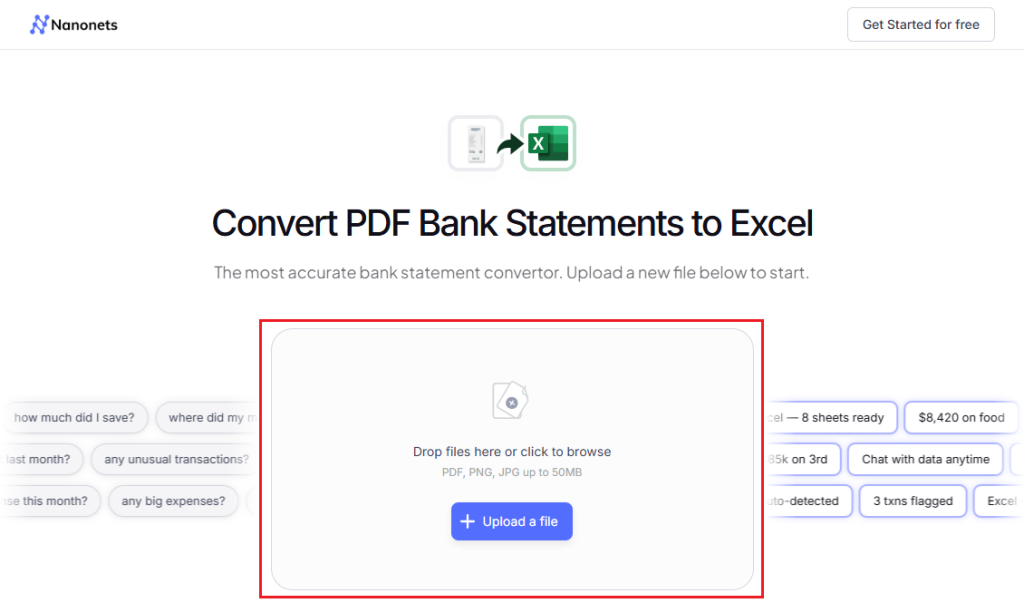
Step 1. Open your browser and visit the Nanonets Bank Statement Converter.
Step 2. Directly drag and drop the bank statement file into the upload area, or click to select it from your computer.
Step 3. Once the file is uploaded, the AI-powered Nanonet will extract transactions and generate a clean, organized spreadsheet that is ready for analysis or accounting.
Step 4. Next, check the extracted data for accuracy. Finally, click “Download .CSV” to save the bank statement as a CSV file.
Pros
- It supports direct CSV output.
- It offers a dedicated bank statement extraction workflow.
- It can extract tabular transaction data.
- It requires no desktop installation.
Cons
- It requires uploading a financial document to an online service.
- Its advanced customization requires paying for a subscription.
Method 3: Convert Bank Statement Data to CSV with Excel
If you already have Microsoft Excel installed, it is a good option for saving bank statement data as a CSV file. It enables you to export data as an XLSX, XLSM, CSV, and other available formats. Here, let’s learn how to convert bank statement data into a CSV file with Excel.
Step 1. Launch Excel and get the bank statement data into Excel. If it is already an Excel file or plain text, just open it in Excel.
If it is a PDF, create a blank spreadsheet, go to Data > Get Data > From File > From PDF to select the PDF, choose the tables that contain the transaction, and load them.
Step 2. Once imported, clean and structure the data. Organize the information into separate columns, check the transaction dates, debit, and credit amounts, and remove unnecessary headers, footers, and duplicate rows.
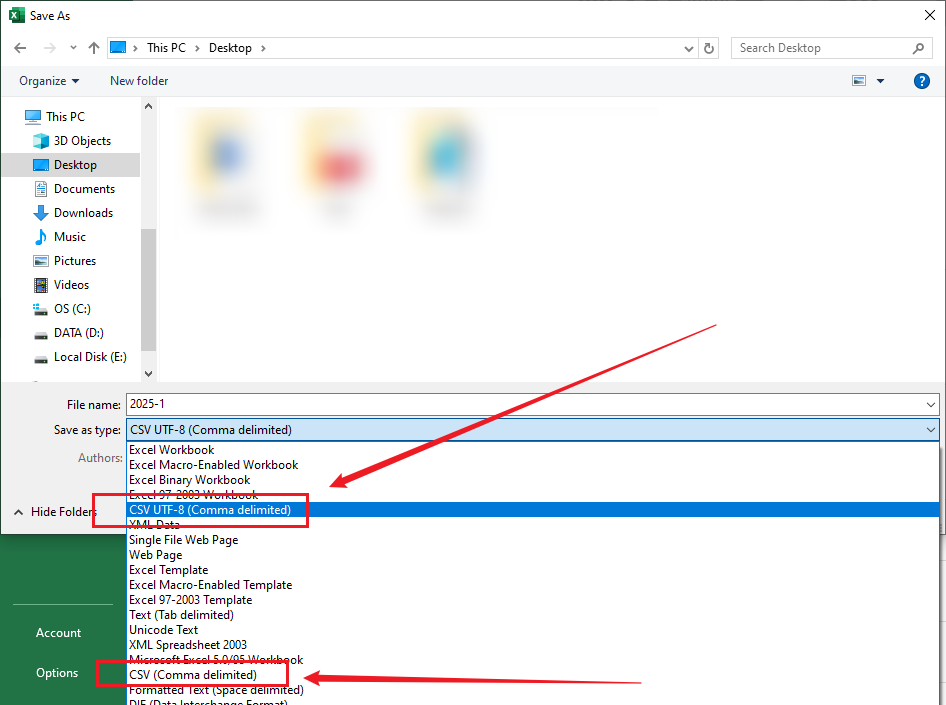
Step 3. Next, go to File > Save As, choose the location, open the “Save as type” dropdown, and select “CSV (Comma delimited)” or “CSV UTF-8 (Comma delimited)”. Finally, click Save.
Pros
- It is easy to inspect and reorganize data.
- It is useful for cleaning extracted transactions.
- The CSV export is built into Excel.
- It provides more control over the final columns.
Cons
- It doesn’t automatically extract complex bank statement PDFs.
- The manual cleanup is necessary.
Method 4: Export Bank Transactions Directly from Your Bank
If you only need your transaction history in CSV format, converting a PDF may not be necessary. Many online banking platforms allow you to download your transaction history directly rather than converting a PDF bank statement. For example, Chase, Wells Fargo, HSBC UK, Monzo, and Wise provide CSV export or download options.
If your bank supports CSV export, it is usually the simplest way to obtain structured transaction data, since you can skip PDF conversion and OCR altogether. Here’re the general steps to export bank transactions as CSV.
Step 1. First, sign in to your online banking account and open your account’s Transaction History ort Account Activity page.
Step 2. Select the account you want to export, choose the required date range, and look for an Export, Download, or similar option.
Step 3. Then select CSV and download the transaction file.
Pros
- No PDF conversion required.
- Data is already structured.
- Usually preserves transaction fields more reliably.
- Convenient for recurring transaction downloads.
Cons
- CSV export may not be available for every bank.
- Available fields and formats vary.
Which Method Should You Choose for Bank Statement to CSV Conversion
Which method should you choose to turn a bank statement into CSV? In general, the right method depends on the format of your bank statement and whether you want to upload it to an online service. Below is a table for your reference.
| Method | Best For | Input | Direct CSV? | OCR Needed? |
| JOPDF | Desktop PDF conversion | Yes | Sometimes | |
| Nanonets | Online bank statement conversion | Yes | Sometimes | |
| Bank website | Original transaction data | Online account | Often | No |
| Excel | Cleaning and exporting data | Spreadsheet/data | Yes | No |
How to Convert a Scanned Bank Statement to CSV
If your bank statement is scanned or image-based, you need to run OCR to make it searchable and editable. In that case, you need a reliable OCR-enables tool. JOPDF is a good choice, which offers OCR to recognize text in PDFs. It is quite useful when you have a scanned bank statement and need to extract text from it.
In addition, JOPDF is a good bank statement converter that enables you to convert PDF to CSV directly. Here, let’s learn how to convert a scanned bank statement to CSV for free using JOPDF.
Step 1. Launch JOPDF on your PC, select its OCR PDF feature, and import the scanned bank statement.
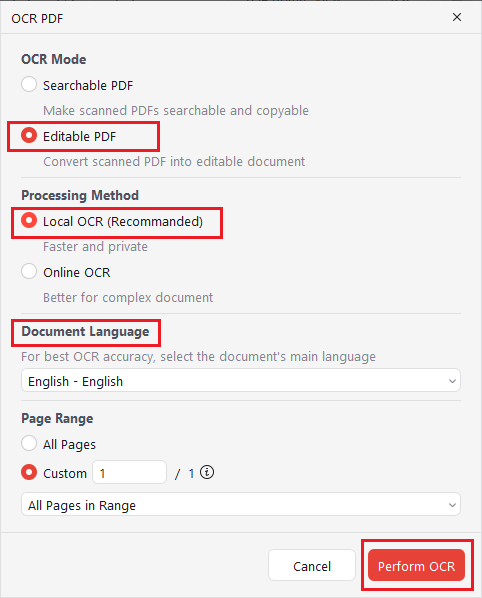
Step 2. Select Editable PDF, choose Local OCR, specify the language used in the bank statement, and choose the pages you want to process. Then, click Perform OCR to start OCR the bank statement.
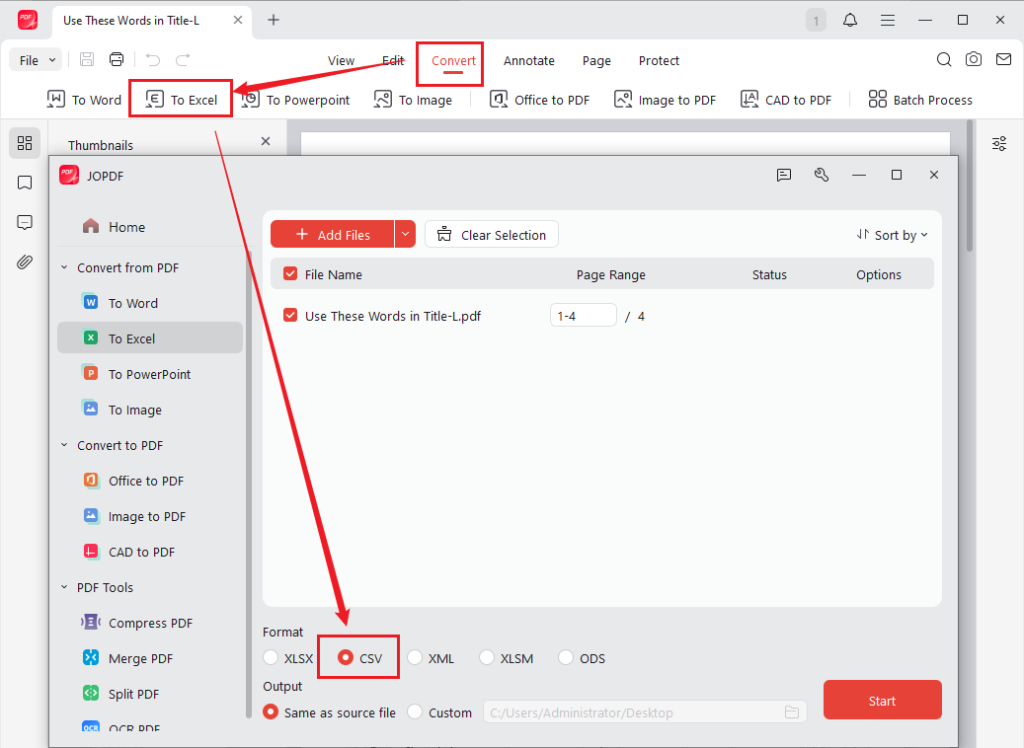
Step 3. After the OCR is complete, the resulting bank statement will open in JOPDF. Go to the Convert tab and click To Excel. Finally, select CSV as the output format and click Start.
JOPDF is an offline option for scanned bank statements. If you prefer an online workflow, Nanonets can also be used to extract structured information from scanned bank statement PDFs.
Conclusion
To make transaction data easy to analyze, organize, or import into other applications, it is a good idea to convert the bank statement to CSV. In this article, I provide you with several practical methods. Which one is the best approach? The choice should depend on the source of your data:
👉Digital PDF: Use JOPDF for a desktop PDF-to-CSV workflow or Nanonets for direct online conversion.
👉Scanned PDF or image: Use OCR first, such as JOPDF’s OCR feature, and then convert the recognized transaction data to CSV.
👉Online banking transaction history: Export the data directly from your bank if CSV is available.
👉Data that needs cleaning: Use Excel to organize, verify, and save the final data as CSV. Now, it’s your time to select a method and try it out!
FAQs
Table of Contents

Your Best Free PDF Expert in PDF editing, compressing, converting, annotating, protect, organizing, and more.
Free DownloadWindows · macOS · Linux

Olivia
“Olivia is an editor at JOPDF, where she writes practical guides and insightful articles on managing PDFs—covering topics like editing, annotating, converting, and organizing files efficiently. Passionate about clear communication and digital productivity, Olivia enjoys spending her free time cooking, watching movies, and hiking to unwind and find inspiration for her writing.”