Introduction :
Are you looking for ways to convert a PDF to CSV effectively? What is the best PDF to CSV converter? You’re in the right place! In this JOPDF article, I will introduce you to the 5 best converters that can extract tables and other structured data from PDF files and save them as CSV for use in Excel, Google Sheets, and other data-analysis software. Here, let’s dive in.
5 Best PDF to CSV Converters at a Glance
Before we delve into the 5 best PDF-to-CSV conversion tools, you can get a basic overview in the quick comparison table below.
| PDF to CSV Converter | Platform | Direct PDF to CSV | OCR | Batch Processing | Free Option | Best For |
| JOPDF | Windows, Mac, Linux | Yes | Yes | Yes | Yes | Free desktop conversion |
| Adobe Acrobat | Windows, Mac, Web | Yes/Indirect | Yes | Yes | Trial | Professional PDF workflows |
| Microsoft Excel | Windows, Mac, Web | Indirect | Limited | No | Yes | Converting PDF tables |
| SwifDoo PDF | Windows | Yes | Yes | Yes | Limited | Direct PDF-to-CSV conversion |
| Convertio | Online | Yes | Limited | Yes | Yes | Quick online conversions |
JOPDF – Best Free Offline PDF-to-CSV Workflow
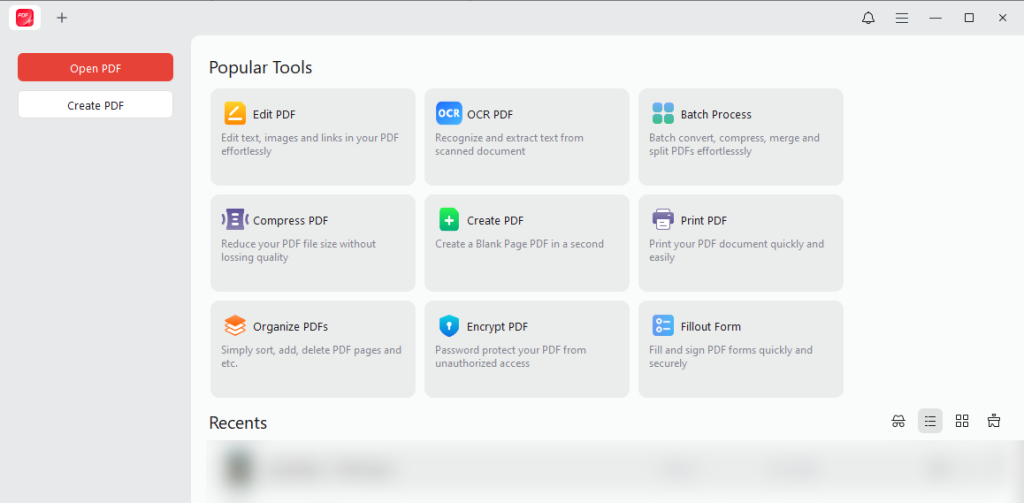
JOPDF is one of the best free PDF converters and editors for Windows, macOS, and Linux. It is particularly useful if you want a free PDF to CSV converter. You can use it to convert PDF to CSV directly. What’s more, JOPDF supports converting multiple PDFs to CSV in bulk, which is quite time-saving. Furthermore, it lets you convert PDF to Excel, Word, and other formats.
Surprisingly, JOPDF supports OCR, which can be useful when your source PDF contains scanned or image-based content. It can make the PDF searchable or editable. In that case, you can convert a scanned PDF to CSV as well. You can refer to the quick guidance below to convert PDF to CSV for free with JOPDF.
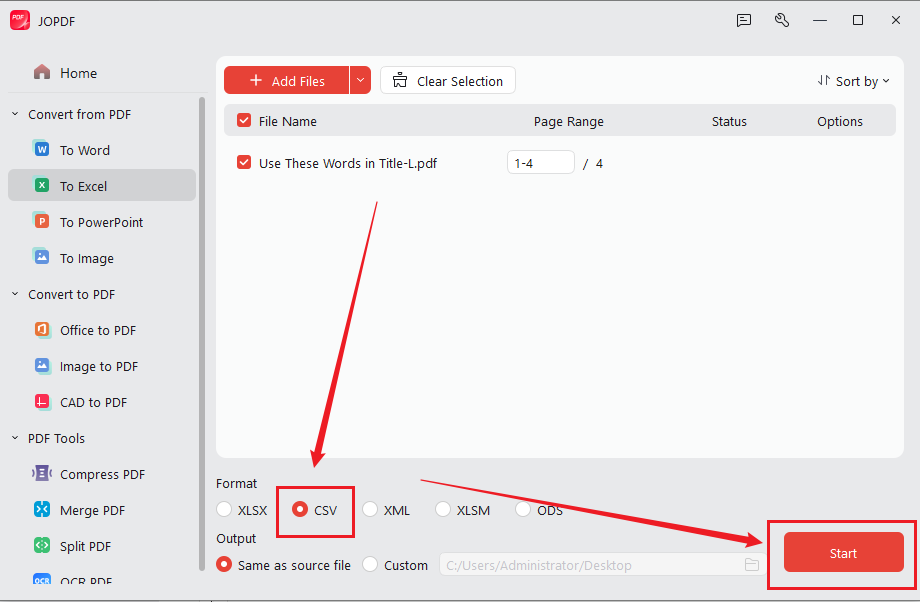
- Download and install this free PDF to CSV converter on your PC, and launch it.
- Go to Batch Process > PDF to Excel and click Add Files to import the target PDF file.
- Select CSV as the output format and click Start.
Tips
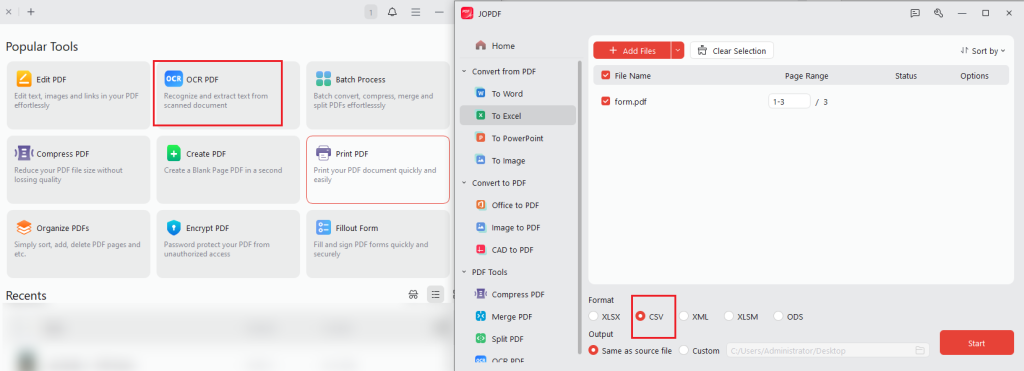
If the PDF is scanned or image-based, click OCR PDF to make the PDF searchable or editable first. Then go to Convert, select To Excel, set CSV as the output format, and click Start.
Pros of JOPDF
- Supports direct PDF-to-CSV conversion
- Complete free application for Windows, macOS, and Linux
- Supports OCR for scanned and image-based PDFs
- Can batch convert PDF files
- Useful for offline PDF workflows
- No subscription required
- Offers a wide range of editing, annotation, and organizing tools for PDFs
Cons of JOPDF
- Requires desktop installation
- Initial conversion components need to be downloaded
Adobe Acrobat – Best for Professional PDF Workflows
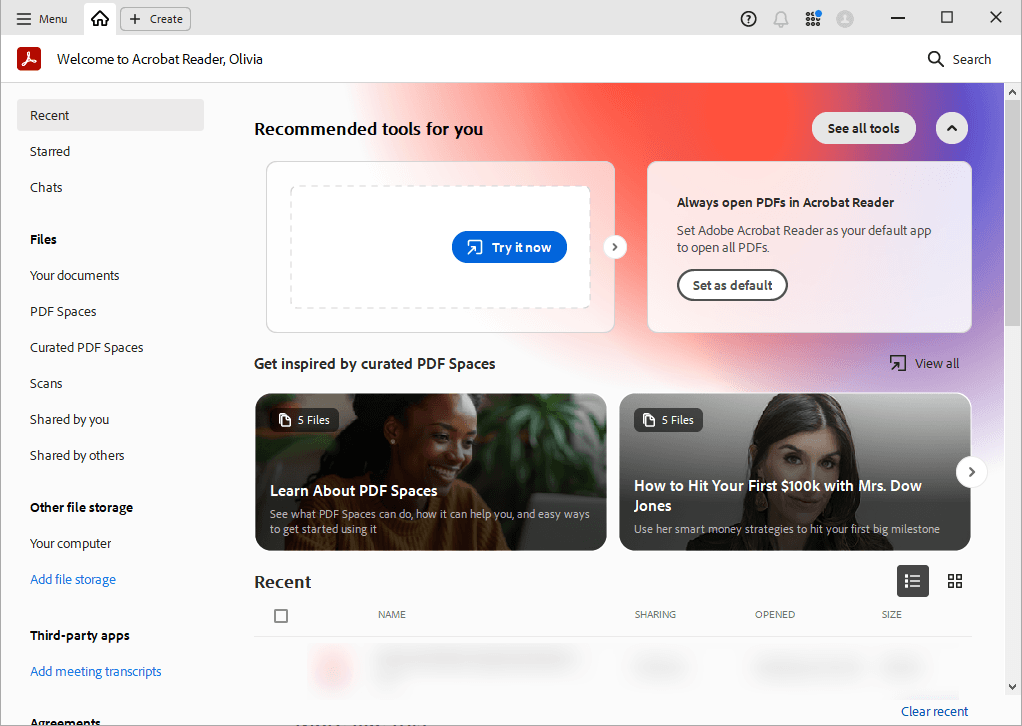
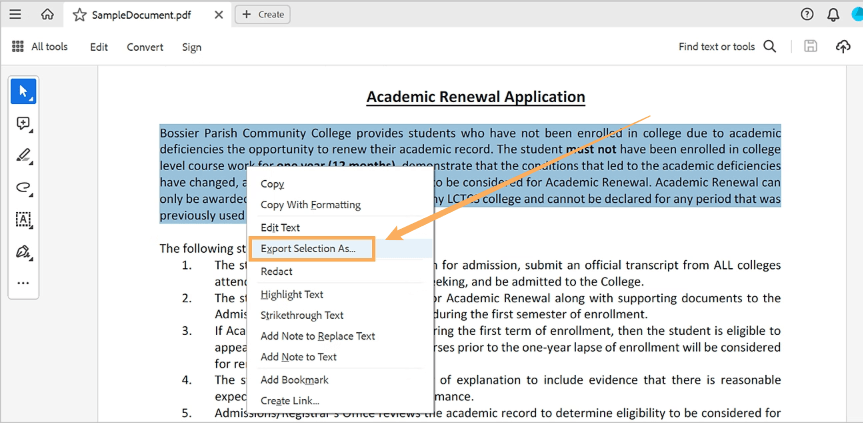
Adobe Acrobat is a well-known PDF solution for editing, converting, extracting, and managing PDF files. Instead of supporting converting a single PDF file to CSV, Adobe Acrobat enables you to directly export part of the PDF as CSV. For example, you can edit the PDF, recognize scanned text, export tables, and then work with the extracted data.
Unlike JOPDF, Adobe Acrobat doesn’t allow you to convert a PDF to CSV directly. You can only convert a PDF to XLSX first and then use Excel to save the XLSX file as CSV. To save the tables in the PDF as a CSV file, right-click the table, select Export Selection As, and pick CSV as the format.
Pros of Adobe Acrobat
- Offers a comprehensive set of PDF editing and conversion features
- Provides OCR for scanned PDFs
- Suitable for professional document workflows
- Supports complex PDF tasks beyond CSV conversion
Cons of Adobe Acrobat
- Expensive subscription fee
- The conversion feature is only available in the paid versions
Microsoft Excel – Best for Users Already Working in Spreadsheets
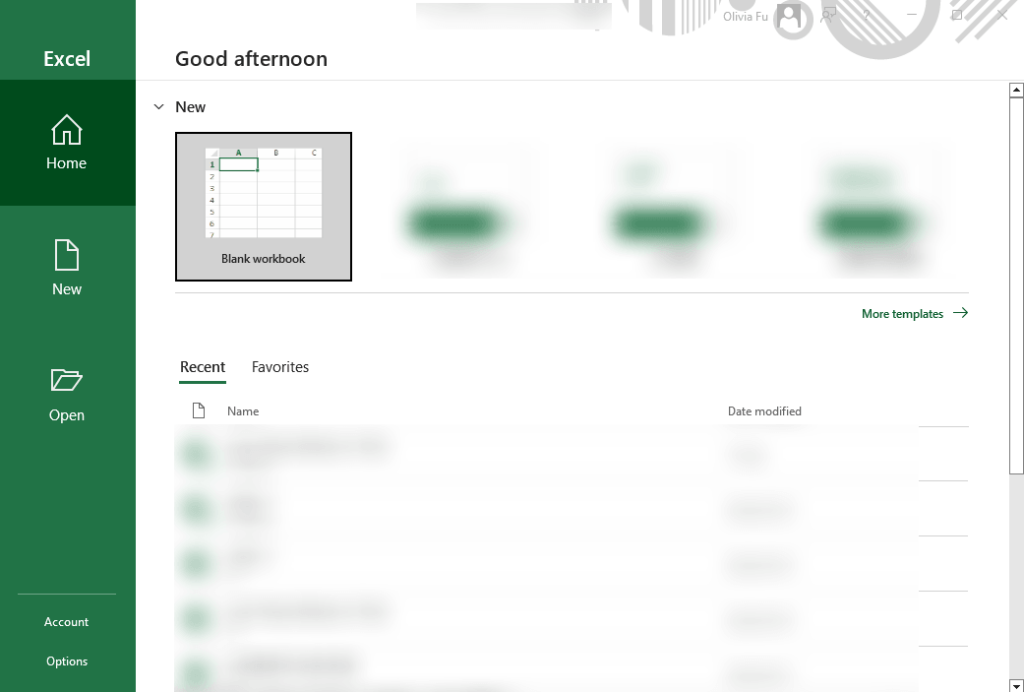
Microsoft Excel can also be used to extract data from PDFs. Rather than converting a PDF directly to CSV, Excel can import tables from a PDF and then save the resulting workbook as a CSV file. Compared with the 2 methods above, this approach can be especially convenient if you already use Excel for data analysis. You can refer to the steps below to convert PDF to CSV with Microsoft Excel.
- Open Microsoft Excel and create a new workbook.
- Go to Data and select Get Data > From File > From PDF. Then choose the PDF you want to import.
- Wait for Excel to analyze the PDF, select the table or data you want to import, and click Load.
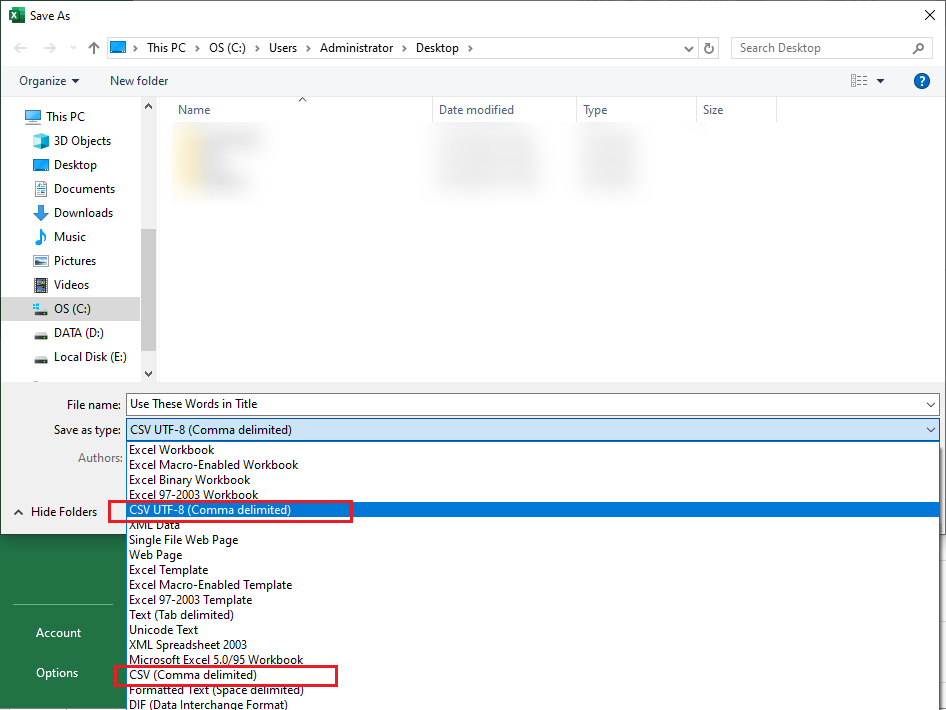
- Review the imported data, go to File > Save As, choose the saving path, and select CSV UTF-8 or another CSV format as the output format. Finally, click Save.
Pros
- Useful for extracting PDF tables
- Familiar interface for Excel users
- Allows data cleanup before CSV export
- No separate PDF converter is required if Excel is already installed
- Useful for subsequent data analysis
Cons
- PDF-to-CSV conversion is indirect
- Table detection may not always be perfect
SwifDoo PDF – Best for Direct PDF to CSV Conversion
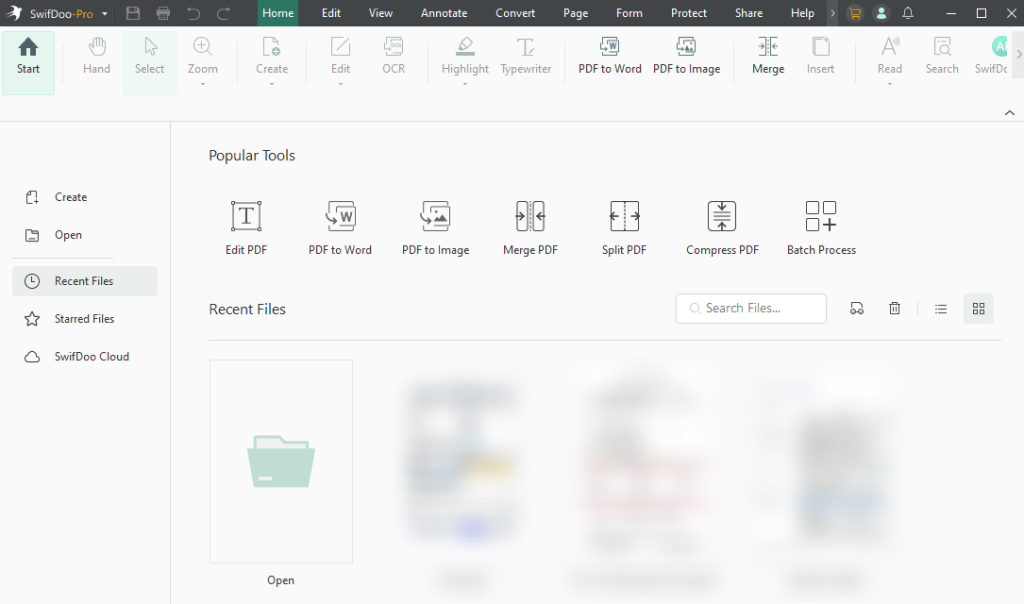
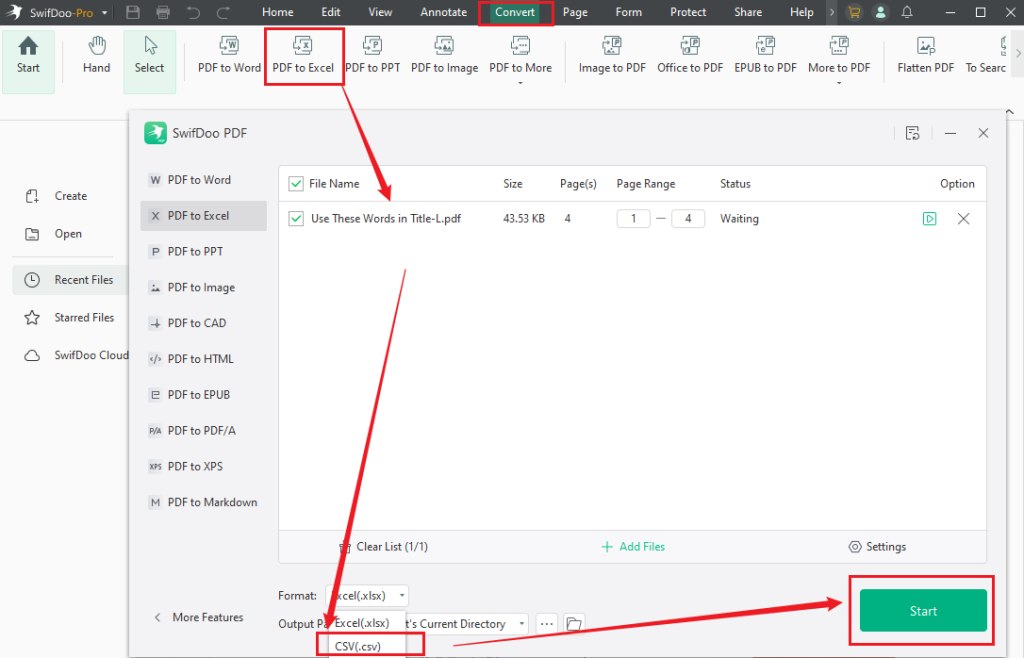
SwifDoo PDF is also a good choice to convert PDF to CSV directly. With its batch processing capability, you can batch convert PDFs to CSVs. What’s more, it lets you convert scanned PDF files to CSV efficiently. Before conversion, you can use its editing features to edit the existing PDF text, revise some content, and others. Here’s a simple guide for you.
- Launch SwifDoo PDF, go to Convert, and select PDF to Excel.
- Click Add Files to upload your PDF file.
- Open the Format dropdown and select CSV.
- At last, click Start.
Pros
- Direct PDF-to-CSV conversion
- Batch convert PDFs to CSVs
- Useful for structured PDF data
- Supports other PDF conversion and editing tasks
Cons
- Limited free trial experience
- Most features are only available in its Windows version
Convertio – Best for Quick Online PDF to CSV Conversion
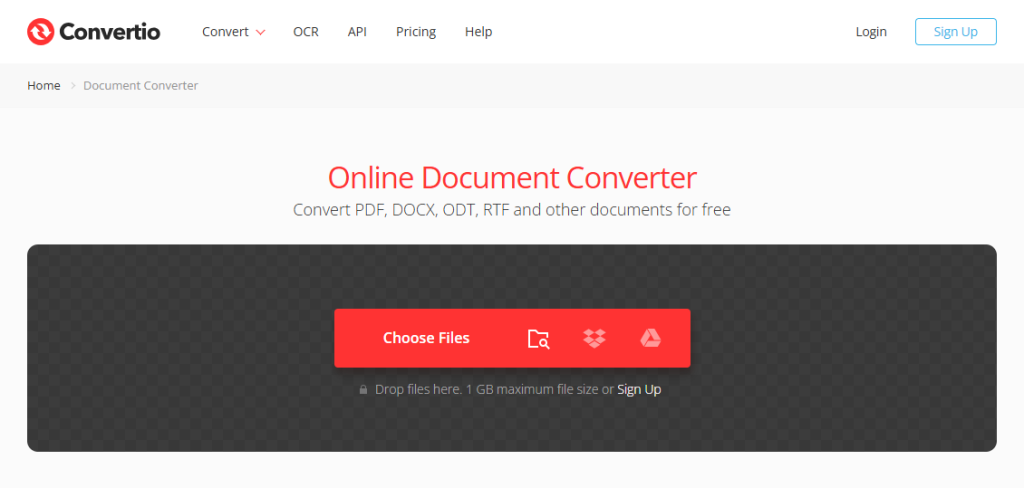
If you don’t want to install any software, an online converter should be your choice. Additionally, most online converters are free to use, though some have limitations. Among various online options, Convertio is worth a try. In addition to converting PDF to CSV, it supports numerous file conversions, such as PDF to DOCX, PDF to HTML, PDF to SVG, etc. Here’s how:
- Visit Convertio’s PDF-to-CSV converter and click Choose Files to upload the target PDF.
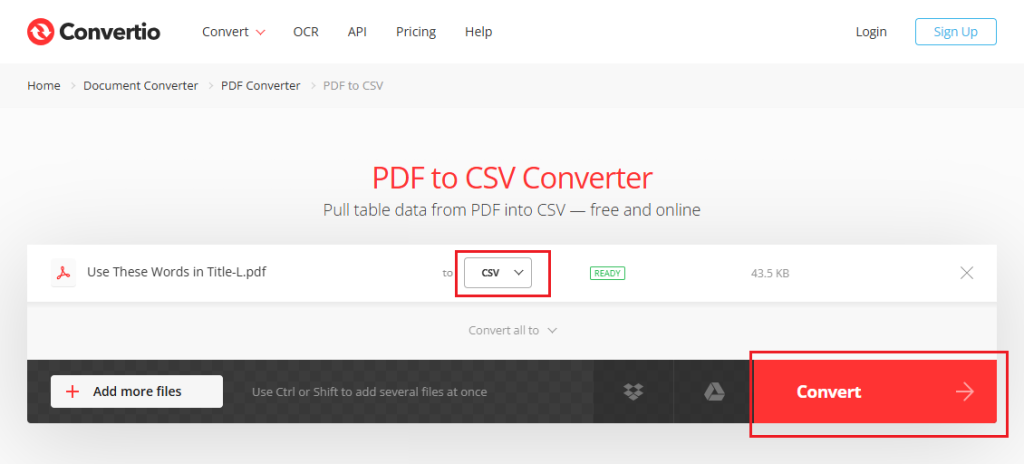
- Confirm CSV as the output format.
- Click Convert and wait for the conversion to finish. Finally, download the resulting CSV file.
Pros
- No desktop installation required
- Simple conversion workflow
- Convenient for occasional conversions
Cons
- Free usage may have limitations
- Online processing requires uploading files
PDF to CSV Converter: Which One Should You Choose
Among the 5 converters above, which one is the best PDF to CSV converter? In general, the right choice depends on your document and workflow.
| Your Need | Recommended Option |
| Direct PDF to CSV conversion | SwifDoo PDF or JOPDF |
| Free desktop PDF to CSV converter | JOPDF |
| Professional PDF management | Adobe Acrobat |
| Quick online conversion | Convertio |
| Extract PDF tables with a familiar spreadsheet tool | Microsoft Excel |
| Scanned PDF to CSV | JOPDF or Adobe Acrobat with OCR |
Final Words
A good PDF to CSV converter can save time when you need to turn PDF tables into structured data. In this article, I introduce you to 5 excellent converters. Among them, JOPDF is highly recommended, as it is a completely free PDF converter. You can use it to convert PDF to CSV on Windows, macOS, and Linux. You can also try the other 4 options as needed. Now, pick one and try it out!
FAQs
Table of Contents

Your Best Free PDF Expert in PDF editing, compressing, converting, annotating, protect, organizing, and more.
Free DownloadWindows · macOS · Linux

Olivia
“Olivia is an editor at JOPDF, where she writes practical guides and insightful articles on managing PDFs—covering topics like editing, annotating, converting, and organizing files efficiently. Passionate about clear communication and digital productivity, Olivia enjoys spending her free time cooking, watching movies, and hiking to unwind and find inspiration for her writing.”