
Need to edit a PDF but don’t have internet access? Now, you can edit PDF offline completely free. This guide about how to edit PDF offline on JOPDF covers five methods using Microsoft Word, browser-based tools, and dedicated free software. Whether you want to make quick text edits, add comments, or fill out forms, you don’t need the internet to get it done.
Summary :
Why Edit PDFs Offline? (And Why You Should Care)
There are many scenarios in which you need to edit PDF offline. Maybe you’re traveling, dealing with a slow connection, or handling sensitive files that shouldn’t be uploaded anywhere. That’s when knowing how to edit PDF offline becomes essential.
- Privacy is a big deal. When you upload a PDF to a free online editor, your document goes to someone else’s server.
- Internet is not everywhere. Planes, trains, remote cabins, basements with bad reception, or simply a spotty connection at a coffee shop.
- Speed matters. Offline tools run instantly. No waiting for uploads.
- Free actually means free. Many “free” online editors limit you to two edits per day or slap watermarks on your output. Offline tools do not do that.
Offline editing gives you more control, better privacy, and often faster performance. Luckily, editing a PDF file offline is easier than you think. Below are some methods that work on Windows and Mac, with no Internet connection required.
How to Edit PDF Offline with Mac/Windows/Linux?
Let us start with the best option. If you edit PDFs more than once a month, you need a dedicated tool that just works. JOPDF is a completely free PDF editor that runs 100% offline on Windows, Mac, and Linux.
Unlike most “free” PDF tools that hide basic features behind paywalls, JOPDF gives you everything totally free. What’s most important is that this offline light-weight PDF editor can cover all your needs without leaving the app.
Here is what makes JOPDF special:
- Edit text directly: Click on any word and start typing. Change fonts, sizes, and colors.
- Add images and links: Insert pictures, add clickable links, and draw shapes anywhere on the page.
- Annotations: Use highlighters, sticky notes, shapes, and freehand drawings.
- Password protection: Add encryption and permissions to keep sensitive documents safe.
- Batch processing: Work on multiple PDFs at the same time, and the interface supports multiple tabs.
- Format conversion: Turn PDFs into Word, Excel, PowerPoint, or images. Convert Office files into PDFs.
- Compression: Shrink large PDF files so you can email them easily.
- Split and merge: Extract specific pages or combine multiple PDFs into one document.
Additionally, the interface is simple and intuitive. If you have used Word, you already know how to use JOPDF.
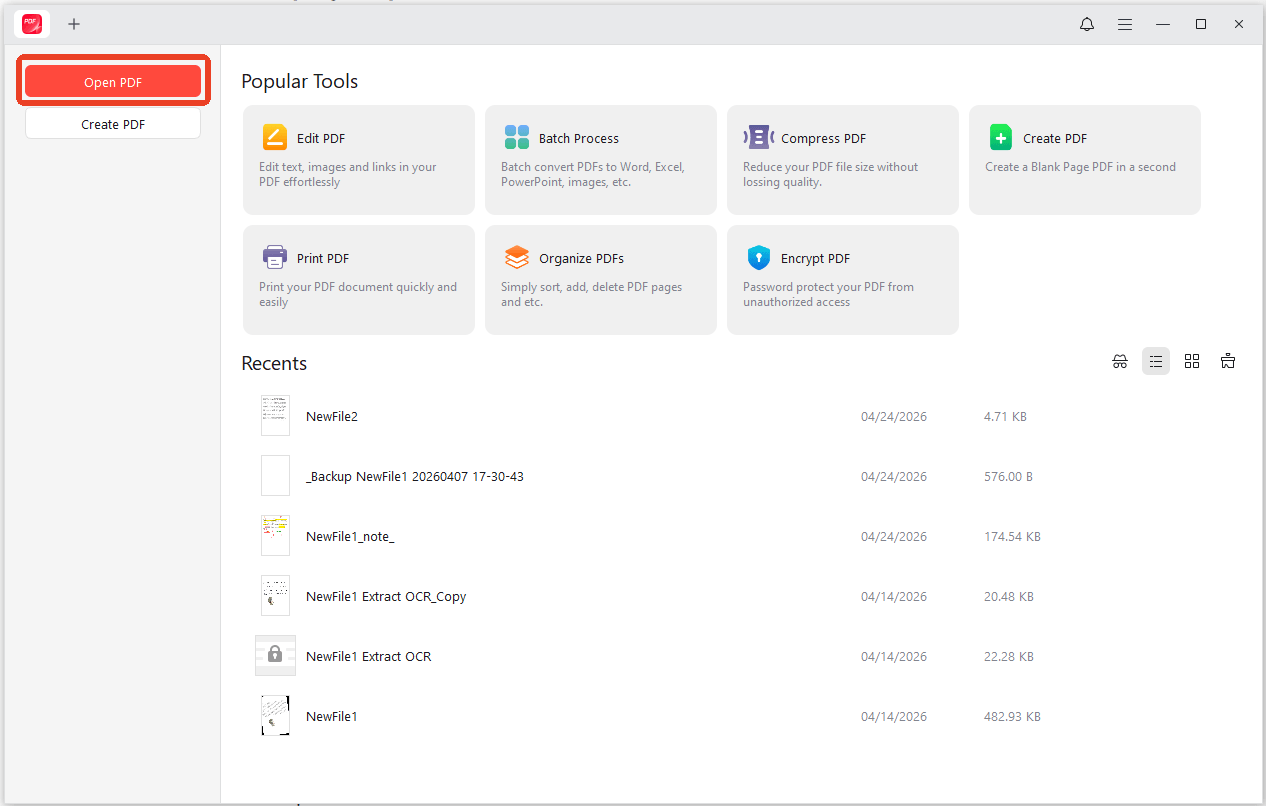
Step 1: Launch JOPDF and click Open PDF to load your file. You can also drag and drop a PDF directly into the workspace.
Step 2: Click the Edit tab at the top of the interface. This reveals all the editing tools.
Step 3: Click on any text, image, or link to edit it. You can use the toolbar to:
- Change font type, size, and color.
- Add new text boxes anywhere on the page.
- Insert images from your computer.
- Draw shapes like rectangles, circles, or arrows.
- Highlight important sections.
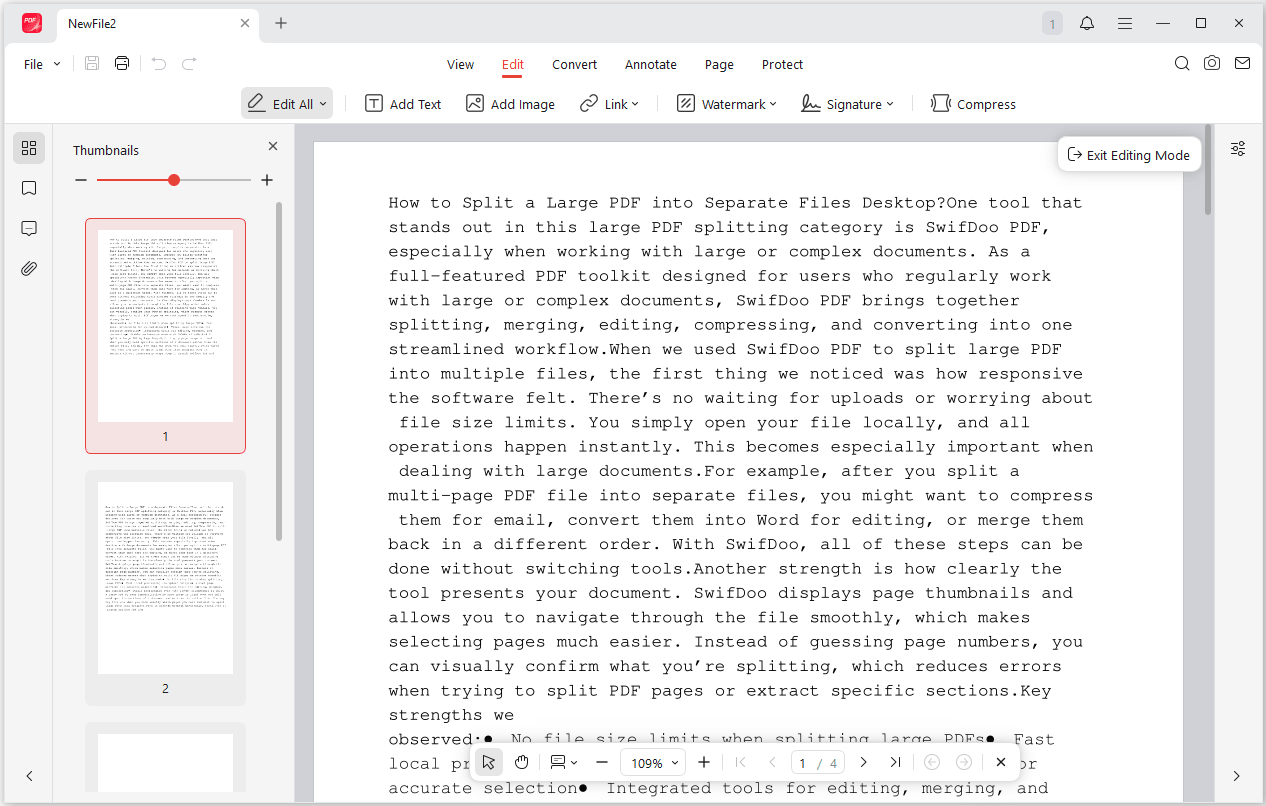
Step 4: Click File > Save to keep your changes. Your fixed PDF is saved locally.
Tips
If you need to send your document as a Word file or Excel sheet, just click the Convert button and choose your format.
JOPDF’s Key Features:
-
Free PDF editing available on Windows, Mac, and Linux
-
No license keys
-
No “this device is not activated” errors
-
Works with no Internet
-
Lightweight privacy-first
How to Edit PDF Offline with Microsoft Word
Now, what if you already have Microsoft Office installed on your computer? Good news. You can directly edit PDF offline via Microsoft Word. Microsoft Word can open PDF files directly and convert them into editable documents without requiring the Internet.
This method is perfect if you already have Microsoft Office (2016 or later) installed. It works great for text-heavy documents like reports, essays, letters, and contracts. You can edit PDF document exactly like a Word file, then save it back as a PDF when you are done.
So, how to edit PDF in Word?
Step 1: Launch Word on your Windows or Mac computer. Any version from 2016 onward works.
Step 2: Go to File > Open > Browse. Find your PDF file and select it.
Step 3: Then Microsoft Word will recognize your file type and pop up a message saying: “Word will convert your PDF to an editable Word document. This may take a while.” You’ll need to click OK.
Step 4: Once Word finishes the PDF conversion, your PDF opens as a regular Word document. Then you can edit PDF in Word offline.
Step 5: When you are done editing, go to File > Save As. In the file type dropdown menu, select PDF instead of Word Document. Choose your location and click Save.
After finishing that, you have successfully edited a PDF offline using only Microsoft Word.
Tips
The conversion is not always perfect. Complex layouts with multiple columns, tables, or graphics might shift around. Images may move slightly. For simple documents, this is fine. For design-heavy PDFs like brochures or flyers, use JOPDF instead.
How to Edit PDF Offline with Built-in Browser Tools (Edge or Chrome)
Maybe you only need to fix a typo or an extra space there. For quick fixes like these, your web browser is surprisingly useful. Both Microsoft Edge and Google Chrome have built-in PDF editing tools that work completely offline.
The browser tools do not need an internet connection once the browser is already open. You also can edit PDF on Mac and Windows using the same browser method. For iPhone users, Safari also has basic PDF markup tools built in. You can edit PDF on iphone by opening a PDF in Safari or Files and tapping the markup icon.
How to Edit PDF Offline on Microsoft Edge?
Step 1: Right-click your PDF file and select Open with > Microsoft Edge.
Step 2: Look at the top of the screen. You will see several buttons: Add text, Draw, Highlight, and Erase.
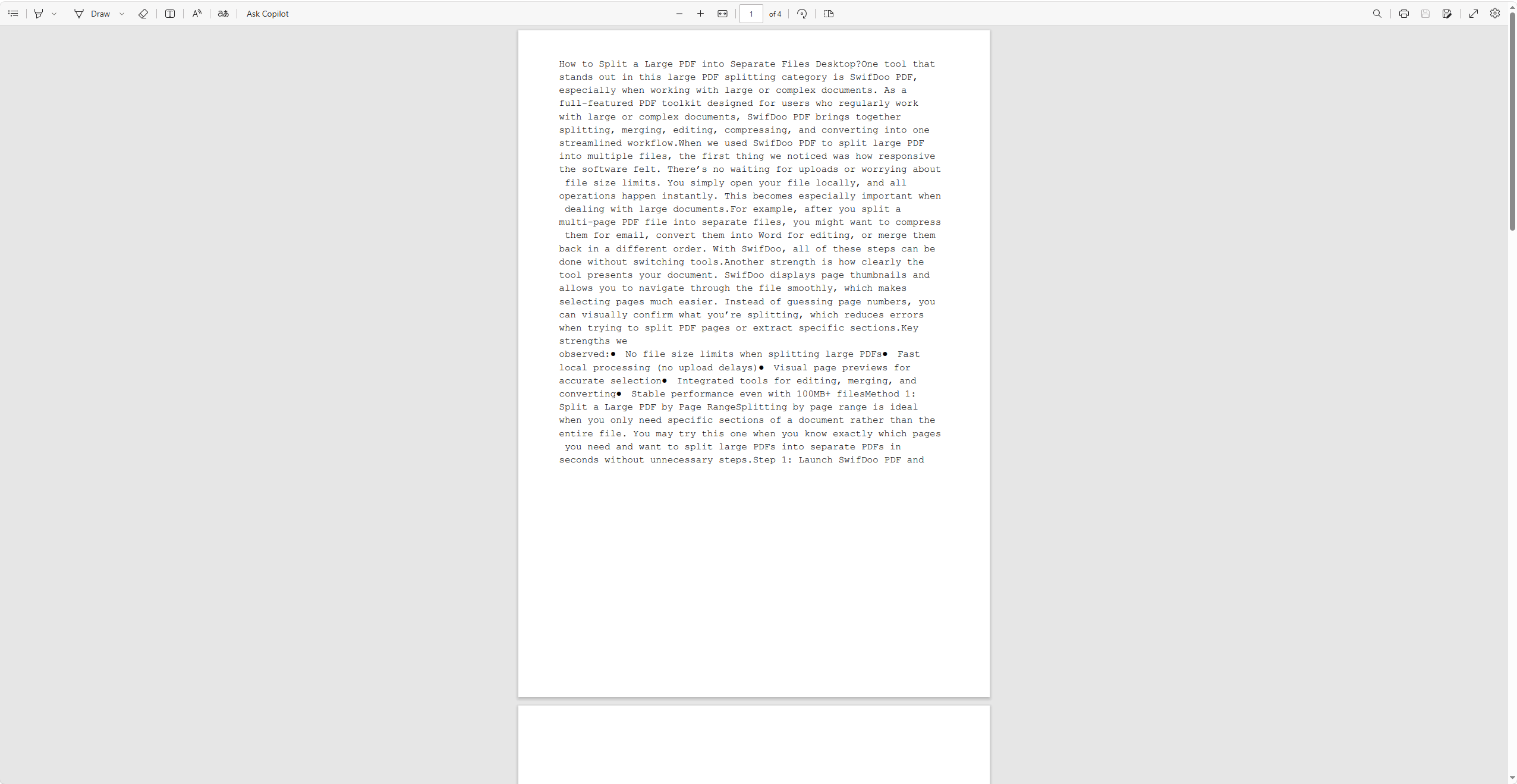
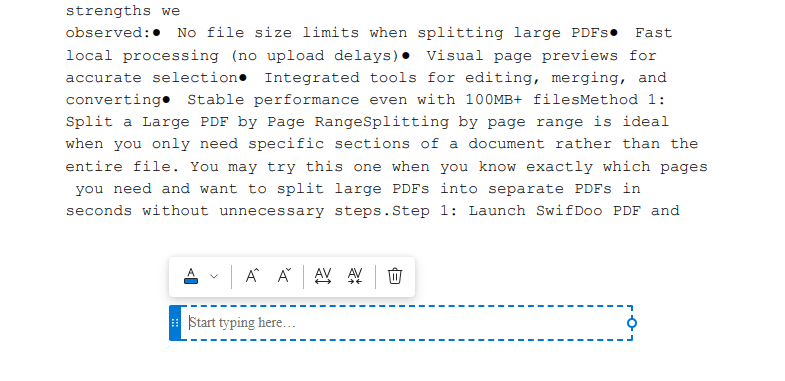
Step 3: Click the Add text button. Then click anywhere on your PDF and start typing. You can move the text box and change the font size.
Step 4: Use the Highlight tool to mark important sections or use the Draw tool to circle things or add arrows.
Step 5: Click the Save icon in the top right corner, or press Ctrl+S.
How to Edit PDF Offline on Chrome?
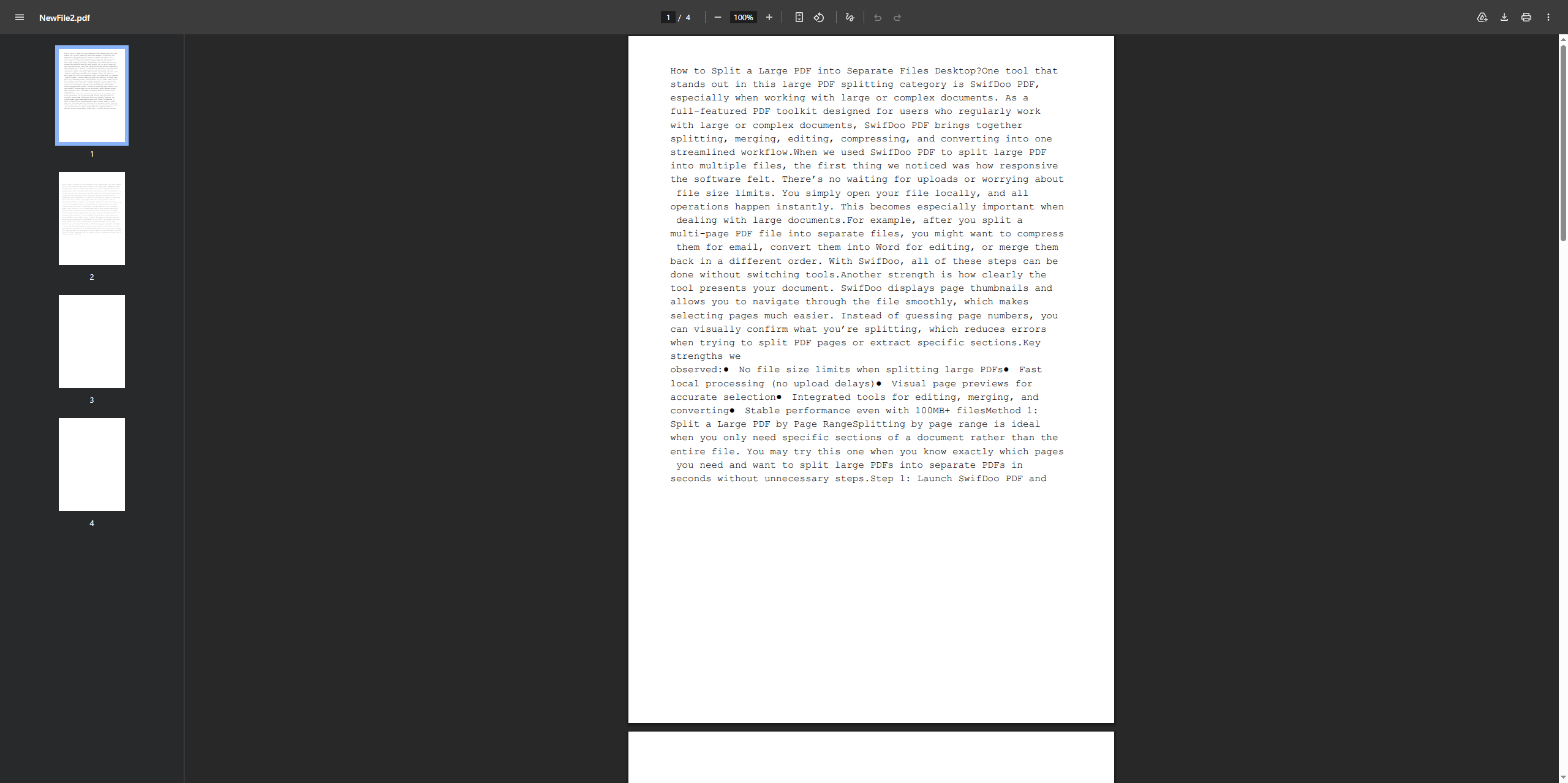
Step 1: Drag your PDF file into an open Chrome window. You can also right-click the file and select Open with > Google Chrome.
Step 2: Chrome shows a toolbar at the top with Add text, Highlight, and Erase tools and you can use the toolbar to add your annotations.
How to Edit PDF on iPhone Offline for iPhone Users
If you need to edit PDF on iPhone without internet, the built-in Files app and Markup tool have you covered.
- Open the PDF in the Files app on your iPhone
- Tap the Markup icon (it looks like a pen tip inside a circle)
- Use the tools to add text, draw, highlight, or add a signature
- Tap Done to save your changes
This works completely offline and requires no third-party apps.
Quick Comparison Table for How to Edit PDF on iPhone Offline
| Method | Best For | Offline? | Free? | Platforms |
| JOPDF | Everything like text editing, conversion, compression | Yes | Yes | Windows, Mac, Linux |
| Microsoft Word | Text-heavy documents if you own Office | Yes | With Office | Windows, Mac |
| Edge/Chrome | Quick annotations and markup | Yes | Yes | Windows, Mac, Linux |
| iPhone Markup | Mobile edits on the go | Yes | Yes | iOS |
Conclusion
How to edit PDF offline? Here we have given you multiple available methods on Mac/Windows. Depending on different demands, you can choose the one best for you. If you require an everyday editing, JOPDF is the best free option. It handles text editing, conversion, compression, and more. Just one free download and you can perform any advanced PDF offline editing completely free.
FAQs
Yes. Use Microsoft Edge or Google Chrome. Both have basic PDF editing tools built in. Open your PDF in the browser, use the "Add text" or "Highlight" buttons, and save the file.
Yes. All five methods in this guide are completely free. JOPDF is freeware with no hidden fees.
Yes. JOPDF runs on macOS. Microsoft Word for Mac can open PDFs just like the Windows version. Browser tools (Edge and Chrome) work the same on both operating systems.
Use JOPDF. It handles form fields and signature blocks well while preserving the original layout. Always keep a copy of the original signed document before editing any legal paperwork.
It depends on the method. Word can shift complex layouts. Browser tools only add new elements. For preserving exact formatting, JOPDF is the safest choice because it edits the PDF directly without converting it first.
Table of Contents

Your Best Free PDF Expert in PDF editing, compressing, converting, annotating, protect, organizing, and more.
Free DownloadWindows · macOS · Linux

Anna
Editor
“Anna, Editor-in-Chief and PDF expert, delivers deep insights into PDF document technology trends. She is dedicated to helping readers optimize their digital lives. When not writing, Anna loves exploring local cafes and reading, blending her technical expertise with a love for storytelling.”

![5 Proven Methods to Recognize Text in PDF [Step-by-Step Guide]](https://b.jopdf.com/wp-content/uploads/2026/09/recognize-text-in-pdf.png)
