Converting PDF to Word usually ends with broken tables, weird spacing, or garbled text. But it does not have to be that way. This guide on JOPDF shows you exactly how to convert PDF to Word without formatting errors using three proven approaches. Best of all, we will introduce you to JOPDF – a completely free PDF tool that handles conversion perfectly on both Windows and Mac.
Summary :
Why Formatting Gets Messed Up During Conversion
Have you ever encountered this? When you open a PDF in Word, you see text boxes everywhere instead of a clean document. So why does this formatting errors during the PDF conversion happen? Here, we collected some data from the inflicted users for how they run into this PDF formatting issue and we conclude to the following possible reasons:
- Character spacing – Letters are too close or too far apart, causing cut-off text.
- Line spacing – Lines overlap or have huge gaps.
- Paragraph spacing – Text boxes shift and overlap.
- Font mapping – The PDF uses a font your computer does not have.
- Scanned documents – The PDF is just an image with no real text.
Understanding these issues helps you choose the right PDF to Word conversion method. Now let us fix them.
How to Convert PDF to Word Without Formatting Errors on Mac/Windows
Method 1: Use JOPDF
Let me introduce you to the best free solution for how to convert PDF to word without ruining formatting. JOPDF is a completely free PDF editor that runs on both Windows and Mac. As a “one-stop” desktop PDF tool, JOPDF can help you edit, convert, compress, merge, split, annotate, and protect PDFs all in one place.
JOPDF’s Key Features:
-
100% free with no hidden fees
-
No watermarks
-
No login required
-
Works on Windows and Mac
-
Two-way conversion and compression
-
Annotation tools and password protection
Most free converters mess up your document format because they do not handle fonts and layouts correctly. JOPDF is different:
- Accurate layout recognition – Your original design stays intact
- Proper font mapping – Font styles and sizes are preserved
- Table handling – Merged cells, borders, and alignment remain correct
- Batch processing – Convert multiple files at once to save time
One reviewer tested JOPDF with a table-heavy Word document and reported that “the layout basically did not go off track” . That is the kind of result you want.

JOPDF – The Best Free PDF Editor
 User Rating: 4.8
JOPDF Is a 100% free POF editor for Windows, macOS, and Linux. Edit text, add images, annotate, sign, and more. No limits, no ads, no subscriptions, Fast, simple, and powerful, take full control of your PDFs in seconds!
How to Convert Word to PDF Without Messing up Formatting?
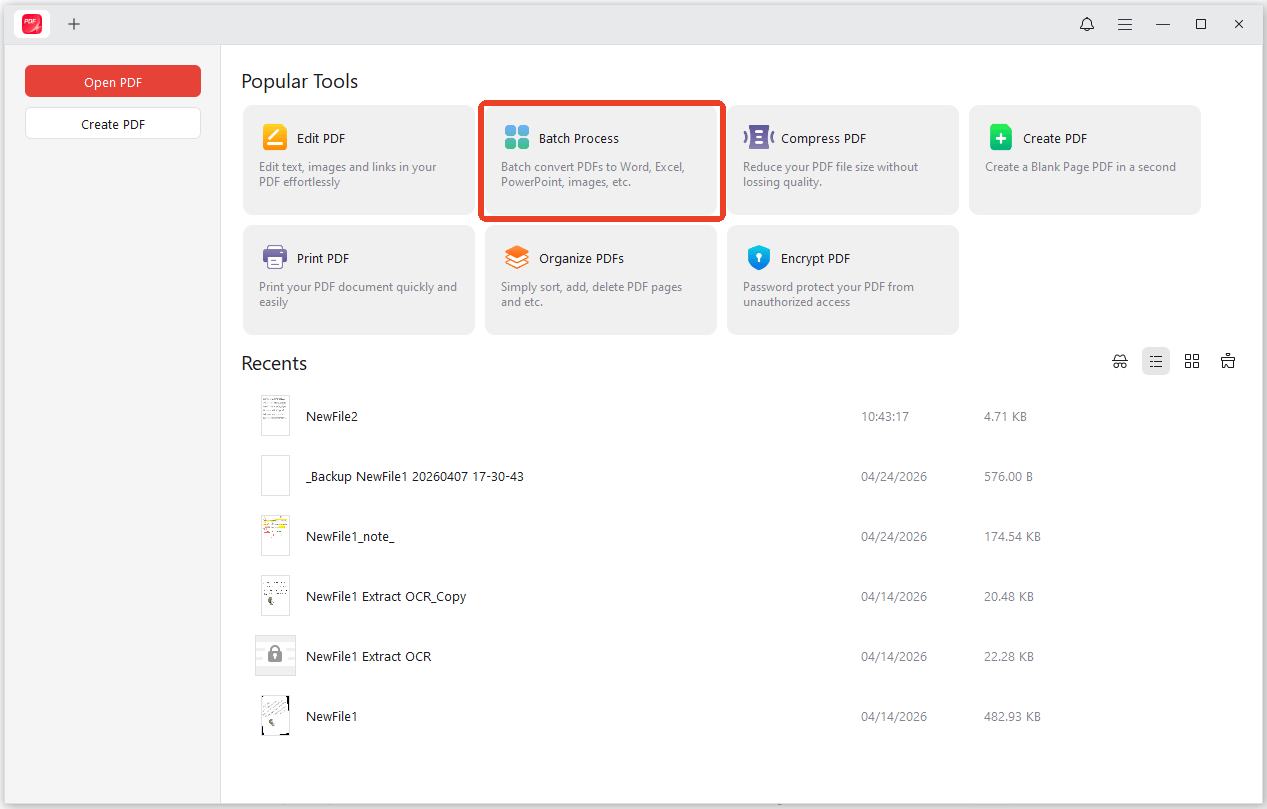
Step 1: Launch JOPDF and choose Batch Process.
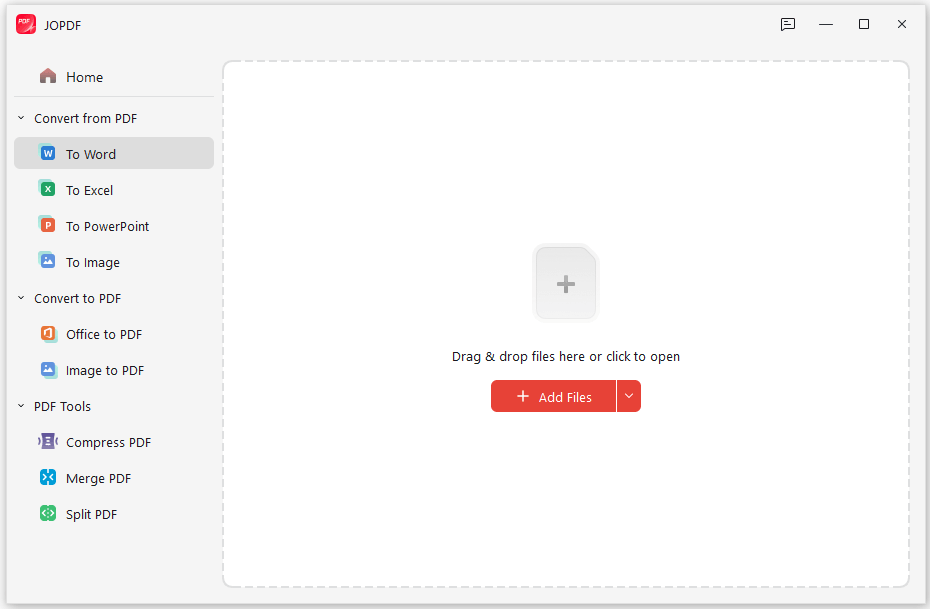
Step 2: Choose PDF to Word as your conversion type in the JOPDF converter and import the PDF file you want to convert. JOPDF supports batch processing, so you can add multiple files at once.
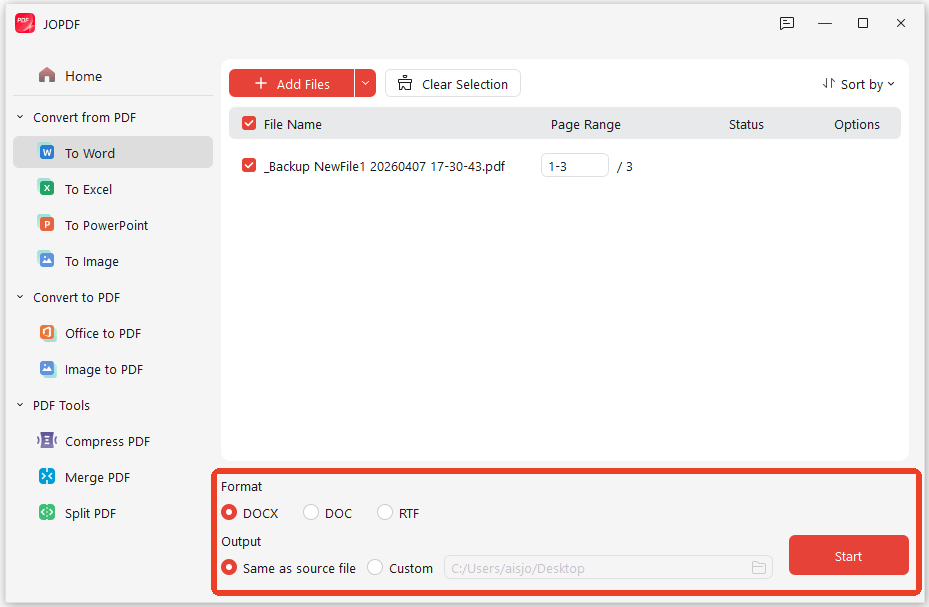
Step 3: Choose your output format and select where you want to save the converted file. Click Start to perform the task.
When you finish, open the converted Word document and check the formatting.
Best for: JOPDF is perfect for students, office workers, freelancers, and anyone tired of paying for PDF software. It is truly a “complete free PDF editor” that covers about 90% of daily PDF needs. Whether you need to convert PDF to editable Word free or just read and annotate documents, JOPDF has you covered.
Method 2: Use Microsoft Word (The Built-in Option)
If you do not want to install third-party software, Microsoft Word itself can open PDF files directly. However, you should understand its limits.
As one Microsoft expert noted, “Word documents that have been saved as PDF will not need the OCR process, they retain their text, although not all their Word structure and formatting”. This means simple, text-only PDFs work fine but complex documents may fail the conversion.
Step 1: Open Microsoft Word (2016 or later) and go to File > Open > Browse.
Step 2: Select your PDF file and click Open. Then Word will show a message: “Word will convert your PDF to an editable Word document.” You need to click OK.
Step 3: Review the converted document and make manual adjustments as needed. When you finish, export the file as PDF again.
How to Convert PDF to Word Without Formatting Errors Online
Online PDF converters are convenient, but quality varies wildly. Some free online tools often have file size limits (usually 5-10 MB). You should notice if the online converter adds watermarks. When choosing an online tool, look for these features:
- Preserves character spacing – Keeps letters at the right distance
- Maintains line spacing – No overlapping or cut-off text
- Handles tables correctly – Merged cells and borders stay intact
- No watermarks – Your document should look clean
According to what you need, we recommend you try SwifDoo PDF online converter.
Step 1: Go to the online PDF to Word converter and upload your file.
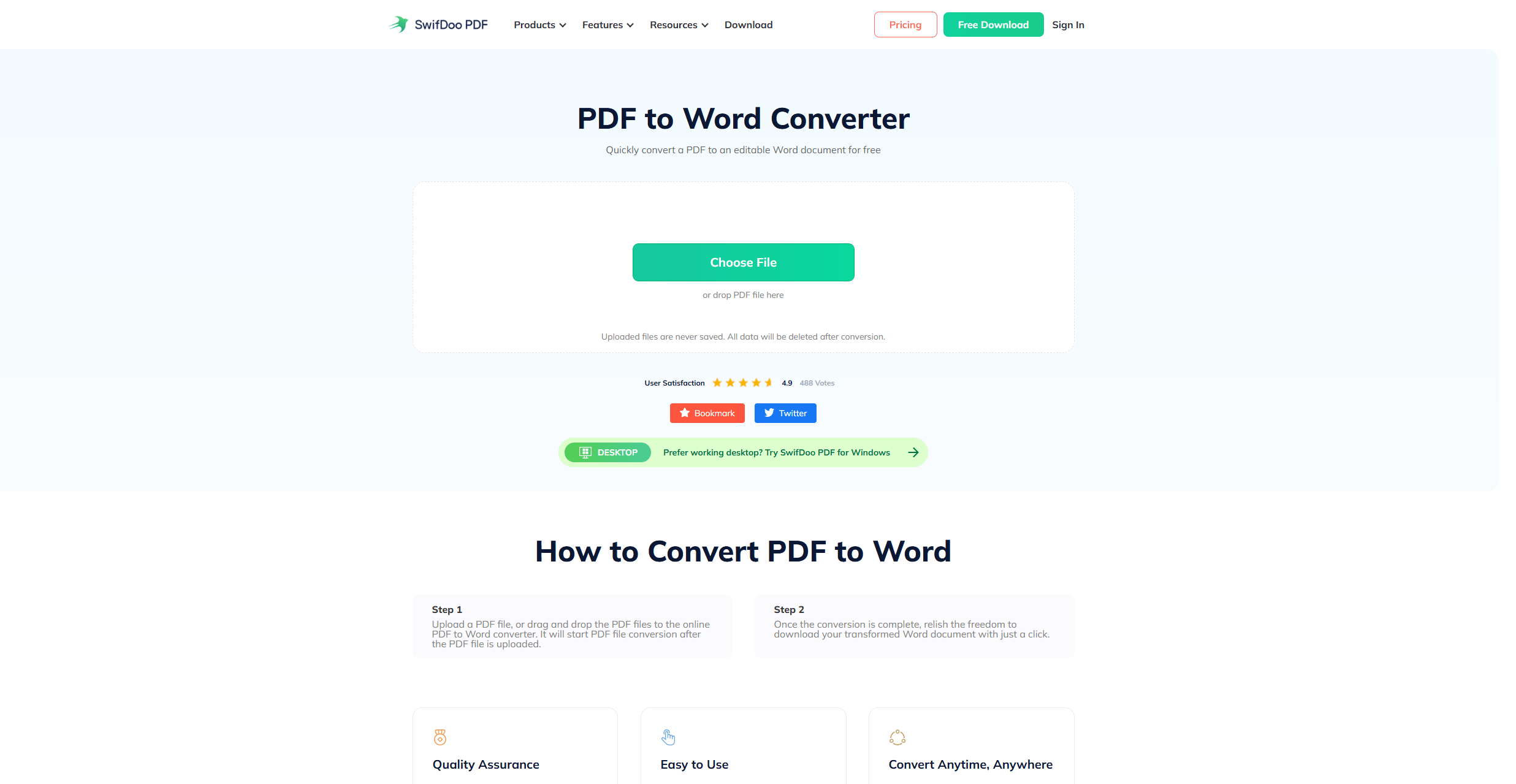
Step 2: Then it will automatically convert the PDF file without formatting errors. After a few seconds, you can download your Word file and check for any formatting issues.
Tips
To convert PDF to Word without formatting errors, you’d better avoid free online converters for scanned PDFs. They usually cannot handle OCR well.
How to Convert PDF to Word Without Formatting Errors on Mobile
When you are away from your computer, you still need to get work done. The SwifDoo PDF mobile app for Android and iOS lets you convert PDF to editable Word directly on your phone or tablet. The app supports conversion to Word, Excel, PowerPoint, CAD, and image formats.
The mobile app also serves as a perfect PDF eBook reader. You can import digital books and enjoy reading anytime. If you want to open a PDF in Word without losing formatting, you can try SwifDoo PDF.
Step 1: Download SwifDoo PDF from the App Store (iOS) or Google Play Store (Android).
Step 2: Launch the app on your iPhone or Android device .
Step 3: Navigate to Tools > Convert PDF to > Word.
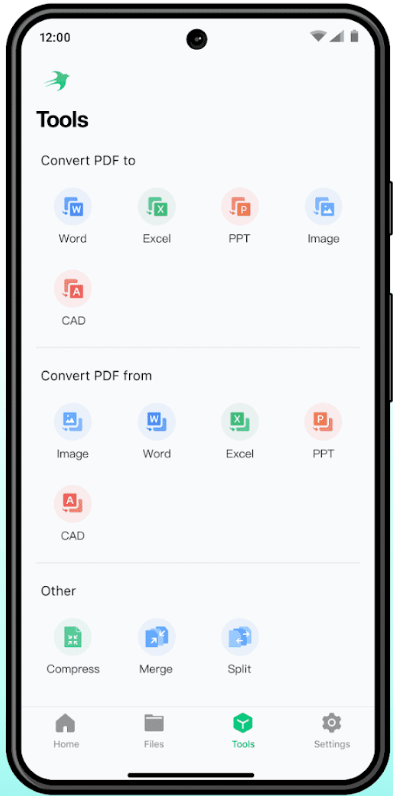
Step 4: Import the PDF file from your device storage.
Step 5: Start the conversion and the process runs directly on your device.
Step 6: Open the converted Word file and review the formatting.
Conclusion
How to convert PDF to Word without formatting errors? For quick, one-time conversions, you can choose online tools; for professional, regular use, JOPDF is your best choice. It is completely free, works offline, and handles everything. Hope this article has resolved your problem.
FAQs
JOPDF is widely recommended as a top free option. It covers editing, conversion, compression, annotation, and more - all in one free package.
Because PDF and Word use different underlying structures for handling text, images, and layout. There is no perfect 1:1 correspondence. However, tools like JOPDF are designed to minimize these issues.
Table of Contents

Your Best Free PDF Expert in PDF editing, compressing, converting, annotating, protect, organizing, and more.
Free DownloadWindows · macOS · Linux

Anna
Editor
“Anna, Editor-in-Chief and PDF expert, delivers deep insights into PDF document technology trends. She is dedicated to helping readers optimize their digital lives. When not writing, Anna loves exploring local cafes and reading, blending her technical expertise with a love for storytelling.”