![Discover How to Make a Fillable PDF in Word [Detailed Guide]](https://b.jopdf.com/wp-content/uploads/2026/10/how-to-make-a-fillable-pdf-in-word.png)
Introduction :
Can you create a fillable PDF in Microsoft Word? How to make a fillable PDF in Word? In this JOPDF article, let’s discuss them and find the detailed instructions. Meanwhile, I will provide you with the exact steps to create a fillable PDF from Word using Adobe Acrobat and show you how to make a fillable PDF online. Now, let’s get started!
A fillable PDF is a document containing interactive form fields that enable you to enter or select information without changing the document’s underlying layout. Can you make a fillable PDF in Microsoft Word? In the following content, let’s discuss this question. More importantly, the step-by-step guidance for creating fillable PDFs is also included in this article.
Can You Make a Fillable PDF in Word
Yes, you can. But Word and PDF forms use different types of form controls. Microsoft Word enables you to create a fillable form using controls such as text fields, check boxes, and dropdown lists. However, there is an important distinction between a fillable Word form and a fillable PDF. Simply saving the document to PDF doesn’t necessarily turn those Word controls into standard interactive PDF form fields.
How to create a fillable PDF in Word? There are 3 practical workflows:
- Create a fillable form directly in Word using Word’s Developer tools.
- Create the form in Word, save it as a PDF, and add interactive fields with Adobe Acrobat.
- Create the form in Word, convert it to PDF, and add interactive fields online with Sejda PDF Forms.
If your goal is to distribute a fillable PDF that other people can complete electronically, using Adobe Acrobat and an online PDF form creator is more reliable. If you need to fill out and sign a PDF for free, consider JOPDF.
How to Make a Fillable PDF in Word
Microsoft Word includes form controls that let you create a fillable Word form. This is useful when the document will remain in Word format or when you want to design the form before converting it to PDF. However, Microsoft Word doesn’t reliably create a true fillable PDF on its own. To create a fillable PDF directly, try the second and third methods.
Here, I mainly introduce you to how to create a fillable form directly in Microsoft Word.
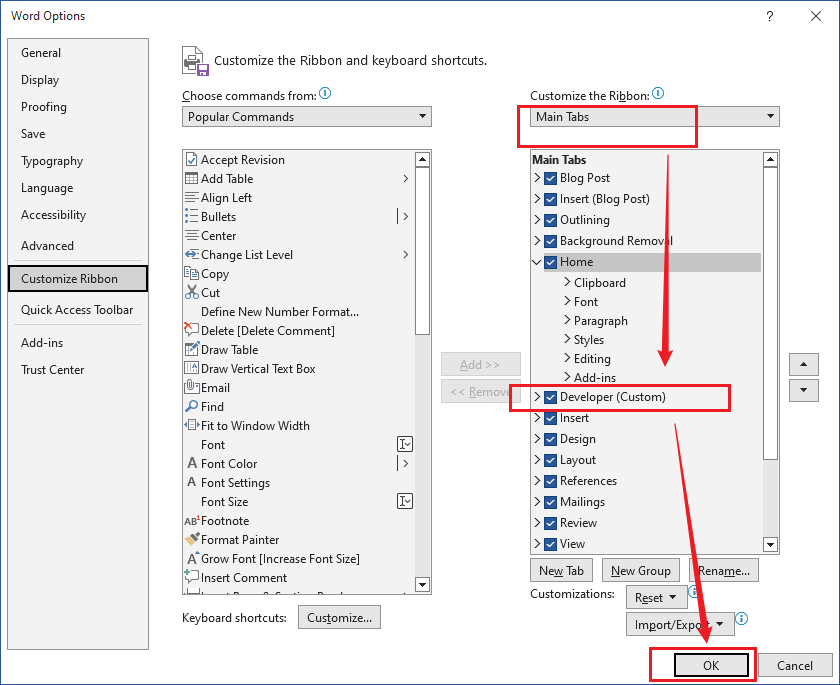
Step 1. Enable the Developer Tab
By default, the Developer tab is not visible. You need to turn it on to find the form controls. Go to File > Options > Customize Ribbon and tick the Developer option in the right-hand list under Main Tabs. Then click OK.
Step 2. Start with a Blank Document or Template
Go to New and click Blank document. Or search for Forms in the online templates search box and create one from a template. Next, design the layout first. You can type your title, instructions, labels, questions, and any explanatory text.
Step 3. Add Text Fields
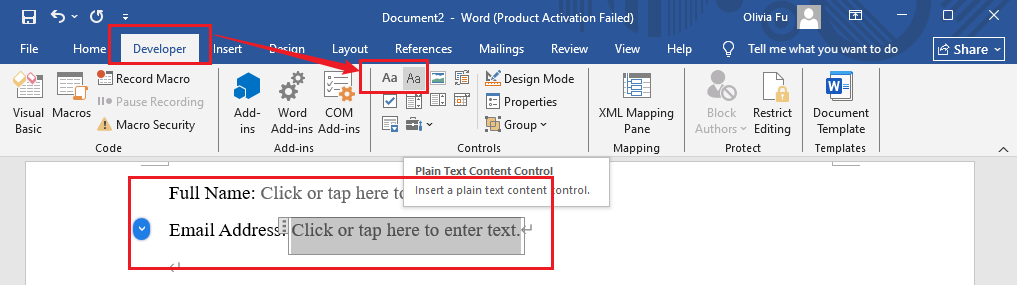
Place the cursor where you want others to enter information and select “Plain Text Content Control” or “Rich Text Content Control” under the Developer tab. For instance, you could create a form like this:
👉Full Name: [Text Field]
👉Email Address: [Text Field]
Step 4. Add Check Boxes
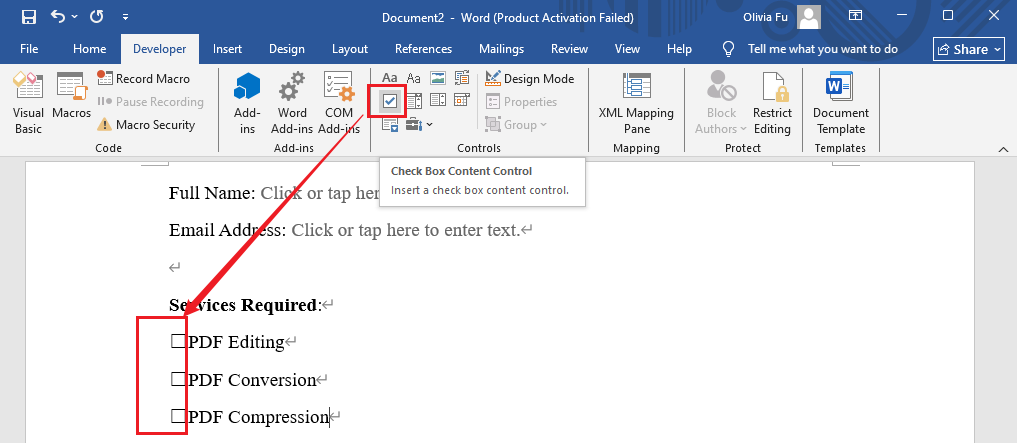
For questions that need to be selected or deselected, you can place the cursor on the desired location and click “Check Box Content Control”.
Step 5. Add a Dropdown List
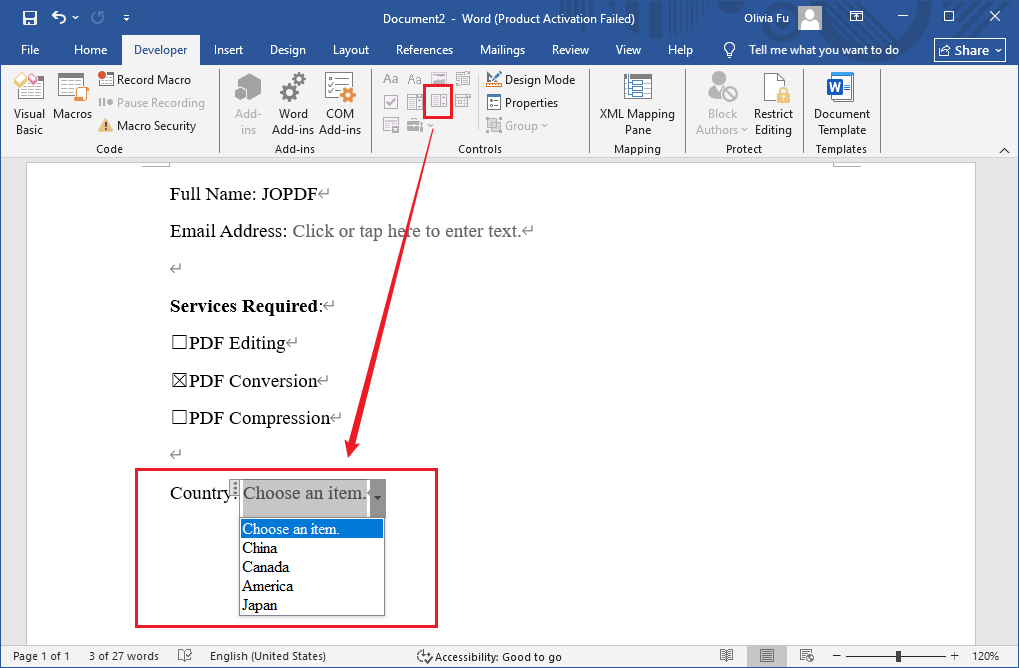
Click the “Drop-Down List Content Control” option from the Developer tab. Open the control’s Properties and add the available choices.
Step 6. Restrict Editing to Protect the Form
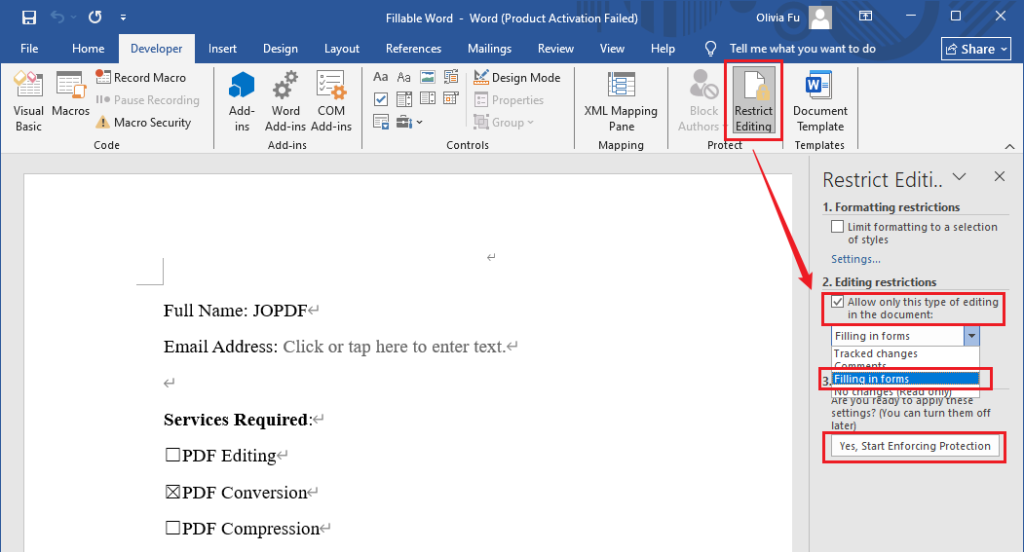
If you only want users to fill in the fields without accidentally changing the structure or text, use Word’s editing restrictions. Under the Developer tab, click Restrict Editing. Then check “Allow only this type of editing in the document” and select “Filling in forms” from the drop-down. Next, click “Yes, Start Enforcing Protection”. Optionally, you can set a password.
Step 7. Test and Save the Fillable Form
Once the Word form is complete, go to File > Save As to save it as a Word file or PDF as needed.
How to Create a Fillable PDF from Word with Adobe Acrobat
If you already have a Word document and want to turn it into a true fillable PDF, Adobe Acrobat is a suitable option. Its Prepare Form tool can auto-detect fields from an existing document. Additionally, Adobe Acrobat also allows you to create a fillable PDF form from scratch. Here, let’s learn how to make a Word document into a fillable PDF in Adobe Acrobat. Also, learn the exact steps for creating an interactive PDF form in Adobe Acrobat.
Create a Fillable PDF from an Existing Word Document
Step 1. Launch Adobe Acrobat, select All tools, and choose Prepare a form.
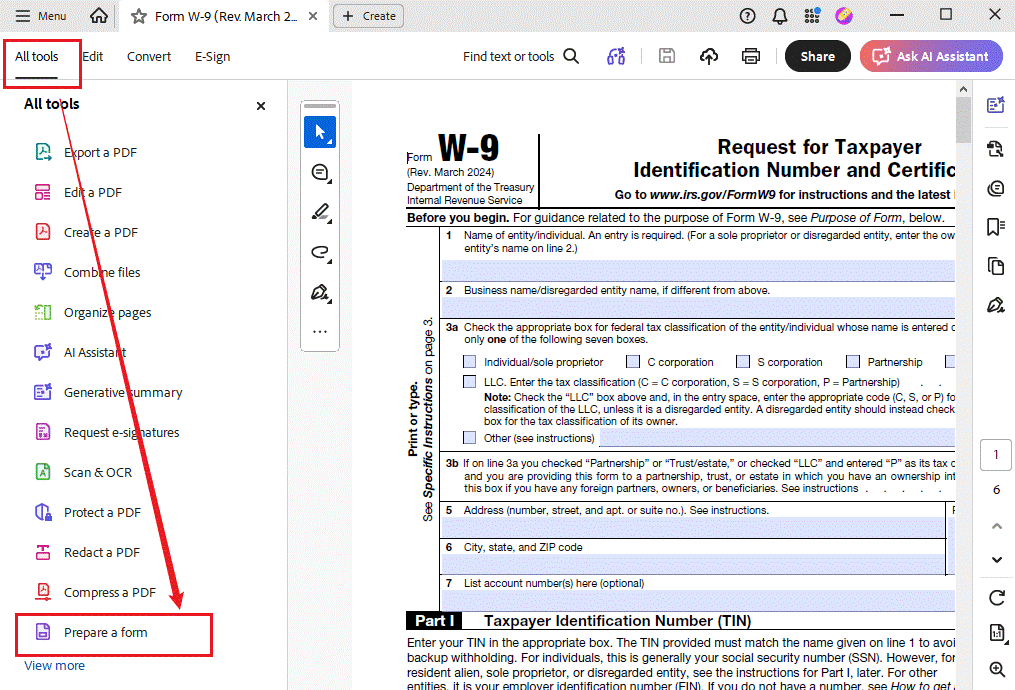
Step 2. Click Select a file to pick the existing Word file. Also, Adobe Acrobat can work with PDFs, Excel files, or scanned paper forms.
Step 3. Optionally, check “This Document Requires Signatures” if recipients need to sign it. Then, ensure “form field auto-detection” is ON.
Step 4. Now, click Create form. Adobe Acrobat will analyze the document and automatically add interactive form fields where it detects them.
Step 5. Next, you can review and edit the form as needed. For instance, you can add, delete, move, or rearrange fields or double-click a field to set name, tooltip, appearance, or formatting.
Step 6. Click Preview to test the form. Once everything is OK, save the PDF form.
Create a Fillable PDF Form from Scratch
Step 1. Run Adobe Acrobat and go to All tools > Prepare a form.
Step 2. Select “Start with a blank page” and check “This Document Requires Signatures” optionally.
Step 3. Click Create form. Then a blank PDF opens in editing mode. Here, use the Text tool to place labels and instructions, and use Add Images to add images or logos as needed.
Step 4. Now, add Text Field, Checkbox, Radio button, Dropdown, Signature, Date, and others as needed.
Step 5. Finally, preview the form and save it.
How to Create a Fillable PDF Online
If you don’t want to install desktop software, you can use a dedicated online PDF form creator such as Sejda PDF Forms. It allows you to upload an existing PDF and add interactive fields such as text fields, check boxes, radio buttons, drop-down lists, and signature boxes. Below are instructions for how to create a fillable PDF online with Sejda PDF Forms.
Step 1. Open your browser and visit Sejda PDF Forms.
Step 2. Click “Upload PDF file” or choose to start with a blank document.
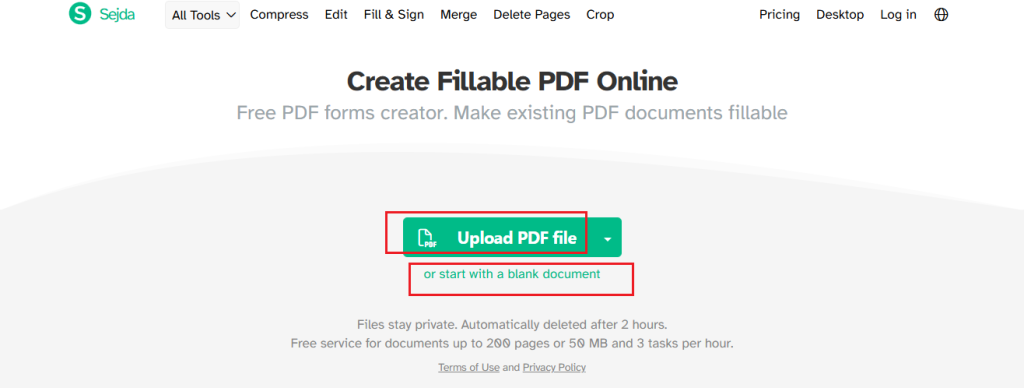
Step 3. Then you can start to create a PDF form in Sejda’s form editor. If you upload an existing PDF file, you can click “Auto-detect fields” to detect the fields and make them fillable. Here, you can add the following interactive form fields:
- Text
- Multiline
- Radio
- Checkbox
- Dropdown
- Signature
- Label
Now, add the fillable elements as needed.
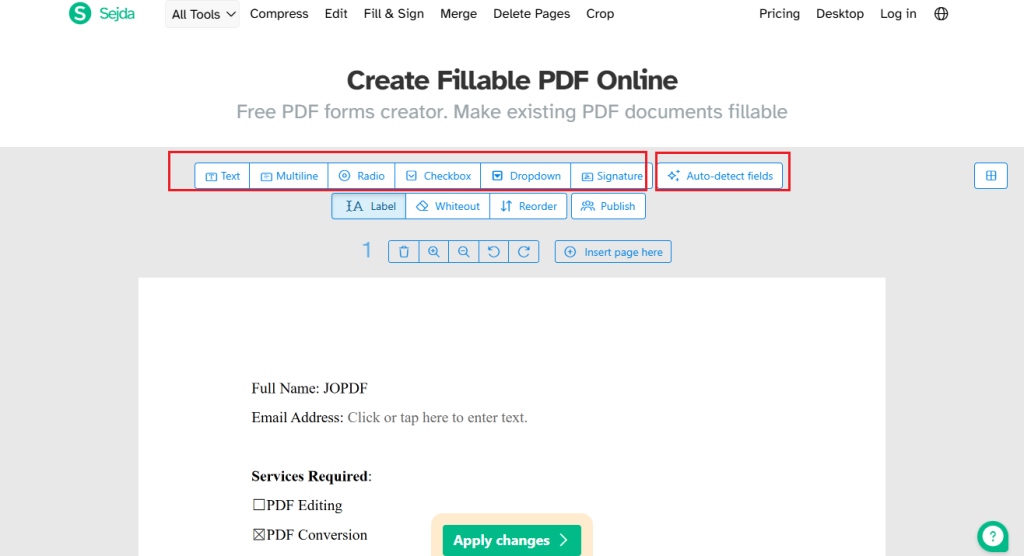
Step 4. Once you complete the form creation, click Apply changes. Then Sejda will process the PDF form. Finally, click Download to save the fillable PDF form. Meanwhile, you can choose to share it by email or link.
Note
If the form contains sensitive information, review the online service’s current privacy and file-handling policies before uploading the document.
Best Free Way to Fill Out PDF Forms with JOPDF
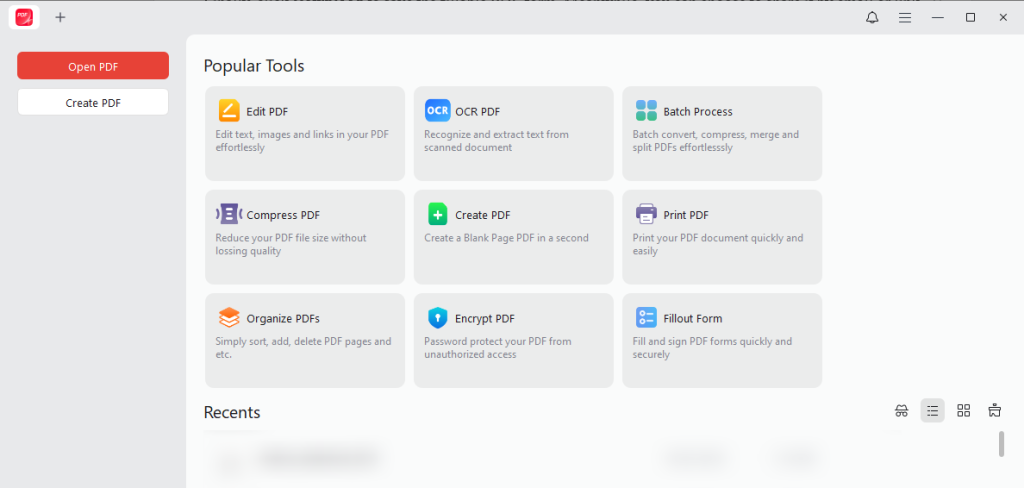
If you already have a PDF form and want to complete it without paying for expensive PDF software, JOPDF is a free PDF form filler worth considering. It works offline on Windows, Mac, and Linux. You can use it to fill out PDF forms efficiently. Additionally, JOPDF lets you add signatures to a PDF and offers a full set of PDF editing features.
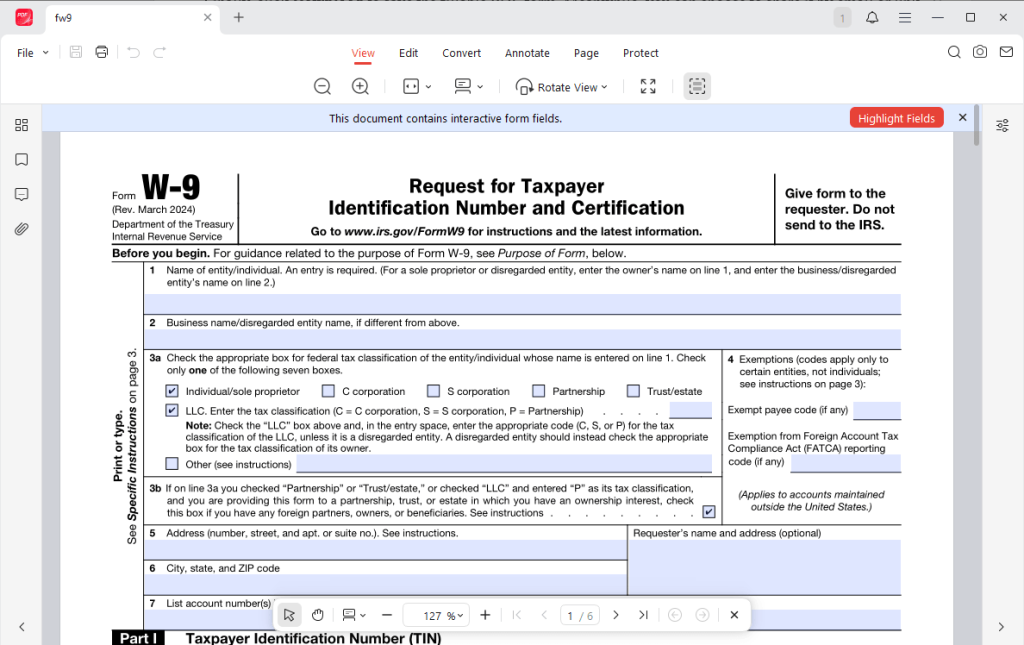
Here are some of the outstanding features that make JOPDF worth considering:
- Completely free to use: You can use all features of JOPDF for free. Meanwhile, it doesn’t require registration.
- Works offline: Fill out PDF forms without uploading documents to an online service, which is convenient when working with personal or business information.
- Supports non-fillable PDF forms: It enables you to add text to blank spaces and use annotation tools to complete static forms that don’t have interactive fields.
- Cross-platform compatibility: JOPDF can work on Windows, macOS, and Linux.
- PDF editing, annotation, and conversion tools: It provides a full set of tools to edit, annotate, organize, protect, and convert PDFs.
- OCR for scanned PDFs: It offers OCR to recognize text in scanned PDFs, making them searchable and editable.
Final Thoughts
How to make a fillable PDF in Word? First, you need to know that Microsoft Word can only create a fillable form in Word format. Meanwhile, simply exporting a Word document as a PDF doesn’t always create standard interactive PDF form fields. Fortunately, you can use tools like Adobe Acrobat or Sejda PDF Forms to create a fillable PDF from a Word document. After that, JOPDF enables you to fill out PDF forms for free.
FAQs
Table of Contents

Your Best Free PDF Expert in PDF editing, compressing, converting, annotating, protect, organizing, and more.
Free DownloadWindows · macOS · Linux

Olivia
“Olivia is an editor at JOPDF, where she writes practical guides and insightful articles on managing PDFs—covering topics like editing, annotating, converting, and organizing files efficiently. Passionate about clear communication and digital productivity, Olivia enjoys spending her free time cooking, watching movies, and hiking to unwind and find inspiration for her writing.”