
Summary :
It’s easy to type on a PDF form, but you may find that some PDF forms are not allowed to be edited. So, how to type on a PDF form easily? There are three types of PDF forms you’ll run into – fillable PDF forms, non-fillable PDFs, or scanned forms. This guide on JOPDF explains how to type on a PDF form for all three types, so you can type in PDF form fields and add text to a flat document. Let’s check that.
Key Takeaways
- Fillable PDF forms have clickable fields; non-fillable PDFs do not
- If clicking does nothing, the form needs a text tool or field detection
- Scanned PDFs require OCR before you can type on a PDF form
- JOPDF is a free PDF editor and offline PDF editor that handles all three types
- You can type on PDF files on Windows, Mac, Linux, iOS, and Android without printing or scanning
Part 1: Why You Can’t Type on Some PDF Forms
The reasons you can’t type on PDF forms are always about how the file was created. Apart from the fillable PDF form, there are two other types of PDF forms, which make PDF editing harder. We can explain the differences between them.
Fillable vs Non-Fillable PDFs
A fillable PDF form contains interactive form fields. The person who created it used a tool like Adobe Acrobat or JOPDF to add text boxes, checkboxes, and dropdown menus. When you open that file and click a field, a cursor appears, and you can type immediately.
A non-fillable PDF has none of that. It’s a flat layout, essentially a picture of a form. Clicking anywhere does nothing because there are no fields to click. This is common with older documents, scanned paperwork, and PDFs exported from design software.
Part 2: How to Type on a PDF Form with Easy Steps
If your form is fillable, this is the easy scenario. You just need a PDF reader or editor that supports interactive form fields. Here’s how to write on a PDF form when the fields are already there.
Method 1: Use JOPDF (Free, Offline)
JOPDF is an all-in-one PDF editor available for Windows, Mac, Linux, iOS, and Android. It’s 100% free, requires no sign-up, and processes everything offline. For form filling, it detects fillable fields automatically and lets you type directly into them.
How to fill out a PDF form with JOPDF:
Step 1: Download and install JOPDF.
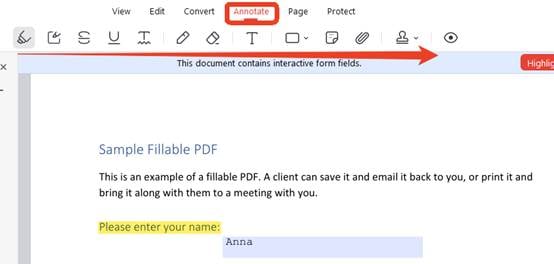
Step 2: Open your PDF form by clicking Open PDF. JOPDF detects the fillable PDF form fields automatically and highlights the fields in blue.
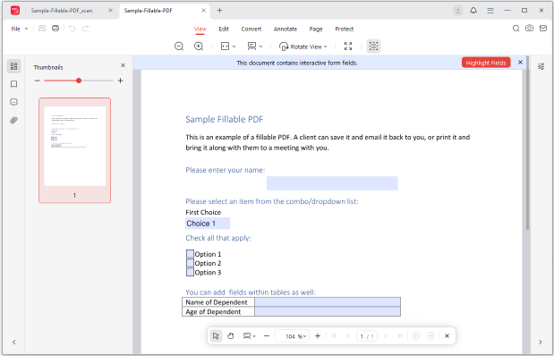
Step 3: Click any field and start typing
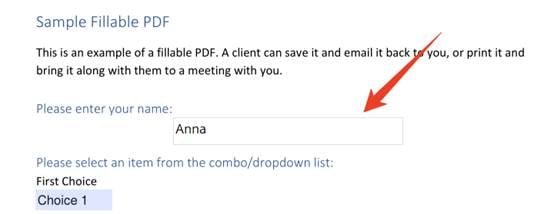
Step 4: If you want to type on the PDF field except the fillable part, go to the Edit tab and click on the part where you want to edit.
Step 5: In the text box, you can type your content or change the font type or color.
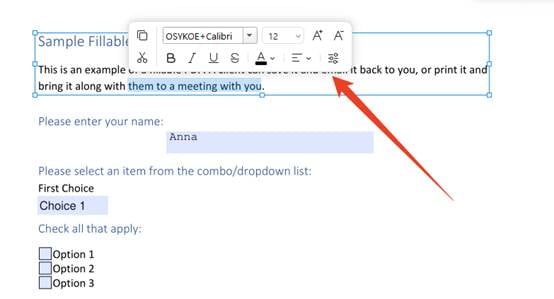
Step 6: JOPDF also allows you to annotate a PDF form. Just go to the Annotate tab and choose the tool.
Step 7: Save the completed form with Ctrl+S (Windows) or Cmd+S (Mac).
JOPDF also lets you add checkmarks, select dropdown options, and insert signatures if the form supports them. And because it works as an offline PDF editor, you can type on a PDF form free without worrying about subscriptions or uploads.
Method 2: Use Adobe Acrobat
Adobe Acrobat’s Fill & Sign tool also handles fillable forms well. The catch is that full editing features require a paid subscription, though basic filling is available in the free Acrobat Reader. You can also add a digital signature with Adobe.
Step 1: Open your PDF in Adobe Acrobat.
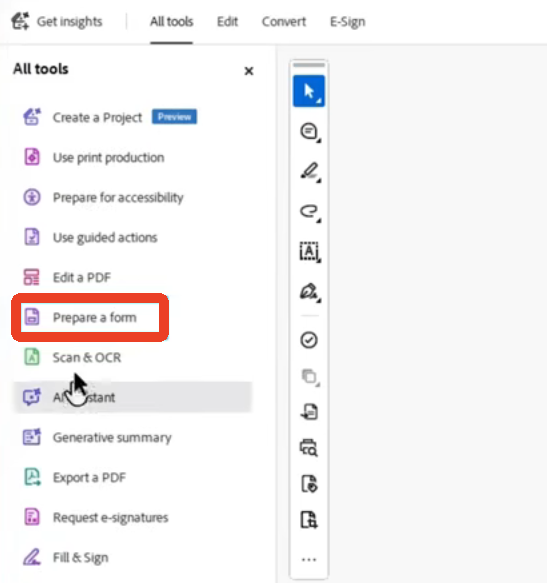
Step 2: Click Tools >Prepare a form, then click each field and type.
Method 3: Use a Browser PDF Viewer
If you want to type on a PDF form online, Chrome and Edge can fill in some interactive forms directly in the browser. Just open the PDF and click the fields. This works for simple forms, but compatibility varies. Some fields won’t respond, and saving can be unreliable.
You can right-click on the PDF file and choose the wanted open method. You can choose Google Chrome or Microsoft Edge, and when you open the PDF form, the fillable fields will be highlighted automatically.
Part 3: How to Type on a Non-Fillable or Scanned PDF Form
Non-fillable and scanned PDFs share the same core problem: there are no fields to click. One is a flat layout, the other is an image. Both require you to place text manually or convert the page into something typeable.
Method 1: Use JOPDF’s Add Text Tool
How to type on a non-fillable PDF? JOPDF’s Add Text tool lets you place a text box anywhere on the page, regardless of whether the original file has fields. Now, let’s check how to add text to a PDF form when the form has no interactive elements at all.
Step 1: Open the PDF form in JOPDF and go to the Edit tab.
Step 2: Click Add Text and click anywhere on the page to place a text box.
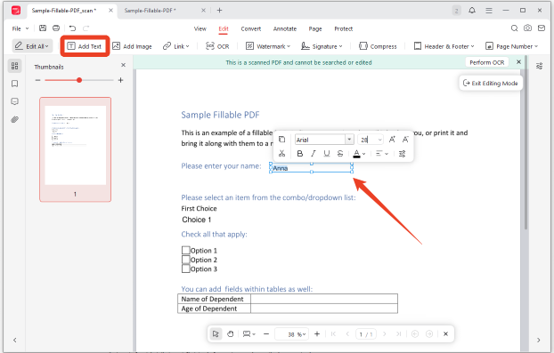
Step 3: Type your content and adjust font, size, and color to match the form.
Step 4: Save the file.
This works on flat forms, scanned documents, and any PDF that won’t accept typing. It’s also useful for adding notes or filling in sections the form didn’t account for.
Method 2: Run OCR on Scanned PDFs
Scanned PDFs are images of paper. There’s no text layer, so you can’t select, search, or type anywhere. OCR solves this by converting the image into actual text. Luckily, JOPDF’s OCR feature can automatically detect text and make a scanned PDF form searchable and editable.
Step 1: Open the PDF form in JOPDF and click Perform OCR.
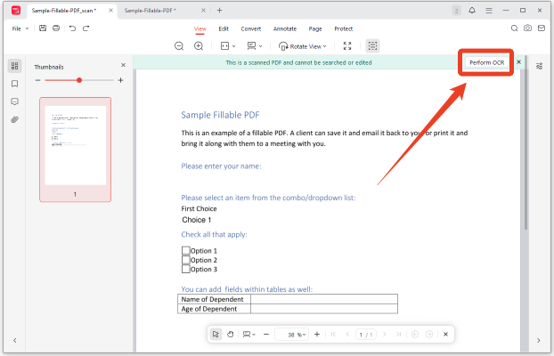
Step 2: Set the OCR mode, Processing mode, document language, and page range. Then click Perform OCR.
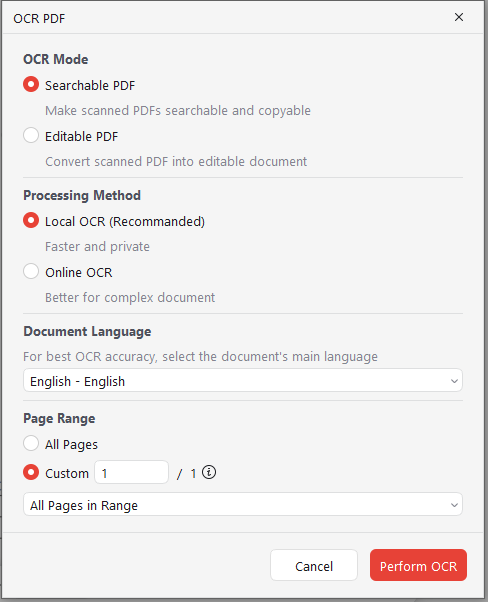
After OCR, the document behaves like a normal PDF. You can type, edit, and search the content. JOPDF’s OCR for scanned PDF feature is included for free – no separate purchase or subscription.
Part 4: JOPDF vs. Other PDF Form Fillers
JOPDF isn’t the only option, so it’s worth seeing how it compares. The table below covers the tools most people consider when they need to type on a PDF form. If you’re looking for the best PDF form filler, this comparison should help.
| Feature | JOPDF | Adobe Acrobat | Browser Viewers |
| Fill fillable forms | Yes | Yes | Yes |
| Add text to non-fillable forms | Yes | Yes | Limited |
| Form field detection | Yes | Yes | No |
| OCR for scanned forms | Yes | Paid only | No |
| Offline | Yes | Yes | No |
| No sign-up | Yes | No | Yes |
| Free | Yes | No | Yes |
| Cross-Platform | Windows, Mac, Linux, iOS, Android | Windows, Mac, iOS, Android | Browser only |
Part 5: Tips for Typing on PDF Forms
A few small habits make form filling faster and less error prone.
- Use Tab to move between fields. It’s faster than clicking each one.
- Match the font to the form. If the original uses Arial 11pt, use the same. It looks cleaner and more professional.
- Save a copy before editing. Keep the original untouched in case you need to start over.
- Flatten after filling. Flattening locks your responses in place so they can’t be changed accidentally.
- Run OCR before typing on scans. Without OCR, you’re just placing text on top of an image. With OCR, the file becomes editable.
- Check alignment after saving. Some forms shift slightly when saved in different viewers. Preview before sending.
Conclusion
How to type on a PDF form? It’s easy to type on interactive form fields, but the non-fillable and scanned forms need more work: a text tool for flat layouts, OCR for scanned pdf files, or both.
JOPDF can handle all the scenarios for free. It detects form fields, adds text anywhere, runs OCR on scans, and works offline on every major platform. With JOPDF, you can type on a PDF form on Mac/Windows/Mobile devices.
Ready to type on any PDF form? Download JOPDF for free and fill out your next form without printing a single page.
FAQs
Table of Contents

Your Best Free PDF Expert in PDF editing, compressing, converting, annotating, protect, organizing, and more.
Free DownloadWindows · macOS · Linux

Anna
Editor
“Anna, Editor-in-Chief and PDF expert, delivers deep insights into PDF document technology trends. She is dedicated to helping readers optimize their digital lives. When not writing, Anna loves exploring local cafes and reading, blending her technical expertise with a love for storytelling.”


![5 Proven Methods to Recognize Text in PDF [Step-by-Step Guide]](https://b.jopdf.com/wp-content/uploads/2026/09/recognize-text-in-pdf.png)
