Canva has become the go-to design tool for millions of users who need quick, professional-looking results without complicated software. But beyond social media graphics and presentations, Canva also works as a Canva PDF editor, which lets you import, modify, and export PDF files directly in your browser. If you want to know how to edit a PDF in Canva, you’re in the right place. This guide on JOPDF walks you through every step on both desktop and mobile, shows you how to avoid formatting problems, and explains what to do when the Canva online PDF editor reaches its limits.
Summary :
Can You Edit PDFs in Canva?
Can you edit PDFs in Canva? Yes, you can. Canva includes a built-in PDF editor Canva feature that is available to all users, including free account holders. The platform treats each PDF page as a separate canvas, converting text, images, and shapes into editable elements. This makes the Canva PDF editor free tier perfectly usable for basic tasks like correcting a typo, swapping an image, or adding a logo.
However, there are important boundaries to understand before you edit PDF in Canva. The Canva PDF editor online is fundamentally a design tool adapted for PDFs, not a dedicated document editor. For simple visual changes, it works well. For heavy text editing or complex layouts, you may need a complementary PDF desktop tool.
Also See: Garbled Text in PDF? 7 Proven Ways to Fix It (Step-by-Step Guide)
How to Edit a PDF in Canva on Desktop?
The desktop browser version of Canva offers the most complete Canva edit PDF experience. Follow these steps to edit your file.
Step 1: Log into Canva
Go to canva.com and sign into your account. A free account is sufficient for basic PDF edit Canva tasks. Paid Pro accounts unlock additional features like brand kits and premium templates.
Step 2: Upload Your PDF
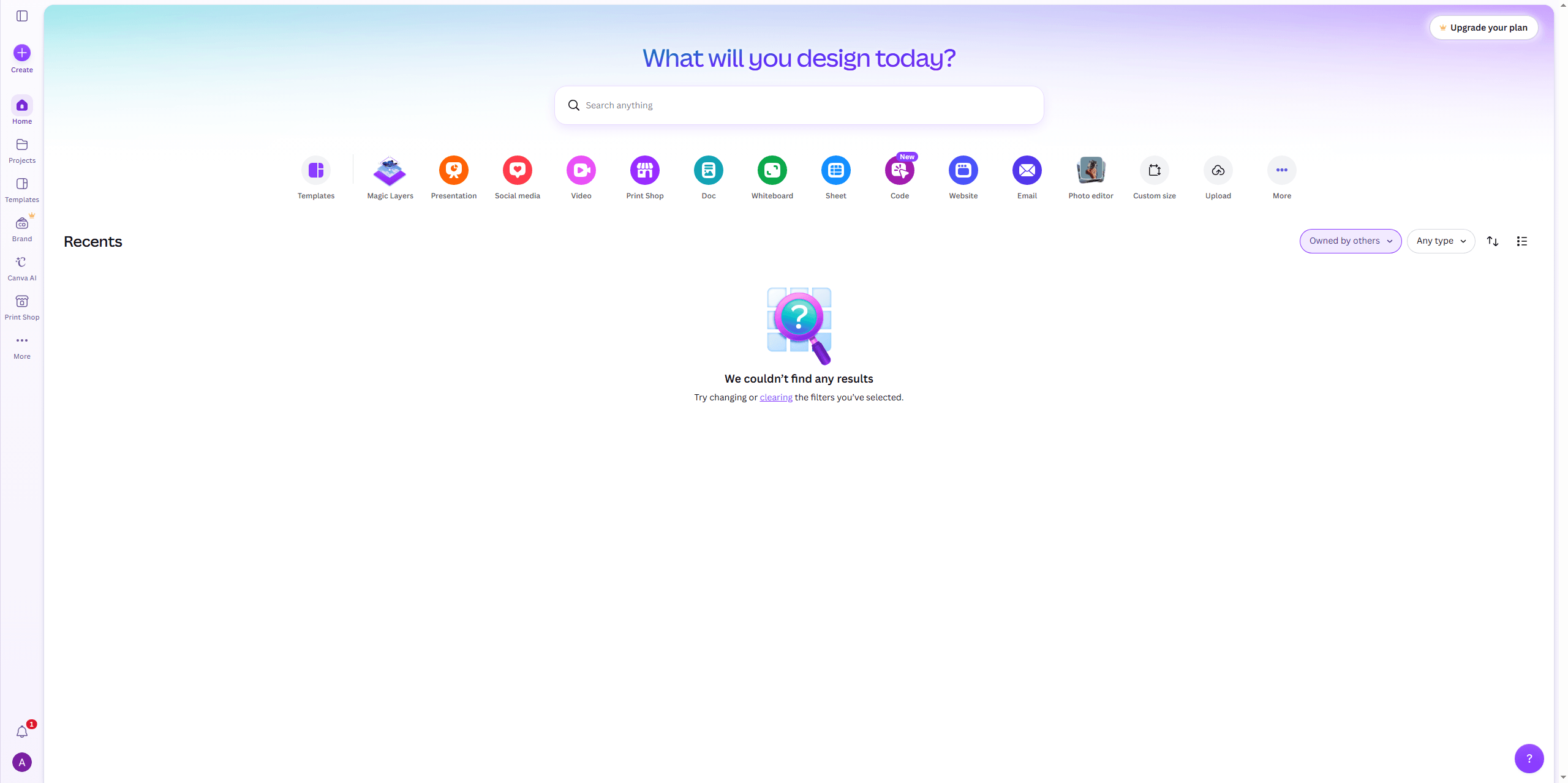
Click Create > Upload button in the list menu of your dashboard. Canva accepts PDFs up to 100 pages for free users. Larger files may require a Pro subscription.
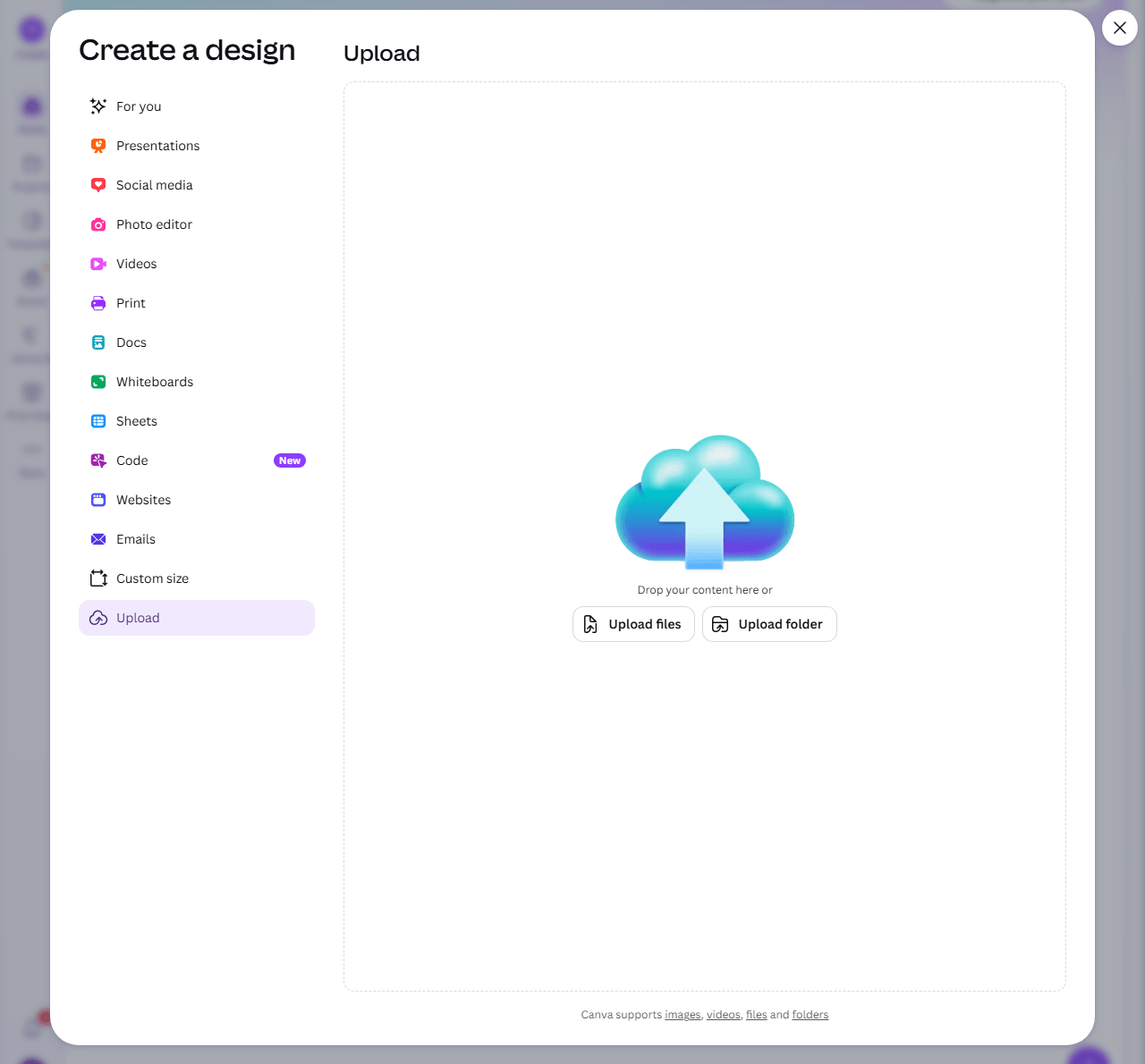
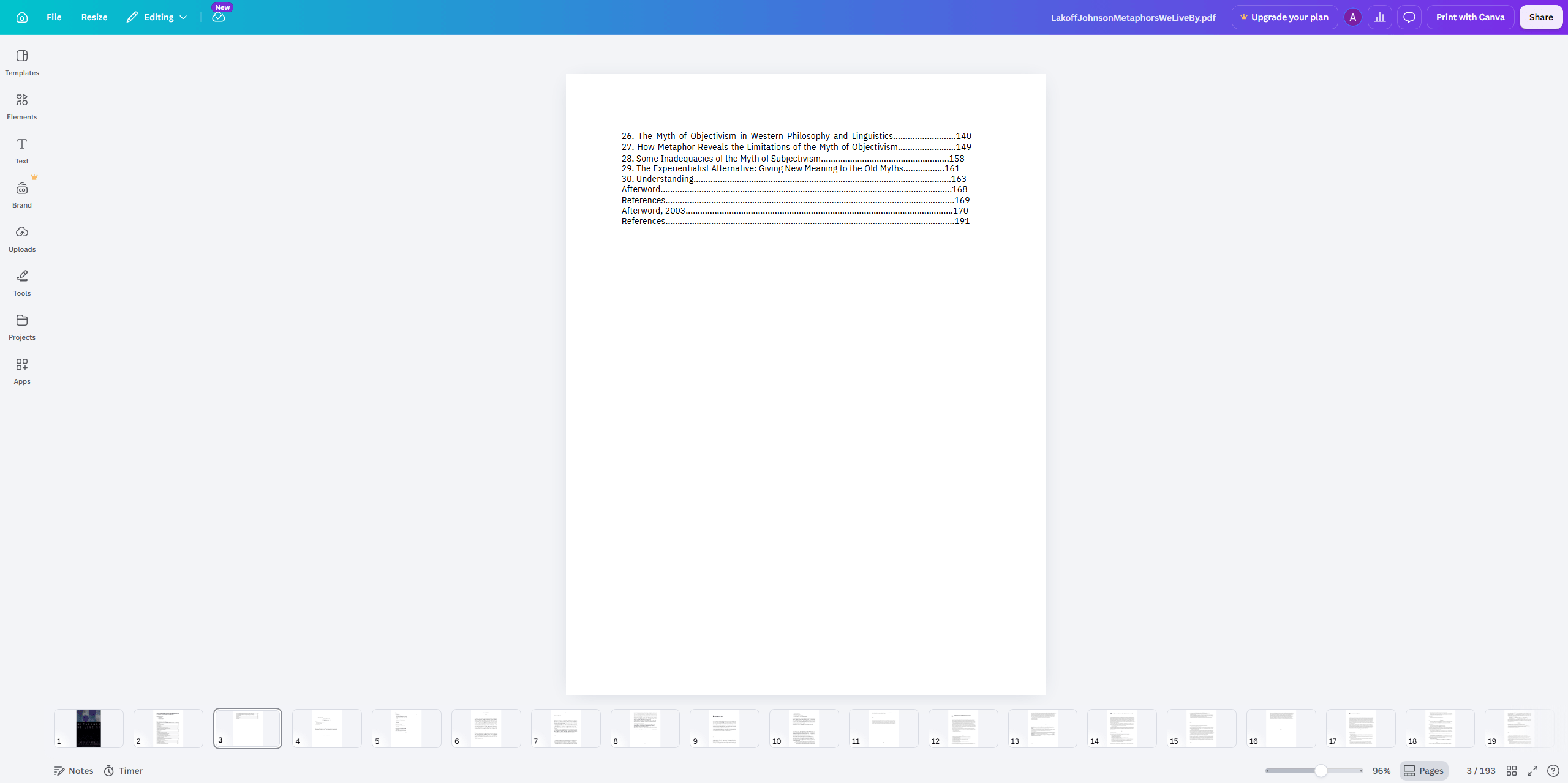
Step 3: Open in Canva Editor
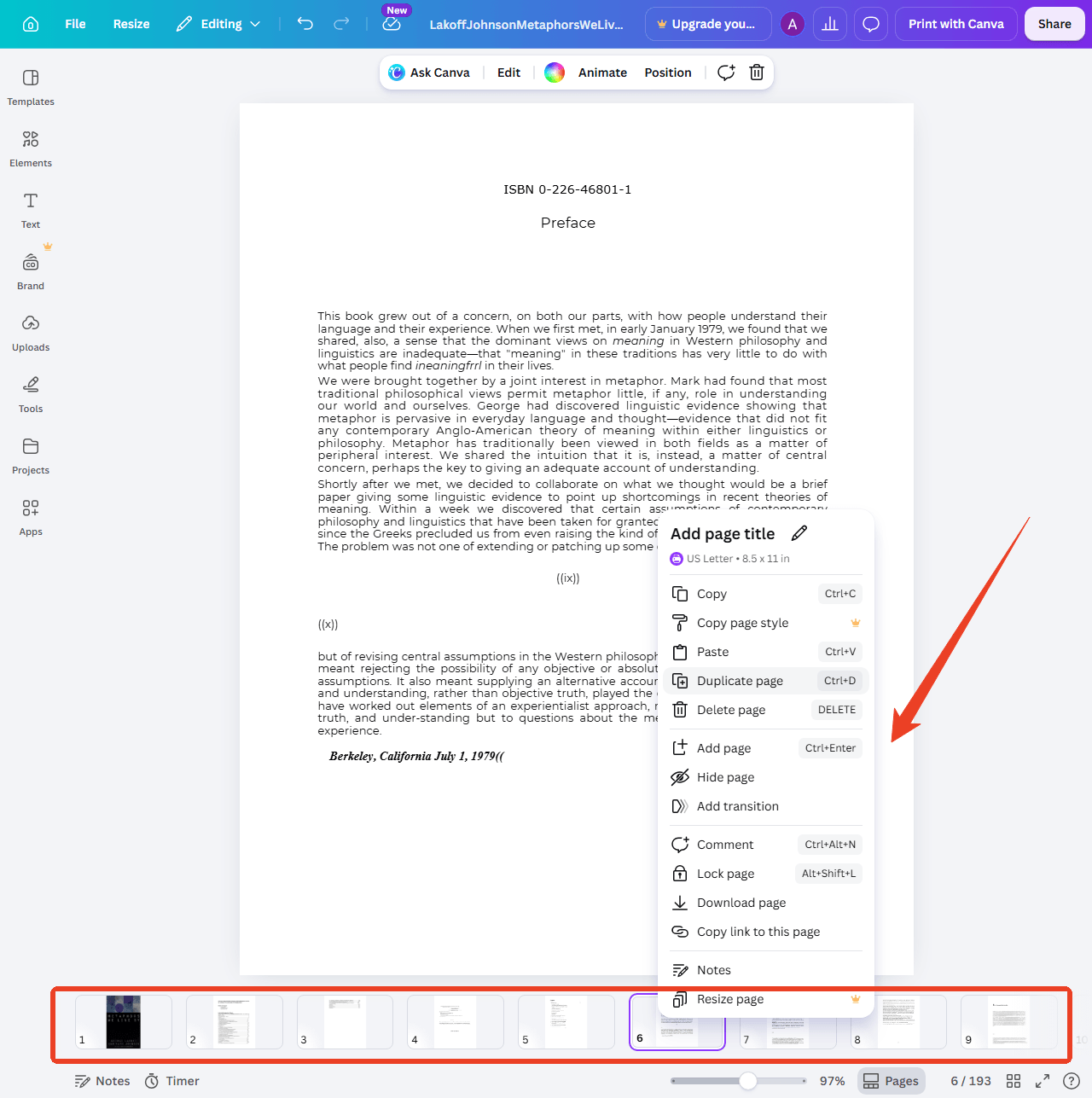
Once uploaded, click on the file to open it in the Canva PDF editor. Each page of your PDF becomes a separate page in a new Canva design document. The bottom panel displays all pages as thumbnails for easy navigation.
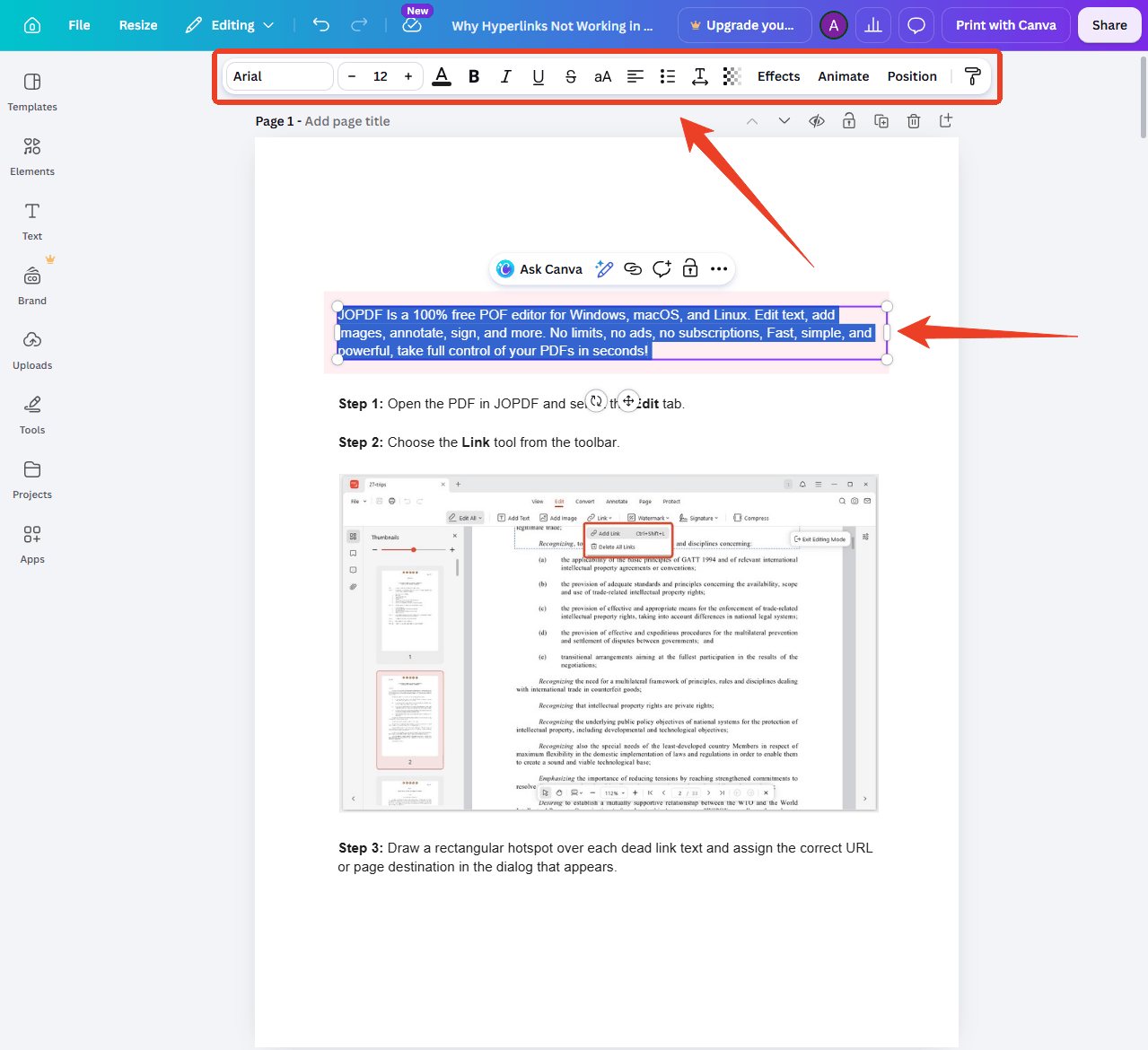
Step 4: Edit Text and Elements
Click on any text block to edit it directly. Canva automatically separates the PDF content into individual elements, including text boxes, images, and shapes. You can change fonts, adjust sizes, modify colors, and move elements freely. This is the core of how to edit PDF in Canva on desktop.
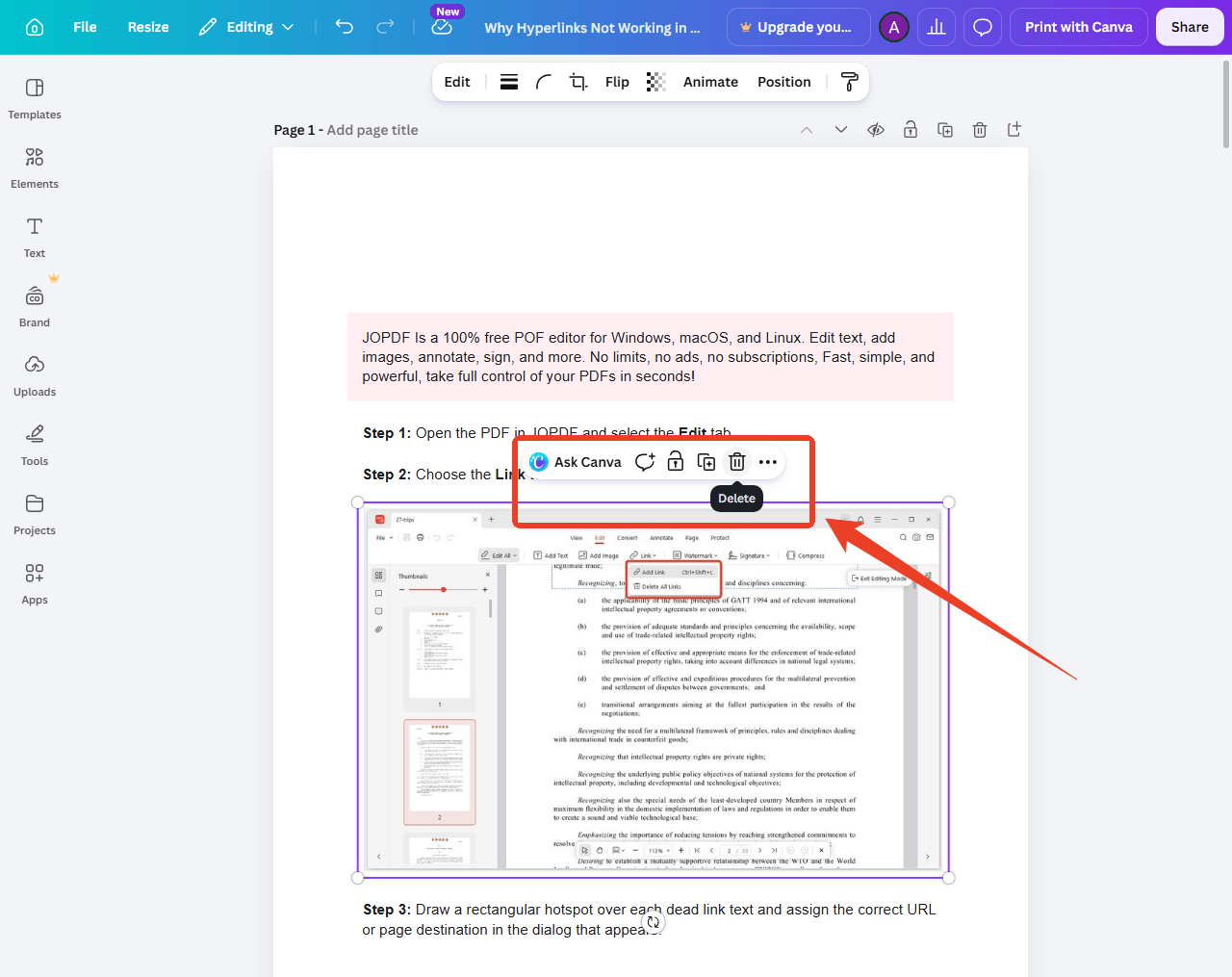
Step 5: Add or Replace Images
Delete existing images by selecting them and pressing Delete. To add new images, drag photos from Canva’s built-in library or upload your own. Resize and reposition as needed. All standard image formats are supported.
Step 6: Manage Pages
Use the page thumbnails at the bottom to add new pages, delete unwanted ones, or drag to rearrange the order. You can also duplicate pages by right-clicking a thumbnail and selecting Duplicate page.
Step 7: Export as PDF
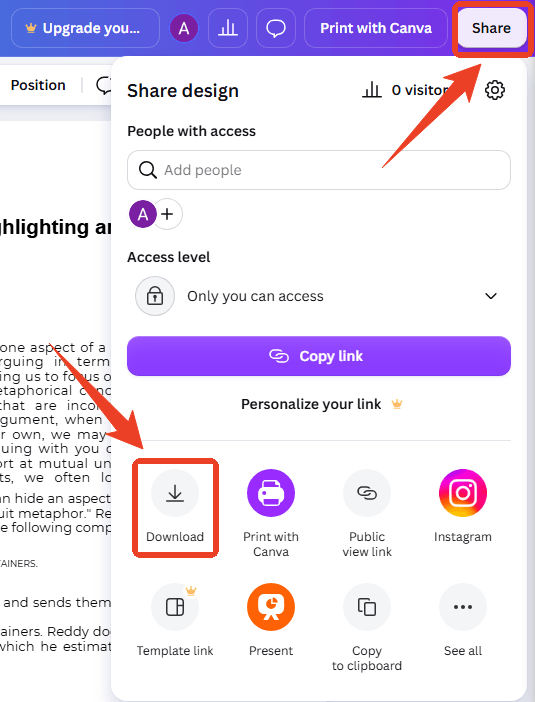
- Click the Share button in the top-right corner, then select Download.
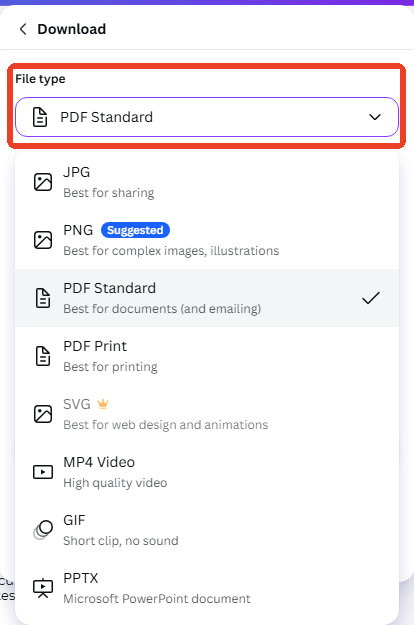
- Under File type, choose PDF Print for high-quality output or PDF Standard for smaller file size.
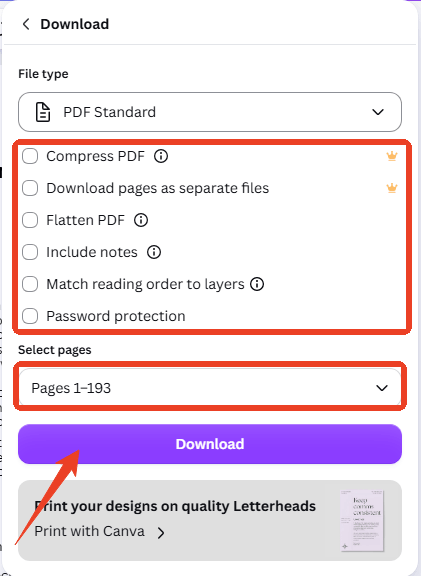
- Select which pages to include and whether to flatten the PDF. Click “Download” to save your edited file. You have now completed a full Canva PDF edit workflow.
How to Edit PDF in Canva on Mobile?
How to edit PDF in Canva mobile? For users who need to edit PDF in Canva mobile, the Canva app provides a functional editing experience on both iOS and Android. While less powerful than the desktop version, it covers the essentials.
Step 1: Install Canva from the App Store (iPhone/iPad) or Google Play Store (Android). The app is free and supports the same account you use on desktop.
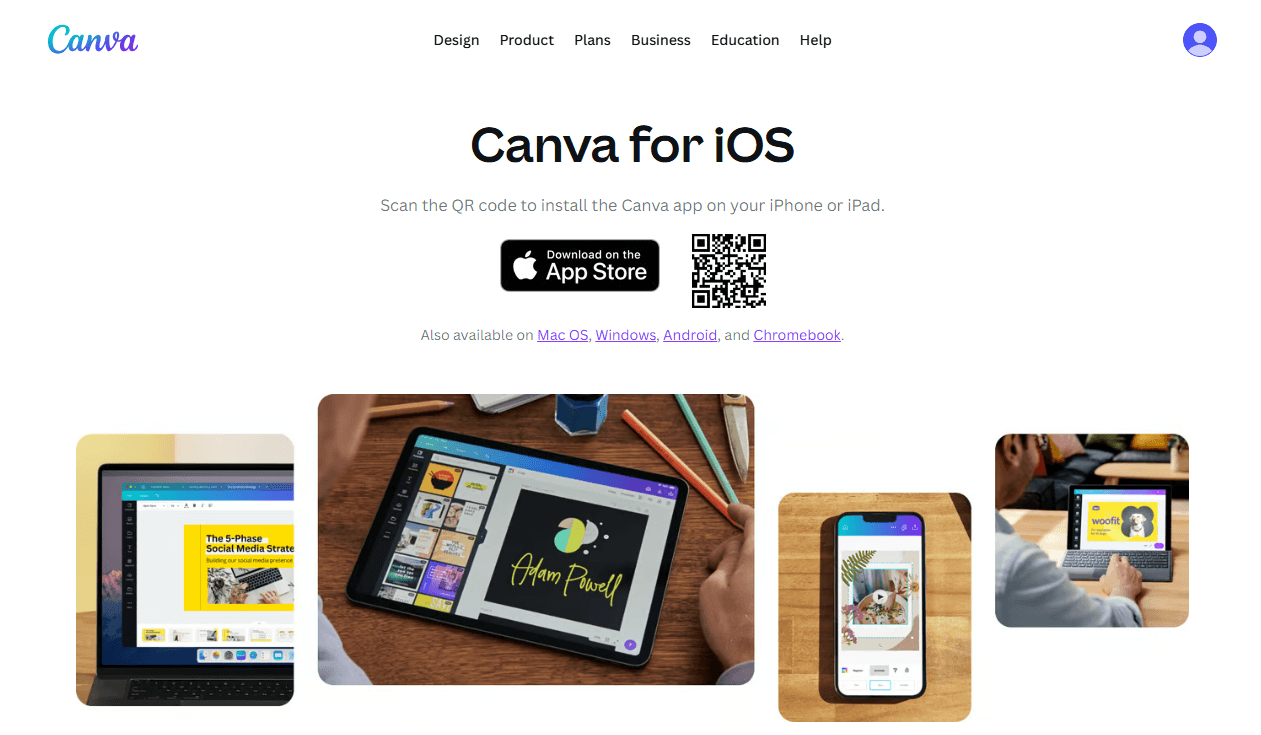
Step 2: Tap the + button on the home screen and select Upload. Choose your PDF file from your device storage or cloud drives.
Step 3: To edit PDF in Canva, you can follow these moves:
- Tap on any text element to edit it.
- Double-tap images to replace them.
- Use pinch gestures to zoom in for precise adjustments.
The Canva PDF editor mobile interface is touch-optimized, so repositioning elements is intuitive with drag-and-drop.
Besides, the mobile app provides access to Canva’s full template and element library. You can add stickers, icons, and design elements just as you would on desktop. The bottom toolbar gives quick access to text formatting, color controls, and layer management.
Step 4: Tap the download icon in the top-right corner. Select PDF as the output format. Choose quality settings and page range. The file saves to your device or can be shared directly to messaging apps, email, or cloud storage.
The smaller screen makes fine-detail editing challenging. Complex multi-page documents are harder to manage than on desktop. Some advanced features, like precise font kerning and custom color palettes, are only available on desktop. For simple, quick edits on the go, the mobile Canvas PDF editor works well. For detailed work, switch to desktop.
Tips to Edit PDF in Canva Without Losing Formatting
How to edit PDF in Canva without losing formatting? Some users may encounter that their document looks different after uploading – Text shifts, fonts change, images move. This happens because Canva rebuilds the PDF using its own rendering engine rather than editing the original file structure. Here is how to minimize these issues.
Tip 1: Use PDF Print for Export
When downloading your edited document, always select “PDF Print” rather than “PDF Standard.” The PDF Print preset preserves higher resolution and better color accuracy, which translates to fewer visual discrepancies.
Tip 2: Stick to Common Fonts
If your original PDF uses a font that Canva doesn’t recognize, the text will be substituted with a default font. This is the single biggest cause of formatting shifts. Before uploading, check which fonts your PDF uses. If possible, switch to widely available fonts like Arial, Helvetica, Times New Roman, or Georgia before importing into Canva.
Tip 3: Limit Editing to Simple Changes
The Canva PDF edit process works best for straightforward modifications: fixing a typo, updating a date, swapping an image. If you want to restructure a complex multi-column layout or heavily formatted table inside Canva, alignment problems happen. For those tasks, a dedicated PDF editor is more appropriate.
Tip 4: Edit Page by Page
Instead of uploading a 50-page document and editing everything at once, consider splitting the PDF before uploading. Edit each section separately and recombine the pages afterward. This reduces the chance of a single formatting error cascading through the entire document.
Tip 5: Check Every Page Before Downloading
Scroll through all pages in the Canva PDF editor and verify that text, images, and layouts appear as expected. Fix any misalignments manually before exporting. The preview in Canva is accurate — what you see is what you’ll get in the downloaded PDF.
Pros and Cons of Using Canva as a PDF Editor
Canva PDF editor online is powerful for what it is, but it is not a full replacement for dedicated PDF software. Here is an honest assessment.
Advantages:
-
Free to use: Basic editing features available without payment
-
No installation: Fully browser-based via the Canva online PDF editor
-
Rich template library: Access to thousands of design elements, icons, and stock photos
-
Beginner-friendly: Intuitive drag-and-drop interface requires no training
-
Cross-platform: Works on desktop and mobile via the Canvas PDF editor
-
Real-time collaboration: Multiple users can edit the same document simultaneously
Advantages:
-
Cannot edit existing text blocks natively: Canva treats PDF text as independent elements, not continuous text flow
-
Formatting shifts on complex layouts: Multi-column or table-heavy PDFs often break during import
-
No form field editing: Cannot fill or edit interactive PDF form fields
-
No OCR for scanned documents: Image-based PDFs cannot be edited at all
-
Internet connection required: No offline editing capability
-
Page limit for free users: Documents over 100 pages may need Canva Pro
Canva PDF Editor vs Desktop PDF Editors
The Canva PDF editor online is best understood as a design tool with PDF capabilities. It excels at visual edits — adding graphics, changing colors, updating images. A desktop PDF editor excels at document editing — modifying text, preserving exact layouts, managing large files securely. Here is how they compare.
| Feature | Canva PDF Editor | JOPDF (Desktop) |
| Platform | Online browser-based | Windows desktop |
| Price | Free (basic) / Pro (paid) | Free |
| Edit existing text | Limited (text treated as elements) | Full text editing |
| Formatting preservation | May shift on complex layouts | Maintains original layout |
| Offline use | Requires internet | Fully offline |
| File security | Cloud-based processing | Local processing only |
| Page management | Basic reorder | Full merge, split, rotate, delete |
| File size limits | Free tier limited | No cloud limits |
| Design elements | Extensive library | No design templates |
| Best for | Quick visual edits, design-focused changes | Professional document editing, secure local work |
The tools are complementary rather than competitive. Canva handles the design layer. JOPDF handles the document layer. Many users benefit from using both.
When Canva Isn’t Enough: Advanced PDF Editing with JOPDF
For designers who want to update a brochure, correct a flyer, or add branding to a presentation, it’s ideal to edit PDF in Canva. But when you need to make substantial text changes across dozens of pages, preserve a complex layout perfectly, or work offline with sensitive documents, a dedicated offline PDF editor becomes necessary.

JOPDF – The Best Free PDF Editor
 User Rating: 4.8
JOPDF Is a 100% free POF editor for Windows, macOS, and Linux. Edit text, add images, annotate, sign, and more. No limits, no ads, no subscriptions, Fast, simple, and powerful, take full control of your PDFs in seconds!
JOPDF is a Windows desktop PDF editor that fills the gaps Canva leaves open. Unlike the Canva PDF editor, which uploads your files to cloud servers, JOPDF processes everything locally. This makes it suitable for contracts, legal documents, financial reports, and any file containing private information.
JOPDF also handles page-level operations that Canva doesn’t. You can merge multiple PDFs into one document — useful after editing separate sections in Canva. You can split a large file into smaller parts, rotate individual pages, and compress files for email without visible quality loss. The conversion tools turn PDFs into Word, PPT, or image formats when you need to repurpose content.
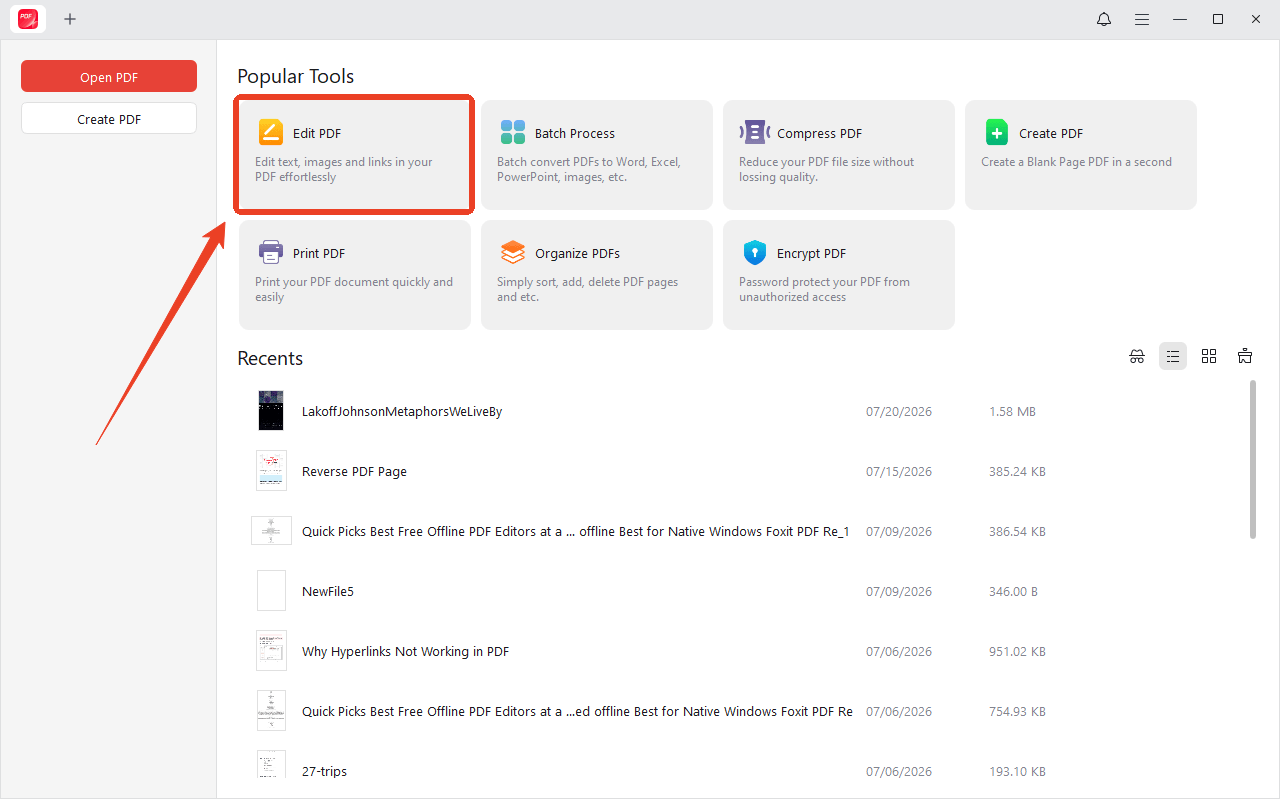
Step 1: Download and install JOPDF, and then launch it.
Step 2: Import the PDF you want to edit into JOPDF by clicking Edit PDF.
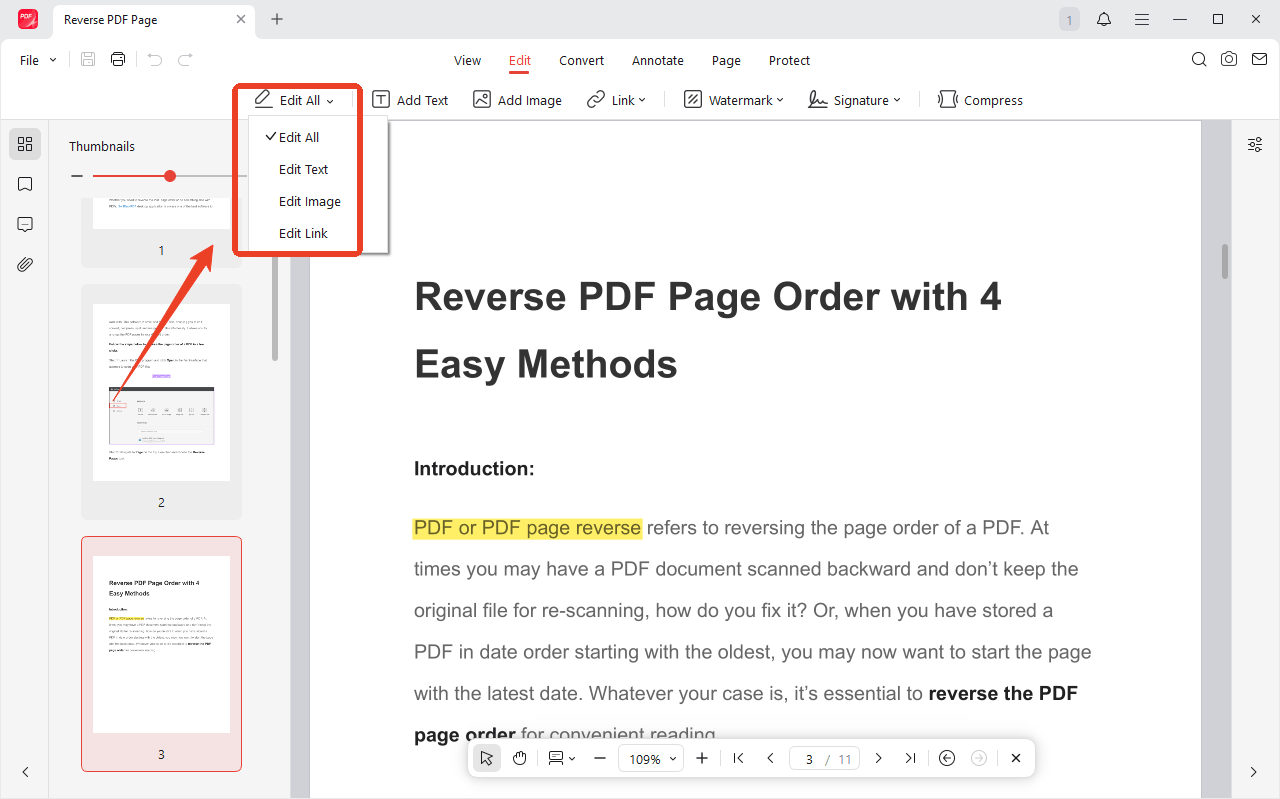
Step 3: Here, you can choose the editing option to select what you want to change and enter the editing mode.
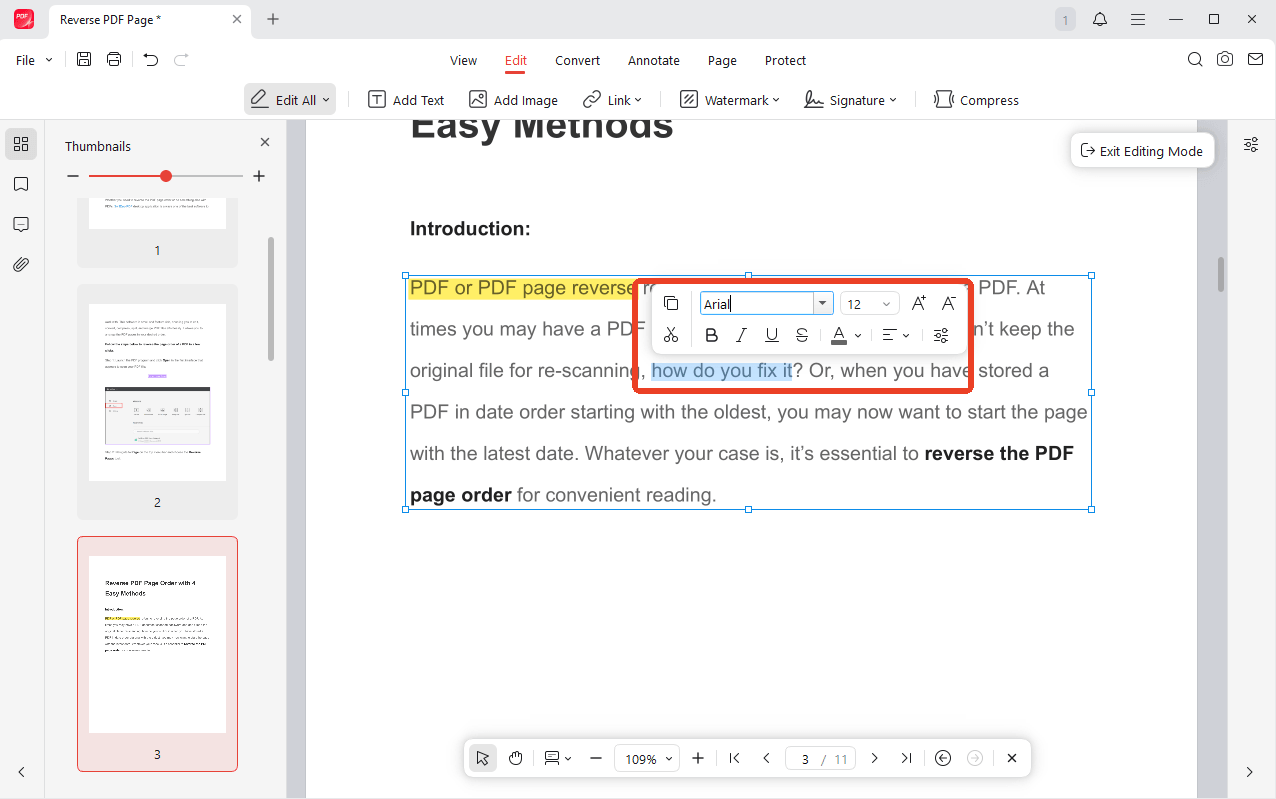
Step 4: Scroll to select the text box. Make any text edits, adjust formatting, or reorganize pages.
Step 5: To edit image, you can select the image in PDF and a list of image editing options will appear next it.
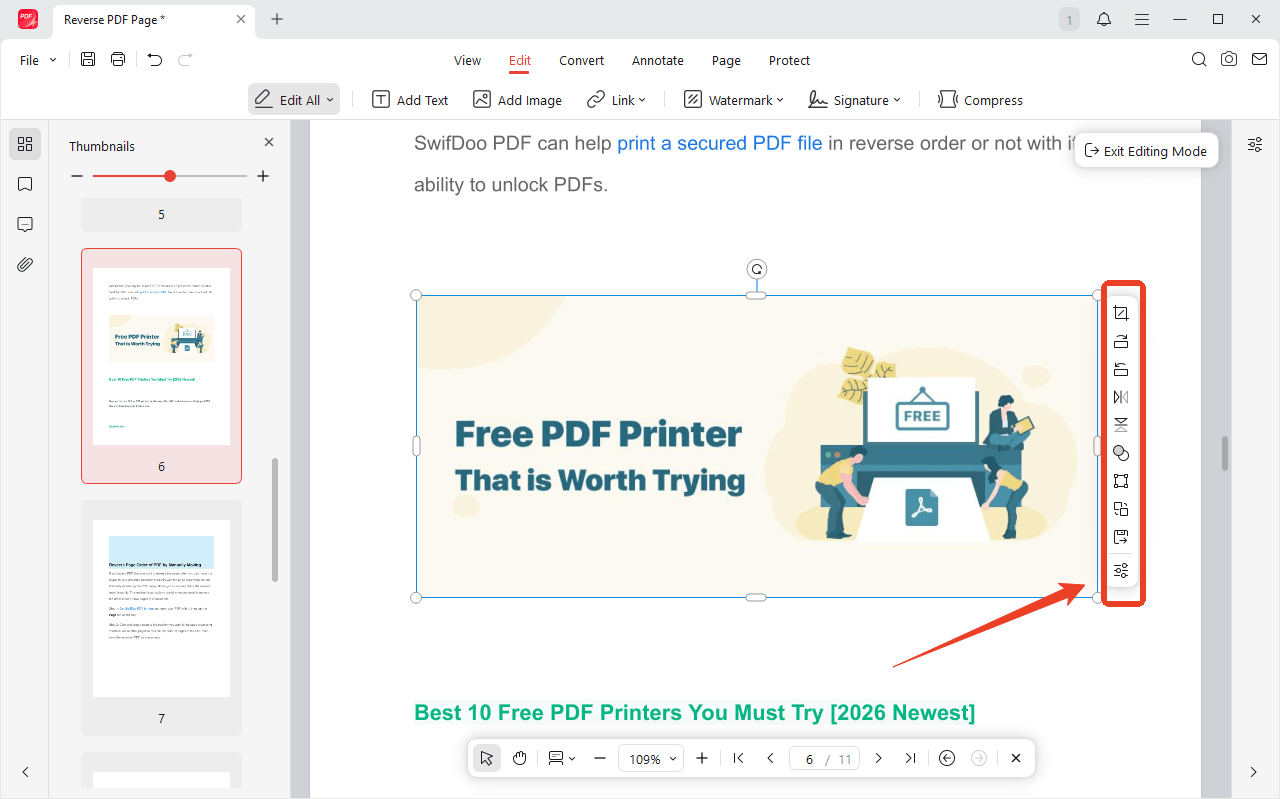
Step 6: When you finish that, click Save.
Final Thoughts
How to edit PDF in Canva? There is a free way to make quick visual changes to PDF files. Canva handles the design side beautifully, suitable for anyone who needs a fast Canva PDF edit. However, some users find formatting shifts on complex layouts. That’s why you need pairing Canva with a desktop editor like JOPDF to create a complete PDF workflow.
FAQs
Yes. The Canva PDF editor free tier allows you to upload, edit, and download PDFs without paying. Some premium elements and templates require Canva Pro.
No. The Canva PDF editor cannot edit image-based or scanned PDFs. Those files require OCR software to convert images into editable text before uploading to Canva.
Yes. Click "Share" → "Download" → "PDF Print" or "PDF Standard." This is the standard export path after you edit PDF in Canva.
Canva includes PDF editing features within its main design editor. It is not a standalone PDF editor but a design platform that supports PDF edit Canva workflows.
Use common fonts, export as PDF Print, limit edits to simple changes, and check every page before downloading. The section above on how to edit PDF in Canva without losing formatting covers this in detail.
Table of Contents

Your Best Free PDF Expert in PDF editing, compressing, converting, annotating, protect, organizing, and more.
Free DownloadWindows · macOS · Linux

Anna
Editor
“Anna, Editor-in-Chief and PDF expert, delivers deep insights into PDF document technology trends. She is dedicated to helping readers optimize their digital lives. When not writing, Anna loves exploring local cafes and reading, blending her technical expertise with a love for storytelling.”
![Full Guide on How to OCR a PDF in Adobe Acrobat [Newest]](https://b.jopdf.com/wp-content/uploads/2026/10/how-to-ocr-a-pdf-in-adobe.png)