It’s quite important to lock form fields after filling the form. When you lock a fillable PDF, you prevent others from modifying the content you have entered while still allowing them to view, print, or sign the document. So, how to lock a fillable PDF? This post on JOPDF list four methods to lock a fillable PDF from editing. Each method works differently, so you can choose the one that best fits your needs.
Summary :
Why Lock a Fillable PDF? Five Causes
There are several reasons you might want to lock a fillable PDF. Here are the most common:
- Prevent accidental edits: Once a form is filled out, you don’t want the data changed by mistake.
- Secure sensitive information: Locking a PDF with a password protects client data, financial details, or personal information.
- Maintain document integrity: For legal or official documents, ensuring the content stays as intended is critical.
- Control permissions: You can allow viewing but restrict editing, copying, or printing.
- Complete form workflows: When a form is finalized, locking it signals that it is ready for submission.
Method 1: Lock a Fillable PDF with JOPDF (Free & Offline)
The simplest way to lock a fillable PDF is using JOPDF, a 100% free, offline PDF editor for Windows, Mac, and Linux. It offers both permission passwords and open passwords, giving you granular control over who can view, edit, copy, or print your document. There is no sign-up, no watermarks, and no subscription.
When you password protect PDF files, you have two options:
- Open Password (User Password): The recipient must enter this password just to view the PDF. Without it, the file cannot be opened at all.
- Permission Password (Owner Password): The recipient can open the file, but certain actions (editing, printing, copying) require this password.
#1. How to Password Protect a Fillable PDF with JOPDF?
Step 1: Download and install JOPDF and launch it.
Step 2: Open your fillable PDF in JOPDF and select the Protect tab.
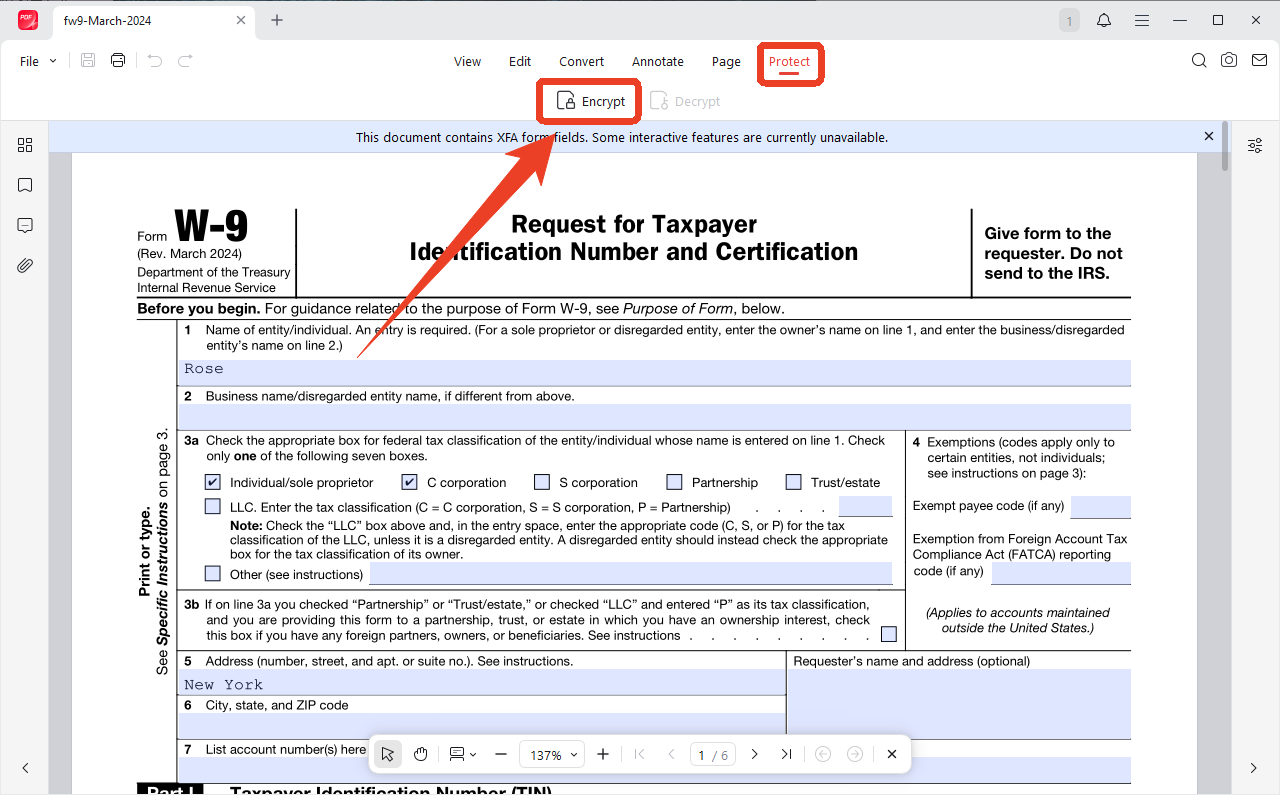
Step 3: Click Encrypt and check Open Password.
Step 4: Enter your password and click Apply. We recommend at least 12 characters with a mix of letters, numbers, and symbols
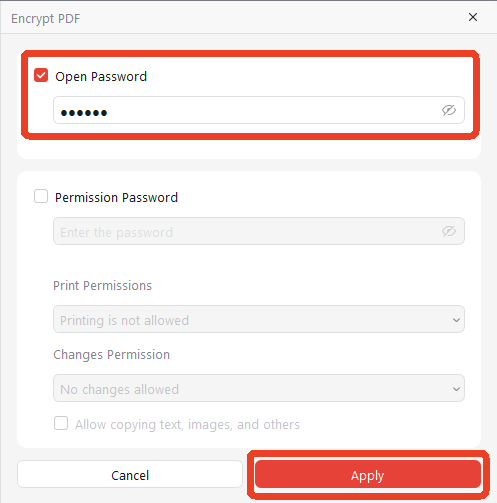
Now you lock PDF after filling out form and the password is needed in the next time you want to open it.
#2. How to Lock Form Fields in PDF with JOPDF?
Step 1: Open your fillable PDF in JOPDF and go to Protect > Encrypt.
Step 2: Check the Permission Password and enter your password.
Step 3: Ensure the printing is not allowed and choose from the Change Permission options.
- If you want to lock the specific form fields only and allow other changes, choose Allowed Insert, delete and rotate pages.
- If you just want to restrict editing PDF files while keeping the form fillable, choose: Allowed: Fill forms and sign signatures or Allowed: Annotate, fill forms, and sign signatures.
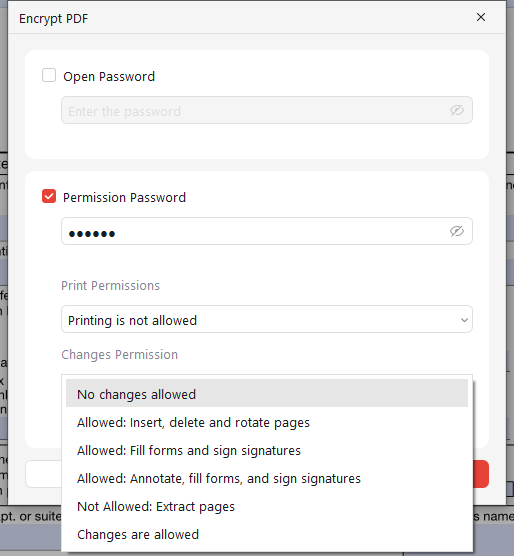
Step 4: Click Apply to save fillable PDF as non fillable.
More JOPDF articles about fillable PDF:
- 7 Must-Know PDF Form Fillers in 2026 [Never Miss]
- Full Guide on How to Fill Out a PDF Form That Is Not Fillable
- Free and Useful Ways to Fill Out and Sign PDF Forms in 2026
Method 2: Lock a Fillable PDF with Adobe Acrobat
Adobe Acrobat is the industry standard for PDF security. It provides a Permissions Password feature that allows you to lock a fillable PDF by restricting editing, printing, and copying; it also allows you to lock specific fields using digital signatures.
For an even stronger lock, you can combine a signature field with a locking script. When a document is signed, you can automatically lock fillable PDF fields to prevent further changes.
Step 1: Open the PDF in Adobe Acrobat and go to All Tools > Protect a PDF.
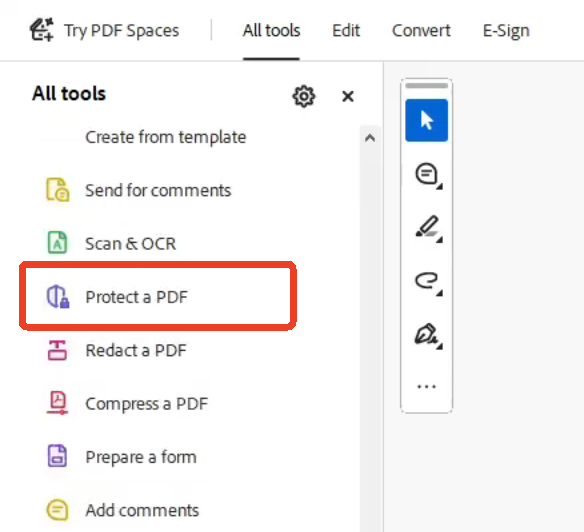
Step 2: Select Protect with Password and choose Permissions Password in the dialog box.
Step 3: Enter your password and confirm it.
Step 4: Under Printing Allowed, select None. Under Changes Allowed, select None to prevent all edits.
Step 5: Click Apply and save the file.
There is another method to lock form fields in a PDF by using Acrobat’s signature properties.
Step 1: In your PDF form, create a digital signature field.
Step 2: Double-click the signature field to open its Properties dialog box.
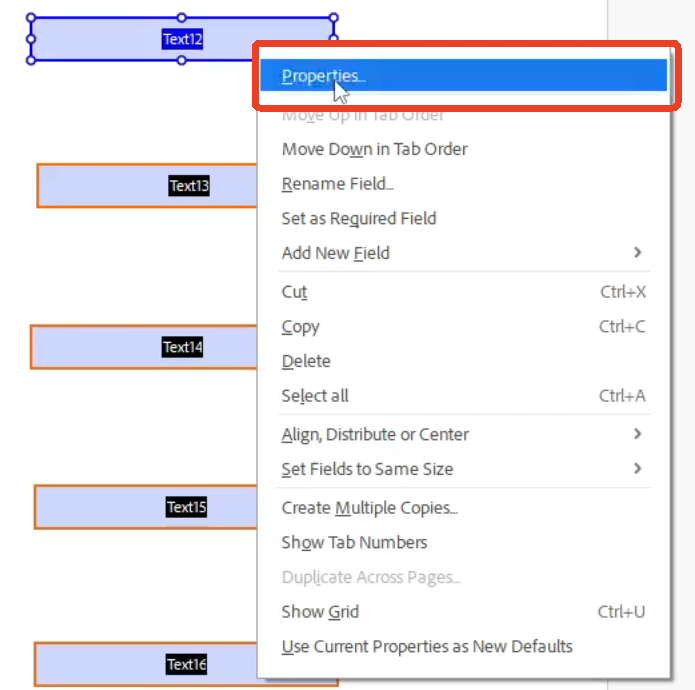
Step 3: In the General tab, choose a lock action from the Form Field menu and check Read Only.
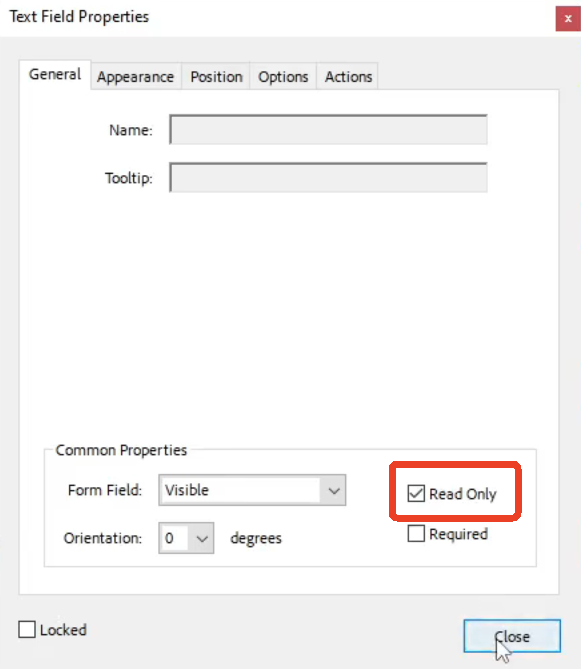
Step 4: Confirm your selection and save fillable PDF as non fillable. Once a user signs the field, the specified form fields will become locked.
Tip: Both methods above require a subscription to Adobe Acrobat. If you need a free, offline alternative, you can easily lock a fillable PDF with JOPDF using its Encrypt PDF feature and a permission password—no sign-up, no watermarks, and no cost.
More guides about Adobe Form Filler:
- Full Guide on How to Create a Fillable PDF in Adobe Acrobat
- Adobe Fill and Sign Not Working: Causes and Solutions
Method 3: Flatten the PDF (For Permanent Locking)
Flattening is the process of merging all interactive form fields into the PDF’s content layer. Once flattened, the fields are no longer editable. This is the most common method to lock fillable fields in PDF.
Why lock a fillable PDF by Flattening?
- No password management: You do not need to remember or share a password.
- Permanent lock: Once flattened, the content is part of the page and cannot be modified.
- Works with any PDF viewer: Since the fields are no longer interactive, the document behaves like a standard PDF.
Important Note: Flattening is irreversible. Once you flatten PDF content, you cannot recover the interactive fields. Always keep a copy of the original fillable version before flattening.
Many advanced PDF editor has this “Flatten PDF” feature and you can find some online tool to finish this work. Some Flaten PDF Online may fail to work or lead to the potential risk of data breach and loss.; if you worry about that, try some desktop PDF editor, like SwifDoo PDF, to make that done.
How to flatten a PDF?
Step 1: Open the “Flatten PDFs” online tool. Here, we’ll take Smallpdf as an example.
Step 2: Upload your fillable PDF file and it will automatically working on it.
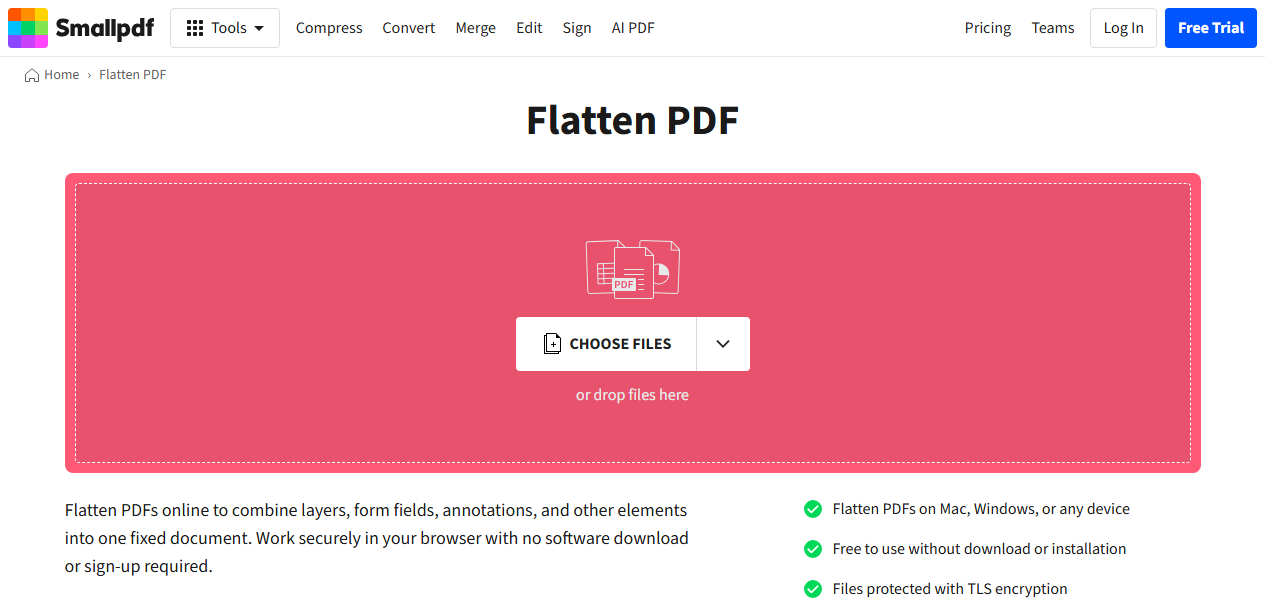
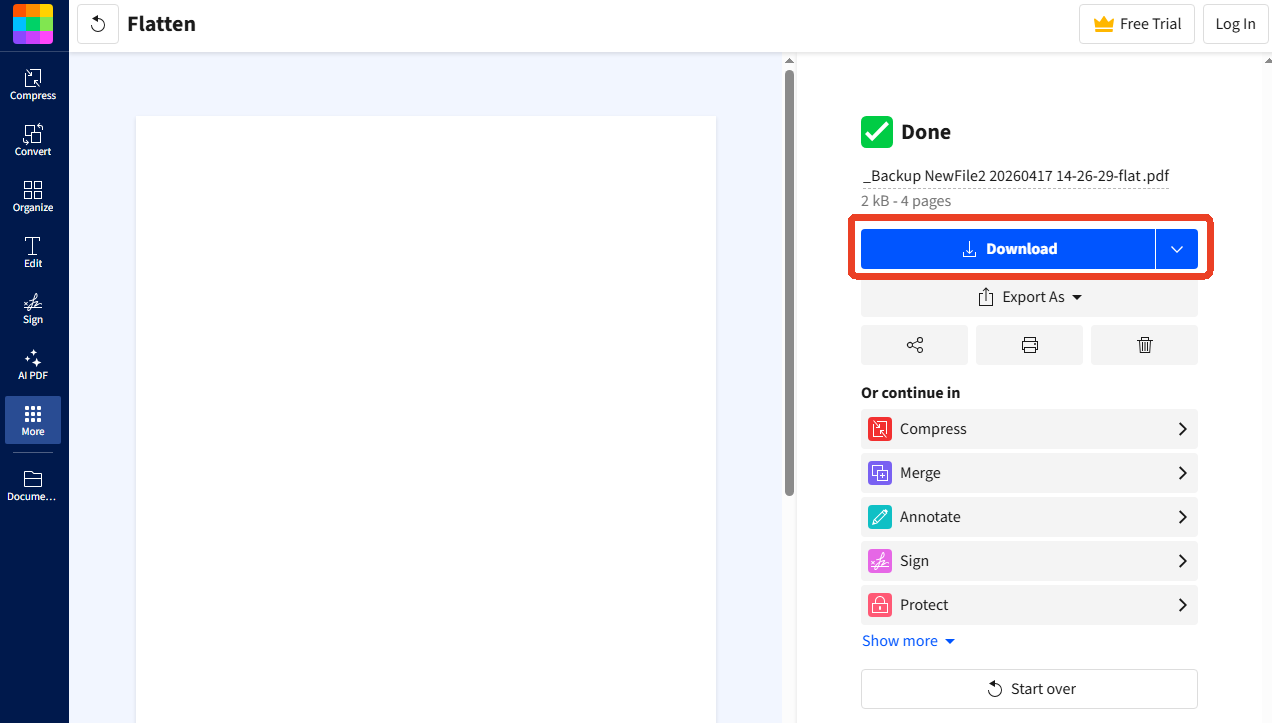
Step 3: When it successfully flatten a fillable PDF, you can click Download to save the file.
If you are Mac ot iPhone users, read these two articles for PDF form guide:
- Full Guide on How to Fill Out a PDF Form on Mac in 2026
- Ultimate Guide on How to Sign a PDF on iPhone for Free in 2026
Conclusion
Knowing how to lock a fillable PDF is essential for protecting your data, maintaining document integrity, and preventing accidental edits.
If you need to lock a fillable PDF quickly and securely without paying for subscriptions, JOPDF is the best choice. It is free, easy to use, and works offline on all major platforms. Download it today and take full control of your PDF security.
FAQs
Unfortunately, there is no legitimate way to unlock a password-protected PDF without the password. This is by design — the encryption is meant to be unbreakable. Always store your passwords in a password manager.
Usually yes. When you flatten PDF files, JOPDF removes the interactive form data and metadata, which can result in a smaller file size.
It depends on the locking method. If the PDF is flattened, no — all fields are static. If the PDF has permission restrictions that allow form filling, yes — recipients can still complete the form.
Table of Contents

Your Best Free PDF Expert in PDF editing, compressing, converting, annotating, protect, organizing, and more.
Free DownloadWindows · macOS · Linux

Anna
Editor
“Anna, Editor-in-Chief and PDF expert, delivers deep insights into PDF document technology trends. She is dedicated to helping readers optimize their digital lives. When not writing, Anna loves exploring local cafes and reading, blending her technical expertise with a love for storytelling.”
![Discover How to Make a Fillable PDF in Word [Detailed Guide]](https://b.jopdf.com/wp-content/uploads/2026/10/how-to-make-a-fillable-pdf-in-word.png)