Introduction :
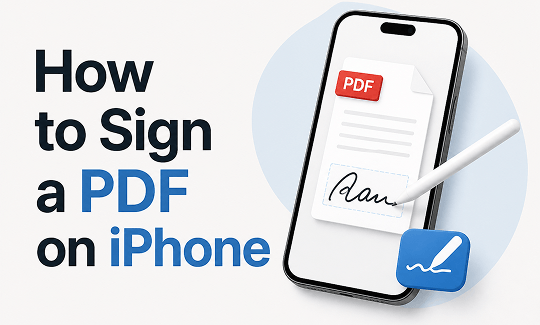
Sometimes, you need to sign a contract or job offer on your iPhone. How to sign a PDF on iPhone? Fortunately, every iPhone includes built-in tools that let you sign a PDF in just a few taps. In this JOPDF guide, I’ll show you how to add an electronic signature to PDFs on iPhone using Apple’s built-in Markup tools, Adobe Acrobat, Apple Notes, and other popular methods. Now, let’s get started!
Can You Sign a PDF on an iPhone
Yes, you can sign a PDF on an iPhone without printing the document or using a computer. Apple’s built-in Markup feature allows you to create, save, and reuse electronic signatures directly on your device. Depending on where your PDF is stored, you can sign PDFs from:
- The Files app
- The Mail app
- The Messages app
- Safari downloads
- iCloud Drive
- Third-party cloud storage services like Google Drive or Dropbox
Meanwhile, I also prepared a table showing the easiest way to sign a PDF based on where your PDF is located. You can have a look:
| PDF Location | Can You Sign It? | Recommended Way |
| Files app | ✅ | Apple Markup |
| Mail attachment | ✅ | Apple Markup |
| Messages attachment | ✅ | Apple Markup |
| Safari download | ✅ | Files + Markup |
| Google Drive | ✅ | Adobe Acrobat or Google Drive app |
| Dropbox | ✅ | Adobe Acrobat or Dropbox app |
If you need to sign or fill out a PDF on Mac, you can try JOPDF. Also, it is also available on Windows and Linux.
Sign a PDF on iPhone Using the Built-in Markup Tool
For most of us, the easiest way to sign a PDF on iPhone for free is with the built-in Markup feature. Since it’s included with iOS, you don’t need to download any app or create an account. With the Markup tool, you can:
- Add an electronic signature
- Save signatures for future use
- Move and resize your signature
- Annotate PDFs with text, highlights, and drawings
- Sign documents even without an internet connection
Whether you’re signing a contract or approving a work document, Markup provides a quick and secure solution.
How to Sign a PDF on iPhone with Markup
Step 1. You can open your target PDF from the Files app, an email attachment, or iCloud Drive.
Step 2. Tap the Markup icon at the bottom, select the Plus icon, and tap Add Signature.
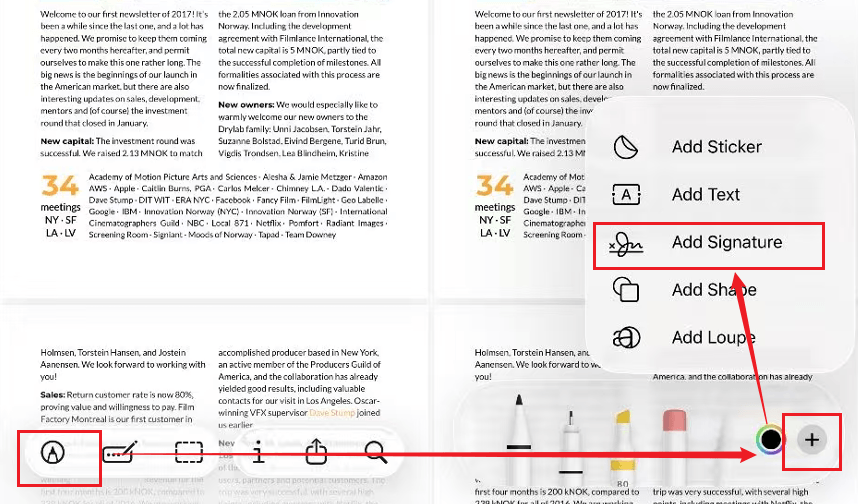
Step 3. A blank board will appear. Use your finger to draw your signature. Once you are satisfied, tap the tick icon to save the signature. If you are not satisfied, tap the Clear icon.
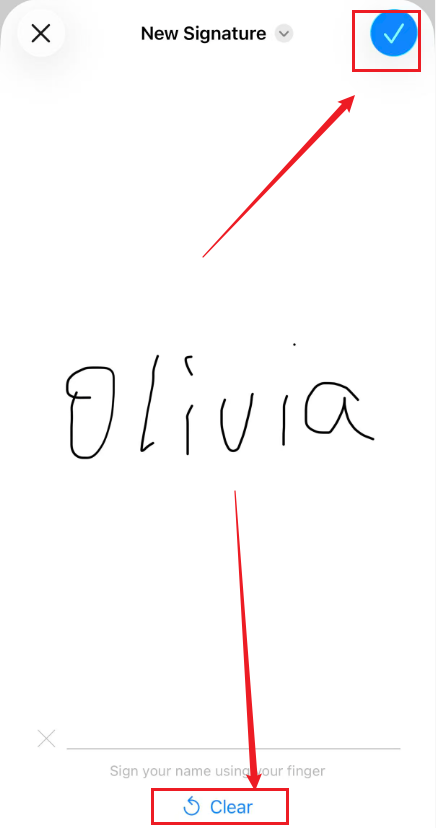
Step 4. Then, the signature will be added to the PDF. You can drag it to the appropriate location on the PDF. Also, you can resize or rotate the signature as needed. When you are finished, save the signed PDF.
Pros and Cons of Using Markup
Pros
- Free to use and built into iOS
- No software installation required
- Allows you to create and reuse signatures
- Supports basic PDF annotation
Cons
- Limited PDF editing capabilities
- Cannot modify existing PDF text
- Basic form-filling features
- Not designed for advanced document workflows
Sign a PDF Using Adobe Acrobat for iPhone
If you frequently work with PDFs or already use Adobe products, Adobe Acrobat for iPhone is an excellent alternative to Apple’s built-in Markup tool. In addition to adding signatures, Acrobat lets you fill out PDF forms, annotate documents, and sync files across devices through Adobe Document Cloud.
How to Sign a PDF with Adobe Acrobat on iPhone
Step 1. Download and install the Adobe Acrobat app on your iPhone and then sign in with your Acrobat account.
Step 2. Then, open your PDF file in Adobe Acrobat. You can import from Files, email, Dropbox, or Google Drive.
Step 3. Tap the Tools icon and select Fill & Sign. Then, tap the Pen icon at the bottom and select the Create Signature option.
Here, you can select the Draw option and use your finger to write your signature on the screen. Or choose the Type option to type your name in a signature-style font or select to upload an image of your signature. Next, tap Done to save it.
Step 4. Now, tap on the PDF where you want the signature to appear and resize or move it as needed. Finally, tap Done to save the signed PDF.
Pros and Cons of Using Adobe Acrobat on iPhone
Pros
- Supports interactive PDF forms
- Allows you to add signatures and initials to PDFs
- Syncs files across devices through Adobe Document Cloud
- Offers annotation tools for highlighting and marking up PDFs
- Allows you to edit PDFs after signing
Cons
- Some features require a paid subscription
- Requires a steep learning curve for beginners
How to Sign a PDF on iPhone Using Apple Notes
Many of you don’t realize that the Apple Notes app can also help you sign PDF documents on your iPhone. While Notes is often thought of as a place for quick reminders and scanned receipts, it can also serve as a platform for PDFs and paper scans. In general, this method works well if you’ve scanned a paper document into Notes or already keep your files there.
How to Sign a PDF Using Apple Notes
Step 1. Run Apple Notes and open the note that contains the PDF or scanned document.
Step 2. Tap the Markup button at the bottom left. Then, tap the Plus button and select Add Signature.
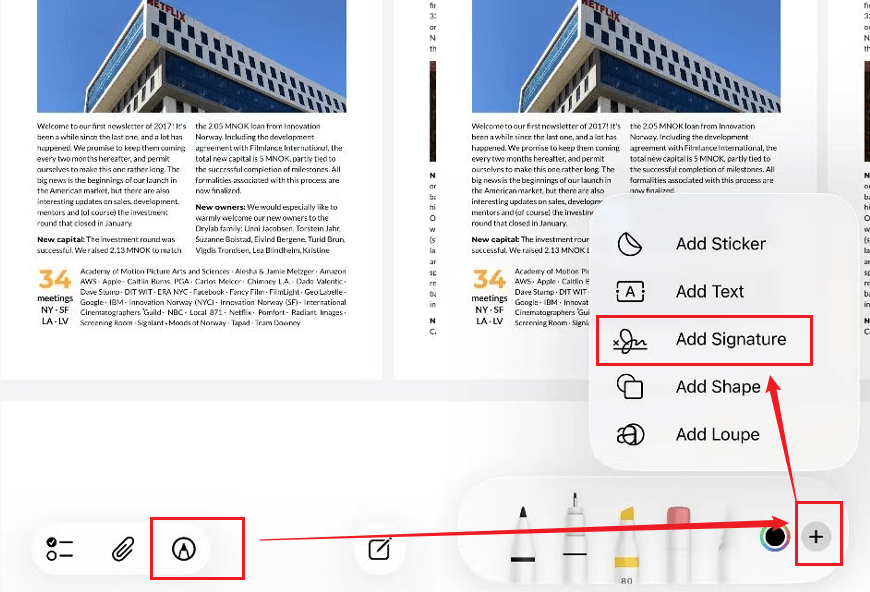
Step 3. If you have an existing signature, directly use it and add it to your file. If you don’t have one, create a new one. Use your finger to draw the signature and tap the Done icon to save the signature.
Step 4. Next, place your signature on the PDF, then tap Done to save the updated file in Notes.
Pros and Cons of Using Apple Notes
Pros
- Built into every iPhone
- Works well with scanned documents
- Supports Markup tools for signatures, drawing, and basic annotations
- Stay within the Apple ecosystem
Cons
- Not designed for advanced PDF editing
- Limited form-filling features
- Not suitable for complex documents
Best Way to Sign a PDF on Windows/Mac/Linux
If you need to sign PDFs on a computer, JOPDF is a good choice. You can use it to add signatures, complete forms, and manage PDFs effortlessly.
Why JOPDF Is Recommended for Signing PDFs on PC
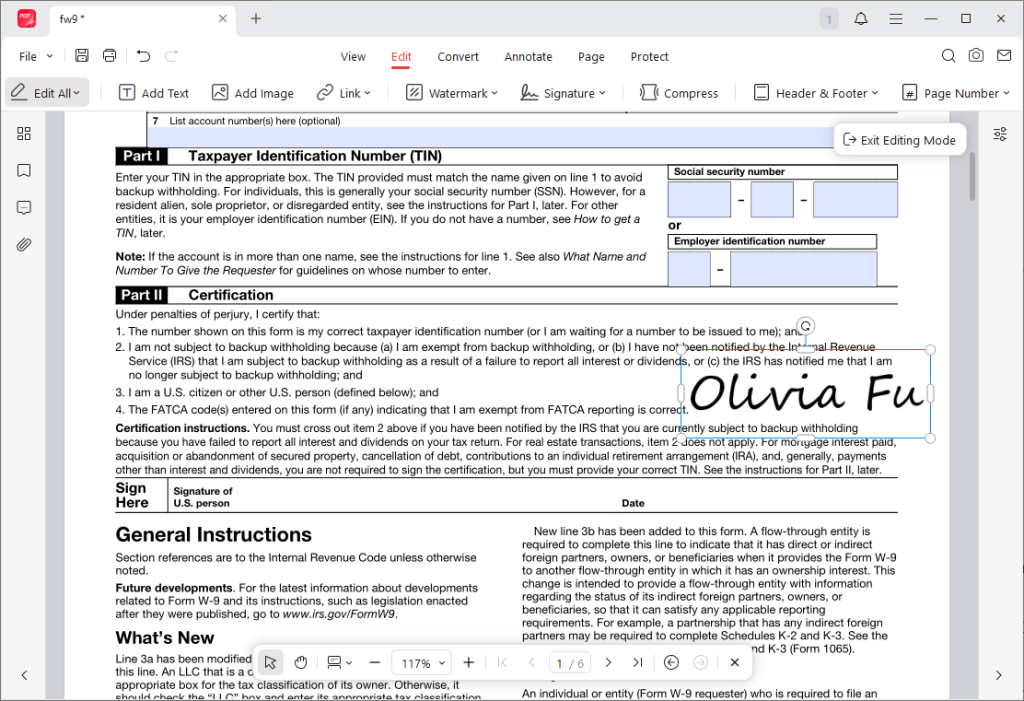
JOPDF is known as a free PDF editor with a wide range of capabilities for handling PDFs. In addition to adding electronic signatures to PDF files, you can also use it to:
- Fill out PDF forms and add electronic signatures
- Add stamps, shapes, and links to PDFs
- Merge or split PDFs
- Rotate, insert, delete, or rearrange PDF pages
- Convert PDFs to and from multiple formats
- Protect PDFs with passwords
- Reduce PDF size without losing quality
- …
How to Sign a PDF for Free in JOPDF
Step 1. Download JOPDF from its download center or click the button below to download and install it on your computer.
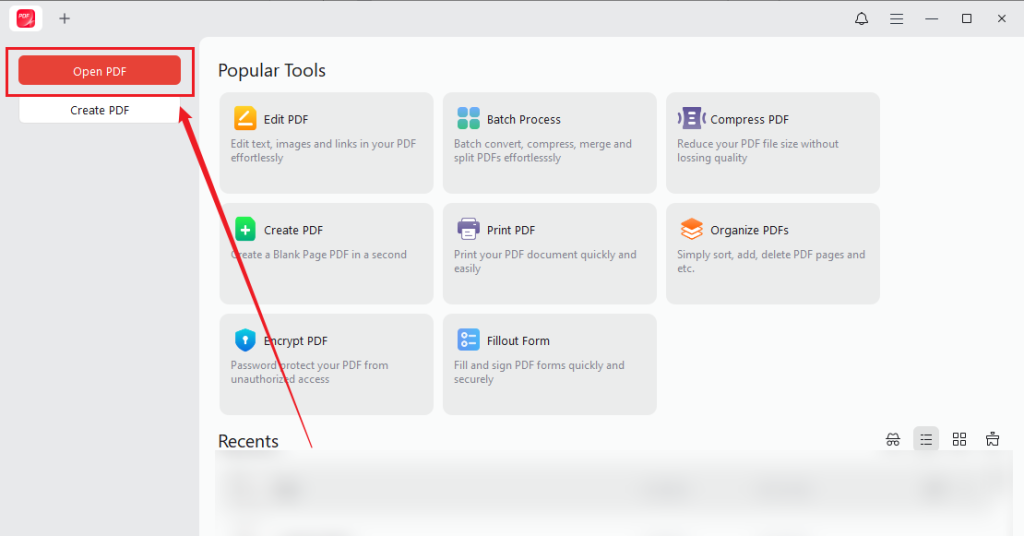
Step 2. Once the installation is finished, launch it and click Open PDF to open the target PDF in JOPDF.
Step 3. Switch to the Edit tab, click Signature, and click Create New. Then, you can select Draw, Type, or Image to create a new signature. Next, click and drop the new signature on the PDF. Moreover, you can change the location and size of the signature as needed.
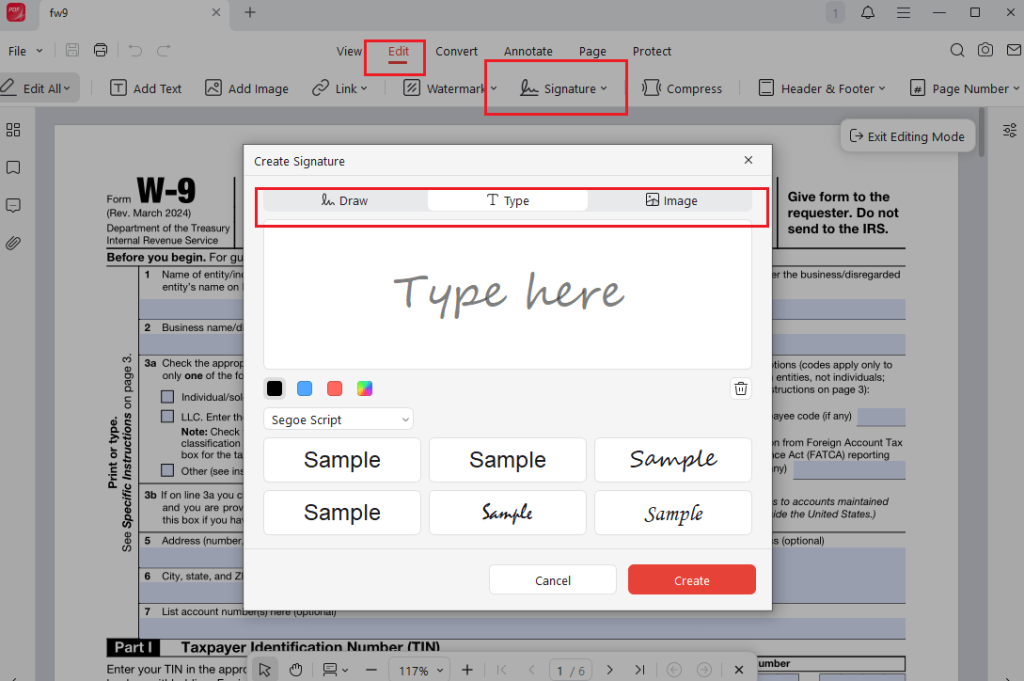
Step 4. What’s more, you can edit, annotate, organize, and protect the signed PDF as needed. At last, click the Save icon to save the signed PDF.
When Should You Use JOPDF
JOPDF can be the best choice if you need to:
- Sign PDFs on Windows, Mac, or Linux
- Edit a document after signing it
- Work offline with sensitive files
- Manage pages, convert formats, or protect documents
- Use a desktop PDF editor instead of a mobile app
Best Apps to Sign PDFs on iPhone
From the above, we know that Apple’s Markup tool works well for basic signatures, but it’s not the only option. Depending on your needs, you can also try other apps that may offer better form-filling, editing, or collaboration features. Here, I have prepared a table for your reference.
| App | Free Version | Sign PDFs | Cloud Sync | Best For |
| Apple Markup | ✅ | Limited | iCloud | Quick everyday signatures |
| Adobe Acrobat | Limited | ✅ | ✅ | Professional documents and forms |
| PDF Expert | Trial | ✅ | ✅ | Advanced PDF editing |
| PDFgear | ✅ | ✅ | Limited | Free PDF editing and signing |
Conclusion
How to sign a PDF on iPhone? For most of you, Apple’s built-in Markup tool is the fastest and easiest way to add an electronic signature to a PDF. In addition, you can also try another built-in tool, Apple Notes. If you need other advanced features like filling out PDF forms, use Adobe Acrobat for iPhone. In addition, you can also use JOPDF to sign and edit PDFs on Windows.
FAQs
Table of Contents

Your Best Free PDF Expert in PDF editing, compressing, converting, annotating, protect, organizing, and more.
Free DownloadWindows · macOS · Linux

Olivia
“Olivia is an editor at JOPDF, where she writes practical guides and insightful articles on managing PDFs—covering topics like editing, annotating, converting, and organizing files efficiently. Passionate about clear communication and digital productivity, Olivia enjoys spending her free time cooking, watching movies, and hiking to unwind and find inspiration for her writing.”
![Full Guide on How to OCR a PDF in Adobe Acrobat [Newest]](https://b.jopdf.com/wp-content/uploads/2026/10/how-to-ocr-a-pdf-in-adobe.png)