Can you download a PDF from pdfFiller for free? Not always, but you can utilize their free trial to save PDF from pdfFiller without paying. More than that, we also share other tested ways to get pdfFiller free download, including a smart screenshot workaround and the best free pdfFiller alternative – JOPDF. Now, let’s see how to download PDF from pdfFiller for free!
Summary :
pdfFiller Downloads with Different File Types
Before jumping into download methods, you need to understand one thing: pdfFiller treats different document types differently. The method that works for one file may fail for another. Knowing which category your document falls into saves you time and frustration.
The Three Types of pdfFiller Documents
| Document Type | How It Gets to pdfFiller | Download Behavior | Free Download Possible? |
| Your Own Upload | You uploaded a PDF to edit or fill | Download locked behind premium after editing | Yes, with workarounds |
| Shared to You (Edit Access) | Someone sent you a document via pdfFiller with permission to fill/edit | Download depends on sender’s subscription level | Yes, usually easier |
| Shared via Link (View Only) | A pdfFiller link shared publicly or via email; view access only | Download typically disabled; print/save restricted | Yes, with browser methods |
Method 1: Use the pdfFiller Free Trial Download
How to download edited PDF from pdfFiller setups without paying? If you have a large corporate document or a detailed legal contract to export, the most direct path is choosing a pdfFiller free trial download, which gives you complete access to the native export settings for a short period.
pdfFiller offers a 30-day free trial for new users. You get access to everything. You can fill, edit, sign, and most importantly, download your pdfFiller PDFs for free. During this trial, you can save your files as a PDF without any restrictions.
Tips
To start the trial, you must enter your credit card information. If you forget to cancel before the 30 days end, they will charge you for a subscription. Just make sure to adjust your account parameters and cancel the trial window before it finishes so you do not encounter any sudden renewal fees on your card.
Here are the simple steps to download edited PDF from pdfFiller for free with the trial:
Step 1: Go to the pdfFiller website and click Start Free Trial.
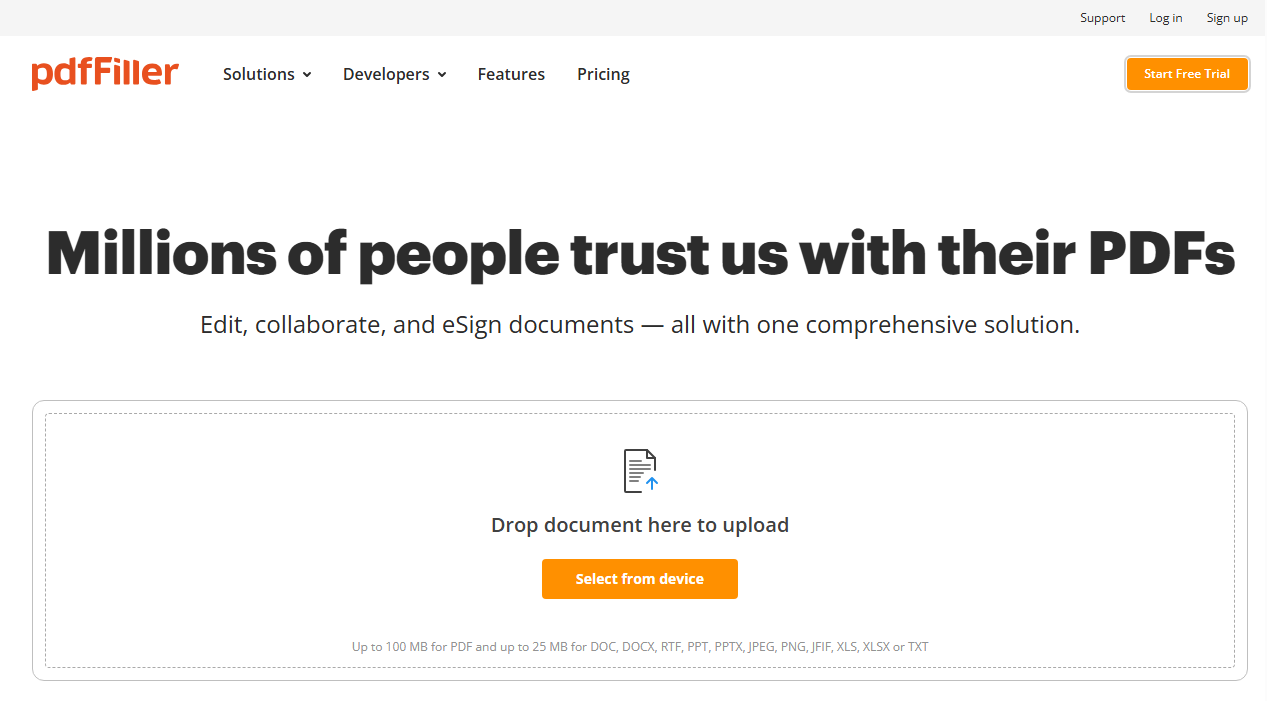
Step 2: Sign up using your email or Google account and enter your payment details.
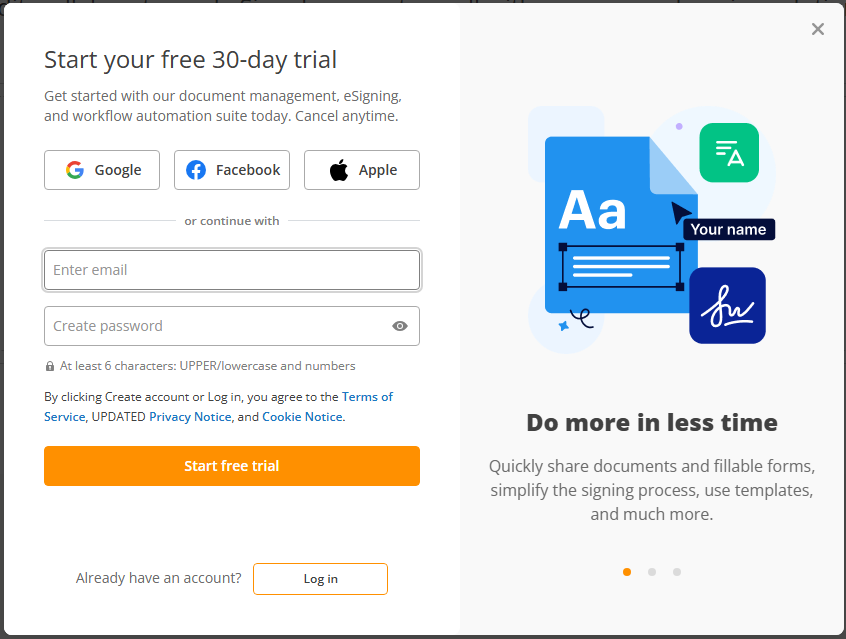
Step 3: Upload your PDF or create a new document. Then you can make your edits, add text, or fill out the form.
Step 4: Click Done in the top corner, then select Download as a PDF.
This method works for the most who want to download edited pdf from pdffiller. But we know many of you don’t want to share your credit card info or deal with canceling a trial. If that sounds like you, check out the next method.
Method 2: Save pdfFiller PDF Using Screenshots
If you want to protect your personal details and make a pdfFiller download pdf without account, you can use your computer’s native screen capturing tool. Just zoom out your web browser so the entire filled form page shows cleanly on your monitor and take a clear snapshot of each individual page.
While this requires a bit of manual clicking, it helps get pdf from pdffiller without subscription while keeping your email address completely private from web databases.
Here is a detailed guide on how to download pdf from pdffiller without account.
Step 1: Open your document in pdfFiller and press Win + Shift + S.
Step 2: Drag to select the page area and save each page as an image file (PNG or JPG). It is recommended to name them by page number so you don’t mix them up.
Now you need a tool to turn those images into one PDF. We recommend using JOPDF for this. It’s free, works without sign-up, and has no watermarks.
Here are some other features which can serve you better:
- Crop Out Ugly Browser Borders: When you take screenshots or print pages via web shortcuts, you often get messy headers or side margins. JOPDF lets you crop your document borders simultaneously to give your forms a clean, corporate look.
- Compress Heavy Files for Email: Image-based PDFs can easily become too heavy to send to your clients or teachers. JOPDF shrinks your document sizes by up to 90% in seconds without making your text look blurry.
- Enjoy Unlimited Free Access: Unlike cloud platforms that trick you with a free download button only to charge you later, JOPDF runs entirely on your hard drive, offering a secure and transparent workspace with zero hidden fees.
Step 1: Download and open JOPDF on your computer (it works on Windows, Mac, and Linux).
Step 2: Choose Batch Process > Image to PDF. Just batch-upload your pdfFiller screenshots and
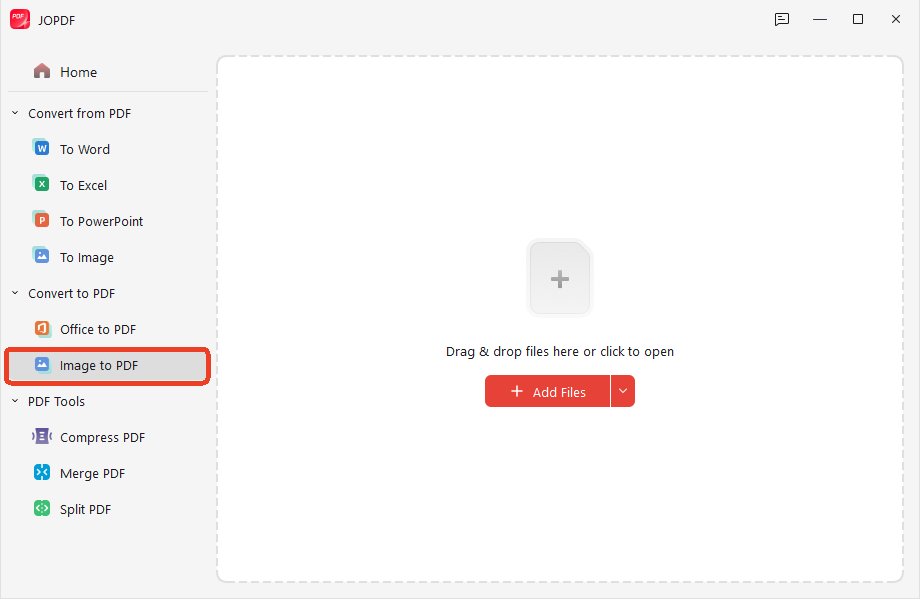
Step 3: Choose Method as Each Image as A PDF and click Start to save pdffiller document as pdf.
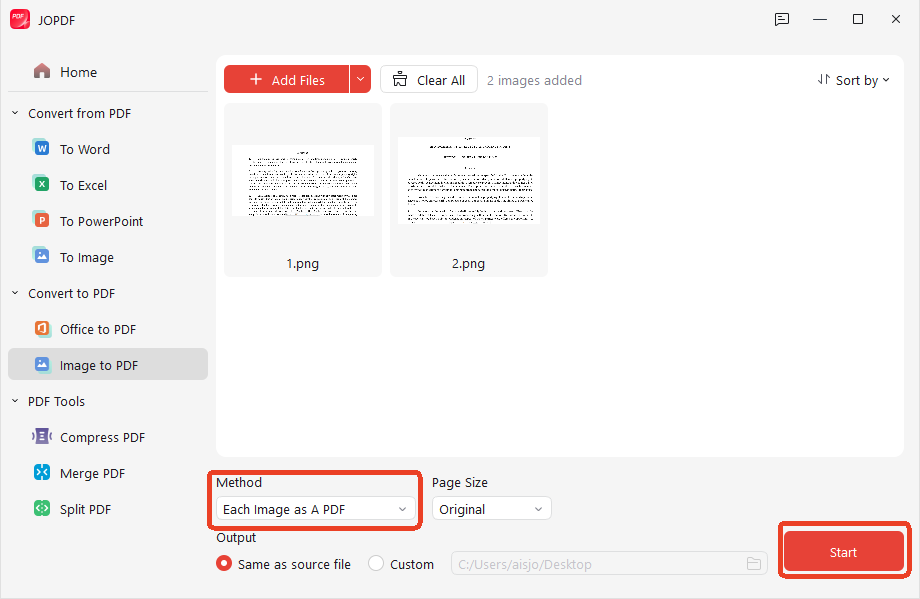
Now you have a complete PDF file saved on your device. You didn’t pay anything, and you didn’t share any payment details.
The only downside is it takes some time if your document has many pages. But for short forms or single-page documents, this method works perfectly.
Method 3: Try pdfFiller Alternative Free
If you want to avoid dealing with complicated web workarounds altogether, we highly suggest switching to another pdfFiller alternative free suite like JOPDF.
JOPDF allows you to edit and annotate PDF and even draw signatures. Even better, if you used the screenshot trick from Method 2, you can drop those loose images into JOPDF to instantly merge them into a single, cohesive file. This helps you figure out how to save pdffiller document as pdf files smoothly and securely in a completely offline workspace.
Even better, you can avoid online paywalls from the very beginning by using JOPDF as a complete alternative free suite. Instead of uploading your personal contracts to remote cloud servers, you can download our local program.

JOPDF – The Best Free PDF Editor
 User Rating: 4.8
JOPDF Is a 100% free POF editor for Windows, macOS, and Linux. Edit text, add images, annotate, sign, and more. No limits, no ads, no subscriptions, Fast, simple, and powerful, take full control of your PDFs in seconds!
Step 1: Download and install JOPDF and open your file. Alternatively, you can choose to create PDF.
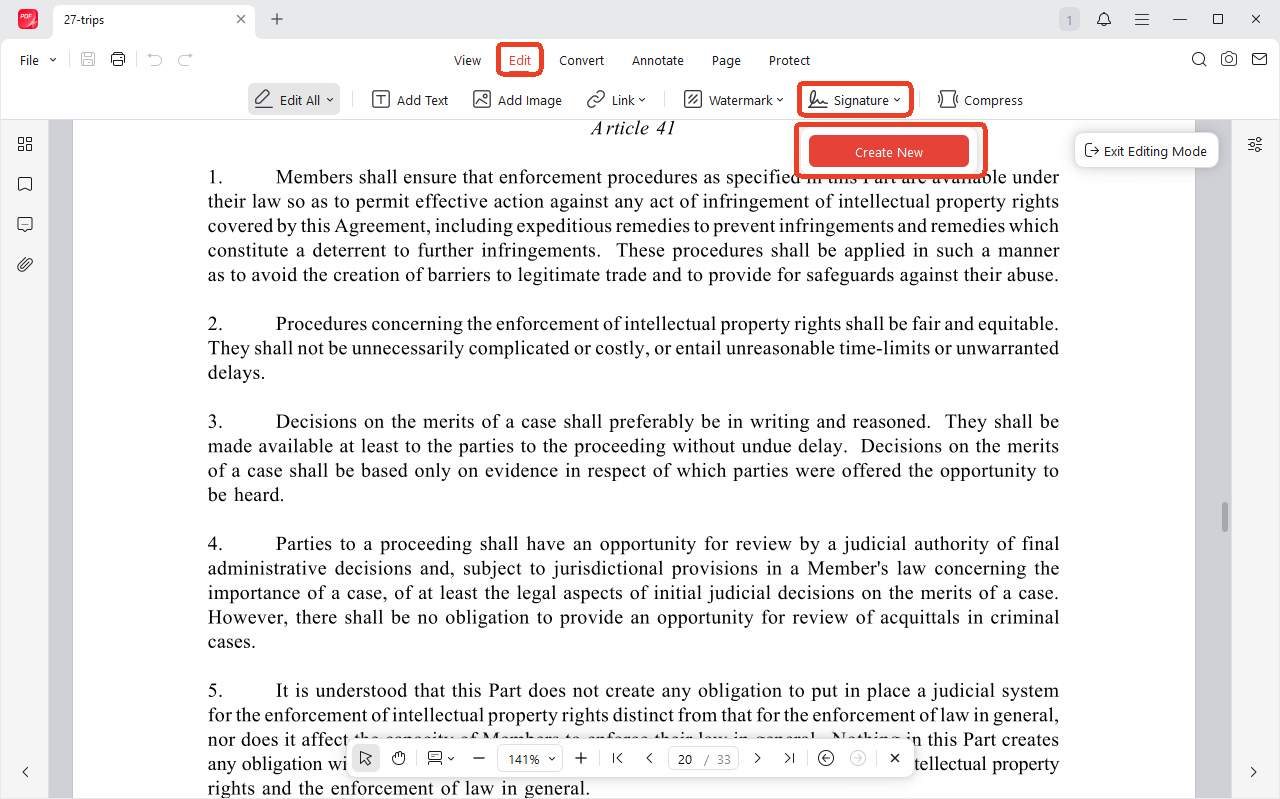
Step 2: Go to the Edit tab and click Signature > Create New.
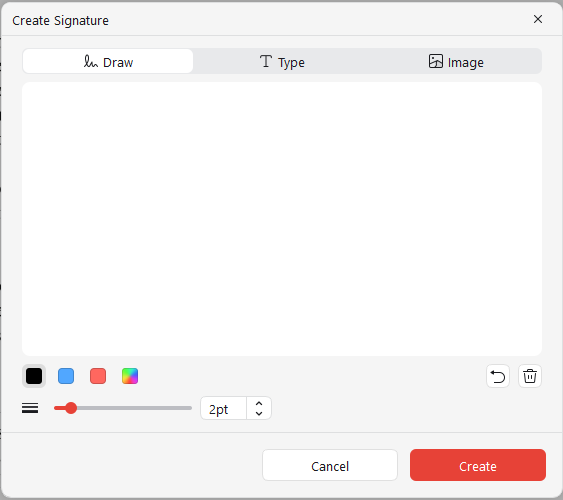
Step 3: In another window, you can choose to draw or type your signature. Image upload is also available. For more functions, you can go to the Annotate tab.
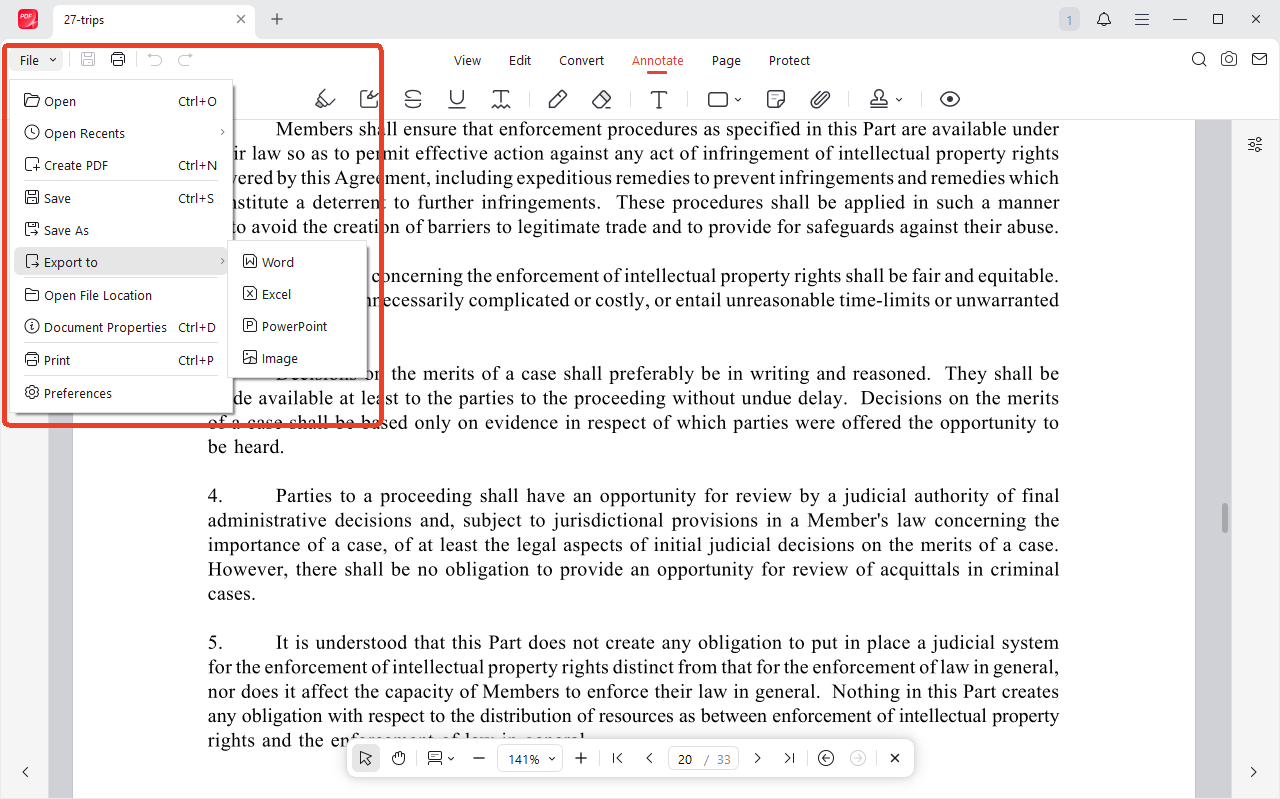
Step 4: When you finish that, click Save as to donwload a PDF for free or click File > Export to and choose another file format.
Method 4: Use Free pdfFiller Downloader
When the official download is locked behind a paywall, a pdfFiller downloader offers the most direct path to saving your file. These tools act as intermediaries: you provide the document URL, they access the file, and they return it to you as a downloadable PDF. For anyone searching for a pdfFiller downloader online free, this is the solution that requires the least technical effort.
However, these scraper sites frequently change domains, break layout formatting, or expose your computer to aggressive ad networks. To protect your device and respect document privacy rules, we suggest avoiding these unverified tools and sticking to safer local or official paths instead.
If you stick to using the third-party pdfFiller downloader free tool, you should notice that many sites claiming to be a pdf filler downloader are actually repurposed video downloaders using misleading SEO.
pdfFiller Document Downloader: DownPDFfiller.com
DownPDFfiller.com is a dedicated pdfFiller document downloader built specifically to handle pdfFiller’s document delivery system. The site’s sole function is extracting documents from pdfFiller.

What It Supports:
- Documents uploaded to your own pdfFiller account
- Documents shared with you via edit access
- Some view-only shared links (results vary based on access restrictions)
Output Format: PDF
Pricing: Free, with optional premium tier for faster processing and larger file sizes
Processing Speed: Moderate (20–40 seconds for typical documents; larger files take longer)
How to Download Document from pdfFiller for Free with Downloader
If you’re wondering how to download PDF from pdffiller for free, the workflow is straightforward. Here’s the exact process:
Step 1: Open the document in pdfFiller and copy the full URL from your browser’s address bar.
Tips
If the document is in your account, make sure you’re logged in. If it’s a shared document, verify the link still works and hasn’t expired. The pdffiller downloader online free can only access what’s currently available.
Step 2: Open your pdffiller downloader tool and paste the pdfFiller URL into the input field on the downloader page.
Step 3: Click the Download button and wait for the tool to process the URL.
Step 4: When the download prompt appears, save the PDF to your device. If a new tab opens with the PDF rendered in-browser, use Ctrl + S to save it locally.
By following this method, you can download pdffiller to PDF from link.
PDFLinkExtractor
PDFLinkExtractor is a pdfFiller downloader extension, which takes a fundamentally different approach from other pdfFiller document downloaders. Instead of directly downloading your pdffiller file, it analyzes the pdfFiller page source and extracts a pdffiller link to PDF — the direct URL where your document is hosted. You then open that link in a new tab to download the file.
This transparency makes it one of the safest options: you see exactly what’s happening at every step. It works well for documents in your account and shared-with-edit documents. View-only links have mixed results. For users who are security-conscious and want to understand the extraction process rather than trusting a black box, PDFLinkExtractor is ideal.
Safety Guidelines for Using a pdfFiller Downloader
How to download PDF from pdffiller for free? When you’re looking for a safe pdffiller downloader, you’ll encounter dozens of sites claiming to offer a solution. Not all of them are safe. These guidelines protect you:
- Stick to the reliable tools. Random pdfFiller downloader sites found through search engines may contain malware, phishing traps, or aggressive adware.
- Never download executable files. A genuine pdf filler downloader delivers a PDF file directly to your browser. No legitimate document downloader requires software installation.
- Use an ad-blocker. Even safe tools may display advertisements.
- Avoid sites requiring registration. A pdfFiller document downloader should not need you to create an account or provide an email address.
- Check the downloaded file immediately. Open the PDF and verify all pages are present, text is readable, and no pages are blank or corrupted before closing the original pdfFiller tab.
- Be cautious with “unlimited” promises. Sites claiming to offer pdfFiller download free with no restrictions, no ads, and instant processing are often too good to be true.
Conclusion
We always encourage supporting creators and official document networks by utilizing legitimate subscription tracks when handling large workloads. However, when you are in a quick rush to finish a single task, knowing these safe browser workarounds can be incredibly helpful. If you want a completely restriction-free experience from day one, download JOPDF for free today to enjoy a secure, private, and unlimited offline workspace for all your form-filling tasks!
FAQs
No. You can upload files and use the text brushes for free, but you will eventually need an active account or a subscription to export your completed documents. You must use their evaluation period or rely on local alternatives to save pdf from pdffiller without paying high fees.
We don't recommend using sketchy "pdfFiller downloaders" from unknown websites. They might put your data at risk. The safe methods are the official trial, the screenshot workaround, or moving to a free alternative.
If your pdfFiller free trial is over, you cannot download directly anymore. Use the screenshot method we showed above. Take screen captures of your document pages and combine them into a new PDF using JOPDF.
The screenshot method creates an image-based PDF. Text will not be selectable or editable. But the formatting and layout will look exactly as you see it on screen. For forms or documents you just need to read or share, it works great.
Table of Contents

Your Best Free PDF Expert in PDF editing, compressing, converting, annotating, protect, organizing, and more.
Free DownloadWindows · macOS · Linux

Anna
Editor
“Anna, Editor-in-Chief and PDF expert, delivers deep insights into PDF document technology trends. She is dedicated to helping readers optimize their digital lives. When not writing, Anna loves exploring local cafes and reading, blending her technical expertise with a love for storytelling.”