
Summary :
If you are wondering how to crop a PDF, you are in the right place. Cropping helps you remove unwanted margins so your content looks perfect on any screen. In this guide, we will show you the best ways to crop PDF pages on Windows and Mac computers.
1. The Best Free Way to Crop a PDF on Windows/Mac: JOPDF
If you want a professional tool that costs nothing, your best choice is JOPDF. It is very simple to use, even if you are not a “tech person.”
JOPDF is often called the best free PDF editor, and it gives you two great ways to crop your files. You can either type in exact numbers for the margins or simply drag a box around the part you want to keep.
How to crop a PDF for free using JOPDF:
1. Launch JOPDF and open the PDF you want to change.
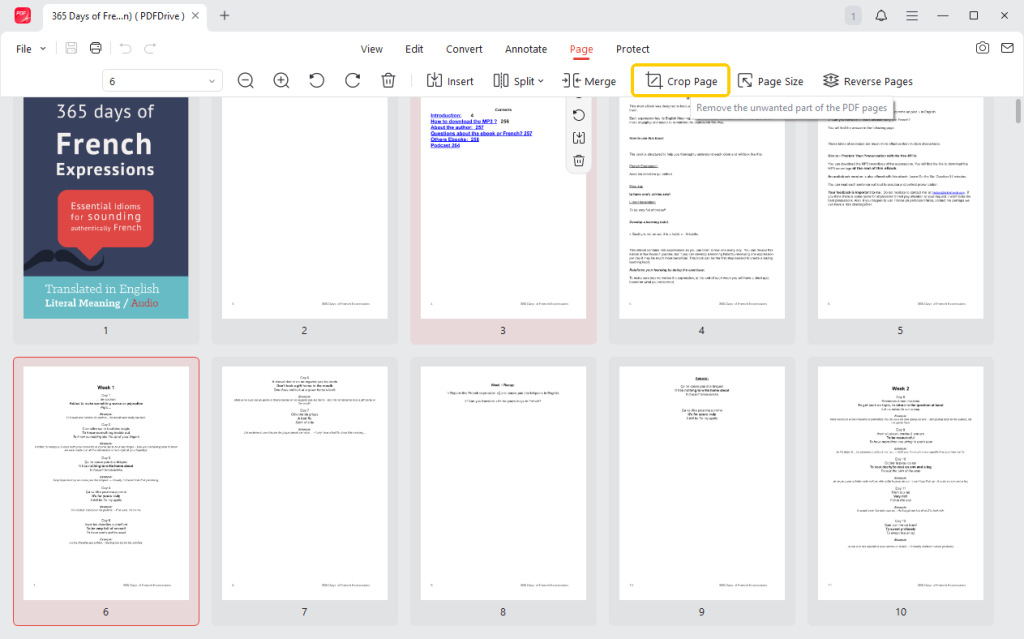
2. Click the Page tab at the top, then click the Crop Page button.
3. A purple box will appear on the page. You can drag the corners of this box to fit perfectly around your text. If you want to be very precise, you can type numbers into the boxes on the side.
4. Choose to apply this change to just one page, a few pages, or the whole document. This makes it easy to crop all the pages of a large book at once.
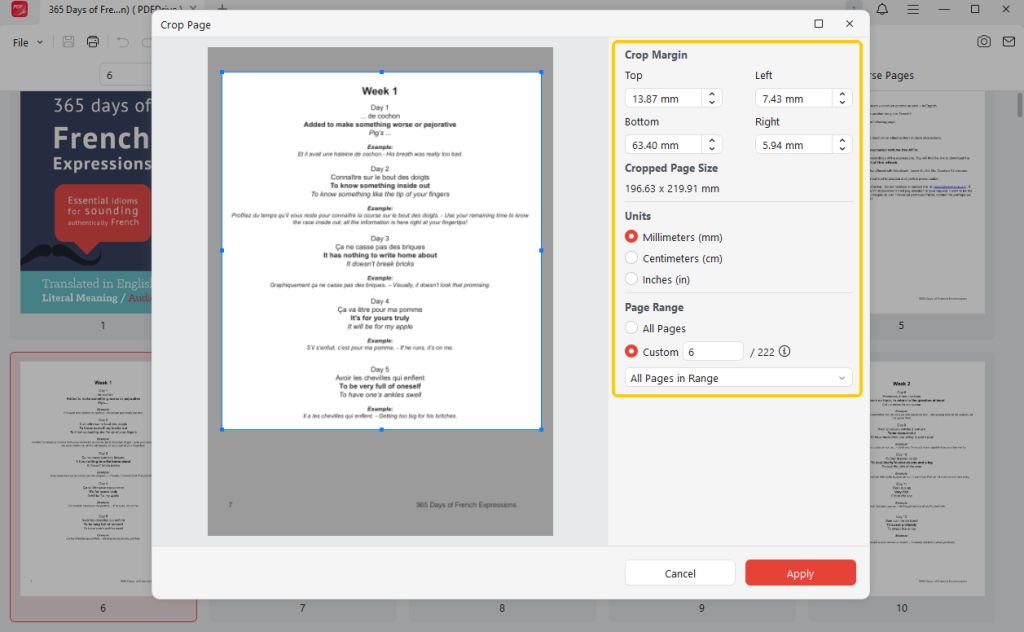
5. Click the Apply button and save your new, clean document.
JOPDF offers many other features as well. You can use it to resize a PDF for printing, merge files together, or protect your work with a password.
It is a complete tool for anyone who wants to manage their documents easily. Give it a try!
2. How to Crop a PDF in Preview on Mac
If you use an Apple computer, you already have a built-in tool called Preview. This is a quick way to learn how to crop a PDF on Mac without downloading anything new.
The steps:
1. Open your PDF with the Preview app.
2. Click the small pencil icon (the Markup Toolbar).
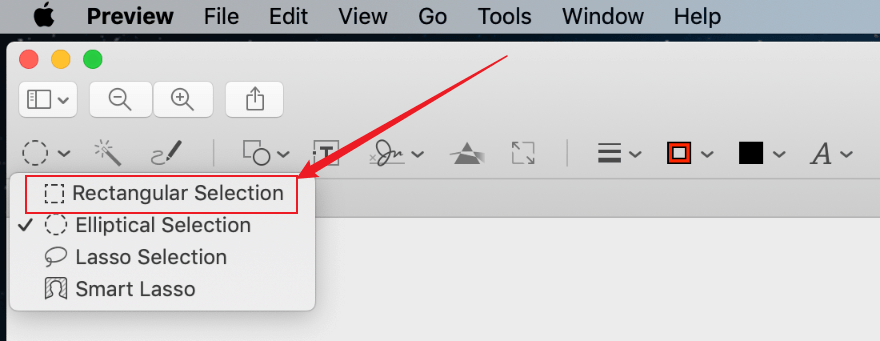
3. Click the Rectangular Selection tool and draw a box over the area you want to keep.
4. Go to the Tools menu at the top and click Crop.
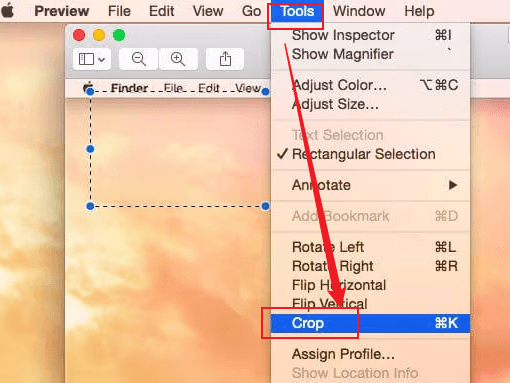
While Preview is great for basic tasks, it has a big limit. You cannot edit PDF text on Mac using this app.
If you realize you have a typo in your document after you crop it, you will need a more powerful tool, such as JOPDF, to fix it.
3. Use Adobe Acrobat to Crop a PDF
Adobe Acrobat is a very famous professional program. However, most of its best features, including cropping, require a monthly subscription fee.
If you find this program expensive, just try JOPDF, a powerful alternative to Adobe Acrobat. It gives you the same professional results without cost!
If you already have a paid account, here is how to do it:
1. Open your PDF and click on Edit PDF in the sidebar.
2. Click Crop Pages in the top toolbar.
3. Drag a rectangle over the part of the page you want to keep.
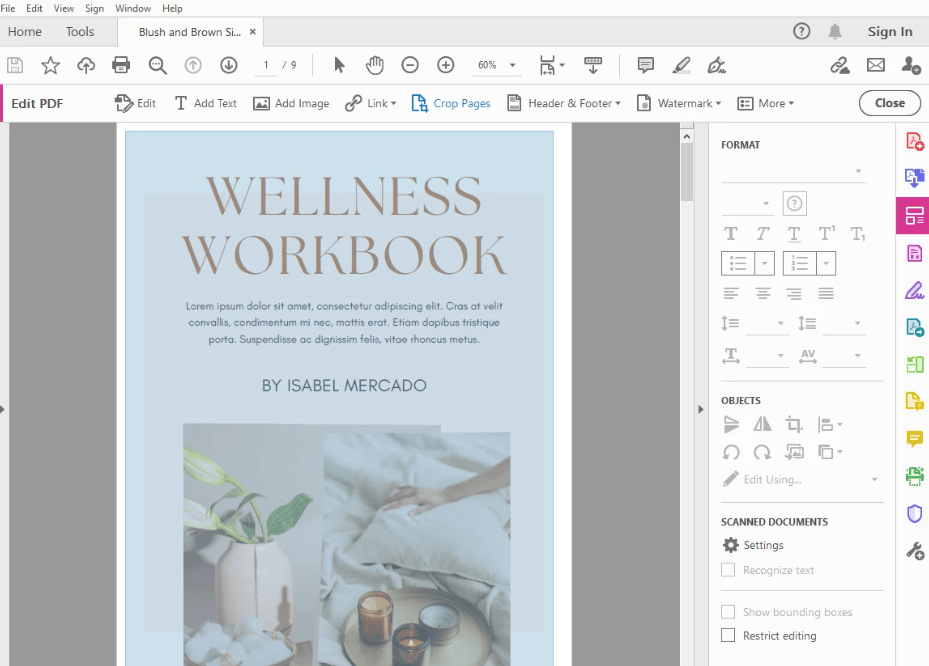
4. Double-click inside that rectangle to set the new margins.
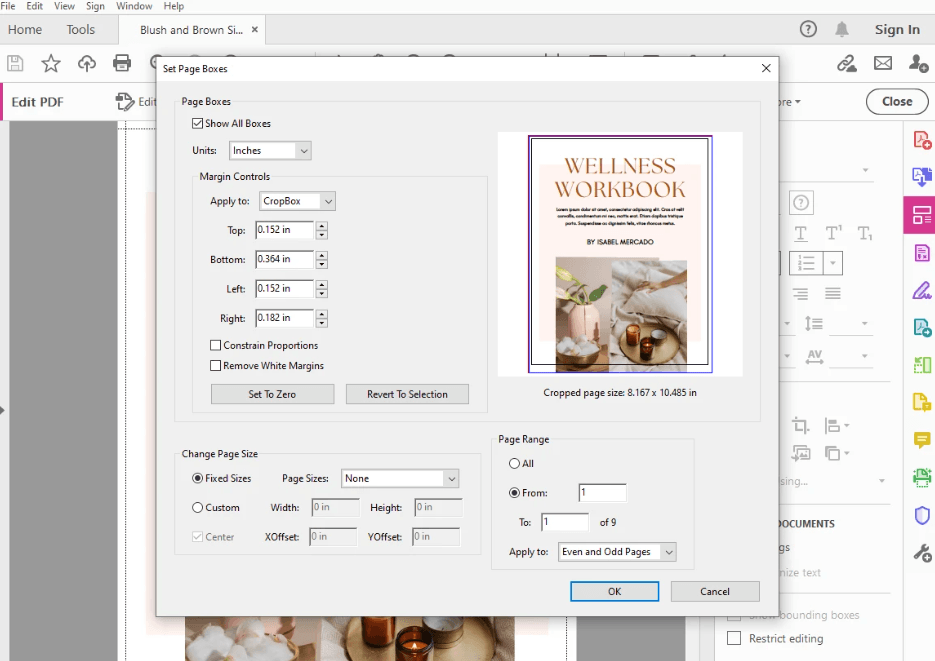
4. Crop a PDF Using an Online Tool (iLovePDF)
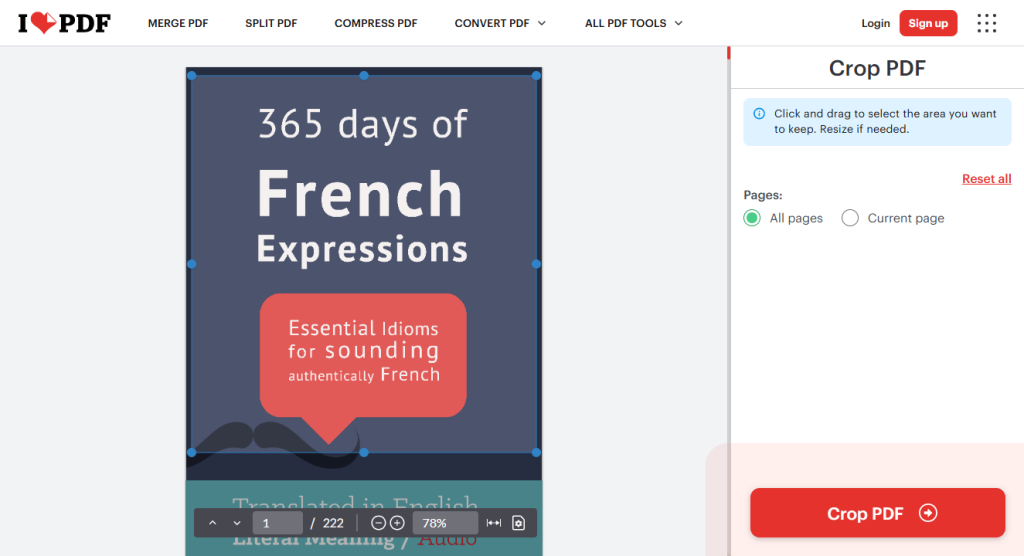
If you are using a library computer or do not want to install any software, you can use a website like iLovePDF. This is a fast way to crop PDF pages directly in your web browser.
How to do it:
1. Go to the iLovePDF “Crop PDF” webpage.
2. Upload your file from your computer.
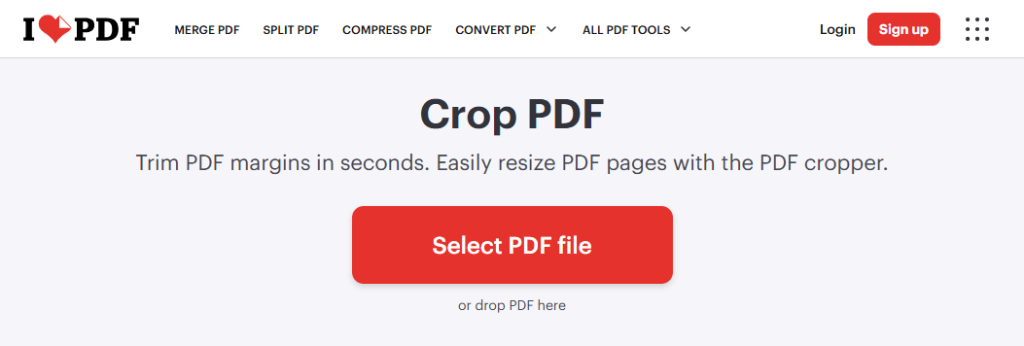
3. Use your mouse to move the crop box borders on the screen.
4. Click the Crop PDF button and download your finished file.
Always be careful when uploading private or secret documents to the internet. For important files, it is much safer to use an offline program like JOPDF.
Conclusion
Now you know how to crop a PDF on Windows and Mac computers. For most users, JOPDF is the best choice. It is free and safe, and it gives you total control over your pages. Download it today and start organizing your digital files like a pro!
FAQs
Table of Contents

Your Best Free PDF Expert in PDF editing, compressing, converting, annotating, protect, organizing, and more.
Free DownloadWindows · macOS · Linux

Queena
Editor
“As a staff editor for JOPDF, Queena excels at guiding users to the optimal tools and solutions. When she's not analyzing the latest PDF solutions, she enjoys spending her free time playing with her four cats.”



