How to fill a PDF form online? There are many excellent online PDF filler tools free for use. Just upload, click, and type, then you can save your form as PDF. No more extra steps. You can create fillable PDFs, add text field, checkboxes, and multiple choice fields with any web PDF form filler. Now, follow this guide on JOPDF and choose your tool to edit PDF form online.
Summary :
What You Need to Know Before Filling Out PDFs Online
Before you start filling out a PDF form online free, it helps to understand what kind of form you’re dealing with.
There are two main types of PDF forms:
- Interactive (Fillable) PDF Forms: These contain designated fields — text boxes, checkboxes, dropdown menus, and radio buttons — that you can click and type into directly.
- Static (Non-Fillable) PDF Forms: These are essentially digital printouts. You can view them, but you can’t click and type unless you use an online PDF form filler that supports adding text on top of the document.
When you set out to fill out a PDF form online free, the method you choose will depend on which type of form you’re dealing with.
It’s also worth noting: if your form contains sensitive information — Social Security numbers, financial details, medical records — you should think twice before uploading it to any third-party server. We’ll cover this in more detail later.
Method 1: Fill PDF Form Online Free with Microsoft Edge Browser
If you’re on Windows, you already have a built-in tool to fill out a PDF form online free. Microsoft Edge comes with a native PDF reader that handles fillable forms surprisingly well. You don’t need to download anything or create an account.
How to fill a PDF form online using Edge:
Step 1: Locate your PDF form in File Explorer and right-click on it to choose Open with > Microsoft Edge.
Step 2: If your document is a fillable PDF, Edge will automatically detect and highlight all interactive fields in blue. You can fill out PDF form online free as follows:
- Simply click on any field and start typing.
- For checkboxes, click to select or deselect as needed.
- Use the drawing or annotation tool to add a signature if required.
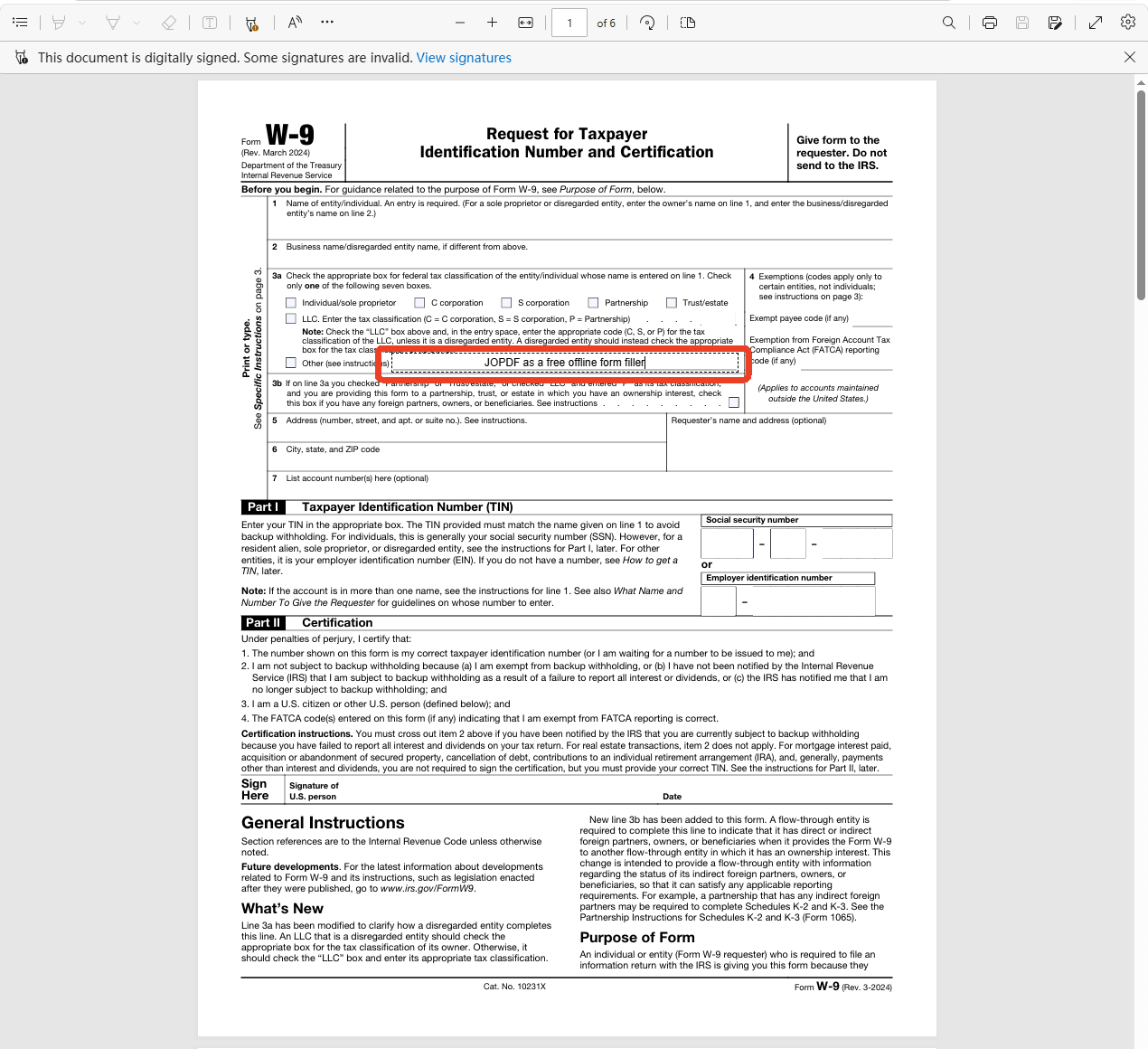
Step 3: Once you’ve filled everything out, click the Save icon in the toolbar (or press Ctrl+S) to save your changes directly to the PDF. Alternatively, you can click the Print icon and select Microsoft Print to PDF to create a new file.
If you just want to fill PDF form online without Adobe or any third-party tool, Microsoft Edge browser could do that. However, it has some limitations as a form filler:
- No built-in signature tool
- Cannot edit PDF form online fields (you can only fill them, not modify them)
- Text overlay can be finicky to align
- No OCR for scanned documents
Method 2: Fill Out PDF Forms Online with SmallPDF
SmallPDF is one of the most popular online PDF tools, and its form-filling feature is simple and user-friendly. If you need to fill out PDF form online quickly, SmallPDF gets the job done.
Step 1: Go to SmallPDF’s PDF Form Filler in your browser and upload your PDF form by dragging it in.
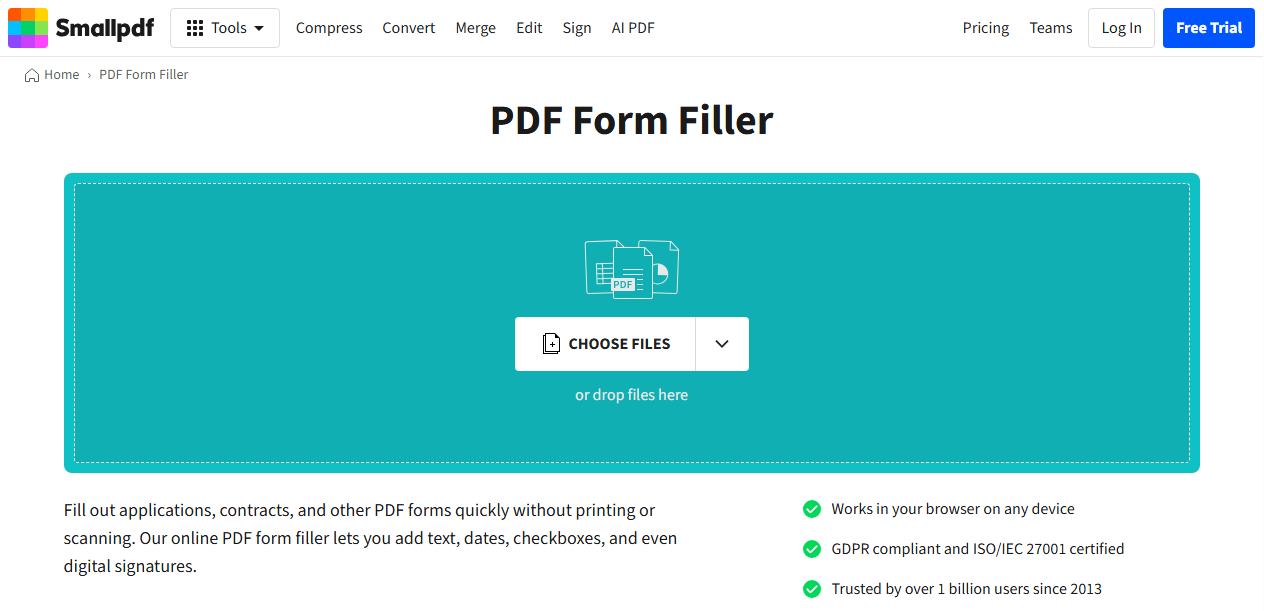
Step 2: Then you can fill in the form fields.
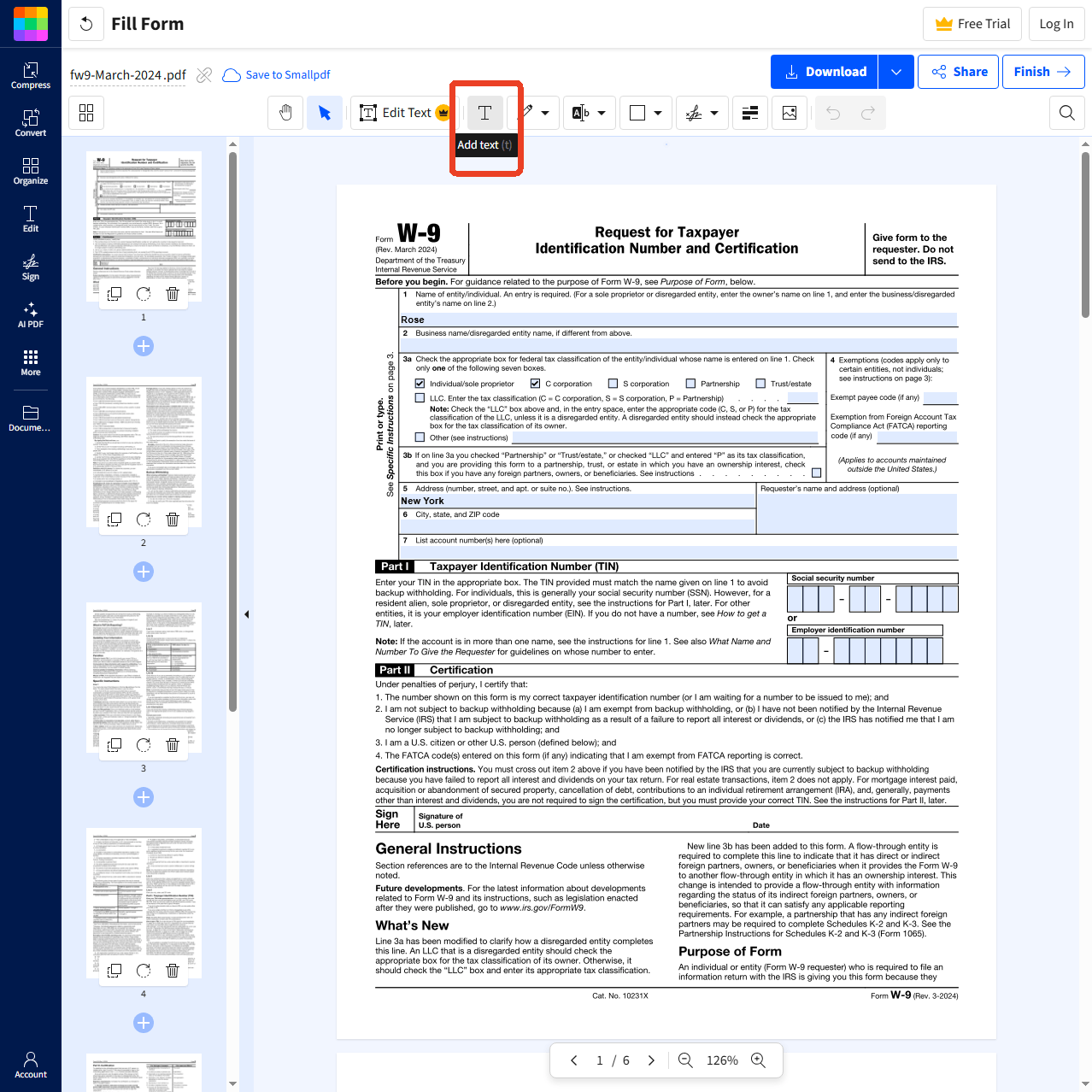
- If your document is a fillable PDF, SmallPDF will recognize the interactive fields and you can click on each field and type your responses.
- For static forms, you can use the Add Text tool to place text boxes anywhere on the page.
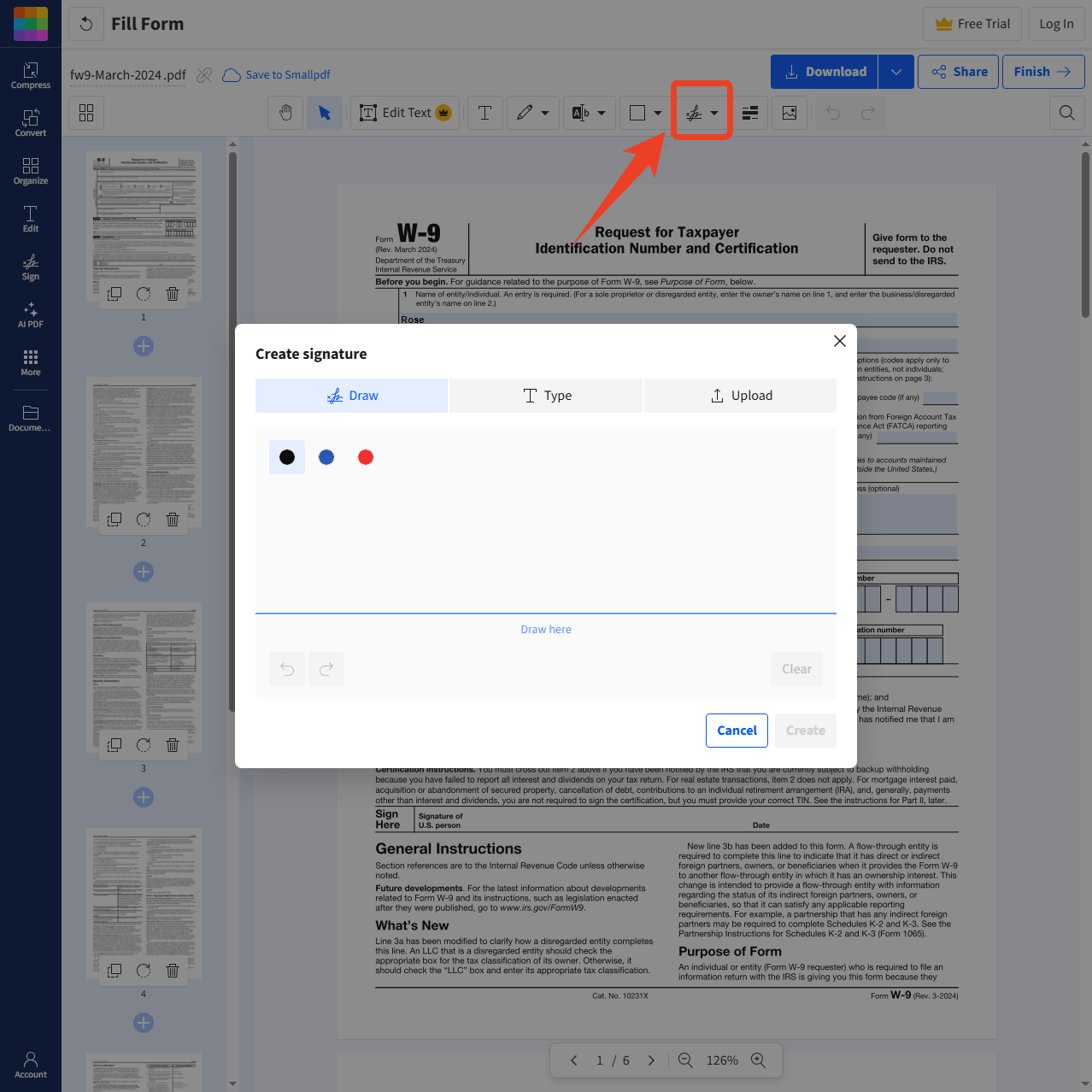
Step 3: Click the Signatures & initials tool, then choose to type, draw, or upload your signature. Place it anywhere on the document.
Step 4: Download the completed form to your computer.
Tips
SmallPDF limits free users to a couple of tasks per day. If you need to fill out PDF forms online regularly, you’ll hit that cap quickly. Also, because it’s a cloud-based online PDF form filler, your files are temporarily uploaded to servers. That’s something to consider with sensitive documents.
Method 3: Type on a Fillable PDF Online with PDFFiller
PDFFiller is a feature-rich online platform designed specifically for form filling, editing, and document management. If you often need to type on a PDF form online, PDFFiller offers more advanced capabilities than most free tools.
Step 1: Go to PDFFiller’s website and upload your fillable PDF. The tool automatically identifies form fields and highlights them in orange.
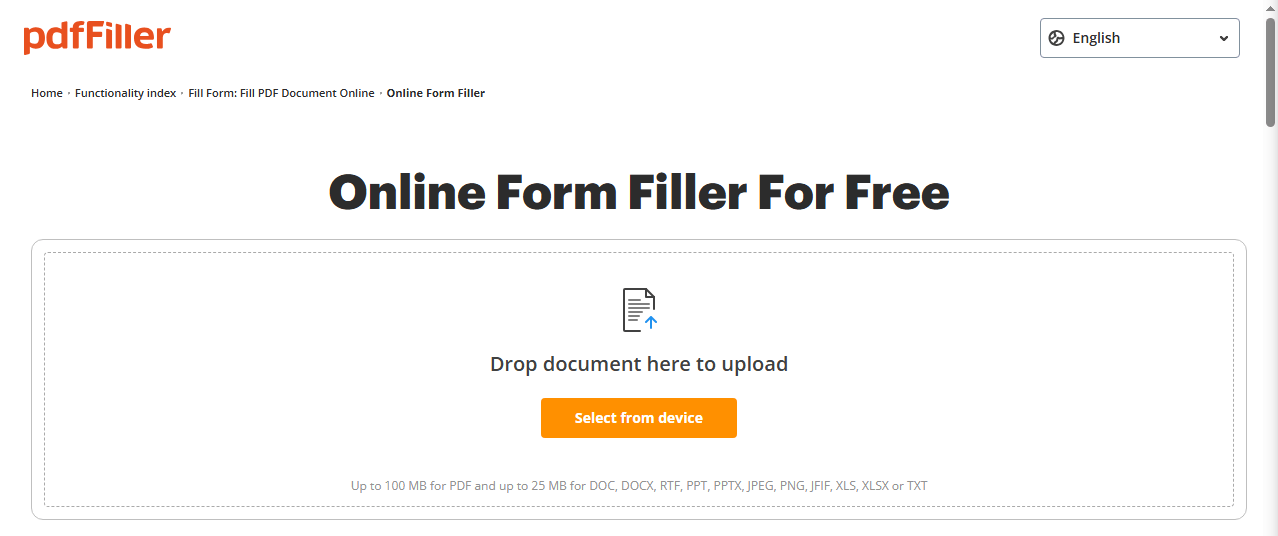
Step 2: Click on each highlighted field and type your information.
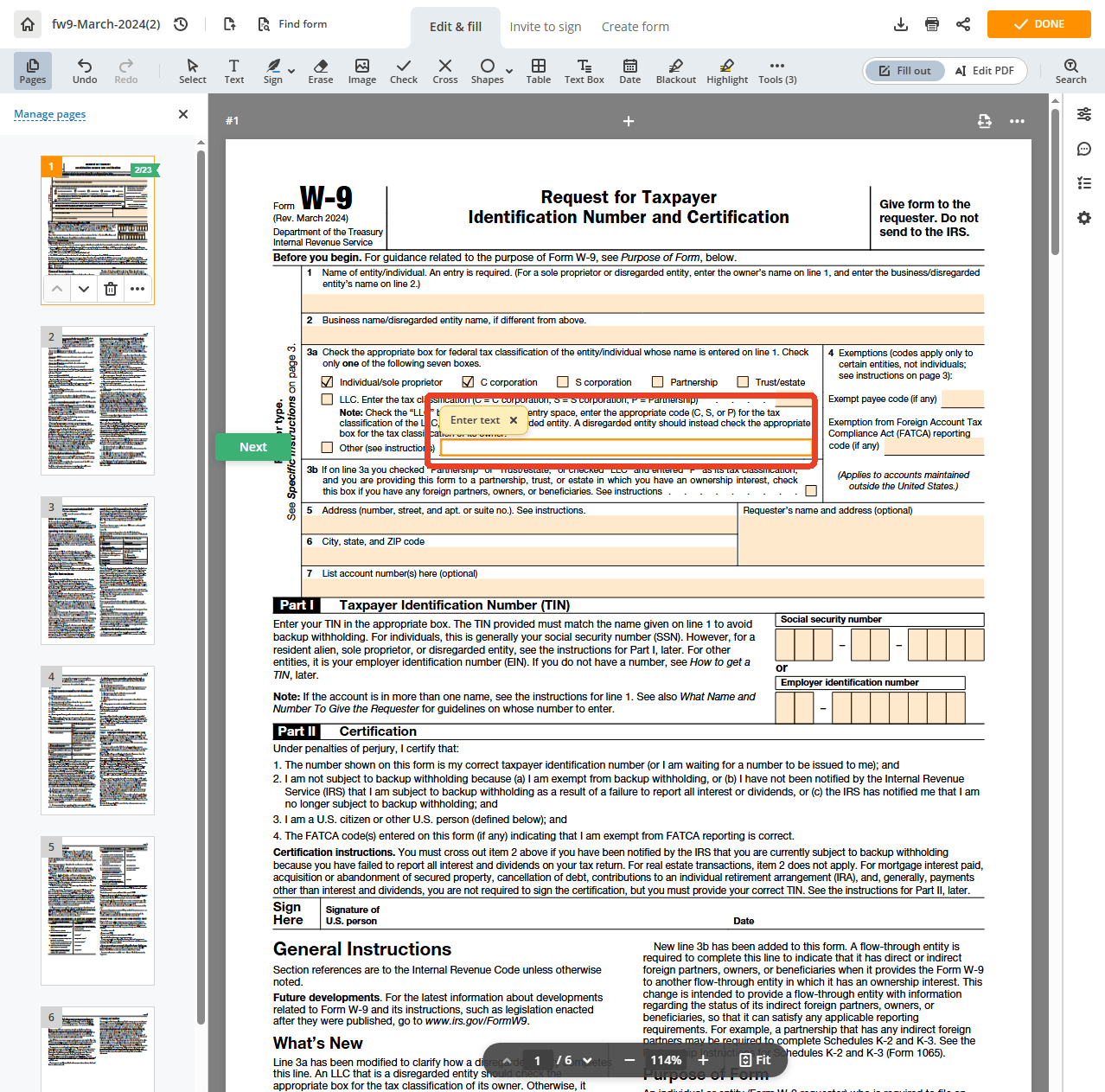
Step 3: Use the toolbar to add signatures, checkmarks, or annotations as needed.
Step 4: Download the completed form pdfFiller to your device or cloud storage.
Method 4: Fill Out a PDF Form with Adobe Acrobat Online
Adobe offers a free online version of its Fill & Sign tool that doesn’t require a subscription. It’s a straightforward way to fill out a PDF form online if you prefer an official Adobe solution.
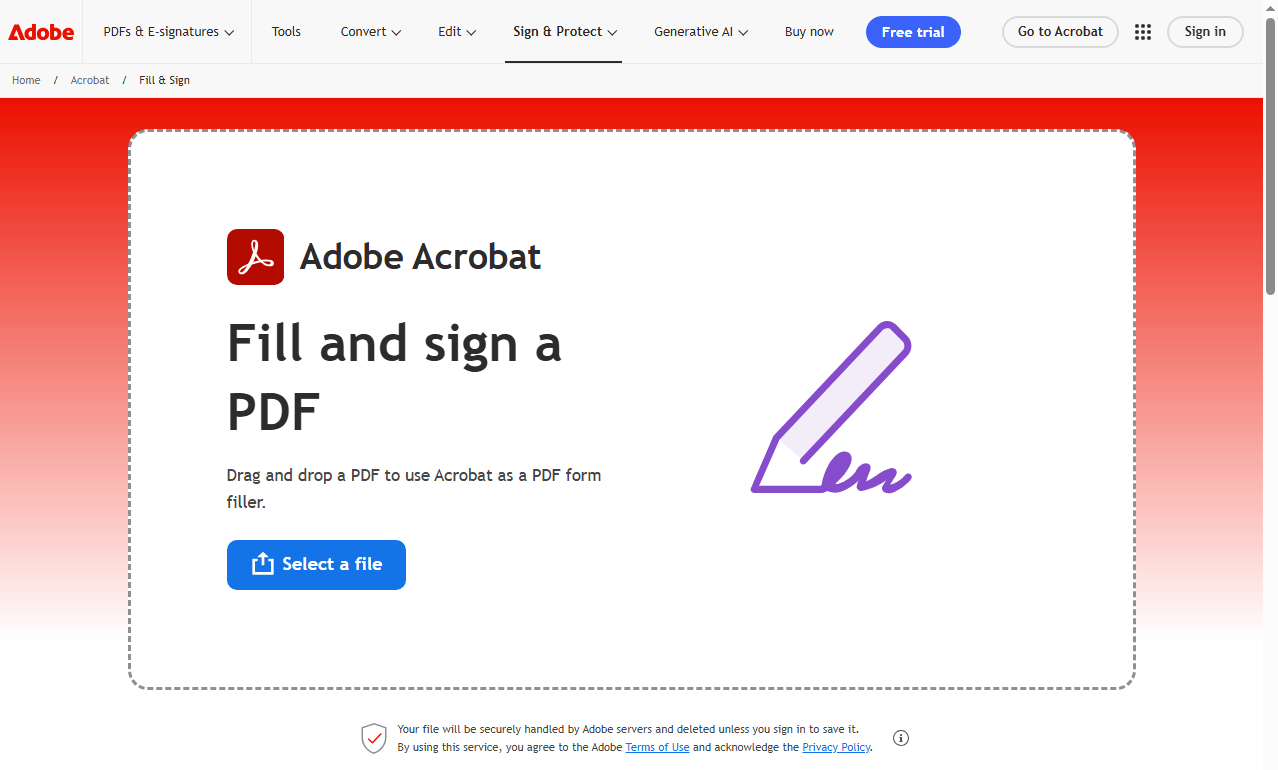
Step 1: Go to Adobe’s Fill & Sign page and click Select a file to upload your PDF form. Fillable fields appear with a blue box when you hover over them.
Step 2: Fill in the form and you can also sign PDF form with its signature feature.
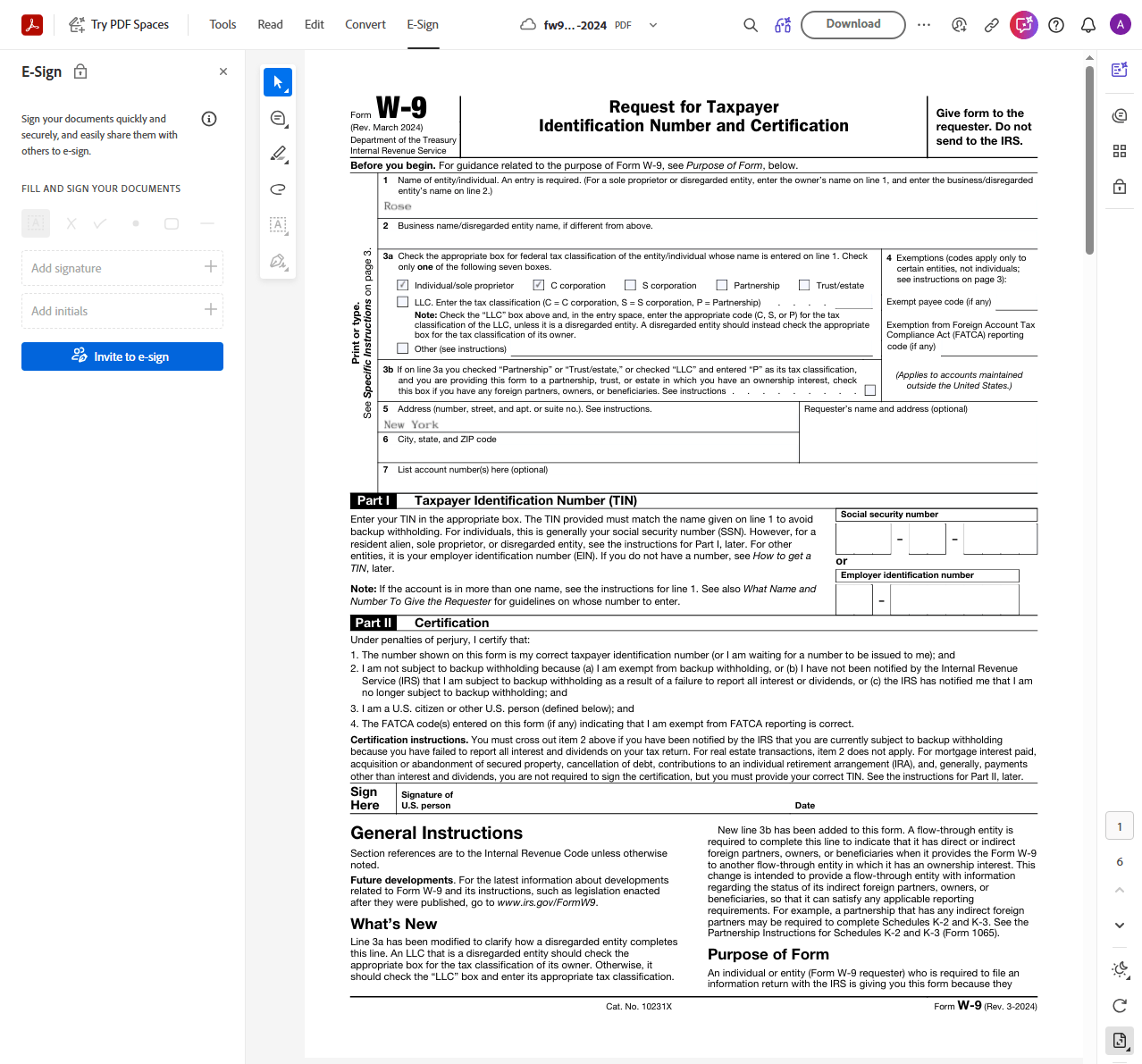
Adobe’s online tool works on both desktop and mobile browsers, and you can use it without signing in. However, for the mobile app version, you may need to skip the login prompt to use it as a guest.
Tips
The free online version offers fewer features than the desktop Acrobat Pro. For advanced fillable PDF creating and editing or converting a PDF to a fillable form online, you’ll need a paid subscription.
The Hidden Risks of Online PDF Form Fillers
While online PDF form fillers are convenient, they come with real risks you need to know about. Here’s why you should think twice before uploading sensitive documents to a cloud-based service.
- Privacy Exposure: When you upload a document to an online PDF form filler, you’re sending your file to a third-party server. Most reputable services claim to delete files after processing, but “claim” is the operative word.
- Free Tier Restrictions: Free online tools are rarely truly free. SmallPDF limits you to two documents per day. Adobe requires an account and pushes paid upgrades. PDFFiller asks for credit card information upfront. When you need to fill out a PDF form online free, the “free” part usually comes with strings attached.
- Internet Dependence: Online tools require a stable internet connection.
- File Size Limits: Many online tools impose file size limits, especially on free accounts.
Safer Offline PDF Filler Alternative: JOPDF
If the risks of online tools give you pause, there’s a better way – offline PDF filler like JOPDF. JOPDF is a desktop-based PDF form filler that gives you all the form-filling power of online tools — without the privacy concerns, internet dependence, or frustrating limitations.
JOPDF’s Key Features:
-
100% offline processing. Your files never leave your computer. No uploads, no third-party servers, no privacy risks.
-
No registration required. Download, open, and use immediately. No accounts, no subscriptions, no watermarks.
-
Cross-platform support. Works on Windows, Mac, and Linux.
-
Free forever. No daily task limits, no file size caps.
JOPDF includes everything you need to work with online fillable PDF form documents offline:
- Fill Out Form: Automatically detects all interactive fields in a fillable PDF and lets you type directly into them.
- Add Text: Place text boxes anywhere on static forms.
- Signature Tool: Type, draw, or upload your signature.
- OCR: Convert scanned documents into editable text, then fill them out.
- Batch Processing: Fill multiple forms simultaneously.
- Supports both fillable and flat forms. Click interactive fields to type, or use the Add Text tool to place text anywhere on flat PDFs.
How to fill out a PDF form with JOPDF:
Step 1: Download and install JOPDF from the official website.
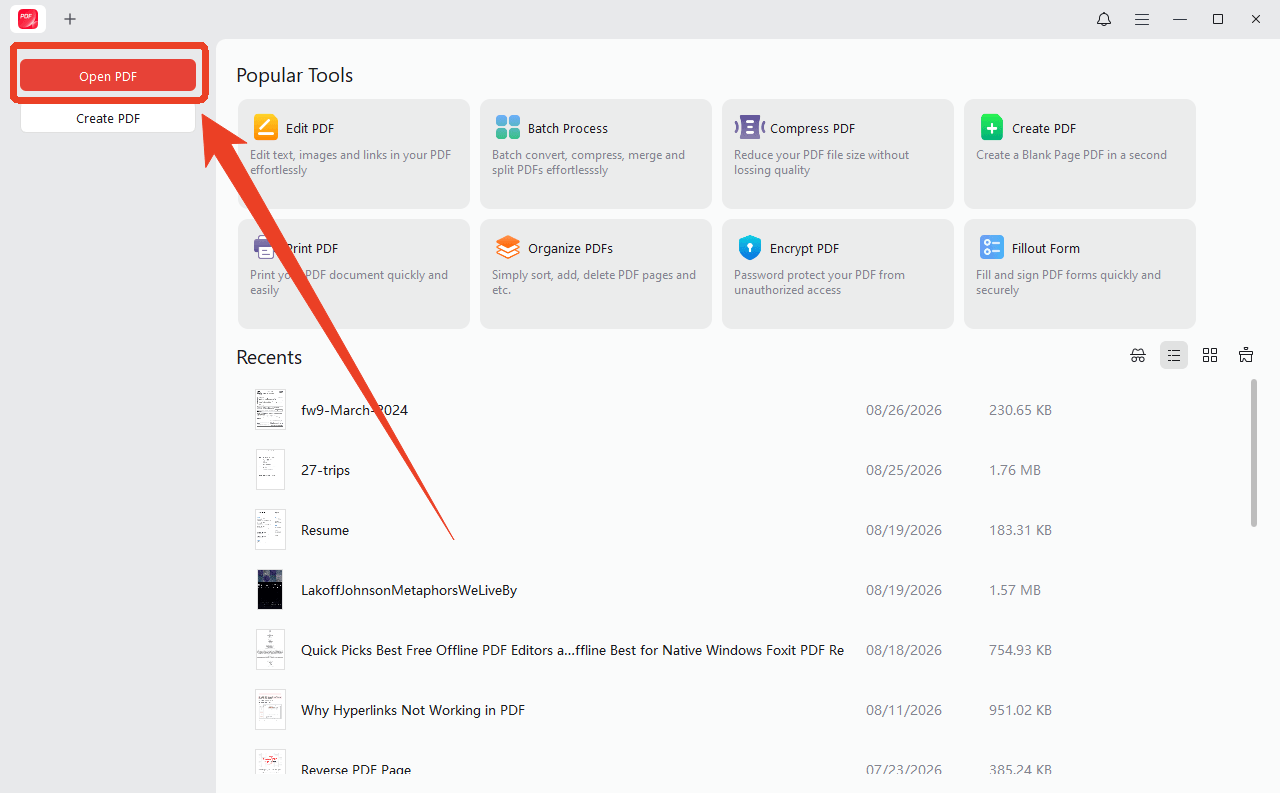
Step 2: Open your PDF form by clicking Open PDF.
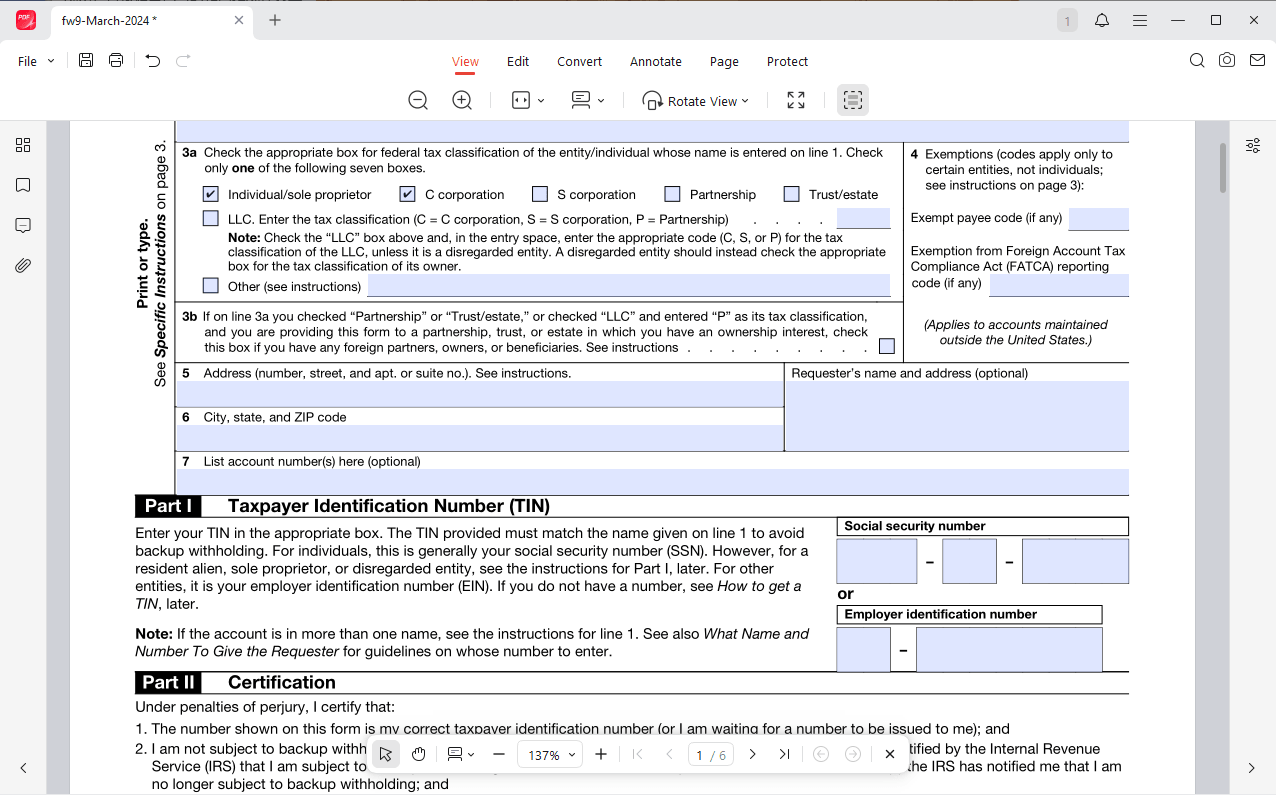
Step 3: If the form has fillable fields, click any field and enter your information.
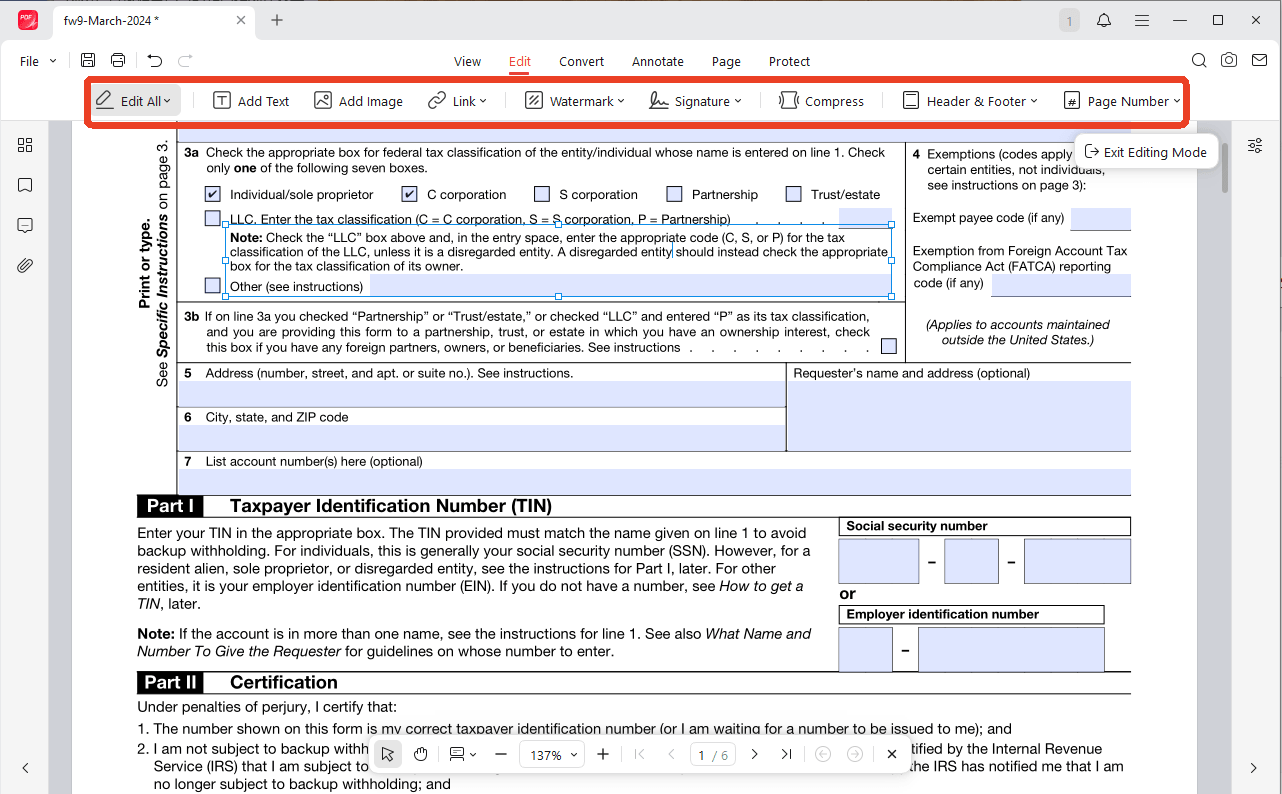
Step 4: For flat forms, go to the Edit tab, click Add Text, and place text boxes where needed.
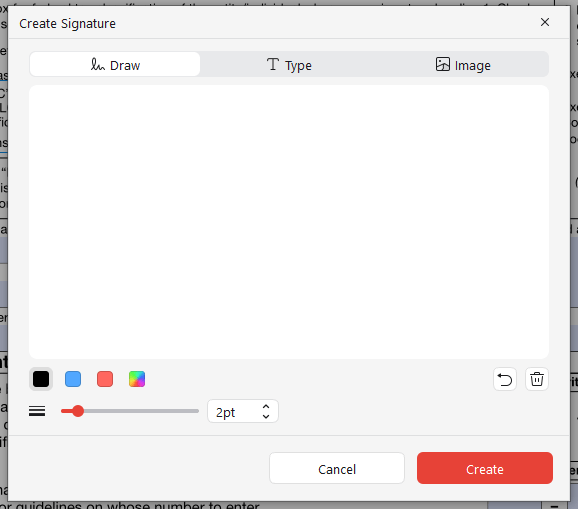
Step 5: To add a signature, go to Edit > Signature > Create New, draw or type your signature, and place it on the form.
Step 6: Save your completed form to your device.
JOPDF provides more guide to help you edit and fill out PDF form:
- How to Make a PDF Invoice: A Step-by-Step Guide for Beginners & Pros
- How to Lock a Fillable PDF: 3 Simple Methods for 2026
Conclusion
You have several reliable options to fill out a PDF form online. If you’re on Windows, Microsoft Edge’s built-in PDF reader lets you fill PDF form online without Adobe for basic fillable forms. For more features, online PDF form filler tools like SmallPDF and PDFFiller provide quick browser-based solutions.
However, online fillable PDF forms tools come with privacy risks, file limits, and internet dependence. If you handle sensitive documents, JOPDF offers a safer offline alternative that keeps your data on your device.
FAQs
There are several ways to fill out a PDF form online free without Adobe. You can use Microsoft Edge's built-in PDF viewer, which automatically detects interactive fields in a fillable PDF. For more advanced features like signatures and OCR, use JOPDF.
Most online PDF form fillers include a signature tool. In SmallPDF, click Signatures & initials and draw, type, or upload your signature. In Adobe Acrobat Online, click the pen icon and choose Create Signature. With JOPDF, go to Edit → Signature → Create New.
Yes. The fastest way to fill out a PDF form on Mac is through your browser. Upload your PDF to an online PDF form filler like SmallPDF or Adobe Acrobat Online, fill the fields, and download the completed file. For offline filling, use Preview, the built-in Mac PDF viewer - it lets you add text annotations and signatures.
Table of Contents

Your Best Free PDF Expert in PDF editing, compressing, converting, annotating, protect, organizing, and more.
Free DownloadWindows · macOS · Linux

Anna
Editor
“Anna, Editor-in-Chief and PDF expert, delivers deep insights into PDF document technology trends. She is dedicated to helping readers optimize their digital lives. When not writing, Anna loves exploring local cafes and reading, blending her technical expertise with a love for storytelling.”
![Full Guide on How to OCR a PDF in Adobe Acrobat [Newest]](https://b.jopdf.com/wp-content/uploads/2026/10/how-to-ocr-a-pdf-in-adobe.png)