Summary :
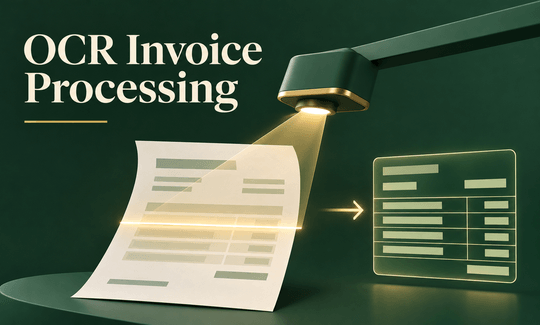
OCR invoice processing is the fix when you get invoice scans but want to edit or copy them: turning a scanned invoice into a document where the text is machine-readable. But “OCR” and “automated data extraction” are not the same thing. This guide on JOPDF explains what invoice OCR does, what data it can and can’t pull out on its own, and how JOPDF handles the document side of the OCR invoice processing workflow.
What Is OCR Invoice Processing
OCR (Optical Character Recognition) analyzes an image of text and converts it into machine-readable characters. For an invoice, this process can make the invoice number, vendor name, and line items selectable and searchable.
There are two levels of invoice OCR processing, and they serve different purposes.
Level 1: Text Layer Recognition
After this process, your invoice PDF will become searchable and editable. You can search for a vendor name in PDF software, copy an amount, or run the document through a script that looks for keywords.
Level 2: Structured Data Extraction
In this level of invoice OCR processing, you can receive a spreadsheet or JSON file with fields already parsed: vendor, invoice date, due date, subtotal, tax, total, line items. Unlike normal text recognition, this OCR invoice processing requires a tool that understands invoice layouts, not just characters.
Invoices are harder to OCR than plain documents for predictable reasons: every vendor uses a different layout, fonts vary, stamps and signatures overlap text, and tables have borders and merged cells that confuse character recognition.
What Data Can OCR Extract from an Invoice?
A text-layer OCR produces a stream of text. You can check the OCR output after the text extraction.
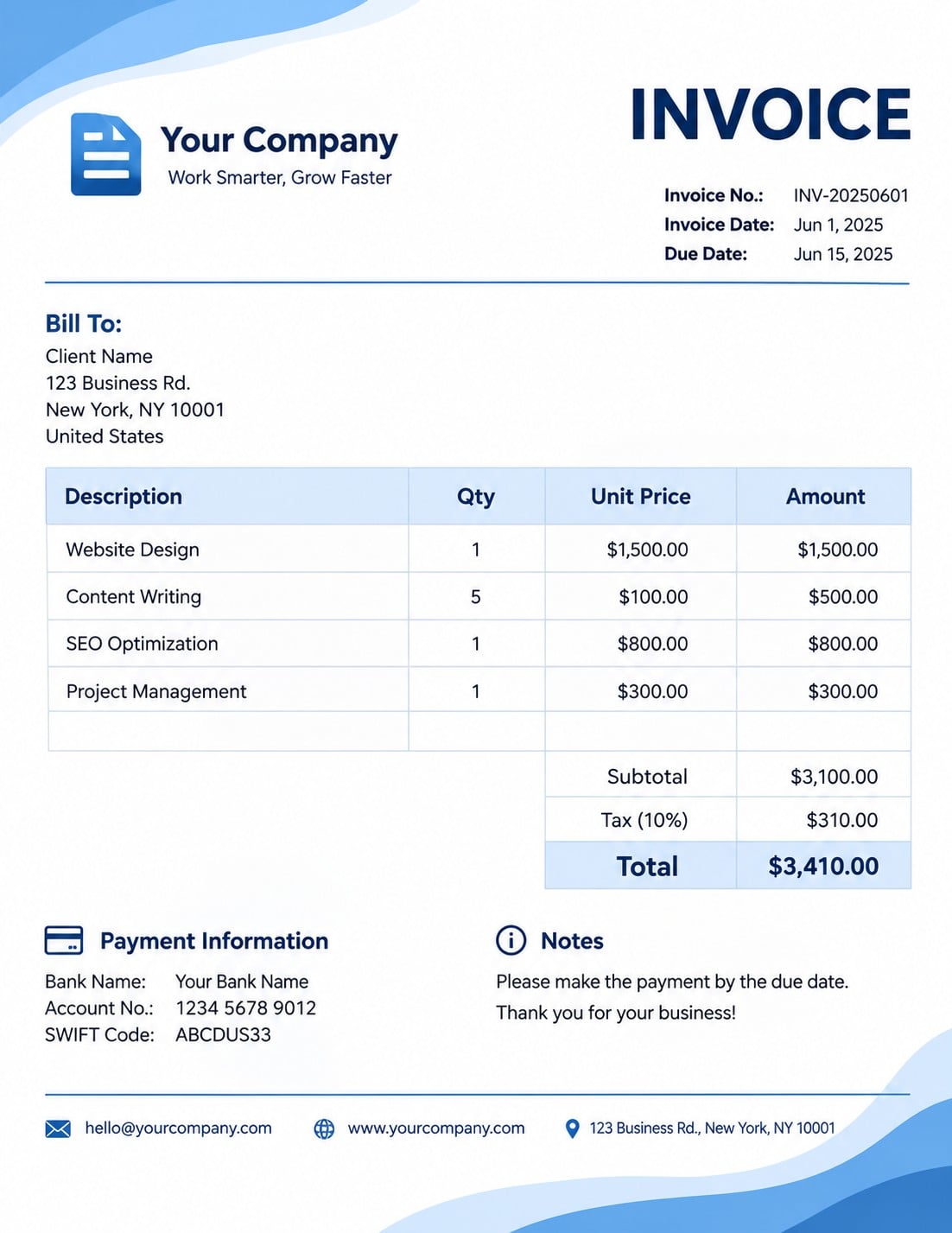
Basic fields:
- Invoice number
- Issue date
- Due date
- Vendor name and address
- Customer name and address
Amount fields:
- Subtotal
- Tax amount (and sometimes tax rate)
- Total
- Currency
Line items:
- Description
- Quantity
- Unit price
- Line total
Payment information:
- Bank account number
- IBAN or SWIFT code
- Payment terms
Tips
If you want to perform OCR invoice processing, choose what kind of OCR you want. You may just want to capture all the text and choose document OCR software for that. Alternatively, use a dedicated invoice data extraction service to maintain the full structure.
How to OCR an Invoice PDF with JOPDF?
JOPDF is a free desktop PDF tool for Windows, Mac, and Linux, also providing a free advanced OCR function. It handles multiple PDF tools in one application, and most importantly, you don’t need to pay for anything or register. The JOPDF’s OCR feature runs in two modes: Local OCR and Online OCR.
Invoices are financial documents. They contain bank details, pricing, and supplier information you wouldn’t post publicly. It’s important to handle the invoice OCR in local mode so that you don’t need to worry about data privacy.
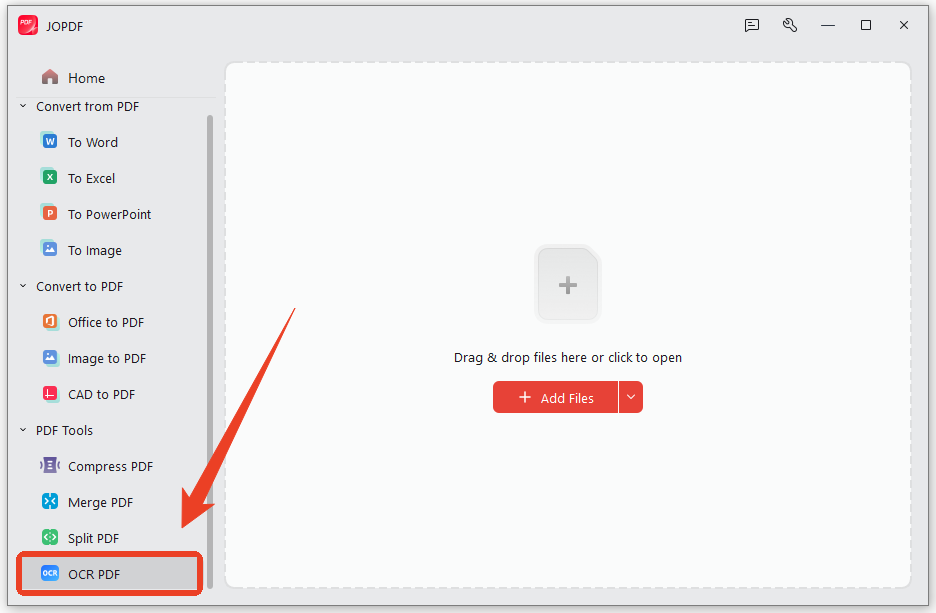
Step 1: Download and install JOPDF and launch it.
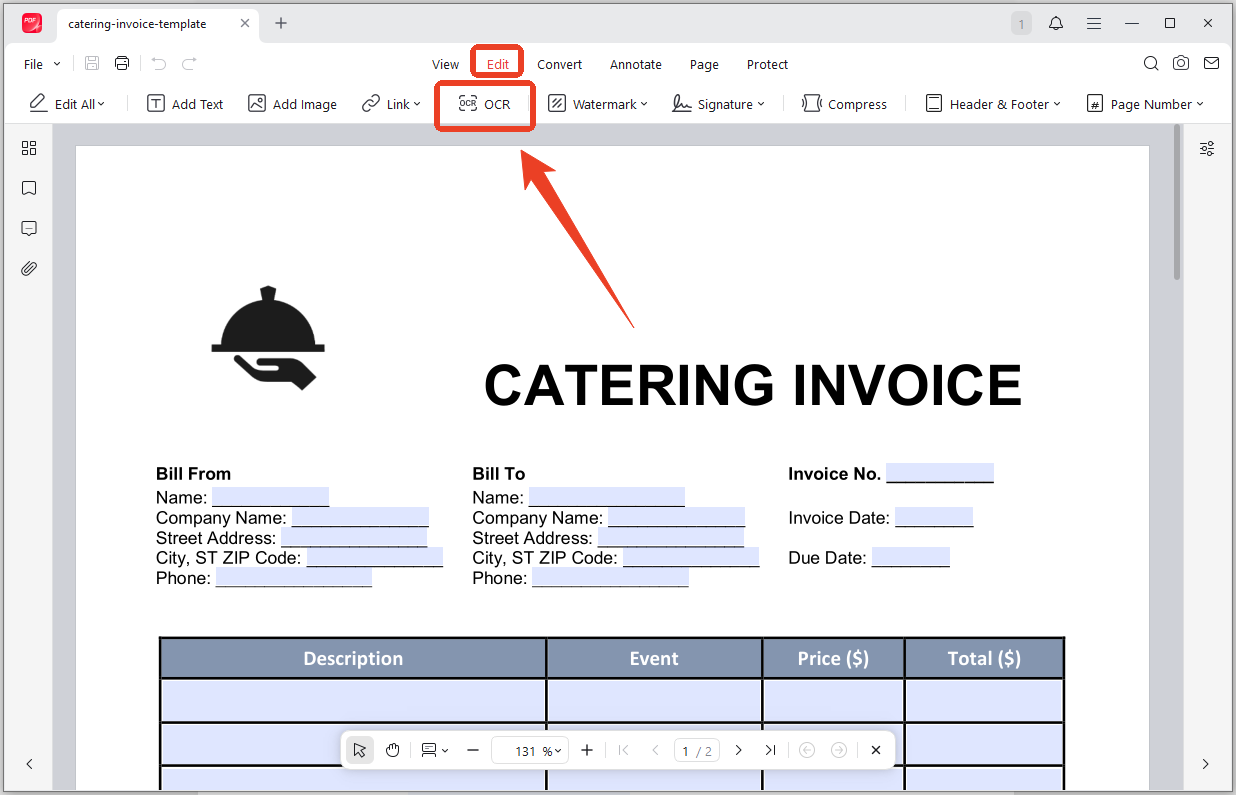
Step 2: Click Open PDF to choose the invoice file and choose the OCR function in the Edit tab.
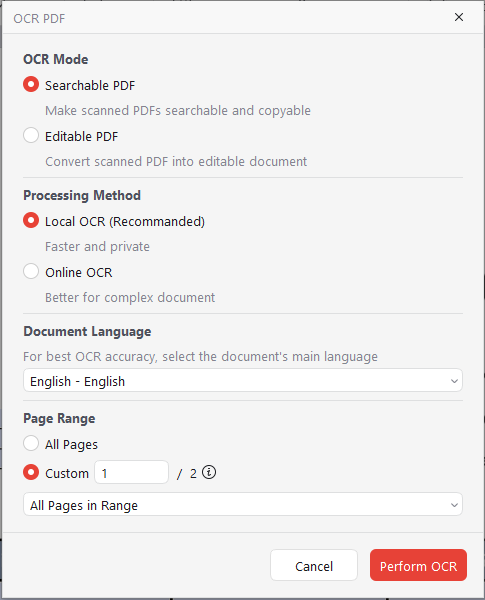
Step 3: When a new OCR PDF window pops up, choose the OCR mode, processing method, document language, and page range.
JOPDF OCR Tips
- Choose Local OCR for privacy, or Online OCR for multilingual invoices.
- Choose your output format:
- Searchable PDF keeps the invoice’s original appearance and adds an invisible text layer. Best for archiving.
- Editable PDF converts the scan into text you can modify. Best if you need to extract or correct content.
Step 4: Click Perform OCR to make your invoice scan searchable and editable.
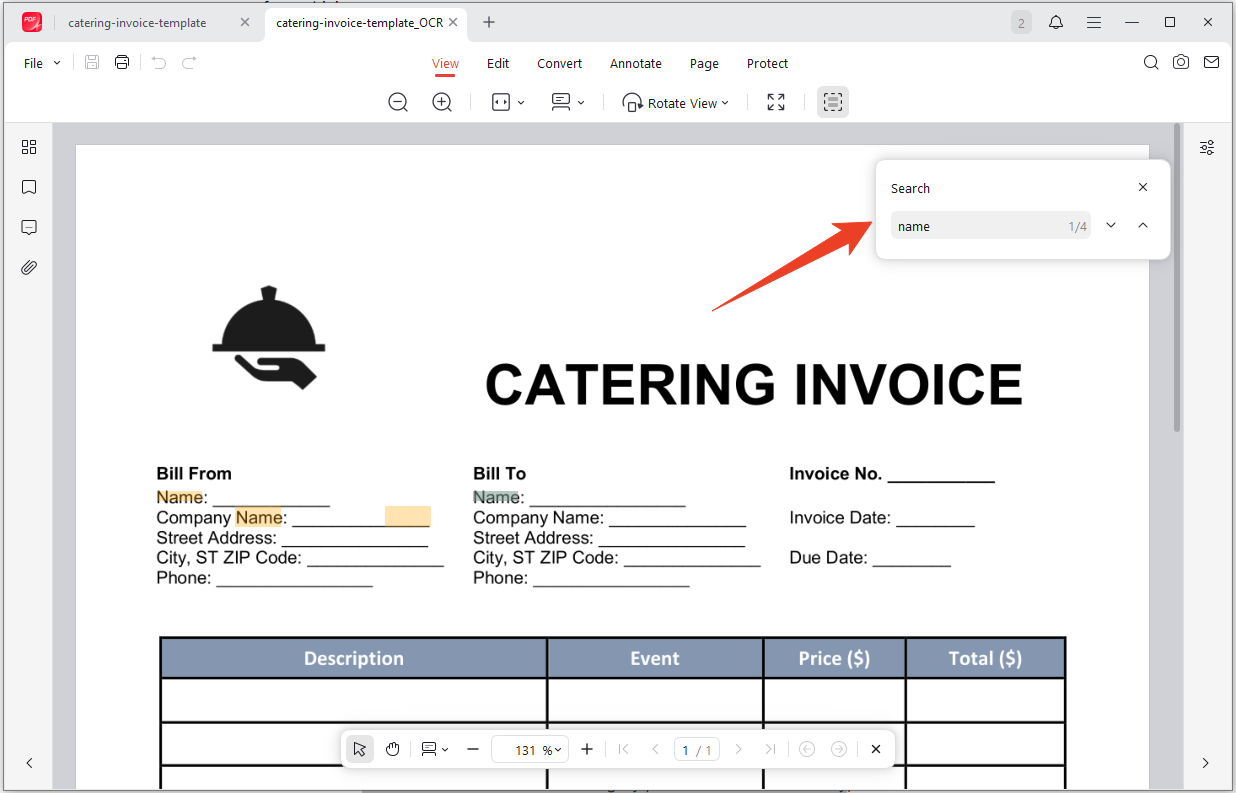
The above image is the OCR output I’ve tested for an invoice. You can see that the whole invoice structure is maintained, and all the content is searchable. The invoice looks the same, but now I can select the invoice number and search words across a scanned document. In this way, I would like to recommend JOPDF for the text-layer job.
Since I don’t have any multilingual invoices, I haven’t tested that, but I tried this online OCR on a normal document with German and English. The output quality does not compromise.
For high-volume structured extraction, I reach for something else. When a client asked me to process 400 invoices a month into their ERP, OCR alone wasn’t the answer. I used a dedicated invoice extraction tool that parsed vendor, date, subtotal, tax, and line items into a CSV. It cost money and required template setup for each supplier’s layout.
From my experience, tables are the weak point when I OCR an invoice. An invoice with merged cells and a stamp overlapping the total will produce text that’s readable but structurally scrambled. To avoid this, I proofread anything with a complex table before I rely on it. I also check the scan quality first: 300 DPI is the practical minimum, and a phone photo taken at an angle will underperform no matter which tool you use.
Batch OCR for monthly invoicing: If you process invoices in batches, JOPDF’s multi-file support means you can add a folder of scans, set the language and output format once, and process them all. For a batch OCR invoices workflow, this is faster than running each file individually.

JOPDF – The Best Free PDF Editor
 User Rating: 4.8
JOPDF Is a 100% free POF editor for Windows, macOS, and Linux. Edit text, add images, annotate, sign, and more. No limits, no ads, no subscriptions, Fast, simple, and powerful, take full control of your PDFs in seconds!
My honest view: most people don’t need an enterprise extraction platform. They need a way to stop retyping invoice numbers and amounts. JOPDF covers that without a subscription, without uploading financial documents, and without a learning curve. If your volume grows to the point where manual entry becomes the bottleneck, that’s when a structured extraction tool earns its cost
Why Choose JOPDF in OCR Invoice Processing?
#1. Local processing keeps financial data on your machine. JOPDF’s Local OCR never uploads the file. For invoices, it’s quite important for your finance team for privacy reasons.
#2. Batch processing matches how invoices arrive. Invoices come in folders, not one at a time. JOPDF accepts multiple files in a single OCR run, so a month’s worth of scans can be processed together instead of one by one.
#3. Two output formats serve two different needs. Searchable PDF preserves the invoice’s original appearance while adding an invisible text layer, ideal for archiving, where the invoice must look unchanged. Editable PDF converts the scan into modifiable text, useful when you need to correct or extract content.
#4. 30 languages in Local OCR, 26 in Online OCR. Most invoices are single-language, and Local OCR covers the common ones. When an invoice mixes languages, Online OCR allows simultaneous selection.
#5. OCR is one step in a longer workflow. After OCR, the same application lets you merge multi-page invoice batches, compress large scans for storage, or convert the result to another format. You don’t need a second tool to finish the job.
#6. No file size limit, no daily cap. Online OCR services often restrict free users to a handful of files per day. JOPDF’s Local OCR has no such ceiling – the only limit is your hardware.
#7. Free, with no watermark on the output. The OCR result is a clean file. Nothing is stamped; nothing is locked behind a paywall.
OCR Output vs. Structured Invoice Data: What’s the Difference?
If you’re still struggling to choose the right OCR invoice processing software, here are some differences between JOPDF’s output and structured extraction tools:
JOPDF’s output: A searchable or editable PDF. The text is there, but it’s a continuous stream. For example, the invoice number, vendor name, and line items aren’t separated into columns. You can search for “Total” and find it, but the tool doesn’t know that the number next to it is the amount you owe.
Structured extraction tools: These parse the invoice layout and output fields. They can produce invoice-to-Excel OCR results, such as a spreadsheet with vendor, date, amount, and line items in separate columns. They’re built for accounting automation, and they cost money.
So, which one do you need?
- If you have a handful of invoices per month for archiving or reference, JOPDF’s OCR is sufficient. The invoices become searchable, and you can manually copy key figures into your accounting system.
- If you have dozens or hundreds of invoices per month for automated entry, you need a structured extraction tool. Invoice OCR software in this category parses fields automatically
Common Challenges in Invoice OCR Processing
#1. Poor scan quality. Blurry, tilted, or low-resolution scans produce errors. 300 DPI is the practical minimum; below 200 DPI, recognition degrades noticeably.
#2. Tables and stamps. Invoice tables have borders, merged cells, and alignment that OCR engines don’t always interpret correctly. Stamps and signatures can overlap text and obscure characters. OCR invoice table extraction is one of the hardest parts of the process.
#3. Multilingual invoices. A single invoice with text in two languages needs Online OCR’s multi-language selection. Local OCR handles one language at a time.
#4. Handwriting. OCR is built for printed text. Handwritten notes, signatures, or corrections on an invoice will produce unreliable results.
#5. Verifying the output. After OCR, open the output file and search for the invoice number and total. If the search finds them, the text layer exists. This is the quickest invoice OCR accuracy check you can run without specialized tools.
Conclusion
OCR invoice processing starts with making the invoice readable. JOPDF’s OCR turn scanned invoices into searchable, editable PDFs. For a handful of invoices a month, that’s enough. For high-volume automation, pair JOPDF’s OCR with a structured extraction tool.
FAQs
Table of Contents

Your Best Free PDF Expert in PDF editing, compressing, converting, annotating, protect, organizing, and more.
Free DownloadWindows · macOS · Linux

Anna
Editor
“Anna, Editor-in-Chief and PDF expert, delivers deep insights into PDF document technology trends. She is dedicated to helping readers optimize their digital lives. When not writing, Anna loves exploring local cafes and reading, blending her technical expertise with a love for storytelling.”