Introduction :
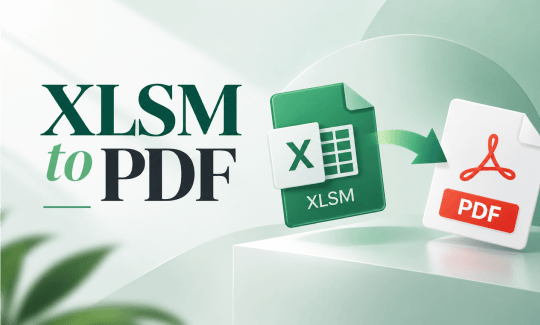
XLSM is a useful format for automating calculations and managing complex workbooks, but it is not always convenient for sharing or printing. Sometimes, you need to convert XLSM to PDF to make spreadsheet content easier to view, distribute, and print without requiring recipients to have Excel installed. Fortunately, there are several useful ways. In this JOPDF guide, let’s learn how to convert an XLSM file to PDF using Microsoft Excel’s Save As or Export feature, a free desktop converter, or an online XLSM to PDF converter.
What Is an XLSM File
XLSM is a Microsoft Excel file format used for storing macro-enabled workbooks. It is similar to the standard XLSX format but can also contain VBA macros that automate repetitive tasks and spreadsheet operations. Moreover, an XLSM file can contain the following content:
- Spreadsheet data: text, numbers, formulas, and calculations.
- VBA macros: automated instructions for performing spreadsheet tasks.
- Charts and tables: visual representations of data.
- Formatting: fonts, colors, cell borders, and other layout elements.
While XLSM is useful for working with dynamic spreadsheets, PDF is generally more convenient for distributing finalized reports and documents. Below are some common reasons to convert an XLSM file to PDF:
- Easier sharing: PDF can be opened on almost any device without needing spreadsheet software.
- Consistent presentation: PDF can maintain the appearance of the original files.
- Convenient printing: You can prepare spreadsheet pages in a standardized format and distribute them for printing.
- Reduced accidental editing: PDF is not easy to edit if you don’t have a dedicated PDF editor.
Note
Converting XLSM to PDF does not preserve executable VBA macros. You can only get a PDF file containing the exported spreadsheet content but not the original workbook’s macro functionality.
How to Save an XLSM as a PDF with Microsoft Excel
To convert an XLSM file to a PDF, Microsoft Excel is one of the most straightforward ways. Because it natively supports macro-enabled workbooks. You can save an XLSM file as a PDF or use Excel’s Export feature. Here, let’s learn about two options to save XLSM as PDF in Microsoft Excel.
Option 1. Save XLSM as PDF Using Save As
Step 1. Locate the target XLSM file, right-click it, and go to Open with > Excel.
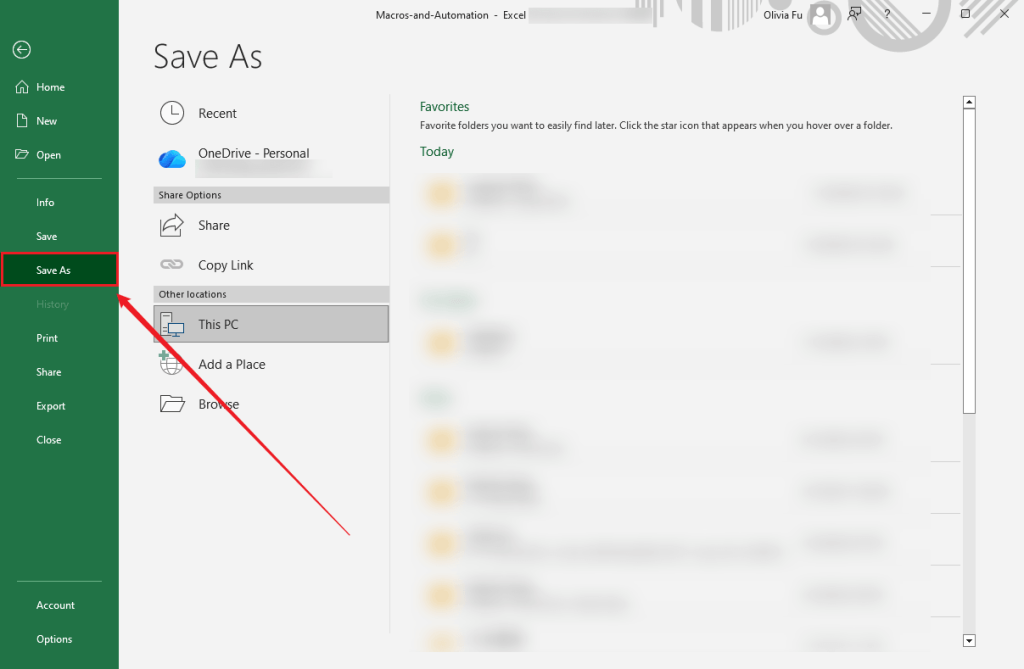
Step 2. Optionally, modify the macro-enabled workbook as needed. Then click File and select Save As.
Step 3. Next, choose a destination folder, give a name to the file, open the Save as type dropdown menu, and select PDF.
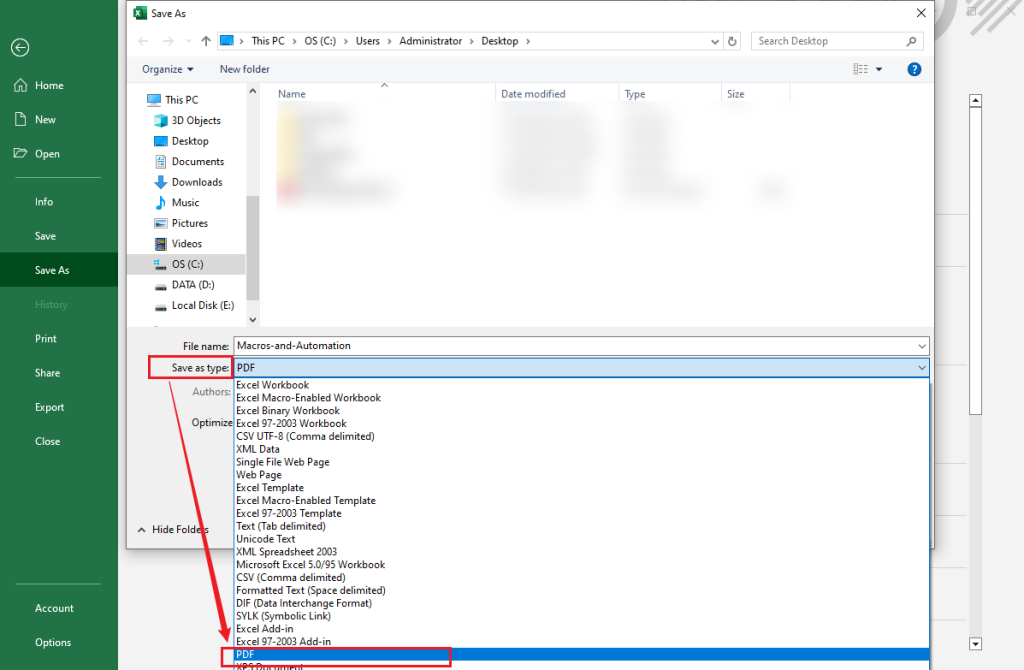
Step 4. Finally, click the Save button to save the PDF file.
Option 2. Export XLSM to PDF
You can also use Excel’s built-in Export feature to publish an XLSM workbook as a PDF.
Step 1. Open the XLSM workbook in Excel.
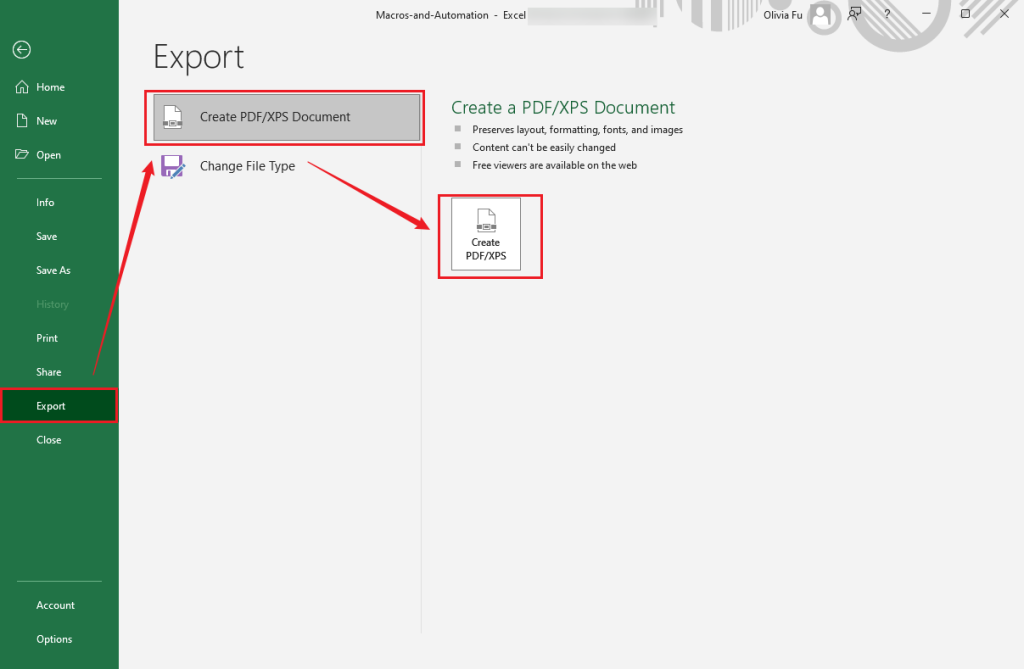
Step 2. Click File, select Export, and choose Create PDF/XPS Document. Then click Create PDF/XPS.
Step 3. Select a destination folder, enter a file name, and click Publish to save the PDF file.
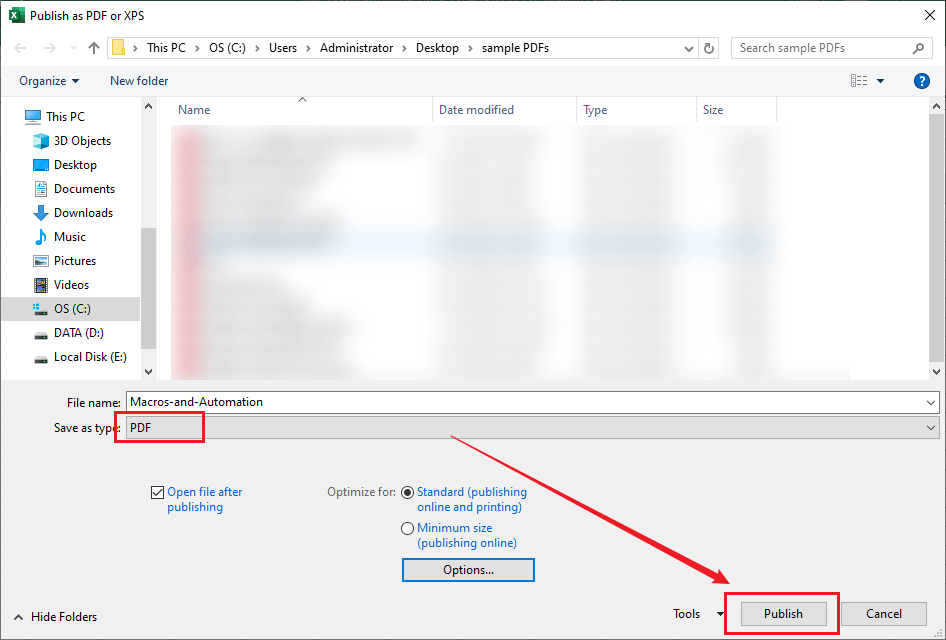
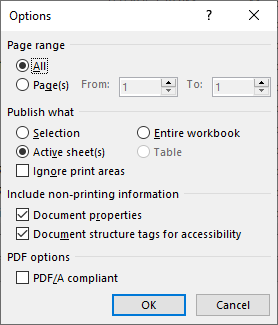
Optionally, before publishing, click Options if you want to control which worksheets or pages are included.
Tips for Converting XLSM to PDF Without Losing Formatting
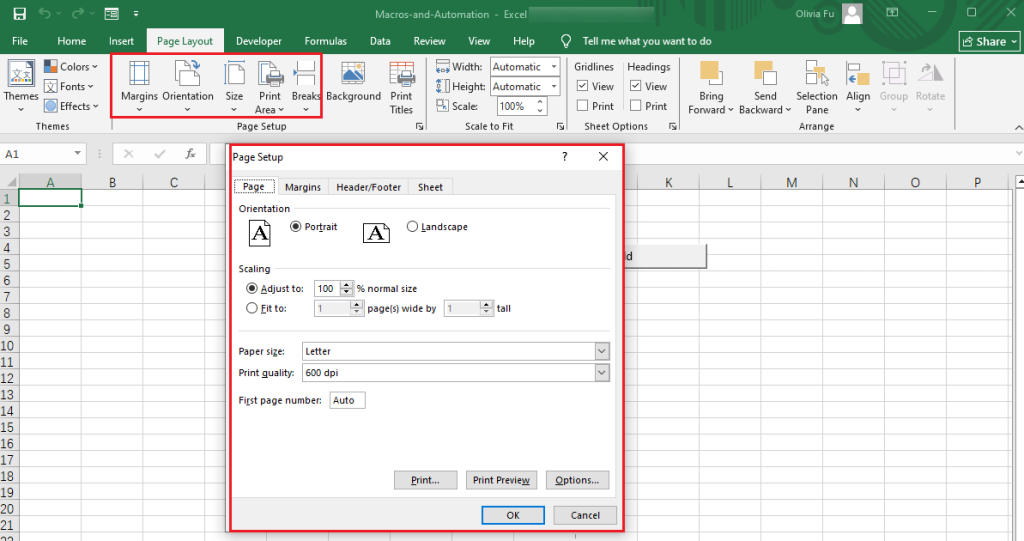
If your workbook contains multiple worksheets, wide tables, or complex charts, you’d better follow the tips below to save an XLSM file to a PDF without losing formatting.
- Print Area: Select the cells you want to include and set the print area under Page Layout > Print Area.
- Orientation: Choose Portrait or Landscape based on your spreadsheet layout.
- Scaling: Use the Fit All Columns on One Page option when appropriate to prevent columns from being split across pages.
- Margins: Adjust page margins to make better use of the printable area.
- Page Breaks: Preview page breaks to ensure tables and charts are not divided awkwardly.
Free Way to Convert XLSM to PDF for Free Using JOPDF
If you don’t have Microsoft Excel installed, it is convenient to convert an XLSM file to a PDF with a dedicated PDF converter. JOPDF is one of the best free PDF converters available for Windows, macOS, and Linux. It supports converting PDFs to and from Excel, Word, PowerPoint, and image formats. Its Office to PDF converter enables you to convert XLSM to PDF effectively. What’s more, JOPDF can convert multiple files at once. If you need, you can also use it to convert PDF to XLSM for free.
Here, let’s learn how to convert XLSM to PDF without Microsoft Excel.
Step 1. Click the button below to download and install this free XLSM to PDF converter on your PC. You can also go to JOPDF’s download page to download the corresponding version.
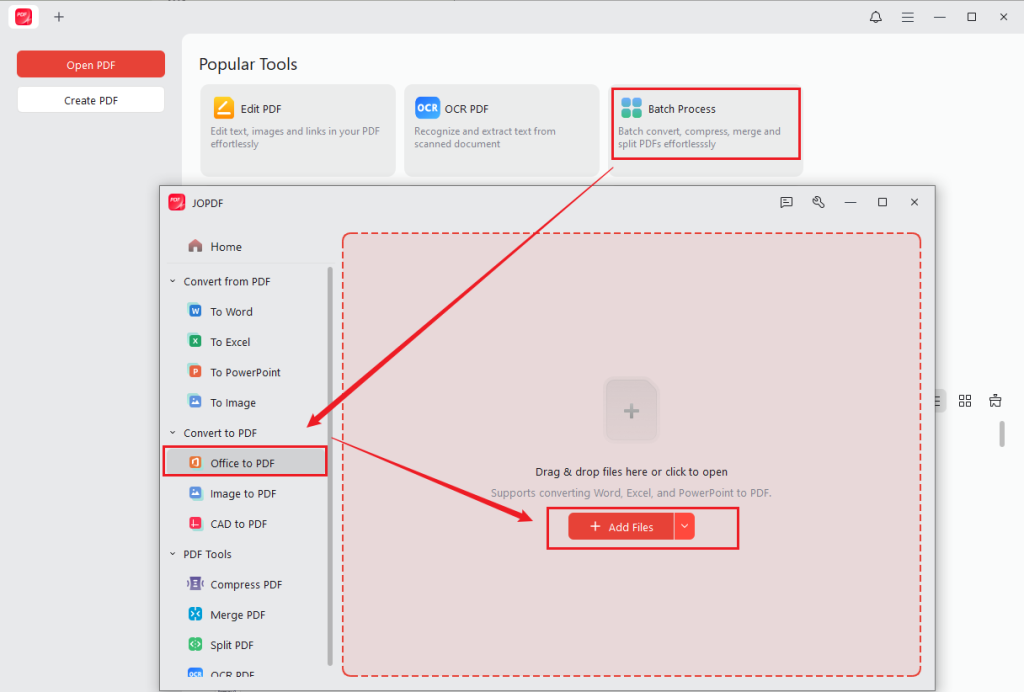
Step 2. Launch JOPDF, click Batch Process, and select Office to PDF. Then click Add Files to open the XLSM file you need to convert.
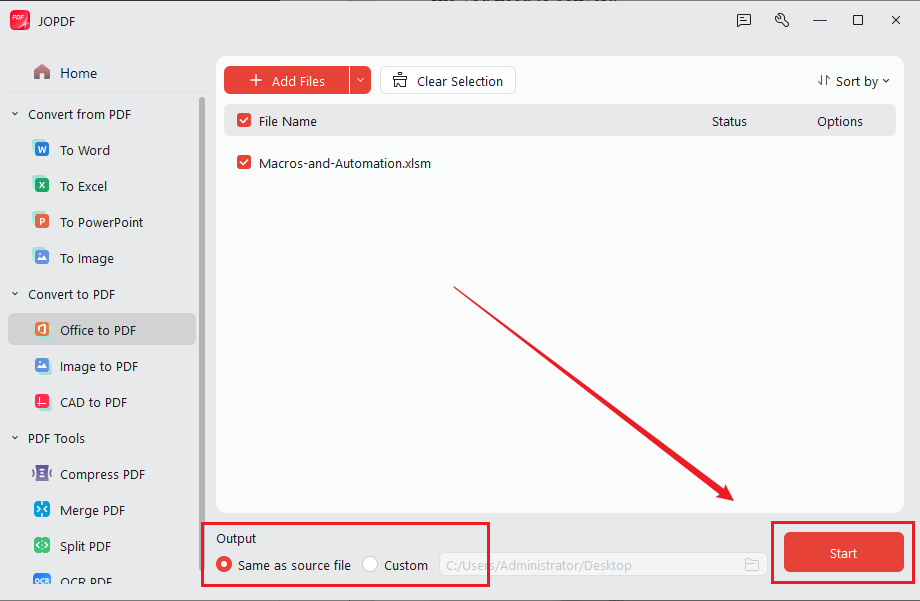
Step 3. Select the saving path and click Start to enable the XLSM to PDF conversion process.
After conversion, you can use JOPDF to view the PDF, add annotations, edit the PDF text, or resize the PDF page as needed.
How to Convert an XLSM File to PDF for Free with LibreOffice Calc
In addition, you can also try LibreOffice Calc as a free alternative to Microsoft Excel for opening and exporting many Excel workbooks, including XLSM files. It is a free and open-source desktop tool. You can use it to export an XLSM file as a PDF for free. Below is how:
Step 1. After installing LibreOffice Calc on your PC, launch it.
Step 2. Click File > Open and select your target XLSM file. Then review the spreadsheet content and formatting.
Step 3. Click File, move to Export As, and select Export as PDF.
Step 4. Next, adjust the PDF export settings. Once done, click Export and choose a destination folder to save the PDF.
How to Convert XLSM to PDF Online for Free with CloudConvert
If you don’t want to install desktop software, you can use an online XLSM to PDF converter. You can handle XLSM files through a browser. CloudConvert is a reliable and safe choice. It is an online file converter that supports over 200 formats for documents, images, audio, video, archives, and more. It offers a dedicated XLSM to PDF converter for saving XLSM files as PDFs. What’s more, you can use CloudConvert to convert PDF to PNG, XLSX, MOBI, TXT, and other formats.
Here’s how to convert an XLSM file to a PDF online for free with CloudConvert.
Step 1. Open your browser and visit the CloudConvert XLSM to PDF converter.
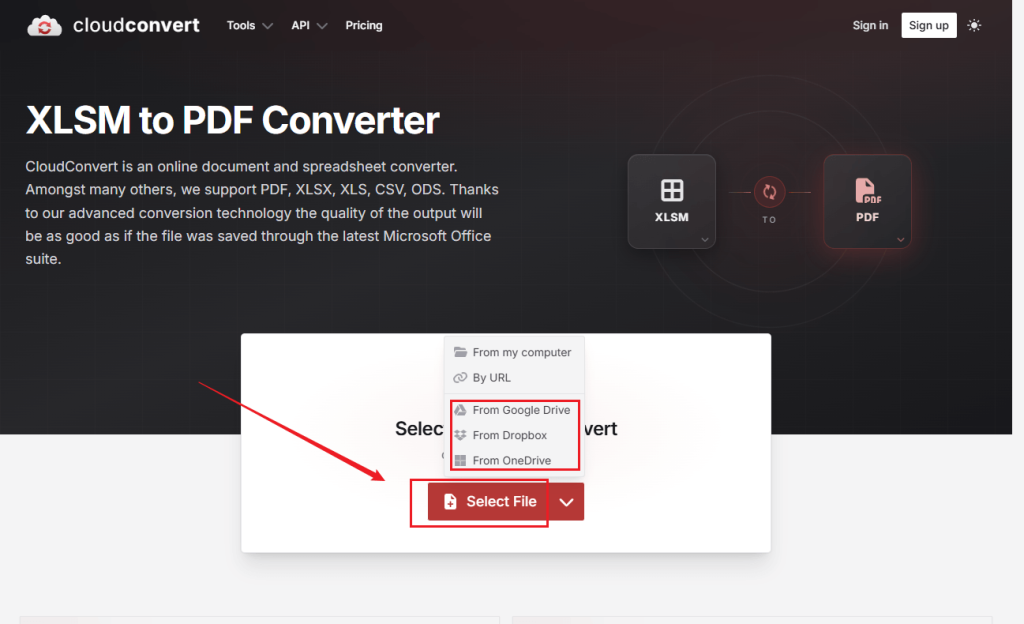
Step 2. Click Select File and upload your target XLSM workbook from your device. Or open the dropdown menu and choose to upload from Google Drive, Dropbox, or OneDrive.
Step 3. Confirm that PDF is selected as the output format. Optionally, click Options to adjust settings about page range and spreadsheet.
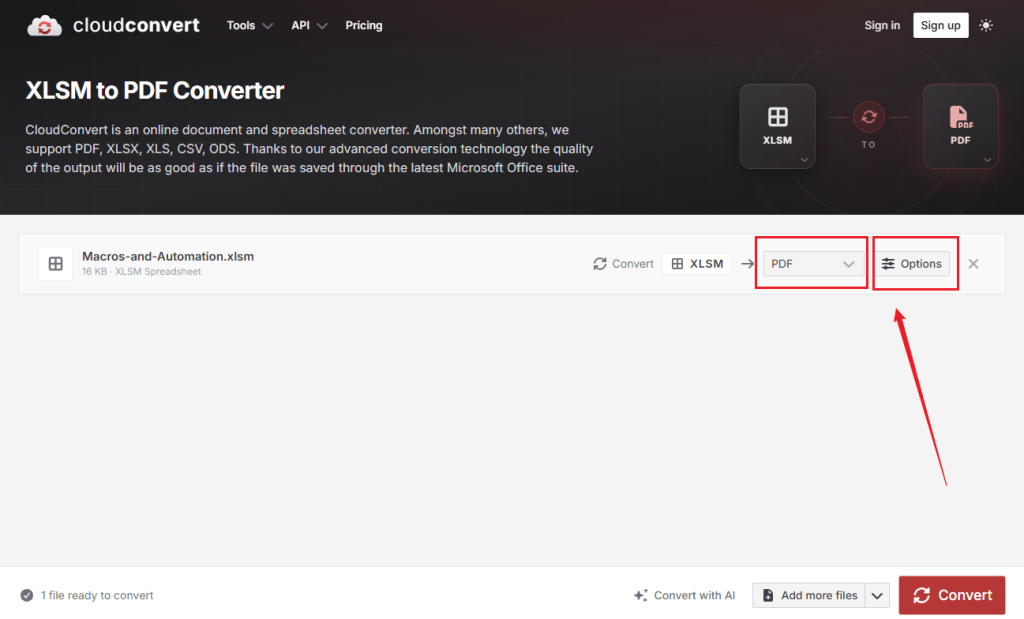
Step 4. Click Convert to start the conversion process. When the conversion finishes, click Download to save the PDF.
XLSM to PDF Converter: Which Method Should You Choose
Which XLSM to PDF converter should you choose? You need to make the choice based on your practical needs, such as whether you need offline conversion or advanced spreadsheet formatting. Here is a comparison of the four methods:
| Tool | Cost | Conversion type | Best for |
| Microsoft Excel | Paid software | Offline | Native XLSM support and layout control |
| JOPDF | Free | Offline | Office-to-PDF conversion and PDF management |
| LibreOffice Calc | Free | Offline | Free spreadsheet conversion |
| CloudConvert | Limited free usage | Online | Brower-based XLSM-to-PDF conversion |
To Wrap Things Up
To make an XLSM file easier to share, print, and view across different devices, consider converting it to PDF. How to convert XLSM to PDF? Microsoft Excel is a convenient choice if you want native XLSM support and control over spreadsheet layouts. If you prefer a free option, JOPDF and LibreOffice Calc are worth considering. You can also use CloudConvert for online conversion. Consider your needs first, make the final choice, and try to convert your XLSM files to PDFs now.
FAQs
Table of Contents
Your Best Free PDF Expert in PDF editing, compressing, converting, annotating, protect, organizing, and more.
Free DownloadWindows · macOS · Linux

Olivia
“Olivia is an editor at JOPDF, where she writes practical guides and insightful articles on managing PDFs—covering topics like editing, annotating, converting, and organizing files efficiently. Passionate about clear communication and digital productivity, Olivia enjoys spending her free time cooking, watching movies, and hiking to unwind and find inspiration for her writing.”