How to convert JPG to Word document? Typing out text from an image or screenshot can easily drain your afternoon energy. In this quick guide on JOPDF, we will show you exactly how a JPG to Word workflow turns flat pictures into flexible files. We will cover free methods, online security tips, and a clever offline trick to make your editing smoother.
Summary :
Quick Comparison: Which JPG to Word Method Should You Use?
| Method | Best For | Free? | Editable Output? | Works Offline? | Privacy |
| Online Converter | Quick one-off jobs, no install | Usually | Yes (with OCR) | No | Files go to server |
| JOPDF (Desktop) | Regular use, privacy, batch jobs for JPG to PDF | Yes | Yes | Yes | Local (no upload) |
| Google Docs | Already have Google account | Yes | Yes | No | Files on Google servers |
| Microsoft Word Trick | Already have Word, simple images | Yes (if you have Word) | Yes | Yes | Local |
If you only need a one-time conversion and privacy is not a big concern, an online JPG to Word converter free works fine. If you want full control and your files to stay on your computer, a desktop tool like JOPDF is a better choice.
Also See: How to Convert PDF to Word Without Formatting Errors (2026 Guide)
Method 1: Convert JPG to Word Using Online Converters
The most straightforward way to convert JPG to Word is using an online JPG to Word converter. You do not need to install anything. Everything happens in your browser.
We found that most online JPG to Word converter free tools work well for simple documents. But they have some limits. File size caps are common. Some tools only allow one or two conversions per day without an account. And your files go up to their servers, which may not be ideal for private content.
Even with those limits, online JPG to Word converter tools are a solid choice for quick, one-off needs. In this way, it’s important to choose a reliable online image to Word converter.
Step 1: Open your browser and go to a trusted free JPG to Word converter site.
Step 2: Upload your JPG image and choose “Word” or “DOCX” as your output format.
Step 3: Click the Convert button. Wait a few seconds. Then download your JPG to Word document.
Also See: Free PDF to Google Docs Converter – Fix Formatting Loss (2026)
Method 2: Convert JPG to Word Document with JOPDF
We recommend using JOPDF to convert JPG to Word. JOPDF is a free PDF editor that also does document conversion. It works on Windows, Mac, and Linux. And it processes everything on your computer, so your files stay private.

JOPDF – The Best Free PDF Editor
 User Rating: 4.8
JOPDF Is a 100% free POF editor for Windows, macOS, and Linux. Edit text, add images, annotate, sign, and more. No limits, no ads, no subscriptions, Fast, simple, and powerful, take full control of your PDFs in seconds!
Why JOPDF is a good JPG to Word converter:
- It is free. No trial period, no watermark, no credit card required.
- It works offline. You do not need the internet to convert JPG to Word.
- Your files stay on your computer. This is better for privacy compared to online tools.
- It supports batch conversion. You can convert image to PDF for multiple files at once.
How to convert JPG to Word document using JOPDF:
Step 1: Download and install JOPDF and open the software.
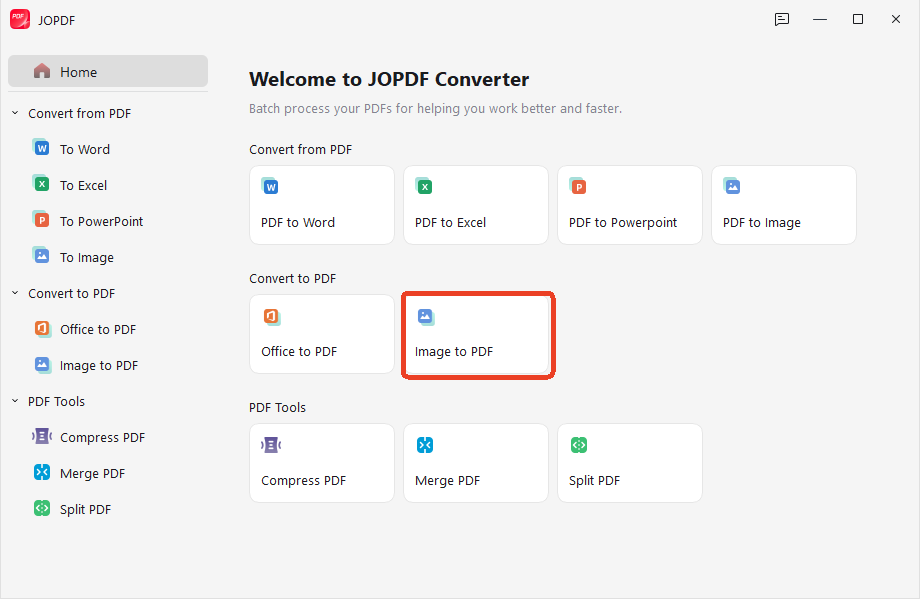
Step 2: Go to Batch Process > Image to PDF and upload your JPG files.
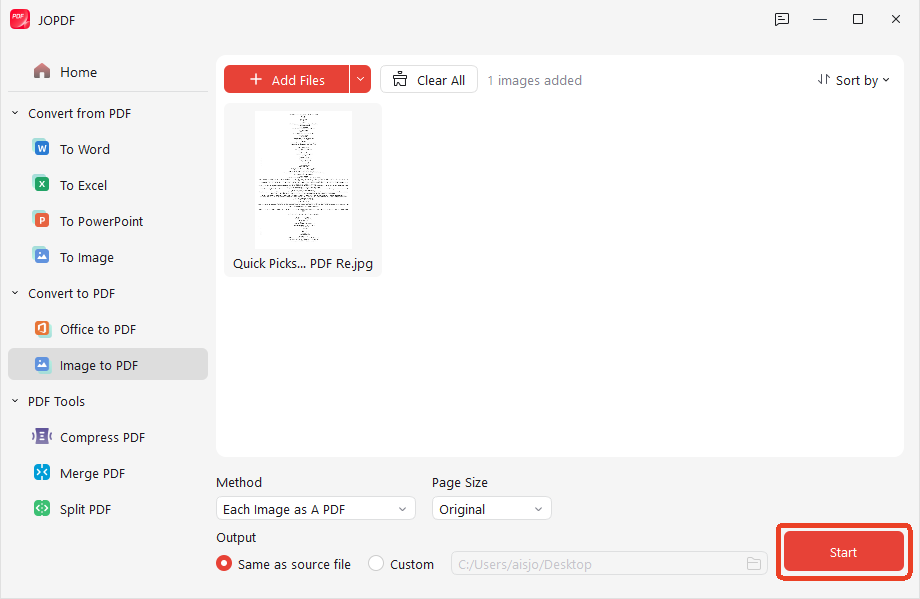
Step 3: Configure the method, page size, and output and click Start.
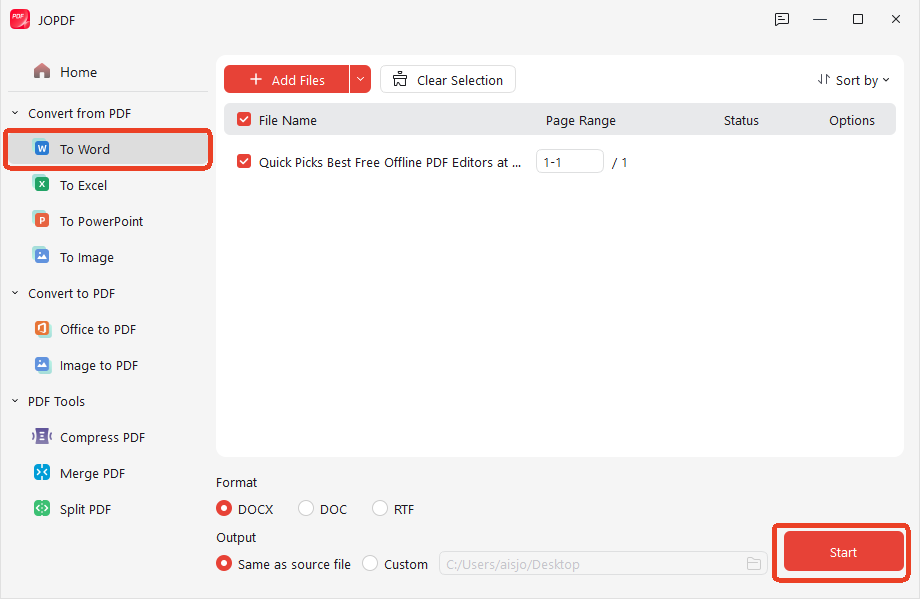
Step 4: Then switch to the To Word option in the same interface and upload the converted PDF file. Choose the format and click Start.
Also See: 7 Top Free PDF to MIDI Converters – How to Convert Sheet Music to MIDI?
Method 3: Convert Picture to Word Using Microsoft Word
You might already have Microsoft Word on your computer. There is a trick to convert picture to Word using just Word and the built-in print-to-PDF feature. We tested this method and found it works for many common documents.
Step 1: Open a blank document in Microsoft Word, click the Insert tab, and add your picture page.
Step 2: Go to File, choose Save As, and select PDF from the file extension dropdown menu.
Step 3: Close that file, then go back to Word and open the newly saved PDF document directly.
Step 4: Word will show a message: “Word will convert your PDF to an editable Word document.” Click “OK“.
The PDF image will open in Word. You should be able to select and edit the text.
It works best for images with clear, printed text. Scans with good contrast convert well. But if the original JPG is blurry or has decorative fonts, the results may not be perfect.
One thing to keep in mind: this method does not give you much control over the OCR process. It is a simple way to convert image to Word if you already have Word and do not want to use an online tool.
Method 4: Convert JPG to Word Editable with Google Docs
If you already use Google Drive, you have a free way to convert image to Word document without any extra software. Google Docs has built-in OCR. It can read text from images and turn it into editable text.
This method is popular because it supports many languages. It also works on any device with a browser.
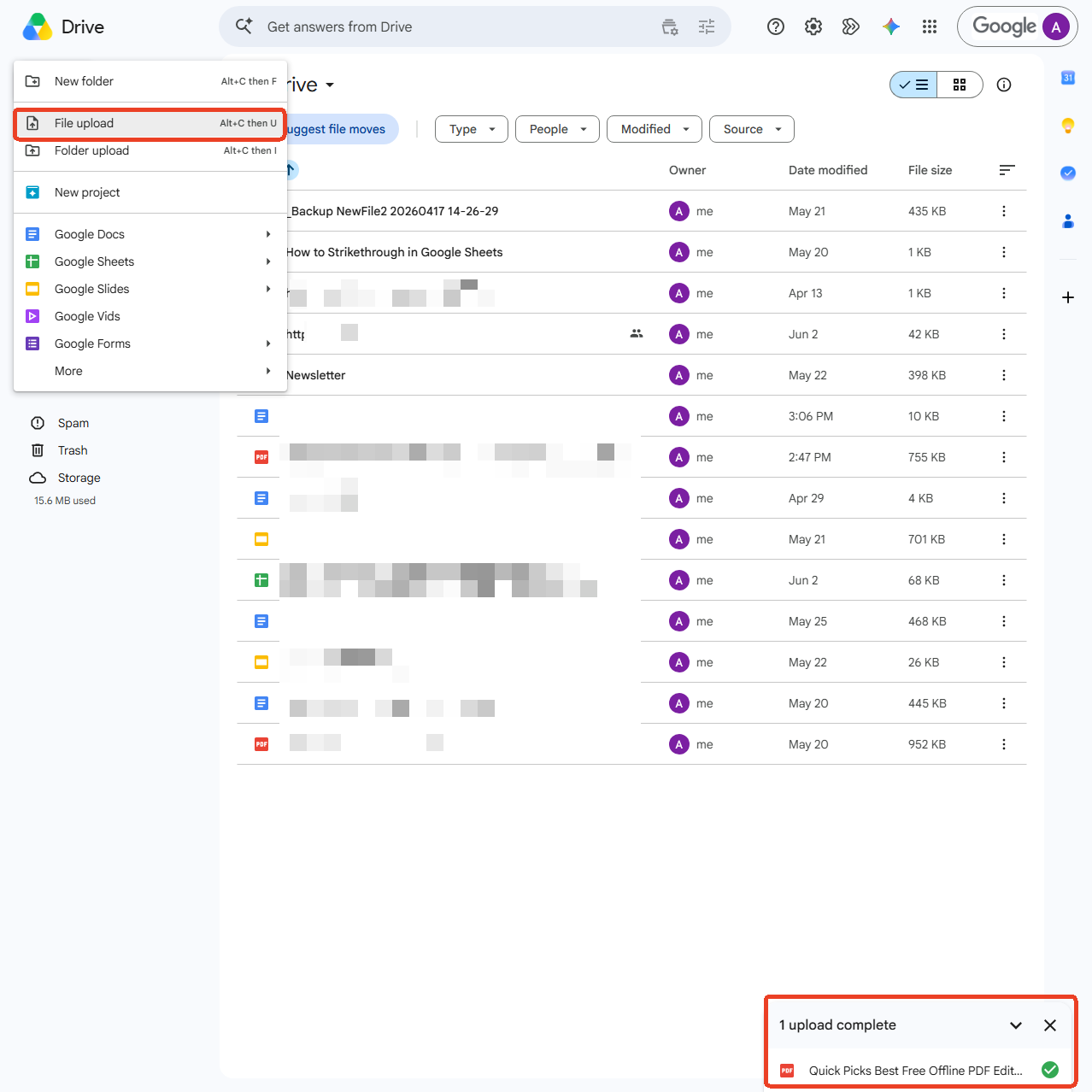
Step 1: Log into your Google Drive account and click New > File Upload. Select your JPG image and upload it.
Step 2: Once uploaded, right-click on the file. Choose Open with and then Google Docs.
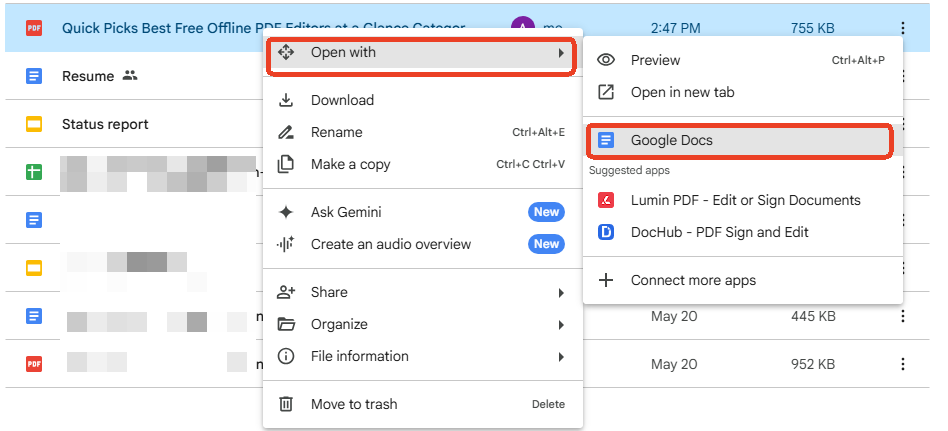
Google Docs will open a new document. Behind the image, you will see the extracted text. Google has already converted it into selectable text. Check the text for any errors and fix any mistakes you see.
Step 3: Go to File > Download > Microsoft Word (.docx). This saves it as a JPG to Word document.
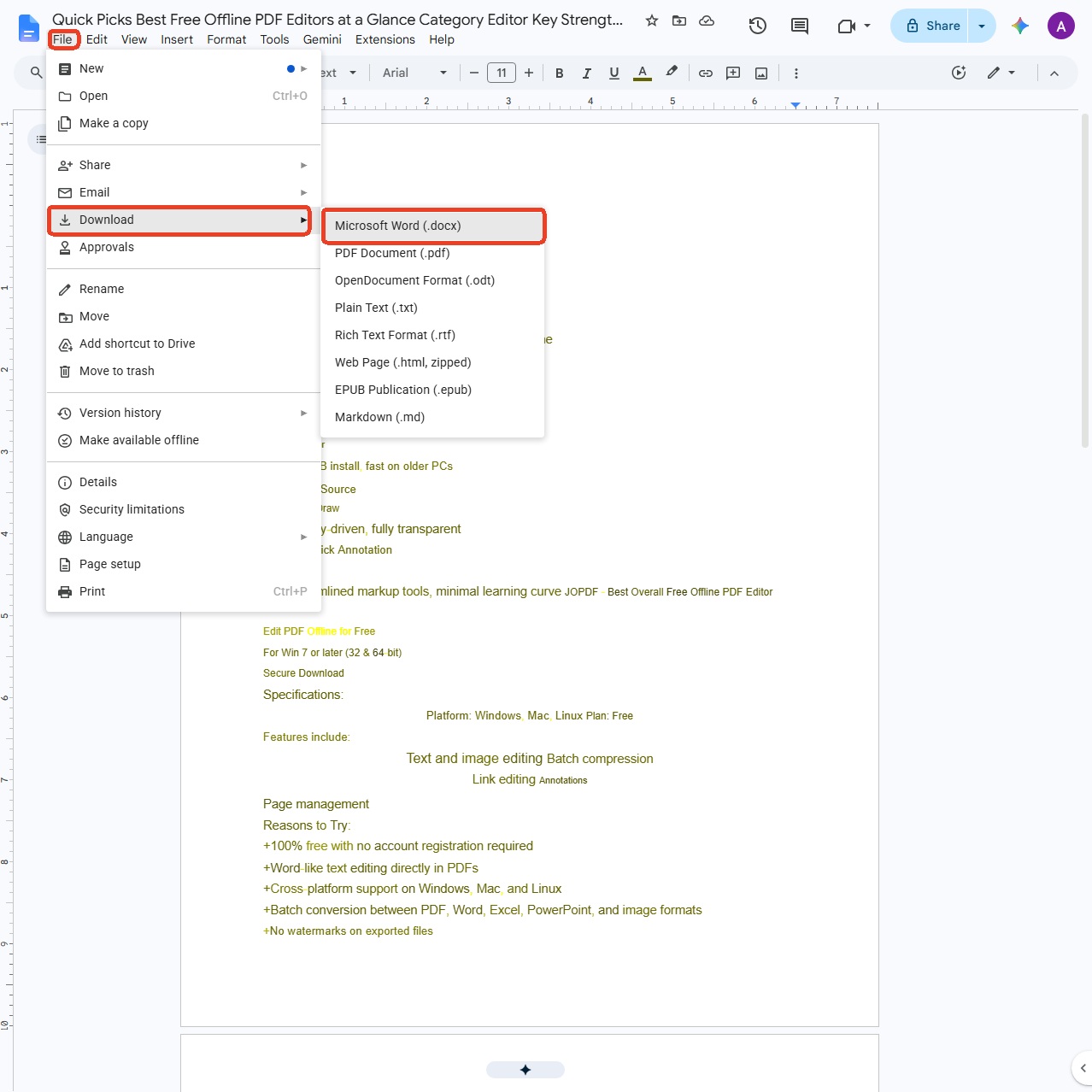
This method gives you a JPG to Word editable file for free. It works for scanned documents, photos of text, and screenshots. The main downside is that formatting might shift. Tables and columns may not come through perfectly. But for plain text, it is a reliable way to convert JPG to Word free.
Also See: Fixed! How to Save Google Doc as PDF for Desktop, Mobile, and Chromebook
Tips for Better JPG to Word Results
The quality of your output from a JPG to Word converter depends a lot on the source image. Small changes can make a big difference in the final JPG to Word document.
Tips for better conversion results:
- Use a sharp image. If the text looks blurry to your eyes, OCR will struggle too.
- Aim for 300 DPI if you are scanning a document. Higher resolution helps.
- Good lighting is important when using a phone. Avoid shadows and glare on the page.
- Keep the page flat and straight. Text at an angle is harder for OCR to recognize.
- Crop out the background. Remove desks, hands, or walls around the document.
- Increase contrast if the text is light gray or faded. Dark text on a light background works best.
- Choose the correct language in your JPG to Word converter settings. This improves accuracy for non-English text.
JOPDF is a completely free desktop application that helps you organize and clean up your images before executing an image to Word translation.
- Batch Edge Cropping: Automatically slice away dark background borders, desk surfaces, or messy shadows from your photos so the text recognition tools can scan lines accurately.
- High-Ratio Image Optimization: Compress heavy photo folders by up to 90% without making the underlying Words look blurry, allowing for smoother data reading.
- Seamless Image-to-PDF Bundling: If you have ten separate page screenshots, you can drop them into JOPDF to stitch them into a single, clean document package before running your final convert image to PDF commands.
These tips apply whether you use an online free JPG to Word converter, Google Docs, or desktop software like JOPDF. Start with a clean image, and you will get a cleaner JPG to Word document.
Conclusion
So, how to convert JPG to Word in a way that fits your needs? We have covered four reliable methods. The best method depends on your situation. JOPDF is a solid choice because it does not ask for a subscription, does not upload your files to a server, and gives you a real editable JPG to Word document. You can download it from the JOPDF website and keep it on your computer.
No matter which method you pick, you no longer have to retype text from images. Save yourself the time and hassle. Try one of these methods the next time you need to convert picture to Word.
FAQs
It depends on the layout. Simple documents like letters or lists convert well. Complex layouts with columns, tables, or graphics often need some cleanup in Word after you convert picture to Word. The text will be there, but you may need to adjust spacing and alignment.
For most everyday documents, online converters are fine. But your image is uploaded to a server. For sensitive documents like contracts, medical records, or financial papers, we recommend using a desktop tool like JOPDF. Your files stay on your computer, which is better for privacy
Most JPG to Word converter tools also support JPEG, PNG, BMP, and other common formats. JPG and JPEG are the most widely supported. If you have a PNG or other format, you can usually convert it the same way.
Table of Contents

Your Best Free PDF Expert in PDF editing, compressing, converting, annotating, protect, organizing, and more.
Free DownloadWindows · macOS · Linux

Anna
Editor
“Anna, Editor-in-Chief and PDF expert, delivers deep insights into PDF document technology trends. She is dedicated to helping readers optimize their digital lives. When not writing, Anna loves exploring local cafes and reading, blending her technical expertise with a love for storytelling.”