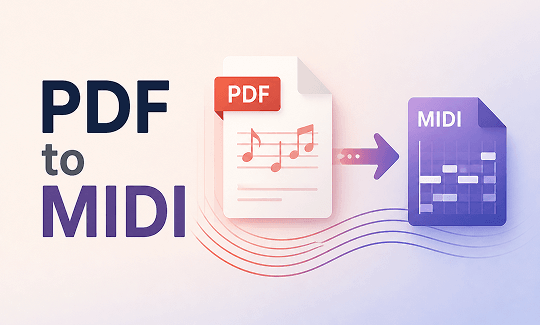
Sheet music in PDF format preserves every note perfectly, but you can’t play it, edit it, or import it into your music software. A good PDF to MIDI converter solves this by turning static notation into digital instructions your computer and instruments can read. We’ve tested and compared seven tools on JOPDF, from free options like MuseScore to professional-grade software, so you can turn your scores into editable, playable MIDI files without the guesswork.
Summary :
Quick Guide: Best PDF to MIDI Converters at a Glance
| Converter | Platform | Price* | Best For |
| MuseScore | Windows, Mac, Linux | Free | All-purpose free PDF to MIDI conversion |
| Audiveris | Windows, Mac, Linux | Free (Open Source) | AI-powered recognition |
| PDFtoMusic | Windows, Mac | Free (1st page) / Paid | Professional accuracy |
| PlayScore 2 | iOS, Android | Free / Subscription | Mobile scanning |
| ScanScore | Windows, Mac | Paid | Complex scores |
| SoundSlice | Web | Free / Paid | Interactive sheet music |
| SmartScore64 | Windows, macOS | Free / Paid | Complex scores |
*Prices are approximate and may vary. Check each tool’s official website for current pricing.

JOPDF – The Best Free PDF Editor
 User Rating: 4.8
JOPDF Is a 100% free POF editor for Windows, macOS, and Linux. Edit text, add images, annotate, sign, and more. No limits, no ads, no subscriptions, Fast, simple, and powerful, take full control of your PDFs in seconds!
What Is PDF to MIDI Conversion?
If you try to open a musical document with a traditional text reader, the system will not see the musical notes. To turn a visual score to MIDI data, we use technology called Optical Music Recognition, or OMR. Just like a document scanner reads letters, an OMR engine reads staff lines, clefs, pitches, and rhythms.
Musicians love to convert sheet music to MIDI because MIDI does not store heavy, unchangeable sound waves. Instead, a PDF to MIDI file holds pure performance data, like how long a note lasts or how hard a key is pressed. Once you complete this conversion, you can drop the track into your favorite digital audio workstation (DAW) to change instruments, transpose keys, or fix timing errors. Finding a reliable PDF to MIDI converter depends on how clear your original page looks, as complex arrangements can sometimes challenge basic tools.
How to Prepare Your PDF for Better Conversion
The quality of your source PDF directly affects how accurate your MIDI output will be, and a few simple steps before you run any converter can make a noticeable difference.
- Use the highest resolution possible.
- Keep your pages straight.
- Remove unnecessary markings.
- Digitally created scores work best.
Tips
Using a reliable desktop app like JOPDF to prepare your files beforehand is the best way to ensure an accurate conversion. You can use JOPDF to straighten pages, crop out dark scanner margins, compress large songbooks, etc. JOPDF works offline and keeps your files on your computer the whole time. It’s 100% free and runs on Windows, Mac, and Linux.
Related Article: Garbled Text in PDF? 7 Proven Ways to Fix It (Step-by-Step Guide)
The 7 Best PDF to MIDI Converters
#1. MuseScore
MuseScore is the most widely recommended free tool for anyone looking to turn PDF sheet music to MIDI without spending money. It’s a full-featured music notation application that includes a built-in OMR service for importing scores, and because it’s open source, there are no page limits or paid tiers to worry about. Besides, it includes an online service that lets you process digital files and import them directly into your notation software workspace.
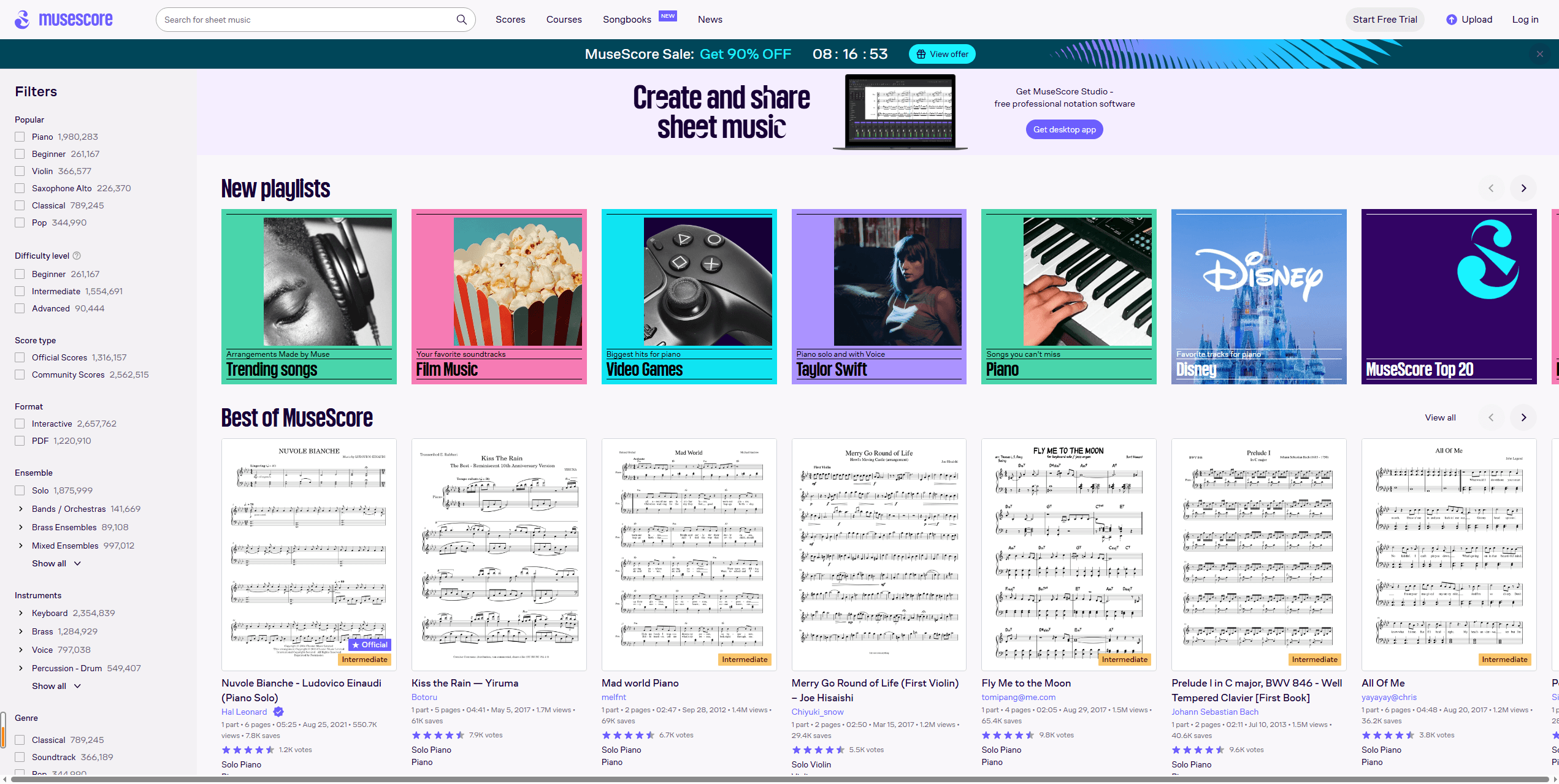
- Pros: It provides an excellent PDF to MIDI converter free workflow with zero hidden fees. Once your file is imported, you have access to a massive library of editing tools to fix any misplaced notes manually.
- Cons: The cloud-based engine can struggle with poor paper scans or handwritten notes. You also need an active internet connection to use the online import layout.
How to convert MuseScore PDF to MIDI?
Step 1: Download and install MuseScore from musescore.org. It’s available for Windows, Mac, and Linux.
Step 2: Open MuseScore and go to File > Import PDF. You’ll need a free MuseScore account.
Step 3: Upload your sheet music PDF. MuseScore’s online OMR service processes it and creates a project file you can download.
Step 4: Open the downloaded file in MuseScore and review it carefully.
Step 5: Go to File > Export, choose MIDI as the format, and save your file.
#2. PlayScore 2
If you prefer working on a mobile device, PlayScore 2 is a fantastic sheet music scanner for your smartphone or tablet. It can look at digital documents or use your phone camera to scan physical pages.
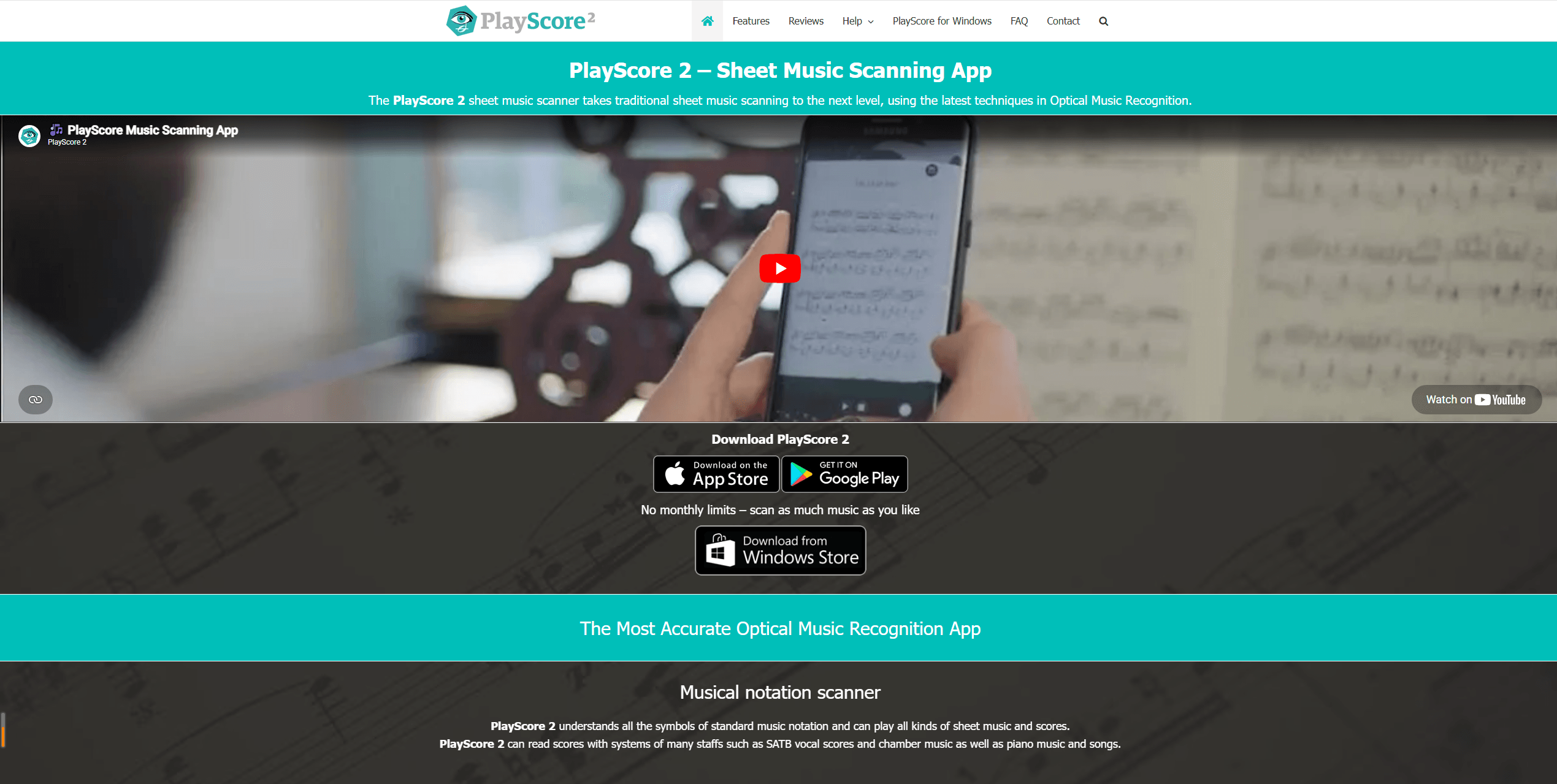
- Pros: It is highly portable and lets you scan sheet music to MIDI tracks while sitting at your piano or instrument. It handles multiple staff systems and complex instrumental layers quite well.
- Cons: You have to buy a premium subscription to export your results as a usable audio file. Very dense orchestral scores may still require small manual corrections after the scan.
How to scan sheet music to MIDI?
Step 1: Download PlayScore 2 from the App Store or Google Play Store.
Step 2: Import your PDF or photograph physical sheet music with your camera.
Step 3: The app automatically recognizes the notation. Select the pages you want to export.
Step 4: Tap share and choose Save as MIDI.
#3. ScanScore
ScanScore is a professional desktop and mobile program built from the ground up for scanning, playing back, and transposing digital sheet music.
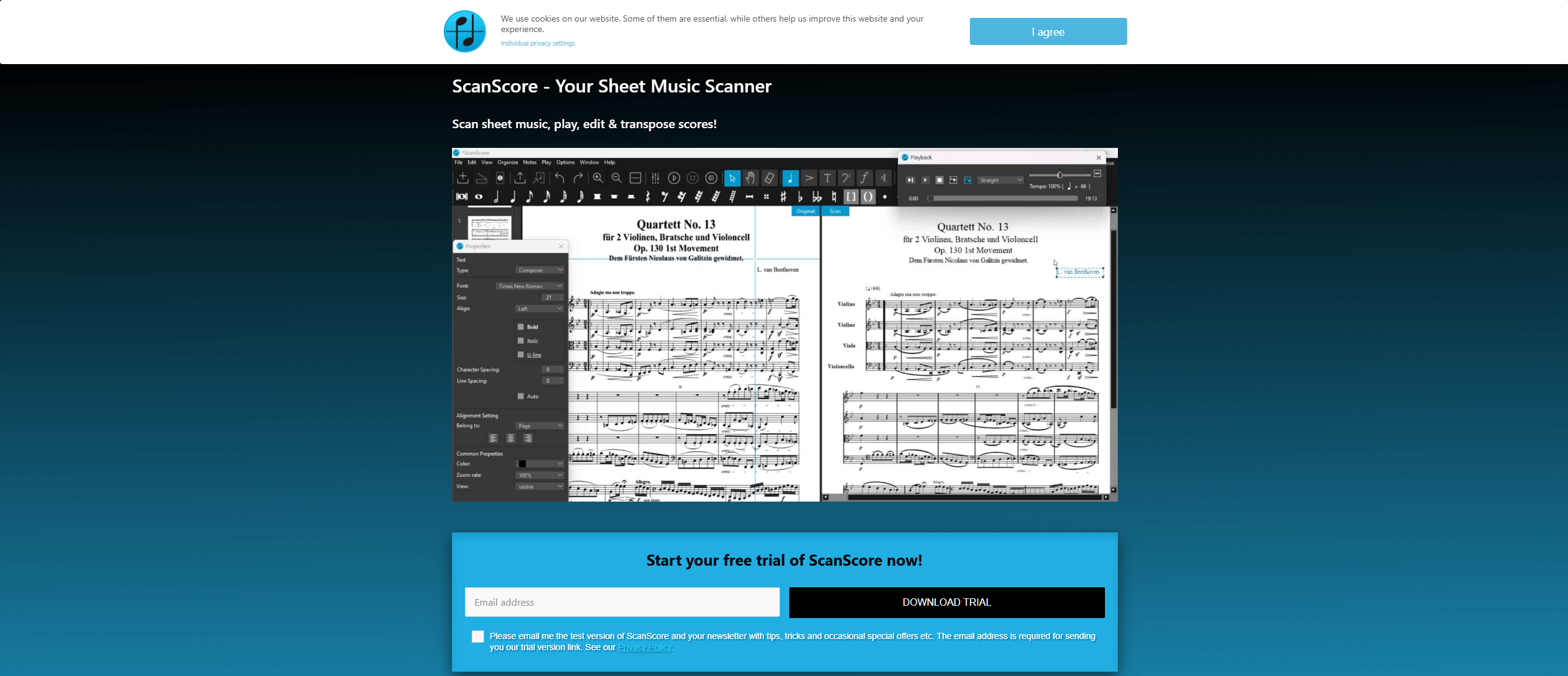
- Pros: It features a very helpful split-screen system that shows your original PDF right next to the new digital notes, making it easy to fix errors. It links up smoothly with major desktop notation programs.
- Cons: The full-featured versions are relatively expensive for casual hobbyists. The desktop application takes some time to learn if you have never used notation software before.
How to convert PDF to MIDI sheet music?
Step 1: Download and install ScanScore on Windows or Mac.
Step 2: Import your PDF. The software scans and identifies all notation elements.
Step 3: Use the correction tools to fix recognition errors. ScanScore gives you detailed control over individual symbols.
Step 4: Export as MIDI.
#4. Audiveris
For those who love open-source software, Audiveris is a standalone desktop application that utilizes deep learning models to process musical typography.
- Pros: It is a completely free PDF to MIDI converter that runs entirely offline on your computer. It gives you deep, advanced control over how the software interprets specific symbols and staff structures.
- Cons: The user interface looks quite old and technical, which can feel overwhelming for beginners. You have to handle a lot of manual layout adjustments to get a clean file.
How to convert Score to MIDI?
Step 1: Download Audiveris from its GitHub repository. It runs on Windows, Mac, and Linux with Java.
Step 2: Import your sheet music PDF. The software processes each page and highlights recognized symbols with color-coded confidence indicators.
Step 3: Review the output and correct any errors. The interface takes some getting used to, but the editing tools are capable once you learn them.
Step 4: Export the corrected score as a MIDI file.
#5. SmartScore64
This desktop program is a legendary choice for professional score scanning and high-fidelity MIDI exporting. We highly recommend it if you need to work with complex orchestral sheets, conductor partitions, or multi-part choral arrangements.
- Pros: Its advanced engine can read dense symphonic scores, text lyrics, and dynamic markings cleanly. It also includes an offline editing workspace and a multi-track MIDI mixer, allowing you to tweak your audio playback variables locally on your computer.
- Cons: The complete software versions require a significant financial investment for casual hobbyists. The user interface can also take some time to learn due to the sheer number of advanced features.
#6. PDFtoMusic
PDFtoMusic is a unique desktop application that takes a different approach to processing your files. Instead of looking at pixels like a camera, it reads the internal vector font data hidden inside digitally generated PDFs.
- Pros: It provides incredibly precise results because it extracts the exact notes written by digital notation apps. It compiles your PDF sheet music to MIDI tracks almost instantly with rare mistakes.
- Cons: It cannot read scanned paper documents, photos, or old historical sheets at all. The trial version restricts your file export to the very first page of the document.
How to convert PDF to MIDI free?
Step 1: Download and install PDFtoMusic on Windows or Mac.
Step 2: Open your PDF. The software scans and recognizes the musical content automatically.
Step 3: Preview the playback to verify accuracy. PDFtoMusic includes instrument sounds so you can hear what the recognized score sounds like.
Step 4: Export as MIDI. The free version handles only the first page.
#7. SoundSlice
SoundSlice is a modern, web-based interactive music sheet platform that boasts a massive global audience. It is deeply loved by music educators, guitarists, and online music schools because it seamlessly syncs sheet music with live video and audio tracks.
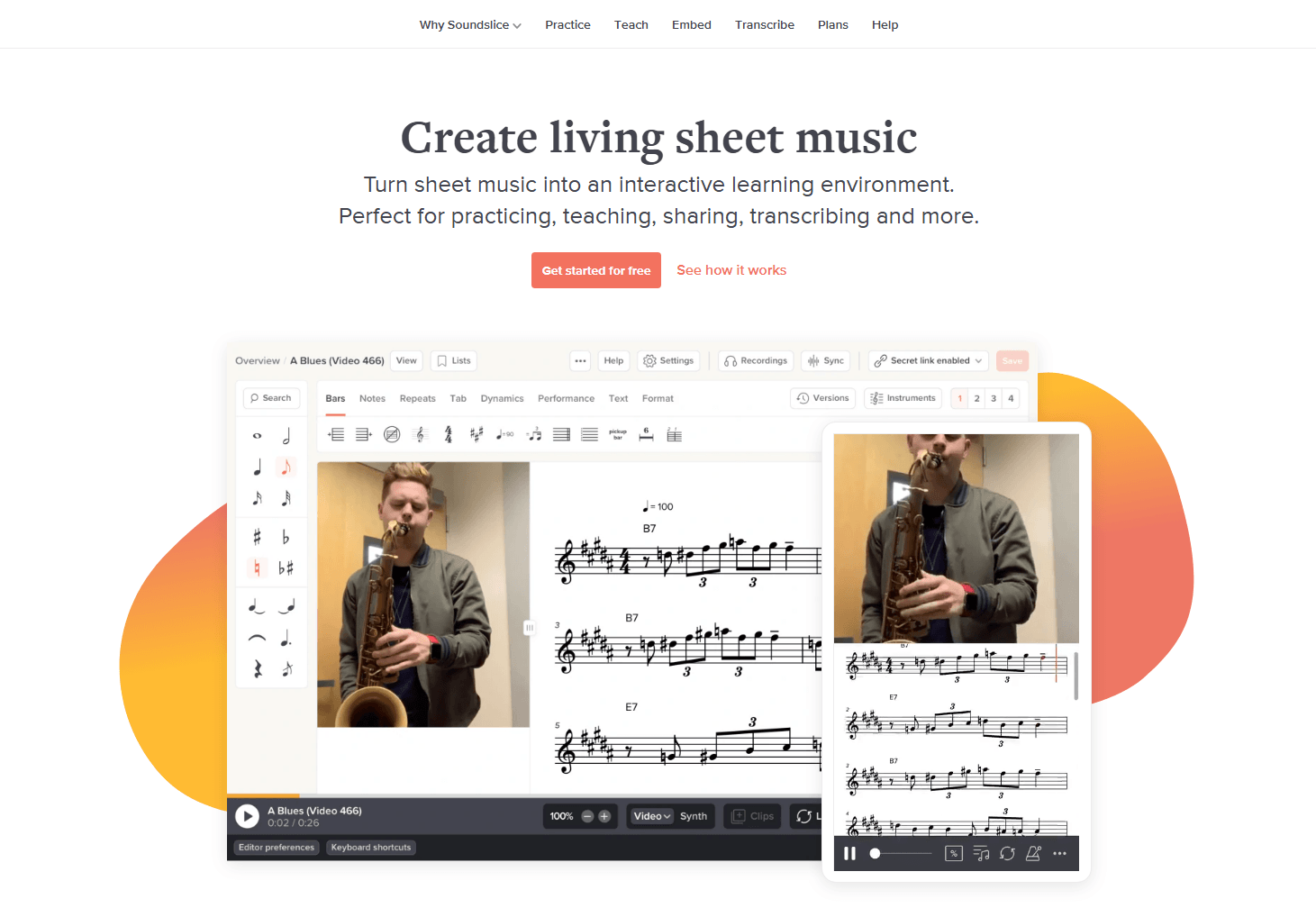
- Pros: You do not need to install any heavy software, meaning you can edit and playback your files directly inside your internet browser. It lets you link your scanned sheets with YouTube lessons or MP3 files, making it an amazing tool for daily practice.
- Cons: While the platform is smooth and highly popular, its cloud-hosted scanning tool might occasionally struggle with complex orchestral scores compared to specialized desktop software.
How to convert PDF to MIDI online free?
Step 1: Upload your PDF to SoundSlice’s website.
Step 2: The platform converts it and creates a synced, interactive version.
Step 3: You can play back the MIDI while watching the notation scroll, slow down passages for practice, or export the MIDI file.
Manage Your PDFs Before Conversion: How JOPDF Helps
No matter which PDF to MIDI converter online or desktop tool you choose, the output depends entirely on the visual quality of your input document. If you upload a dark scan with crooked pages, folded corners, or stray pencil marks, the music scanner will get confused.
Try JOPDF, this totally free PDF editor, to ensure the PDF to MIDI conversion succeeds.
JOPDF – The Best Free PDF Editor
User Rating: 4.8
JOPDF Is a 100% free POF editor for Windows, macOS, and Linux. Edit text, add images, annotate, sign, and more. No limits, no ads, no subscriptions, Fast, simple, and powerful, take full control of your PDFs in seconds!
Here is how JOPDF helps you optimize your musical documents locally before you send them to a conversion tool:
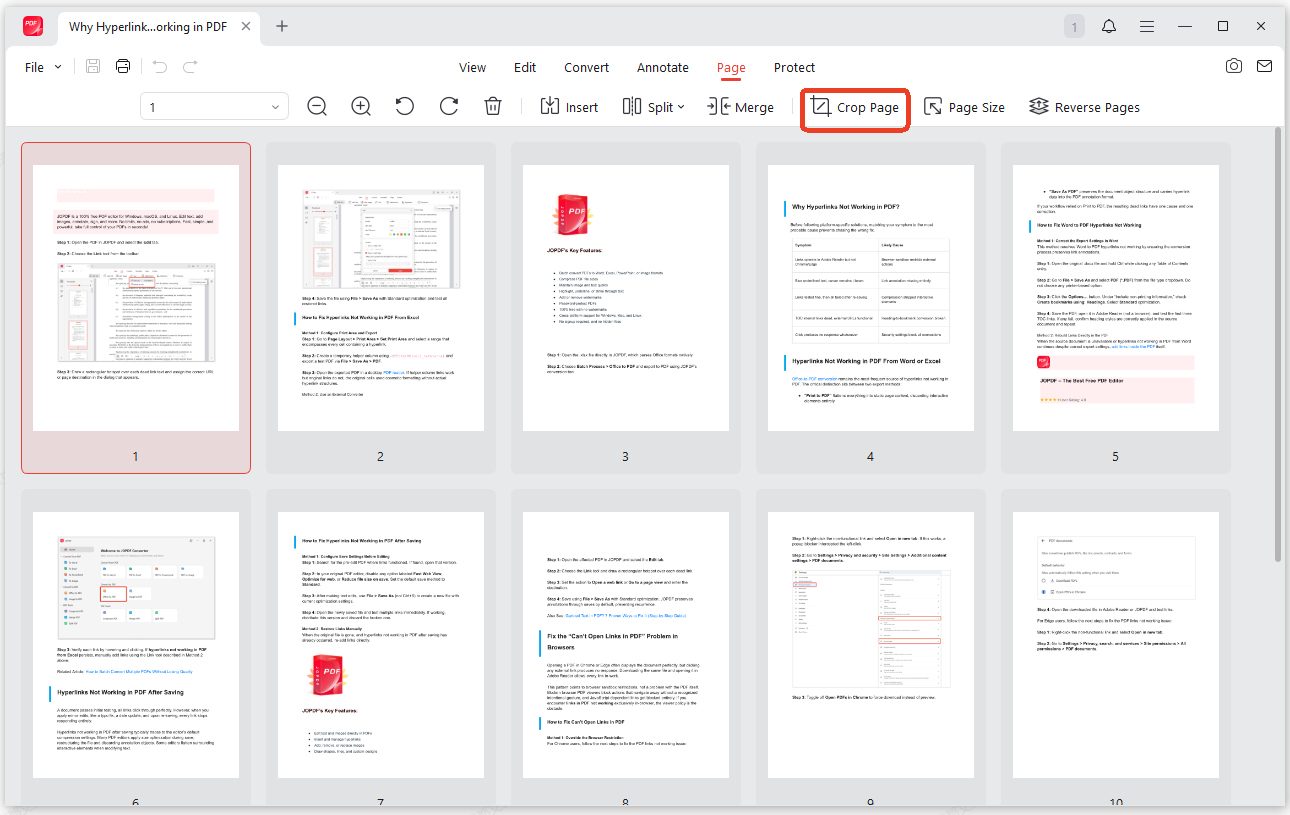
Crop Out Dark Scanner Margins: When you copy sheet music from an old book, the scanner often leaves dark shadows along the page borders. JOPDF lets you batch-crop these edges away so the music software can focus purely on the clean staff lines.
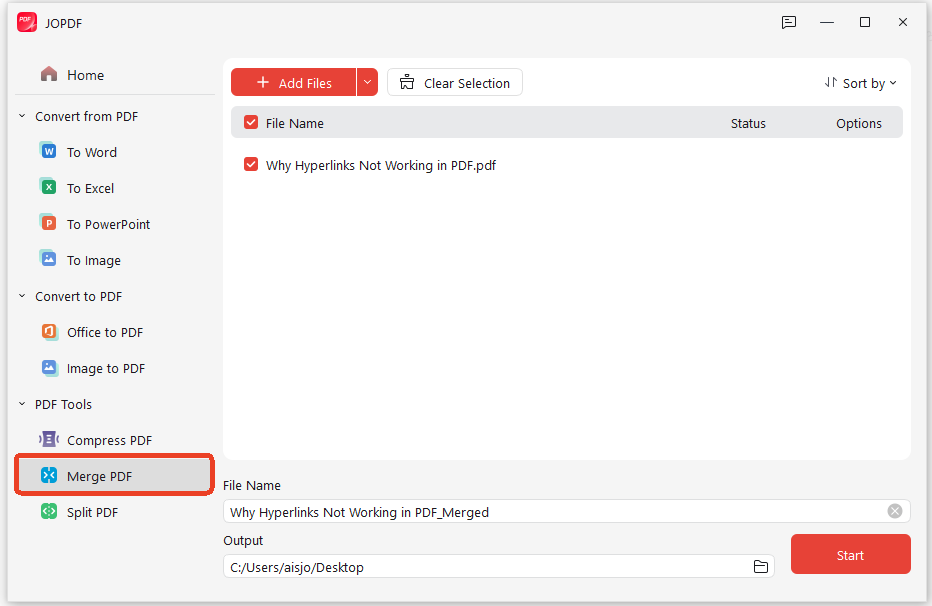
Merge Scattered Page Scans: If you used your phone to photograph an entire songbook page by page, you will end up with loose images. JOPDF lets you stitch those files together into a single, uncompressed, organized document that is ready for a PDF to MIDI converter online engine.
Compress Large Digital Songbooks: High-resolution color files can easily become too heavy, causing web tools to freeze or time out. JOPDF shrinks your document size by up to 90% while keeping the black staff lines and text markings perfectly sharp.
Conclusion
The right PDF to MIDI converter comes down to what you need most. MuseScore handles most situations for free with no limits on how much you can convert. Audiveris brings AI-powered recognition to the open-source world. PDFtoMusic offers the accuracy professionals depend on. PlayScore 2 puts conversion in your pocket, and SoundSlice adds interactive learning features that go beyond what a plain MIDI file can do.
Before you convert anything, make sure your source PDF is clean and straight. JOPDF helps you prepare your sheet music PDFs with tools for straightening, cropping, and enhancing your files. Download it at jopdf.com to give your converter the best possible starting point.
FAQs
No. ChatGPT cannot create binary MIDI files. It can help you generate text-based notation formats convertible to MIDI.
Table of Contents

Your Best Free PDF Expert in PDF editing, compressing, converting, annotating, protect, organizing, and more.
Free DownloadWindows · macOS · Linux

Anna
Editor
“Anna, Editor-in-Chief and PDF expert, delivers deep insights into PDF document technology trends. She is dedicated to helping readers optimize their digital lives. When not writing, Anna loves exploring local cafes and reading, blending her technical expertise with a love for storytelling.”
![4 Free and Proven Methods to Convert PDF to ODS [Detailed]](https://b.jopdf.com/wp-content/uploads/2026/10/convert-pdf-to-ods.png)