
Yes, you can easily save Google Doc as PDF in a few steps. This JOPDF guide includes clear step-by-step instructions for both Windows and Mac users. You can save Google Doc as a PDF by clicking File and downloading as PDF. For more methods, just keep reading and follow the steps.
Summary :
Why Save a Google Doc as a PDF?
PDFs serve a specific purpose that Google Docs cannot fulfill alone. A Google Doc is an editable file tied to your Google account. A PDF is a finished, portable document that opens identically on any device, operating system, or software.
The key advantages to save a Google Doc as PDF include:
- PDFs can open on Windows, Mac, Linux, Android, and iOS without special software.
- Formatting preservation ensures fonts, images, spacing, and page breaks remain locked in place.
- Read-only presentation signals that a document is final, not open to further edits.
- PDFs also compress well for email attachments and print accurately on any printer.
When you save a Google Doc as a PDF, you’re creating a version of your document that’s ready for the outside world – professional, polished, and portable.
Also See: Garbled Text in PDF? 7 Proven Ways to Fix It (Step-by-Step Guide)

JOPDF – The Best Free PDF Editor
 User Rating: 4.8
JOPDF Is a 100% free POF editor for Windows, macOS, and Linux. Edit text, add images, annotate, sign, and more. No limits, no ads, no subscriptions, Fast, simple, and powerful, take full control of your PDFs in seconds!
How to Save a Google Doc as a PDF on Desktop (Windows and Mac)
The desktop method is identical whether you’re on Windows or Mac, since Google Docs runs in a browser. There are two paths: direct download for speed, and print-to-PDF for layout control.
Method 1: Save Google Doc as PDF via Direct Download
This is the fastest way to save a Google Doc as a PDF on computer. It converts the Google Doc document into PDF in a single step with default settings.
Step 1: Open your document in Google Docs.
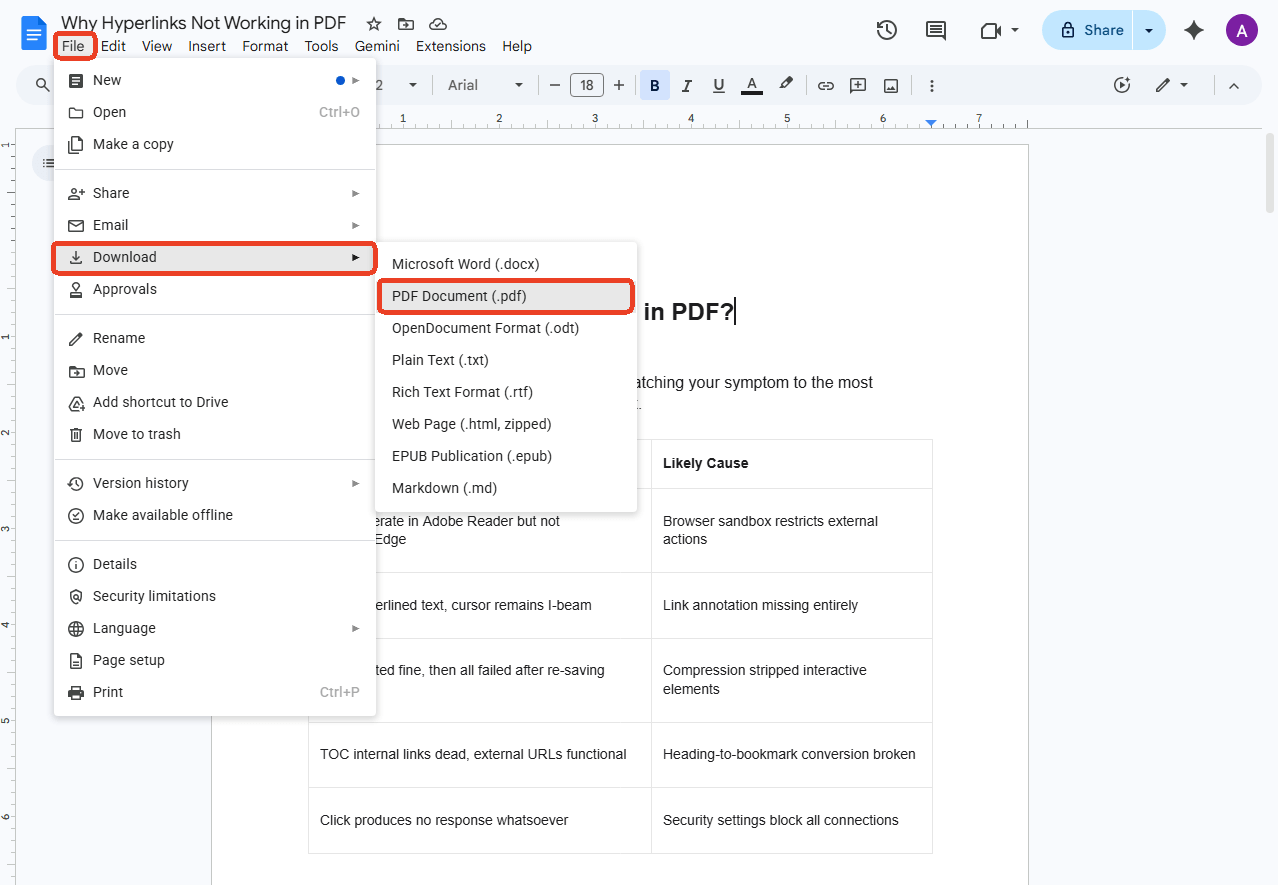
Step 2: Click File in the top-left corner of the screen.
Step 3: Hover over Download to expand the format options.
Step 4: Select PDF Document (.pdf). The PDF downloads immediately to your default Downloads folder.
Step 5: Open the downloaded file to verify that formatting, spacing, and page breaks are correct.
Method 2: Print Your Google Gocs to PDF
The print route gives you additional control over page setup, margins, and layout. It’s useful when the direct download produces formatting issues or when you need specific print settings.
This is also the preferred method for users who want to save a Google Doc as a PDF on Mac with system-level PDF rendering rather than Google’s export engine.
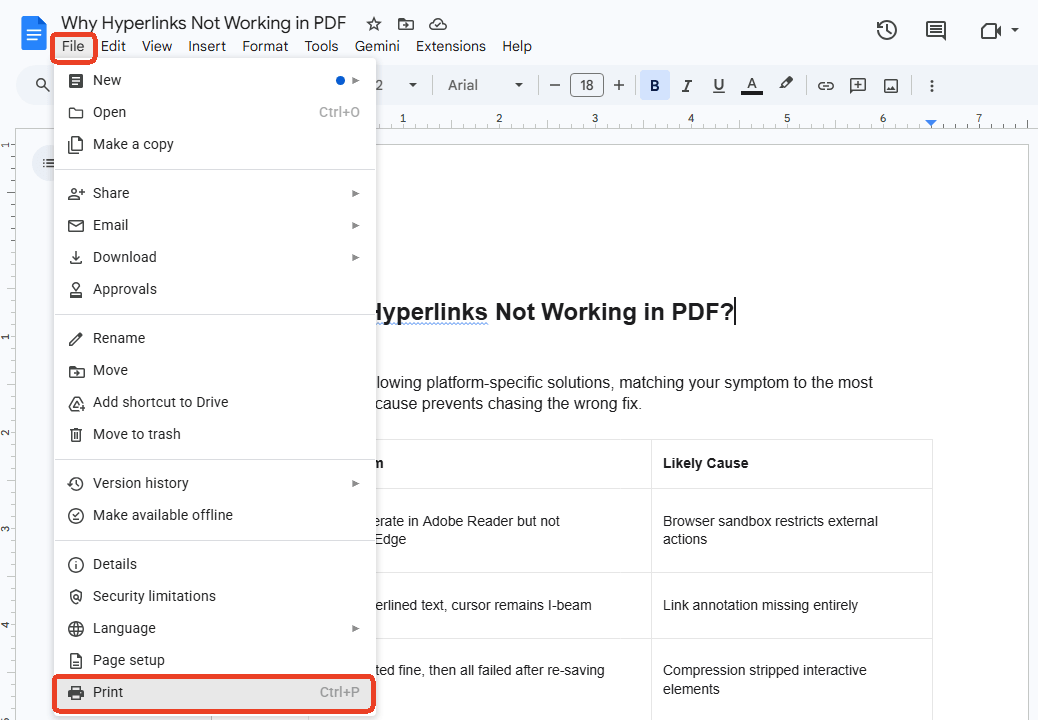
Step 1: Open your document and click File > Print, or press Ctrl + P (Windows) or ⌘ + P (Mac).
Step 2: In the print dialog, locate the Destination section and select Save as PDF from the dropdown.
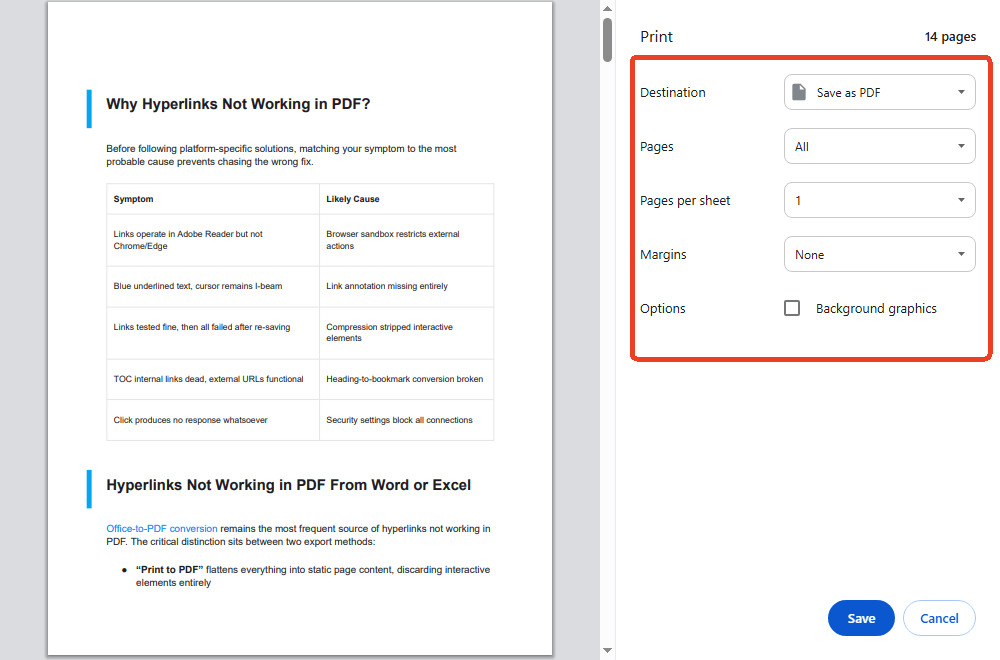
Step 3: Adjust settings as needed, such as page range, layout (portrait/landscape), margins, and paper size.
Step 4: Click Save, choose a file name and destination folder, and confirm.
Also See: Microsoft Print to PDF Not Working? Find the Causes and Fixes!
Tips
How to save a Google Doc as a PDF on Chromebook?
For users who want to save a Google Doc as a PDF on Chromebook, the steps mirror the desktop experience because Chromebook’s Chrome browser is functionally identical to Chrome on Windows or Mac for Google Docs operations. Just follow the above steps to save Google Doc as PDF.
How to Save a Google Doc as a PDF on Phone (iPhone and Android)
The Google Docs mobile app supports PDF export on both platforms, though the menu labels differ slightly between iOS and Android. These methods cover how to save a Google Doc as a PDF on phone for both operating systems.
How to Save a Google Doc as a PDF on iPhone and iPad
The iPhone and iPad share the same iOS app, so you can follow the steps to save a Google Doc as a PDF on iPhone and iPad. This is the go-to method to save Google Doc as PDF iOS for users who prefer saving locally rather than keeping files in Google Drive.
Step 1: Open the Google Docs app and tap the document you want to convert.
Step 2: Tap the three-dot menu (•••) in the top-right corner.
Step 3: Tap Share & export, then tap Send a copy.
Step 4: Select PDF from the format options. A checkmark appears next to your selection.
Step 5: Tap OK. The sharing menu opens.
Step 6: Choose how to save or share the PDF. Tap Save to Files to store it on your device or iCloud Drive, or select an email app to send it directly.
How to Save a Google Doc as a PDF on Android
The Android path is slightly more direct than iOS because the “Save As” option downloads the PDF directly to the device.
Step 1: Open the Google Docs app and navigate to your document.
Step 2: Tap the three-dot menu (•••) in the top-right corner.
Step 3: Tap Share & Export, then tap Save As.
Step 4: Select PDF Document (.pdf) and tap OK.
Step 5: The PDF saves to your device. You can find it in the Files app under Downloads.
How to Save a Google Doc as a PDF in Google Drive
If you prefer to keep your files within Google’s ecosystem, you can save a Google Doc as a PDF in Drive without downloading to your local device first. This method creates a PDF copy that stays in your Drive alongside the original document.
Step 1: Open the Google Doc in Google Drive.
Step 2: Click File > Download > PDF Document (.pdf). The PDF downloads to your computer.
Step 3: Drag the downloaded PDF from your Downloads folder back into Google Drive in a browser window. Google Drive automatically uploads and stores the PDF.
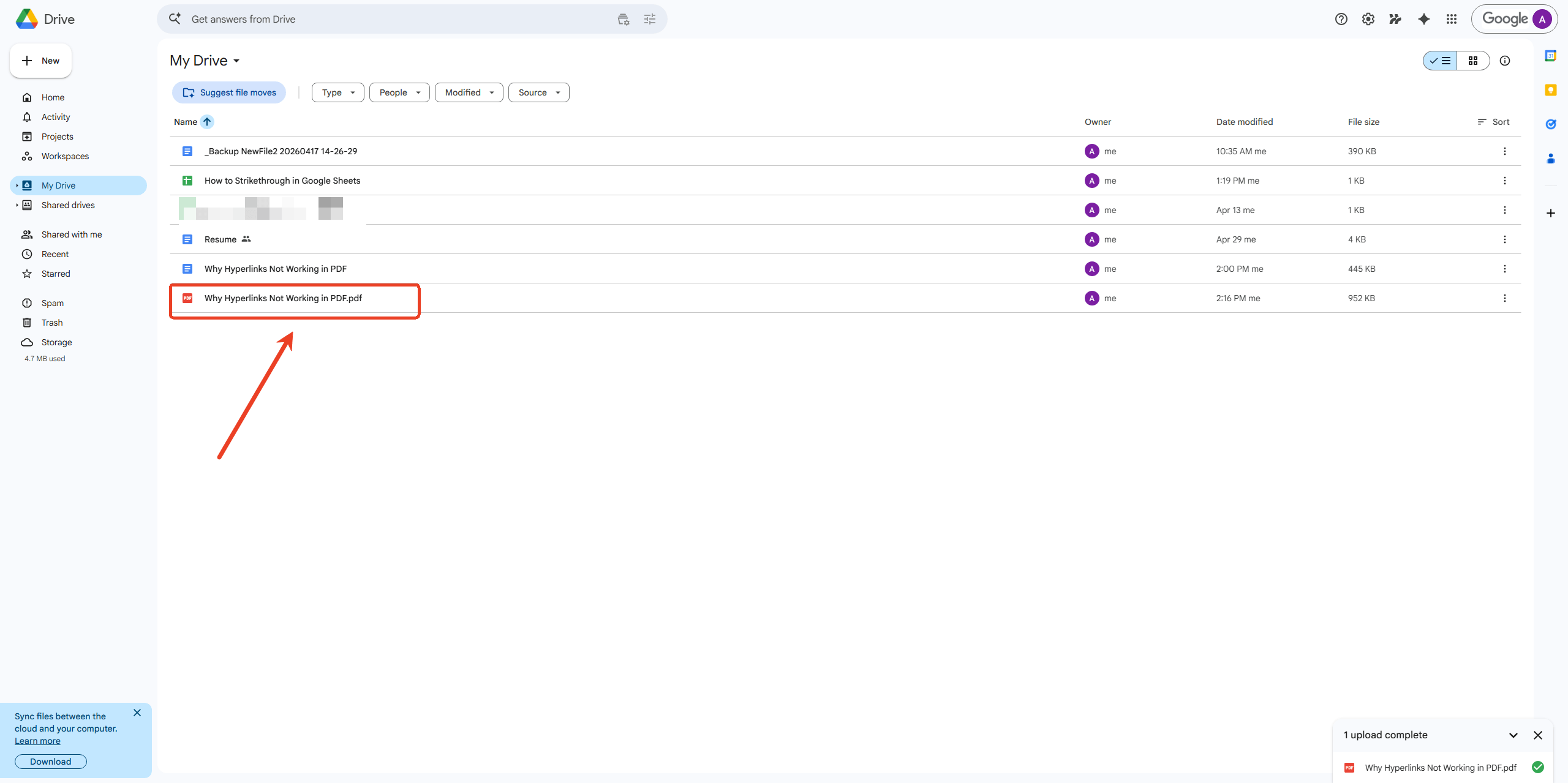
Alternative: If you email the PDF to yourself using File > Email > Email this file with PDF selected as the format, the sent PDF remains accessible in your Gmail and can be saved to Drive from there.
How to Save a Google Doc as a PDF Without Downloading
Sometimes you need to share a PDF without cluttering your Downloads folder. The email method lets you save a Google Doc as a PDF without downloading by sending the converted file directly.
Step 1: Open your Google Doc and click File > Email > Email this file.
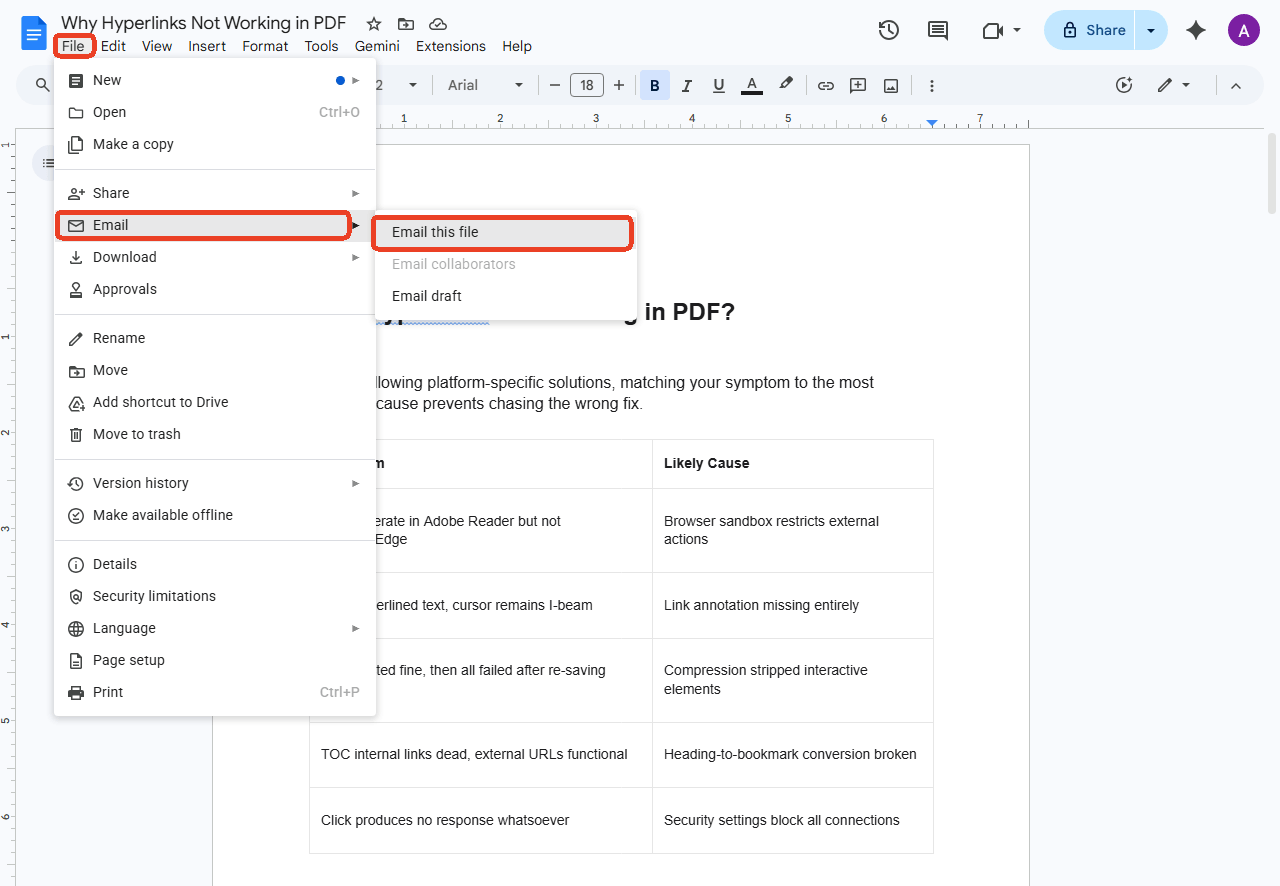
Step 2: In the dialog box, enter the recipient’s email address, subject, and message.
Step 3: Ensure the dropdown at the bottom is set to PDF. If it shows another format, click it and select PDF.
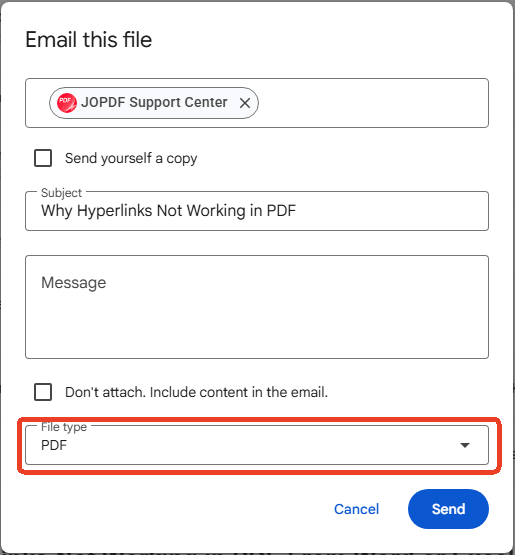
Step 4: Click Send. The recipient receives the PDF as an email attachment without you ever downloading it locally.
From Google Docs to PDF Editing: How JOPDF Completes Your Workflow
Once you save a Google Doc as a PDF, the document enters a new phase. Google Docs can’t edit PDFs, and returning to the original document to make changes, then re-exporting, disrupts the workflow. This is where JOPDF fits naturally into the process. Google Docs handles creation and collaboration. JOPDF handles the finishing touches.
JOPDF – The Best Free PDF Editor
User Rating: 4.8
JOPDF Is a 100% free POF editor for Windows, macOS, and Linux. Edit text, add images, annotate, sign, and more. No limits, no ads, no subscriptions, Fast, simple, and powerful, take full control of your PDFs in seconds!
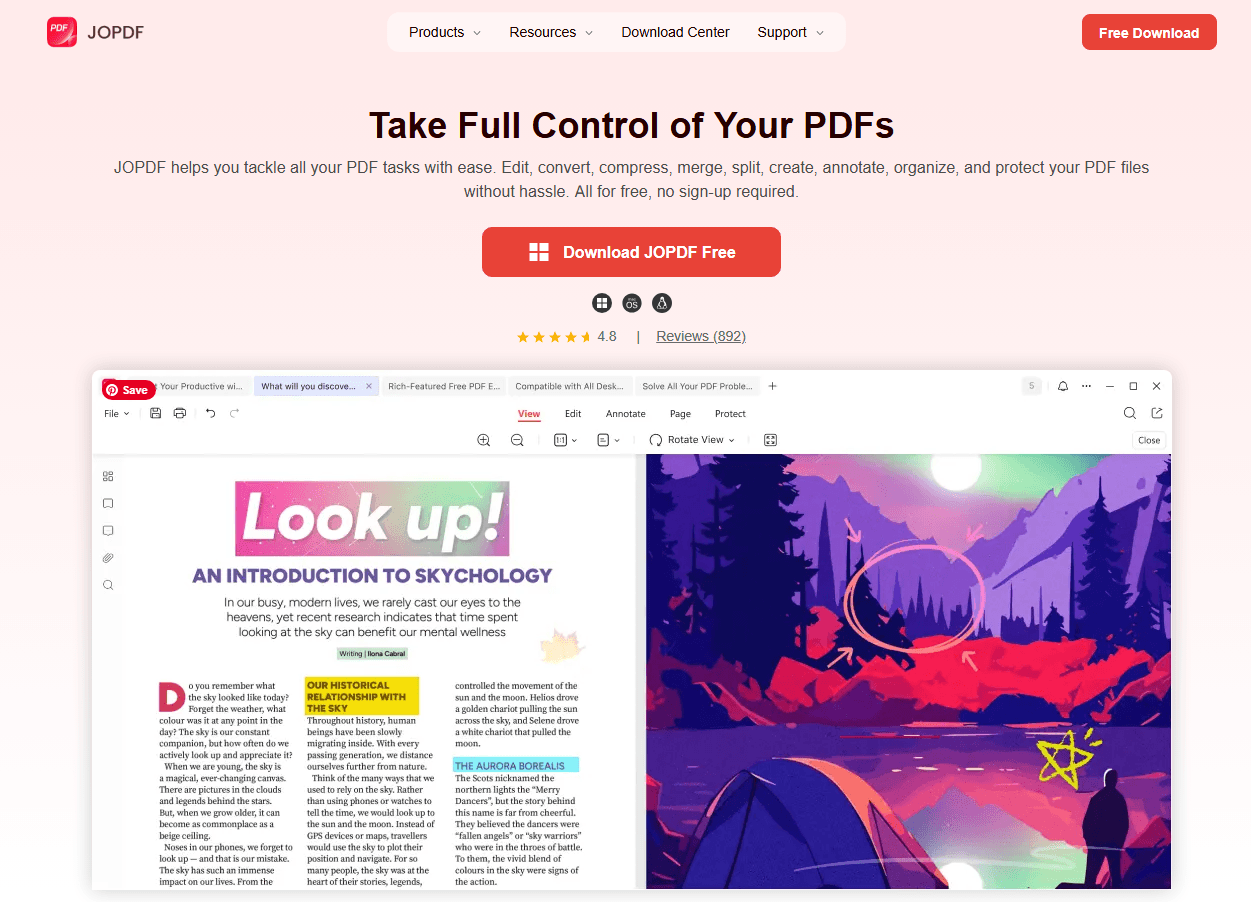
JOPDF is a 100% free, offline PDF editor that installs on Windows, Mac, and Linux. Unlike Google Docs, which requires an internet connection and a browser, JOPDF runs entirely on your desktop. There’s no account sign-up, no subscription, and no file uploads to external servers. Everything stays on your local machine, which is important when documents contain sensitive information.
What JOPDF adds to your Google Docs workflow:
- Edit text directly in the PDF: Open the converted PDF in JOPDF, click any text block, and make changes. You can fix a typo, update a date, adjust a heading.
- Compress large PDFs for email: Google Docs exports with images at full resolution, which can produce PDFs too large for email attachment limits.
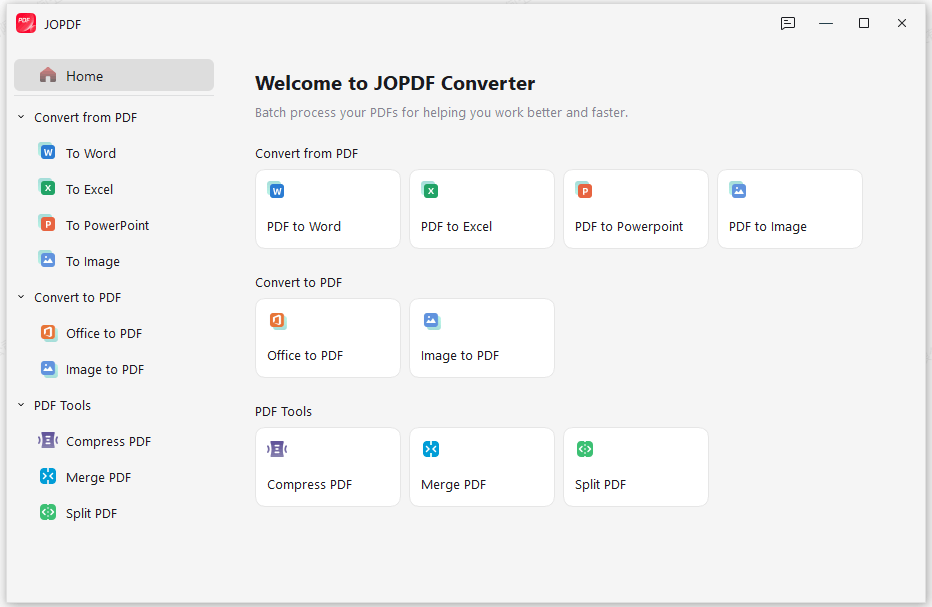
- Merge documents or extract pages: Combine the converted PDF with other files—an appendix, a cover page, supplementary material—using JOPDF’s merge tool. Or extract specific pages for separate sharing.
How to edit a converted PDF in JOPDF:
Step 1: Open the PDF you saved from Google Docs. JOPDF displays the document exactly as it was exported, with all formatting preserved.
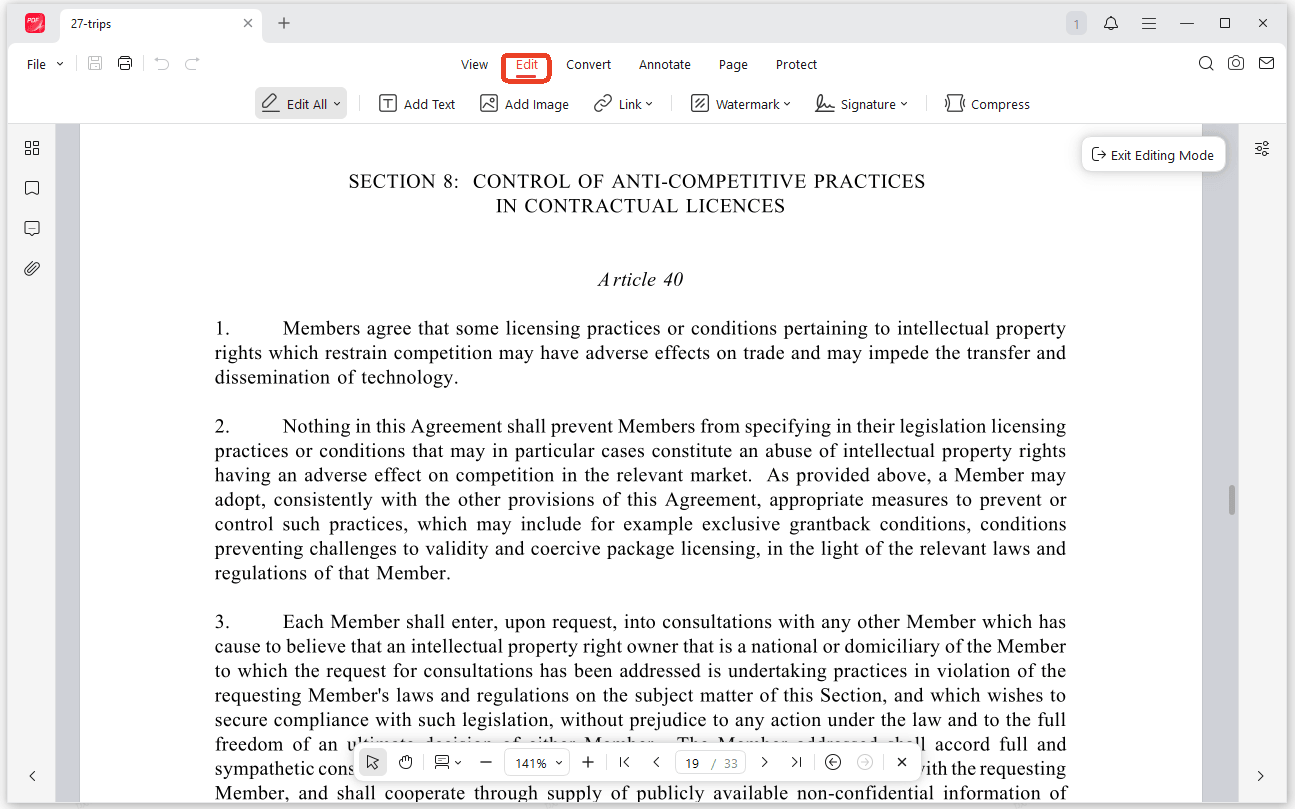
Step 2: To edit text, click the Edit tab in the top toolbar, then click on any text block.
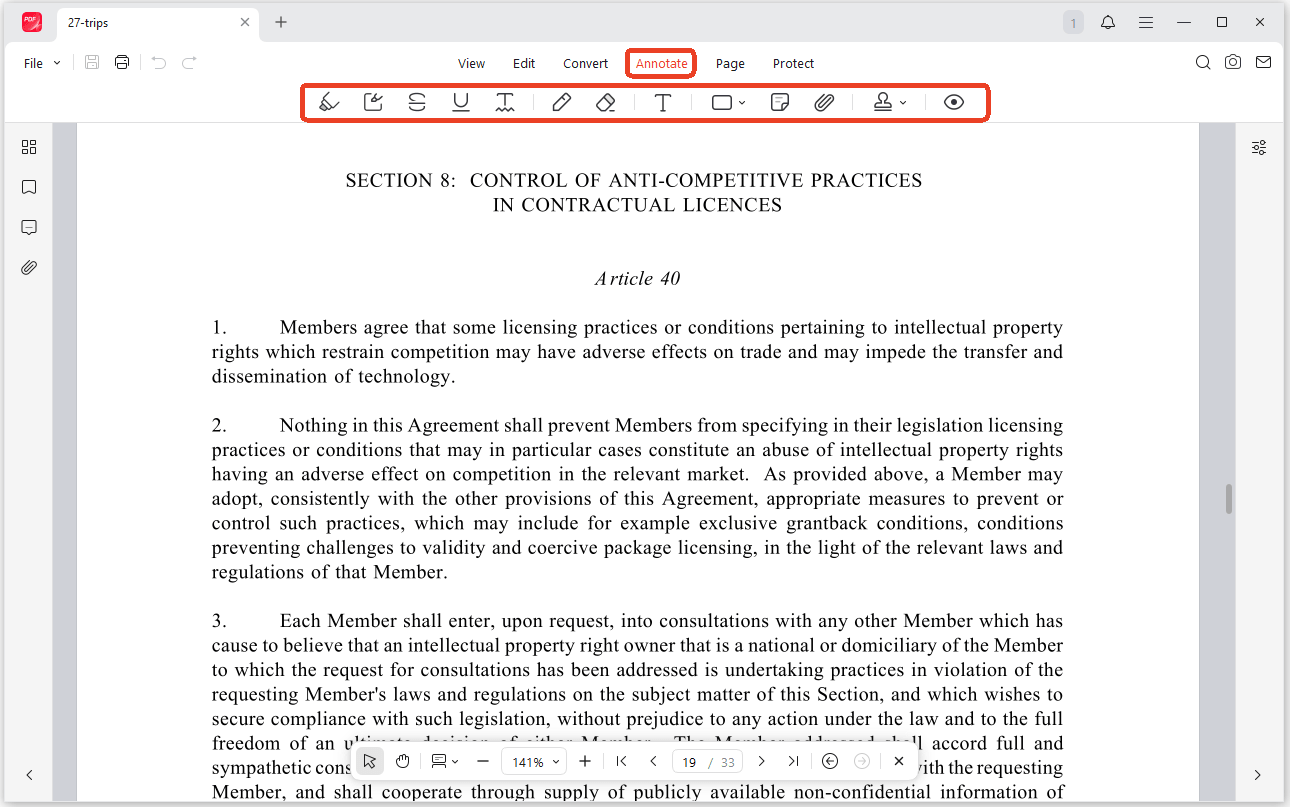
Step 3: To add annotations, switch to the Annotate tab and choose from highlight, underline, strikethrough, sticky notes, or freehand drawing tools. Drag over text or areas to apply markup.
Step 4: To compress the file, navigate to the Compress tool, select a compression level, and save the optimized version.
Step 6: Save the final PDF. No watermarks are added. The file remains fully compatible with any PDF reader, including browser viewers, Adobe Acrobat, and mobile apps.
Summary
Learning how to save a Google Doc as a PDF takes less than a minute, and the method depends on your device. Desktop and Chromebook users can use the direct download path (File > Download > PDF Document) for speed or the Print to PDF route for layout control. iPhone and iPad users go through the Share & export menu in the Google Docs app. Android users use Save As for a direct device download. To keep the PDF in Google Drive, download and re-upload. To share without saving locally, use the email method.
FAQs
Yes. Open the Google Docs app, tap the three-dot menu, tap Share & export > Send a copy, select PDF, and tap OK. Save the file to your device or share it directly. This method works for both iPhone and iPad.
Yes. Once the PDF is on your computer, open it in JOPDF. You can edit text, add annotations, compress the file, repair links, and merge or split pages all offline and without creating an account.
Table of Contents

Your Best Free PDF Expert in PDF editing, compressing, converting, annotating, protect, organizing, and more.
Free DownloadWindows · macOS · Linux

Anna
Editor
“Anna, Editor-in-Chief and PDF expert, delivers deep insights into PDF document technology trends. She is dedicated to helping readers optimize their digital lives. When not writing, Anna loves exploring local cafes and reading, blending her technical expertise with a love for storytelling.”



