How to save emails as PDFs safely? In our hands-on testing, we discovered that while most email providers offer a “Print” button, the results often vary across devices. Some methods lose interactive links, while others create massive, unoptimized files. In this guide, we will walk you through the most reliable ways to convert email into PDF across all platforms and introduce JOPDF as the professional choice for managing your PDF archives securely.
Summary :
How to Save an Email as a PDF in Microsoft Outlook
Outlook remains the most common email client in professional environments, and it offers multiple paths for converting emails to PDF. However, the “New Outlook” experience for Windows has removed some bulk functionality that Classic Outlook users relied on. In our testing, switching between versions was often necessary to get the desired output.
Method 1: Print a Single Email to PDF
This method works for both Classic and New Outlook and is the fastest way to save email as PDF outlook for individual messages.
Step 1: Open the email you want to convert. Ensure all expanded threads and attachments are visible if you want them included.
Step 2: Go to File > Print. In New Outlook, you can also access this from the More actions (…) menu and selecting Print.
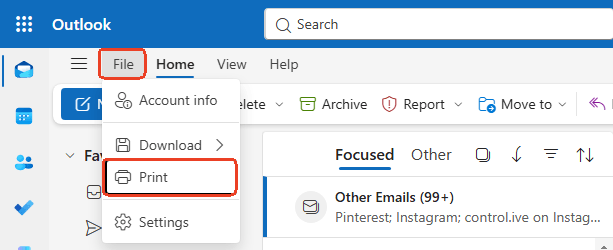
Step 3: Under Printer, select Microsoft Print to PDF. This is a virtual printer built into Windows that generates a PDF file instead of producing a physical page.
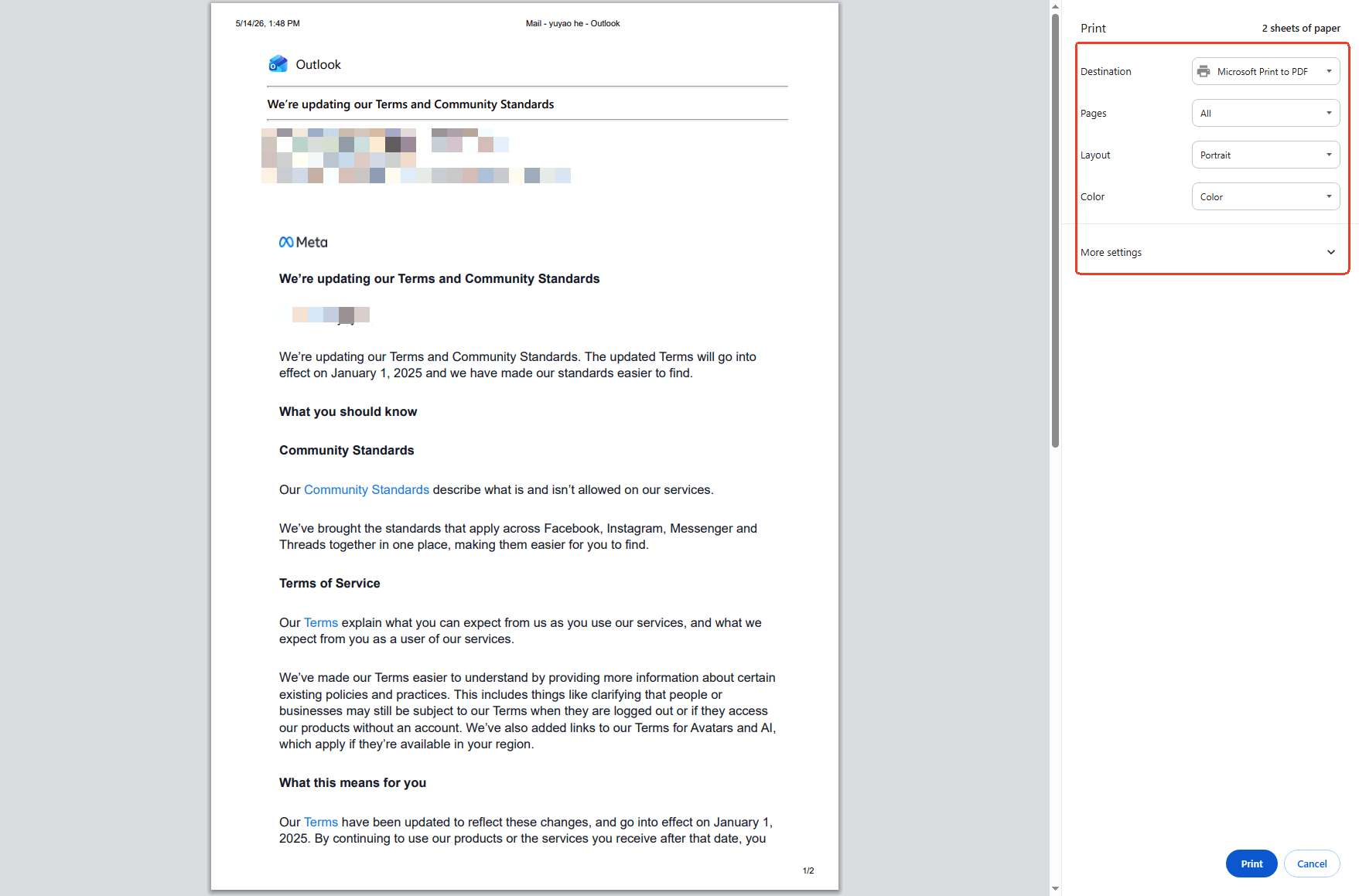
Step 4: Click Print. A file save dialog will appear. Choose your destination folder, name the file, and click Save.
In our hands-on testing, this method preserved text formatting, embedded images, and header information (sender, recipient, date, subject) in every case. Attachments do not embed into the PDF unless you print them separately and combine files afterward.
Tips
If you need to bulk convert emails to seperate individual PDFs, you can locate and check the option labeled Print Attached Files or configure the print range to process emails individually. If this workflow is too manual for a large volume, JOPDF offers a batch processing feature that converts multiple emails into individual, properly named PDF files in one operation.

JOPDF – The Best Free PDF Editor
 User Rating: 4.8
JOPDF Is a 100% free POF editor for Windows, macOS, and Linux. Edit text, add images, annotate, sign, and more. No limits, no ads, no subscriptions, Fast, simple, and powerful, take full control of your PDFs in seconds!
Method 2: Bulk Convert Multiple Emails to a Single PDF
This is the technique requested by the Microsoft Q&A user who needed to deliver all communications to their attorney as one consolidated file. It works only in Classic Outlook to safely convert email into PDF.
Step 1: If you’re using New Outlook, toggle off the “Try the new Outlook” switch in the top-right corner. Classic Outlook will load.
Step 2: In your inbox or folder, select the emails you want to convert. Use Ctrl+Click to select multiple individual messages, or Ctrl+A to select all.
Step 3: Go to File > Print. Ensure Microsoft Print to PDF is selected.
Step 4: In the print settings, choose your preferred layout. Memo Style prints a cleaner, text-focused output. Table Style prints a spreadsheet-like view of message fields.
Step 5: Click Print, choose a save location, and name the combined PDF. Outlook will generate a single file containing all selected emails, each starting on a new page.
In our testing, this method successfully combined 50 emails into one PDF with clear page breaks between messages. The output file size was approximately 2MB, well within email attachment limits.
Also See: Expert Guide on How to Make a PDF Smaller to Email Effortlessly
How to Save an Email as a PDF from Gmail
Gmail doesn’t include a built-in “Save as PDF” button, but the browser’s print dialog provides the same functionality through a slightly different path. This method consistently answers how to save email as PDF Gmail for desktop users.
Method 1: Desktop Browser Print to PDF
When we tried to save email as PDF gmail threads, we noticed that using the browser’s “Print” function captures the entire conversation history, which is essential for preserving the context of long threads. This is the fastest way to how to save emails as PDFs without installing extra plugins.
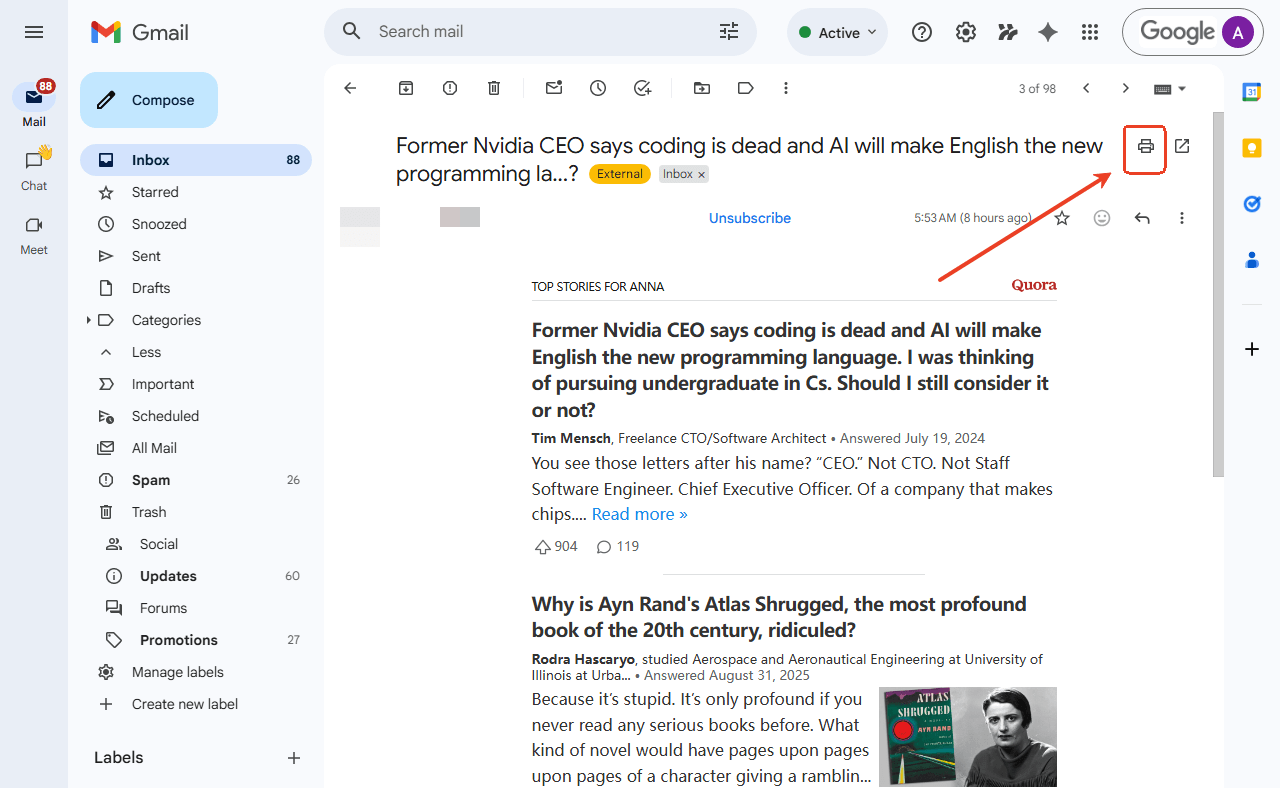
Step 1: Open the specific email in Gmail. Click the printer icon located in the top-right corner of the email body, near the star and reply buttons.
Step 2: In the print dialog, locate the Destination section. Click the dropdown and select Save as PDF. On Chrome, this option is always available. On Safari, you may need to click the PDF button in the lower-left corner and select “Save as PDF.”
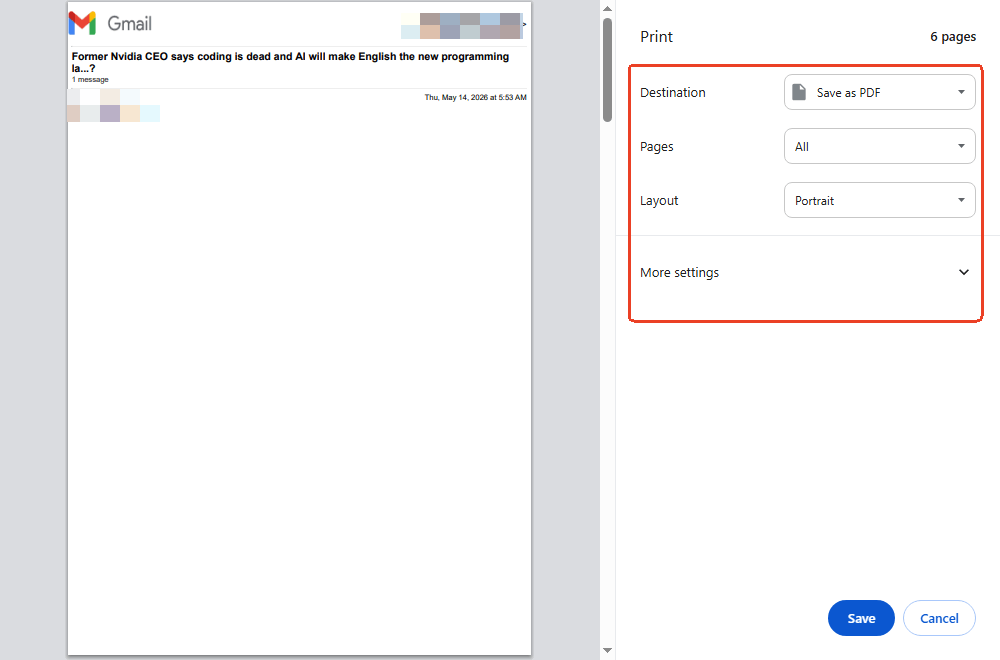
Step 4: Adjust layout settings if needed – margins, paper size, and whether to include background graphics.
Step 5: Click Save, choose a folder, and name the file.
In our hands-on testing, this method preserved the full email thread, including inline images and formatting. One limitation: Gmail’s print view sometimes collapses long threads. If your email contains a lengthy conversation, scroll through the print preview to confirm all content appears before saving.
Method 2: Save to Google Drive as PDF
For users deeply embedded in the Google ecosystem, this method bypasses the local download step entirely.
Step 1: Open the email and click the Google Drive icon if it appears in your Gmail toolbar. If it’s not visible, click the More menu (three vertical dots) to find it.
Step 2: The email is saved to your Google Drive as a PDF automatically. You can then access, share, or download it from Drive.
In our testing, this method was faster than the print dialog for single emails, but it offered less control over output formatting.
How to Save an Email as a PDF on iPhone and iPad
In 2026, most of our communication happens on the go. Knowing how to save email as PDF in mobile apps like the Mail app or Gmail app is a lifesaver for travelers and remote workers.
Apple’s iOS doesn’t provide a direct “Save as PDF” button in the Mail app. Instead, the functionality is hidden inside the Print menu. In our testing, the pinch-out gesture worked consistently across iOS 17 and iOS 18.
Method 1: The Print and Pinch-Out Gesture
We often get asked how to save an email to PDF on iPhone or on iPad. In our hands-on testing, we found a “hidden” gesture that creates a PDF far superior to a simple screenshot. This also works perfectly if you need to know how to save email as PDF on iPhone Gmail.
Step 1: Open the email in the Mail or Gmail app and tap the Reply/Share button.
Step 2: Scroll down and tap Print.
Step 3: On the Print Preview screen, perform a pinch-to-zoom out gesture (spread two fingers apart) on the document preview.
Step 4: The preview will transform into a full PDF. Tap the Share icon at the top and select Save to Files.
How to Save an Email as a PDF on Android
Android provides a more straightforward path compared to iOS, with a direct “Save as PDF” option built into the print menu. This can help save email as PDF android for Gmail and most other email apps.
Step 1: Open your email app (Gmail or Outlook) and tap the three-dot menu inside the email.
Step 2: Select Print.
Step 3: Tap the dropdown menu at the top of the screen and select Save as PDF.
Step 4: Tap the circular PDF download button to save the file to your “Downloads” or “Documents” folder.
How to Convert Email to PDF Without Printing
To convert email to pdf without printing, you can save the email as an .eml or .html file first.
Step 1: In Outlook, drag the email from your inbox directly onto your desktop. It will save as an .msg or .eml file.
Step 2: Right-click the file and open it with your web browser.
Step 3: Use JOPDF to “Open” this file or use the Convert feature. This is the most stable way to convert email into PDF while maintaining the original HTML styling and clickable links.
How to Save Email as PDF Without Name on Top
Many users want to know how to save email as PDF without name on top for privacy reasons. In our hands-on testing, we found that unchecking certain boxes in the print preview is the most effective manual fix.
Step 1: Open the print dialog for your email as usual.
Step 2: Look for a section labeled More Settings or Options.
Step 4: Uncheck the box for Headers and footers. This will remove the URL, date, and your account name from the top and bottom of the page.
Step 4: If the name is still embedded in the body, save the file and open it in JOPDF to use the editing tool to black out or delete sensitive information.
JOPDF – The Best Free PDF Editor
User Rating: 4.8
JOPDF Is a 100% free POF editor for Windows, macOS, and Linux. Edit text, add images, annotate, sign, and more. No limits, no ads, no subscriptions, Fast, simple, and powerful, take full control of your PDFs in seconds!
Also See: How to Cite a PDF in APA 7th Edition: Examples for Every Source
How to Save Emails as PDFs in Bulk
For users with access to Classic Outlook, the built-in print pipeline handles most bulk scenarios without additional software. As detailed in Method 2 and Method 3 above, selecting multiple emails and printing to PDF can produce either a merged file or individual outputs depending on your print settings.
In our testing, we identified scenarios where Outlook’s native tools struggle:
- Very large volumes (500+ emails): The print queue becomes unresponsive, and individual file naming becomes impractical.
- Cross-platform environments: Users on Mac or those using the web-only version of Outlook don’t have access to the Classic Outlook batch print features.
- Metadata preservation: Legal users often need specific header fields preserved in a structured format that the print dialog doesn’t support.
Why JOPDF is the Essential Tool for Managing Email PDFs
After you successfully save emails as PDFs, you often end up with a folder full of disorganized, large files. JOPDF is a 100% free, offline desktop editor that we highly recommend for anyone who regularly archives digital communication.
- Privacy-First Processing: Unlike online converters, JOPDF processes your files entirely on your local machine. We know how sensitive emails can be; with JOPDF, your private data never touches a cloud server.
- Merge & Organize: Instead of having 50 separate files, you can use JOPDF to merge multiple email PDFs into a single, searchable document with a custom table of contents.
- 90% Lossless Compression: Emails with high-resolution images or large attachments can lead to huge PDF sizes. In our hands-on testing, JOPDF’s compression engine reduced email PDF sizes by up to 90%, making them perfect for long-term storage.
Conclusion
Mastering how to save emails as PDFs is the best way to ensure your important records are never lost to a deleted account or a server outage. Whether you need to save email as PDF outlook files for work or save email as PDF gmail threads for your personal life, the “Print to PDF” logic remains the most reliable foundation.
To take your document management to the next level, we suggest downloading JOPDF. It provides the security, compression, and editing tools you need to turn a messy folder of emails into a professional, searchable digital archive. Start archiving your digital life safely today!
FAQs
In our hands-on testing, we found that standard "Print to PDF" methods often fail with encrypted emails because the virtual printer cannot access the decrypted text layer. The best way is to view the decrypted email in your client, copy the content into a document, and then use JOPDF to create a secure, password-protected PDF locally.
Standard email-to-PDF methods usually only save the body of the message. If you want to save emails as PDFs along with their attachments, you typically need to save the attachments separately and then use JOPDF’s Merge tool to combine the email body and the attachment files into one continuous PDF file.
Yes! Standard virtual printing sometimes "flattens" the document, turning links into plain text. To keep links interactive, we recommend using the Save as PDF function in Gmail or using the direct conversion feature in JOPDF, which preserves the underlying HTML hyperlinks.
Table of Contents

Your Best Free PDF Expert in PDF editing, compressing, converting, annotating, protect, organizing, and more.
Free DownloadWindows · macOS · Linux

Anna
Editor
“Anna, Editor-in-Chief and PDF expert, delivers deep insights into PDF document technology trends. She is dedicated to helping readers optimize their digital lives. When not writing, Anna loves exploring local cafes and reading, blending her technical expertise with a love for storytelling.”