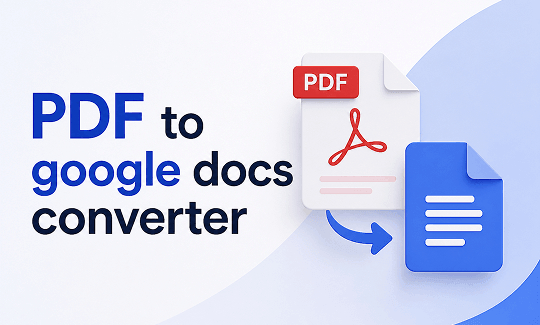
Moving files from a PDF into an editable cloud document can often disrupt your page layouts. If you use a standard PDF to Google Docs converter, you might notice shifted text or broken tables. This guide teaches you how to convert files from PDF to Google Docs cleanly on Windows, Mac, and mobile devices using smart offline tools like JOPDF.
Summary :
Quick Reference: Best Ways to Convert PDF to Google Docs
When you change documents from a PDF format into cloud sheets, you might find that Google Docs messes up PDF formatting. This happens because cloud apps try to force a fixed layout into a fluid text page. To avoid this issue, you can use the following main strategies:

JOPDF – The Best Free PDF Editor
 User Rating: 4.8
JOPDF Is a 100% free POF editor for Windows, macOS, and Linux. Edit text, add images, annotate, sign, and more. No limits, no ads, no subscriptions, Fast, simple, and powerful, take full control of your PDFs in seconds!
| Method | Best For | Formatting Preservation | Time |
| 1. Google Drive Direct | Quick text extraction | Low | 1 min |
| 2. PDF to Word First | Best formatting accuracy | High | 3-5 min |
| 3. JOPDF Convert + Upload | No sign-up, offline option | High | 2-3 min |
| 4. Insert as Images | Perfect visual preservation | Perfect (no edit) | 2 min |
| 5. Mobile App Conversion | On-the-go conversion | Medium | 2-3 min |
Why Google Docs Messes Up PDF Formatting?
Many of us look for a fast PDF to Google Docs converter to make our editing tasks easier. However, the direct cloud conversion process often leaves users frustrated. You might upload a report only to find that your tables have fallen apart, your text columns are overlapping, and your page numbers are scattered.
The reason Google Docs messes up PDF formatting comes down to how these two file types are built. A PDF is a fixed container. It locks every image, line, and word into an exact position on the page so that it looks identical on every screen. On the other hand, a Google Docs document is fluid. It is designed to let text flow freely, wrapping words automatically based on your screen size or font choices.
When you force a fixed PDF into a fluid Google Doc page, the internal conversion engine has to guess where the text blocks should go. If your file contains complex elements like sidebars, multi-column articles, or nested grids, the cloud tool often misinterprets these shapes. This is why a direct transition from PDF to Google Docs often requires a lot of manual retyping and clean-up work unless you optimize the file before uploading it.
Also See: 9 Best Free PDF Resume Editor in 2026: Edit Your Resume Easily
How to Upload a PDF to Google Drive and Convert to Google Docs?
If you are dealing with a simple document that mostly contains plain text and standard paragraphs, the built-in tools in Google Drive are a great starting point. This path serves as a PDF to Google Docs converter free solution that requires no extra software installations.
Step 1: Open your web browser, log into your Google account, and navigate to your central Google Drive dashboard.
Step 2: Click the New button in the top left corner of your screen and select File upload from the dropdown menu.
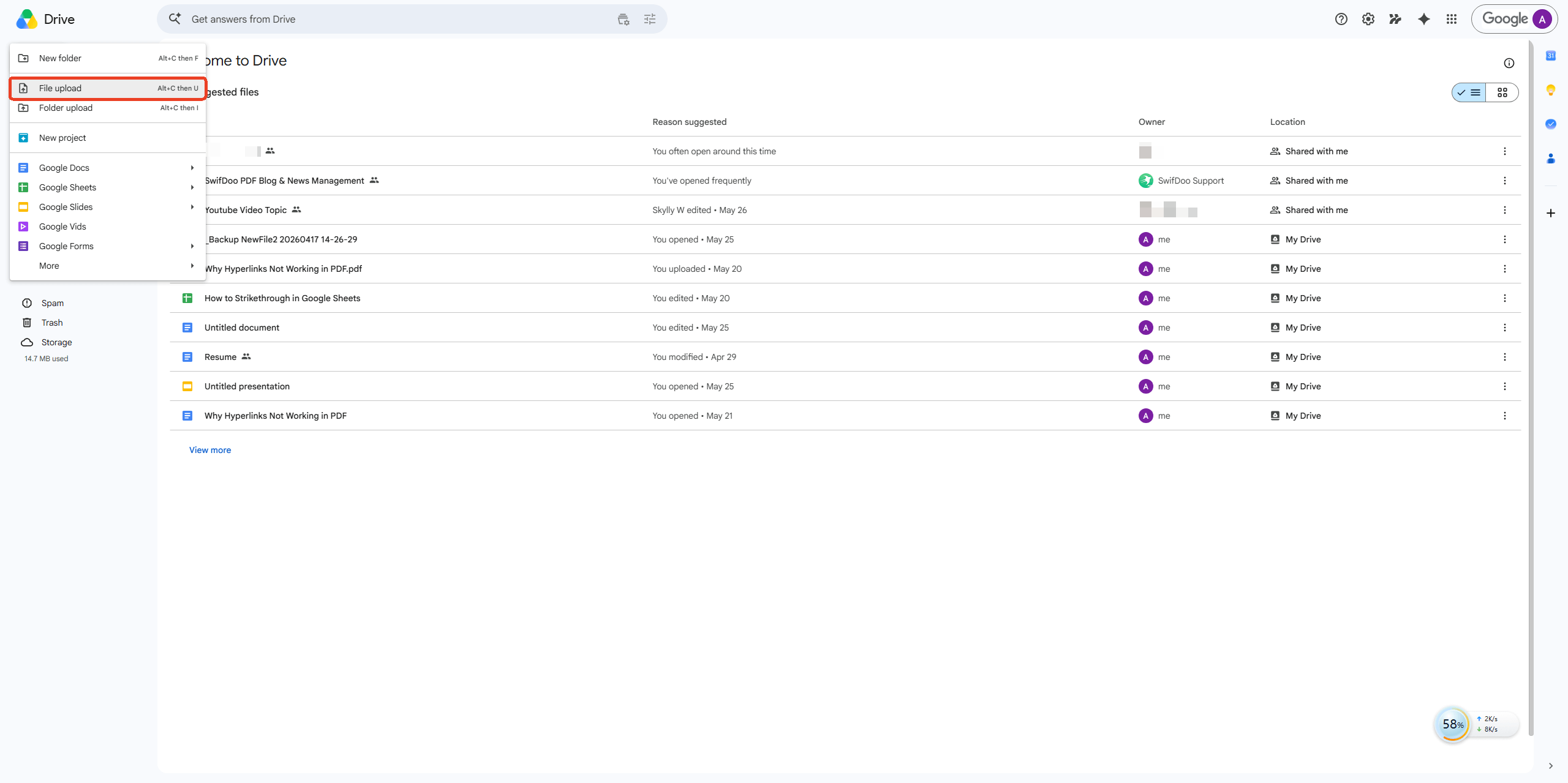
Step 3: Browse your local computer folders, select the PDF you want to change, and upload it to your cloud storage space.
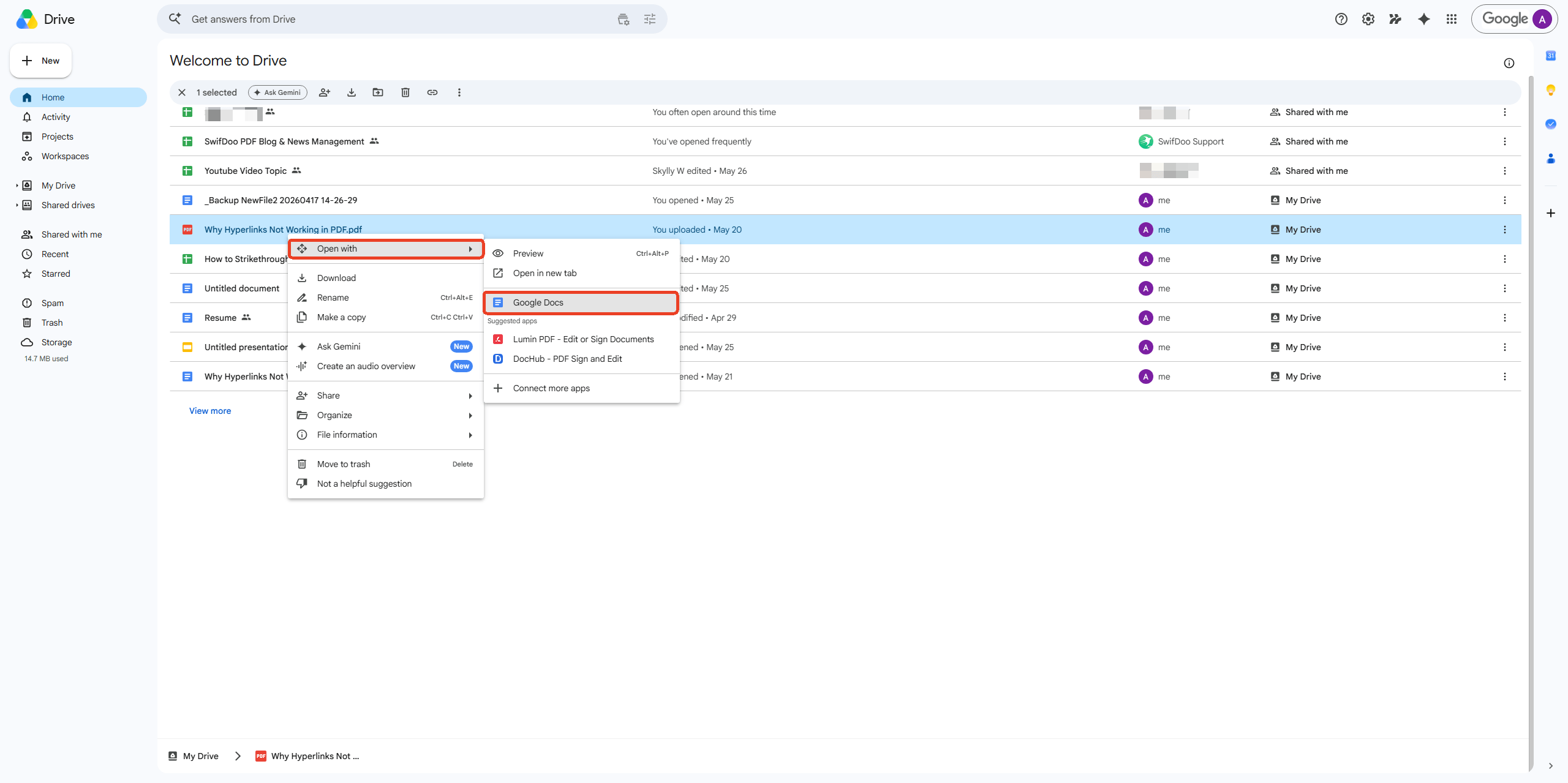
Step 4: Once the upload is complete, locate the file in your drive list, right-click it, hover your mouse over Open with, and choose Google Docs.
Tips
While this native PDF to Google Docs converter free pathway is highly convenient for quick text edits, it does have distinct limits. The cloud engine will strip away your background colors, drop custom font styling, and turn images into loose graphics placed randomly between text blocks. For business contracts or academic papers, you will likely need a more stable approach to avoid layout issues.
How to Convert PDF to Google Doc Without Loss of Formatting?
If you need to preserve your original formatting in the PDF to Google Docs process as closely as possible, the following three methods are available. These methods are useful for both Windows and Mac users to convert PDF to Google Doc.
Method 1: Convert PDF to DOC Without Changing Format
If you want to convert PDF to Google Doc without loss of formatting, you should avoid uploading raw PDFs directly to the web. By converting your PDF to a Word document first and then opening that in Google Docs, you bridge the formatting gap between fixed PDF layouts and editable documents.
This is where JOPDF becomes an invaluable part of your workflow. JOPDF serves as an exceptional PDF to Google Doc converter free no sign up utility that runs completely offline on your local computer. Because it processes everything on your hard drive, you never have to worry about data privacy leaks, hidden subscription traps, or web form restrictions.
Step 1: Download the JOPDF application on your Windows or Mac desktop computer and open your PDF from it.
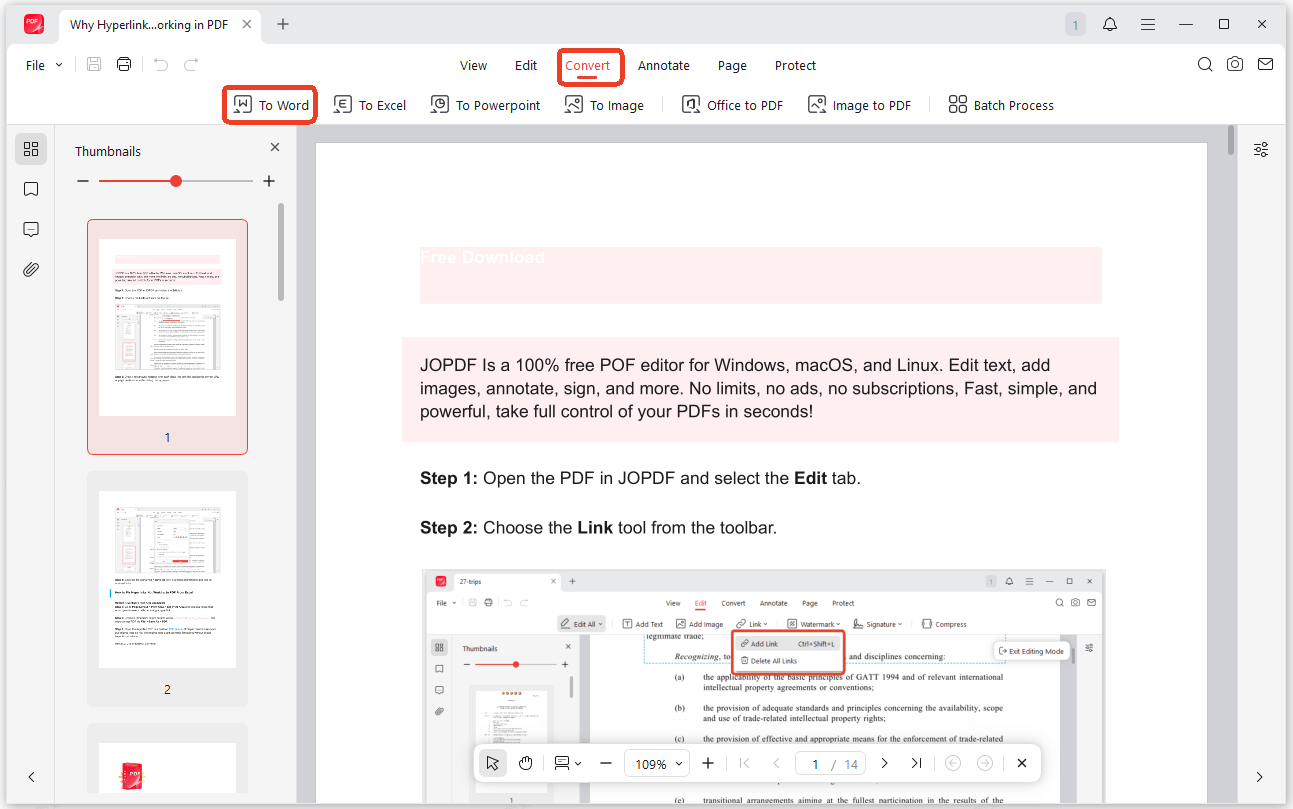
Step 2: Switch to the Convert tab and choose the To Word option.
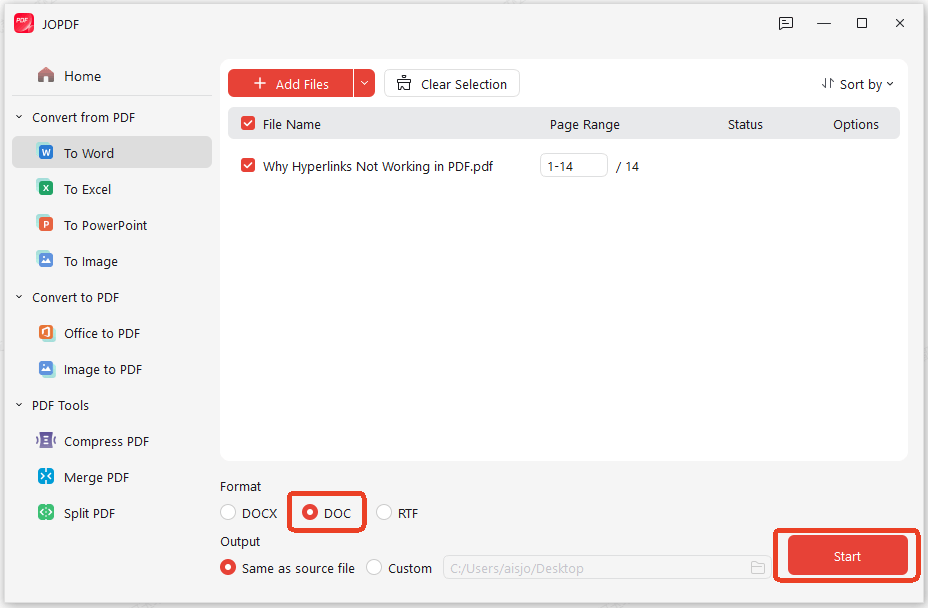
Step 3: Select the DOC option and configure the ouput. Then click Start.
Once you convert PDF to DOC without changing format inside JOPDF, upload that clean Word file to your Google Drive. Just right-click the uploaded Word file and select Open with > Google Docs. Google Docs reads Word files perfectly, leaving your original design completely untouched.
Also See: How to Save Emails as PDFs Safely: 2026 Guide (Outlook & Gmail)
Method 2: Insert PDF Pages into Google Docs as Images
Sometimes you don’t need to edit the text at all and you just want the pages to look exactly right in your document. For legal papers, certificates, or design-heavy layouts where visual accuracy is non-negotiable, this method preserves everything.
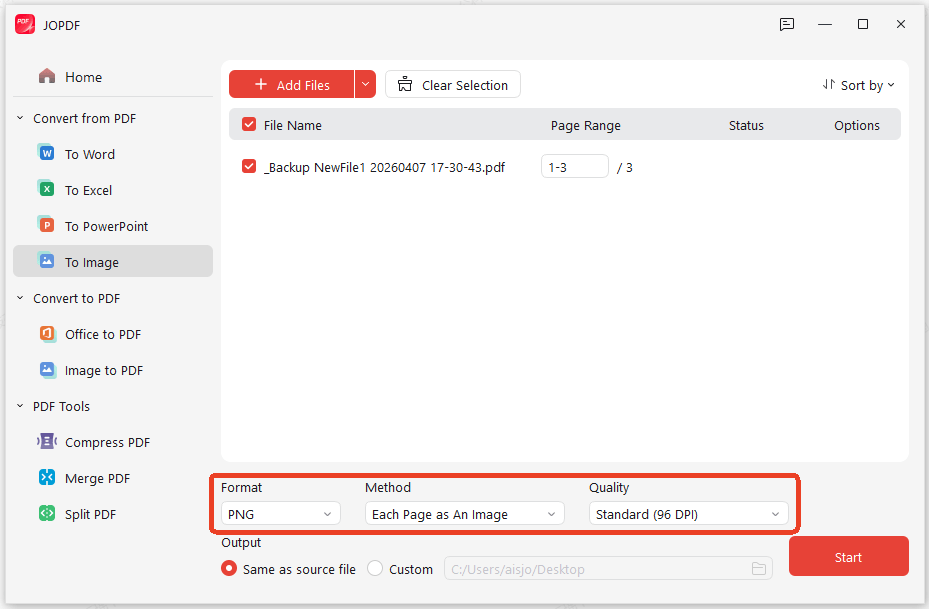
JOPDF makes the PDF-to-image step fast and private. You can export your PDF pages as JPG or PNG in just a couple of clicks, and because everything stays on your computer, there’s no waiting for uploads and no worrying about where your files end up. You also get full control over image quality, so your inserted pages look sharp and clear in Google Docs.
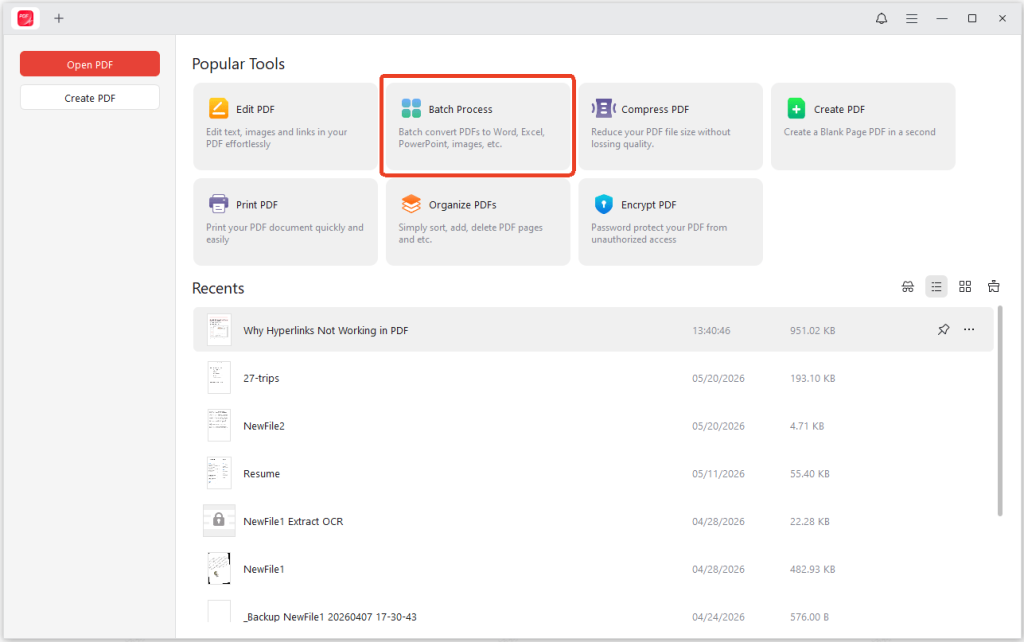
Step 1: Open JOPDF and go to the Batch Process button.
Step 2: Choose the To Image option from the side bar and drag and drop the PDF file into it.
Step 3: Configure the image format, method and quality settings, and click Start to perform the task.
Method 3: Insert PDF Pages into Google Docs as Shareable Link
Sometimes you don’t need to convert or embed anything at all. If you just want to give readers access to the original PDF without cluttering up your document, sharing a link is the cleanest approach.
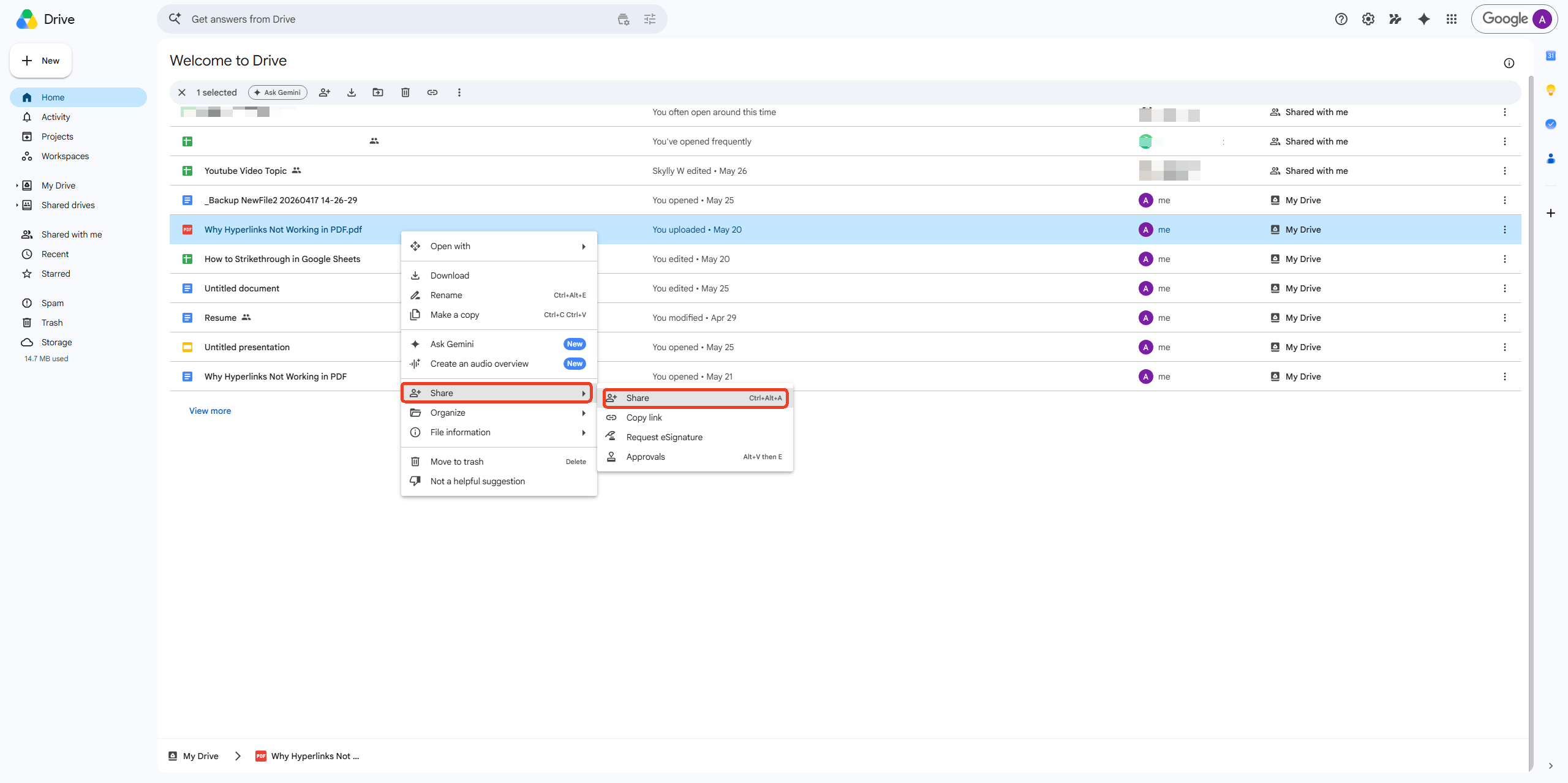
Step 1: Upload your PDF into Google Drive and right-click on it to choose Share > Share.
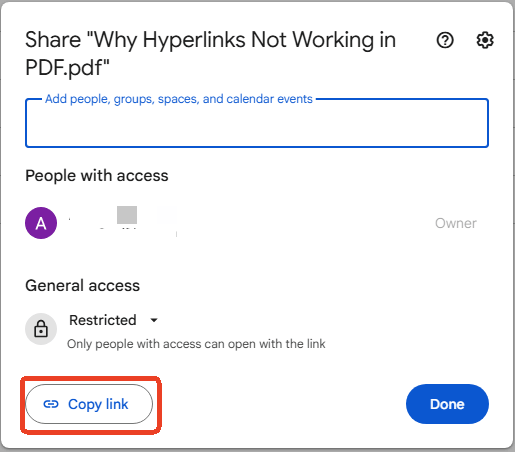
Step 2: Set who can access the file. You can keep it restricted to specific people, allow anyone with the link, or make it fully public depending on your needs. Click Copy link when you’re done.
Step 3: Open your Google Doc and paste the link wherever you want it to appear. You can drop it directly into a paragraph, or highlight some descriptive text and use Insert > Link to attach the URL to those words.
When someone clicks that link in your document, the PDF opens in a new tab with its original formatting completely intact. This works especially well for long reports, design portfolios, or legal documents where the visual presentation matters as much as the content.
How to Convert PDF to Google Docs on Mobile Devices?
We often need to handle office tasks on the go, that’s why it’s necessary to learn how to convert PDF to Google Doc on mobile. The mobile layout is much more compact, meaning the settings buttons are hidden behind different sub-menus.
How to convert PDF to Google Docs on iPhone setups? If you are an iPhone user, you can follow these steps to manage your files:
Step 1: Open the Google Drive application on your smartphone or tablet.
Step 2: Tap the folder icon or the plus sign (+) in the bottom right corner to upload your file.
Step 3: Locate your document, tap the three dots next to the file title, and select the option to open it or send it to your word app.
The cloud system will generate an editable copy of your file automatically.
Compare Direct Cloud Imports vs. JOPDF Pre-Processing
To see why using an offline desktop PDF to Google Docs converter is more reliable than direct browser uploads, look at this feature comparison matrix:
| Document Formatting Parameter | Direct Google Drive Cloud Upload | JOPDF Desktop Pre-Processing Method |
| Data Grid & Table Layouts | Low (Cell borders often smash or disappear) | High (Preserves strict table rows and grids) |
| Account & Privacy Rules | Requires full cloud account registration | PDF to Google Doc converter free no sign up |
| Multi-Column Articles | Low (Forces text into a single messy column) | High (Keeps newspaper/academic columns separate) |
| Custom Embedded Typography | Medium (Substitutes missing fonts randomly) | High (Maps system character codes accurately) |
| Data Security & Privacy | Low (Files must be uploaded to web servers) | Maximum (Processes files 100% offline locally) |
Conclusion
The best PDF to Google Docs converter method really depends on what matters most to you. Changing your files from PDF to Google Docs shouldn’t mean losing your hard work or dealing with messy, broken layouts. By understanding why cloud applications struggle with fixed PDF designs, you can easily protect your files from formatting issues.
While browser-native right-click tools offer quick convenience for simple text, utilizing a dedicated offline tool like JOPDF remains the most reliable long-term strategy for complex documents. Download JOPDF for free today to enjoy a fast, ad-free, and private desktop experience that keeps your tables, columns, and fonts perfectly aligned across every platform!
FAQs
Basic online converters often break interactive links because they scramble the document's underlying layout code during the transition. You can avoid this by using JOPDF to convert the file into a structured Word document locally before uploading it to your cloud drive.
Standard cloud drives cannot read encrypted files because they do not have the permissions needed to bypass security locks. You can open the file in JOPDF, enter the password to unlock it, and save a clean copy before starting your conversion workflow.
Table of Contents

Your Best Free PDF Expert in PDF editing, compressing, converting, annotating, protect, organizing, and more.
Free DownloadWindows · macOS · Linux

Anna
Editor
“Anna, Editor-in-Chief and PDF expert, delivers deep insights into PDF document technology trends. She is dedicated to helping readers optimize their digital lives. When not writing, Anna loves exploring local cafes and reading, blending her technical expertise with a love for storytelling.”
![4 Free and Proven Methods to Convert PDF to ODS [Detailed]](https://b.jopdf.com/wp-content/uploads/2026/10/convert-pdf-to-ods.png)