Summary :
Why can’t I fill in a PDF form? Most of the time, it comes down to one of three things: the file isn’t a fillable form, it’s locked, or the app you’re using doesn’t support form fields. The fix depends on which one you’re dealing with. JOPDF helps you identify the cause quickly and gives you tools to work around it. This guide walks through each cause and the fix.
Check If Your PDF Is Fillable First
There are two types of PDF forms – static PDF forms and fillable PDF forms. Some PDFs look like an active form, but it’s not. The first thing you need to do is to confirm whether it contains interactive form fields.
- A fillable PDF contains interactive form fields – clickable areas that accept text, checkboxes, or dropdown selections.
- A flat PDF looks like a form but is just an image or a static layout. There are no fields behind the lines.
Move your mouse over the area where you’d type. If the field highlights (usually in light blue) and the cursor changes to a text insertion point, it’s fillable. If nothing happens, the file has no interactive fields.
A faster way to check your PDF with JOPDF:
Instead of testing each file manually, open it in JOPDF and let the tool tell you what you’re working with. JOPDF is a free desktop PDF editor for Windows, Mac, and Linux that handles editing, conversion, OCR, form filling, and page management in one application. It runs locally, so your files never leave your computer.
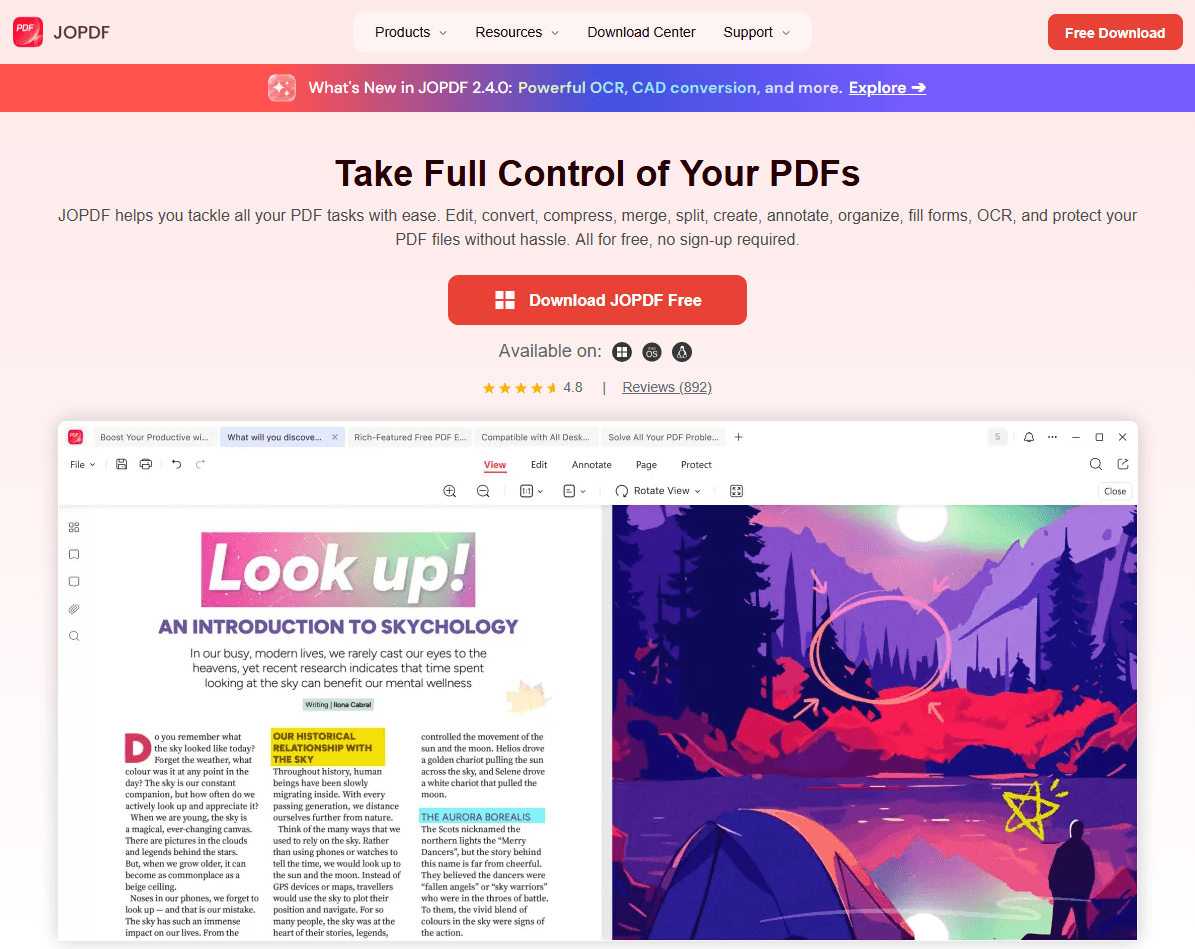
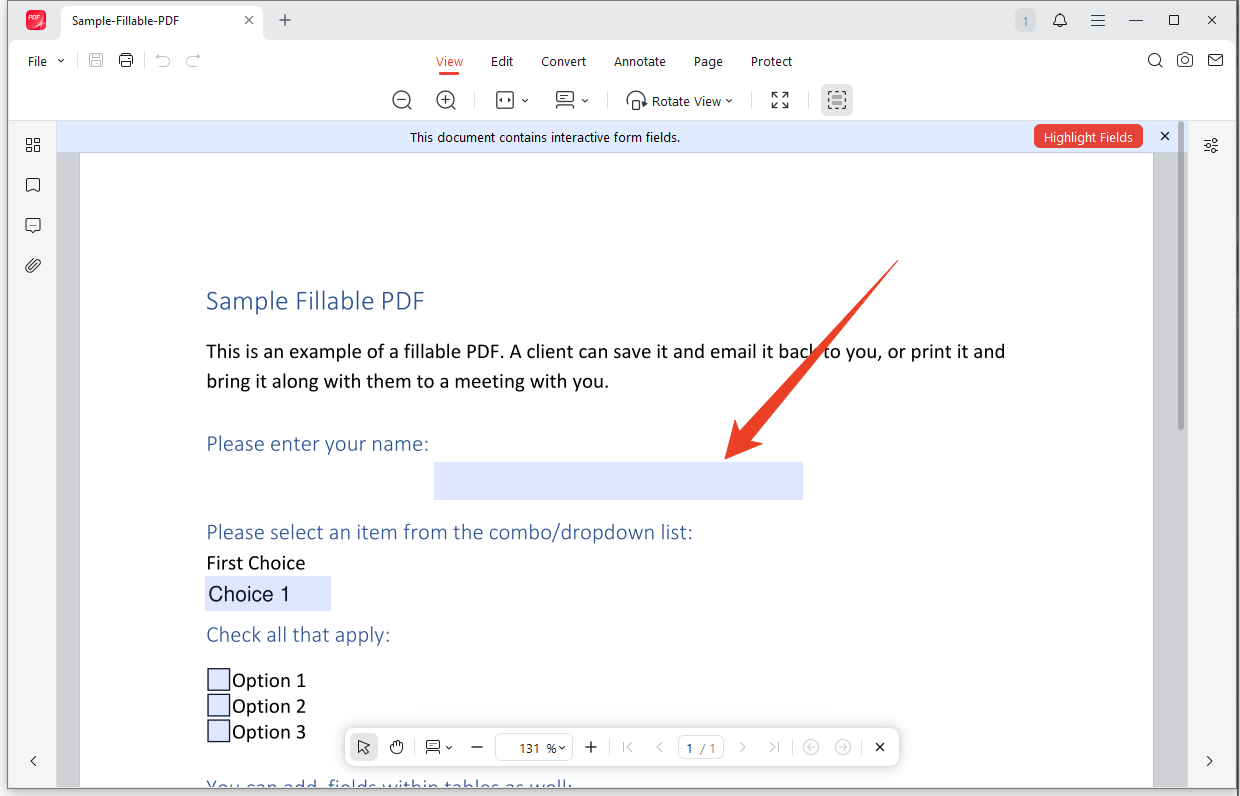
For this specific problem that you can’t fill in a PDF form, JOPDF’s Fillout Form tool is the relevant feature. When you open a PDF with it, JOPDF automatically scans the document and highlights every interactive field it detects, including text boxes, checkboxes, dropdown menus, and signature fields. If highlights appear, the file is fillable. If nothing highlights, it isn’t. That single glance replaces the manual click-and-drag test.
JOPDF also provides the tools to act on what you find: Edit for resizing text in editable PDFs, Add Text for overlaying text on flat documents, and OCR for turning scanned pages into searchable, editable content. You don’t need a different application for each scenario.
Cause 1: The PDF Is a Flat Scan or Image (Most Common)
If you find that your PDF is a flat scan or image after testing, this static PDF is not built for fill-in. A flat PDF is an image, not a structured document. The lines and boxes you see are just pixels. This is the single most common reason you can’t fill in a PDF form. Most forms received by email are either scans or flat exports. They look right, but they’re not interactive.
How to Fill in a Flat PDF Form?
JOPDF gives you two routes for flat PDFs, depending on whether the page contains readable text.
Tool 1: Add Text for a Flat PDF
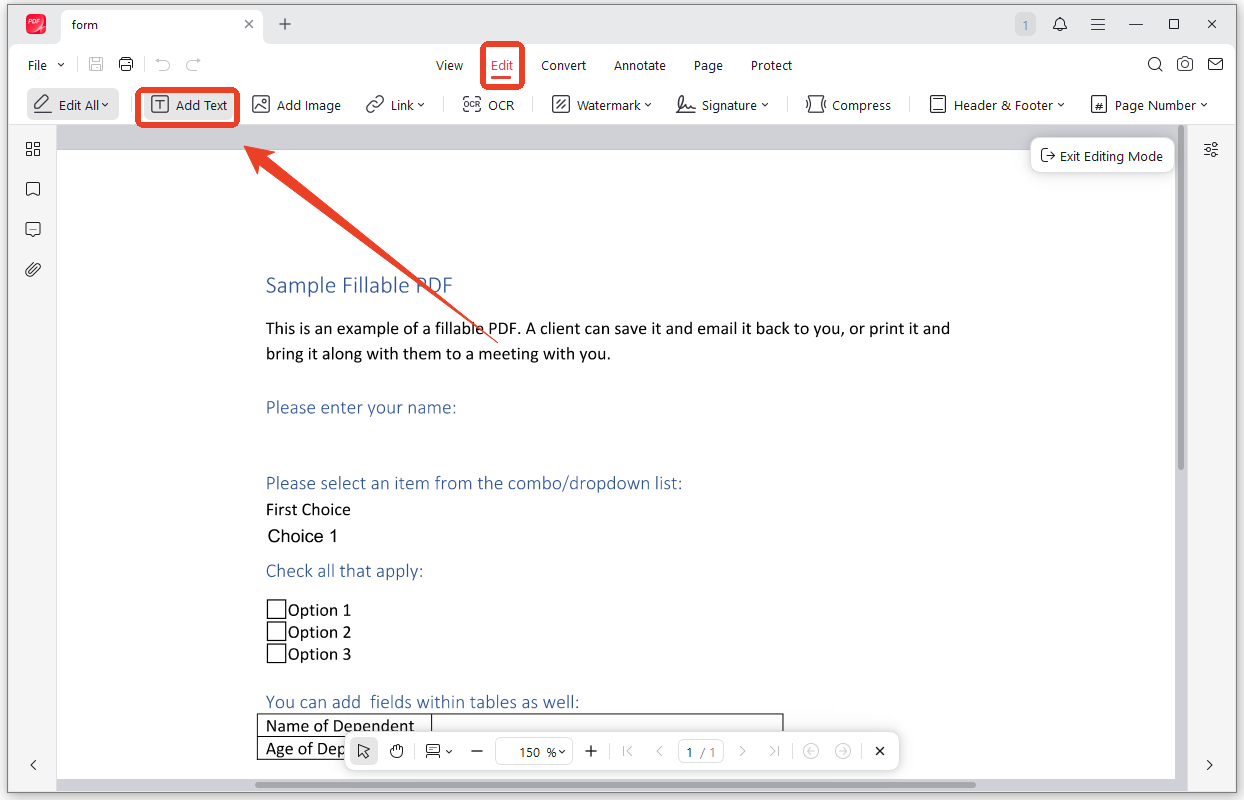
What if your PDF is non-fillable? Try JOPDF’s Add Text tool. You can add text boxes anywhere on the page, so the result looks like a filled form. This is the best method when you can’t fill in a PDF form because it’s flat.
Step 1: Open the PDF in JOPDF and switch to the Edit tab.
Step 2: Choose the Add Text function and click anywhere on the page to place a text box.
Step 3: Type your content and drag the box into position. Change the text color and font size to fit the content.
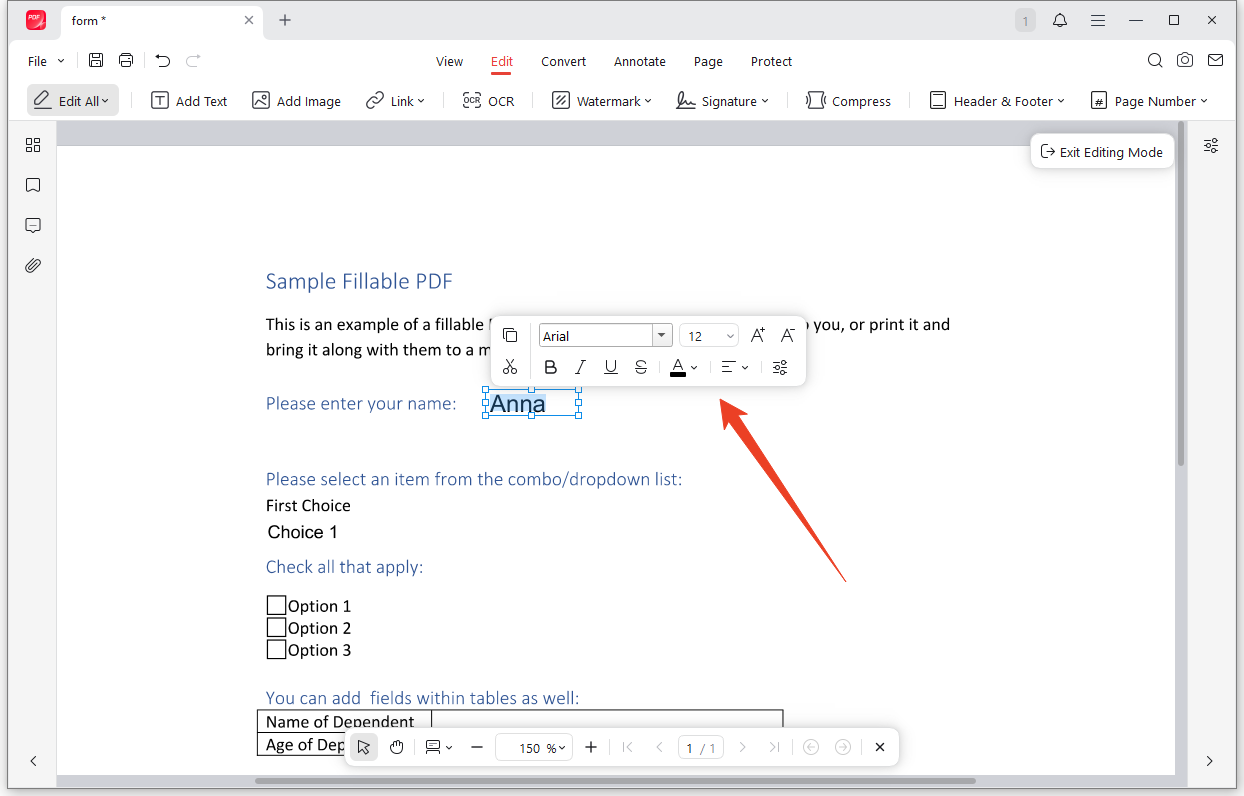
Step 4: Repeat the move for each field and save the file.
Tool 2: OCR the Scans and Fill in
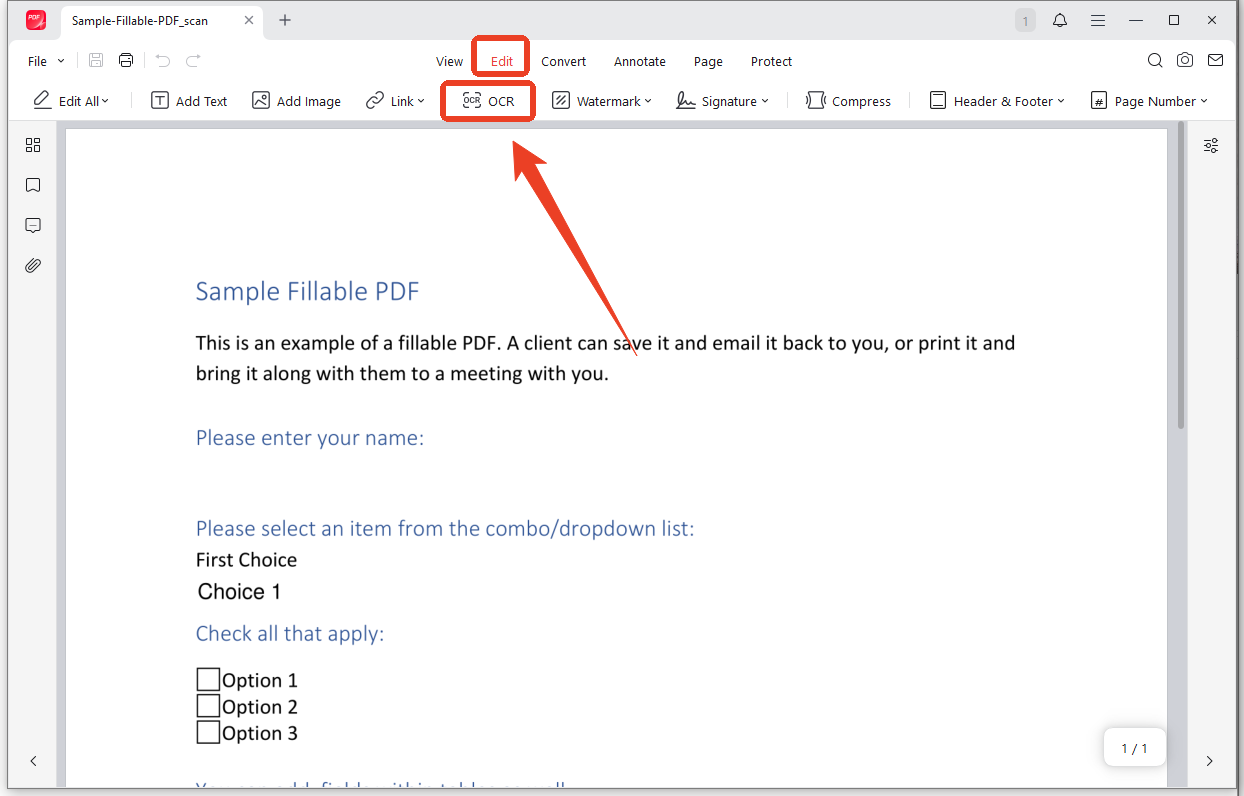
Some users may want to type on a scanned PDF form. Since the scanned form is non-searchable and non-editable, you need to use OCR first. Once OCR has run, the form has a text layer, and you can fill it more accurately.
Step 1: Open the scan in JOPDF and select OCR in the Edit tab.
Step 2: Configure the OCR settings. You can check descriptions for every OCR feature and choose based on your needs.
Tips
Online OCR provides more language support and allows you to select multiple languages at once, but it gets slower and is processed online. Local OCR is faster and safer but offers less language support.
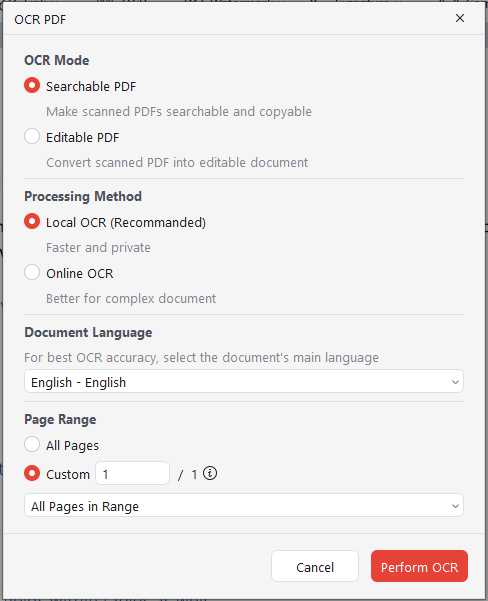
Step 3: After you have chosen the OCR mode, processing method, document language, and page range, click Perform OCR to make your PDF fillable.
Cause 2: The PDF Is Locked or Has Permission Restrictions
The second reason you can’t fill in a PDF form is that security settings block your access. The security settings will show you a tip or ask you to enter a password so you can type on the PDF form.
If you still can’t be sure, open the document properties and check the security permissions, especially the “Form Field Fill-in or Signing” permission. If it’s set to “Not Allowed,” the file is restricted.
If you have the password, you can directly unlock the document and fill in the form; if you don’t have the password or have forgotten the PDF password, ask the owner of this fillable PDF.
You can also try this method if you just forgot the PDF password:
JOPDF’s Print to PDF feature creates a new copy of the document. The new file won’t carry over the original’s permission restrictions. Open that copy, and you can add text or fill fields freely.
Step 1: Open the restricted PDF in JOPDF and press Ctrl + P to open the print dialog.
Step 2: Choose Microsoft Print to PDF as your printer.
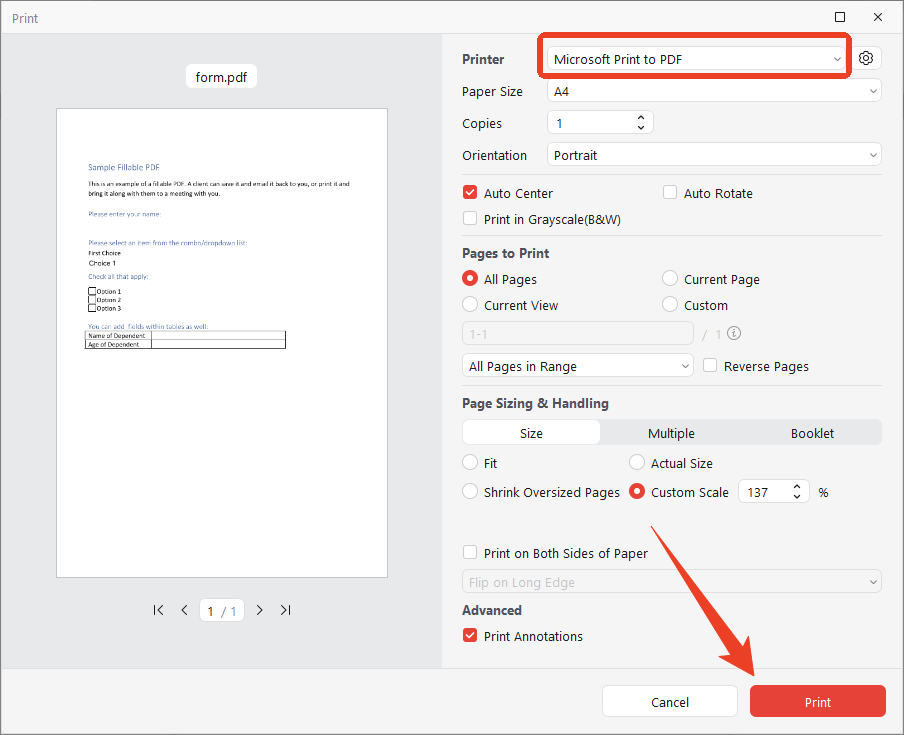
Step 3: Configure other settings and check the print preview. Click Print to create a new copy of the PDF form.
Step 4: Then open this new PDF form and fill it in with the “Add Text” tool.
Cause 3: Your PDF Viewer Doesn’t Support Form Filling
Not all PDF readers support form interaction. Many browser built-in viewers – Chrome, Edge, Safari, Firefox – are designed for reading, not form interaction.
The following are typical symptoms if the culprit is your PDF viewer:
- You can see the fields, but clicking them doesn’t produce a cursor.
- You can type, but the text doesn’t save when you close the file.
- The form works in one browser but not another.
If you want a comprehensive PDF form filler alternative, choose JOPDF. JOPDF handles the interactive field types you’ll encounter in most real forms:
- Text fields for names, addresses, dates, and free-form entries
- Checkboxes for yes/no and multiple-choice selections
- Dropdown menus for selecting from predefined lists
- Signature fields for electronic signing
As a surrounding toolkit, JOPDF can also do more than form filling:
- Signature tools for adding a typed, drawn, or uploaded signature to the filled form
- Compression for reducing file size before sending
- Merge for combining the filled form with attachments
- Format conversion if the recipient needs something other than a PDF
- Page management for reordering, rotating, or removing pages before submission
How to Fill in a PDF Form with JOPDF?
Step 1: Open JOPDF and choose Fillout Form.
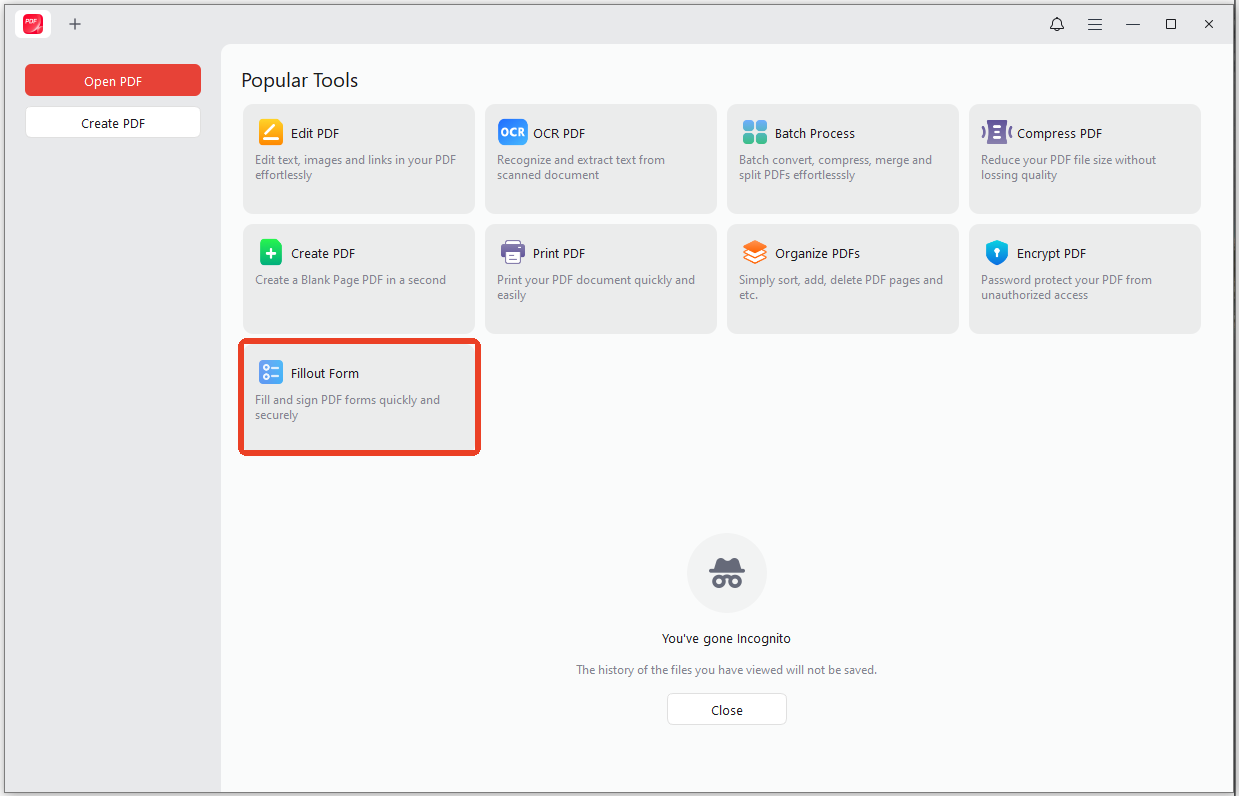
Step 2: If fields are highlighted, the file is fillable. You can click the highlighted parts and type in them. If no fields are highlighted, the file is flat.
Cause 4: The Form Fields Are Broken or Corrupted
If you’ve tried the above methods and confirmed that the PDF is created to be fillable, the other possible reason you can’t fill in a PDF form is that the form fields are broken. You can open the file but can’t handle the interactive fields.
Here are some signs that you have broken fields in a PDF form:
- The field highlights when you hover, but clicking doesn’t let you type.
- The field is positioned incorrectly, overlapping another field or sitting outside the visible page area.
- The form works for some fields but not others.
- The field exists in the file but produces no cursor when clicked.
To fix this problem, you can use the JOPDF’s Add Text tool to type on the document. The steps are introduced under cause 1.
Cause 5: The PDF Was Created in Word and Saved as PDF
Some users tend to create a document that looks like a fillable form, which normally includes text boxes, checkboxes, and dropdowns, and then save it as a PDF. The form may look perfect in Word, but when you open its PDF version, it’s non-fillable.
Word’s content controls don’t automatically become interactive PDF form fields when you export to PDF. The visual appearance is preserved, but the interactive layer is not. So, if you’re creating forms for others to fill, use a dedicated PDF form creator rather than Word’s export function.
Conclusion
Why can’t you fill in a PDF form? Because the file isn’t actually a fillable form, because it’s locked, or because your viewer doesn’t support form fields. Those are the causes behind almost every case.
JOPDF addresses all of them. It highlights fillable fields when they exist, provides Add Text when they don’t, runs OCR on scans that need a text layer first, and offers Print to PDF for locked files. The fix takes minutes, and the file stays on your computer throughout.
FAQs
Table of Contents

Your Best Free PDF Expert in PDF editing, compressing, converting, annotating, protect, organizing, and more.
Free DownloadWindows · macOS · Linux

Anna
Editor
“Anna, Editor-in-Chief and PDF expert, delivers deep insights into PDF document technology trends. She is dedicated to helping readers optimize their digital lives. When not writing, Anna loves exploring local cafes and reading, blending her technical expertise with a love for storytelling.”