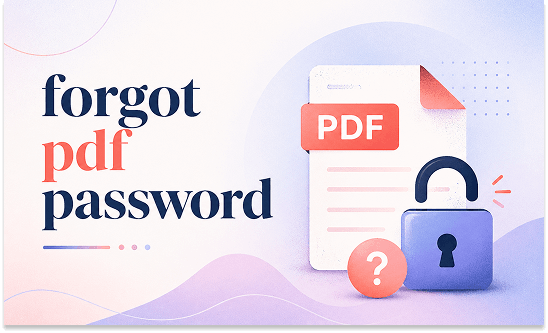
Locked out of a crucial work contract because you forgot PDF password? This can trigger real panic, but you are not alone. This guide on JOPDF breaks down exactly how to unlock a PDF when you have lost access. We cover a reliable free desktop PDF password remover, safe methods to handle a forgot PDF password online scenario, and the best way to recover when you forgot PDF password in mobile. Stop guessing and start accessing your data securely today.
Summary :
How to Unlock PDF When I Forgot PDF Password
Most people jump straight to shady websites when they lost PDF password, but that risks data leaks. We will cover three universal methods, ranging from a privacy-safe desktop tool to browser workarounds, so you can choose the safest route for your specific situation.
Way 1: Contact the owner of the PDF
If the PDF is not yours and you received it from someone else, the simplest and most reliable solution is to reach out directly to the person who sent it to you. They are the ones who originally created the file or set the password in the first place.
Way 2: Try Different Password Combinations
Most people have a small set of go-to passwords that they rely on repeatedly, sometimes with slight variations. For example, you might use a base word followed by a number like “1” or “123,” or you might add a special character at the end.
Open a notepad or use your memory to list three to five passwords that feel familiar to you. Try each one on the PDF. You can also try common variations such as capitalizing the first letter, adding the current year, or using a simple pattern like “password2024.”
Since people often reuse or slightly modify passwords for convenience, there is a good chance the PDF password is very similar to something you already know and use regularly. This method works particularly well if you have recently created the PDF yourself or if the file came from a source where you tend to use consistent password patterns.
Related article: Pro Guide on How to Edit a Locked PDF in 4 Proven Ways
Way 3: The “Print to PDF” Browser Trick (Best for Permission Locks)
If your PDF opens normally but you cannot edit, print, or copy text, you are dealing with a permissions password. This method uses your browser to create a fresh, restriction-free copy. It’s the safest workaround when you forgot PDF password for editing rights and want to unlock PDF files without installing anything.
Step 1: Right-click the locked PDF file and select Open with > Google Chrome or Microsoft Edge. You can also drag the file directly into an open browser tab.
Step 2: Once the file is displayed, click the Print icon in the top right corner.
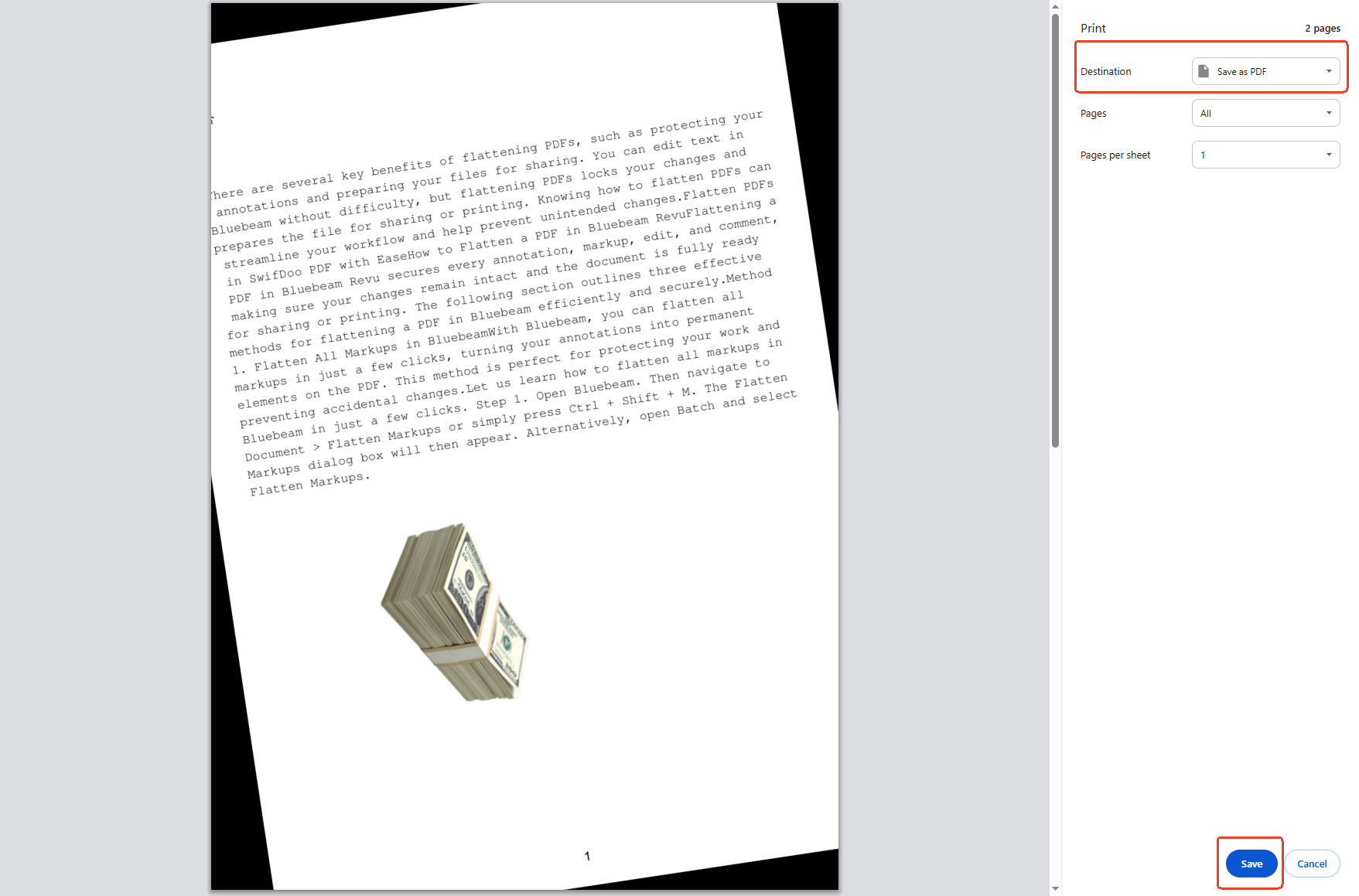
Step 3: In the print dialog, look for the Destination section to choose Save as PDF. Then click Save. Your browser will save a completely new copy of the file with all printing and editing restrictions permanently removed.
Now that you have an unlocked copy, it’s wise to organize it properly. Here, you can split out unnecessary pages, compress the file size, or set a brand-new, memorable password using JOPDF’s encryption feature so you never face this headache again
JOPDF’s Key Features:
-
100% Free with No Hidden Costs (Truly Free)
-
Edit PDFs Directly Like a Word Document
-
All-in-One Functionality
-
Lightning Fast and Lightweight
-
Privacy-Focused with Strong Security Features
Way 4: Recover the Password via Google Chrome Password Manager
Many people don’t realize their browser may have saved the PDF password the first time they entered it. If you previously opened the file in Chrome and clicked “Save password,” this is your quickest path back in when you forgot PDF password.
Step 1: Open Chrome and click the three-dot menu.
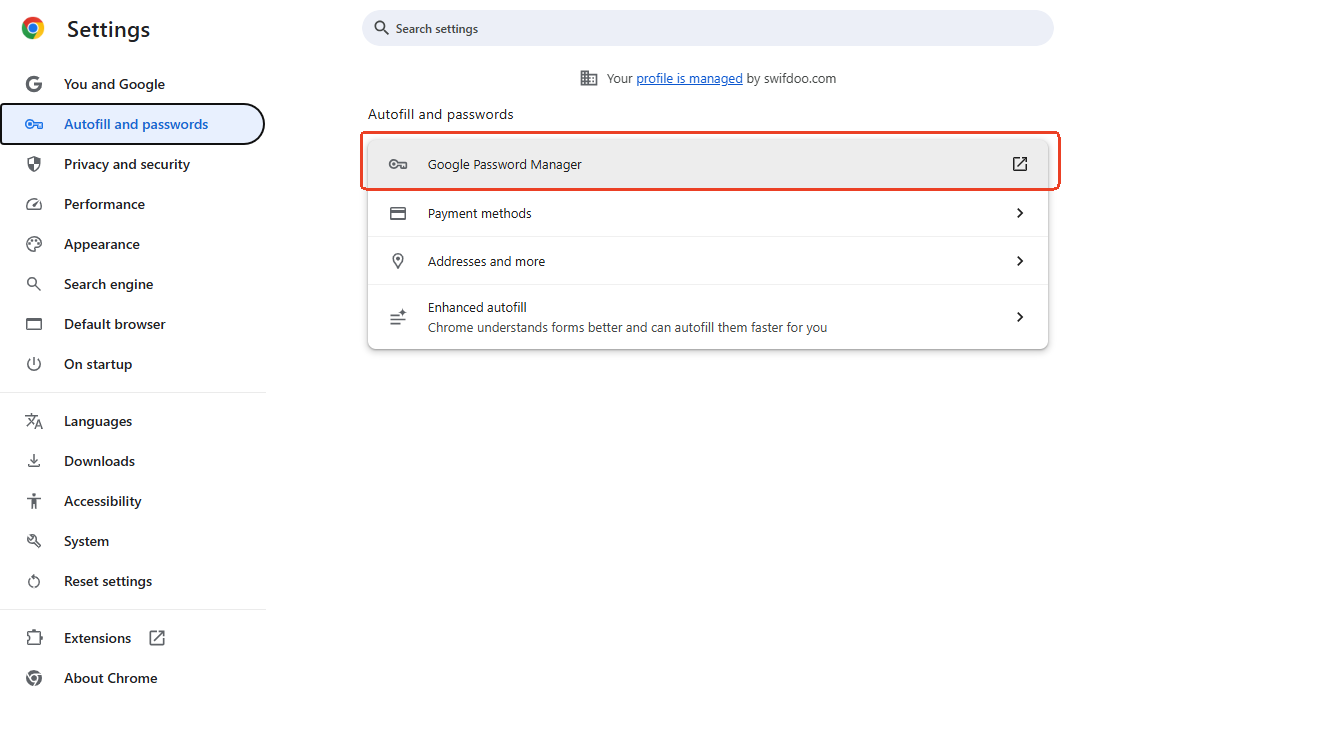
Step 2: Go to Settings, then select Autofill and passwords > Google Password Manager.
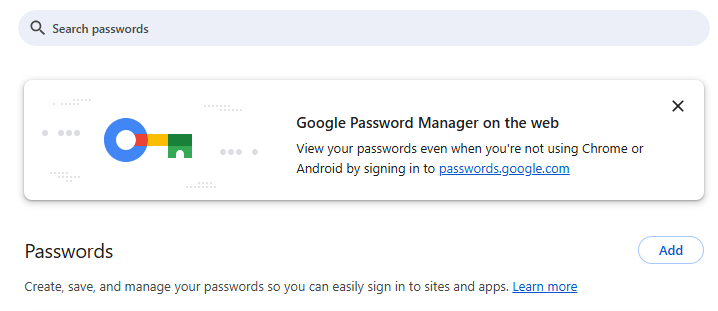
Step 3: Type the file name or part of the website address where you downloaded the PDF into the search bar. PDF passwords are sometimes stored under Saved passwords.
Step 4: Enter your computer’s login credentials to reveal the saved password and use this to open your locked PDF.
Tips
It is recommended back up with JOPDF. Once unlocked, head to JOPDF and use its “Save As” function to create a clean copy. Better yet, use JOPDF’s batch conversion tool to export the content as a Word document, giving you an editable, password-free master backup for the future.

JOPDF – The Best Free PDF Editor
 User Rating: 4.8
JOPDF Is a 100% free POF editor for Windows, macOS, and Linux. Edit text, add images, annotate, sign, and more. No limits, no ads, no subscriptions, Fast, simple, and powerful, take full control of your PDFs in seconds!
Way 5: Mobile Recovery (Forgot PDF Password in Mobile)
Stuck on your phone? If you forgot PDF password android or need to handle a forgot PDF password in mobile situation, you can rely on native apps and tools that don’t require a desktop.
For Android: Google Play offers utilities like PDF Utility. Download the app, select your locked file, and it attempts to remove permission restrictions locally. If you originally set the password yourself, try the Google Password Manager in your Chrome app to look up saved credentials.
For iOS: Use the Files app or PDF Expert. Open the file with your known password, tap the three-dot menu, and select “Remove Password.” Once restrictions are stripped, transfer the file to JOPDF on your Mac or Windows machine for further editing, merging, or re-encrypting with a password you’ll actually remember.
Related Article: 7 Best PDF Converters in 2026 [Pros, Cons, and More]
Common Types of PDF Document Passwords
Understanding why you are locked out is half the battle. A PDF has two distinct security layers:
- Document Open Password (User Password): You hit a wall immediately. You cannot see a single page without typing the correct string. If you forgot PDF password of this type, recovery options are limited. You must either remember it, find a browser-saved version, or try simple recovery tools.
- Permissions Password (Owner Password): You can open the file, but actions like printing, copying text, or editing are grayed out. This is much easier to bypass. The “Print to PDF” browser method explained above can unlock a PDF of this type instantly without needing the original code.
Can I Open PDF If Forgotten the Password?
Yes, with a clear distinction. If you face an “Open Password” barrier and never saved it anywhere, recovery is extremely difficult. However, if you can already view the document but just can’t edit it, you can absolutely create an unlocked copy in seconds using the “Print to PDF” browser trick.
Tips
Once that unlocked file exists, launch JOPDF to reorganize, compress, annotate, or apply a fresh password.
What to Do If I Forgot PDF Password?
Panicking leads to bad decisions like downloading malware-laden crackers. Follow this checklist methodically:
- Check Your Browser Password Manager: Chrome and Edge often save PDF passwords. Search your settings for the filename.
- Try Common Variants: Most people slightly modify a base password by adding numbers or symbols. Systematically test your usual patterns.
- Locate an Unprotected Backup: Did you email the file to someone? Check your Sent folder or cloud storage. The recipient might have an unlocked version or an older, unrestricted draft.
- Use the Browser Print Trick: If the file opens, immediately save an unlocked copy before doing anything else.
How to Avoid the Chances of “Forgot My Password”?
Prevention is far better than spending hours trying to recover a locked file. Here is how to stop the “forgot PDF password” headache from happening again:
- Adopt a Password Manager: Tools like Bitwarden or KeePass generate strong, unique passwords and auto-fill them. You won’t need to rely on memory alone.
- Keep an Unsecured Master Backup: Store a password-free copy of critical documents on an encrypted external hard drive kept in a secure physical location.
- Use JOPDF for Future Encryption: When you want to password-protect a newly created or split PDF, use JOPDF’s built-in protection feature. It allows you to set both an open password and specific permissions (like allowing printing but blocking editing). Most importantly, you can choose a strong passphrase and immediately store it in your password manager.
Conclusion
Forgetting a password doesn’t have to mean permanent data loss. By distinguishing between a user lock and a permission lock, you can pick the right recovery strategy. The browser “Print to PDF” trick remains the most universally accessible PDF password remover for permission-restricted files, while password managers often save the day for open-locked documents.
Throughout this process, a free tool like JOPDF becomes your best companion. The tool always prioritize your data privacy by avoiding shady websites that promise miracle unlocks, and start building better password habits today.
FAQs
Realistically, if the password is long and uses random symbols, recovery is nearly impossible. The best option is to find a backup copy or check your browser's saved passwords. If the file is an official document like a bank statement, most institutions use standard formats like your date of birth or account number.
Stick to built-in methods like the Chrome "Print to PDF" trick, which runs entirely on your device. Avoid downloading random "cracker" software from forums, as these are common vectors for malware.
Yes. Open the file in the PDF Expert or Files app using the known password, navigate to the file info or menu, and select "Remove Password." You may need an active subscription for some commercial apps.
If the file has a permissions password (meaning you can open it), simply drag it into Google Chrome, hit print, and select "Save as PDF." This instantly creates a clean, unprotected version without installing anything.
Open the unlocked file in JOPDF, go to its "Protect" tool, and set a new open password along with specific permissions. Save the new password in a password manager immediately. This gives you full control over who accesses your document going forward.
Table of Contents

Your Best Free PDF Expert in PDF editing, compressing, converting, annotating, protect, organizing, and more.
Free DownloadWindows · macOS · Linux

Anna
Editor
“Anna, Editor-in-Chief and PDF expert, delivers deep insights into PDF document technology trends. She is dedicated to helping readers optimize their digital lives. When not writing, Anna loves exploring local cafes and reading, blending her technical expertise with a love for storytelling.”