Summary :
SBI issues bank statements as password-protected PDFs because they contain sensitive data. The problem is that the SBI statement PDF password isn’t a single fixed code. It changes depending on where you downloaded the file. This guide explains the SBI bank statement PDF password format for every source, including YONO, Net Banking, credit cards, email, WhatsApp, and SMS requests. We’ll also show you how to open the file, what to do when the SBI statement password fails, and how to unlock and manage the document afterward with JOPDF.
Key Takeaways
- The SBI statement PDF password depends on the download source, not the account type
- YONO app uses your date of birth in DDMMYYYY; Net Banking uses your full account number
- SBI credit card statement password uses the first 4 letters of your name plus DDMM of birth
- Email and WhatsApp statements usually use the last 5 digits of your mobile plus DDMMYY
- SMS-requested statements use the 4-digit code you chose yourself
- JOPDF opens password protected pdf files, lets you remove PDF password protection, and helps you organize the file offline
Part 1: What Is the SBI Statement PDF Password?
Before you start guessing, it helps you to understand what this password is. It isn’t a secret code SBI assigns to your account.
Why SBI Password-Protects Statements
Bank statements contain sensitive financial data: account numbers, card numbers, outstanding balances, payment dates, interest rates, and a full record of transactions over a chosen period. SBI applies bank statement encryption to every PDF so that even if the file ends up in the wrong inbox, it stays unreadable.
This applies across savings, current, salary, and loan account statements. The protection is automatic—you don’t opt in, and you can’t skip it when opening the file.
What the Password Actually Is
There is no single SBI PDF password that works everywhere. The format changes based on the channel that produced the file:
- YONO app downloads use your date of birth password
- Net Banking downloads use your account number password
- Credit card portal downloads use part of your name and birth date
- Emailed and WhatsApp statements use a combination of your mobile number and birth date
- SMS-requested statements use a code you picked yourself
The logic behind this is straightforward. Each channel already knows certain things about you, so SBI uses the details that channel can verify. The question to answer is never “what is the SBI password” but “which channel produced this file.” Get that wrong, and even the correct format will fail.
Part 2: SBI Statement Password Format by Source
Now that you know the format depends on the source, let’s break down each one. This is the section most people need, so keep it handy.
Quick Reference Table
| Source | Password Format | Example |
| YONO SBI App | DOB in DDMMYYYY | 15081990 |
| OnlineSBI / Net Banking | Full account number (11 digits) | 12345678901 |
| SBI Credit Card Portal | First 4 letters of name (lowercase) + DDMM | raje1508 |
| Email / WhatsApp e-Statement | Last 5 digits of mobile + DDMMYY | 98765150890 |
| SMS-Requested Statement | 4-digit code you chose yourself | 1234 |
YONO SBI App
Statements downloaded directly from the YONO app use your date of birth in DDMMYYYY format—eight digits, no hyphens, slashes, or spaces. If you were born on 15 August 1990, the SBI statement password is 15081990.
This applies to savings, current, salary, and loan accounts pulled through YONO. Even though you’re already signed in, the file still requires the password when you open it in a viewer.
OnlineSBI Net Banking
Statements downloaded from OnlineSBI (onlinesbi.com) use your full SBI account statement password—your account number, typically 11 digits. You can find it on your passbook, cheque leaf, or in the YONO app under Account Details.
Do not use your customer ID, and do not use a masked or partial number. If the password fails, try the account number without any leading zeros.
SBI Credit Card Statement
Credit card statements come from a separate company, SBI Cards and Payment Services, which is why the format is different. The SBI credit card statement password is the first 4 letters of your name as printed on the card (lowercase), followed by DDMM of your date of birth.
If your name is Rajesh and you were born on 15 August, the password is raje1508. For joint or business cards, use the primary cardholder’s name only.
Email and WhatsApp Statements
Statements that arrive by email or through SBI WhatsApp Banking are usually encrypted with the last 5 digits of your registered mobile number followed by your date of birth in DDMMYY format. This is the format most commonly associated with an SBI e-statement password.
For a mobile ending 98765 and a birth date of 15 August 1990, that gives 98765150890. SBI does not officially publish this format, so read the covering message before guessing—the hint in the email or WhatsApp message outranks any list online.
SMS-Requested Statements
If you texted ESTMT <account number> <code> to 917208933145, the PDF emailed back is encrypted with the 4-digit code you chose in that message. It is not your date of birth or account number.
If you’ve forgotten the code, there is no way to recover it. Send a fresh ESTMT request with a code you’ll remember.
Part 3: How to Open an SBI Statement PDF
Once you know the right format, opening the file is straightforward. The steps below work for any password-protected PDF from SBI.
Step 1: Identify the Source
Before typing anything, confirm where the file came from. Was it downloaded from YONO, Net Banking, or the credit card portal? Did it arrive by email, WhatsApp, or an SMS request? The source determines the password format, and this step prevents most failed attempts.
Step 2: Open the PDF
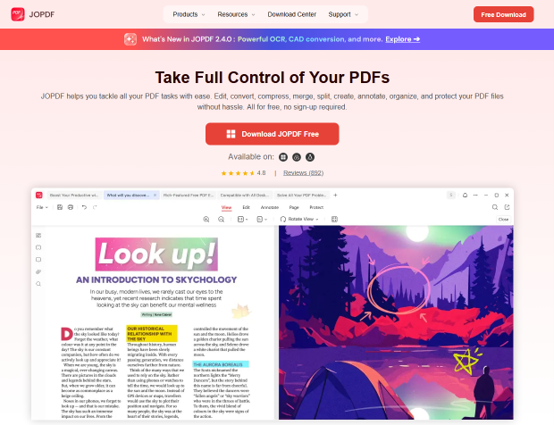
Here, we recommend using a dedicated PDF reader for best results. There are some available PDF readers such as Preview on Mac or Chrome or Edge in a browser tab. If you’d rather not deal with browser viewer glitches or install a heavyweight reader, JOPDF is a lightweight option worth trying.
It opens password-protected PDFs directly, works offline on Windows, Mac, Linux, iOS, and Android, and requires no sign-up. You enter the password once, and the file is ready to view or organize. We cover JOPDF’s full feature set in Part 6.
Step 3: Enter the Password
Type the correct format for your source. Keep leading zeros in dates – 1 January 1985 is 01011985, never 111985. Do not mix the 6-digit and 8-digit date formats; YONO uses eight digits, while emailed statements use six.
If you forgot the SBI statement password, you could guess it based on the SBI statement password format and its source.
Step 4: Save an Unlocked Copy (Optional)
If you want a version that opens without a password, go to File > Print > Save as PDF. The re-saved file opens freely, which is useful for archiving or sending to your accountant.
Part 4: Common SBI Statement Password Errors and Fixes
Even with the right format, things can go wrong. Here are the most common SBI statement password problems and how to fix them.
#1. Wrong Mobile Number Digits
Use the mobile number currently registered with SBI – not an older or alternate number. If you’re unsure, verify it at your nearest branch or check YONO under My Profile.
#2. Two-Digit vs Four-Digit Year
OnlineSBI uses DDMMYY (6 digits), while YONO uses DDMMYYYY (8 digits). Mixing them is one of the most frequent causes of an SBI statement password error. If the file came from YONO, use eight digits. If it came from Net Banking, use the account number instead.
#3. Credit Card Name Format
Use the first name as printed on the front of the card, in lowercase. Joint or business cards use the primary cardholder’s name only. If the name-based password fails, some users report success with the last 4 digits of the card number plus DDMM.
#4. Browser Viewer Fails to Decode
Browser-based PDF viewers sometimes fail on encrypted files, even when the password is correct. This often looks like SBI PDF won’t open when the real problem is the viewer. Download the file and open it in a dedicated reader instead.
#5. Password Still Not Working
If the SBI password not working message keeps appearing, work down this list:
- Confirm the source – most failures trace back to wrong assumptions about where the file came from
- Check the date of birth SBI actually holds (You can follow this: YONO > My Profile > Personal Details)
- Use the full 11-digit account number for Net Banking PDFs
- Keep leading zeros in dates
- For SMS-requested files, the password is the code you sent
- If you forgot SBI statement password entirely, request a fresh statement rather than guessing further
- For statements older than five years, call SBI toll-free at 1800-11-2211 or visit a branch with Aadhaar or PAN
Part 5: How to Remove the Password from an SBI Statement PDF
Opening the file every time you need to check a transaction gets old fast. If you want a version that opens without a prompt, here’s how to remove PDF password protection.
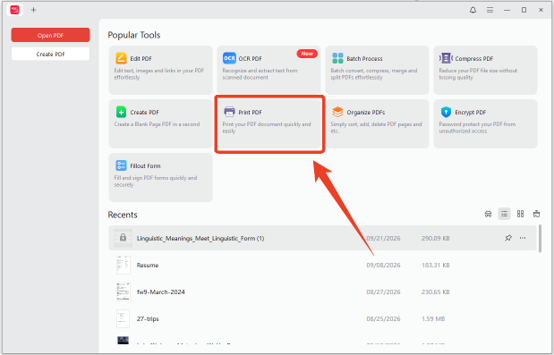
During this process, you’ll need a PDF editor that can print to PDF. JOPDF is not only a PDF reader, but also a printer to help you unlock the SBI statement PDF. Just follow the next method:
Method 1: Print to PDF
Step 1: Click the Print PDF option and open the unlocked PDF in JOPDF.
Step 2: Enter the SBI PDF password and set your printer to Microsoft Print to PDF.
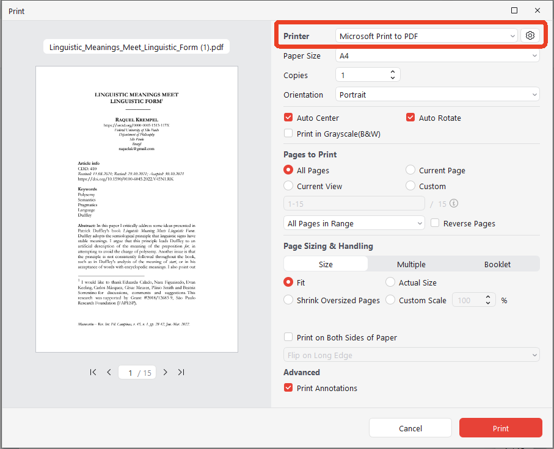
Step 3: Click Print to save this PDF to unlock PDF files.
Method 2: Re-Save the PDF
JOPDF opens password-protected PDFs once you enter the SBI statement PDF password. From there, you can re-save the file to create an unprotected copy and remove the bank statement encryption.
Part 6: Manage Your SBI Statement with JOPDF
After your statement is unlocked, you might need to merge several months into one file, split a combined statement by account, or extract transaction data for your accountant. To do that, you’ll need a dedicated PDF editor for bank statements.
Since your SBI bank statement includes important information, privacy would be the first thing to think about. Luckily, JOPDF PDF editor is the one safeguarding your private information while handling every PDF tool in one place, such as editing, conversion, compression, merging, splitting, annotation, and protection.
For anyone dealing with password protected PDF bank statements, it’s a practical toolkit rather than a single-purpose utility.
Also See: How to Edit a Bank Statement PDF in 4 Ways for Free
- Merge PDFs: Combine multiple monthly statements into one file
- Split PDFs: Separate statements by month or account
- OCR: Make scanned or image-based statements searchable
- Compress PDFs: Reduce file size before emailing your accountant
- Edit and annotate: Highlight transactions or add notes for your CA
- Convert to Excel: Export transaction data for analysis or tax filing
How to Unlock and Organize with JOPDF?
Step 1: Open the password-protected PDF SBI statement from JOPDF and enter the correct SBI statement PDF password for the source.
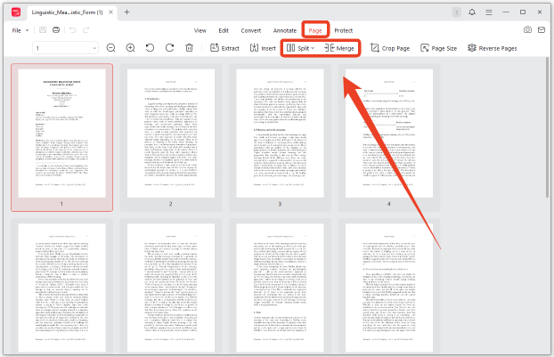
Step 2: Go to the Page tab and use Merge or Split to organize the statements by month or account.
Step 3: In the Edit tab, run OCR bank statement processing if the file is scanned or image-based.
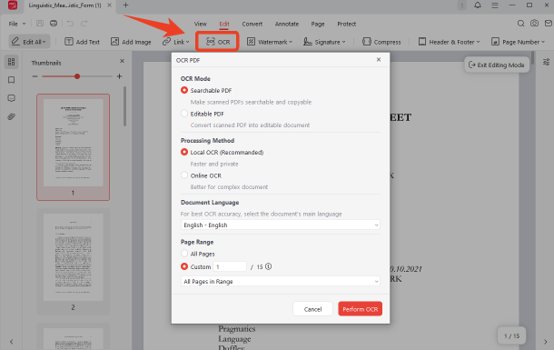
Step 4: Re-save as an unlocked PDF for archiving and compress before emailing to your accountant.
Part 7: SBI Statement Password for Other Document Types
The SBI bank statement PDF password rules don’t apply to every document SBI issues. Here’s how other file types work.
FD Receipts and PPF Statements
SBI publishes no official password list for FD advice, PPF statements, nominee acknowledgements, or balance certificates. The channel decides, not the document. An FD advice saved from YONO opens with your date of birth in DDMMYYYY; the same file pulled from OnlineSBI opens with the account number.
For FD advice specifically, some users report success with the first 4 letters of the registered name in capitals plus DDMM. Joint, HUF, and business deposits reportedly do not follow this pattern.
Netbanking Exports (XLS / CSV)
Spreadsheet exports from OnlineSBI are data files, not protected documents. If it opens directly in Excel, there is no password to find. The PDF password rules never apply to it.
Mini Statements
Mini statements usually arrive as text in the app, by SMS, or through WhatsApp rather than as a file. If a mini statement does arrive as a PDF, treat it as a document from that channel and use that channel’s format.
YONO Business and Corporate Accounts
These run on a separate platform with their own document workflow, and no password format is published for them. Don’t assume the personal YONO format carries over. Check the download message or ask your relationship manager—that will settle it faster than trial and error.
Conclusion
Since the SBI statement PDF password changes by source, you can follow this rule to find the SBI PDF password: YONO uses your date of birth, Net Banking uses your account number, credit cards use your name and birth date and emailed or SMS-requested statements use their own combinations.
Once the file is open, JOPDF gives you a free, offline way to unlock it, merge multiple months, split by account, run OCR on scans, and compress before sharing.
FAQs
Table of Contents

Your Best Free PDF Expert in PDF editing, compressing, converting, annotating, protect, organizing, and more.
Free DownloadWindows · macOS · Linux

Anna
Editor
“Anna, Editor-in-Chief and PDF expert, delivers deep insights into PDF document technology trends. She is dedicated to helping readers optimize their digital lives. When not writing, Anna loves exploring local cafes and reading, blending her technical expertise with a love for storytelling.”