Introduction:
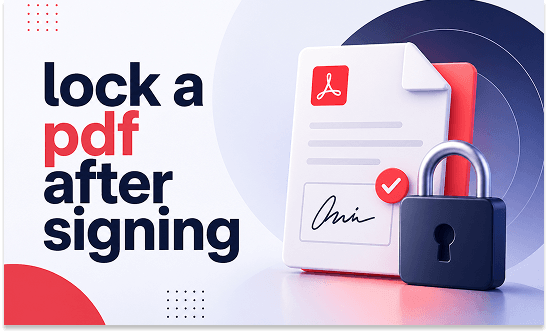
If you want to keep your important documents completely secure from strangers, you need to know exactly how to lock a PDF after signing. This guide shows you three easy ways to sign and lock your files using desktop programs and web tools.
Way 1. Lock a PDF After Signing with JOPDF
If you want to do the job professionally and easily, JOPDF is the best choice. It is a free and comprehensive PDF tool designed to make handling PDFs simple.
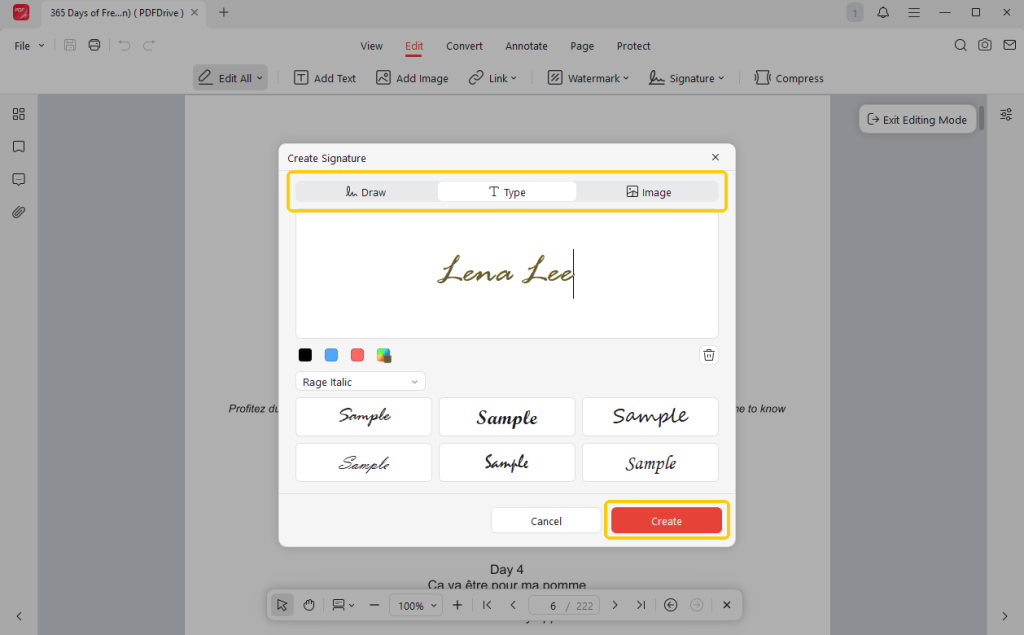
First, JOPDF lets you easily sign a PDF electronically. The program gives you three very easy ways to create your PDF:
✅ Draw: You can use your computer mouse to draw your signature by hand, just like holding a pen.
✅ Type: Just type your name on the keyboard, and the style, font, color, and more will be applied.
✅ Image: If you have a photo of your real signature on paper, you can upload it and use it as your signature.
After your name is on the page, JOPDF allows you to securely password protect a PDF. You lock a PDF from editing after signing, copying, printing, and more. No one can change your agreements.
Let’s see how to lock a PDF after signing with JOPDF.
Steps to sign a PDF
- Download, install, and launch JOPDF. Open your PDF document.
- Click the Edit tab at the top and choose Signature. Then, select the Create Signature option.
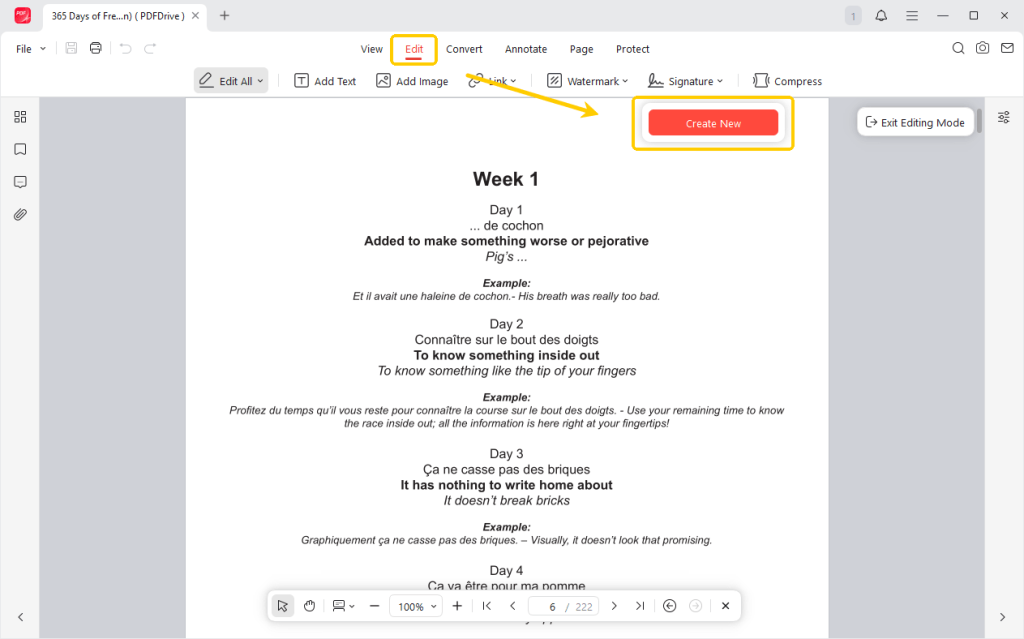
- Select a method to create the PDF. After that, please add the signature to the PDF in the right place. Click the Save button.
Steps to lock a PDF
- Click the Protect tab at the top, then choose Encrypt.
- Check the box next to Open Password or Permission Password. The former will prevent others from opening the PDF, while the latter will lock a PDF from editing or making any other changes.
- Enter a strong password, and click Apply.
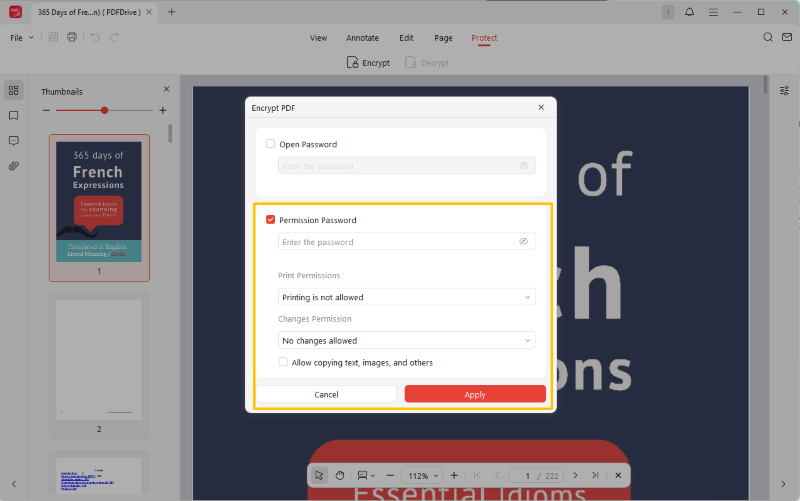
- Finally, save the changes.
As you can see, JODF has a clean interface, which is incredibly easy for beginners to use. You do not need to be a computer expert.
Moreover, JOPDF offers many useful tools for various needs, such as combining files or fixing text. Give it a try today to make your PDF work much easier!
Way 2. Use Adobe Acrobat
Adobe Acrobat is a very famous office tool. Many big companies use it every day. Both the free Adobe Acrobat Reader and the paid Acrobat Pro version support placing basic electronic signatures and digital signatures.
However, there is a big catch. If you just use a normal signature and want to add a real password lock later, Adobe usually requires you to pay for a very expensive monthly subscription.
Thankfully, there is a special, free trick you can use with “Digital Signatures.” A digital signature acts like a secure digital ID card hidden inside the computer file. When you use this specific type of signature, you can lock the file at the same time.
Check to learn how to lock a PDF after signing via Acrobat:
- Open the file in your Adobe Acrobat program.
- Go to the Use a certificate tool on the left side.
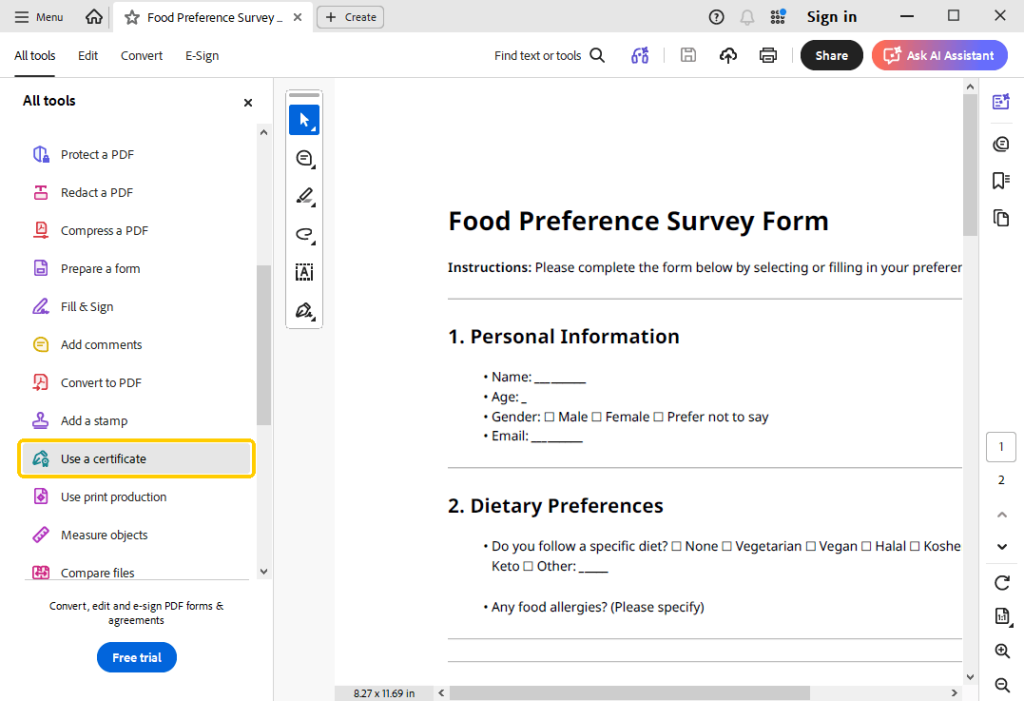
- Click Digitally Sign and use your mouse to draw a box on the page for your signature.
- When the signature box pops up on your screen, choose to use an existing signature or create a new one.
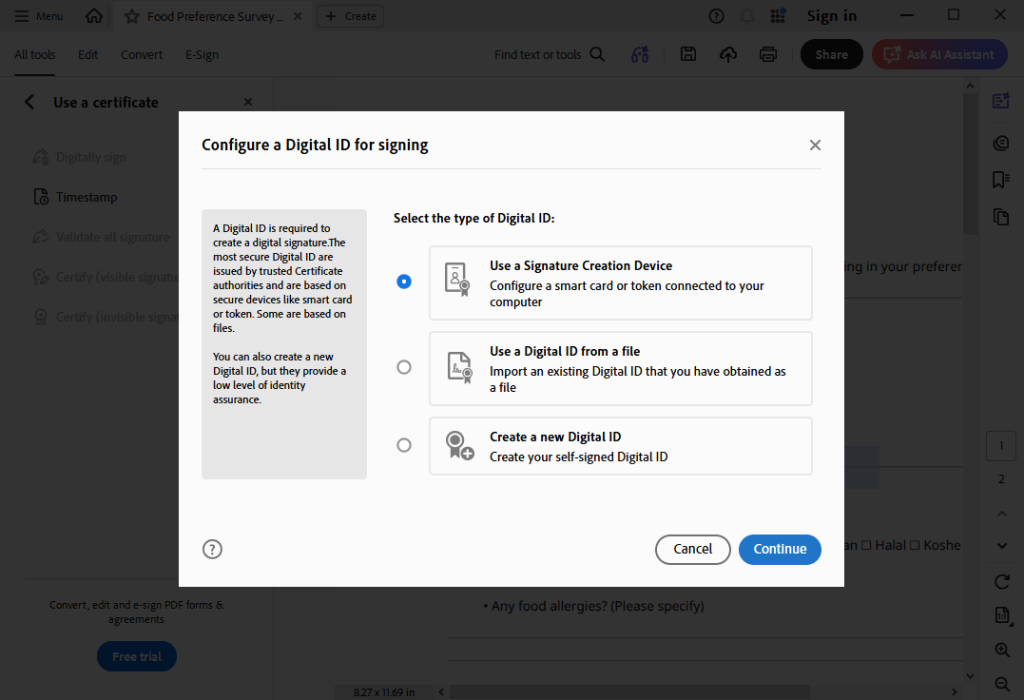
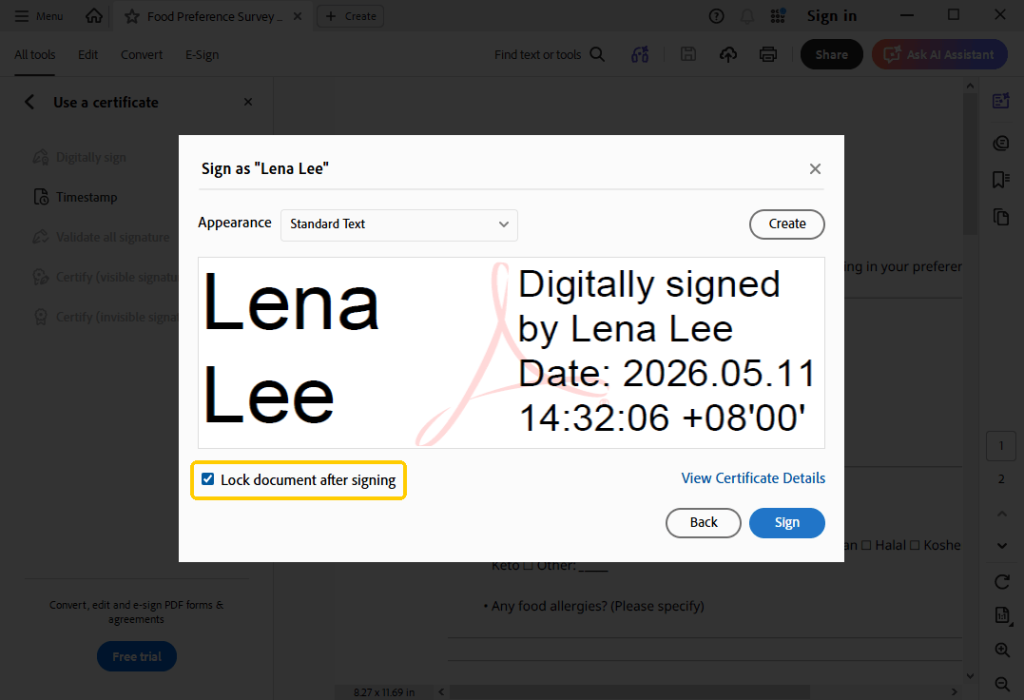
- Follow the prompts to add your signature. Then, look very carefully at the bottom of the box. You will see a small checkbox that says “Lock document after signing.“
- Check that box, click the Sign button, and save the file.
Dealing with Adobe digital certificates can sometimes be confusing for the average person. If you want a simpler way to add passwords and more editing features without paying high fees, you should try JOPDF. It is widely considered the best free alternative to Adobe Acrobat.
Way 3. Use an Online Tool
Don’t want to download software and just want a quick fix? No problem. You can use an online tool, such as PDF2GO. You can sign a PDF and add password protection right in your web browser. Check to learn the details.
Step-by-Step Guide:
- Open any of your browsers and go to the PDF2GO signing online tool (https://www.pdf2go.com/sign-pdf).
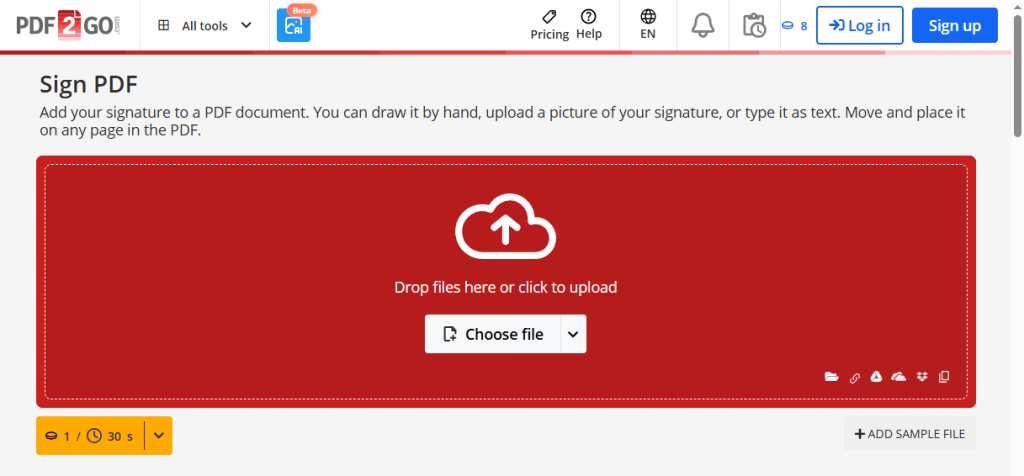
- Upload your file and use their easy tools to sign your document.
- Download the signed document back to your computer.
- Next, go to the PDF2GO Protect PDF webpage (https://www.pdf2go.com/protect-pdf).
- Upload your newly signed document. Set the open password and permission password, and click the START button.
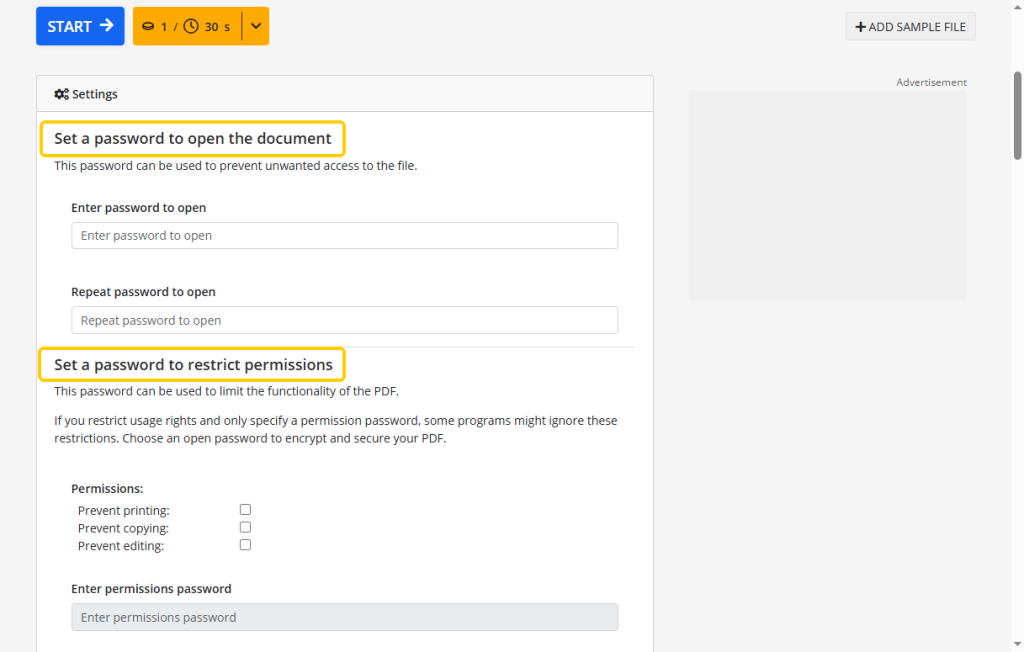
- Download the final, locked file.
❗ A Quick Safety Warning:
While these websites are very fast and easy to use, please be careful. Uploading highly secret business contracts to the public internet always carries a small privacy risk. For your most private files, offline computer tools like JOPDF are always much safer.
Conclusion
That’s all about how to lock a PDF after signing. Although Adobe provides an in-built checkbox feature and online network tools are also very fast, JOPDF remains the most recommended choice.
JOPDF can help you easily sign documents safely and set password protection. There is no need to worry about privacy or security. Anyone who doesn’t know the password cannot perform any operations on your documents!
FAQs
Table of Contents

Your Best Free PDF Expert in PDF editing, compressing, converting, annotating, protect, organizing, and more.
Free DownloadWindows · macOS · Linux

Queena
Editor
“As a staff editor for JOPDF, Queena excels at guiding users to the optimal tools and solutions. When she's not analyzing the latest PDF solutions, she enjoys spending her free time playing with her four cats.”