Introduction:
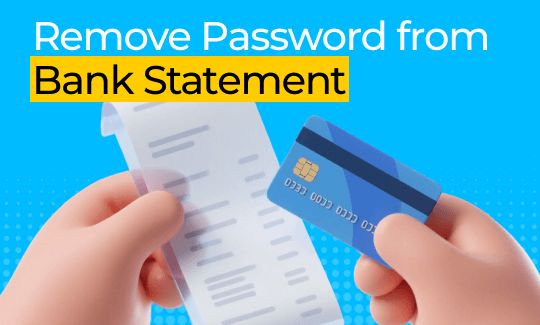
If you want easier access to your files without typing a long password every single, learning how to remove password from PDF bank statement files is a great skill. This guide shows you five simple, secure methods to permanently unlock your files.
Quick Comparison Table
In a hurry? Check this table to get an overview of each method.
| Method | Requires Download? | OS Compatibility | Best Feature |
| Way 1: JOPDF | Yes | Windows/Mac | Free, offline privacy, full editing |
| Way 2: Adobe Acrobat Pro | Yes | Windows/Mac | Professional industry standard |
| Way 3: Print to PDF | No | Any (Browser) | Fast, no-install trick |
| Way 4: Mac Preview | No | Mac Only | Built-in Apple tool |
| Way 5: iLovePDF | No | Any (Web) | Works on mobile and tablets |
Way 1. Remove PDF Bank Statement Password with JOPDF: Free and Easy
⭐ Best For: People who want a free, very safe, and offline desktop alternative to Adobe.
To safely remove password from PDF bank statement files, you need a good tool. We highly recommend JOPDF. It is completely free and also very easy to use.
Because your bank files are private, using a safe offline program on your computer is the best choice. Many people say JOPDF is one of the best alternatives to Adobe. It has a very simple password removal feature. You can unlock your document with just one click.
Here are the steps to use JOPDF to remove a password:
- Download JOPDF and install it on your computer.
- Open your locked bank statement in JOPDF. You must type the bank’s password this one last time to open the file.
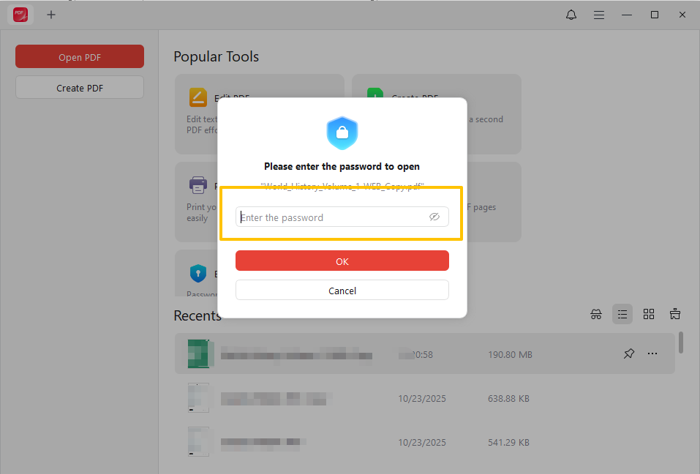
- Look at the top menu bar. Click Protect, then select the Decrypt option.
- Click Remove to confirm, and that’s it.

JOPDF is a comprehensive PDF editor. You can also use it to edit text, merge different months of statements together, and even reduce PDF file size without losing quality, so you can email your accountant easily.
Why not give it a try to better manage your bank statement?
Way 2. Use Adobe Acrobat Pro
⭐ Best For: Professional office workers who already pay for the expensive Adobe Acrobat Pro software.
Adobe Acrobat Pro is a very famous program. Many office workers use it every day. You can use it to remove password from bank statement in PDF format very easily.
Please remember a very important catch. This method requires a paid monthly subscription. The free version of Adobe Reader cannot remove passwords.
Here are the steps:
- Open your protected bank statement in Adobe Acrobat Pro. Type your current password to open it.
- Click the Menu tab at the top of the screen. Select the Protection option.
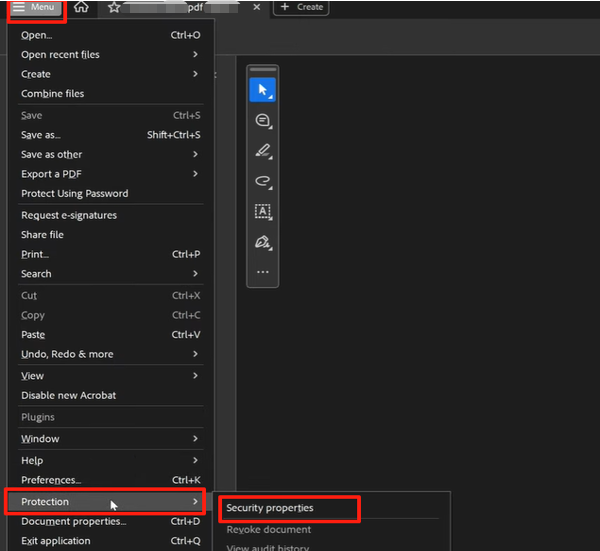
- Choose Security properties from the drop-down menu.
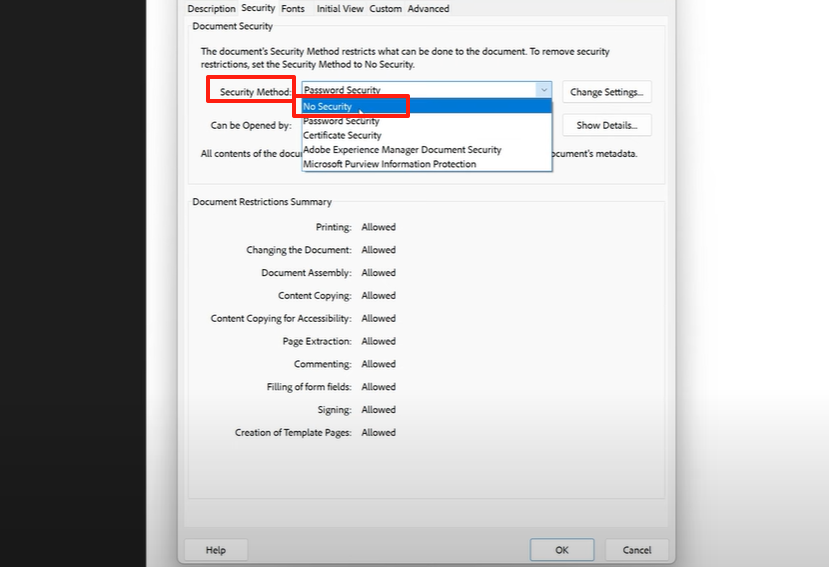
- Select No Security next to Security Method. Click OK to confirm your choice.
Way 3. Use the Print to PDF Feature
⭐ Best For: People in a huge rush who just need a quick copy to read and do not need to edit the text later.
You can use your web browser to unlock your file. Google Chrome and Microsoft Edge work perfectly for this. This is a clever trick. It does not require you to download any software.
Follow the steps below:
- Drag your locked bank statement file into your open web browser. Type the password to open it on your screen.
- Click the Print icon located in the top right corner.
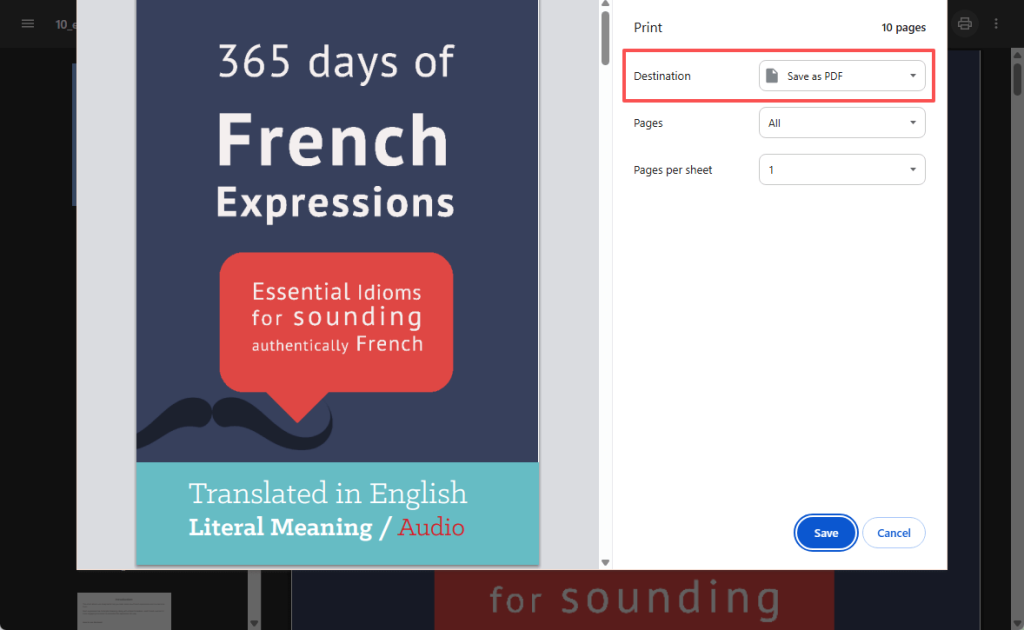
- A print menu will pop up. Do not print to physical paper. Instead, change the printer choice to Save as PDF.
- Click the Save button.
Warning: This trick will flatten the document. It will make the document completely uneditable. You cannot edit the text in the PDF, let alone copy the numbers. If you need to edit the PDF later, you should try JOPDF instead.
Way 4. Use Preview on Mac
⭐ Best For: Apple Mac users who want a fast, built-in tool without installing any new software.
If you use an Apple Mac computer, you have a free built-in app called Preview. It is a wonderful option for Apple users.
Here are the steps:
- Double-click your bank statement to open it in the Preview app, then enter your password.
- Go to the File menu at the very top of your screen.
- Click on the Export as PDF option.

- Look for the Encrypt box. Make sure this box is NOT checked. Save your new file to your Mac.
You can also go to File > Edit Permissions… > Uncheck the Require Password To Open Document box to remove the password.
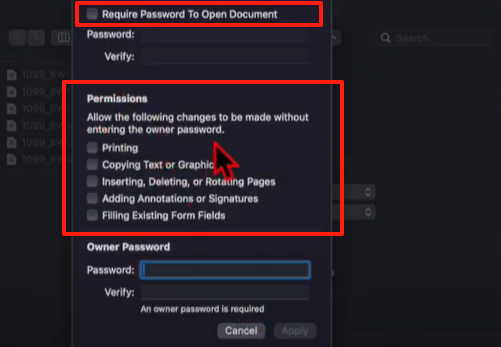
Please note that Preview is not perfect. In Preview, users cannot change the existing text in a PDF. It only works as a basic viewer.
If you need to edit words, fix numbers, or manage your pages, you can use JOPDF, a comprehensive PDF editor for Mac.
Way 5. Use an Online Tool (iLovePDF)
⭐ Best For: Mobile phone users who need a fast internet cloud solution and do not mind the basic web privacy risks.
If you are using a mobile phone or a borrowed computer, you can choose to remove password from PDF bank statement online. A website called iLovePDF is a very popular choice for this.
Check to learn the steps:
- Open your internet browser. Go to the iLovePDF “Unlock PDF” webpage (https://www.ilovepdf.com/unlock_pdf).
- Click the button to upload your statement.
- Type the password to continue.
- Click the Unlock PDF button. Wait a few seconds, and download your new, unlocked file.
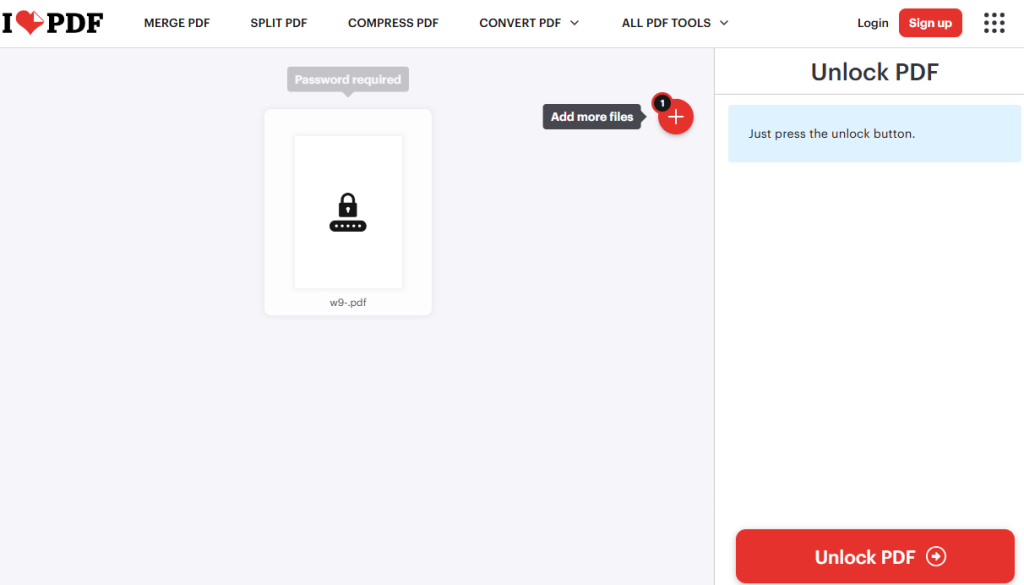
Privacy Warning:
Uploading your private financial records to a public server on the internet poses a privacy risk. Websites usually delete files quickly, but risks still exist. For highly secret financial files, using offline computer software like JOPDF is much safer.
Conclusion
That’s all about how to remove password from PDF bank statement. Using a web browser trick or Mac Preview is very fast.
However, if you want to do it safely and want to edit the document, JOPDF is the absolute best choice! It lets you remove passwords with one click, merge all statements, reduce file size, and more. Hope this guide is helpful!
FAQs
Table of Contents

Your Best Free PDF Expert in PDF editing, compressing, converting, annotating, protect, organizing, and more.
Free DownloadWindows · macOS · Linux

Queena
Editor
“As a staff editor for JOPDF, Queena excels at guiding users to the optimal tools and solutions. When she's not analyzing the latest PDF solutions, she enjoys spending her free time playing with her four cats.”