How to View PDF on JOPDF
View PDF in Different Page Views
You can easily zoom in and out using your mouse scroll, or select your preferred zoom ratio from the toolbar (top or bottom).
View PDF in Different Page Layouts
JOPDF offers 4 page layout options:
- Single Page View: View one page at a time, with no overlap or partial pages.
- Single Page Scrolling: Scroll vertically from one page to the next for a smooth reading experience.
- Two Page View: View two pages side by side, without overlap or partial pages.
- Two Page Scrolling: View two pages side by side with continuous scrolling enabled.
You can easily switch layouts in 3 ways:
Way 1. Use the top toolbar.
Way 2. Use the bottom toolbar.
Way 3. Right-click the page, go to Page Display, and select your preferred layout.

View PDF in Full Screen Mode
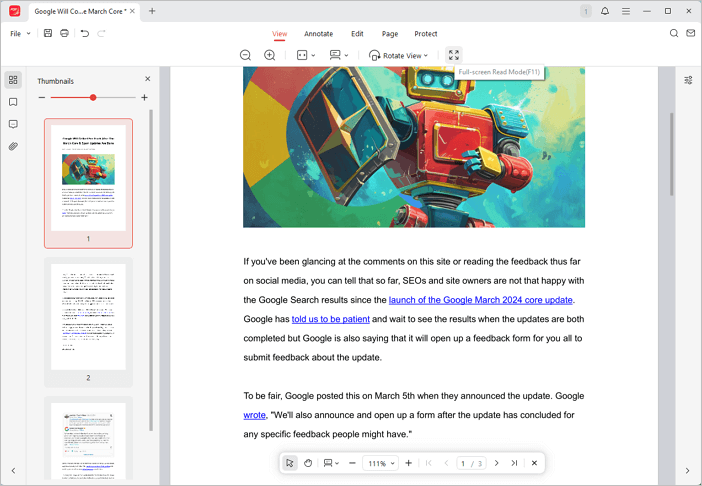
You can enter full-screen reading mode using the following methods:
Method 1: Press F11 to enter full-screen mode.
Method 2: Click the Full Screen Reading Mode button on the top toolbar.
 Can't find the solution of your problem?