How to Markup Text
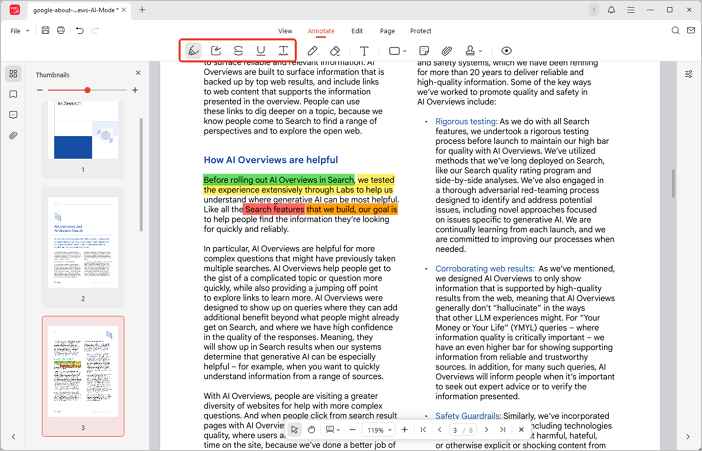
JOPDF offers several text markup tools under the Annotate tab: Highlight, Area Highlight, Strikethrough, Underline, and Squiggly Line. Simply select a tool, then click or select the text you want to mark up and done!
How to Add Text Comment
JOPDF provides 2 different ways to help you add text comments to a PDF, and update, remove, and edit them with ease.
Add Notes to PDF
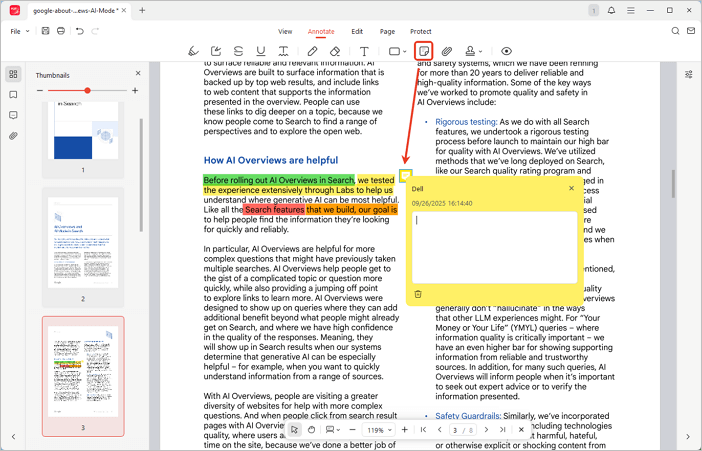
Step 1. Go to Annotate and select Sticky Note.
Step 2. Click where you want to add a note, then type your comment in the comment box. You can also copy, move, or delete the note as needed.
Type on PDF
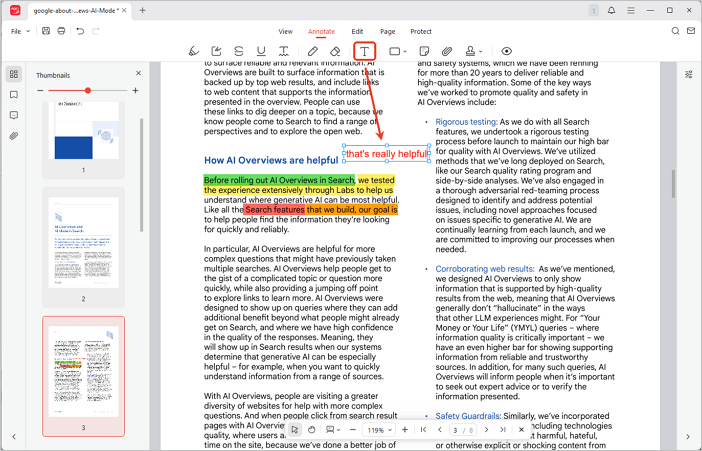
Step 1. Choose the Typewriter tool (letter T).
Step 2. Click anywhere on the PDF, and type your text. You can then select the text and reformat it using the quick toolbar.
How to Draw on PDF
Step 1. Go to Annotate, select Pencil (the sixth one).
Step 2. Draw on any place of the PDF page you want.
You can simply adjust the color, thickness and opacity of you pencil while hovering your mouse over the Pencil icon.

How to Add an Attachment to a PDF
Step 1. Go to Annotate and select Attachment.
Step 2. Click on the PDF to place the attachment icon.
Step 3. In the pop-up window, choose the file you want to attach, and done.
You can also use the Attachment sidebar to view all attachments in the PDF. From the sidebar, you can add, open, delete, or save attachments as needed.

How to Add Shapes or Stamps to a PDF
Add Shapes to a PDF
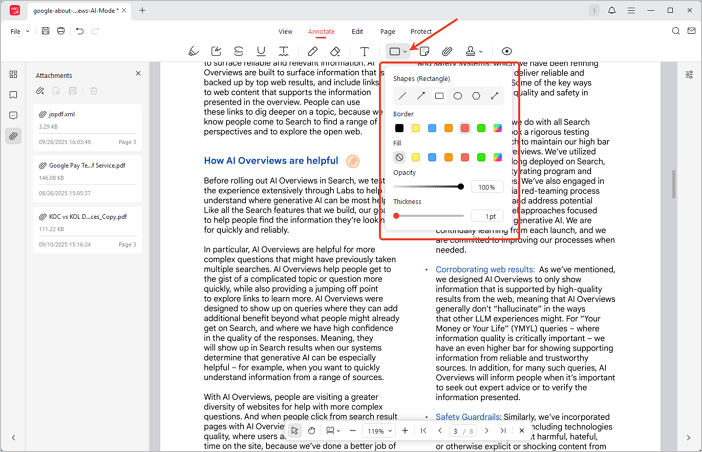
Step 1. Click the Shape drop-down menu under Annotate and choose a shape type (Straight Line, Arrow, Rectangle, Oval, Polygon, or Connection Line).
Step 2. Set the border color, fill color, line opacity, and thickness, then draw the shape on the PDF.
Add Stamps to a PDF
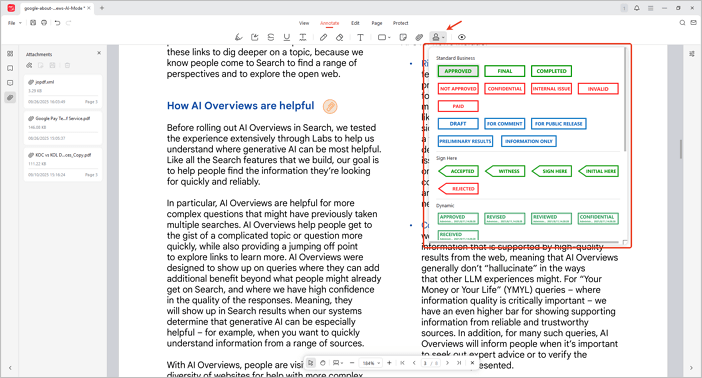
JOPDF lets you add various stamps, including standard business stamps, Sign Here stamps, and dynamic stamps.
Step 1. To add a stamp, click the Stamp drop-down in the Annotate menu.
Step 2. Select a stamp from the list, and click on the PDF to place it.
 Can't find the solution of your problem?