Quickly Select Multiple Pages in a PDF
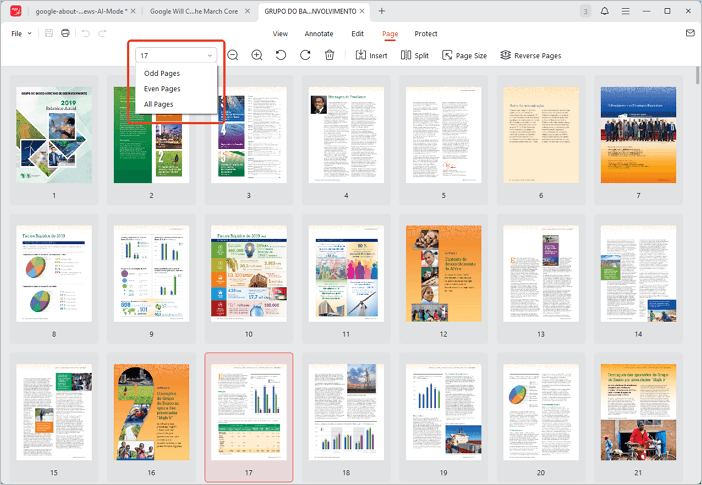
Step 1. Open the PDF in JOPDF and go to the Page tab.
Step 2. Enter the page number or page range you want to select and press Enter. You can also use the down-arrow button on the left to select odd or even pages.
Rotate PDF Pages
With JOPDF, you can rotate all pages, selected pages, or a single page 90° to the right or left. There are two different ways to rotate pages in a PDF.
Rotate Multiple Pages in PDF
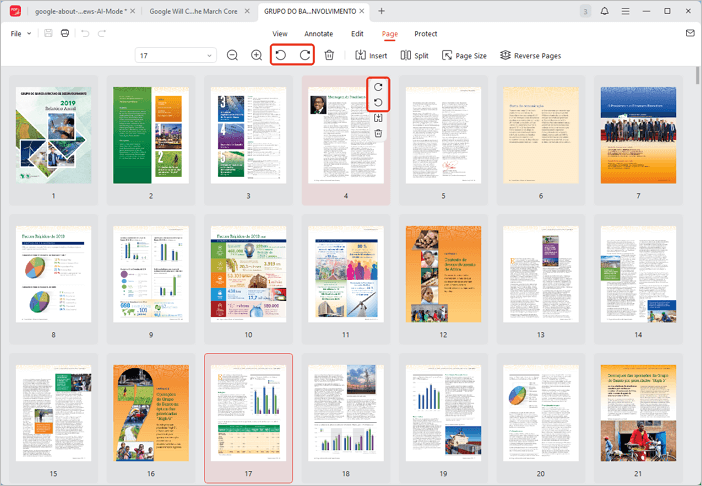
Step 1. Select pages you want to rotate.
Step 2. Hit the Rotate Left or Rotate Right button on the top menu, and you will see that the pages you selected will rotate 90 degree as you wish.
Rotate a Specific Page
Step 1. Hover over the page you want to rotate and a sidebar will appear.
Step 2. Click the first or second icon in the sidebar to rotate the page 90 degrees to the right or left.
Step 3. Alternatively, right-click the page and choose Rotate Right or Rotate Left.
Copy and Paste PDF Pages
With JOPDF, you can copy and paste pages into any position you like.
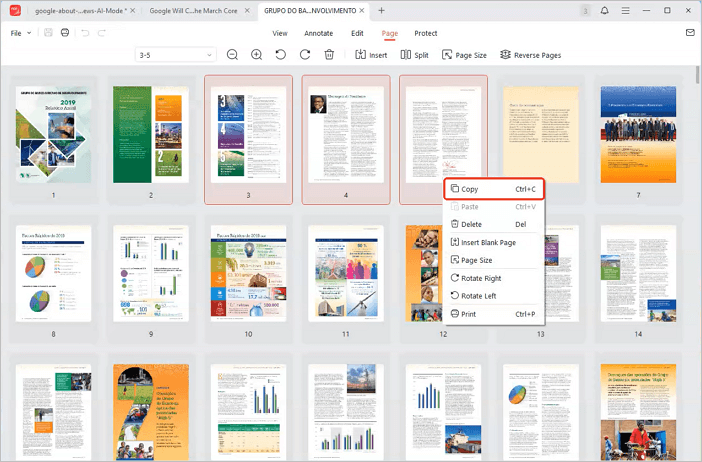
Step 1. Select the pages, right-click and choose Copy, or press Ctrl+C (Windows) / Command+C (macOS).
Step 2. Select the page where you want to paste, then press Ctrl+V (Windows) / Command+V (macOS), or right-click and choose Paste.
Delete Pages in a PDF
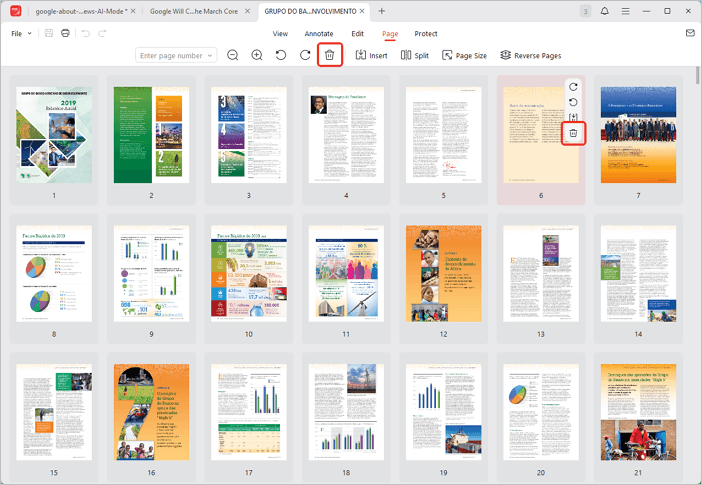
Step 1. Select the pages you want to delete.
Step 2. Click the trash bin icon at the top, then click Delete in the pop-up window.
Step 3. Alternatively, hover over a specific page and click the Delete icon (the last one) in the sidebar, or right-click the page and choose Delete to remove it.
Insert Pages into a PDF
Step 1. Select the page after which you want to insert a new PDF page.
Step 2. Click the Insert button at the top to add the page.
Step 3. You can also insert a blank page by hovering over a page and clicking the third icon in the sidebar.
Split PDF Pages
JOPDF lets you split PDF pages into multiple parts. You can add horizontal and vertical lines as needed and split multiple pages at once to save time.
To explore more about how to split PDF page by using JOPDF, please check JOPDF Split PDF tutorials.
Resize PDF Pages
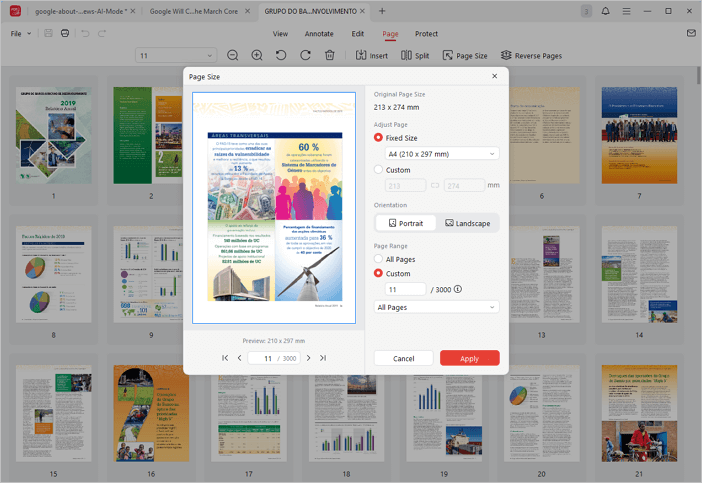
JOPDF allows you to adjust the size of PDF pages easily. You can resize a single page, multiple selected pages, or all pages as needed.
Step 1. Select a page, then click Page Size at the top, or right-click the page and select Page Size.
Step 2. Adjust the size, orientation, and page range. Once finished, click Apply to save the changes.
Reverse PDF Pages
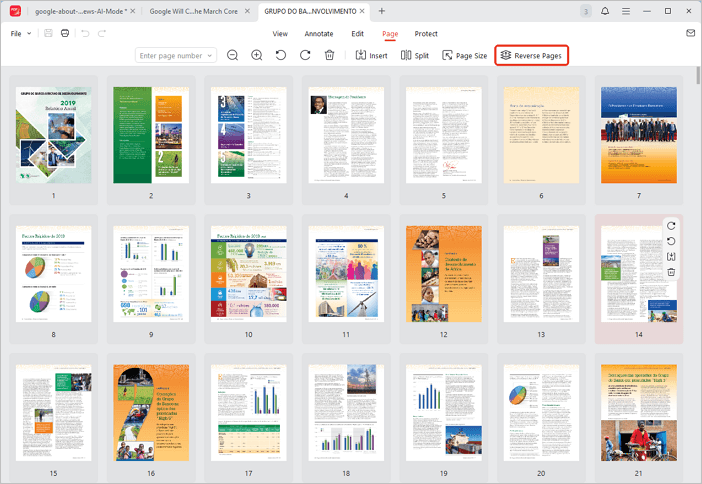
JOPDF provides a Reverse Pages option that lets you reorder all pages in reverse order with just one click.
Step 1. Open a PDF in JOPDF and go to Page > Reverse Pages.
Step 2. In the pop-up window, click Reverse to confirm.
 Can't find the solution of your problem?