Split PDF Files or Split PDF Page with JOPDF
The JOPDF Splitter tool lets you divide one PDF into several files or split a single PDF page into multiple parts. Here’s how to do both.
How to Split a PDF into Multiple Documents
Step 1. Open the Split Tool
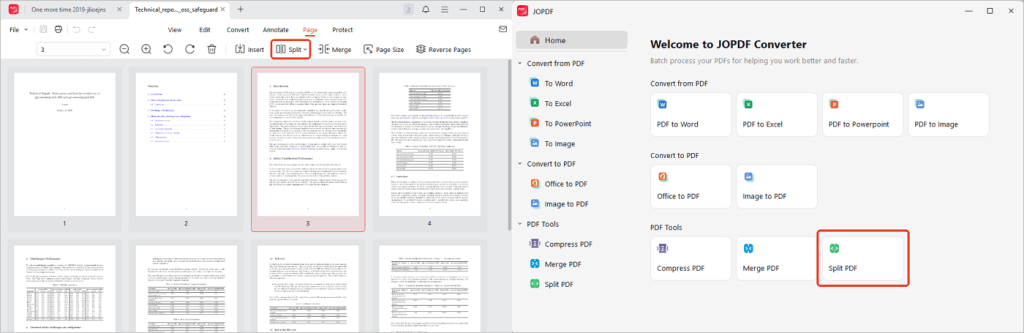
Open your PDF in JOPDF, go to Page > Split, and select Split PDF from the dropdown menu. Alternatively, you can open the JOPDF Converter from Batch Process under Popular Tools on the start page, then select Split PDF.
Step 2. Choose a Splitting Method
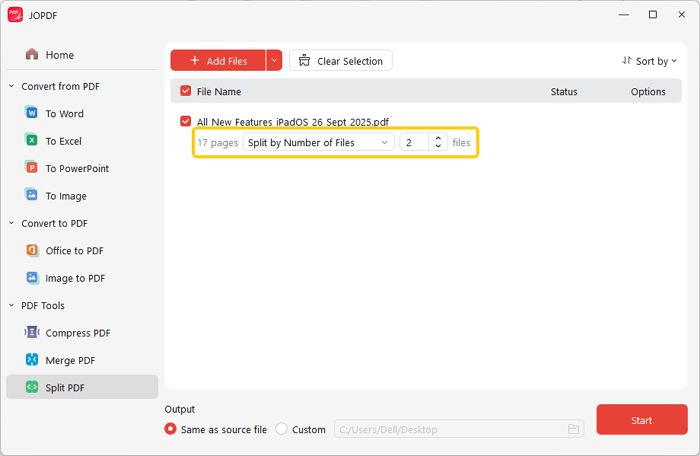
In the popup window, select your preferred splitting method for your PDF:
- Split by Pages Per File: Set how many pages each output file contains.
- Split by Number of Files: Specify how many output files you want.
- Custom: Manually enter the pages or page ranges you want.
Choose the method that fits your needs.
Step 3. Start Splitting
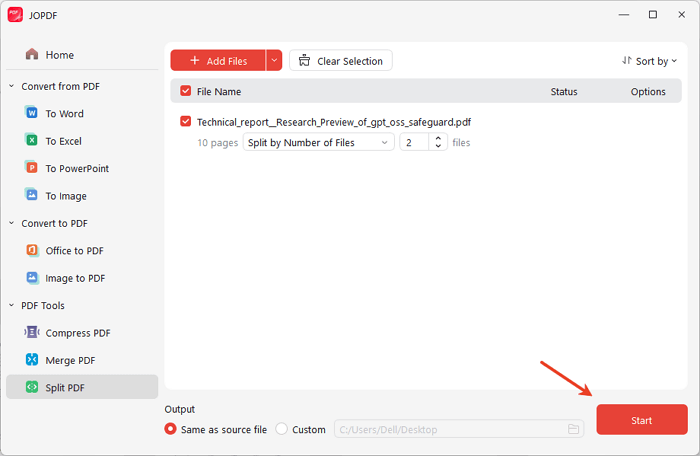
After setting your preferences, click Start. Once the process completes, your split documents will be ready.
How to Split a PDF Page into Multiple Parts
Step 1. Open Split Page
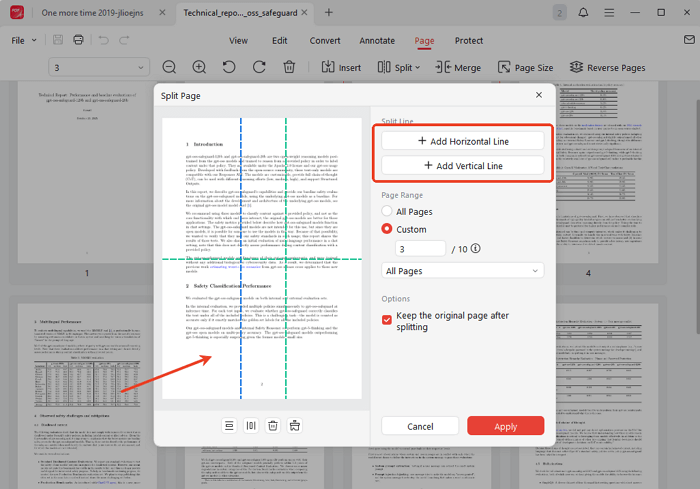
Open your PDF, then go to Page > Split > Split Page. A Split Page window will appear.
Step 2. Add and Adjust Lines
Add horizontal and vertical split lines. Drag them to your desired positions or distribute them evenly. You can also choose the page range to apply the split.
Step 3. Apply the Split
When everything is set, click Apply to split the pages.

 Can't find the solution of your problem?