How to Password Protect PDF
JOPDF allows you to add password protection to PDF documents to keep them secure. You can set an Open Password and a Permission Password as needed.
Add an Open Password
An Open Password requires anyone who opens the PDF to enter the password, effectively preventing unauthorized access.
Step 1. Launch JOPDF and select Encrypt PDF, then choose the PDF you want to protect.
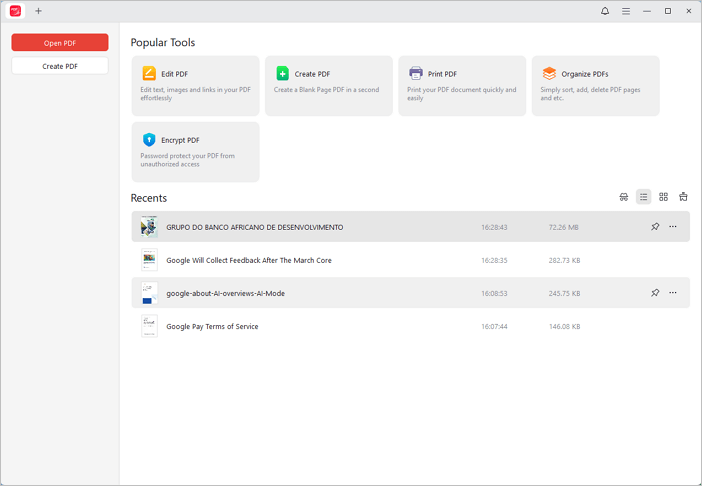
Step 2: Click the Encrypt option at the top.
Step 3: Select Open Password, enter your password in the field, and click Apply. Your PDF is now protected.

Add a Permission Password
A Permission Password restricts actions like editing, printing, or copying the PDF, helping prevent unauthorized use or modifications.
Step 1. Open the PDF in JOPDF and click the Encrypt button at the top under Protect.
Step 2. Select Permission Password and enter your password.
Note: The permission password cannot be the same as the open password.
Step 3. Adjust the permissions as needed, then click Apply to finish.

How to Unlock PDF
There are two ways to unlock PDFs: with or without a password.
Unlock PDF with a Password
Step 1. Enter the open password to open the PDF file.
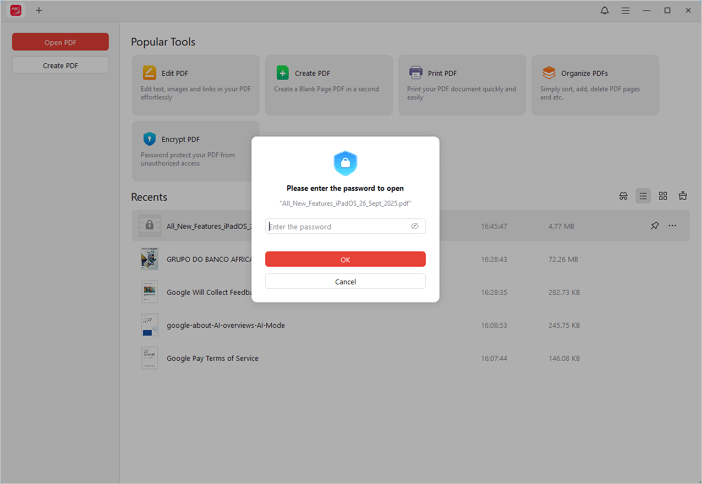
Step 2. Go to Protect > Encrypt. If the PDF has a permission password, a pop-up will appear asking you to enter it. Enter the permission password and click OK.
Step 3. In the next window, deselect Open Password and Permission Password, then click Apply. Your PDF is now unlocked.
Unlock PDF without a Password
If you don’t have the permission password, you can use JOPDF’s Decrypt feature to unlock the PDF.
Step 1. Open the PDF in JOPDF and go to Protect > Decrypt.
Step 2. In the pop-up window, select Don’t have the permission password.

Step 3. In the next window, click Remove, rename the unlocked file, click Save, and you’ll get an unlocked copy of the PDF.

 Can't find the solution of your problem?