How to Combine Multiple PDFs with JOPDF
JOPDF offers batch merging, allowing you to combine multiple PDFs into a single file in the desired order in just 3 simple steps. Here’s how to do it:
Step 1. Open JOPDF Converter and Add Files
Lauch JOPDF, go to Batch Process under Popular Tools, select Merge PDF, and add your PDF files. Alternatively, you can open a PDF first with JOPDF, then go to Page > Merge PDF, then add the PDF documents you want to combine.
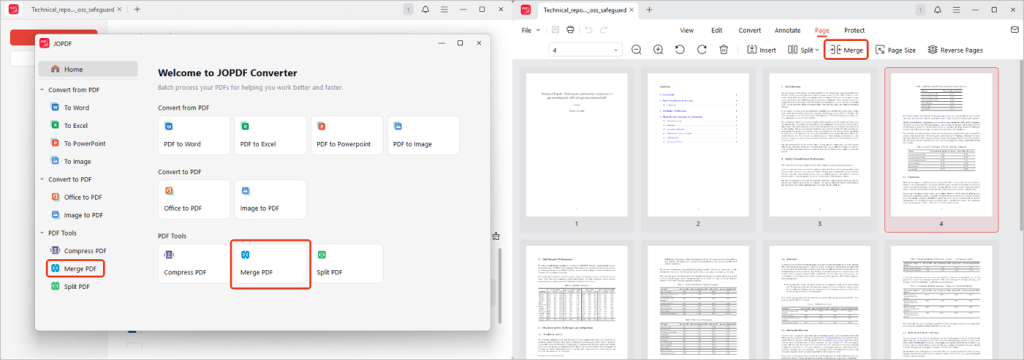
Note: You can also drag the files to reorder them so the merged PDF matches your preferred sequence.
Step 2. Start Merging
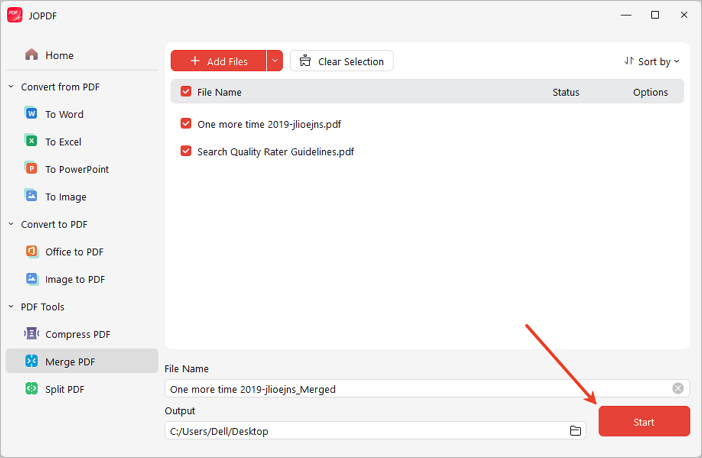
Click Start in the bottom-right corner. After a moment, your combined PDF will be ready.
 Can't find the solution of your problem?