How to Edit Text in PDF
Step 1. Go to the Edit tab and click Edit All or Edit Text to make text elements editable.
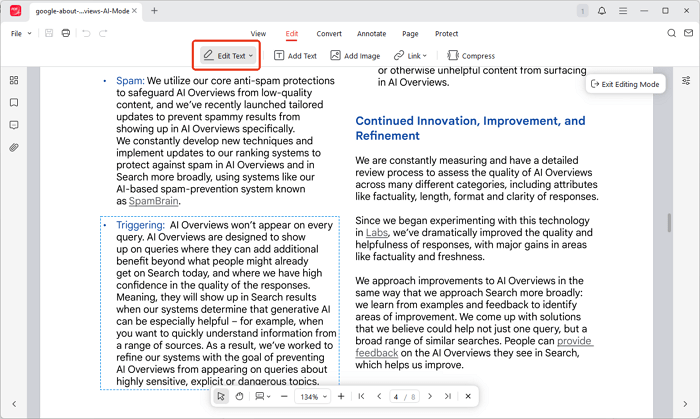
Step 2. Click into a text block to edit. You can change, delete, replace, or add new text.

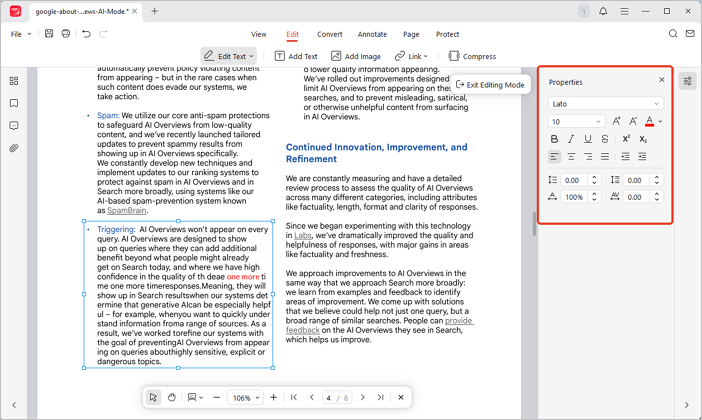
Step 3. Adjust font size, color, and more by selecting the text and using the Properties sidebar.
How to Edit Images in PDF
Step 1. Go to the Edit tab and choose Edit All or Edit Image.
Step 2. Click the image you want to edit. A set of tools will appear, letting you crop, rotate, flip, resize, replace, and more.

- Crop an Image: Select the first tool, then drag the corners or edges of the bounding box to crop the image.
- Rotate an Image: Click Rotate Right (second tool) or Rotate Left (third tool) in the toolbar to rotate the image 90°.
- Flip an Image: Use Flip Horizontal (fourth tool) or Flip Vertical (fifth tool) to flip the image.
- Adjust Transparency: Click Opacity (sixth tool) and drag the slider in the Properties pane to make the image more or less transparent.
- Resize an Image: Click Resize (seventh tool), then enter the width and height you want.
- Replace an Image: Click Replace Image (eighth tool) to swap the current image with a new one while keeping the same size and position.
How to Edit a Link in a PDF
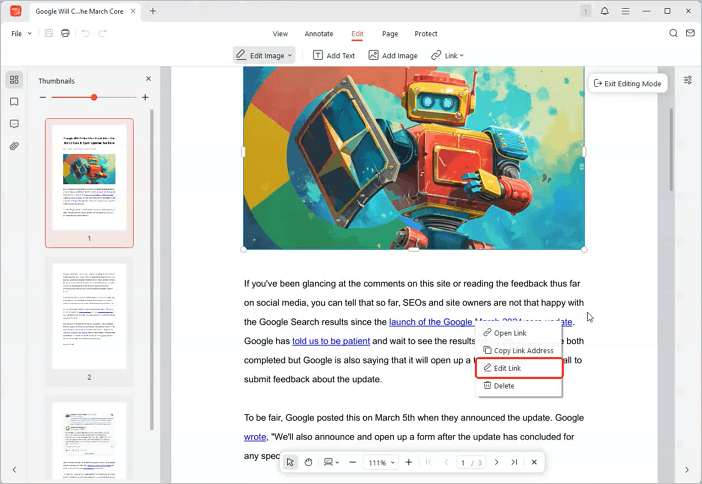
Step 1. Right-click the link and choose Edit Link.
Step 2. Adjust the link’s appearance and target in the pop-up window.
How to Add Text, Images, or Links to a PDF
Add Text to a PDF
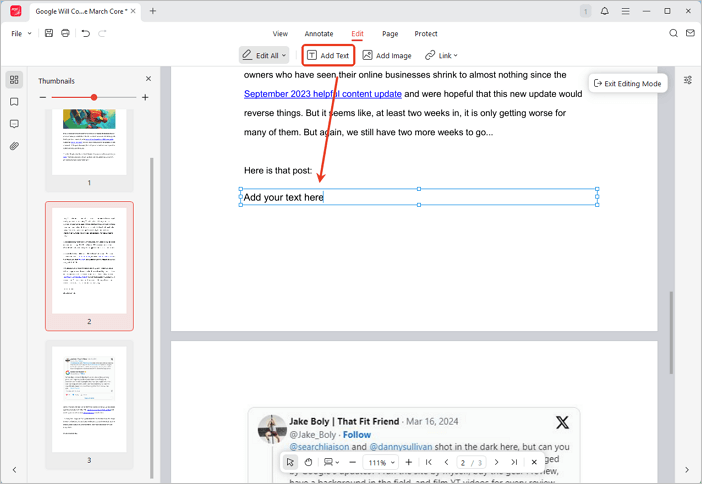
Step 1. Go to Edit > Add Text.
Step 2. Click on the page to place a text box and type your text.
Add an Image
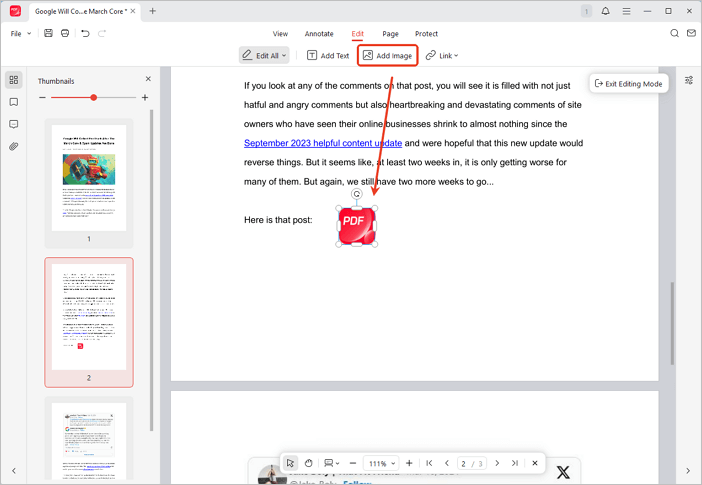
Step 1. Go to Edit > Add Image.
Step 2. Click and drag to set the image size.
Step 3. Choose your image and done.
Add a Hyperlink
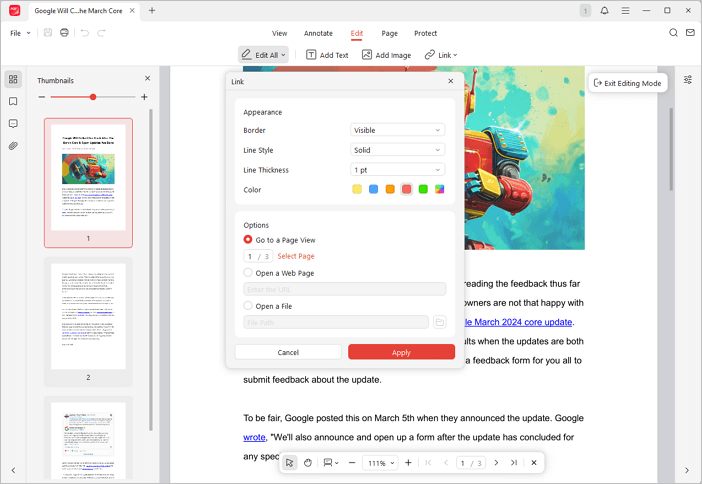
Step 1. Go to Edit > Link > Add Link.
Step 2. Draw a box around the text or area for the link.
Step 3. Set the link type in the pop-up (Go to a page view, open a web page, or open a file).
How to Exit Editing Mode
You can exit editing using any of the following methods:
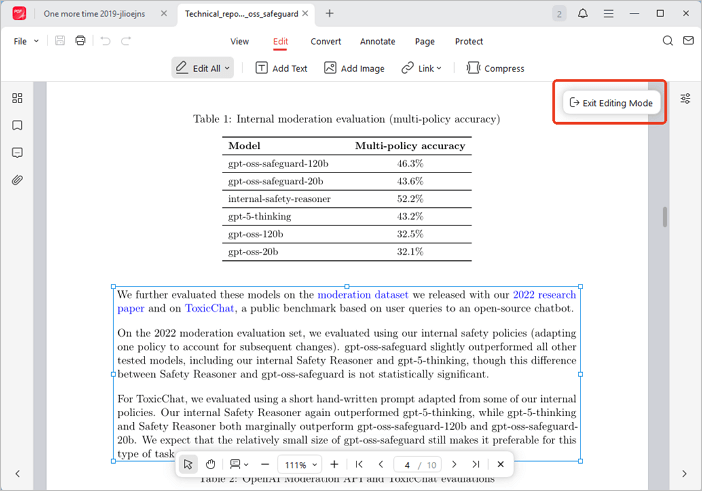
Method 1: The most convenient method is to click the Exit Editing Mode at the top right to quit the editing mode.
Method 2: Press the Esc key on your keyboard.
Method 3: Under the Edit tab, click Edit All again to deselect it and exit editing mode.
 Can't find the solution of your problem?