How to Compress a PDF to a Smaller Size with JOPDF
JOPDF supports batch PDF compression, helping you reduce file size without losing quality in just three simple steps. Here’s how it works:
Step 1. Install and Launch JOPDF
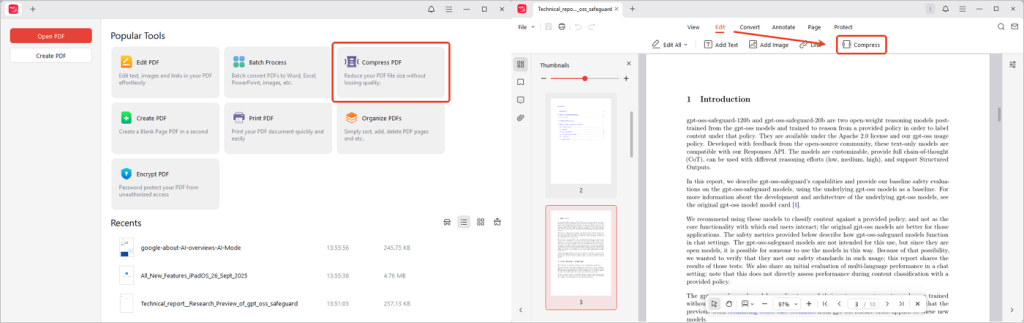
Download and install JOPDF, then launch the program. Go to Compress PDF under the Popular Tools section, or open a PDF in JOPDF and navigate to Edit > Compress.
Step 2. Add PDF Files
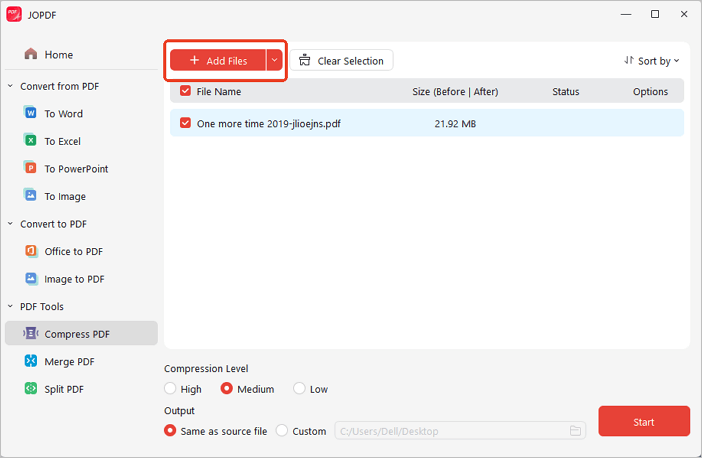
Drag and drop the PDFs you want to compress into the list to add files, or click the Add Files button to browse and open them.
Step 3. Choose Compression Level and Start
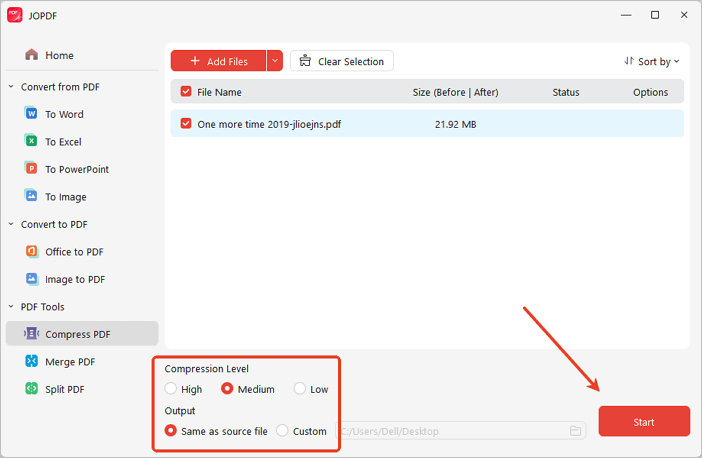
Choose from three compression levels:
- High: Maximum compression, lower quality.
- Medium: A balanced compromise between file size and quality (recommended).
- Low: Minimal compression, highest quality.
Select your preferred level, set the output path, and click Start. In moments, you’ll get your compressed PDF.
 Can't find the solution of your problem?