How to Open PDF Files Using JOPDF
Opening PDF documents with JOPDF is simple and quick. Whether you need to view or edit PDFs, JOPDF provides a hassle-free experience for opening PDFs in just a few seconds. Here’s how you can do it using four different methods:
Method 1. Drag and Drop to Open PDFs
Launch JOPDF, then drag and drop the PDF file into the program to open it.
Method 2. Open a PDF from the Start Page
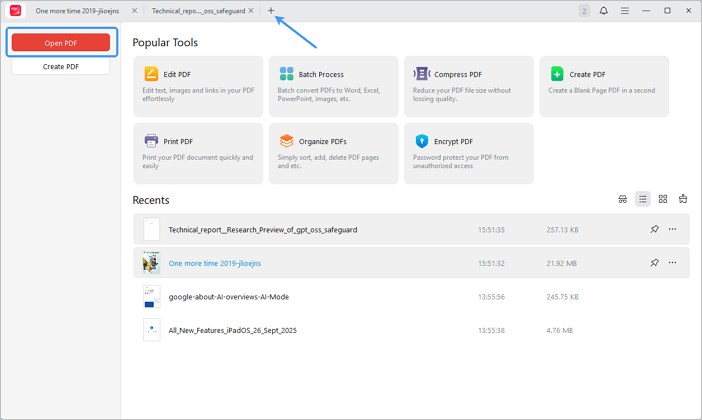
Launch JOPDF. On the Start Page, click the Open PDF button in the top-right corner, or click the + icon at the top. In the pop-up window, browse to select the PDF file you want to open.
Method 3. Right-Click to Open PDF
Find the PDF file you want to open, right-click it, select Open with, and choose JOPDF.
Method 4. Double-Click to Open PDF
Once you’ve set JOPDF as your default PDF viewer, simply double-click the PDF, and it will open with JOPDF.
Bonus Tips: How to Set JOPDF as Your Default PDF Viewer
Set JOPDF as Default PDF Viewer on Windows
Method 1. Set JOPDF as Default through Settings Menu
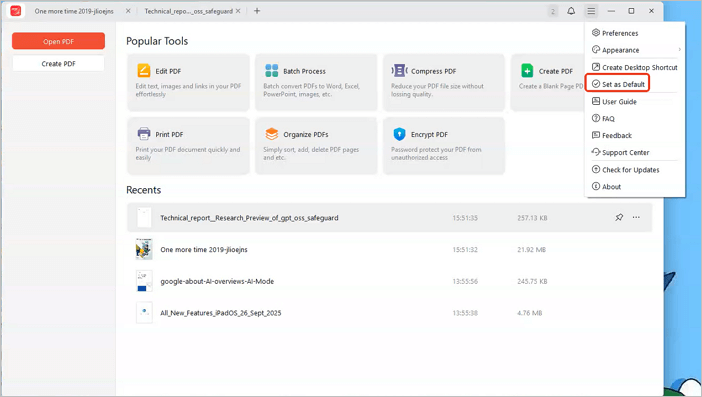
Launch JOPDF and click the fourth icon in the top-right corner. In the dropdown menu, select Set as Default, and you’re done!
Method 2. Manually Set JOPDF as Default
Step 1: Right-click the PDF and select Properties.
Step 2: In the Properties window, click Change next to Open with, select JOPDF, and click OK.
Set JOPDF as Default PDF Viewer on macOS
Method 1. Set JOPDF for Mac as Default via Preferences
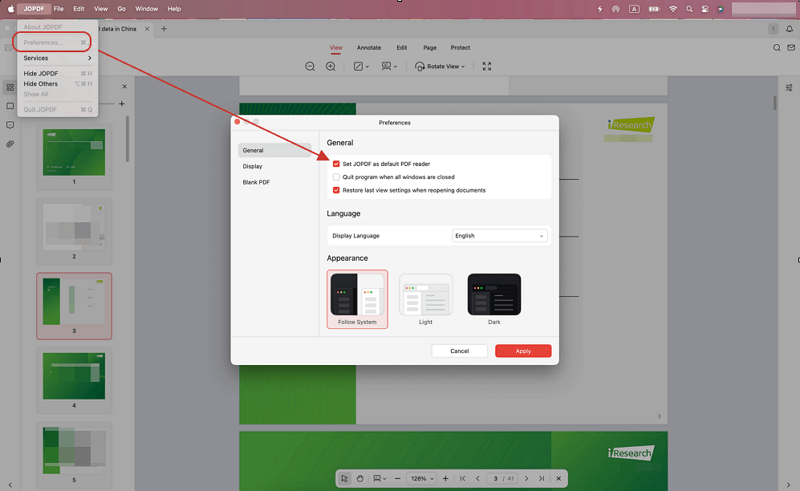
Launch JOPDF for Mac. In the top-left corner, select JOPDF > Preferences. In the Preferences window, make sure Set JOPDF as default PDF reader is selected, then click Apply to save your changes. Done!
Method 2. Manually Set JOPDF for Mac as Default
Step 1: Right-click the PDF file and select Get Info.
Step 2: Under Open with, select JOPDF.
Step 3: Click Change All… and you’re done.
 Can't find the solution of your problem?