Flipsnack is a popular platform for creating interactive digital flipbooks that readers can flip through online. However, reading them without a continuous internet connection can be a challenge. Many readers and creators frequently find themselves looking for a reliable way to download Flipsnack to PDF for offline referencing, archiving, or printing. Don’t worry, this comprehensive guide on JOPDF covers the safest, most effective methods to download Flipsnack to PDF using official features and secure browser-native workarounds.
Summary :
Why Download a Flipbook as a PDF?
Before exploring the methods, it is worth understanding the scenarios that drive people to search for Flipsnack download PDF solutions.
- Professional Printing: Flipsnack’s “Print PDF” option generates high-resolution (300 DPI), CMYK-ready files suitable for commercial print shops.
- Offline Access: A downloaded PDF can be read on any device without an internet connection.
- Archiving and Legal Records: Digital platforms update, links break, and content changes. Saving a Flipsnack to PDF creates a snapshot of a publication exactly as it existed at a specific moment.
- Platform Independence: A PDF opens reliably on any operating system and device.
Tips
Important Note: There is no legitimate Flipsnack downloader tool that can extract any public flipbook as a PDF without the creator’s permission, as this would violate copyright protections.
Also See:
- How to Download Yumpu to PDF Safely (2026 Full Methods)
- 5 Free Yumpu Downloaders: How to Download Yumpu to PDFs Free
- The Best Free Scribd Downloaders in 2026: Save Public Documents Offline
Way 1. Upgrade a Premium Publisher Workspace to Enable PDF Exports
The direct, high-quality method for Flipsnack download PDF is built into the platform itself. According to Flipsnack’s help center, PDF download is available on all paid plans. Even unpublished drafts can be exported, which means creators do not need to make a flipbook public before saving a local copy.
Users operating on a Flipsnack free account often notice that the platform restricts self-downloads of their own newly created projects. To remove watermarks and natively convert a Flipsnack flipbook into a PDF document, upgrading the workspace tier is the officially supported route.
Step 1: Log into Flipsnack and navigate to My Flipbooks.
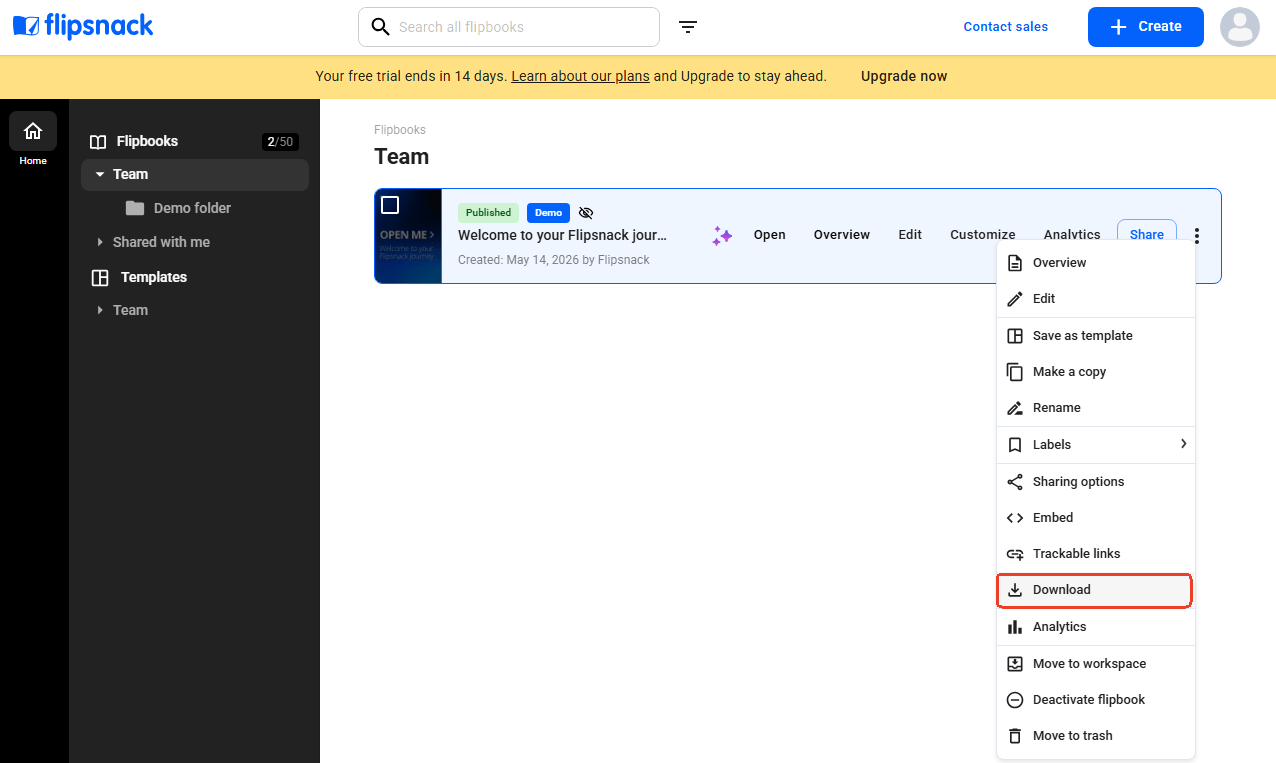
Step 2: Locate the flipbook to download. Click the three dots (More) icon on the right side of the flipbook card.
Step 3: Select Download from the dropdown menu.
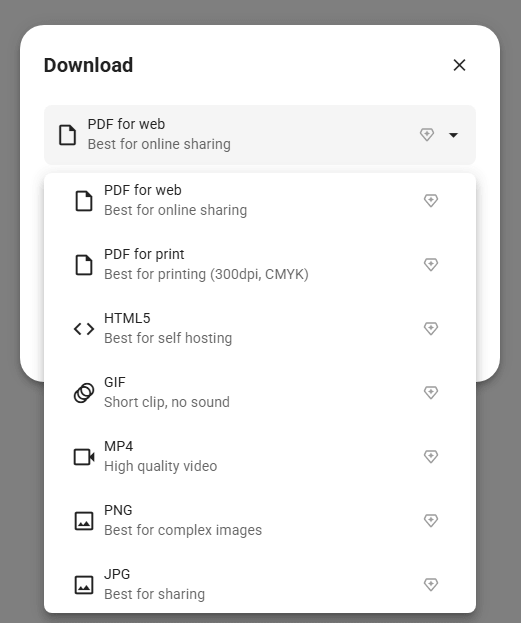
Step 4: A pop-up window appears with format options. Choose PDF for web for online sharing or PDF for Print for high-resolution professional printing. Click Download to save the file.
Way 2: Utilize the Publisher’s Enabled Download Button
When content creators want to maximize audience reach, they often enable offline distribution. If this option is active, readers do not need a third-party Flipsnack downloader to acquire a clean Flipsnack download PDF file.
Step 1: Open the flipbook in the Flipsnack Design Studio editor. Alternatively, you can open the shared Flipsnack publication link in any standard web browser.
Step 2: Click the Download arrow icon located in the top right corner of the navigation bar.
Step 3: Select the desired format, such as PDF for web, PDF for print, or other options like PNG.
Step 4: Confirm the action. The download Flipsnack as PDF process begins immediately.
Way 3: Try the Screenshot-to-PDF Workaround
When a publisher restricts direct file downloads, many users look for ways regarding how to download Flipsnack PDF for free without compromising their system security.
Automated web Flipsnack downloaders can be dangerous, but browser-native rendering features offer an excellent, virus-free alternative.
This method captures each page of a flipbook as an image and combines the images into a single PDF. It is manual but effective, and it works regardless of plan status or download permissions. You can esaily convert Flipsnack to PDF by following the next steps.
Step 1: Open the flipbook in fullscreen mode for the largest possible page display.
Step 2: Use the operating system’s screenshot tool to capture each page. On Windows, press Windows + Shift + S. On Mac, press Command + Shift + 4. Capture pages at the highest resolution the screen allows.

JOPDF – The Best Free PDF Editor
 User Rating: 4.8
JOPDF Is a 100% free POF editor for Windows, macOS, and Linux. Edit text, add images, annotate, sign, and more. No limits, no ads, no subscriptions, Fast, simple, and powerful, take full control of your PDFs in seconds!
Step 3: Open JOPDF and select Batch Process > Image to PDF tool from the home screen.
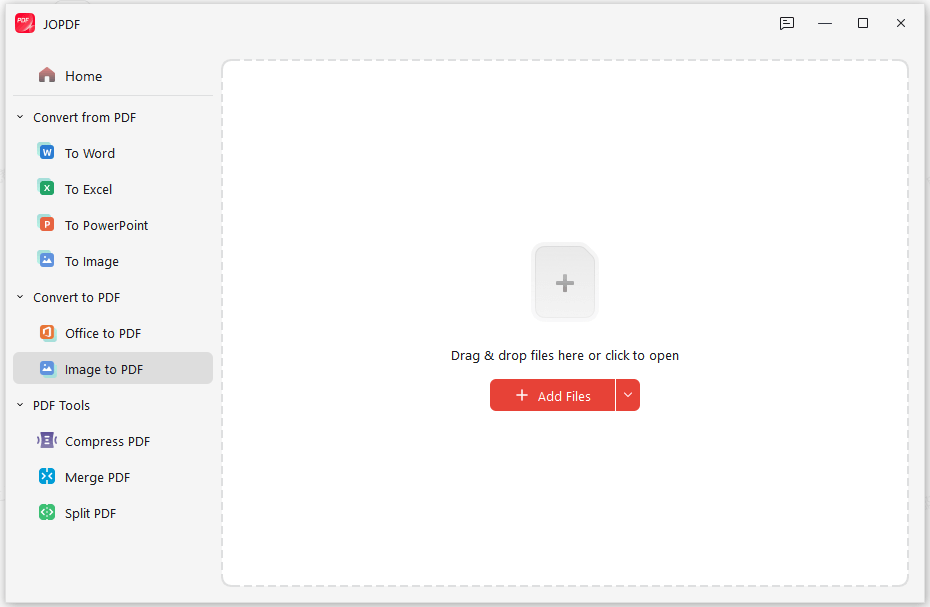
Step 4: Import all screenshots in the correct page order. JOPDF allows dragging and dropping multiple files at once.
Step 5: Click Start. JOPDF merges the images into a single, clean document ready for saving or sharing. Then, reorder any pages if necessary, and execute a secure offline merge to create a unified document.
This method is the most practical answer to how to download Flipsnack PDF for free when direct download is unavailable. The output quality depends on screen resolution and screenshot precision, but for reading, archiving, and basic printing, the results are entirely serviceable.
Way 4: Execute a Browser-Level Print Command
Using your web browser’s virtual layout printer is a highly efficient way to save a flipbook to PDF structures page by page. This method avoids third-party conversion sites entirely and processes the visible layout pages directly on your computer.
Step 1: Open the target Flipsnack document and switch the player to fullscreen mode to ensure the highest display resolution is loaded.
Step 2: Press Ctrl + P on Windows or Cmd + P on macOS to initialize the system’s native printing overlay window.
Step 3: Change the active printing destination dropdown option to Save as PDF or Microsoft Print to PDF.
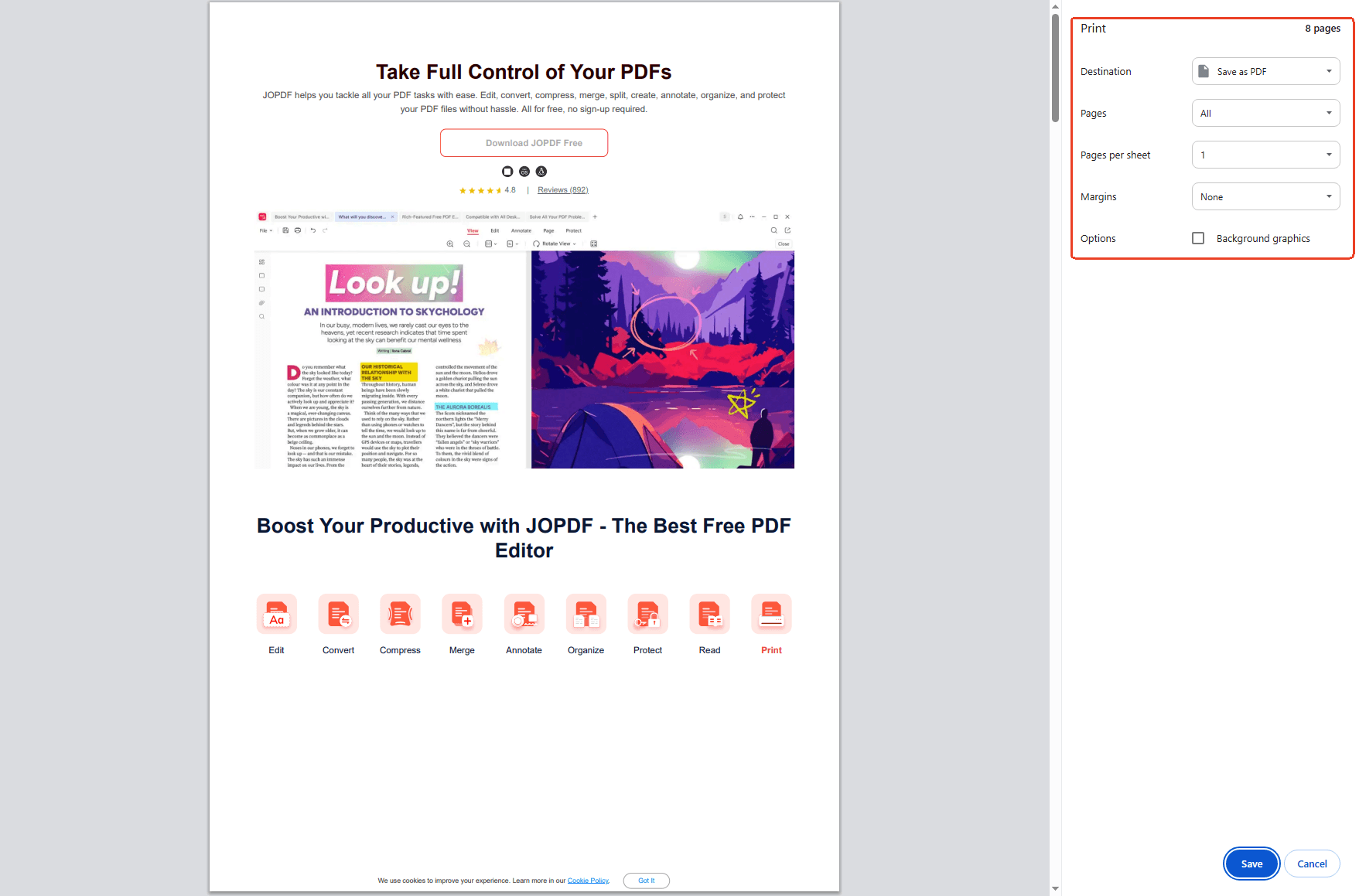
Step 4: Set the layout presentation parameters to match the booklet’s orientations (Portrait or Landscape), adjust the scale margins to minimize white borders, and click Save.
Way 5: Convert a Flipsnack Flipbook as PDF
If the flipbook is shared as a public URL, another approach is to capture it using a webpage-to-PDF converter. This method treats the flipbook page as a web page and convert it into a PDF document.
Step 1: Copy the public URL of the flipbook from the browser address bar.
Step 2: Open a free HTML-to-PDF converter tool in the browser.
Step 3: Paste the URL into the conversion field. Enable ad-blocking and popup removal options if available to produce a cleaner output.
Step 4: Click Convert to PDF. The tool renders the page and generates a downloadable file.
This approach captures the entire browser window, including toolbars and background elements, so the result is more of a webpage archive than a pure flipbook PDF. It works best for text-heavy publications where page-by-page screenshotting would be too time-consuming.
Also See: How to Convert PDF to Word Without Formatting Errors (2026 Guide)
Way 6: Analyzing Online “Flipsnack Downloader” Tools
While these platforms advertise a quick way to download flipbook to PDF online free, an objective evaluation reveals severe structural and security risks that users must avoid.
Websites offering unverified Flipsnack downloaders rarely host complex file conversion scripts. Instead, they act as traffic relays designed to expose your system to malicious ad networks.
#1. Never trust a web tool that forces you to download a compressed archive file (like a .zip or .rar) or an executable installer (.exe) under the guise of providing a Flipsnack PDF download.
#2. Avoid installing untrusted browser plugins that promise a automated way to download Flipbook to PDF online free but request deep tracking access to your browsing history.
#3. If you must use an online scraper to handle basic, non-sensitive public links, ensure an active antivirus shield is running, and never input personal registration data or passwords into the site.
Also See: Best Free Yumpu Downloaders 2026: 5 Tools to Save PDFs & Images
JOPDF: A Versatile Tool for Flipsnack PDF Workflows
Throughout the methods described above, JOPDF serves as a practical companion for Flipsnack to PDF projects. While Flipsnack handles the creation and initial export of flipbooks, JOPDF addresses the tasks that come after and the workarounds needed when direct download is unavailable.
Key features relevant to Flipsnack users:
- Image to PDF conversion: The screenshot-to-PDF workaround in Method 2 relies on merging captured page images. JOPDF’s Image to PDF tool handles this with drag-and-drop simplicity, supporting JPG, PNG, and other common formats.
- Link editing and repair: When a downloaded Web PDF has broken hyperlinks, or when links need to be added to a Print PDF for digital distribution, JOPDF’s Link tool allows drawing clickable hotspots over any text or image area.
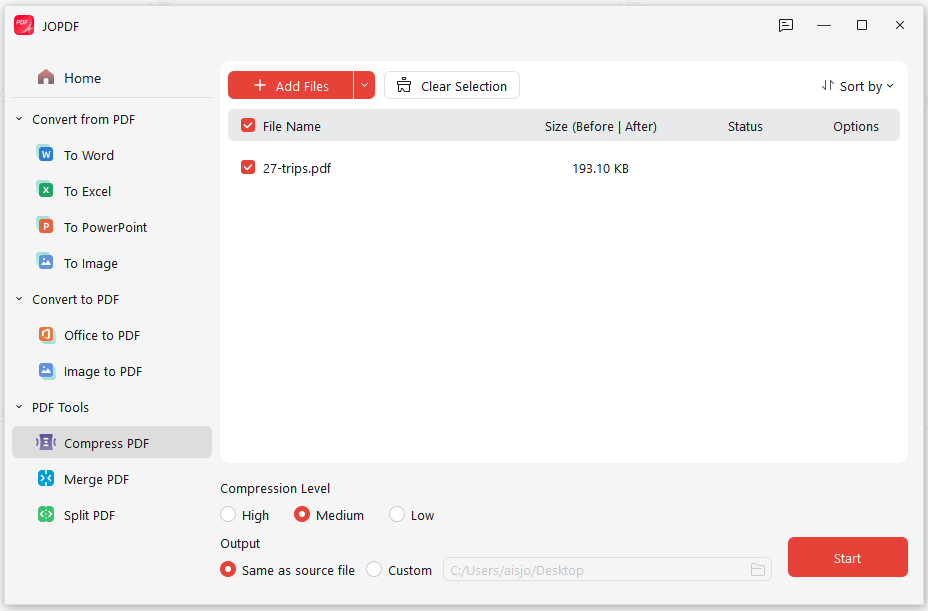
- File compression: Print PDFs from Flipsnack can be large. JOPDF’s compression tool reduces file size while maintaining visual quality, making files easier to email and upload.
- PDF merging and splitting: For users who download multiple flipbooks or capture screenshots in batches, JOPDF can merge separate PDFs into one document or split a large PDF into smaller sections.
- Cross-platform access: Available on Windows, Mac, and as a web app, JOPDF works consistently regardless of operating system.
How to Use JOPDF with Flipsnack Downloads
Step 1: After downloading a Flipsnack to PDF file or capturing flipbook screenshots, launch JOPDF.
Step 2: If working with screenshots, select Image to PDF, import the images, arrange the page order, and click Create PDF.
Step 3: If editing an existing PDF, open the file in JOPDF and use the Edit tools to modify text, add or repair hyperlinks, or adjust page layout.
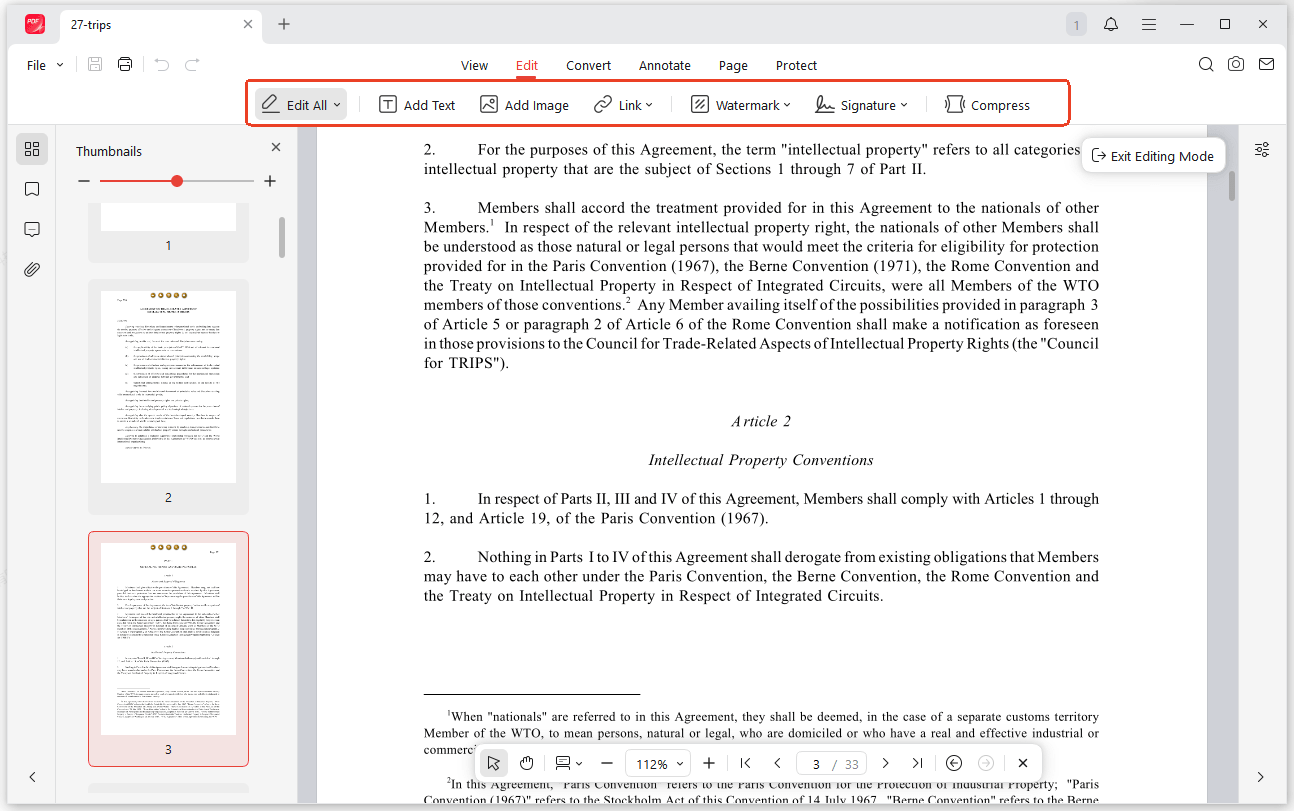
Step 4: Save the final PDF. Use the Compress tool if file size reduction is needed for sharing.
Comparison of Common Flipsnack to PDF Conversion Methods
| Processing Strategy | File Security Level | Final Document Resolution | Best Suited For |
| Official Player Download | Maximum Safety | Perfect Vector Quality | Authorized publications and premium creators |
| Browser Print (Ctrl + P) | Maximum Safety | Good Image Resolution | Bypassing unverified online scrapers safely |
| Manual Asset Cache Extraction | Maximum Safety | High-Definition Images | Creating pristine archival copies via JOPDF |
| Online Web Scraper Sites | Low Safety (Ads/Malware) | Highly Pixelated Text | Non-sensitive, short public lookbooks |
Web PDF vs. Print PDF: Choosing the Correct Format
Selecting the wrong format can ruin a project. A Web PDF sent to a commercial printer produces low-resolution, RGB-based output. A Print PDF emailed as an attachment may be unnecessarily large. The table below summarizes the differences.
| Feature | Web PDF | Print PDF |
| Best For | Online sharing, email attachments | Professional printing, archiving |
| File Size | Smaller, compressed for quick uploads | Larger, high-quality image data |
| Resolution | Screen-optimized | 300 DPI |
| Color Space | RGB | CMYK |
| Hyperlinks | Preserved and clickable | Removed for clean print output |
| Bleeds & Crop Marks | Not included | Can be enabled |
When the goal is to download Flipsnack as PDF for a print shop, always select Print PDF and enable bleeds and crop marks in the settings. When the goal is to share a digital document where links to products or references should remain functional, Web PDF is the correct choice.
Conclusion
To download Flipsnack to PDF, the availability of a direct link depends on the publisher’s account level and sharing permissions. Here is the safest triage checklist in 2026:
- Official Download: If the publisher enabled sharing, click the Download icon (downward arrow) on the Flipsnack player menu to save the original file.
- Browser-Native Save: If the direct button is missing, open the public flipbook, press
Ctrl + P(orCmd + P), and configure your web browser to save a flipbook to PDF natively. - Loose Asset Compilation: Use your browser’s Developer Tools (
F12) to securely fetch high-resolution page graphics from Flipsnack’s CDN, then use JOPDF to convert Flipsnack into a single PDF file offline.
FAQs
Flipsnack's official download function is accessible through mobile browsers when logged into an account. For the screenshot workaround, mobile devices support screenshot capture natively, and JOPDF's web app allows Image to PDF conversion directly from a phone browser.
No. The PDF format is static. Flipsnack's documentation confirms that animations, videos, and other interactive elements are not supported in downloaded PDFs. The Print PDF format automatically removes all interactive elements. Web PDF preserves hyperlinks but not multimedia.
Flipsnack's Web PDF option produces smaller files by default. For further reduction, open the PDF in JOPDF and use the Compress tool. This reduces file size while maintaining readability, making the document easier to share via email or upload to websites.
Yes. A downloaded Flipsnack to PDF file is a standard PDF document. It can be opened and edited in any PDF editor. JOPDF allows modifying text, replacing images, adding annotations, and inserting or deleting pages. This is useful for updating a catalog after download or customizing a template for a new purpose.
The search for a Flipsnack to PDF converter often comes from readers—not creators—who encounter a flipbook without an enabled download button. In these cases, the person seeking the PDF does not have access to Flipsnack's built-in export tools. The workaround methods in this guide address that scenario.
Table of Contents

Your Best Free PDF Expert in PDF editing, compressing, converting, annotating, protect, organizing, and more.
Free DownloadWindows · macOS · Linux

Anna
Editor
“Anna, Editor-in-Chief and PDF expert, delivers deep insights into PDF document technology trends. She is dedicated to helping readers optimize their digital lives. When not writing, Anna loves exploring local cafes and reading, blending her technical expertise with a love for storytelling.”

![8 Best Manga Reading Sites to Read Manga Online [Full Review]](https://b.jopdf.com/wp-content/uploads/2026/09/best-manga-reading-sites.png)