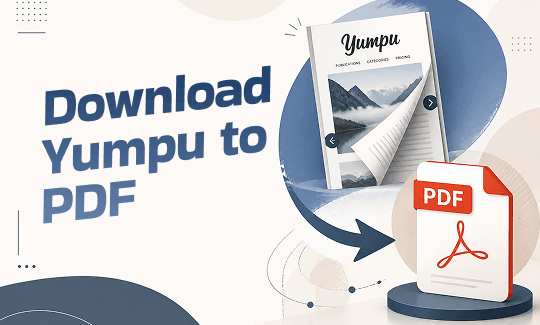
Yumpu hosts millions of digital publications, but downloading them isn’t always straightforward. This guide walks you through legitimate ways to download Yumpu to PDF, starting with the platform’s official download feature. We also cover manual methods for saving publicly viewable content and how to convert Yumpu to PDF online using browser-native tools. Finally, discover how JOPDF helps you edit, organize, and secure every PDF in your personal library.
Summary :
What Is Yumpu?
Yumpu is a digital publishing platform that allows individuals, businesses, and publishers to convert their PDFs into interactive, page-flipping online publications. It’s widely used for hosting magazines, catalogs, eBooks, brochures, and reports. As a reader, you can browse millions of free publications across countless categories, from fashion and photography to academic research and corporate materials.
The platform operates on a freemium model. Readers can view most public content for free, but downloading options depend entirely on the publisher’s settings. Some publishers enable a direct download button, while others restrict their content to online viewing only. Understanding this distinction is key before exploring any method to download Yumpu to PDF.
Tips
The methods described below are intended only for saving content you have the legal right to access, such as publications where the publisher has explicitly enabled downloads, public domain materials, or documents you own. Always respect copyright and never redistribute content without authorization.
There are three main approaches to saving Yumpu content as PDF, ranging from the fully official to techniques that require careful evaluation of third-party options.
Related Articles:
- 10 Best OceanofPDF Alternatives for Free eBooks & PDF Downloads (2026)
- Fake Error Messages to Copy and Paste: Prank Your Friends Safely (2026 Guide)
- ISBN to PDF: How to Download PDF Books Using ISBN for Free (2026)
- Mobilism Alternatives: Best Sites for Free eBooks, Audiobooks & Apps
Method 1: Download Yumpu to PDF via Official Method
The safest and most straightforward way to download Yumpu to PDF is through the platform’s own download feature when the publisher has enabled it. This is the only safe Yumpu downloader method guaranteed to comply with both Yumpu’s terms and the publisher’s intent.
Step 1: Go to Yumpu.com and navigate to the Yumpu publication you want to save.
Step 2: If the publisher allows the download, you’ll find the DOWNLOAD ePAPER next to the publication. Click it and your browser will be prompted to save the file as a PDF directly to your device.
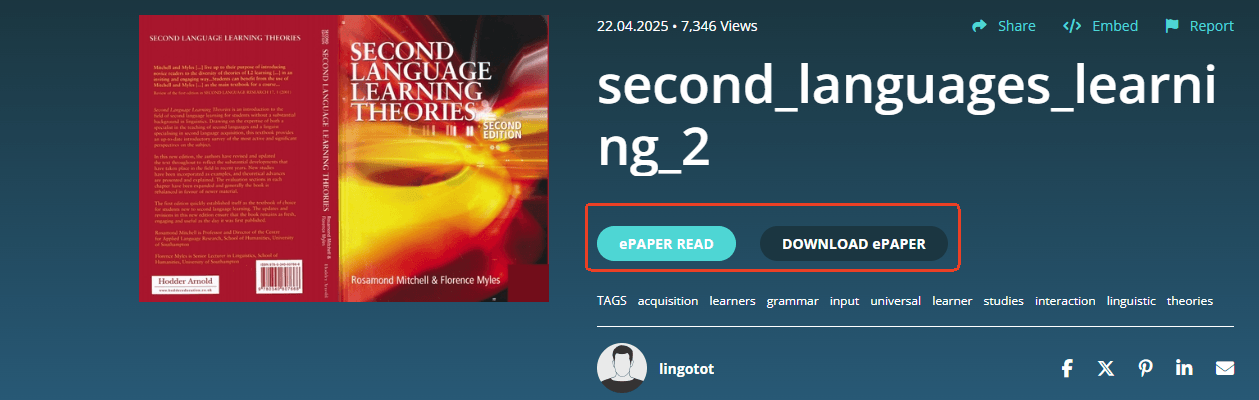
If the toolbar lacks a download icon, it means the publisher has chosen not to offer this option. In this case, you should respect their decision and avoid attempting to bypass the restriction.
Related Article: How to Cite a PDF in APA 7th Edition: Examples for Every Source
Method 2: Download Yumpu to PDF via Manual Method
If the publisher has disabled the official download button on Yumpu, using a sketchy, automated online tool isn’t your only option. In fact, if you want to save Yumpu to PDF with the highest possible visual clarity, the manual “developer method” is far superior.
These methods do not involve any third-party Yumpu downloader tools and simply capture what is already displayed on your screen. They offer a practical way to export Yumpu to PDF without installing anything.
How to Save PDF from Yumpu with Browser Print-to-PDF Function
Most modern browsers include a “Save as PDF” option in their print dialog. This is effectively a built-in Yumpu to PDF converter free of charge that works across all operating systems.
To safely compile and convert Yumpu to PDF online without risking your computer’s security, follow these simple steps using your web browser’s built-in developer tools:
Step 1: Load the public document or brochure you wish to save and click on ePAPER READ.
Step 2: Press Ctrl+P (Windows) or Cmd+P (Mac) to open the print menu.
Step 3: In the Destination dropdown, choose Save as PDF instead of a physical printer.
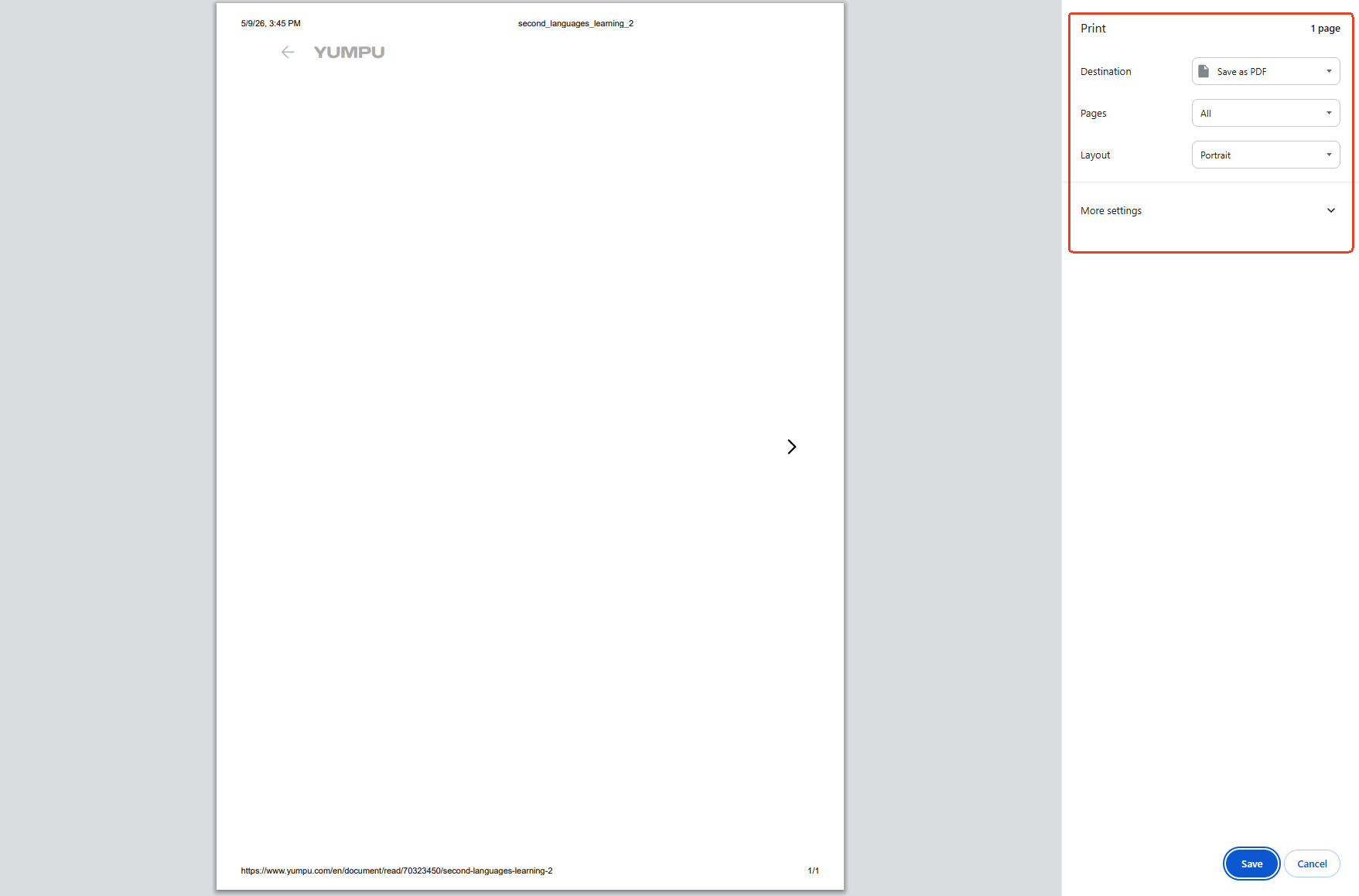
Under Pages, you may need to select All or specify a custom range if only certain sections are visible at one time. Note that Yumpu’s page-flipping interface loads pages dynamically, so you might need to scroll through the entire document before printing to ensure all pages are captured.
Step 4: Click Save and choose a destination folder on your computer.
Tips
Limitations:
-
Headers, footers, or browser UI elements may appear in the output.
-
The layout may not perfectly match the original publication.
-
Dynamic page-flipping content can cause missing pages if not fully scrolled through.
This is the most accessible way to export Yumpu to PDF without installing anything, functioning as a universal Yumpu to PDF converter free across all modern browsers.
Also See: Microsoft Print to PDF Not Working? Find the Causes and Fixes!
How to Save PDF from Yumpu with Screenshot-Based Assembly
For short publications or when visual fidelity is the priority, manually capturing pages as images and assembling them into a PDF is an alternative way to save high-quality image files from Yumpu. This method offers high control over the final output but is only practical for documents with a small number of pages.
Step 1: Use your operating system’s screenshot tool or a browser extension to capture each page at full resolution.
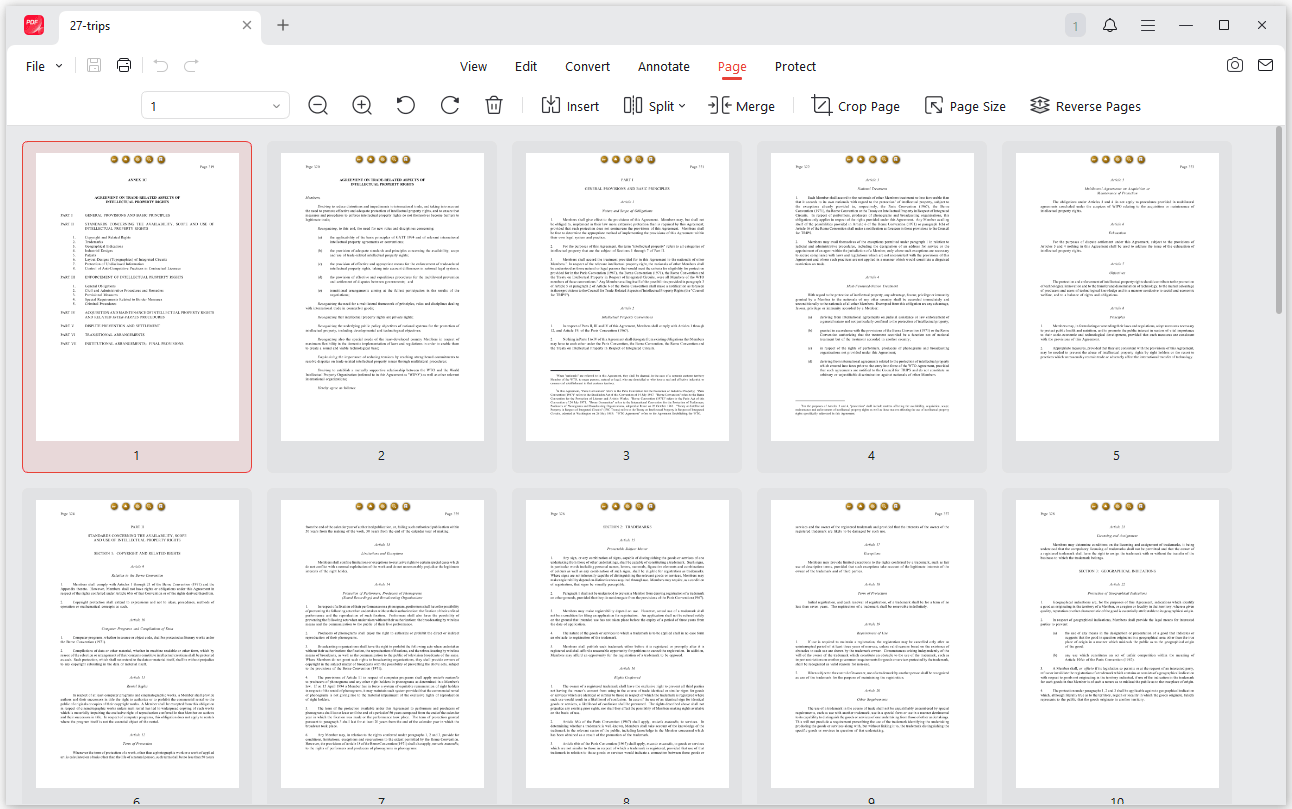
Step 2: Open JOPDF, create a new PDF, and insert each captured image as a separate page. JOPDF allows you to reorder, crop, and adjust images before saving the final file.
When to use this:
- The publication has fewer than 20 pages.
- You need the highest possible image quality.
- Other methods produce blurry scanned PDF output that’s difficult to read.
Method 3: Evaluate Third-Party Sites to Download Yumpu to PDF
Numerous third-party websites claim to offer a one-click solution to convert Yumpu to PDF online. But how automated Yumpu downloaders actually work? Unlike official converters, online scrapers automate the “Network inspect” method described above. The scraper’s server pings the Yumpu URL, grabs the cached thumbnail versions of each page, and stitches them together.
- Copyright Compliance: Many of these tools are designed to bypass publisher restrictions. Using them to save copyrighted content without permission violates Yumpu’s terms of service and, in many jurisdictions, copyright law. Only use such tools for public domain content or documents for which you have explicit authorization.
- Security Risks: Third-party download sites can be vectors for malware, intrusive advertisements, or phishing attempts. Avoid any tool that requires you to download and install software, enter personal information, or disable your browser’s security features. A genuinely safe Yumpu downloader from a security standpoint is difficult to verify among unofficial options.
- Quality and Reliability: The output from these sites is inconsistent. Some fail to process long documents, distort complex layouts, or embed unwanted watermarks. Server downtime is also common
If you choose to evaluate a Yumpu downloader:
- Prioritize those with clean, ad-free interfaces.
- Never provide login credentials or payment information.
- Verify the downloaded file with antivirus software before opening.
- Only use them for content you are legally entitled to save.
How to Edit and Manage Yumpu PDFs with JOPDF
Whichever method you use to save Yumpu to PDF, the resulting file often requires further refinement. You may encounter a blurry scanned PDF, incorrect page order, or simply want to add your own annotations and bookmarks. If you need to compress large PDF files for easier sharing and storage, that’s another common post-download task. This is where JOPDF becomes an essential part of your workflow.
JOPDF is a 100% free, no-sign-up-required PDF editor available for Windows, macOS, and Linux. It offers a complete toolkit for post-download document management:
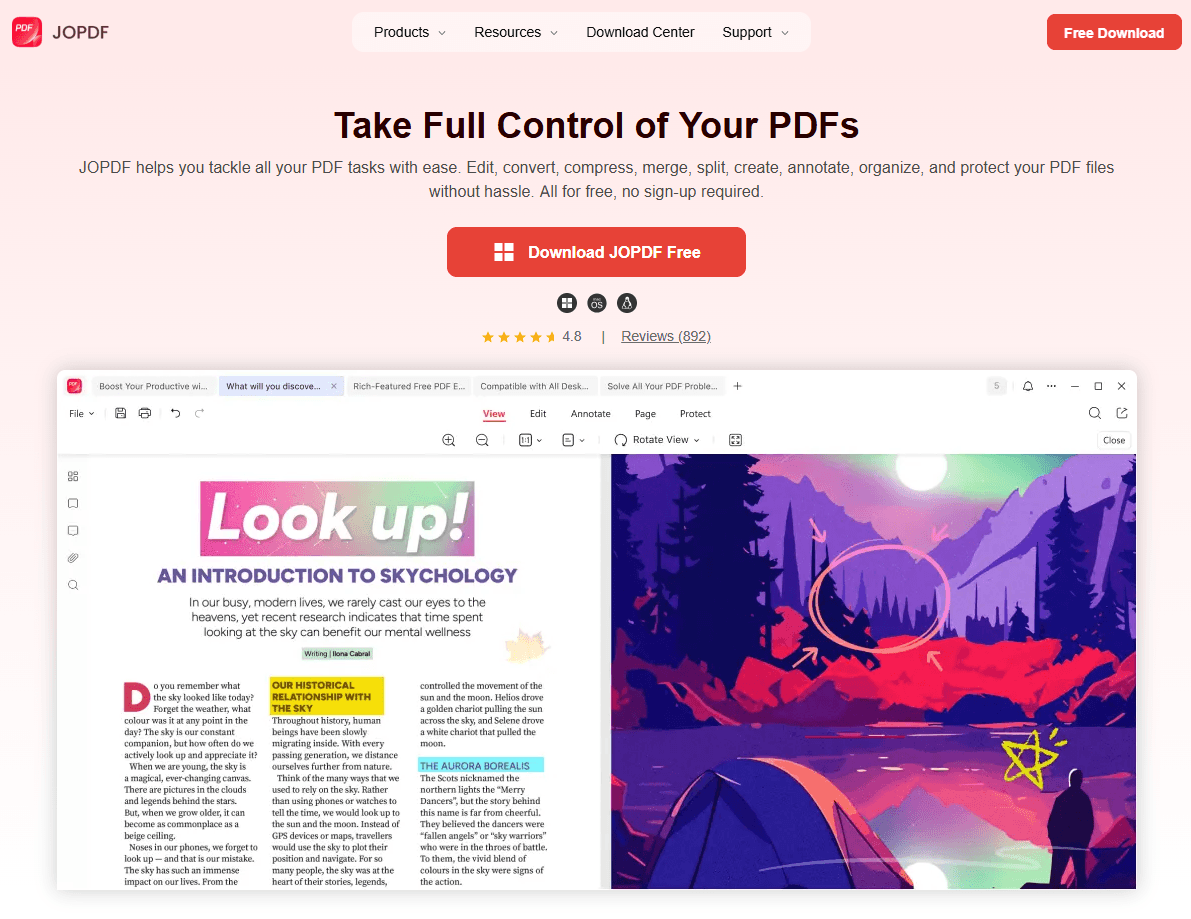
- Crop and Adjust Pages: If your manual screenshots include unwanted browser elements, use JOPDF’s crop tool to trim edges and keep only the content you need.
- Enhance Blurry Scanned PDFs: When your downloaded document appears fuzzy or pixelated, JOPDF’s annotation and bookmarking tools help you build a navigable structure around the content. For heavy visual noise, pair JOPDF with a free AI sharpening tool, then reassemble the enhanced pages.
- Merge Multiple Files: Downloaded a multi-part publication or several related documents? Drag and drop them into JOPDF to combine everything into a single, organized PDF.
- Compress Large PDF Files: Publications with high-resolution images can result in files too large to email or comfortably store. JOPDF’s batch compression reduces storage needs without sacrificing visual quality.
- Add Readability Features: Insert bookmarks, annotations, and searchable text notes to make navigation effortless, especially valuable for long reports and eBooks.
- Protect Your Archive: If you’ve compiled a personal reference library, add password encryption to prevent unauthorized access and control whether others can print or copy content.
With JOPDF, a basic download becomes a polished, professionally organized document ready for study, presentation, or long-term archiving.
Conclusion
Saving digital publications for offline reading starts with respecting the platform’s rules and the creator’s rights. The official download button remains the safest, most straightforward method to download Yumpu to PDF. When that option isn’t available, manual browser-based techniques offer a way to export Yumpu to PDF without relying on risky third-party tools.
FAQs
The safest method to convert Yumpu to PDF is to use the official download button if the publisher has enabled it. Alternatively, you can use your browser's "Print > Save as PDF" function, which serves as a free, built-in Yumpu to PDF converter free of additional software. For editing after conversion, JOPDF provides comprehensive tools to refine the output.
If a publisher has explicitly disabled downloads on a copyrighted publication, you should respect that restriction. For public content, you can try your browser's print-to-PDF function or manually capture pages. When evaluating any third-party tool marketed as a Yumpu downloader, verify it's a safe Yumpu downloader by checking for HTTPS, clean interfaces, and no personal data requests but remember that even secure-looking tools may violate copyright law if used for restricted content.
Many websites offer direct PDF download links. For pages that don't, your browser's "Print > Save as PDF" function is a universal, safe method to convert Yumpu to PDF online or save content from any other site without needing a dedicated downloader.
Yes, you can convert an EPUB file to PDF using various free tools and online converters. After conversion, JOPDF can help you edit the resulting PDF, adjusting layout, adding annotations, or helping you compress large PDF files for easier sharing.
Absolutely. Your browser's native "Print > Save as PDF" function requires no additional software or extensions. This method works on virtually any website and operating system, making it the most universally accessible way to save PDF from Yumpu and other platforms.
Table of Contents

Your Best Free PDF Expert in PDF editing, compressing, converting, annotating, protect, organizing, and more.
Free DownloadWindows · macOS · Linux

Anna
Editor
“Anna, Editor-in-Chief and PDF expert, delivers deep insights into PDF document technology trends. She is dedicated to helping readers optimize their digital lives. When not writing, Anna loves exploring local cafes and reading, blending her technical expertise with a love for storytelling.”