Summary :
VSCO is a popular photo editing software and picture app known for its VSCO aesthetic. But it doesn’t let you download others’ content directly. That’s why you need a VSCO downloader. This guide on JOPDF covers the best tools to download VSCO photos free, including online tools, extensions, and GitHub scripts for 2026.
Key Takeaways
- A VSCO downloader lets you save photos and videos from public VSCO profiles
- Most VSCO downloader online tools are free and require no login
- Browser extensions offer one-click downloads for VSCO downloader Chrome and VSCO downloader Firefox
- GitHub scripts provide bulk download capabilities for technical users
- Always respect copyright and only download public content for personal use
- Downloaded images may be compressed; use enhancement tools for higher quality
- JOPDF helps you organize and manage your downloaded VSCO collection
Part 1: What Is VSCO Downloader?
A VSCO downloader is a tool that lets you download photos and videos from publicly available VSCO profiles. It works by extracting media links and saving them to your device. These tools come in various forms: VSCO profile picture downloader HD free tools, browser extensions, mobile apps, and desktop software.
While VSCO downloader free tools are convenient, they come with several downsides:
- Ads and pop-ups: Many free VSCO picture downloader tools are cluttered with intrusive ads
- Unreliable parsing: Some tools fail to recognize VSCO links or return errors
- Quality loss: Downloaded VSCO images may be compressed or lower quality than the original
- Privacy risks: Some tools may track your activity or require unnecessary permission
- Legal gray areas: Downloading content for commercial use without permission can lead to copyright issues
Any Notice Before Using a VSCO Downloader
How to avoid these risks when using a VSCO profile picture downloader? If you really do need a VSCO photo downloader, the following tips may be helpful.
- Only download content from public profiles
- Use downloaded content for personal reference only
- Never use downloaded images for commercial purposes without permission
- Be cautious of tools that require account login or personal information
- Always credit the original creator if you share their work
- Use an ad blocker and scan downloaded files
JOPDF helps you get more information about all kinds of downloaders. Check these related articles:
- Shutterstock Downloader: Best Tools & Legal Ways to Download Images & Videos
- Pngtree Downloader Free Online Without Watermark – 4K & HD
- Best Free uDocz Downloader: Download uDocz PDF Files Online
Part 2: Best VSCO Downloader Tools Compared
Tips
A lot of effort goes into creating content, so it’s ethically important to always ask for permission before using someone else’s work commercially. Failing to do so is considered stealing and can result in account suspension or even a ban.
Here’s a quick comparison of the best VSCO picture downloader tools available in 2026:
| Tool | Type | Platform | Bulk Download | Video Support | Quality | Ease of Use | Best For |
| Spybroski | Online | Web | No | No | HD | Easy | Quick single downloads |
| Experts Tool | Online | Web | No | No | HD | Easy | Beginners |
| Tweaks for VSCO | Extension | Chrome | No | No | Full-size | Easy | Chrome users |
| VSCO and Instagram Downloader | Extension | Firefox | No | No | HD | Easy | Firefox users |
| VSCO Downloader (GitHub) | Script | Desktop | Yes | Yes | HD | Difficult | Technical users |
How to Use VSCO Downloader Online Tools?
A VSCO photo downloader typically fetches media that users have publicly shared and makes it downloadable. You can follow the following steps to download VSCO photos free.
- You copy the link of a VSCO post or profile
- You paste the link into the VSCO downloader 4K tool
- The tool extracts the media file (image or video)
- You download and save the file to your device
Most VSCO image downloader tools work directly in your browser, so you can use them on Windows, Mac, Android, or any device without installing software or logging into a VSCO account.
Part 3: VSCO Downloader Online Tools
In this part, we’ll introduce two VSCO photo downloader online tools that still work and are popular among VSCO users, including related Reddit reviews and other user experiences.
Tool 1: Spybroski
Spybroski is an online VSCO downloader that offers a straightforward approach to saving VSCO images. It doesn’t require a login and supports common image formats.
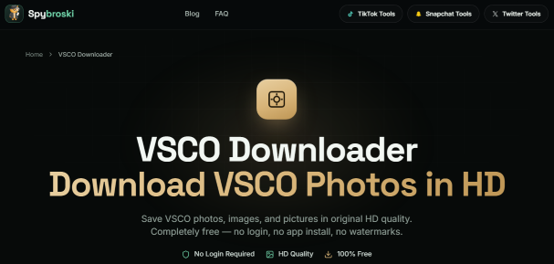
This VSCO profile picture downloader online tool worked reliably for single image downloads. We successfully get a VSCO profile picture download in under 10 seconds. The interface is clean and straightforward—you paste the link, click download, and save the image. However, we noticed that the tool doesn’t support bulk downloads, so if you need to save multiple images, you’ll have to repeat the process for each one.
Users on Reddit have mentioned that Spybroski is a “decent option for quick downloads,” though some noted that ads can be annoying without an ad blocker.
Pros
- Simple and easy to use
- No account needed
- Cross-platform support
Cons
- No bulk download feature
- Limited to photos (no video support)
- May have ads
Tool 2: Experts Tool
Experts Tool is another stable VSCO image downloader online that balances simplicity with functionality. It supports both images and videos without requiring login.
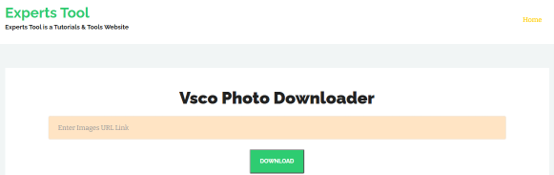
In our testing, Experts Tool worked well as a VSCO image downloader. We pasted several VSCO links and received the images in under 10 seconds each. The interface is straightforward—no confusing menus or settings to navigate. This VSCO profile downloader supports both JPG and PNG formats, and the image quality was preserved from the original.
However, we noticed that the site relies on ads to stay free, so using an ad blocker is recommended. The VSCO profile pic downloader also mentions that users can support development by turning off ad blockers or making donations.
One thing to note: Experts Tool is a general-purpose image downloader that works with many websites, not just VSCO. This means it’s versatile, but it also means the VSCO-specific parsing might not be as refined as dedicated tools.
Part 4: VSCO Downloader Extension
Different from online VSCO downloaders, the browser extensions for VSCO image and photo downloads require different operations.
- Install VSCO downloader extension from the Chrome Web Store
- Open a VSCO photo or profile page
- Click the image you want to download
- Click the download icon that appears
Tool 3: Tweaks for VSCO
Tweaks for VSCO is a VSCO downloader Chrome extension that enhances your VSCO browsing experience. It lets you view and download full-size images directly from the platform.
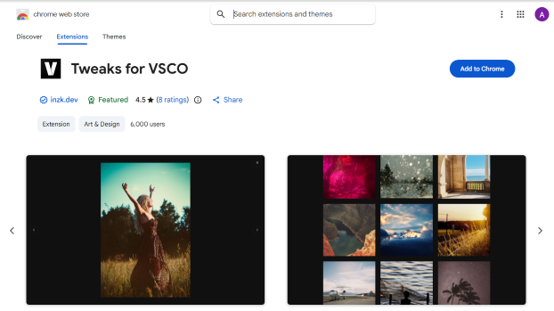
If you’re a Chrome user, Tweaks for VSCO is a game-changer. We installed it and immediately noticed the difference—images load in full resolution, and you can right-click to save them directly. The gallery viewer also lets you customize the layout and zoom in for a closer look.
Besides, the extension worked flawlessly for about 90% of the images we tried. However, a few users in Chrome Web Store reviews mentioned occasional glitches where the gallery doesn’t load properly. We didn’t experience this, but it’s worth keeping in mind if you rely on it heavily.
Pros
- Full-size image downloads
- Clean, customizable viewing experience
- No data collection
Cons
- Chrome-only (no Firefox version)
- Some users report gallery glitches
Tool 4: VSCO and Instagram Downloader
VSCO and Instagram Downloader is a VSCO downloader Firefox extension that adds a download button to images on both VSCO and Instagram. It’s a convenient option for users who switch between platforms.
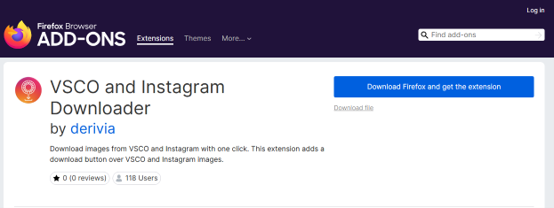
For Firefox users, this extension is a solid choice. We tested it on both VSCO and Instagram, and the download button appeared consistently on images. The download process is as simple as clicking the icon—no copying and pasting required.
The image quality was preserved, which is a big plus. However, we noticed that the extension doesn’t support video downloads, so you’ll need a different tool for that. Firefox Add-ons reviews are generally positive, with users praising its simplicity and reliability.
Pros
- Multi-platform support (VSCO + Instagram)
- One-click download
- Preserves original quality
Cons
- Firefox-only
- No video support
- Limited to individual downloads
Part 5: VSCO Downloader GitHub for Desktop
For users who need bulk download capabilities or want complete control over their downloads, GitHub hosts several VSCO downloader GitHub scripts.
One popular option is a Python-based CLI tool that scrapes and downloads images from public VSCO profiles. This VSCO downloader GitHub solution is ideal for users who need a VSCO bulk downloader.
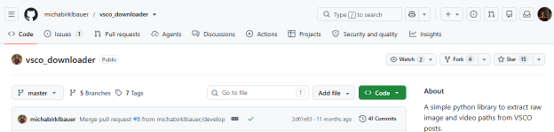
If you’re comfortable with Python and command-line tools, this GitHub script is incredibly powerful. We tested it on a public VSCO profile with over 200 images, and it downloaded everything in under 5 minutes.
The script preserves the original image quality and saves files with organized naming conventions. However, it’s not for everyone—you’ll need to install Python, clone the repository, and run the script from your terminal.
GitHub users have praised this tool for its reliability, though some noted that it requires occasional updates when VSCO changes its API.
Pros
- Free and open-source
- Bulk download capability
- Supports photos and videos
- HD quality output
Cons
- Requires Python and technical knowledge
- Command-line only
- May break with VSCO updates
Part 6: How to Download VSCO Pictures in HD?
To download VSCO pictures HD, the most reliable way is to use VSCO’s official ways to download your own content. These methods are 100% legal, safe, and preserve the highest quality.
Method 1: Download Your Own Photos via the VSCO Mobile App
This is the easiest way to save your own edited photos directly to your phone.
Step 1: Open the VSCO app and go to the Studio tab at the center of the bottom menu.
Step 2: Select the images you want to download. You can choose multiple images at once to bulk-download VSCO photos.
Step 3: Tap the Download icon (usually a downward arrow). The images will be saved directly to your device’s camera roll or gallery.
Step 4: For iOS users, you can also tap the three-dot icon and select Save to Camera Roll to save images at original quality. On Android, select the image, tap the three dots, and choose Save.
Method 2: Create a VSCO Data Snapshot (Desktop)
This method is ideal if you want to download your entire VSCO account data to your computer.
Step 1: Open VSCO on your browser and log in to your account.
Step 2: Select ACCOUNT from the bar menu.
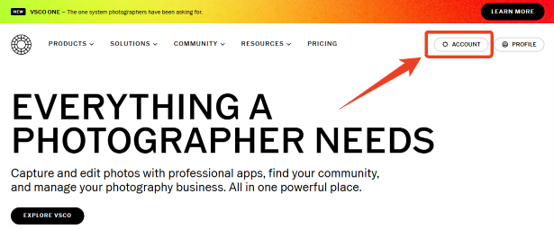
Step 3: Switch to the PRIVACY & DATA tab and click on REQUEST DATA SNAPSHOT.
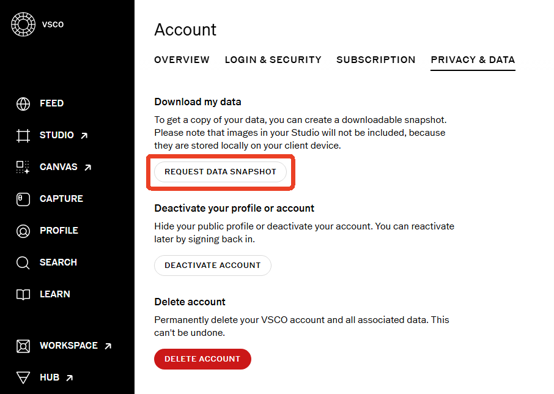
Step 4: VSCO will prepare your data snapshot. This process takes about 2 days. You will receive an email when it’s ready.
Step 5: Once notified, you have a 7-day window to download your data. The snapshot includes all your uploaded images and account information.
Part 7: What to Do After Downloading VSCO Images?
VSCO photo downloader 4K tools can help you save images from the VSCO site, but they’re not designed to manage, edit, and organize them. You may encounter some issues after free VSCO downloads. For example, downloaded VSCO images may be compressed or lower quality, so post-processing is often necessary. So, there are two things necessary for HD VSCO-style collection.
#1. Enhance and Upscale Downloaded Images
Downloaded VSCO photos from third-party tools are typically low quality due to compression and downscaling. To improve them, you can:
- Use AI image enhancers to upscale to 4K quality
- Improve clarity and detail for professional use
- Adjust brightness, contrast, and color as needed
#2. Organize Your VSCO Collection
- Create folders for different themes or creators
- Build a personal inspiration library
- Archive content for future reference
Manage VSCO Downloads with JOPDF
Want to edit, annotate, compress, convert, or combine your VSCO downloads? JOPDF is the right choice. JOPDF is a 100% free, offline PDF editor for Windows, Mac, and Linux that helps you organize and manage your VSCO image collection.

JOPDF’s Key Features:
- Free and offline: No sign-up, no watermarks, no subscriptions
- Works with all image formats: JPG, PNG, TIFF, HEIC, and more
- No file size limits: Handle large collections without restrictions
If you want to create mood boards, inspiration collections, or design portfolios from your VSCO downloads, use JOPDF to combine VSCO images into a PDF portfolio.
Step 1: Download and install JOPDF and launch it.
Step 2: Click Batch Process and choose Image to PDF.
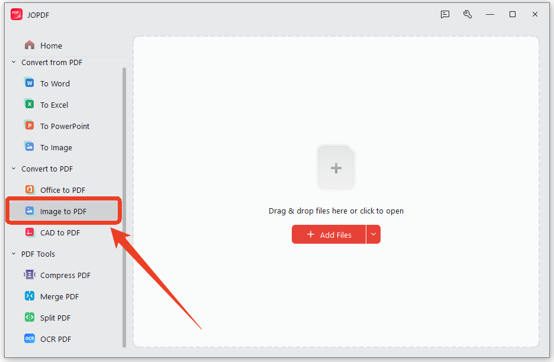
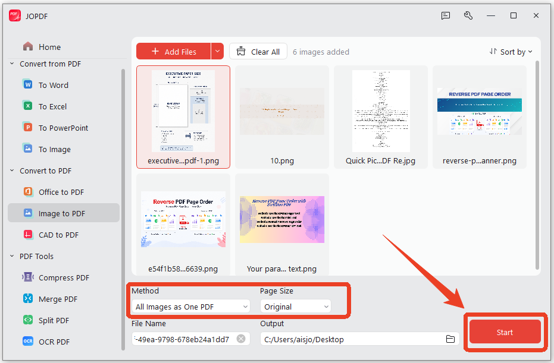
Step 3: Upload your VSCO image files and choose All Images as One PDF.
Step 4: Set your page size and then click Start to create your PDF portfolio.
Tips
You can also compress large collections for easier sharing and batch process multiple files. JOPDF allows you to crop or resize images as needed.
Conclusion
VSCO downloaders provide convenient access to public content, whether you want inspiration or an archive for future reference. The best VSCO downloader for you depends on your needs. For quick downloads, try Experts Tool or Spybroski. For Chrome users, Tweaks for VSCO offers full-size viewing. For Firefox users, VSCO and Instagram Downloader is a solid choice. And for bulk downloads, VSCO downloader GitHub scripts provide the most control.
Always respect creators and only download public content for personal use. After downloading, use JOPDF to organize, edit, and enhance your VSCO collection into a professional library.
FAQs
Table of Contents

Your Best Free PDF Expert in PDF editing, compressing, converting, annotating, protect, organizing, and more.
Free DownloadWindows · macOS · Linux

Anna
Editor
“Anna, Editor-in-Chief and PDF expert, delivers deep insights into PDF document technology trends. She is dedicated to helping readers optimize their digital lives. When not writing, Anna loves exploring local cafes and reading, blending her technical expertise with a love for storytelling.”