When hyperlinks not working in PDF derails a deadline, the fix is usually faster than expected. Switch export methods, adjust a browser setting, or open the file in JOPDF to restore interactivity in minutes. In this guide on JOPDF, we will introduce all the methods step by step. No matter if you find Word to PDF hyperlinks not working or PDF links can’t open in the browser, all your problems can be resolved here.
Summary :
Tips
A quick diagnostic confirms that do hyperlinks work in PDF for your specific file: open the PDF in a PDF editor, hover over any suspect link, and watch the cursor. If it switches from an I-beam to a pointing hand, the annotation exists and some other factor blocks the action. If the cursor never changes, the annotation was never created.
Why Hyperlinks Not Working in PDF?
Before following platform-specific solutions, matching your symptom to the most probable cause prevents chasing the wrong fix.
| Symptom | Likely Cause |
| Links operate in Adobe Reader but not Chrome/Edge | Browser sandbox restricts external actions |
| Blue underlined text, cursor remains I-beam | Link annotation missing entirely |
| Links tested fine, then all failed after re-saving | Compression stripped interactive elements |
| TOC internal links dead, external URLs functional | Heading-to-bookmark conversion broken |
| Click produces no response whatsoever | Security settings block all connections |
Hyperlinks Not Working in PDF From Word or Excel
Office-to-PDF conversion remains the most frequent source of hyperlinks not working in PDF. The critical distinction sits between two export methods:
- “Print to PDF” flattens everything into static page content, discarding interactive elements entirely
- “Save As PDF” preserves the document object structure and carries hyperlink data into the PDF annotation format.
If your workflow relied on Print to PDF, the resulting dead links have one cause and one correction.
How to Fix Word to PDF Hyperlinks Not Working
Method 1: Correct the Export Settings in Word
This method resolves Word to PDF hyperlinks not working by ensuring the conversion process preserves link annotations.
Step 1: Open the original .docx file and hold Ctrl while clicking any Table of Contents entry.
Step 2: Go to File > Save As and select PDF (*.PDF) from the file type dropdown. Do not choose any printer-based option.
Step 3: Click the Options… button. Under “Include non-printing information,” check Create bookmarks using: Headings. Select Standard optimization.
Step 4: Save the PDF, open it in Adobe Reader (not a browser), and test the first three TOC links. If any fail, confirm heading styles are correctly applied in the source document and repeat.
Method 2: Rebuild Links Directly in the PDF
When the source document is unavailable or hyperlinks not working in PDF from Word continues despite correct export settings, add links inside the PDF itself.

JOPDF – The Best Free PDF Editor
 User Rating: 4.8
JOPDF Is a 100% free POF editor for Windows, macOS, and Linux. Edit text, add images, annotate, sign, and more. No limits, no ads, no subscriptions, Fast, simple, and powerful, take full control of your PDFs in seconds!
Step 1: Open the PDF in JOPDF and select the Edit tab.
Step 2: Choose the Link tool from the toolbar.
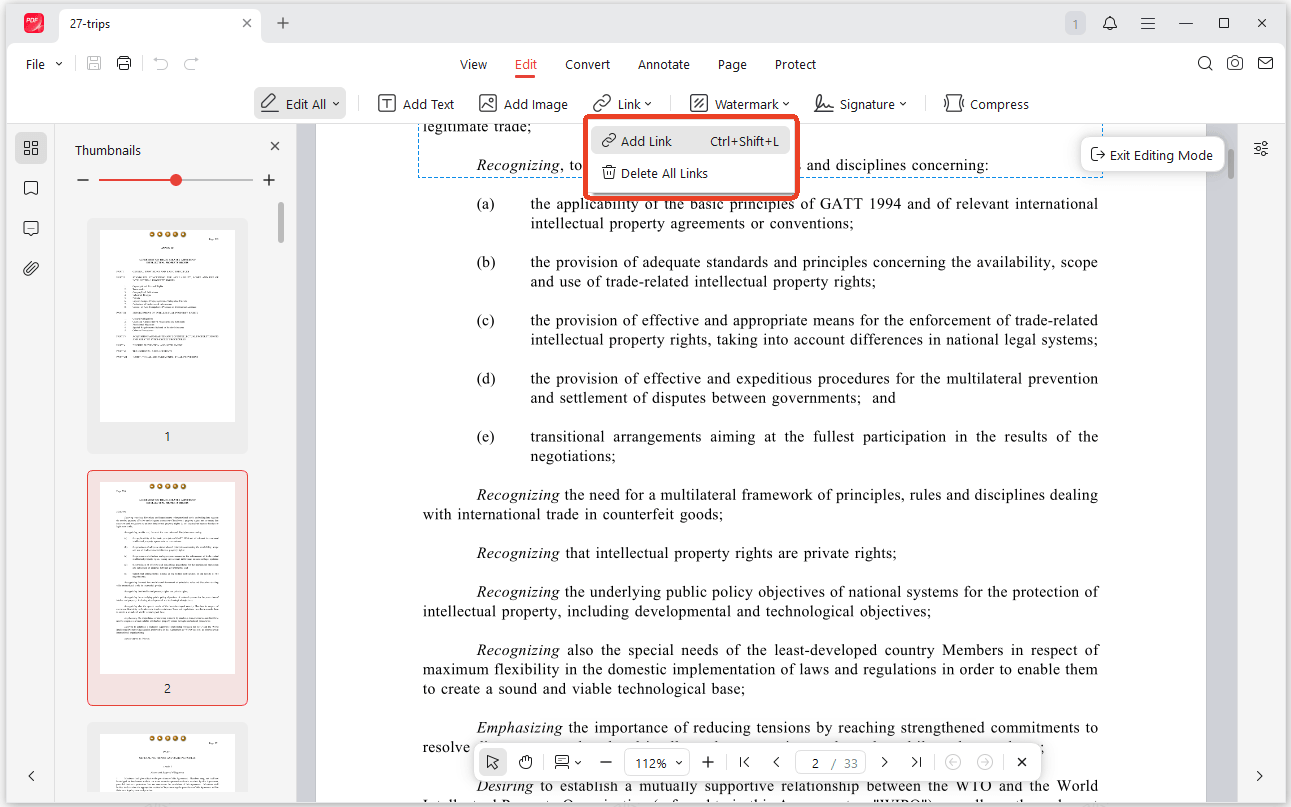
Step 3: Draw a rectangular hotspot over each dead link text and assign the correct URL or page destination in the dialog that appears.
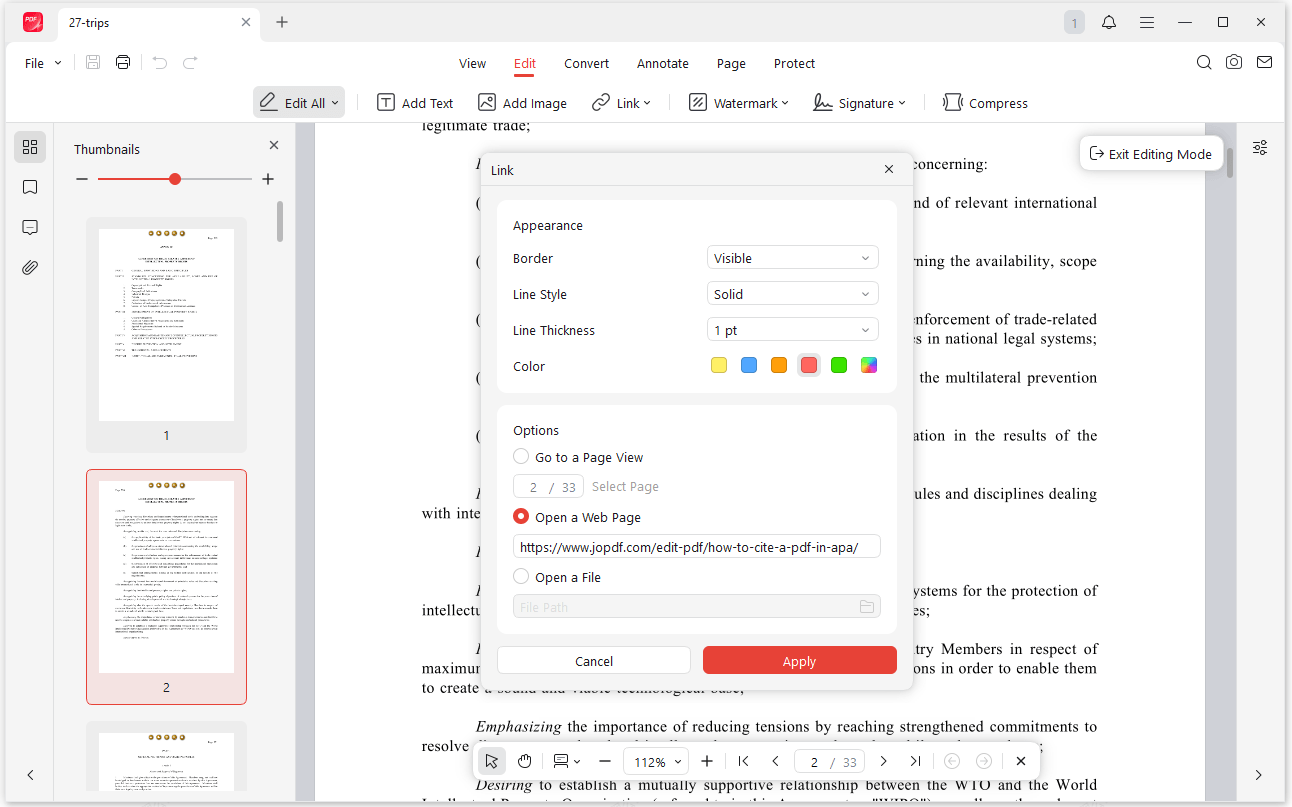
Step 4: Save the file using File > Save As with Standard optimization and test all restored links.
How to Fix Hyperlinks Not Working in PDF From Excel
Method 1: Configure Print Area and Export
Step 1: Go to Page Layout > Print Area > Set Print Area and select a range that encompasses every cell containing a hyperlink.
Step 2: Create a temporary helper column using =HYPERLINK(cell_reference) and export a test PDF via File > Save As > PDF.
Step 3: Open the exported PDF in a desktop PDF reader. If helper column links work but original links do not, the original cells used cosmetic formatting without actual hyperlink structures.
Method 2: Use an External Converter
JOPDF’s Key Features:
-
Batch convert PDFs to Word, Excel, PowerPoint, or image formats
-
Compress PDF file sizes
-
Maintain image and text quality
-
Highlight, underline, or strike through text
-
Add or remove watermarks
-
Password-protect PDFs
-
100% free with no watermarks
-
Cross-platform support for Windows, Mac, and Linux
-
No signup required, and no hidden fees
Step 1: Open the .xlsx file directly in JOPDF, which parses Office formats natively.
Step 2: Choose Batch Process > Office to PDF and export to PDF using JOPDF’s conversion tool.
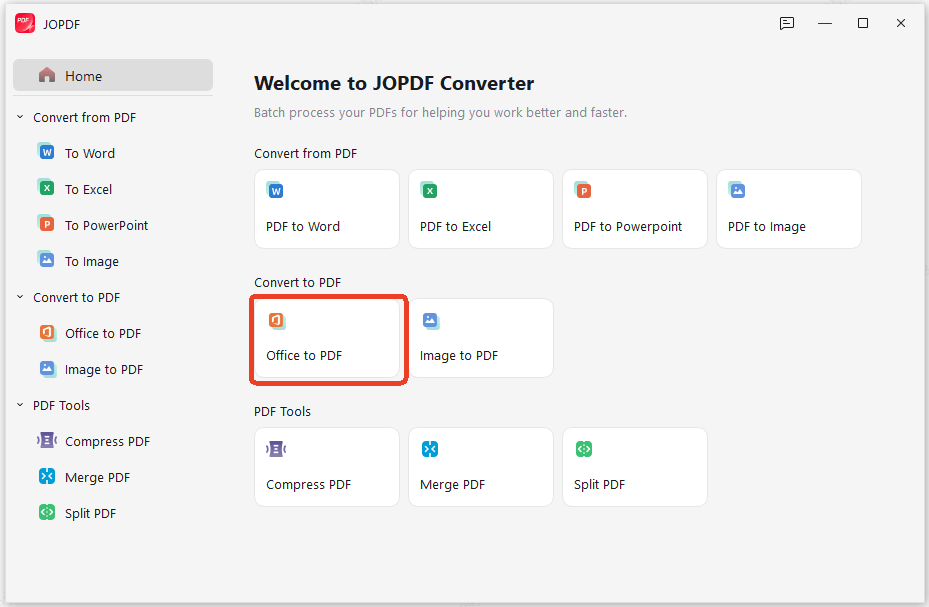
Step 3: Verify each link by hovering and clicking. If hyperlinks not working in PDF from Excel persists, manually add links using the Link tool described in Method 2 above.
Related Article: How to Batch Convert Multiple PDFs Without Losing Quality
Hyperlinks Not Working in PDF After Saving
A document passes initial testing, all links click through perfectly. However, when you apply mirror edits, like a typo fix, a date update, and upon re-saving, every link stops responding entirely.
Hyperlinks not working in PDF after saving typically traces to the editor’s default compression settings. Many PDF editors apply size optimization during save, restructuring the file and discarding annotation objects. Some editors flatten surrounding interactive elements when modifying text.
How to Fix Hyperlinks Not Working in PDF After Saving
Method 1: Configure Save Settings Before Editing
Step 1: Search for the pre-edit PDF where links functioned. If found, open that version.
Step 2: In your original PDF editor, disable any option labeled Fast Web View, Optimize for web, or Reduce file size on save. Set the default save method to Standard.
Step 3: After making text edits, use File > Save As (not Ctrl+S) to create a new file with current optimization settings.
Step 4: Open the newly saved file and test multiple links immediately. If working, distribute this version and discard the broken one.
Method 2: Restore Links Manually
When the original file is gone, and hyperlinks not working in PDF after saving has already occurred, re-add links directly.
JOPDF’s Key Features:
-
Edit text and images directly in PDFs
-
Insert and manage hyperlinks
-
Add, remove, or replace images
-
Draw shapes, lines, and custom designs
Step 1: Open the affected PDF in JOPDF and select the Edit tab.
Step 2: Choose the Link tool and draw a rectangular hotspot over each dead link.
Step 3: Set the action to Open a web link or Go to a page view and enter the destination.
Step 4: Save using File > Save As with Standard optimization. JOPDF preserves annotations through saves by default, preventing recurrence.
Also See: Garbled Text in PDF? 7 Proven Ways to Fix It (Step-by-Step Guide)
Fix the “Can’t Open Links in PDF” Problem in Browsers
Opening a PDF in Chrome or Edge often displays the document perfectly, but clicking any external link produces no response. Downloading the same file and opening it in Adobe Reader allows every link to work.
This pattern points to browser sandbox restrictions, not a problem with the PDF itself. Modern browser PDF viewers block actions that navigate away without a recognized intentional gesture, and JavaScript-dependent links get blocked entirely. If you encounter links in PDF not working exclusively in-browser, the viewer policy is the obstacle.
How to Fix Can’t Open Links in PDF
Method 1: Override the Browser Restriction
For Chrome users, follow the next steps to fix the PDF links not working issue:
Step 1: Right-click the non-functional link and select Open in new tab. If this works, a popup blocker intercepted the left-click.
Step 2: Go to Settings > Privacy and security > Site Settings > Additional content settings > PDF documents.
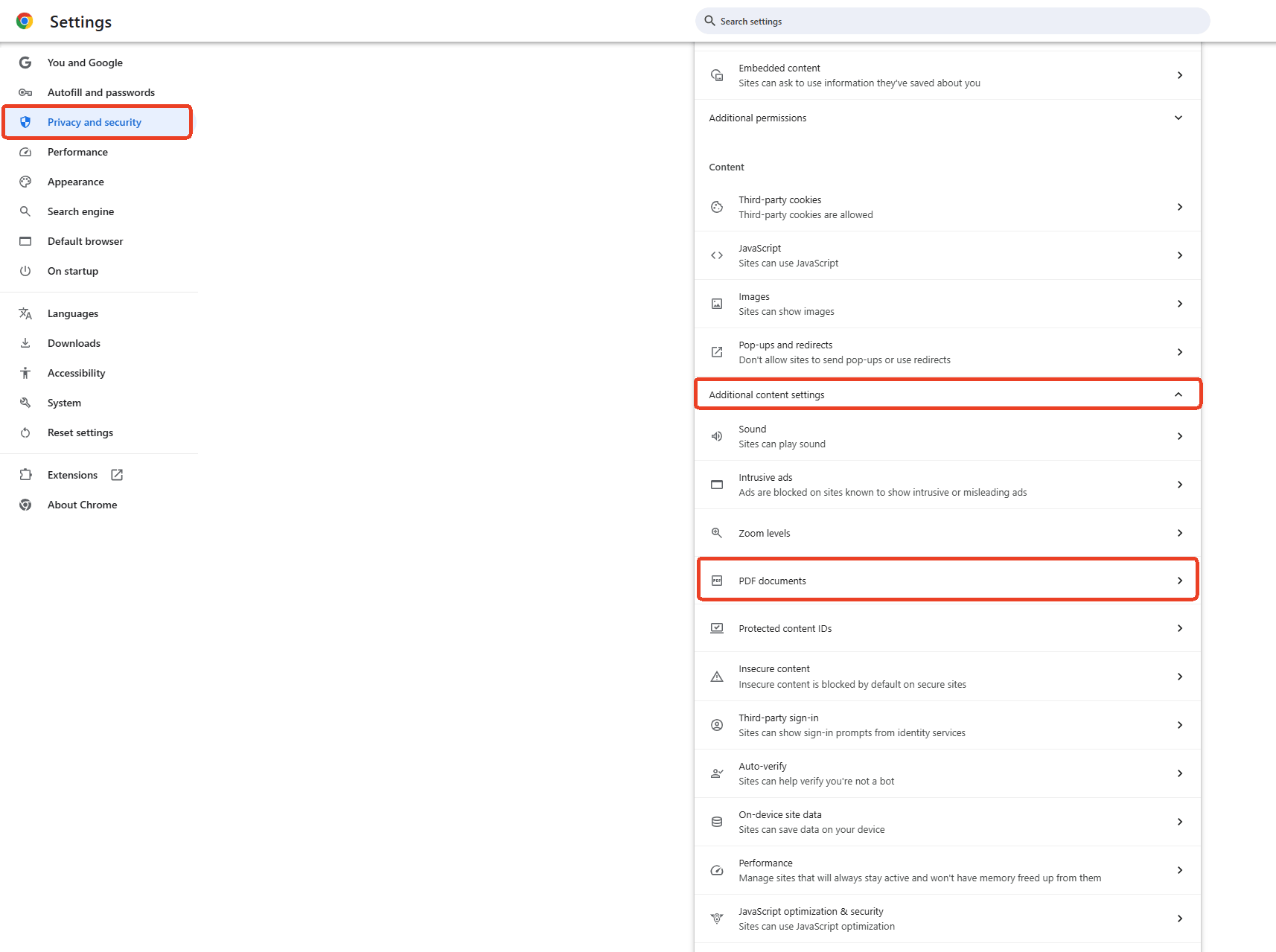
Step 3: Toggle off Open PDFs in Chrome to force download instead of preview.
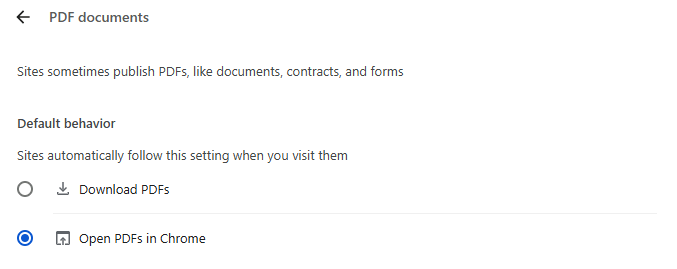
Step 4: Open the downloaded file in Adobe Reader or JOPDF and test links.
For Edge users, follow the next steps to fix the PDF links not working issue:
Step 1: Right-click the non-functional link and select Open in new tab.
Step 2: Go to Settings > Privacy, search, and services > Site permissions > All permissions > PDF documents.
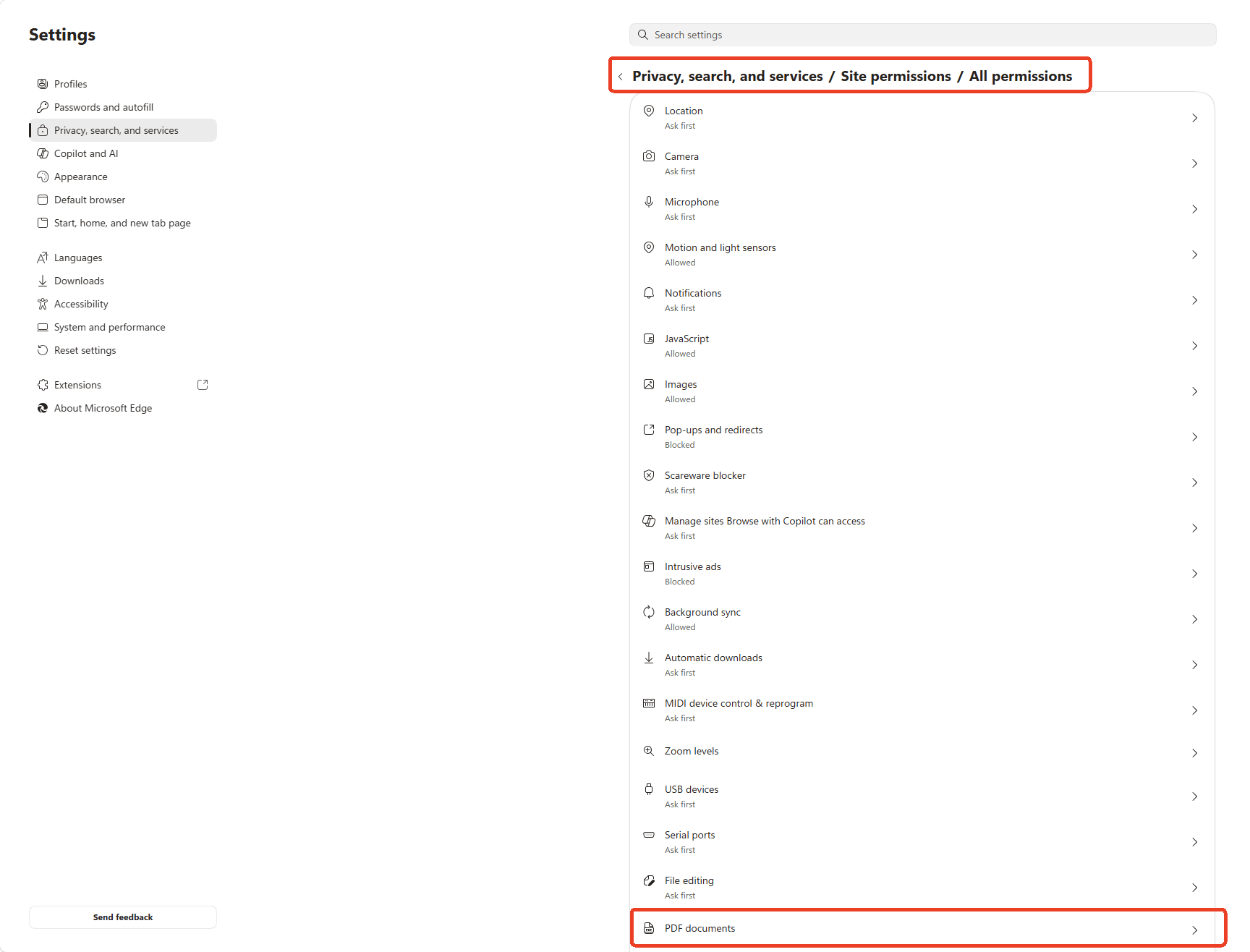
Step 3: Toggle off the PDF viewer setting to force download.
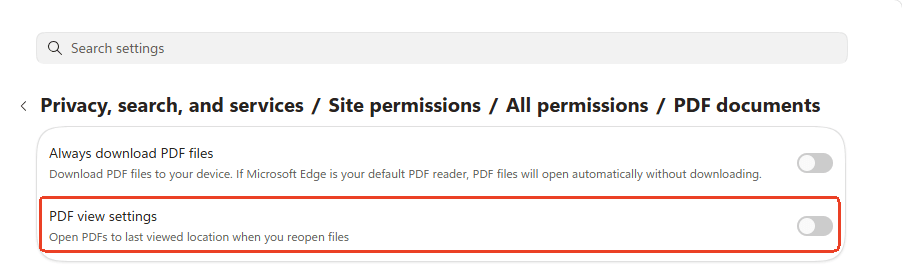
Step 4: Open the downloaded file in a desktop PDF reader and test links.
For Safari users, follow the next steps to fix the PDF hyperlinks not working issue:
Step 1: Right-click (or Ctrl+click) the link and select Open Link in New Tab.
Step 2: If links still fail, download the PDF by clicking the download icon in the PDF toolbar.
Step 3: Open the downloaded file in Preview or Adobe Reader to bypass Safari’s built-in viewer restrictions.
Method 2: Adjust Document Settings for Browser Compatibility
Step 1: When creating PDFs intended for browser viewing, open the document in your PDF editor.
Step 2: Set all link actions to Open a web link with a plain URL destination rather than JavaScript-based navigation.
Step 3: Save and test in Chrome, Edge, and Safari to ensure PDF links not working complaints do not arise from browser users.
JOPDF: A Permanent Fix for PDF Hyperlink Issues
The patterns above share a common thread: PDF hyperlinks are fragile when they depend on conversion settings, browser permissions, or editor save behavior.
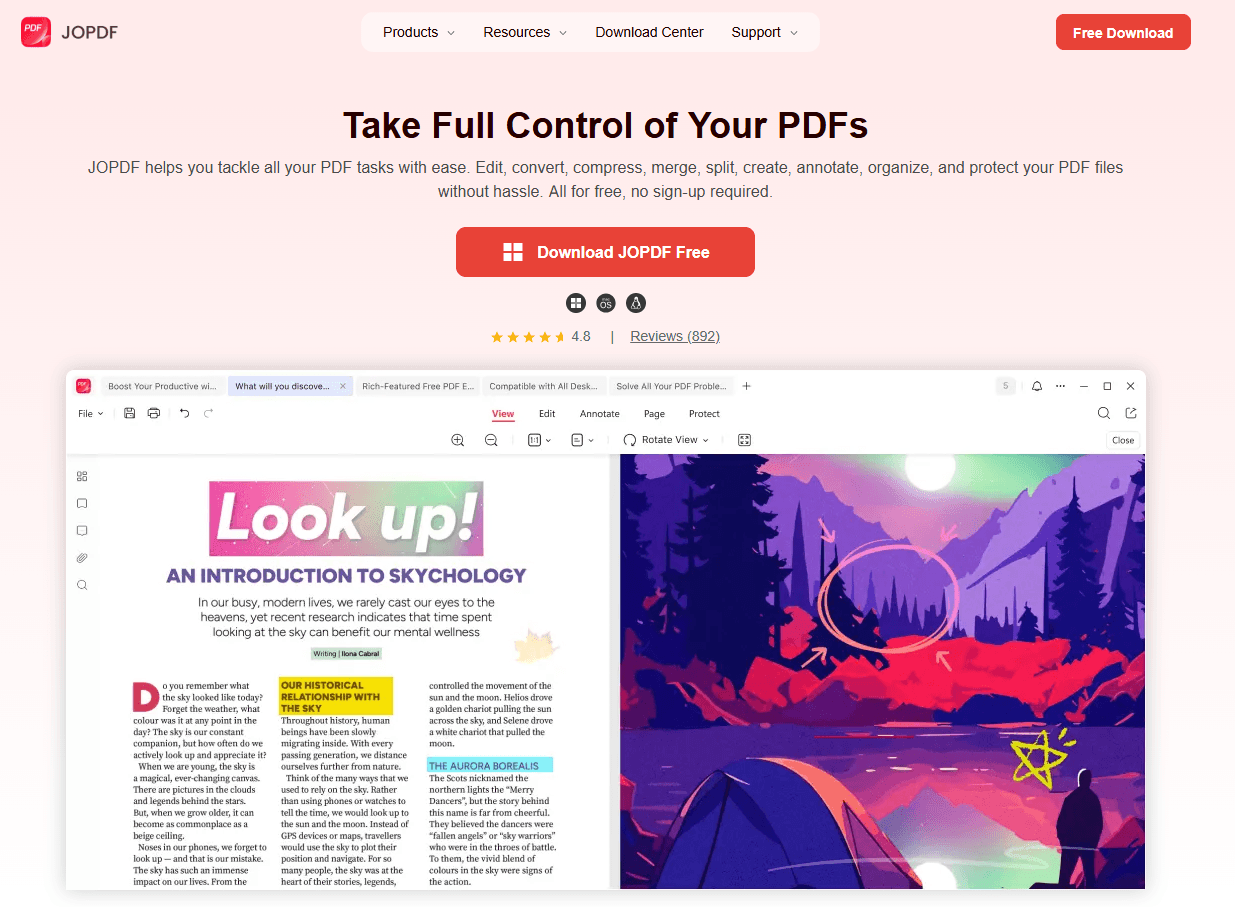
JOPDF is a dedicated PDF editor that treats links as persistent, testable objects, embedding them as structural elements rather than temporary annotations that compression may discard. Links added in JOPDF remain clickable after re-saving, email attachment, compression, and across every major reader, including browser-based viewers.
Key features for hyperlink management:
- Native link creation: Draw hotspots over any text or image, assign destinations, and save with confidence that links persist.
- Batch navigation tools: Apply identical buttons across multiple pages in one operation.
- Save-integrity guarantee: Default save mode preserves all interactive annotations.
- Office format ingestion: Open Word or Excel files directly; JOPDF converts with link retention.
- Link verification panel: View all hyperlinks as a list, check destinations, and test inline.
Also See: 6 Best Free PDF Creators for Windows 10/11 (No Watermark & Easy to Use)
Conclusion
Hyperlinks not working in PDF typically stems from three causes: an export method that discards annotations, a browser sandbox that blocks actions, or a save routine that strips interactive elements. Each has a targeted fix.
- Word/Excel conversion: Use Save As > PDF (never Print), enable “Create bookmarks using Headings” in Word, and confirm print area in Excel. If Word to PDF hyperlinks not working persists, rebuild links directly in JOPDF.
- Post-save failures: Disable compression options before editing, always use Save As, and restore lost links with the Link tool.
- Browser blocks: Right-click to open links in new tabs, or change settings to download PDFs instead of previewing.
- Permanent solution: Build links inside JOPDF, where annotations persist through saves, compression, and all viewing environments.
FAQs
The visual styling survived conversion, but the clickable annotation object did not. Hover over the text if the cursor remains an I-beam, the link in PDF not working is merely decorated text. Re-apply the link using a PDF editor to create the missing annotation.
Yes. Do hyperlinks work in PDF on phones and tablets? In any modern reader app, a properly constructed link opens the destination. If it fails on mobile but works on desktop, check the app's security settings. If it fails on both, the annotation is missing.
Free readers lack a built-in validator. In JOPDF, the Link List panel displays every hyperlink destination in one view for rapid identification of broken entries.
Open .xlsx files directly in JOPDF for conversion with link retention, or export a flat PDF from Excel and add hyperlinks afterward for full visual confirmation. Both approaches eliminate the guesswork of whether hyperlinks not working in PDF from Excel will resurface.
Yes. Google crawls text and hyperlinks within PDFs. If your PDF hyperlinks not working, those links lose SEO value. Intact annotations preserve both user experience and search visibility.
Table of Contents

Your Best Free PDF Expert in PDF editing, compressing, converting, annotating, protect, organizing, and more.
Free DownloadWindows · macOS · Linux

Anna
Editor
“Anna, Editor-in-Chief and PDF expert, delivers deep insights into PDF document technology trends. She is dedicated to helping readers optimize their digital lives. When not writing, Anna loves exploring local cafes and reading, blending her technical expertise with a love for storytelling.”