![4 Free Ways | How to Edit PDF on Windows [2025 Latest]](https://b.jopdf.com/wp-content/uploads/2025/10/how-to-edit-pdf-on-windows.png)
Summary :
PDF files are great for compatibility and sharing, but editing them? That’s often where you hit a wall. When you need to fix a typo, add extra notes, or make other changes in a PDF, finding the best PDF editor may be a pain. What if you want it to be free or to edit PDF files easily, like you would in MS Word? No more sweat and learn the 4 ways outlined in this article to see how to edit a PDF on Windows laptops or PCs without paying anything!
Way 1: How to Edit a PDF on Windows for Free with JOPDF
JOPDF is a cool, completely free PDF editor software available for Windows. It allows you to edit a PDF file on laptops or desktop PCs with all-around editing abilities. No hidden upgrade version and all is free. The program lets you:
- Add and tweak text, images, links, and pages directly in your PDFs.
- Access the smooth note-taking feature to add sticky notes, text comments, colored highlights, shape drawings, and many more.
- Rearrange pages and add or remove PDF protection.
How to edit a PDF on Windows 10/11 and older Windows 8/7 faster with minimal fraction.
Step 1: Download and install JOPDF for Windows or Mac, and click Open PDF to open your file.
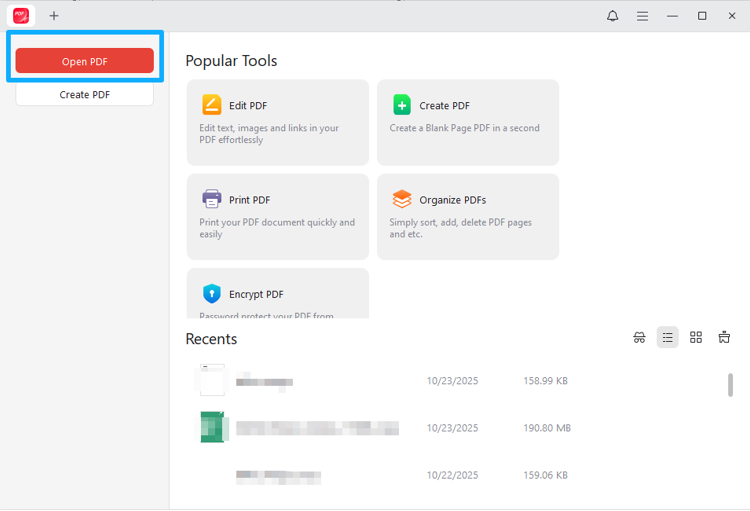
Step 2: Go to the Edit tab and click the Edit All drop-down menu.
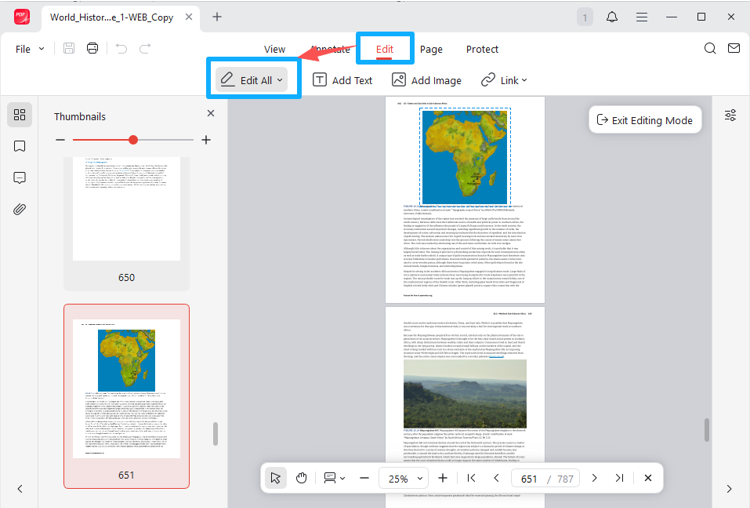
Step 3: All content becomes editable, and start to edit the PDF on Windows.
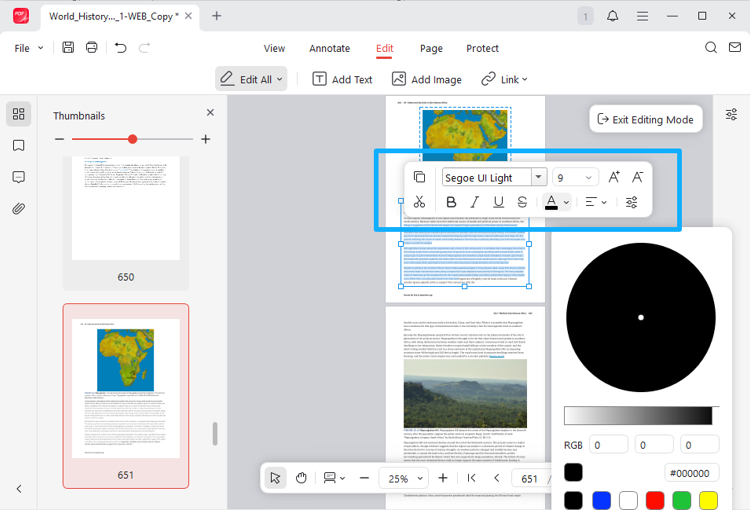
Edit PDF text: select the text you want to modify, and choose your preferred formatting from the mini bar, such as size, font, and alignment.
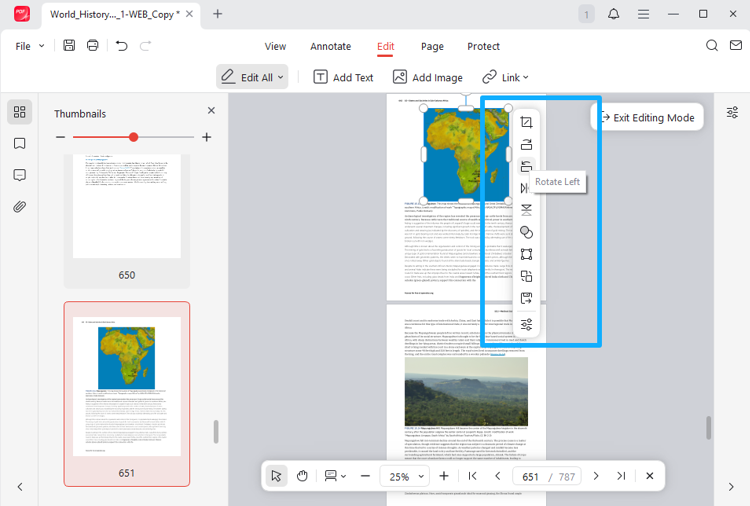
Edit PDF image: select an image and use the vertical toolbar to resize, rotate, crop, flip, or do more to edit it. You can use the Add Image tool to add images to the PDF.
Edit PDF link: choose Link under the Edit tab, and draw around text to add a hyperlink to the PDF. You can link the text to a web page or a page within the file.
Step 5: When you have finished all edits with the best PDF editor app, click the Save button.
Way 2: Edit a PDF for Free on Windows in Microsoft Edge
A good second is to edit a PDF on Windows in Microsoft Edge. Unable to edit the existing content, but its PDF viewing and annotating capabilities are nice. For just adding text, comments, highlights, and freehand lines, the Edge browser is good enough. You can also go with it for regular reading and searching.
Here is how to use Microsoft Edge as your Windows PDF editor program to edit a PDF for free.
Step 1: Right-click the PDF, choose Open with, and select Edge to open it.
Step 2: Drag over specific text, and click the Add comment option to open a comment box.
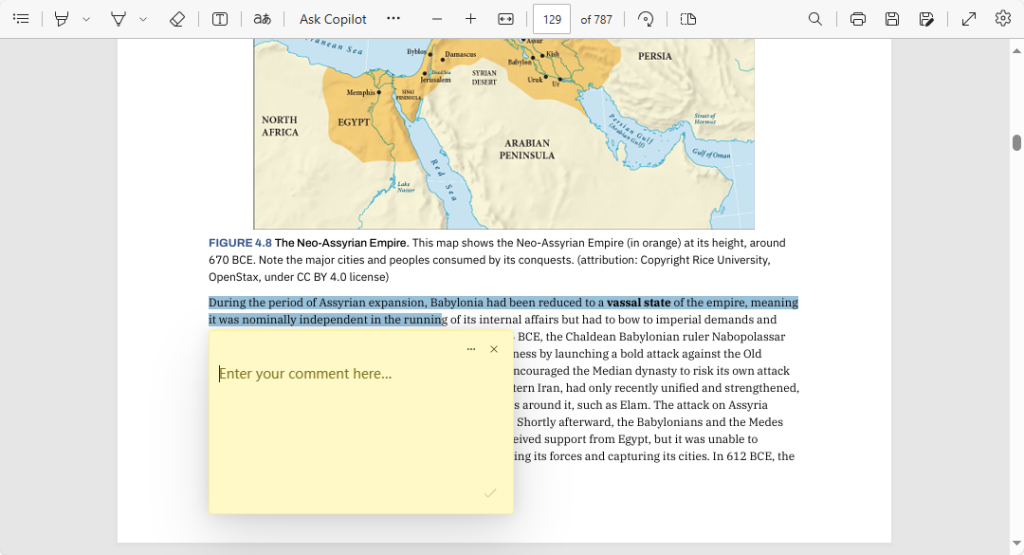
Step 3: Add your note or comment, and click the check mark to save it.
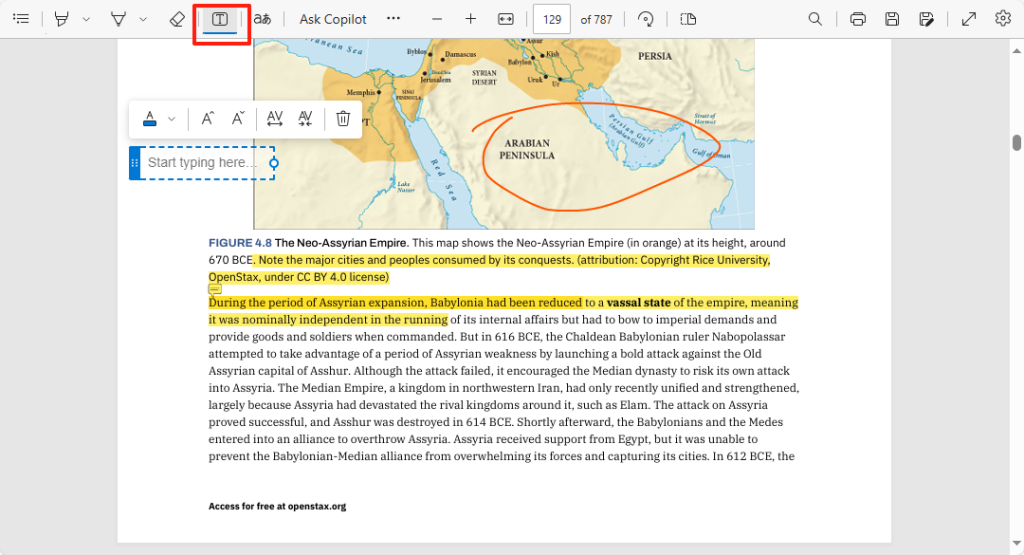
Step 4: Click the Draw option in the toolbar to draw lines, and click the highlighter pen to highlight text.
Step 5: You can also choose the Add text tool to edit the PDF document on your laptop or PC.
Step 6: Click the Save as button to save the edited PDF.
Way 3: How to Edit a PDF File on Windows Using Microsoft Word
Office product users have a free way to edit a PDF on Windows. The MS Word program allows you to open PDF files as Word documents, so you can edit a PDF in Word and save it back to PDF. You don’t have to ask for more third-party software. But Word lacks pop-up PDF note-taking and other functions.
Dig into how to edit a PDF for free with the Word app on a Windows laptop or PC.
Step 1: Launch Word, go to File > Open, and select your PDF to open it.
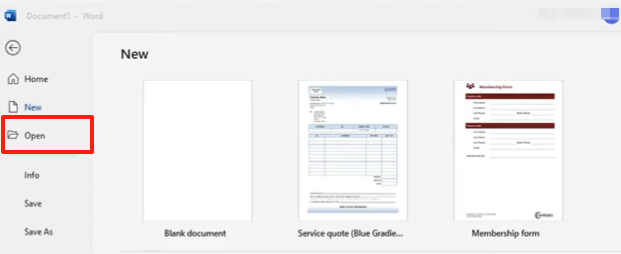
Step 2: Confirm the conversion from PDF to Word by clicking OK.

Step 3: Now you can start your Windows PDF editing freely, just like how you edit a Word file.
Step 4: When you’re done, use the Save as option to save the edited version.
Way 4: How to Edit PDF Files on Windows with Sejda
Windows users, regardless of version (Windows 10, 11, or earlier), can edit PDF files with Sejda. The online platform lets you avoid downloading anything or signing up. It also comes with a cleaner and intuitive interface. The tool is quick and lets you edit PDF forms with form-filling options.
Glimpse at how to edit a PDF on Windows with this method. The limit for free accounts: up to 50 MB per file.
Step 1: Visit the online Sejda PDF editor in your browser.
Step 2: Click the Upload PDF file button to upload the PDF you desire to edit.
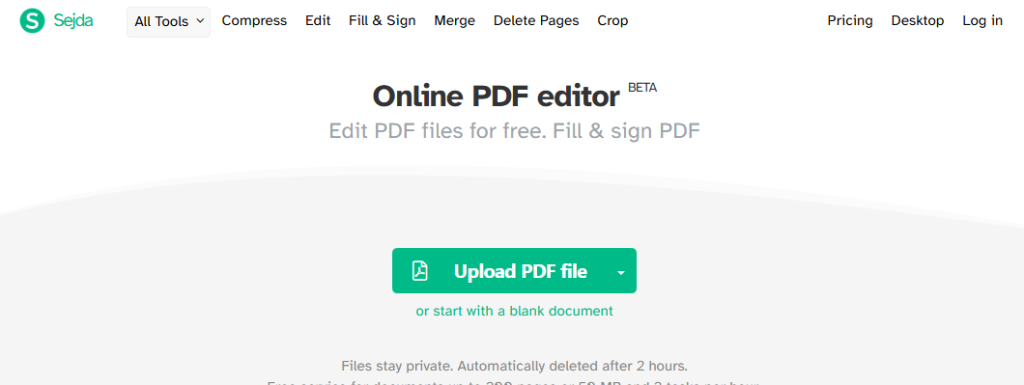
Step 3: Select the Text tool, and you can edit the original text line by line, or add text to the PDF.
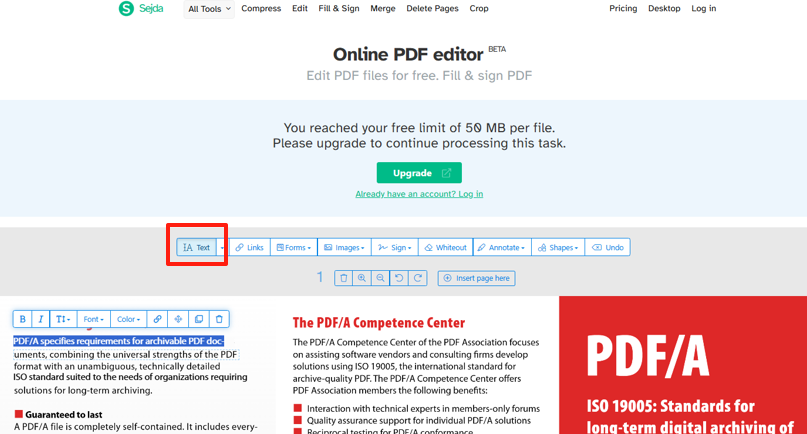
Step 4: Click the Annotate, Images, or Shapes button to mark up, or add notes.
Step 5: Click Apply changes after you’ve edited all necessary parts, then download the file.
Conclusion
When you come across a file in PDF format, JOPDF is your go-to free Windows app to edit PDFs. It is also one of the best PDF editors for Mac. Actually, if all you need is to insert or add new or supplementary content, any free PDF application with annotation features should work. You don’t have to purchase a real PDF editor. Hope this post helps you with how to edit a PDF on a Windows computer.
To edit a locked PDF, unlock the PDF first with JOPDF, and then access the editing tools.
FAQs
Table of Contents

Your Best Free PDF Expert in PDF editing, compressing, converting, annotating, protect, organizing, and more.
Free DownloadWindows · macOS · Linux

Selena
Staff Editor
“Selena is a staff editor working for JOPDF, passionate and committed to providing how-to and round-up articles. Over 8 years of specialized skills and experience in PDF solutions, hoping to help users ease their lives and solve whatever they encounter. "Work smarter, not just harder!"”
![Discover How to Make a Fillable PDF in Word [Detailed Guide]](https://b.jopdf.com/wp-content/uploads/2026/10/how-to-make-a-fillable-pdf-in-word.png)